
Learn how to convert hundreds of simple products into variable products in WooCommerce using WP Sheet Editor. This method allows you to update product types, configure attributes, and generate variations in bulk without editing products one by one.
This is especially useful when you initially created products as simple products and later realized customers need to select options like size or color on the product page.
For example, imagine you created 200 T-Shirts as simple products. Converting them manually in WooCommerce would take hours. With WP Sheet Editor, you can do it in minutes using a spreadsheet interface.
Table of Contents
Install WP Sheet Editor
WP Sheet Editor displays all your WooCommerce products in a spreadsheet, allowing you to edit product data in bulk using advanced tools like Bulk Edit, Search, and Create variations.
Skip this step if you already have the plugin installed.
You can download the plugin here:
Download WooCommerce Products Spreadsheet Plugin - or - Check the features
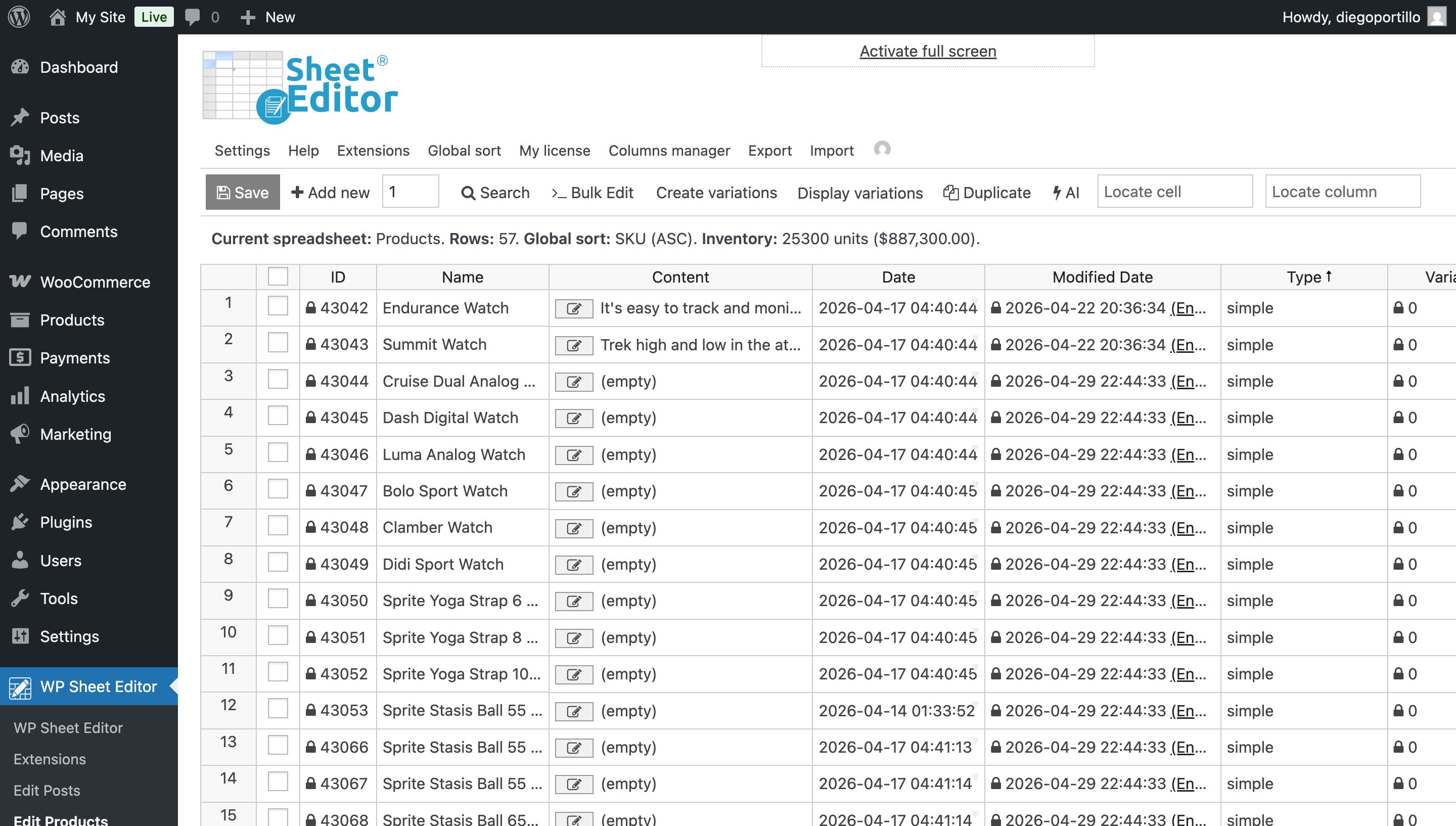
Once you install the plugin and activate your license, go to WP Sheet Editor > Edit products, and you will see all your products and their data in a spreadsheet.
Step 1. Convert simple products into variable products
The first step is to change the product type from simple to variable. Youu can do it directly in the spreadsheet or in bulk.
Option 1: Convert products directly in the spreadsheet
Scroll horizontally until you find the Type column, and replace the value simple with variable for all the products you want to convert.
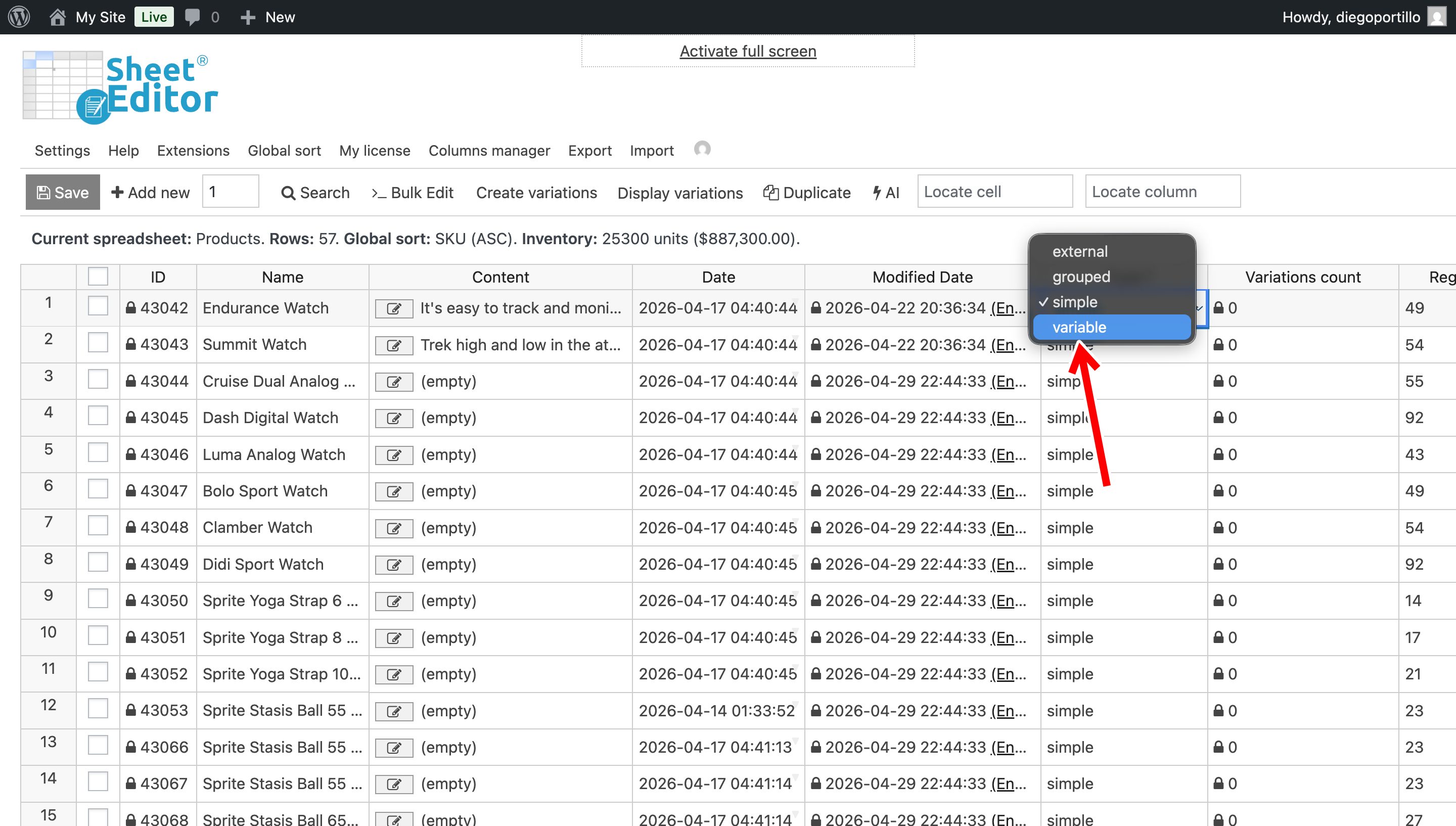
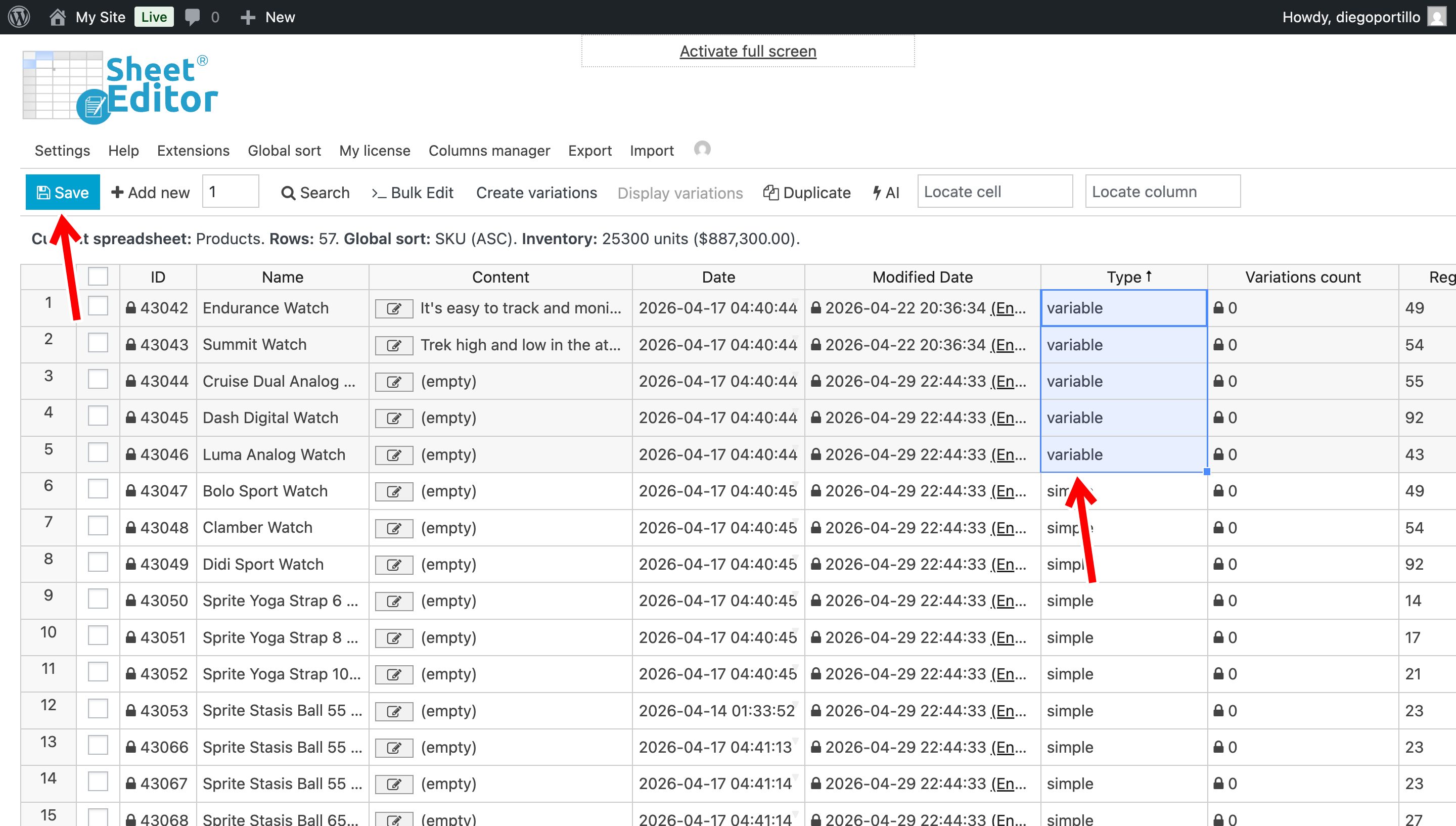
You can do this for many products at once since WP Sheet Editor allows bulk editing directly in the spreadsheet.
Option 2: Convert products in bulk
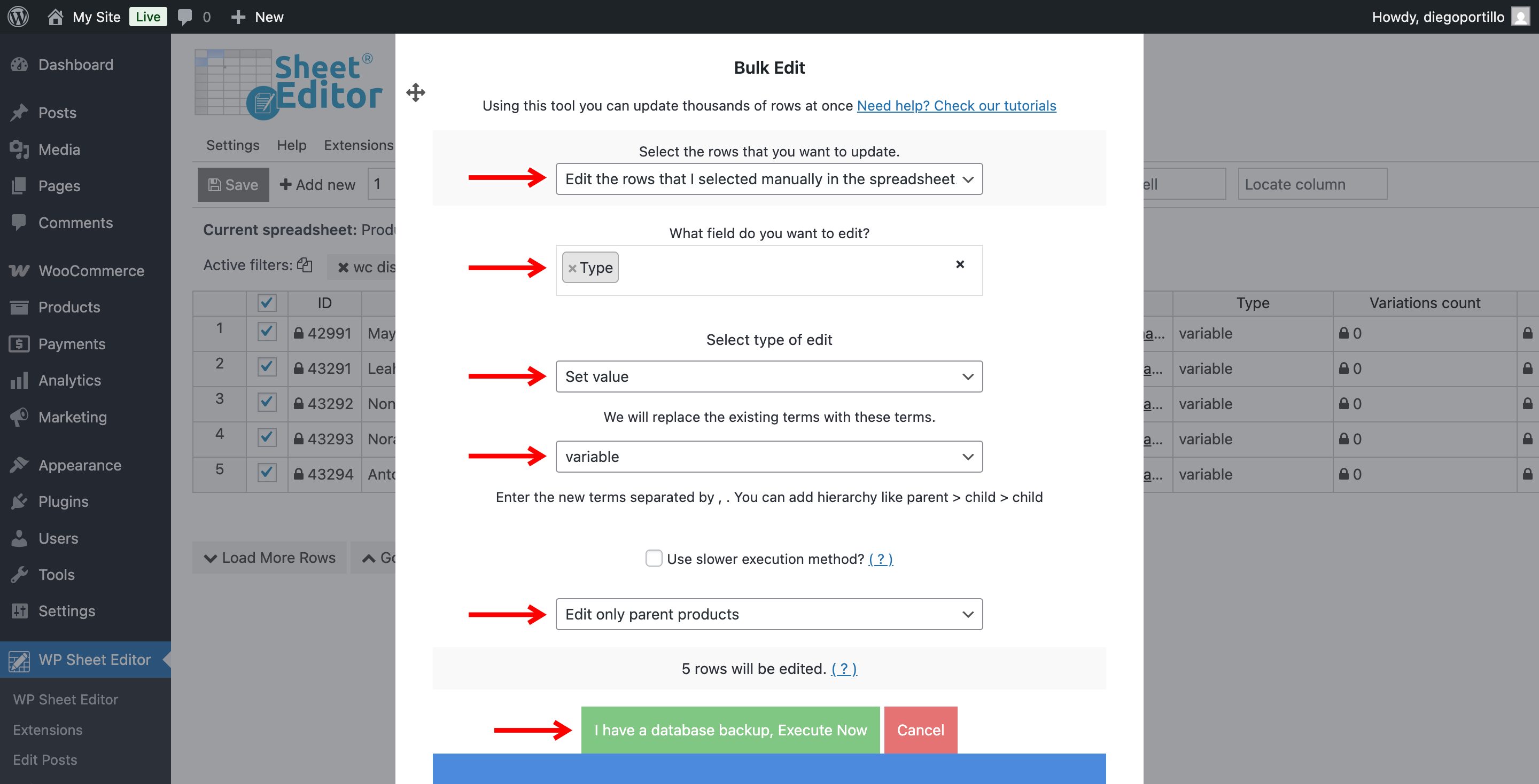
If you want to do it in bulk, you can manually select all the products you want to modify or use the Search tool to filter the products. Once you have selected/filtered the products, open the Bulk Edit tool and select these values:
- Select the rows that you want to update: This depends on if you have manually selected the products or filtered them with the search tool.
- What field do you want to edit: Type
- Select the type of edit: Set value
- Replace existing value with this value: Variable
- Select Edit only parent products.
- Click on Execute Now.
Step 2. Make sure the product attributes are used for variations
After converting products to variable, you must ensure that the attributes are configured correctly and marked as Used for variations. Otherwise, WooCommerce will not generate variations.
There are three different ways to do this depending on your workflow.
Option 1: Edit attributes individually in the spreadsheet
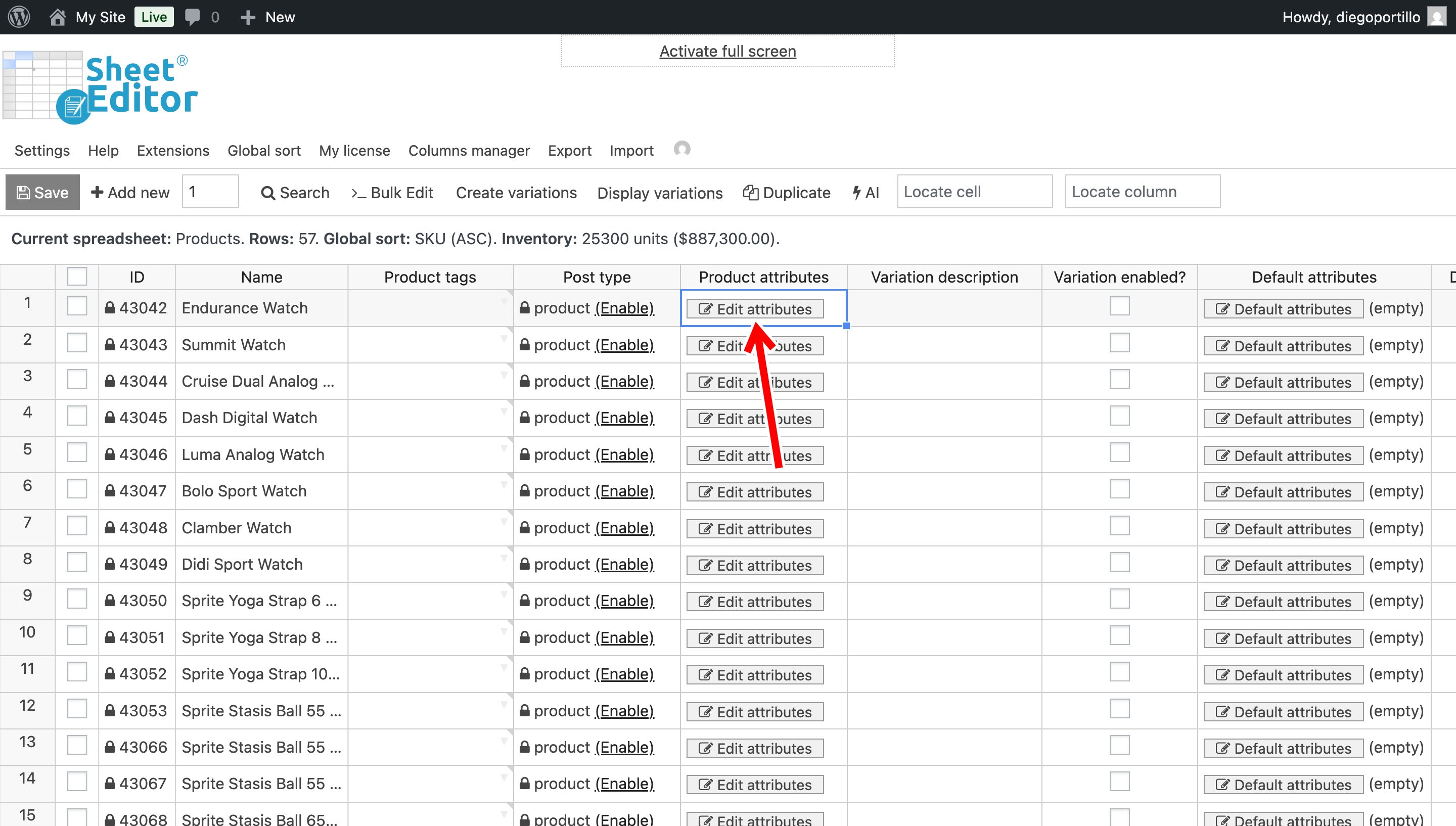
Go to the Product attributes column and click Edit attributes for any product.
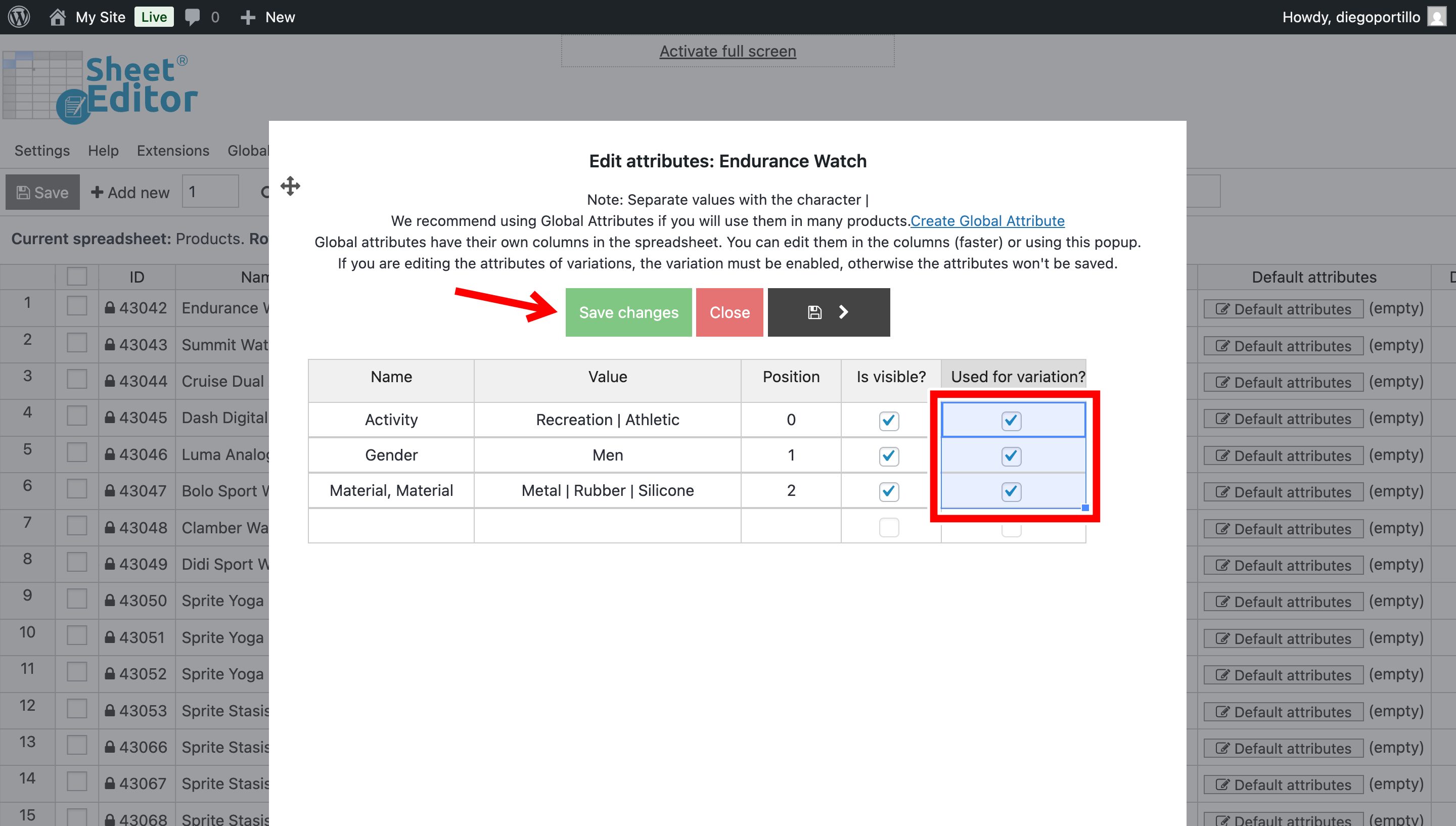
Then enable the Used for variations checkbox in all the attributes you want to enable for variations, and click on Save changes. You will need to repeat this with every product.
Option 2: Edit manually selected products
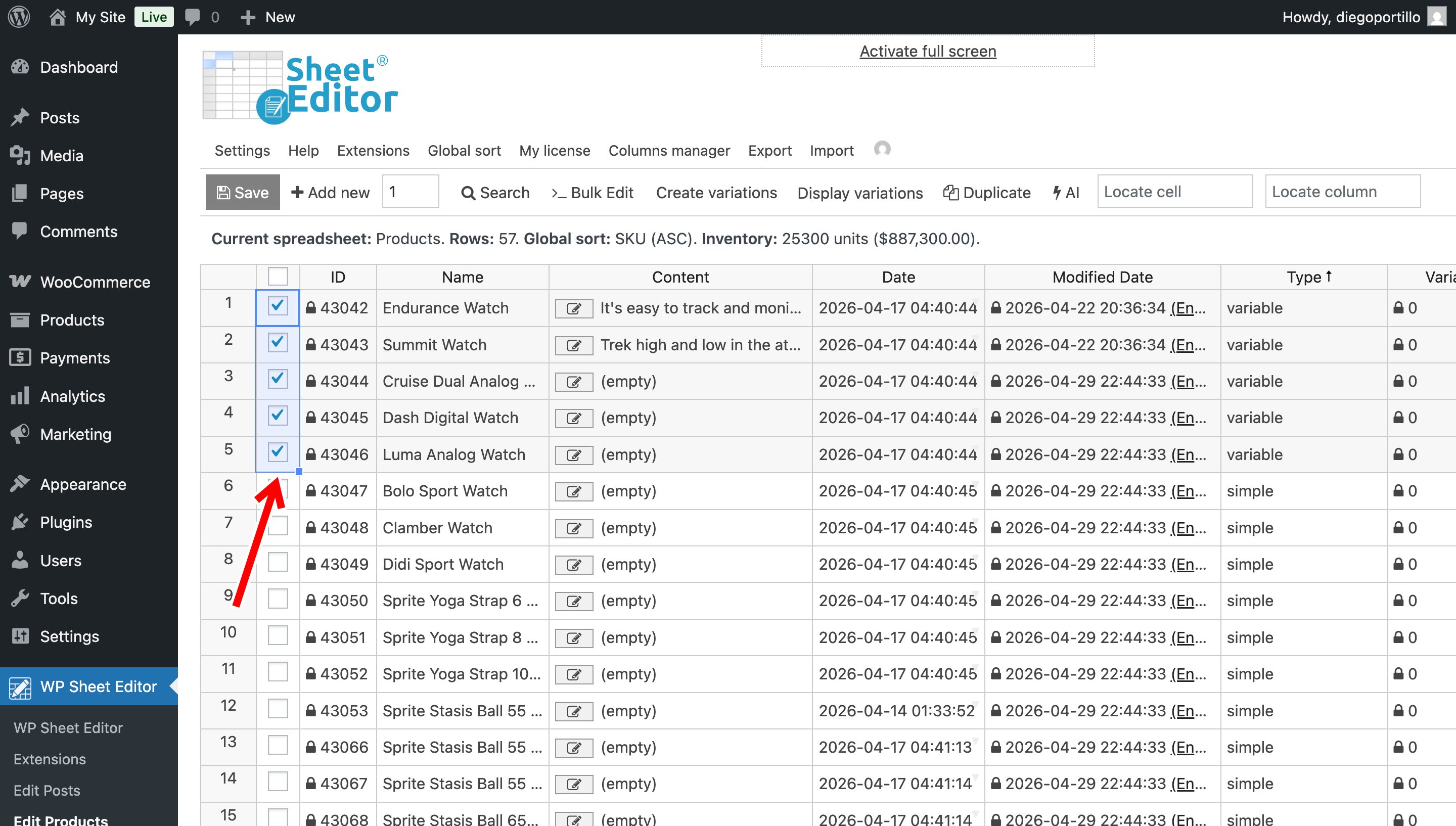
If you want to update multiple products at once, you can select them using the checkbox selector in the spreadsheet and then open the Bulk Edit tool.
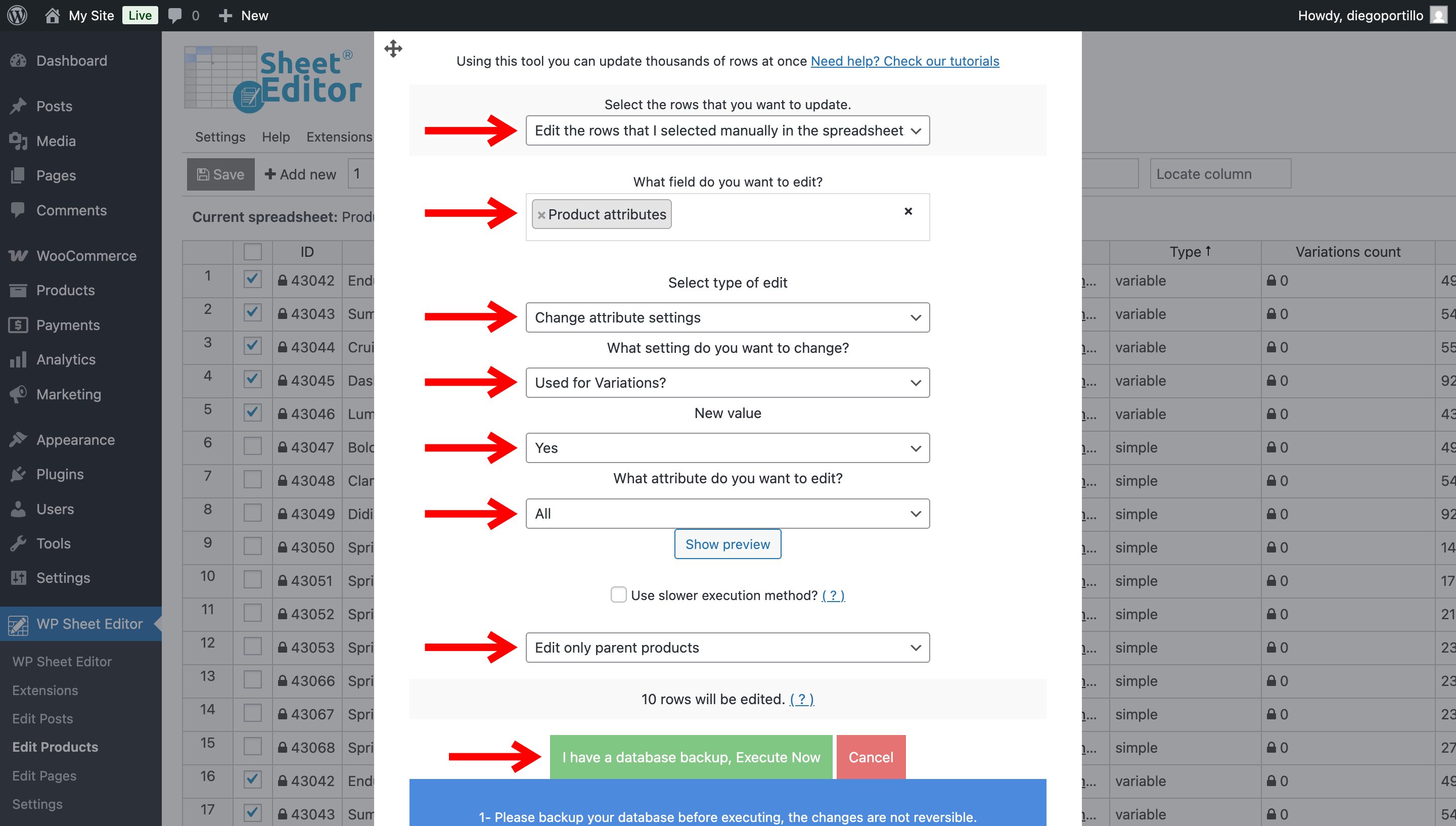
In the Bulk Edit tool, configure the values to enable the Used for variations option for all selected products and execute the change:
- Select the rows that you want to update: Edit the rows that I selected manually in the spreadsheet
- What field do you want to edit: Product attributes
- Select type of edit: Change attribute settings
- What settings do you want to change: Used for variations
- New value: Yes
- What attribute do you want to edit: You can select specific attributes or All attributes.
- Select Edit only parent products.
- Click on Execute Now.
Option 3: Edit all variable products missing variations
You can also filter products that are variable but still don’t have variations created.
Use the Display variations dropdown and select the option to Only display variable products that have no variations.
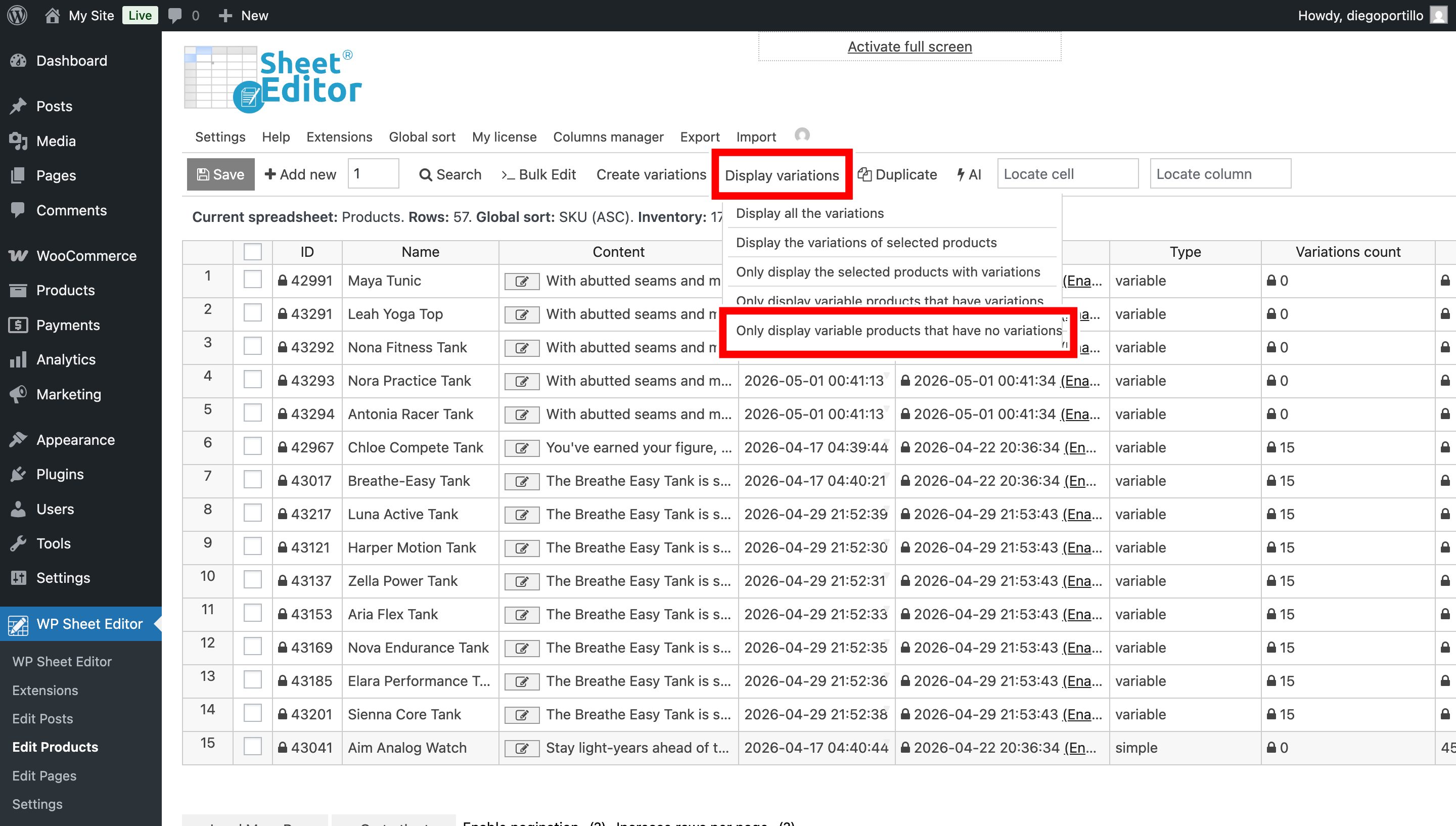
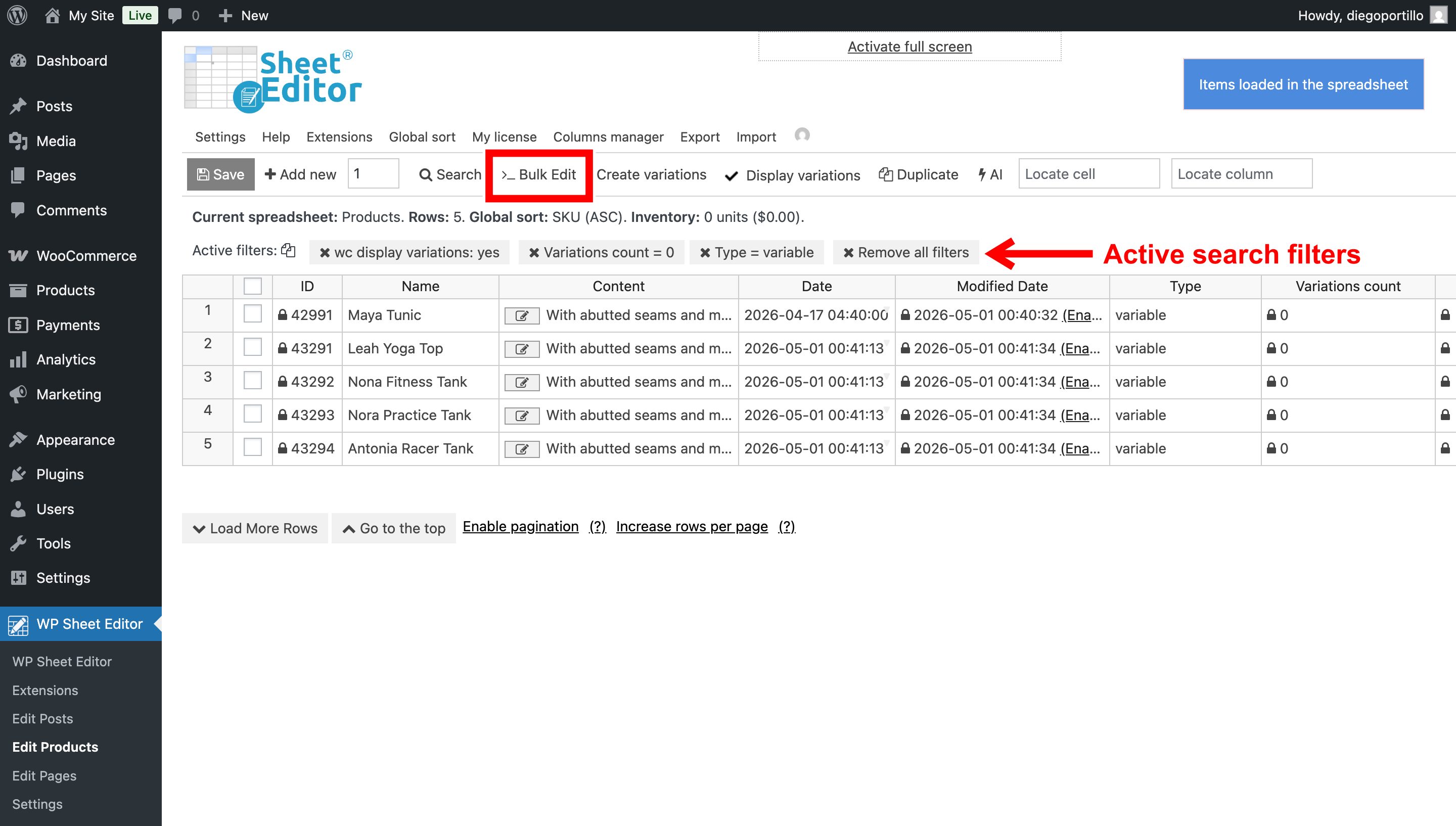
The filtered products will appear in the spreadsheet, and you will see the active search filters above it.
You need to open the Bulk Edit tool.
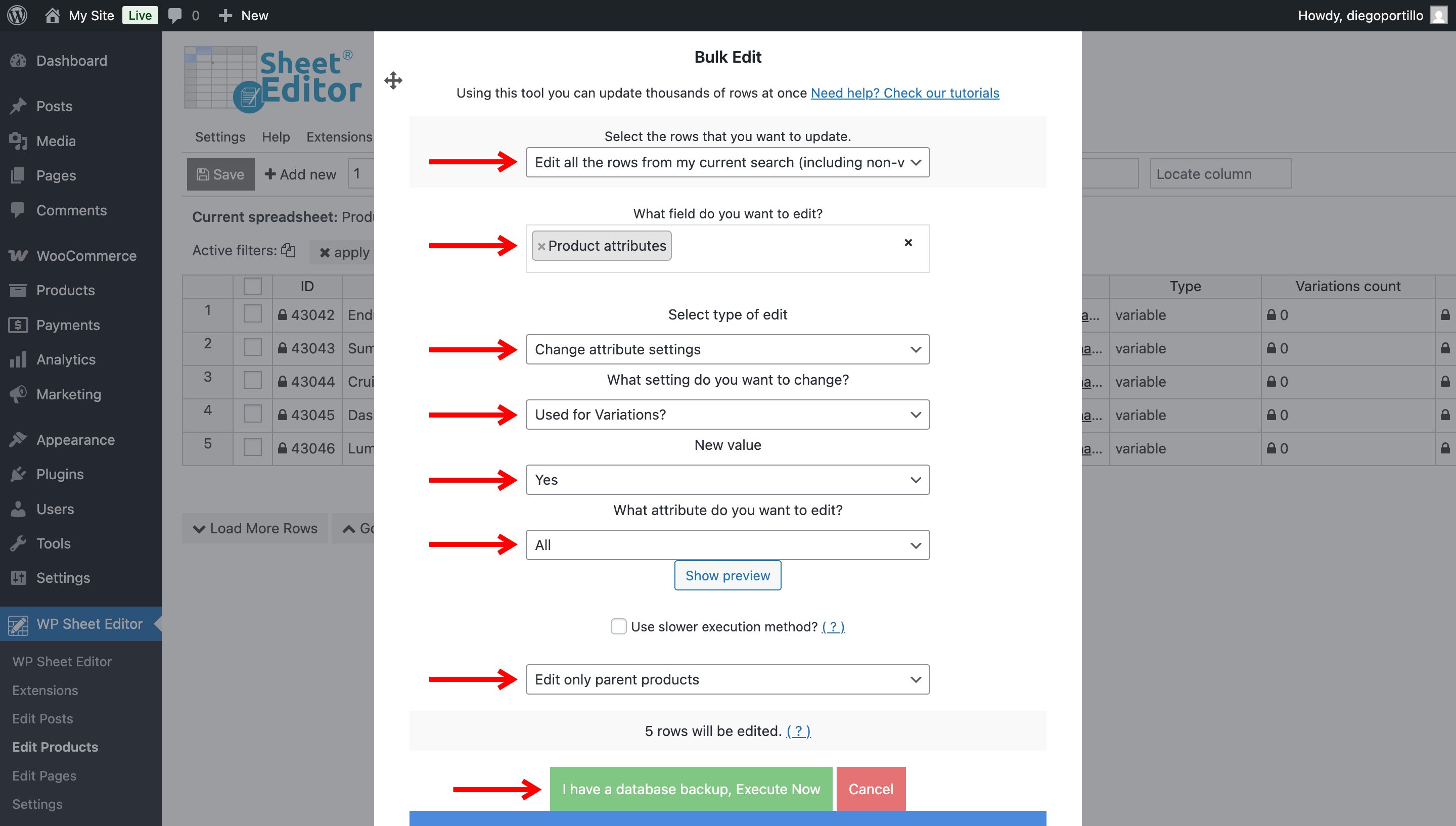
Once in the bulk editor, apply these values to enable Used for variations for all filtered products:
- Select the rows that you want to update: Edit all the rows from my current search
- What field do you want to edit: Product attributes
- Select type of edit: Change attribute settings
- What settings do you want to change: Used for variations
- New value: Yes
- What attribute do you want to edit: You can select specific attributes or All attributes.
- Select Edit only parent products.
- Click on Execute Now.
Step 3. Create variations for all converted products
Once your products are variable and attributes are properly configured, you can generate variations in bulk.
Open the Create variations tool from the toolbar.
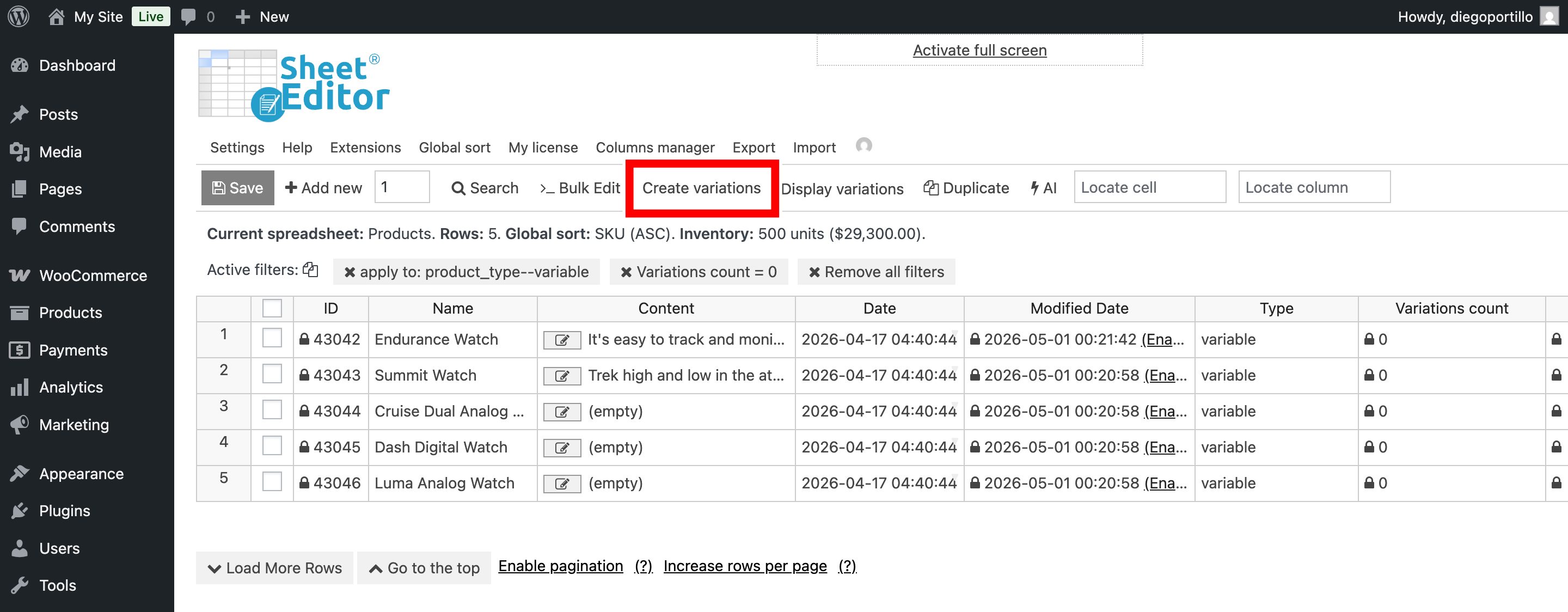
Click the Create variations button (not the copy option).
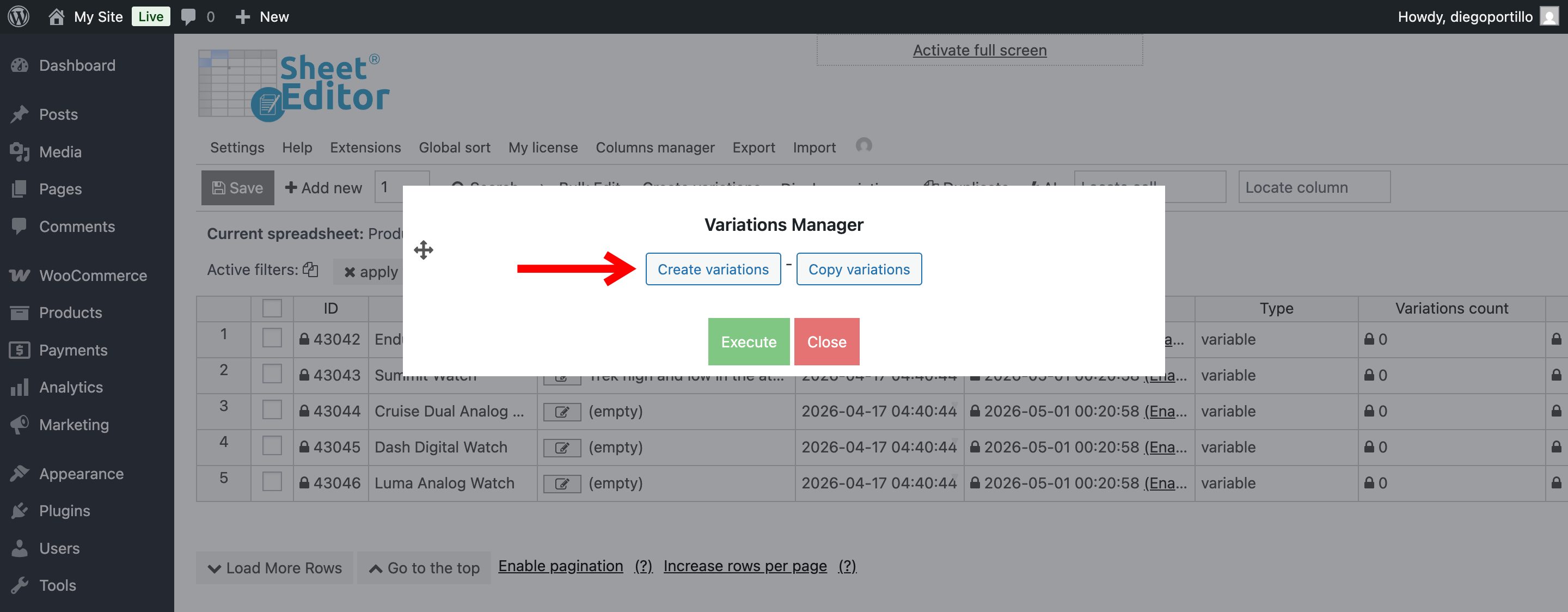
In the The variations are for these products field, choose the Select all the products from a search option.
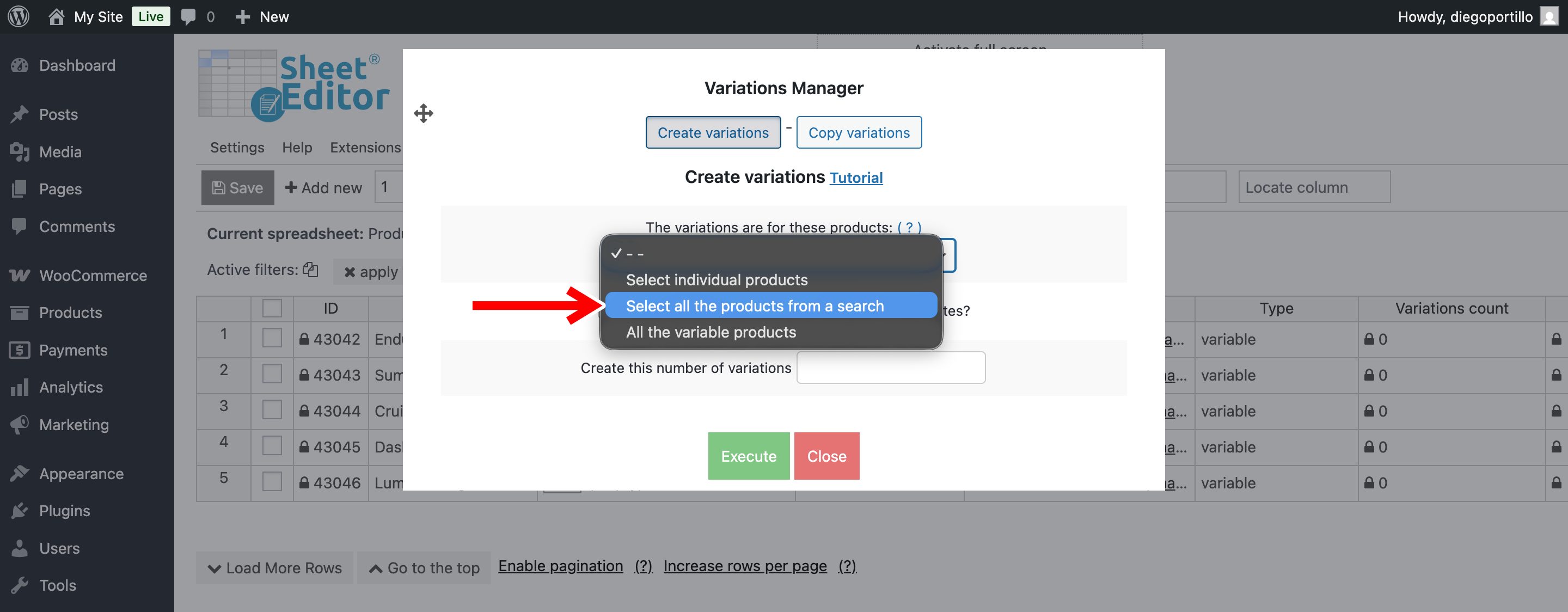
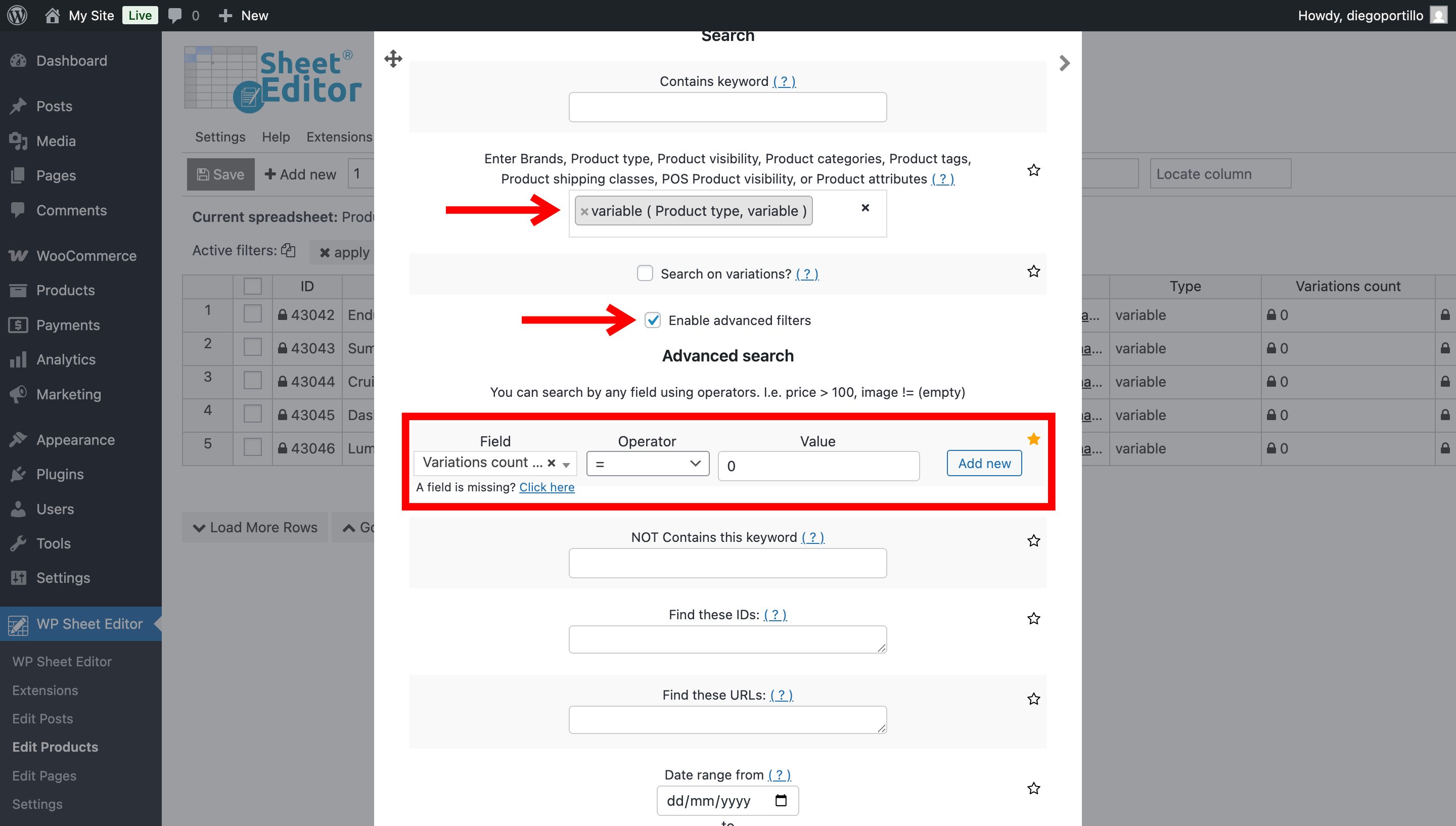
Then enter the search terms to filter variable products without variations:
- Enter brands […]: Variable
- Tick the Enable advanced filters checkbox and select these values:
- Field: Variations count
- Operator: =
- Value: 0
- Click on Run search.
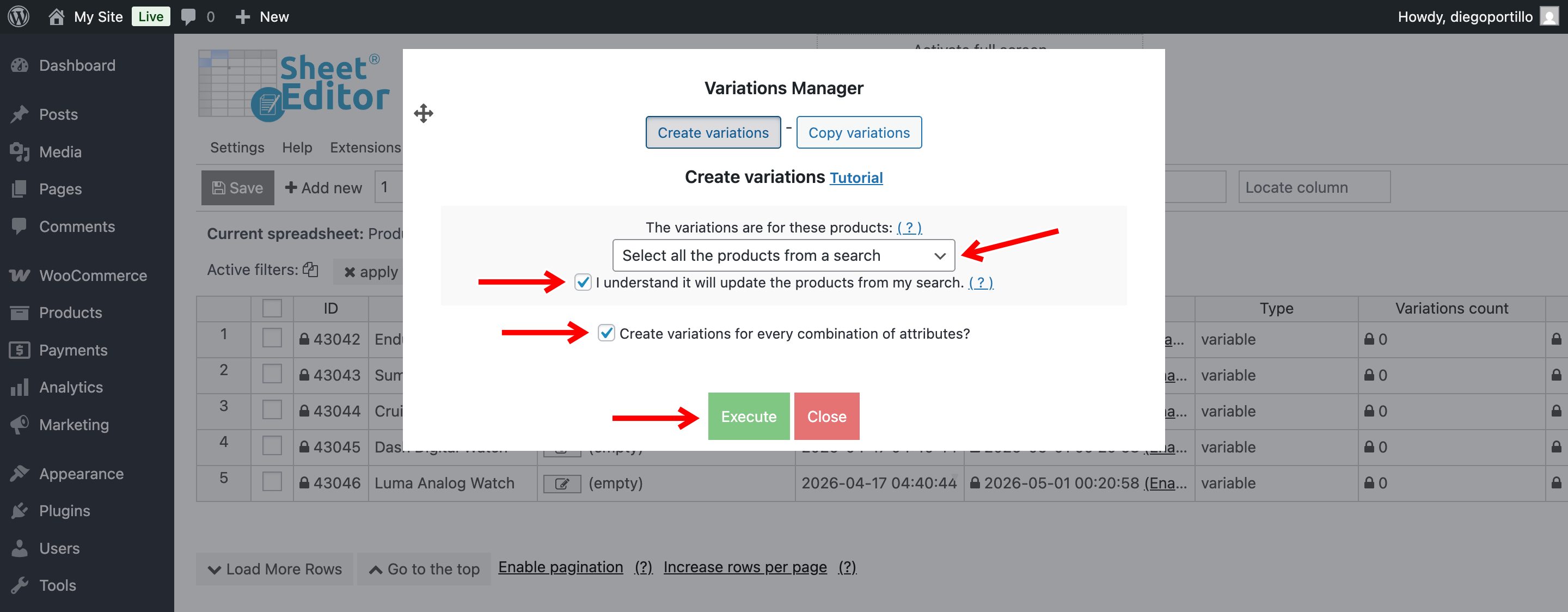
Finally, configure the Variations Manager to create a variation for every combination of attributes:
- The variations are for these products: Select all the products from a search
- I understand it will update the products from my search: Yes
- Create variations for every combination of attributes: Yes
- Note: You can create a specific number of variations if you don’t enable this option.
- Click on Execute.
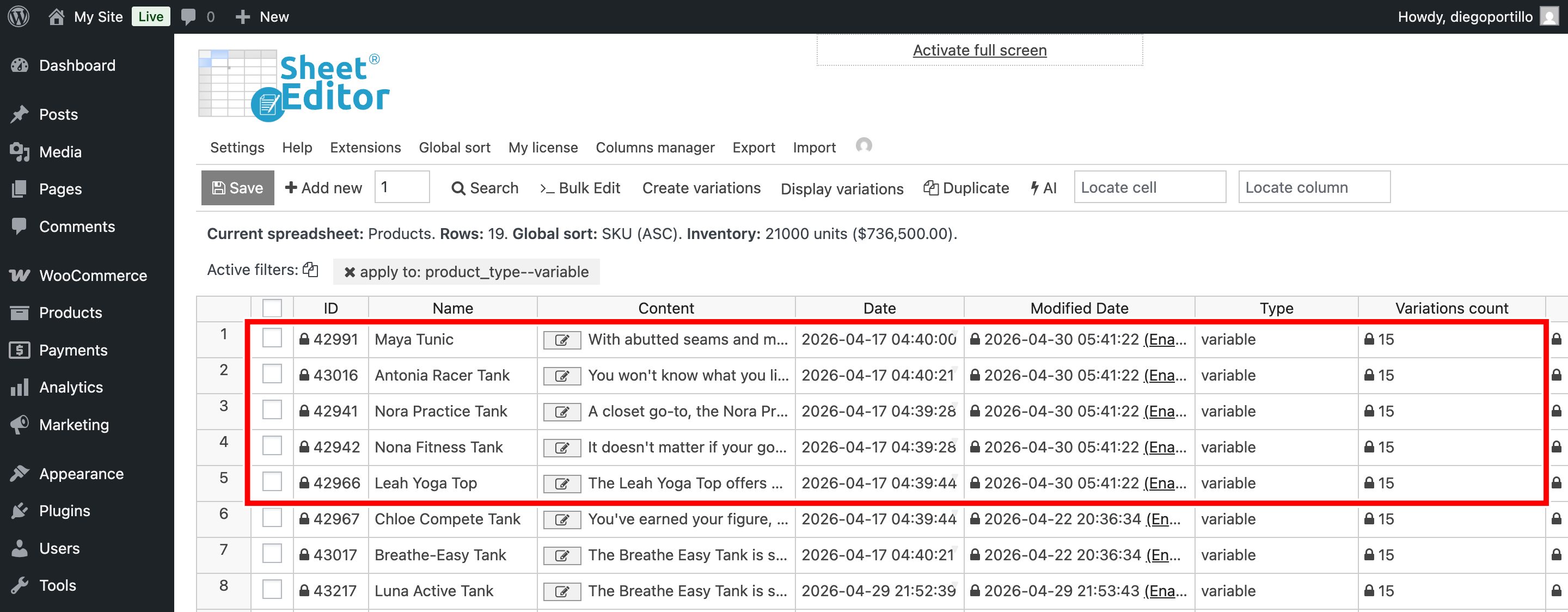
After running the tool, you will see all your products updated with their corresponding variations in the spreadsheet. The products we have highlighted in the screenshot below have been converted and added new variations.
Conclusion
WP Sheet Editor allows you to convert WooCommerce simple products into variable products in bulk using a fast and scalable workflow. Instead of editing products one by one, you can update product types, configure attributes, and generate variations using spreadsheet tools.
This method is ideal for stores managing large product catalogs and needing to quickly adapt their products to support variations.
You can download the plugin here:
Download WooCommerce Products Spreadsheet Plugin - or - Check the features