
Do you worry about typos and grammatical errors hiding in your WordPress posts? Manually proofreading hundreds of articles is exhausting and time-consuming. You have to open every single post, read it carefully, and hope you don’t miss anything. It’s a slow process, and human error is almost inevitable.
But with WP Sheet Editor – AI, you can use the power of artificial intelligence to bulk detect typos and grammar issues in minutes. Instead of overwriting your content immediately, you can store the AI’s findings in a custom field to review them later.
In this tutorial, we will show you how to find typos in WordPress posts using AI. We will generate a “Typos Report” for all your posts automatically.
What you need to find typos with AI
Besides your standard WordPress installation, you need these tools to automate the proofreading process:
1- WP Sheet Editor – Post Types
This plugin allows you to view and manage your WordPress posts, pages, and custom post types in an intuitive spreadsheet. You can search, bulk edit, and manage fields easily. If you already have it, you can skip this.
You can download the plugin here:
Download Posts, Pages, and Custom Post Types Spreadsheet Plugin - or - Check the features
2- WP Sheet Editor – AI
This is a WordPress AI assistant service that brings the power of generative AI (ChatGPT, Gemini, etc.) to your WP Sheet Editor spreadsheets.
You can sign up here:
Sign up to the WP Sheet Editor - AI Service - or - Check the features
3- External AI provider
The AI translation functionality requires an external API provider like OpenAI, OpenRouter, or another OpenAI-compatible platform.
You’ll need an account and an API key.
- OpenAI – Official provider for GPT models (learn more).
- OpenRouter – Access to multiple models including GPT models, Grok, Gemini, Claude, etc. (learn more).
- Any other AI provider with an OpenAI-compatible API.
If you haven’t set up your provider yet, follow this setup guide.
Step 1: Set up a global prompt to find typos
First, we need to create a prompt that instructs the AI to read your content and list the errors without changing the original text.
You can type the full prompt every time you want to run it, but global prompts boost your productivity becase they are like templates you can use with a simple shortcut.
Go to WP Sheet Editor > AI > Settings > Prompts and click Add new prompt.
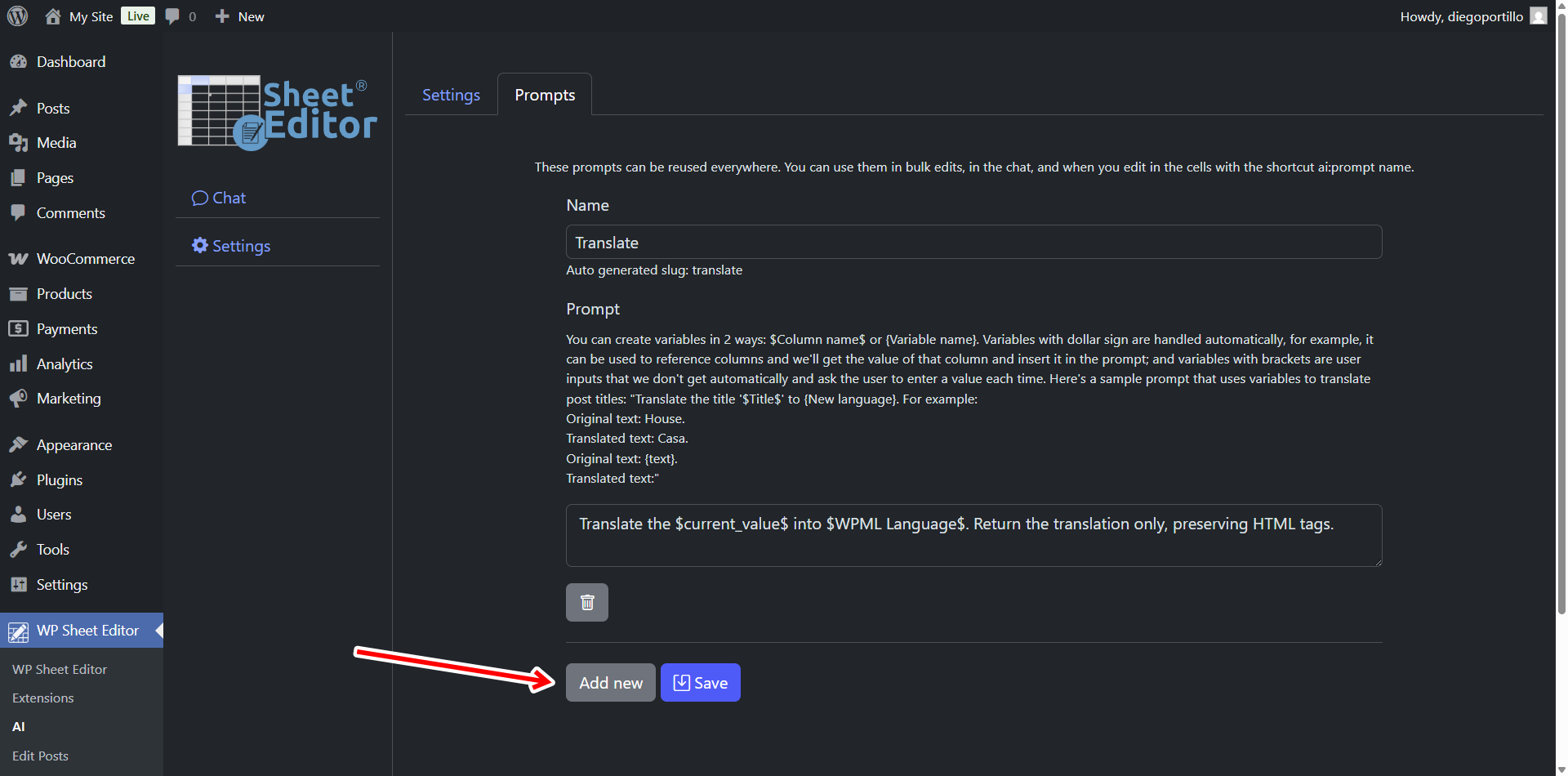
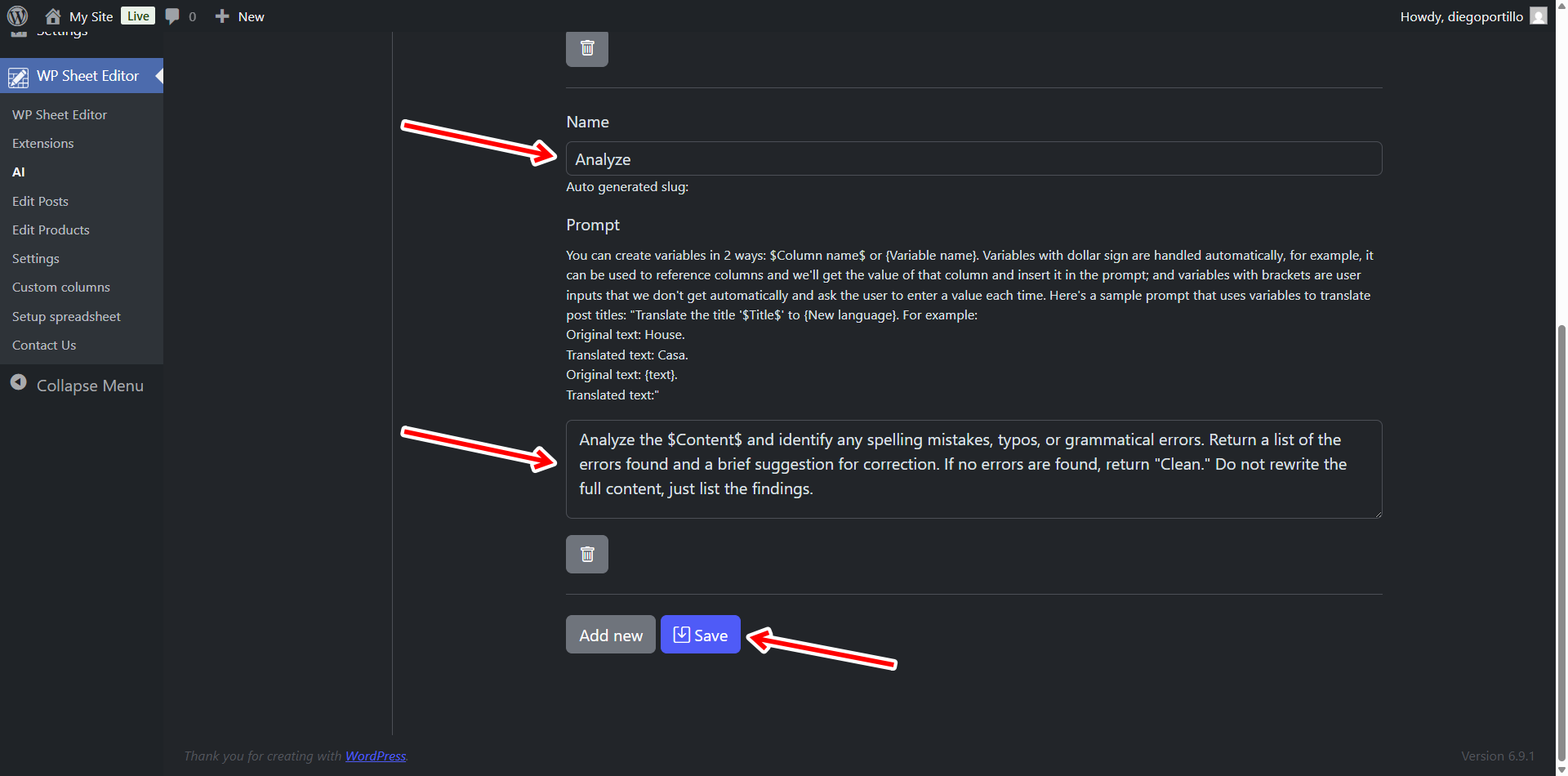
Name: Enter a name for the prompt.
Prompt: You can use a prompt like this:
Analyze the $Content$ and identify any spelling mistakes, typos, or grammatical errors. Return a list of the errors found and a brief suggestion for correction. If no errors are found, return "Clean." Do not rewrite the full content, just list the findings.
Click on Save.
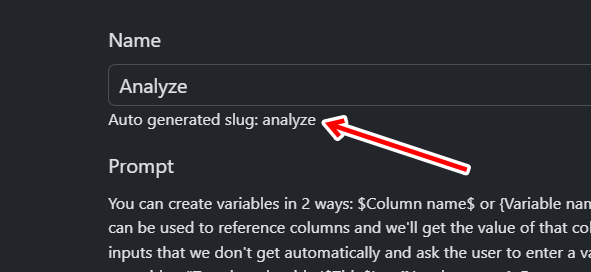
After saving the changes, you’ll see that the new global prompt generates a slug that you can use as a shortcut.
From now on, you just have to type ai:analyze to run this prompt in spreadsheet cells. And in the Bulk Edit tool, you can run this prompt by selecting AI Command: Analyze.
Step 2: Create a custom column to store the findings
We don’t want to overwrite our post content. Instead, we want to create a dedicated place to see the AI’s report. We can do this by creating a custom column.
Create the new column
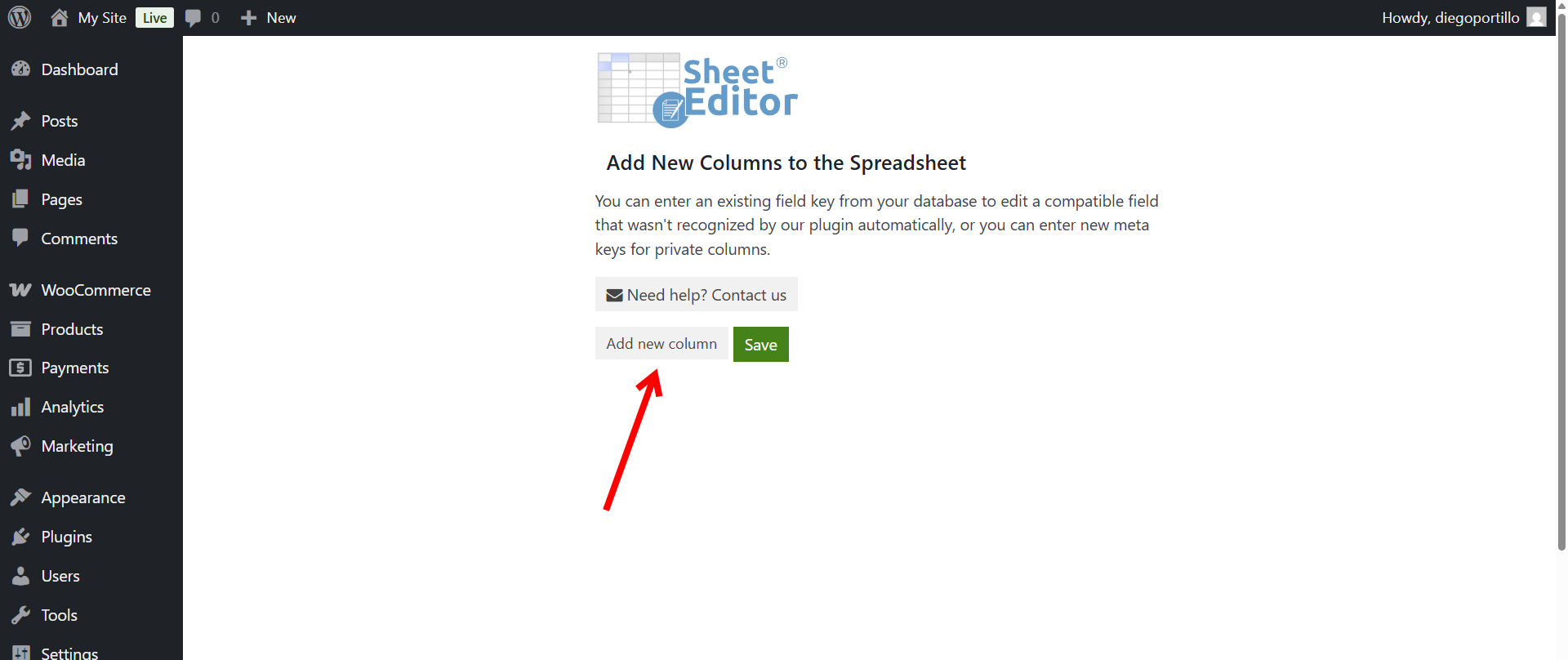
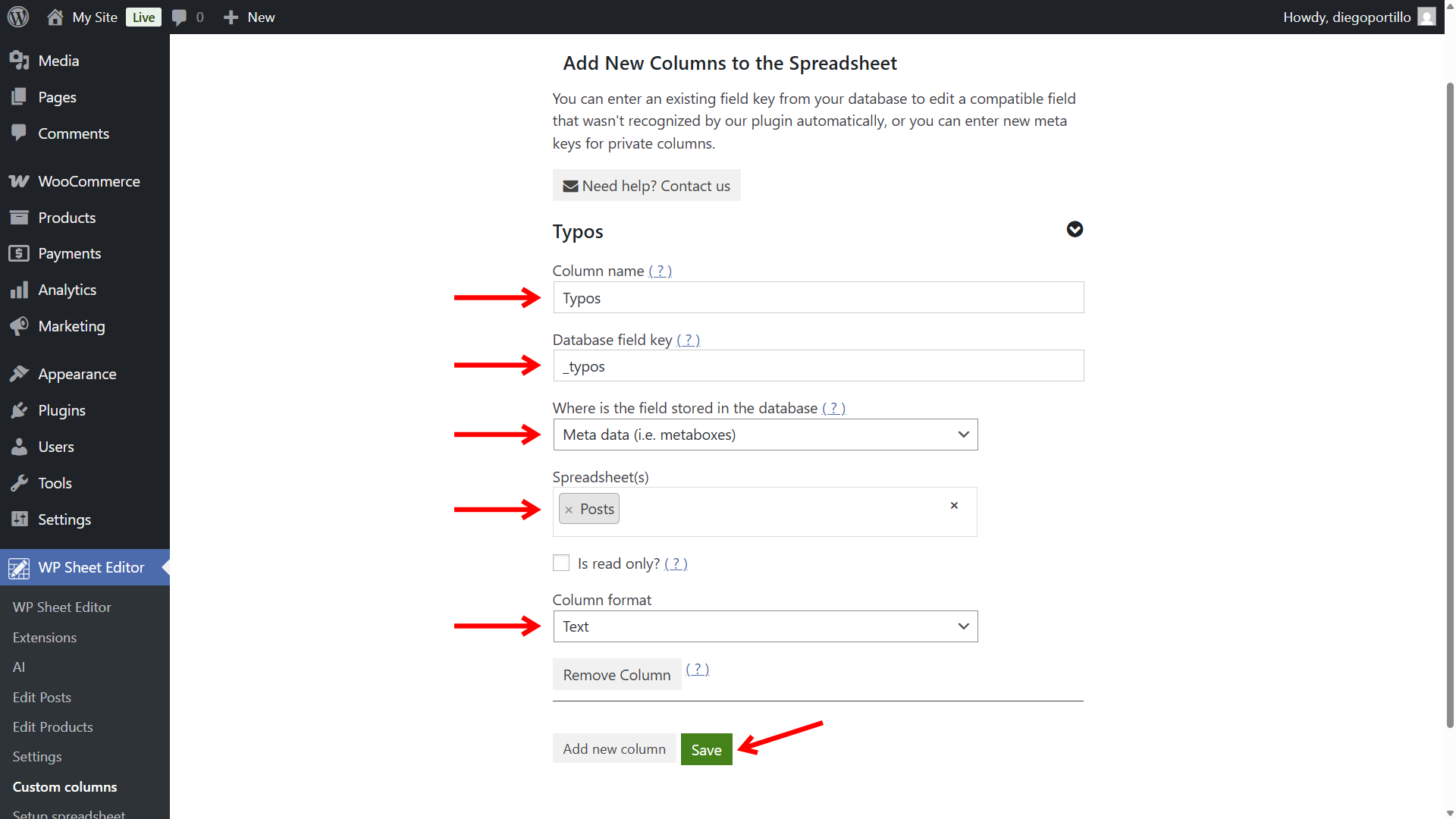
Go to WP Sheet Editor > Custom columns, and click on Add new column.
Select these values to create the post quality column:
- Column name: We will name this column “Typos”
- Database field key: We will add this field key “_typos”
- Where is the field stored in the database: Meta data
- Spreadsheet(s): Posts
- Column format: Text
- Click on Save to create the new column.
Display the new column in the spreadsheet
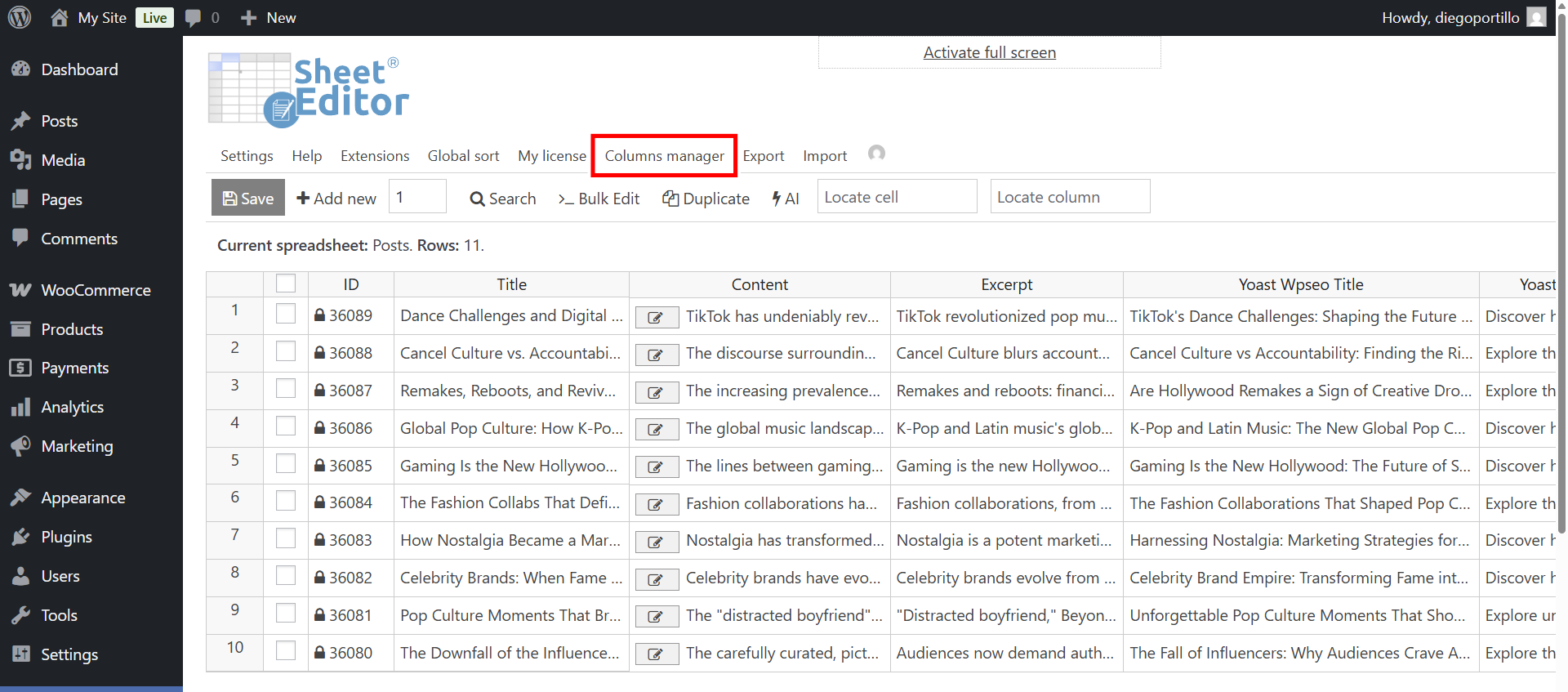
To open the WordPress posts spreadsheet, go to WP Sheet Editor > Edit posts.
Once there, open the Columns manager tool.
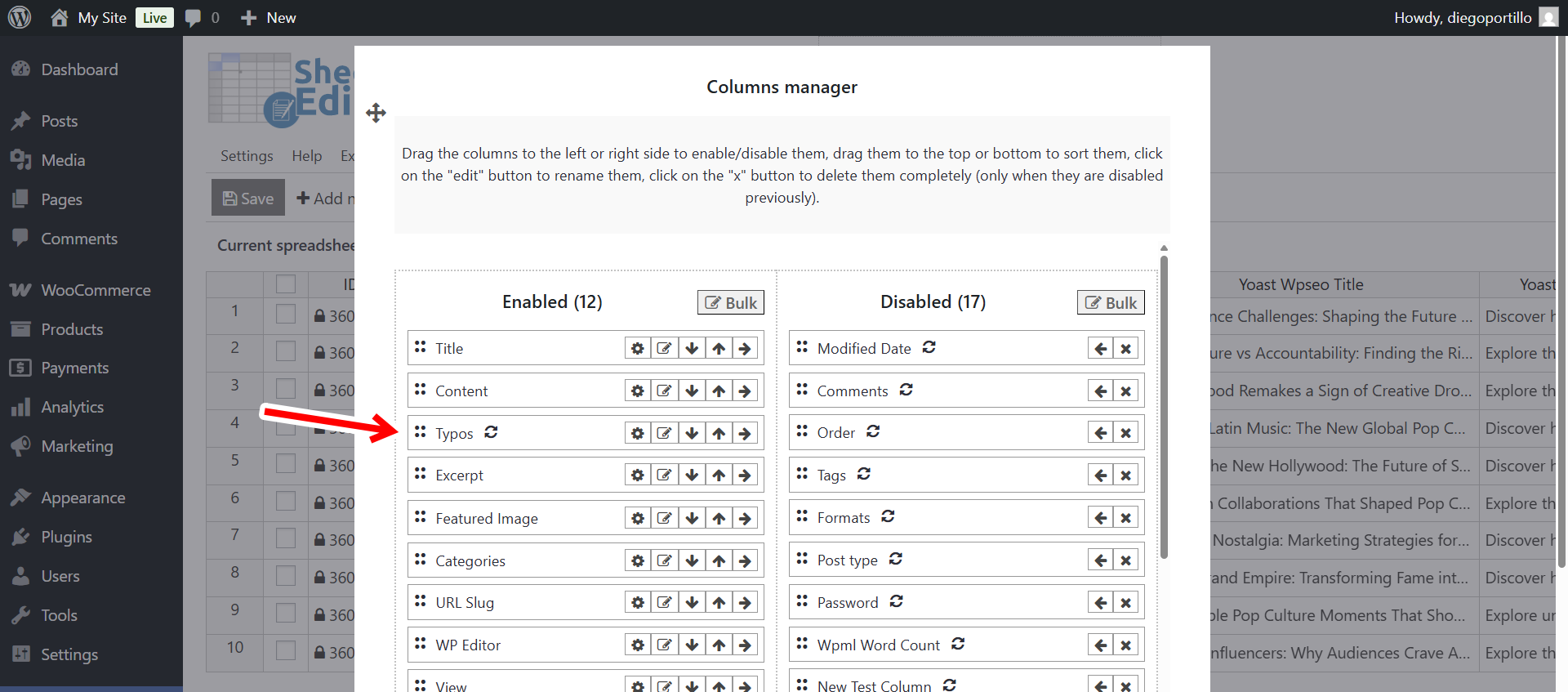
Make sure the Typos column you just created is in the Enabled side and near the Content column.
Save the column settings:
- Tick the Save these settings for future sessions checkbox.
- Add a name for this column setting in the Add a name for this group of columns field.
- Click on Apply settings.
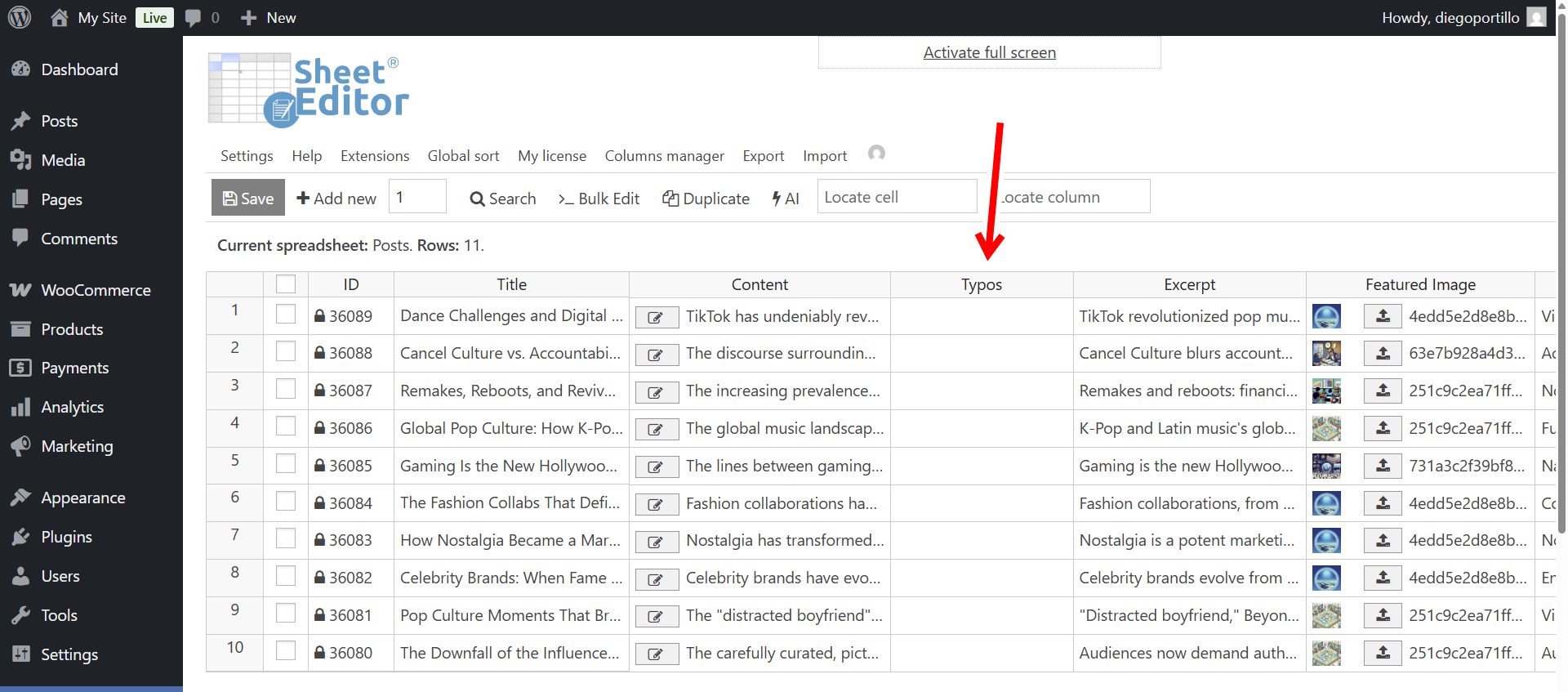
Once you do that, you’ll be able to view the Typos column in the spreadsheet.
Step 3: Search for typos in your posts using AI
Now it’s time to audit your WordPress posts’ content in search for typos. You have two options to do this:
Option 1 – Do it in spreadsheet cells
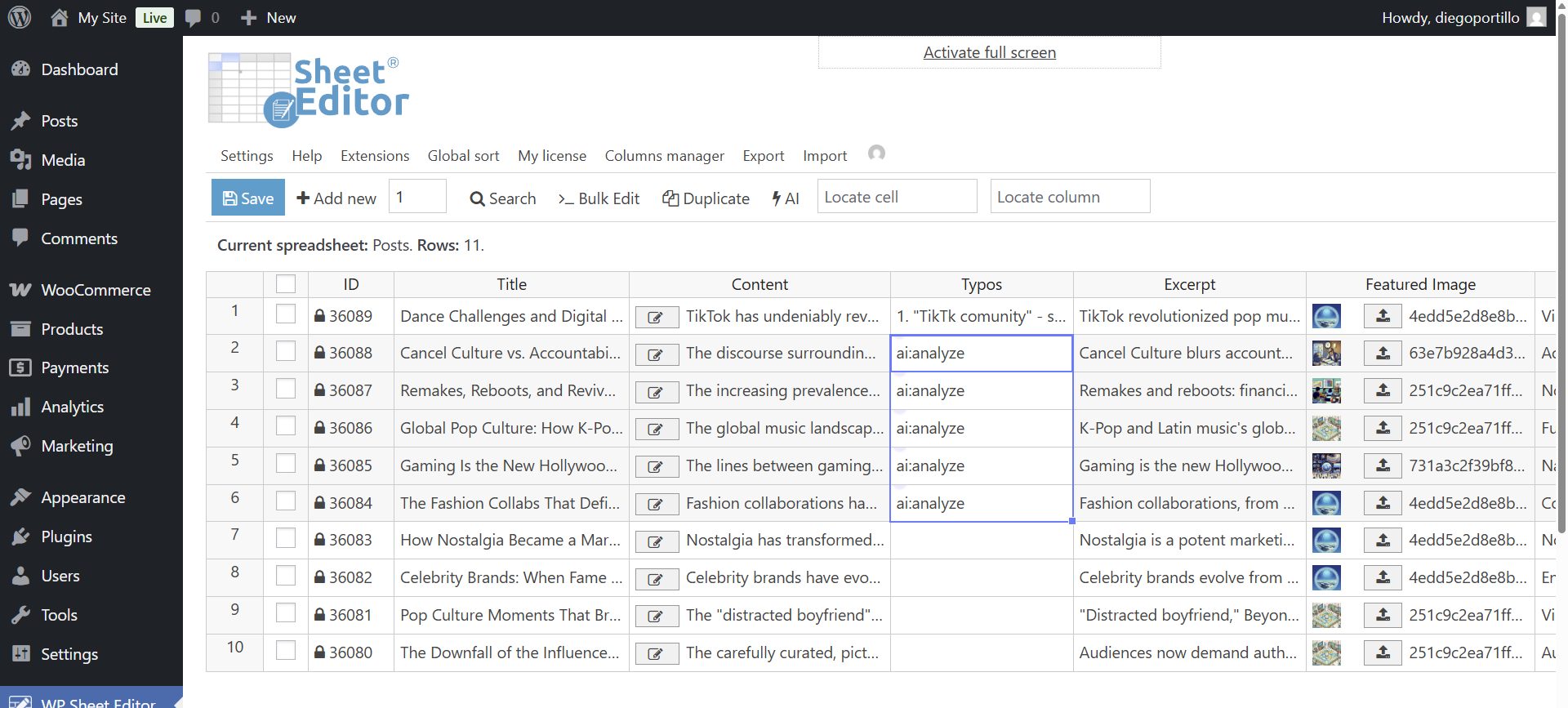
Go to the Typos column and enter the prompt shortcut:
ai:analyze
Note. You can add full prompts as well, just follow this format: “ai:full prompt”
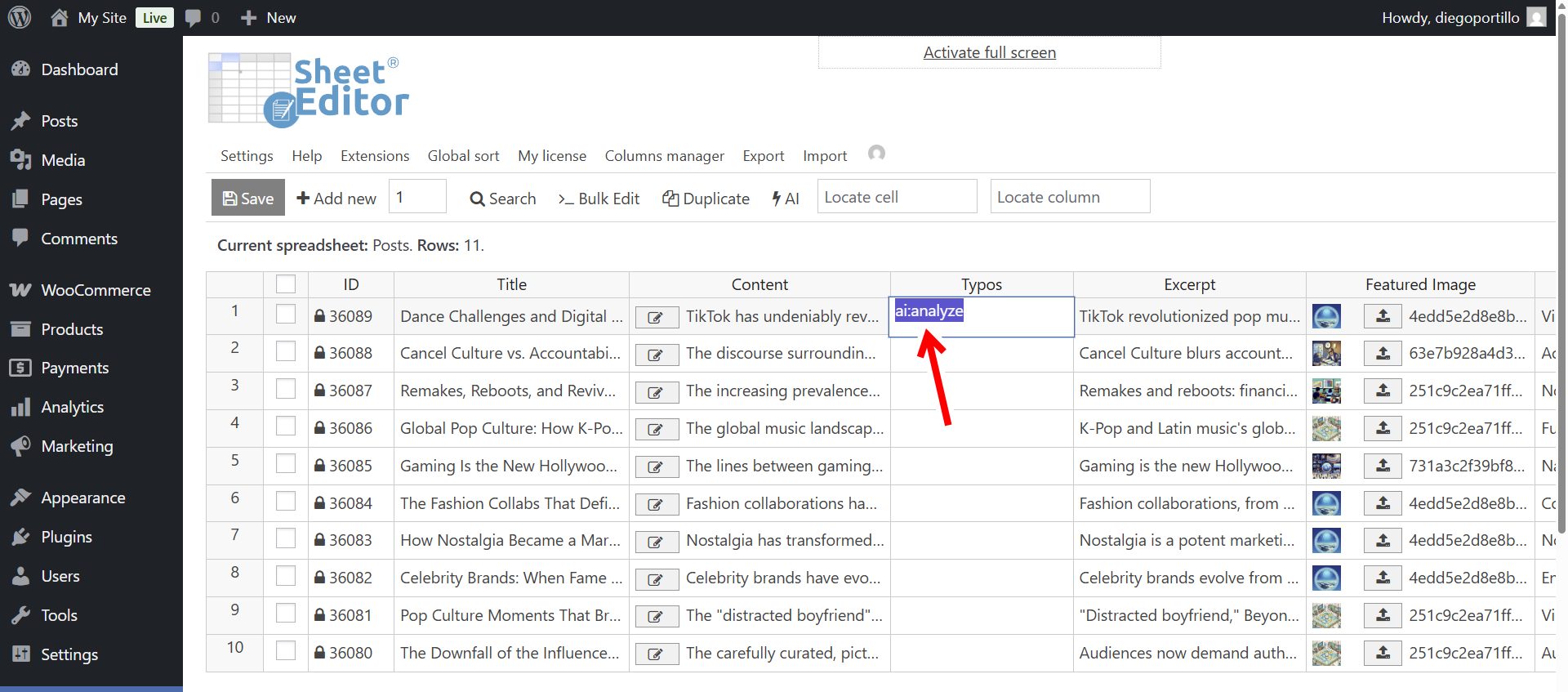
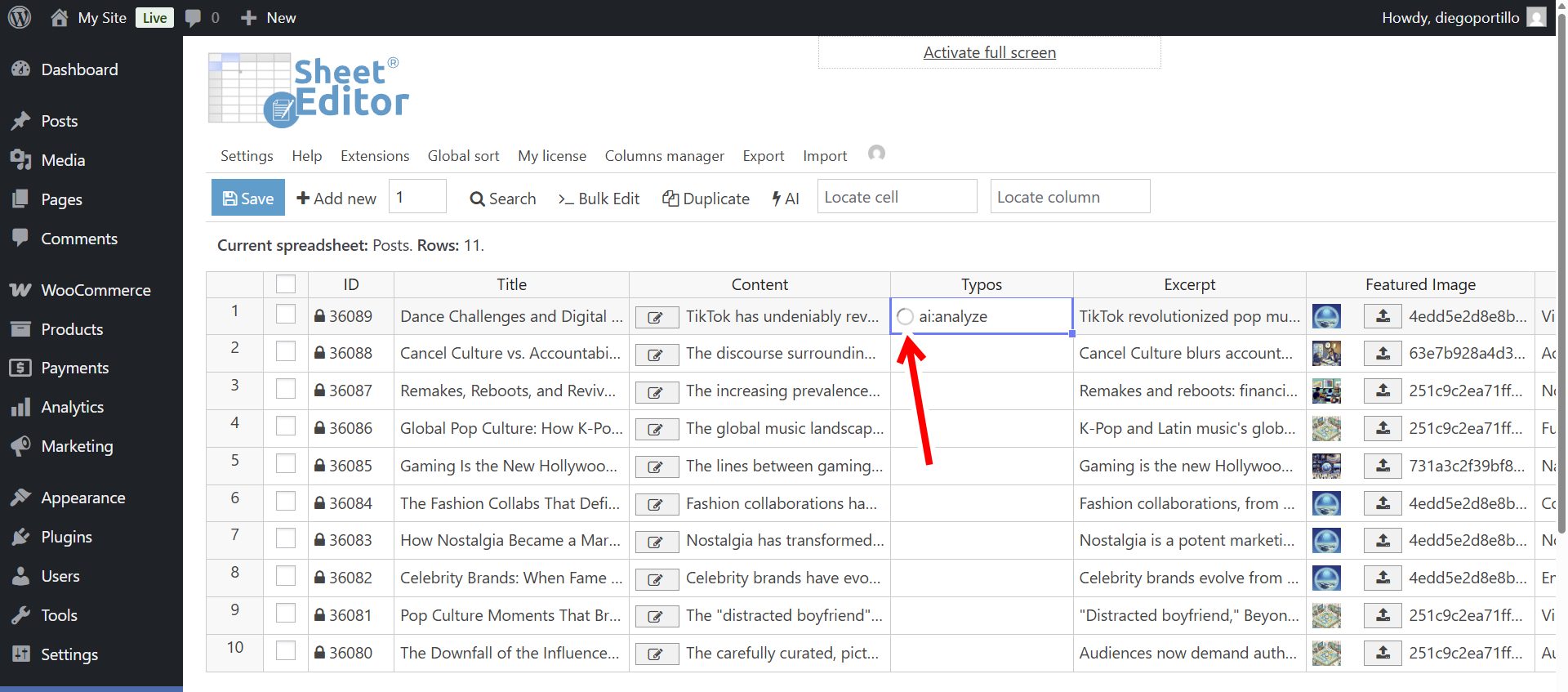
The AI will read your post content and analyze it, so you’ll see a loading icon in the cell.
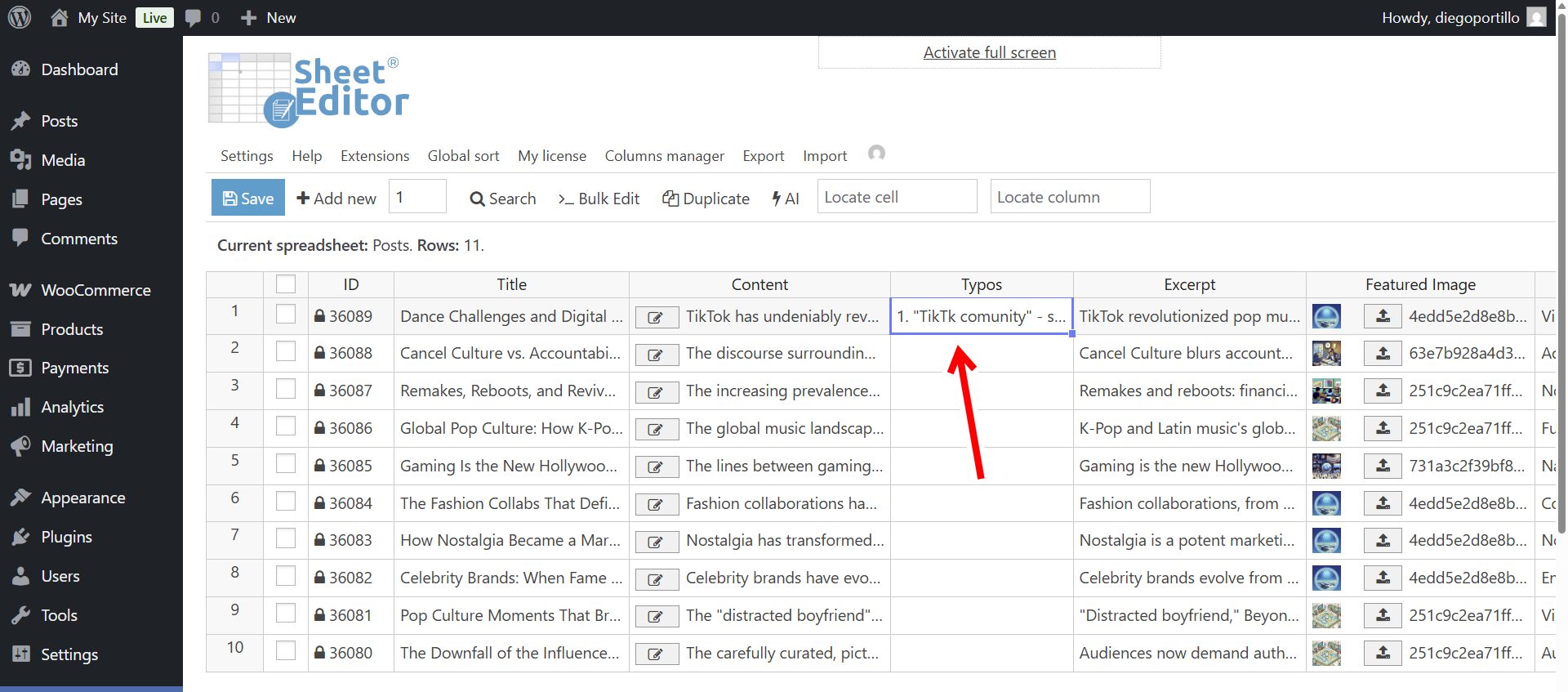
As you see, the results for this post are ready and the AI found some typos.
Here’s the detailed view of the typos and also some suggestions for correction.
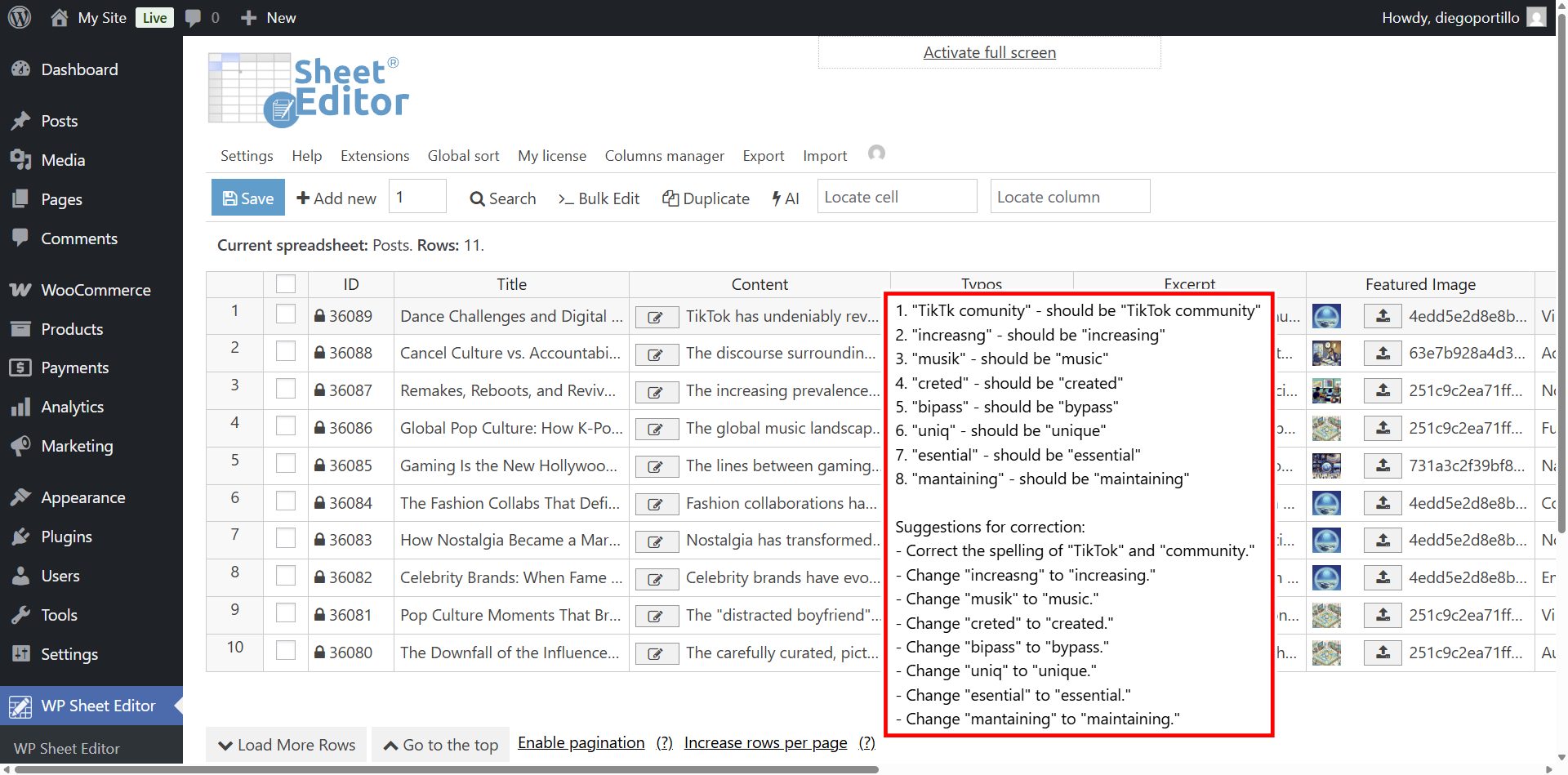
You can paste the prompt shortcut in multiple cells to audit multiple posts at a time.
As you can see, some of our posts are clean and some have some typos or other grammar errors we need to fix.
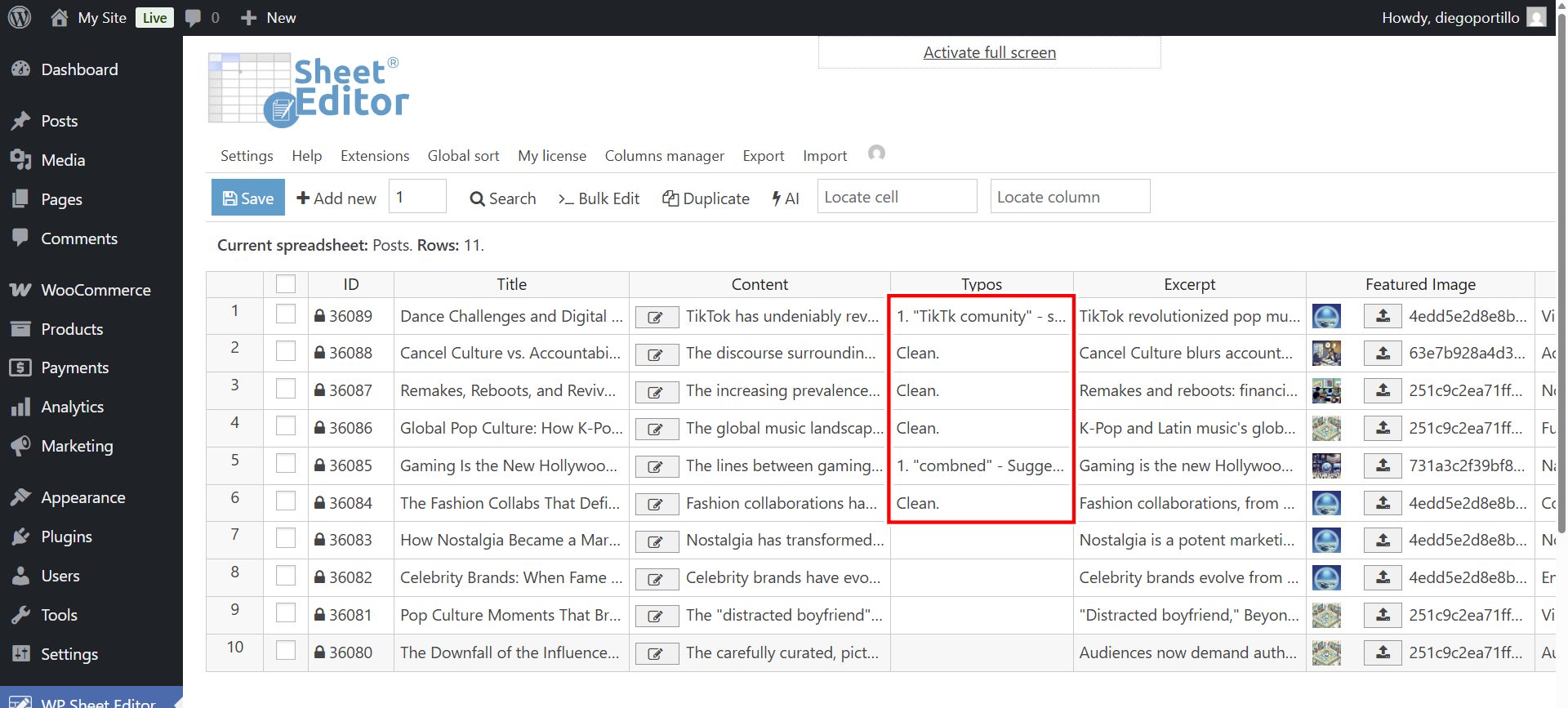
Don’t forget to Save the changes to store the results.
Option 2 – Bulk find typos with AI
Bulk analyzing your posts saves you lots of time, and you can audit all posts or just a specific group.
If you want to filter posts, you can use the Search tool to find posts by:
- Category or Tag
- Date range (e.g., posts published this month)
- Status (Published, Draft, etc.)
Once you have filtered the posts, you are ready to apply the bulk action.
Open the Bulk Edit tool and configure it to run the AI audit.
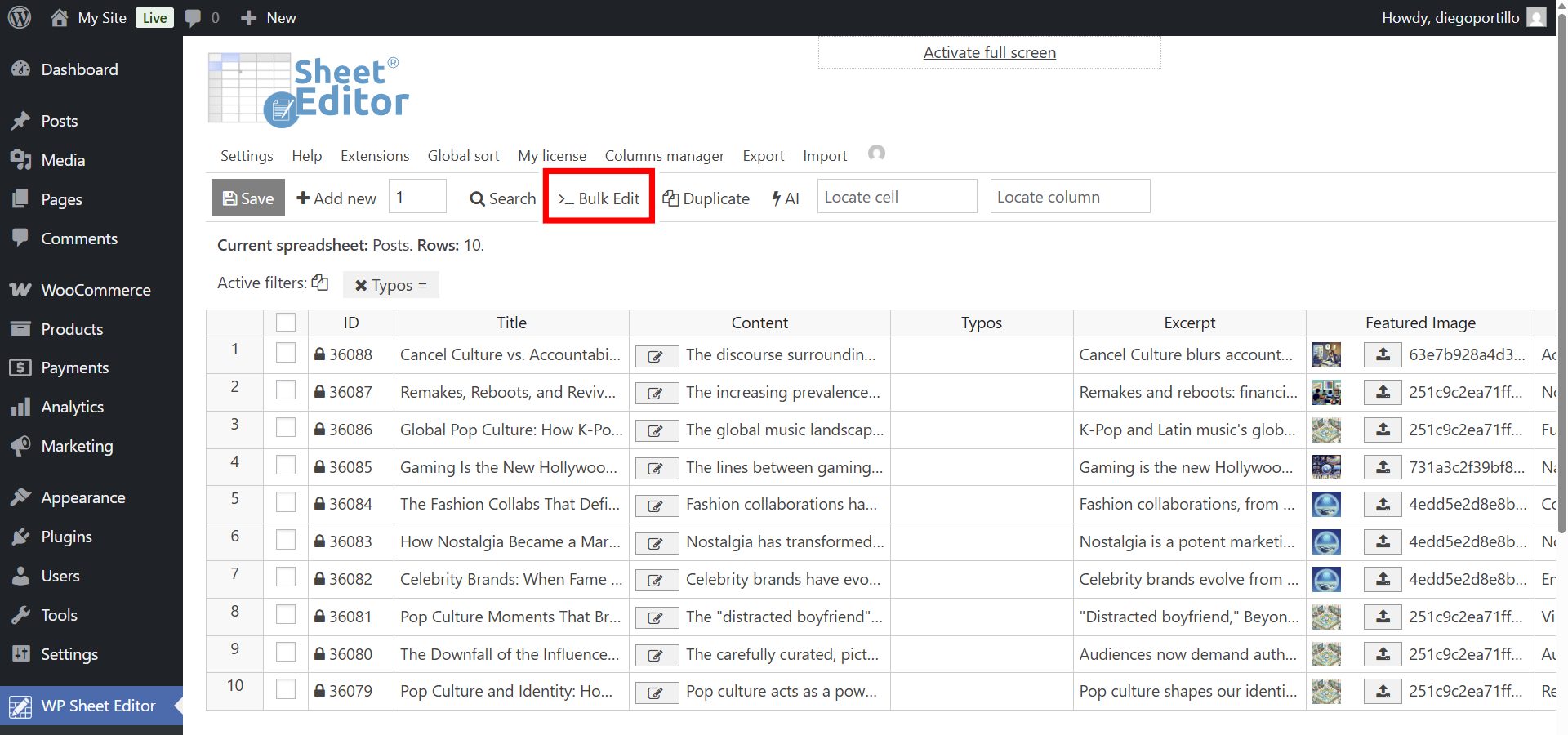
Now select the following values to bulk audit posts in search for typos, grammatical errors, etc.:
- Select the rows that you want to update: Edit all the rows from my current search (including non-visible rows)
- What field do you want to edit: Typos (The custom column we prepared)
- Select type of edit: AI command: Analyze
- Select the AI provider/model: OpenAI (GPT-4o), Gemini, or your preferred model.
- Click on Execute Now.
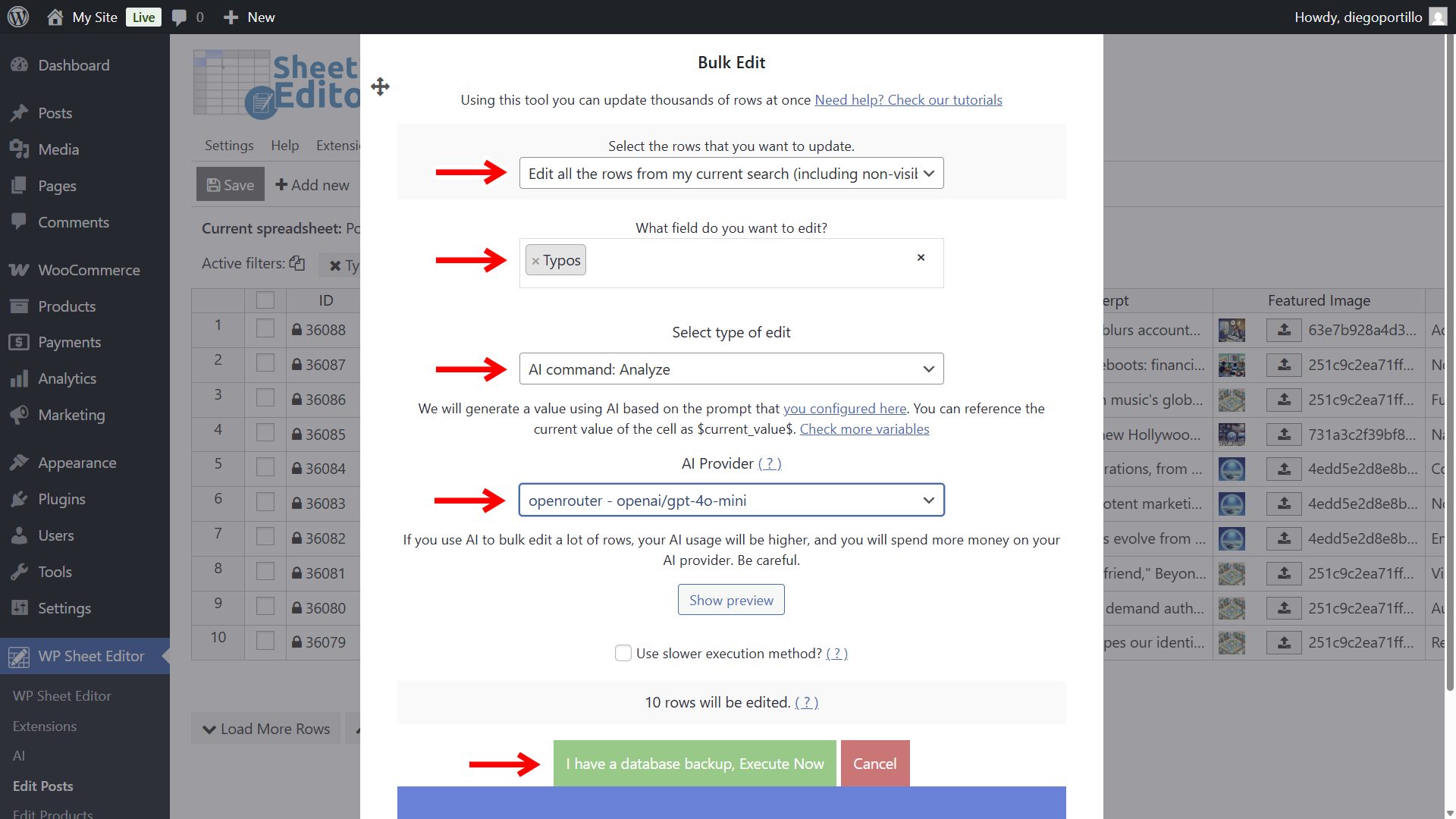
The plugin will send your post content to the AI, which will analyze it for errors and write the list of findings into the Typos Report column.
Once the process is complete, reload the spreadsheet. Now you can scroll through the Typos column. You will see a clear list of errors for each post. You can then decide to fix them manually or run another bulk edit to apply corrections.
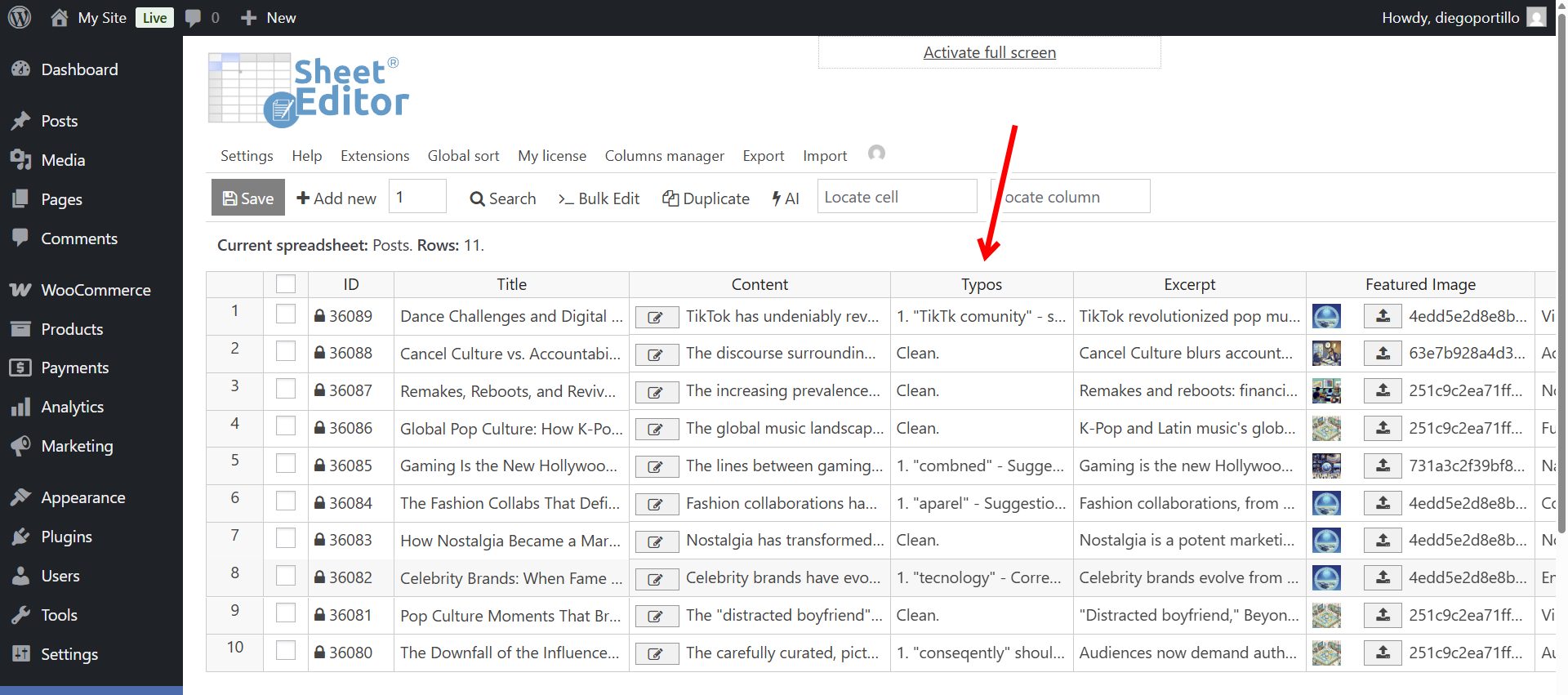
As you can see, WP Sheet Editor – AI allows you to audit thousands of posts for quality in just a few clicks. You save time and ensure your content is professional and error-free.
Once you’re done, you can use AI to apply all the changes and save a lot of time.