
Managing a growing WooCommerce catalog requires precise control over your product data. Whether you need to run a seasonal clearance sale, perform a year-end inventory audit, or simply update items published during a specific timeframe, knowing how to find WooCommerce products by date range is a critical skill for store owners.
However, the standard WordPress search tools often fall short when dealing with thousands of items, making it difficult to isolate products based on their publication date or creation timeframe. In this guide, we will show you how to use a spreadsheet interface to filter your inventory by date and apply bulk updates to those specific items, significantly improving your store administration efficiency.
Video Guide
If you operate a high-volume store, finding products that were added to your catalog 6 months or a year ago can be a frustratingly slow process. The default WooCommerce search functionality is often too basic for complex queries, often leading to slow load times or incomplete results. Furthermore, the native editor requires you to open each product page individually to make changes, which is a major bottleneck for inventory lifecycle management.
To solve this, we will use WP Sheet Editor. This tool allows you to perform an advanced database search and filter thousands of products by any date range without the performance lag of the standard WordPress dashboard. It is the perfect solution for users who need to bulk edit historical product data or organize their catalog by specific dates.
1. Install the WP Sheet Editor Plugin
This plugin is designed to simplify WooCommerce data management by giving you a powerful spreadsheet view. Instead of navigating through multiple menus, you can manage your entire inventory, including descriptions, prices, and publication dates, from a single screen. This spreadsheet interface is essential for performing bulk updates and complex filtering operations.
If you already have the plugin installed and activated, you can move directly to the search steps.
You can download the plugin here:
Download WooCommerce Products Spreadsheet Plugin - or - Check the features
Once the plugin is active, you will see your store data displayed in an organized grid, similar to Excel or Google Sheets, where you can modify any field freely.
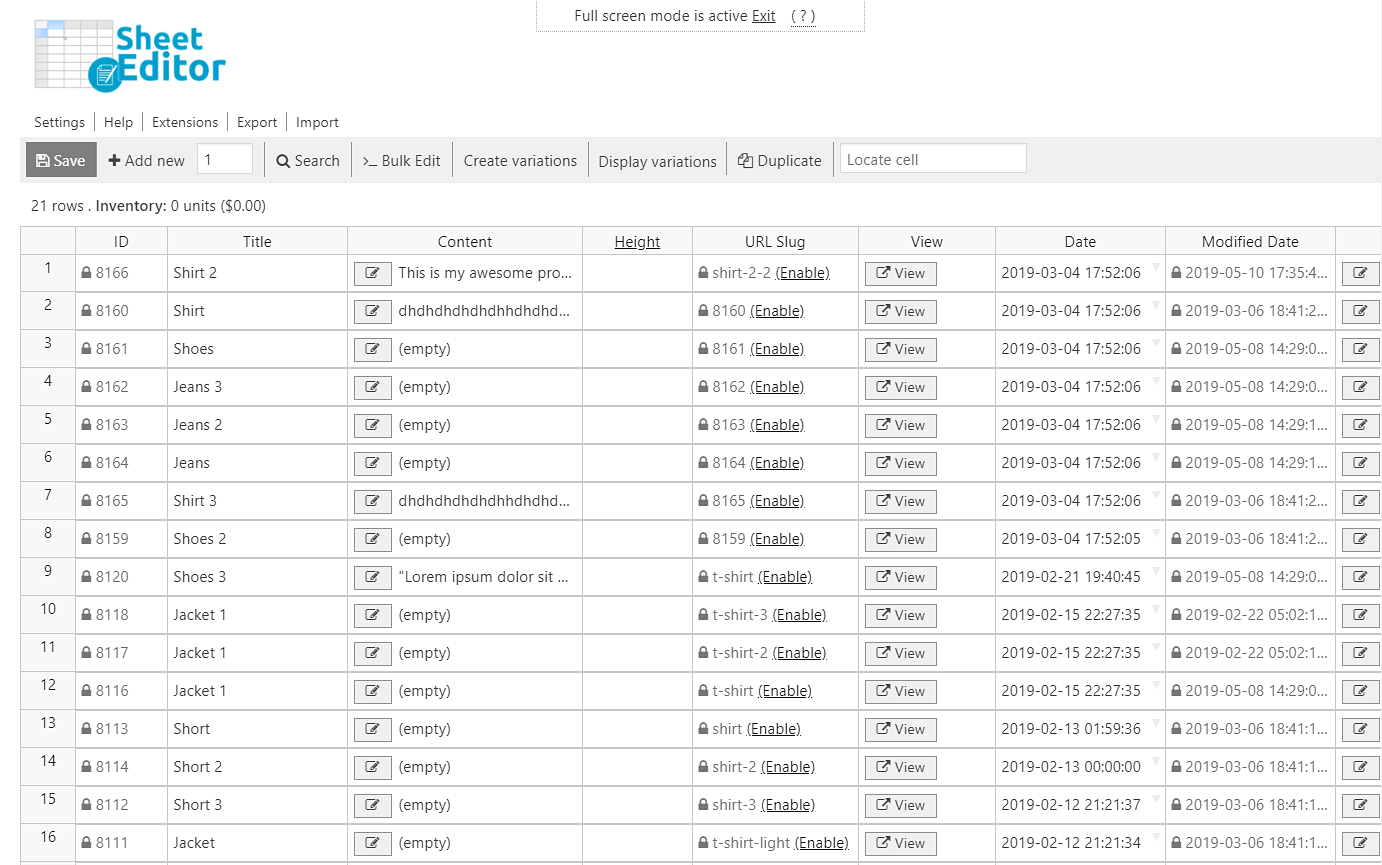
2. Filter Your Products Using a Specific Date Range
The ability to isolate products by published date allows for highly targeted edits. For example, you might want to find items published exactly 6 months ago to move them to a different category or update their stock status. By using the advanced search tool, you can define an initial and final date to create a precise search timeframe.
To begin, click on the “Search” tool located on the toolbar.
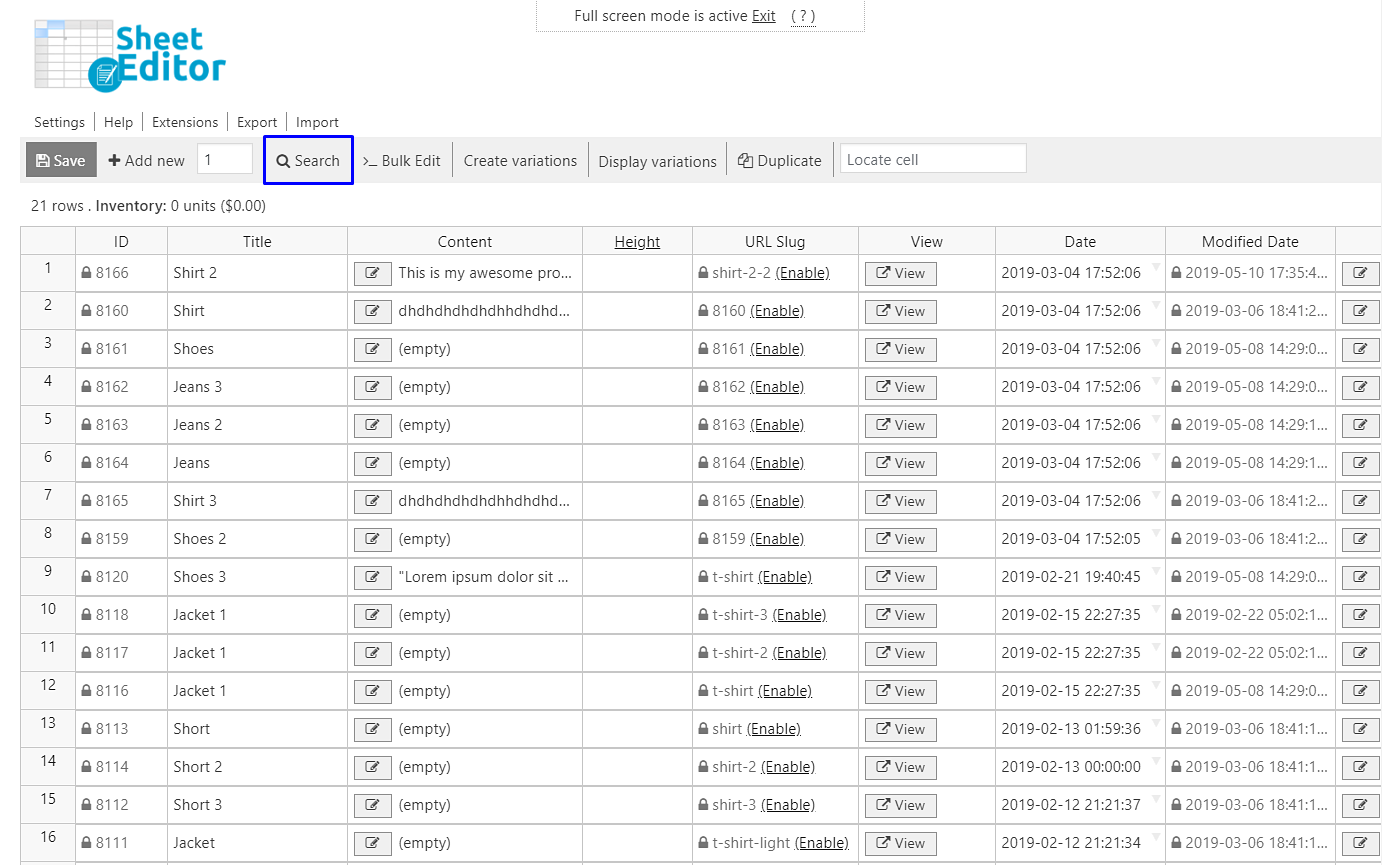
Inside the Search tool, follow these steps to narrow down your results:
- Tick the Enable advanced filters checkbox.
- Field: Date (post_date)
- Operator: BETWEEN
- Date range from: Enter the initial start date of your search.
- To: Enter the final end date of your search.
- Click on Run search.

The spreadsheet will automatically refresh to show only the items that match your chosen dates. You can also combine these parameters with other filters to create complex search queries:
A) Find Products by Date Range and Category
This method is ideal for seasonal inventory management. For example, if you need to find all items in the “Fashion” category published during August 2021, you can combine the date filter with a taxonomy search.
- In the Enter Product Category field, type the category you wish to audit.
- Tick the Enable advanced filters checkbox.
- Define the Date range (start and end dates).
- Click Run search.

B) Filter by Date Range and Regular Price
If you need to find products published within a certain time window that also share a specific price point (for example, finding all items priced at $20.00 from last year), follow these steps:
- Tick the Enable advanced filters checkbox.
- Field: Regular price (regular_price).
- Operator: =
- Value: Enter the specific price.
- Set the Date range timeframe.
- Click Run search.

3. Edit Your Filtered Products Individually
After filtering your products by date, you can edit them directly in the spreadsheet grid. This is much faster than the default bulk editor because you can modify titles, featured images, galleries, categories, or attributes for multiple products without leaving the page. Simply make your changes in the cells and click Save on the toolbar to apply the updates to your live WooCommerce store.

4. Bulk Update All Filtered Products at Once
For even greater efficiency, you can use the Bulk Edit tool to modify thousands of products simultaneously. If you have filtered a large group of products by date and need to change their status, adjust their prices, or add a new tag to all of them, the bulk editor can handle these bulk edits in just a few clicks.
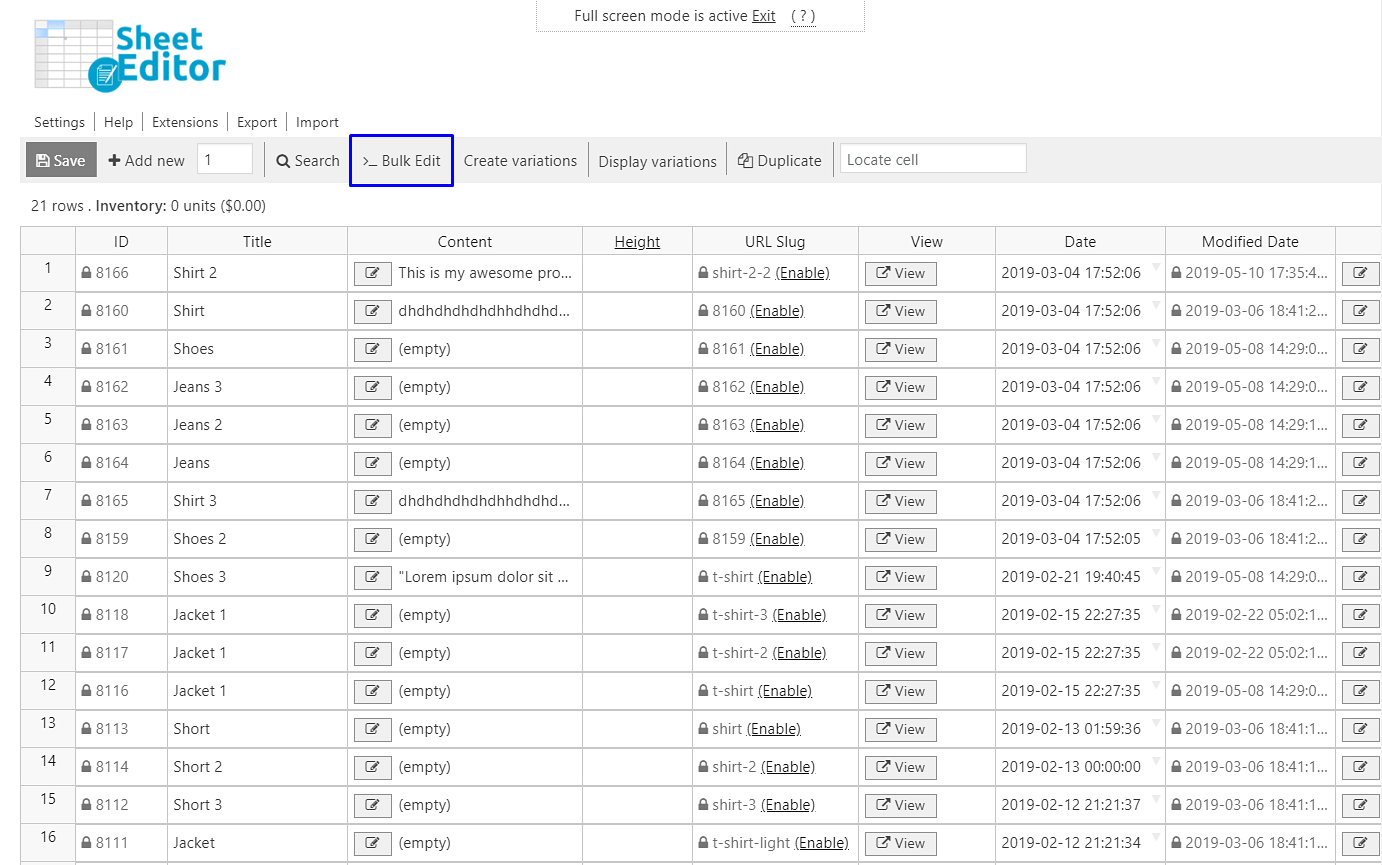
To learn more about the different ways you can use the bulk update engine to streamline your workflow, you can explore our full collection of guides and tutorials.
Take Control of Your WooCommerce Inventory
WP Sheet Editor makes it really easy to find, filter, and modify your products. Whether you are dealing with historical data or new product launches, our spreadsheet interface gives you the speed and flexibility you need to run a successful store.
You can download the plugin here:
Download WooCommerce Products Spreadsheet Plugin - or - Check the features