
In this tutorial, you will learn how to export events from The Events Calendar to a CSV file, Excel or Google Sheets. We will use the WP Sheet Editor – The Events Calendar plugin, which allows you to view and manage your Events in a spreadsheet on the WordPress dashboard. It includes advanced search, bulk edit, export and import tools.
You can download the plugin here:
Download Events Spreadsheet Plugin - or - Check the features
Once you install the plugin, go to WP Sheet Editor > Edit Events to view all The Events Calendar events in a spreadsheet.
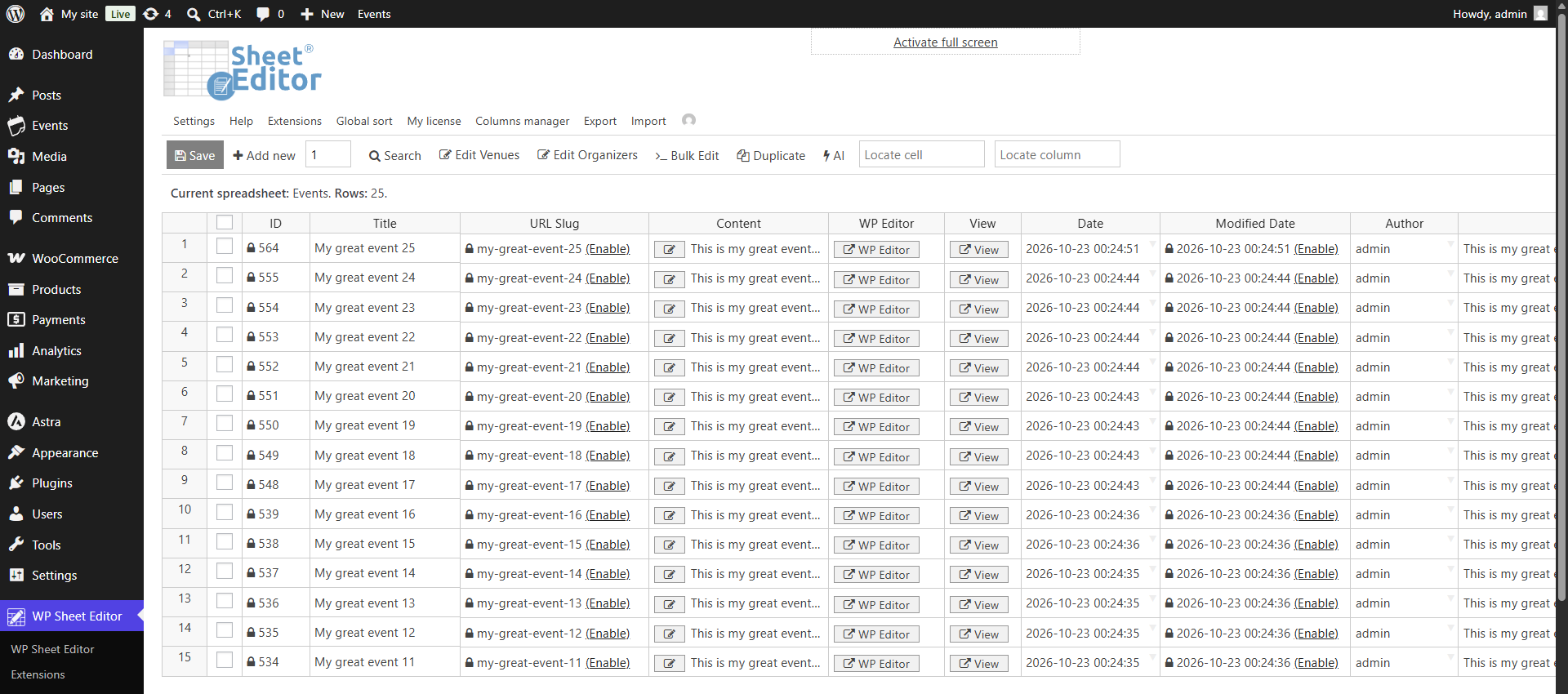
Now let’s see how to export events to different formats and platforms:
Option 1: Export The Events Calendar to CSV file
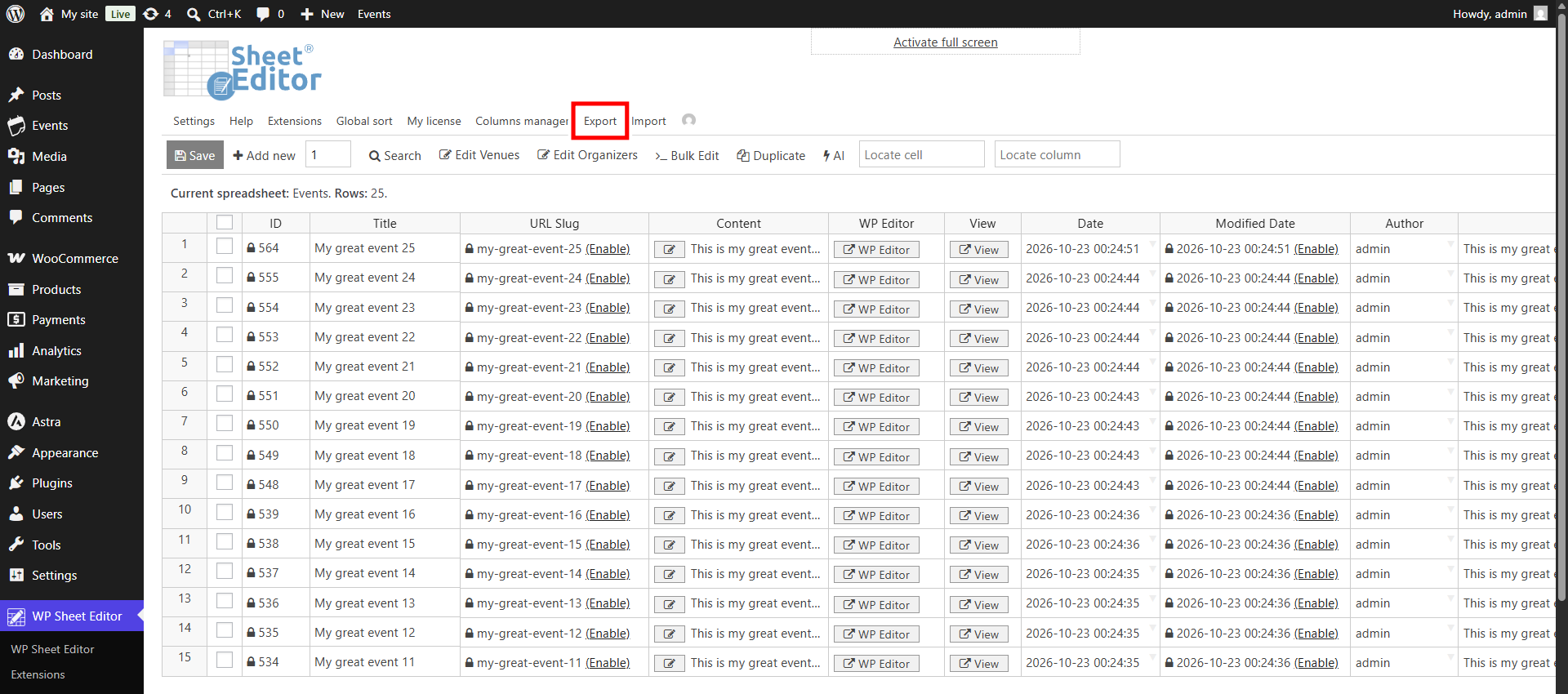
Open the Export tool on the top toolbar.
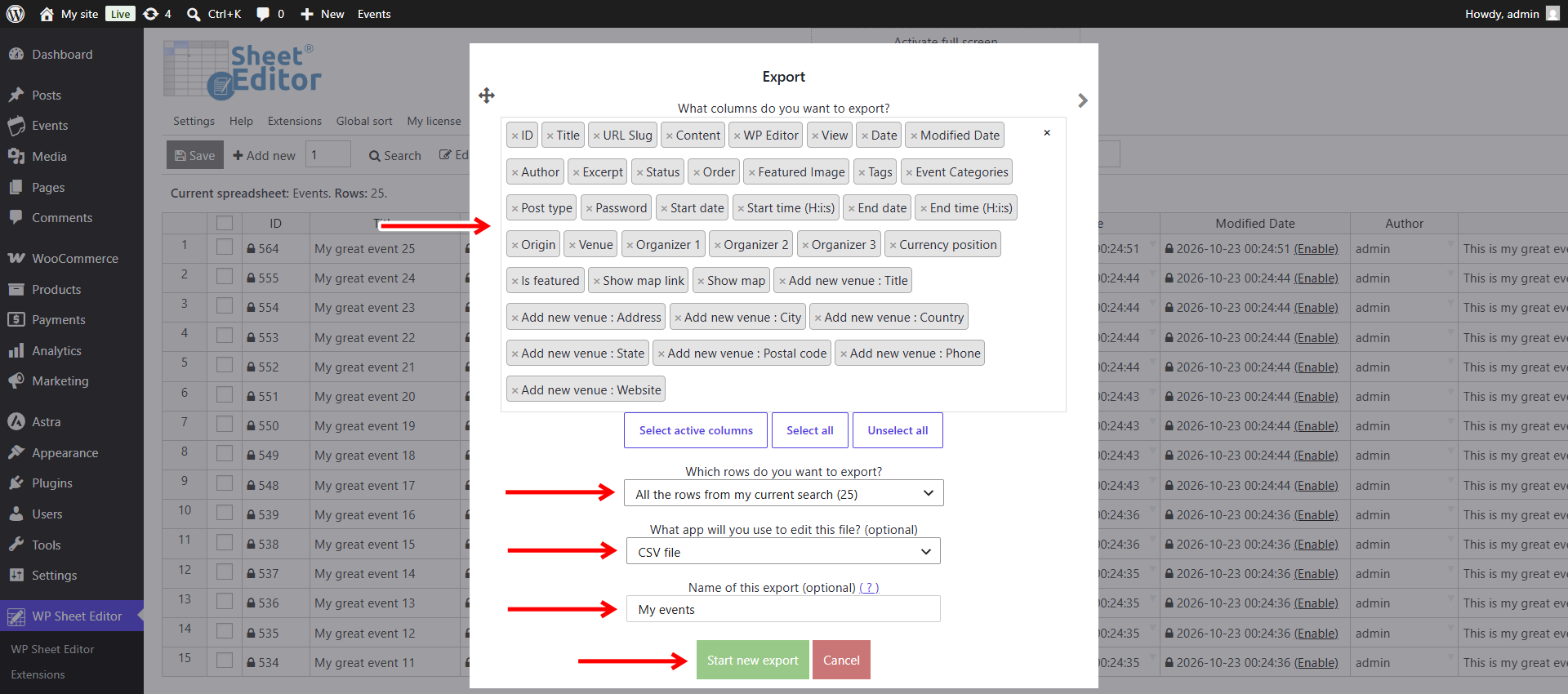
Now configure these values to download the data of your events in a CSV file:
- Which columns do you want to export: You can export all columns or only selected columns.
- Which rows do you want to export: You can export all your events, only the events from a specific search, or the events that you have manually selected in the spreadsheet.
- What app will you use to edit this file: Here you need to select the format. In this example, we will select CSV File.
- Name of this export: You can enter a name here and run this same export in the future with one click.
- Click on Start new export.
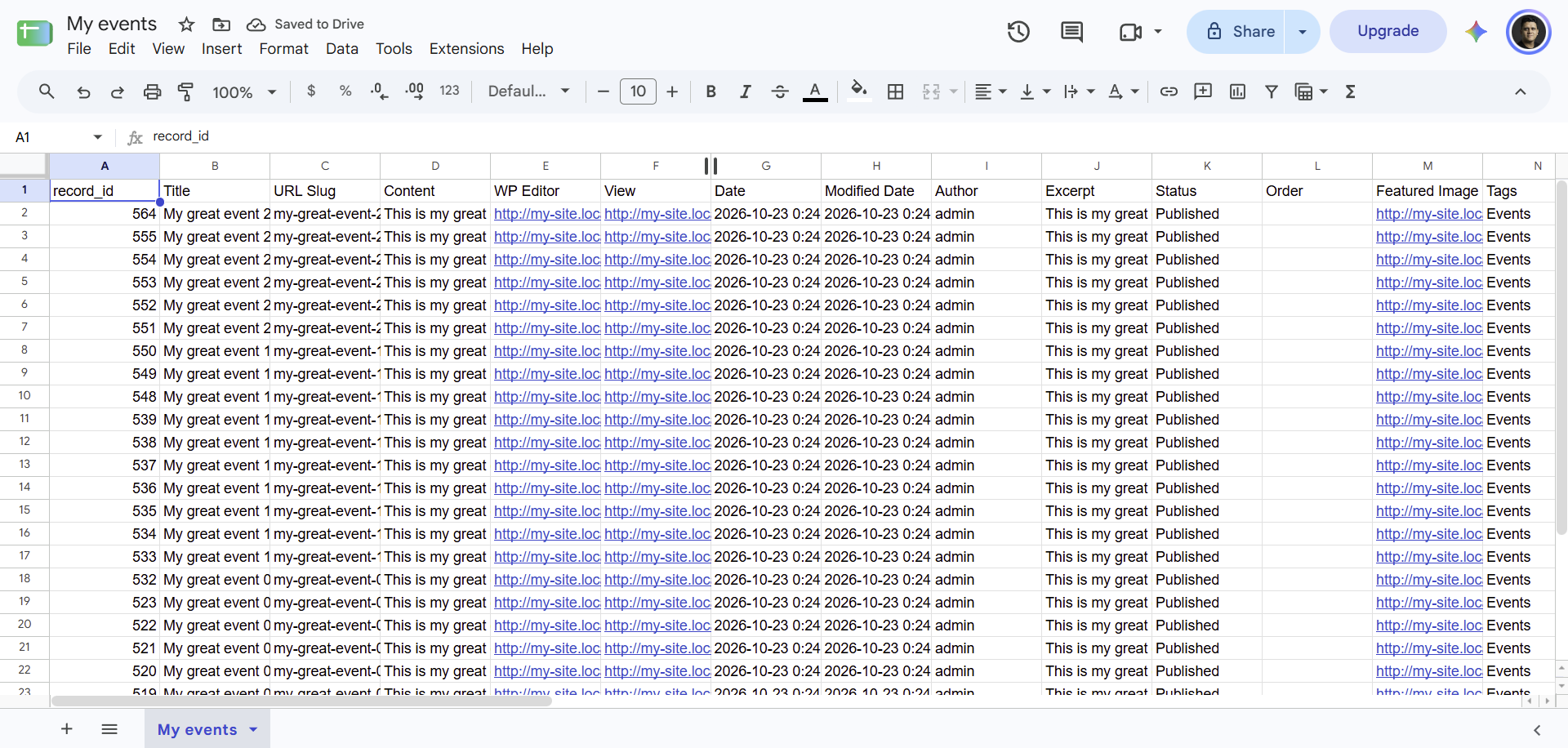
Once you do that, the export will start and a CSV file will be downloaded to your computer, containing the details of your The Events Calendar events. Here’s a preview of our events in the downloaded CSV file.
Option 2: Export your events to Excel file (XLSX)
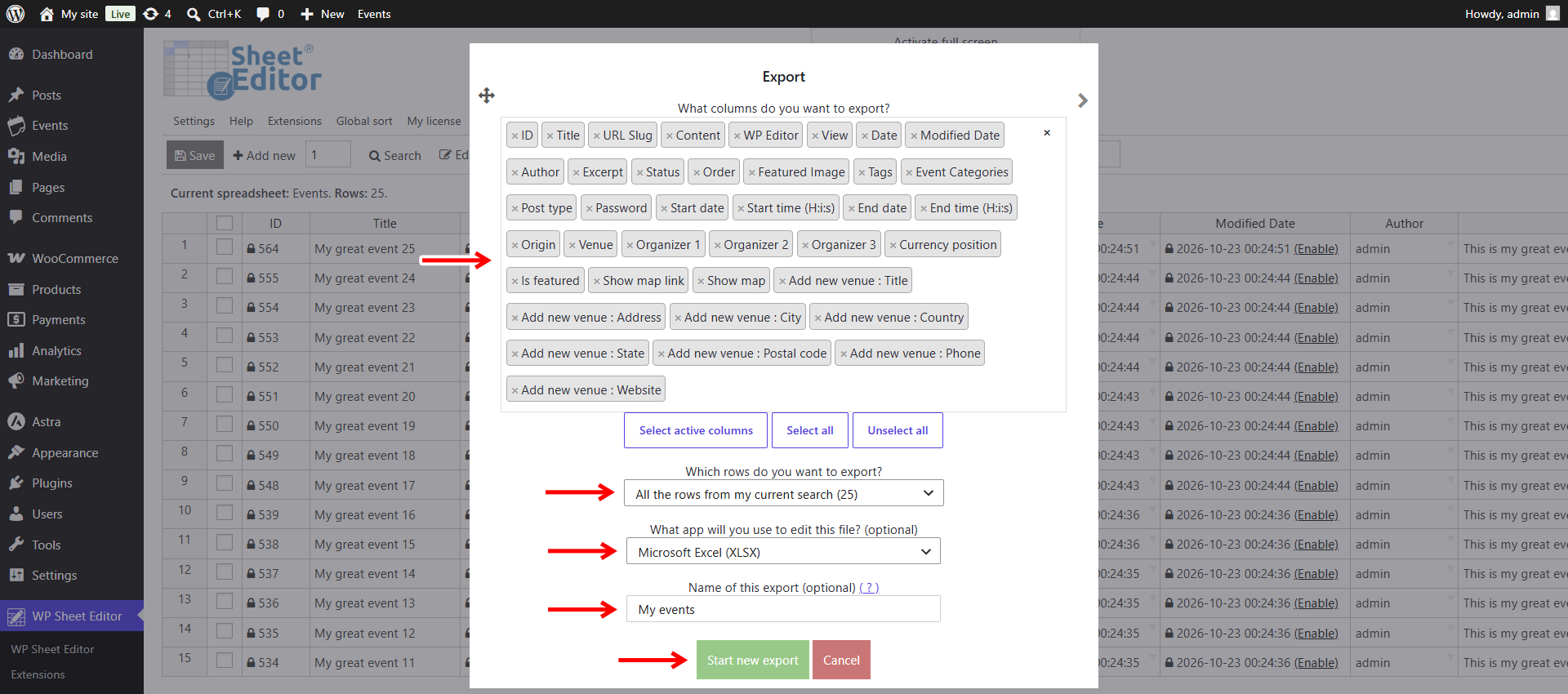
To export The Events Calendar to a Microsoft Excel file (XLSX), first open the Export tool.
After you open the Export tool, select these values to download the events data in an Excel file:
- Which columns do you want to export: You can export all columns or only selected columns.
- Which rows do you want to export: You can export all your events, only the events from a specific search, or the events that you have manually selected in the spreadsheet.
- What app will you use to edit this file: Microsoft Excel (XLSX)
- Name of this export: You can enter a name here and run this same export in the future with one click.
- Click on Start new export.
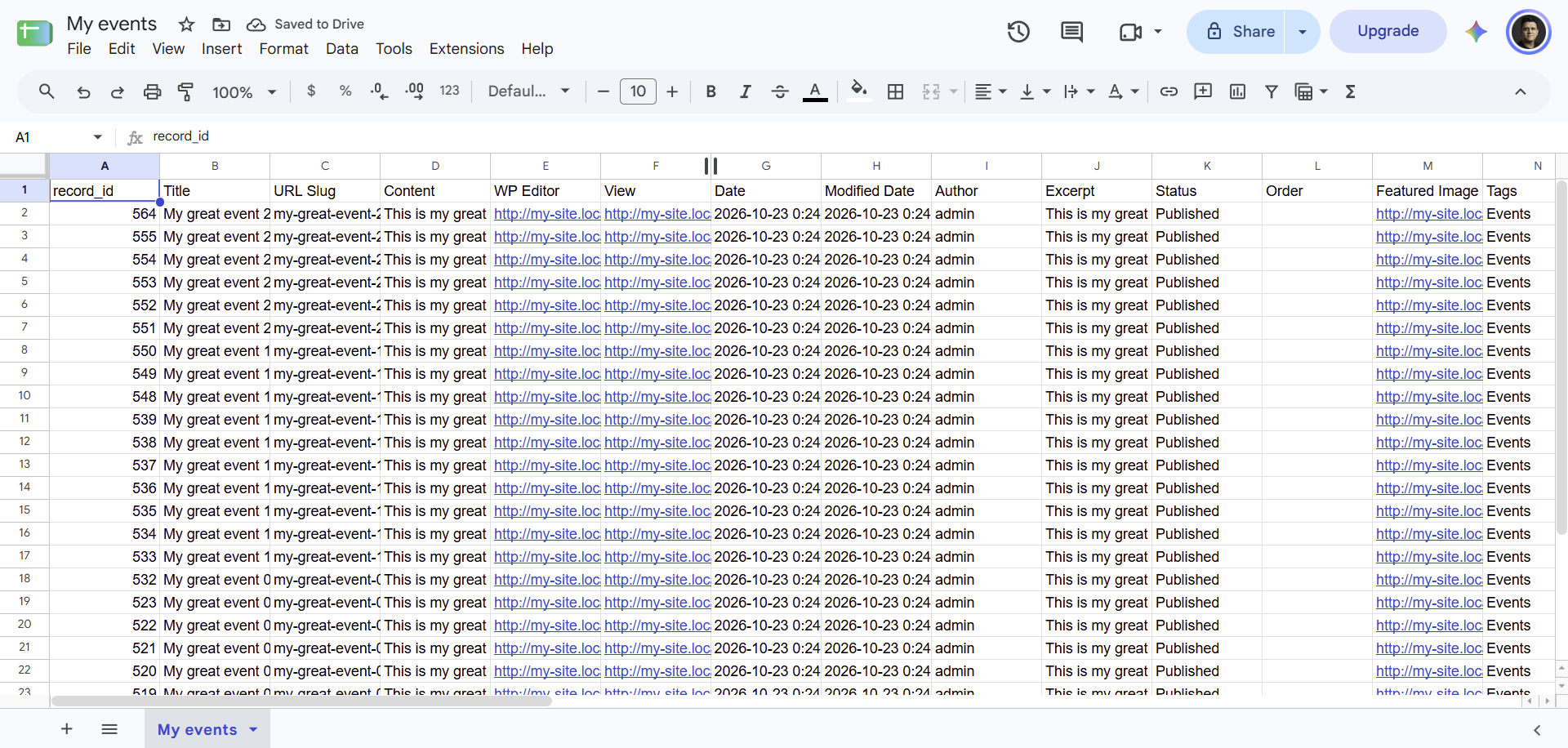
Here’s a preview of our events in the downloaded Excel file.
Option 3: Export The Events Calendar to Google Sheets
If you want to directly export the data of The Events Calendar to Google Sheets, you can use our Google Sheets Sync service. It allows you to connect your events website to your Google Sheets account. Once connected, you can export and import directly, on a schedule, or in real time.
Here’s a post about how to export and import The Events Calendar data with Google Sheets.
You can download the plugin here:
Download Events Spreadsheet Plugin - or - Check the features
Frequently Asked Questions on Exporting Events
Can I manage other The Events Calendar data with WP Sheet Editor?
Yes, you can manage and export / import events, organizers and venues.
Can I export only selected events?
Yes, you can do this in two ways:
- Use the Search tool to filter events by status, price, organizer, venue, or any other field. Once done, export all the results from your search.
- Use the checkbox picker to mark specific events and export only the events that you manually selected.