
Need to edit WooCommerce stock in a spreadsheet or update stock quantities for multiple products? With WP Sheet Editor – WooCommerce Products, you can manage your inventory in a spreadsheet directly inside WordPress.
Instead of opening each product individually, you can:
- Update stock quantities for multiple products in one place.
- Change stock status to In stock, Out of stock, or On backorder.
- Enable or disable stock management for individual products.
- Edit different products at the same time and save your changes together.
You don’t need to export products to Excel or upload CSV files. You can edit your existing WooCommerce inventory directly in the spreadsheet.
1. Install WP Sheet Editor for WooCommerce Products
First, install and activate WP Sheet Editor – WooCommerce Products on your WordPress website.
Get WP Sheet Editor - WooCommerce Products:
Start editing WooCommerce stock in a spreadsheet - or - Check the features
The plugin adds a spreadsheet editor to your WordPress dashboard. Each row represents a product, and each column contains a product field, including inventory settings.
This lets you see stock information for multiple products and edit it without switching between individual product pages.
2. Open your WooCommerce products in the spreadsheet
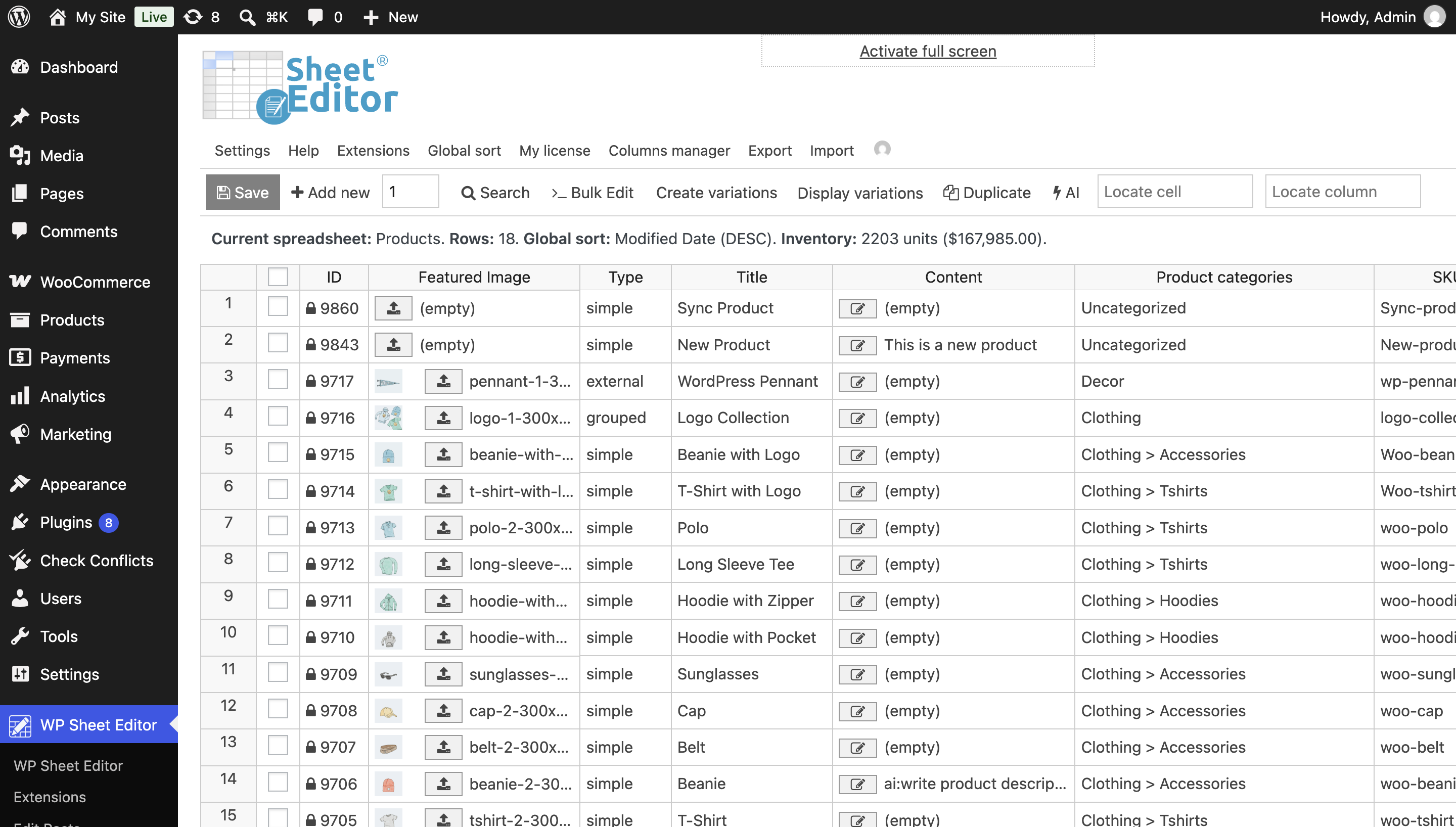
Go to WP Sheet Editor > Edit Products.
You’ll see your WooCommerce product catalog in a spreadsheet.
3. Edit WooCommerce stock in a spreadsheet
You can now change your inventory information directly in the spreadsheet cells.
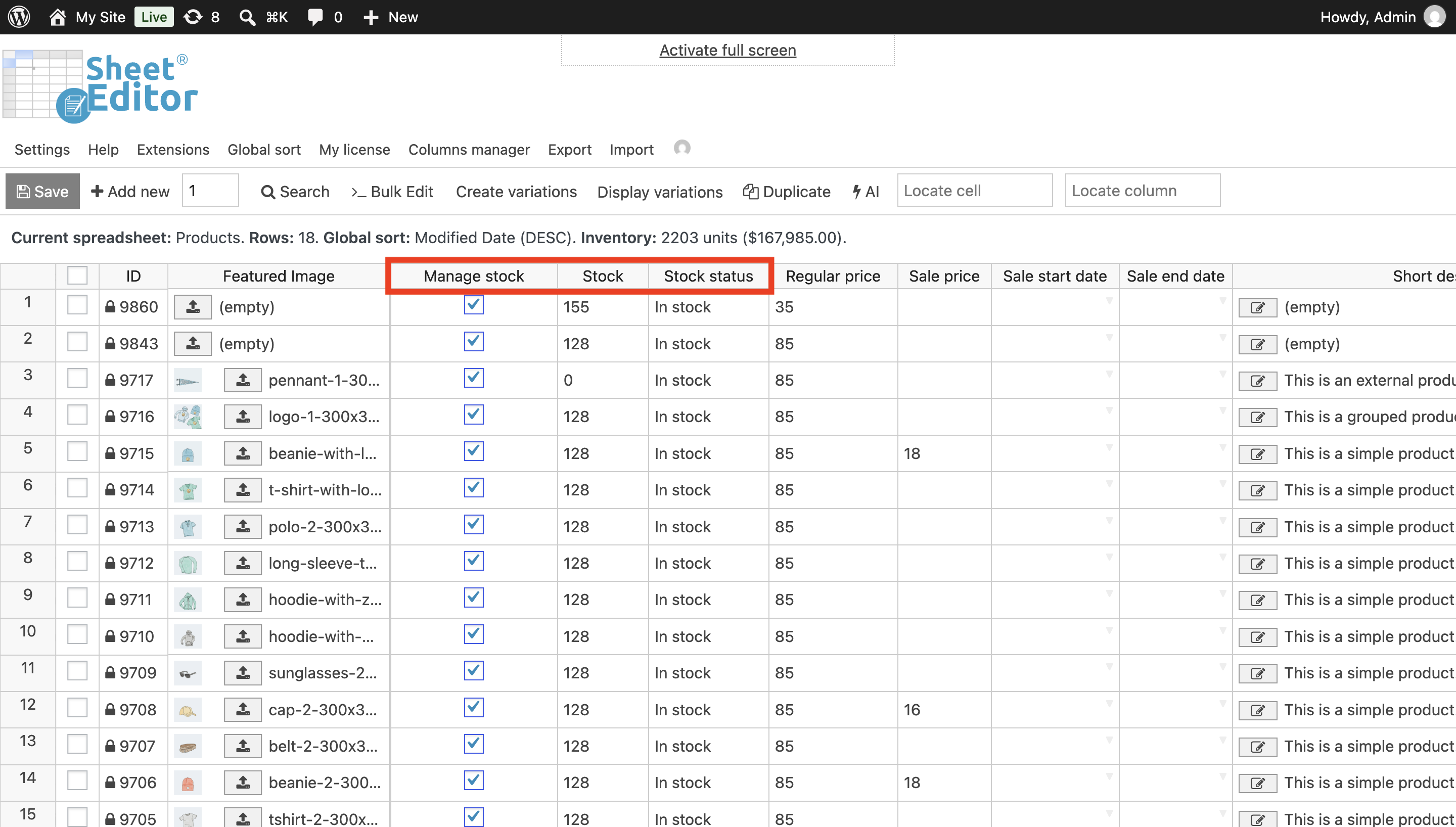
Find these three columns:
- Manage stock: Enable or disable quantity-based inventory tracking.
- Stock: Enter the available stock quantity for each product.
- Stock status: Select In stock, Out of stock, or On backorder, as applicable.
Update stock quantities for multiple products
Find the Stock column and enter the new quantity for each product.
For example, you can change one product from 5 to 20 units, another from 12 to 8, and another from 30 to 15.
You can edit as many product rows as needed without leaving the spreadsheet.
If you want WooCommerce to track quantities automatically, make sure the Manage stock option is enabled for the relevant products.
Change WooCommerce stock status
You can also edit the Stock status column to change the availability of products that aren’t using quantity-based stock management.
When WooCommerce manages stock quantities automatically, stock status is normally determined by the available quantity and backorder settings.
Save your inventory changes
After updating your products, click Save.
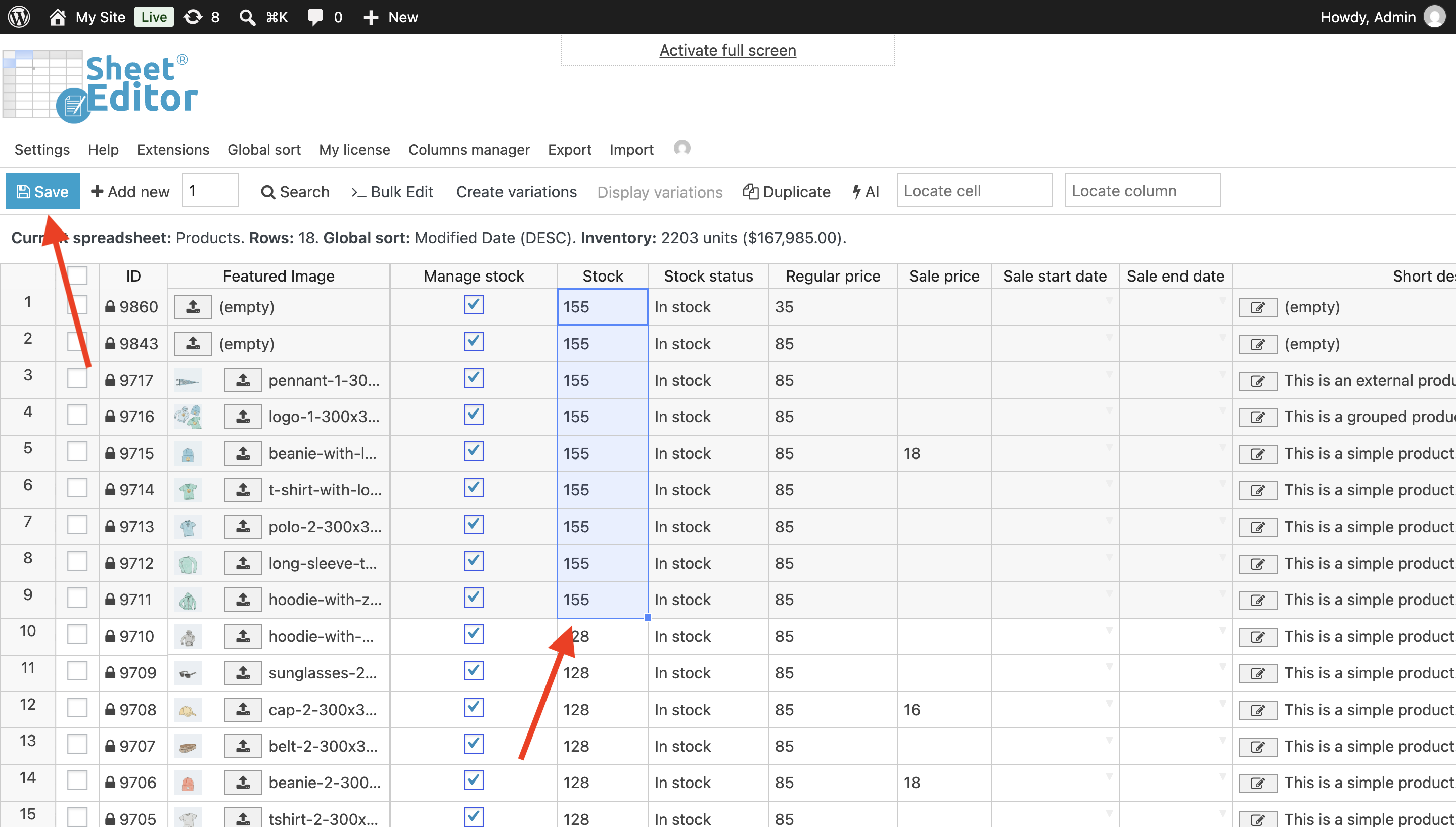
WP Sheet Editor saves your changes to your WooCommerce products. You don’t have to open each product and save it separately.
Optional: Edit variation stock in the spreadsheet
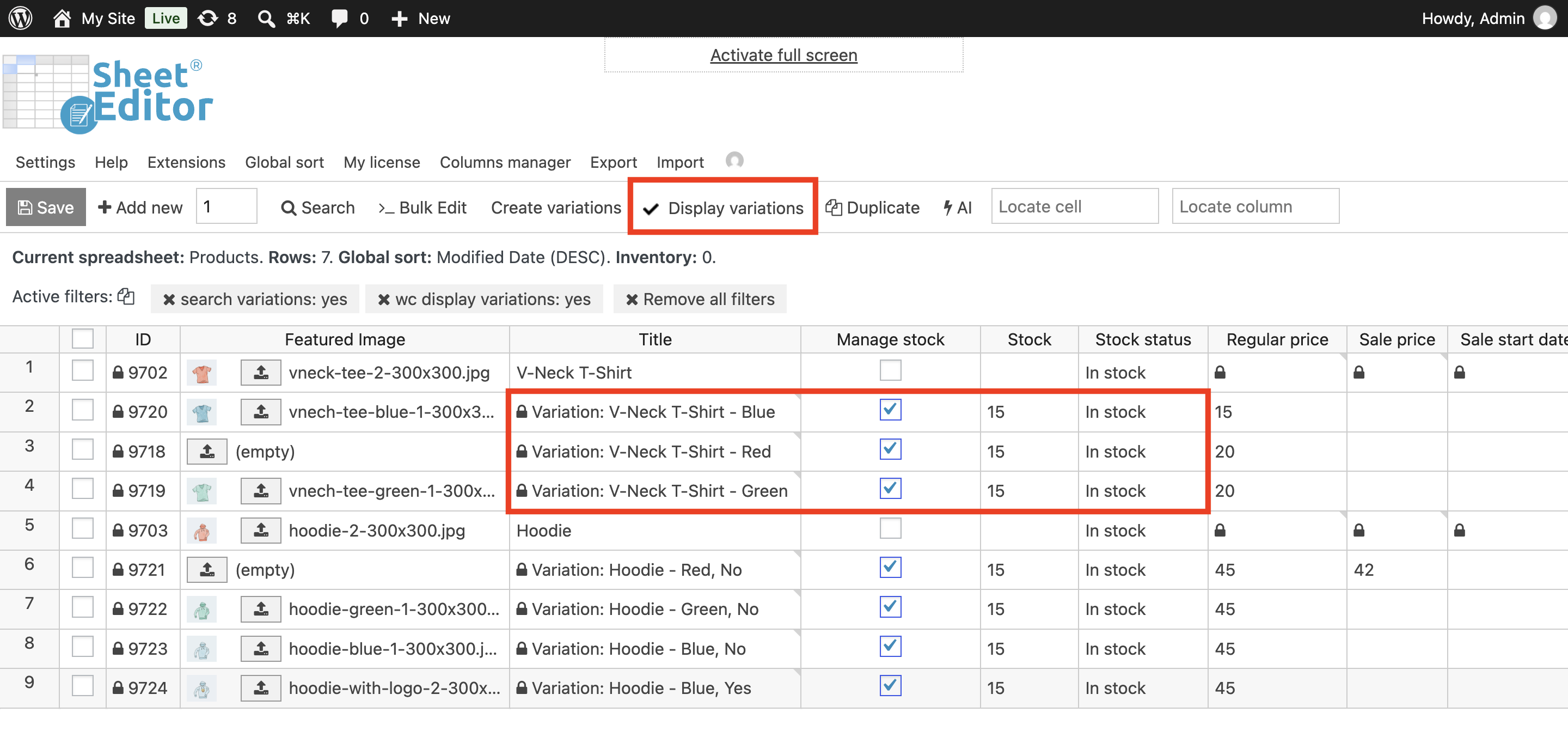
If you have variable products with variations, you can manage variation stock in the spreadsheet. Just click on Display variations to view the variations next to their parent products in the spreadsheet and manage the inventory at the variation level. Forget about editing stock for variations one by one.
Manage WooCommerce inventory from one spreadsheet
Whether you’re updating stock after receiving new inventory, correcting quantities, or reviewing product availability, WP Sheet Editor gives you one place to manage those changes.
You can edit different stock quantities, update inventory settings, and save changes to multiple products from your WordPress dashboard.
Ready to manage your WooCommerce stock in a spreadsheet?
Get the WooCommerce Products Spreadsheet plugin:
You can also use WP Sheet Editor for more specific inventory tasks: