
You can translate WooCommerce categories and tags using the WP Sheet Editor – Taxonomy Terms plugin together with WooCommerce Multilingual by WPML. The method works by opening the correct language spreadsheet, creating translation copies of your terms, and then editing names, descriptions, and SEO fields directly in the grid. This approach turns a manual term-by-term process into a bulk spreadsheet operation that handles hundreds of categories across multiple languages in minutes.
Table of Contents
How to translate WooCommerce categories and tags with WPML and WP Sheet Editor
If you run a multilingual WooCommerce store with WooCommerce Multilingual (WPML), you already know the math. One hundred product categories across three languages means three hundred category records that need translation work. Doing that one term at a time through the default WordPress taxonomy editor is slow and repetitive.
WP Sheet Editor – Taxonomy Terms solves this by giving you a spreadsheet-style interface where you can edit all your taxonomy terms at once. The plugin works with WooCommerce Multilingual to handle category and tag translations in bulk.
There are two paths to creating translations of your WooCommerce product taxonomies. We will cover both, then show you how to edit the translations once they exist.
Option 1: Automatically create taxonomy translations when bulk translating products
This method works when you are already using the WP Sheet Editor – Products Spreadsheet plugin to bulk create product translations. When you translate a product through the products spreadsheet, the plugin can automatically create the corresponding category and tag translations at the same time.
You can read the full walkthrough here: use the WP Sheet Editor – Products Spreadsheet plugin to bulk create product translations.
This is the recommended method because it saves time and keeps products and their taxonomies connected from the start. The translations are created automatically, and you only need to use WP Sheet Editor – Taxonomy Terms afterward to fine-tune the translated names, descriptions, and SEO fields.
Option 2: Create category and tag translations with WP Sheet Editor – Taxonomy Terms directly
If you prefer to create the translations manually or you need to translate terms that are not yet attached to any translated products, this option gives you full control.
Start by navigating to WP Sheet Editor > Edit categories, tags, attributes, taxonomies. You will see a list of available spreadsheets.
- To work with categories, select Edit Product categories.
- To work with tags, select Edit Product tags.
We will use the categories spreadsheet as an example. The same steps apply to tags.

The content you see in the spreadsheet depends on which language you have selected. If you choose English, the spreadsheet displays only the English categories. The number of rows matches the categories that exist in that language.

If you switch to the Spanish language view, the spreadsheet shows only the Spanish translations that have been created. The number of categories may be smaller than the main language because only categories used by translated products appear here.

Similarly, selecting the Italian language shows only the Italian category translations.

Before you can edit translations, you need to create them. There are two ways to do this within the spreadsheet.
Method A: Create translations manually per row
This method works best when you only need to translate a few specific categories.
- Open the spreadsheet in your base or main WPML language. In this example, the main language is English.
- Locate the WPML – Duplicate column for the category you want to translate.
- Enter the language codes for the translations you want to create, separated by commas. For example, to create Spanish and Italian translations, enter “es, it”.
- Click Save to apply the changes.

Method B: Bulk create translations for all categories at once
Use this method when you need to create translations for every category in your store. It saves significant time compared to working row by row.
Open the Bulk Edit tool from the toolbar at the top of the spreadsheet.

In the Bulk Edit panel, configure these settings:
- Select the rows that you want to update: Choose “Edit all the rows from my current search” to apply the change to every visible category.
- What field do you want to edit: Select “WPML – Duplicate”.
- Select type of edit: Choose “Set value”.
- Replace existing value with this value: Enter the translation language codes separated by commas. For this example, enter “es, it” for Spanish and Italian.
- Click Execute Now.

This single action creates translation copies for every selected category into all the languages you specified. The copies are empty shells at this point, ready for you to fill in the actual translated text.
How to translate categories and tags using the spreadsheet
Once the translation copies exist, you switch to the target language spreadsheet and fill in the actual content. We will use the Spanish spreadsheet as our example.
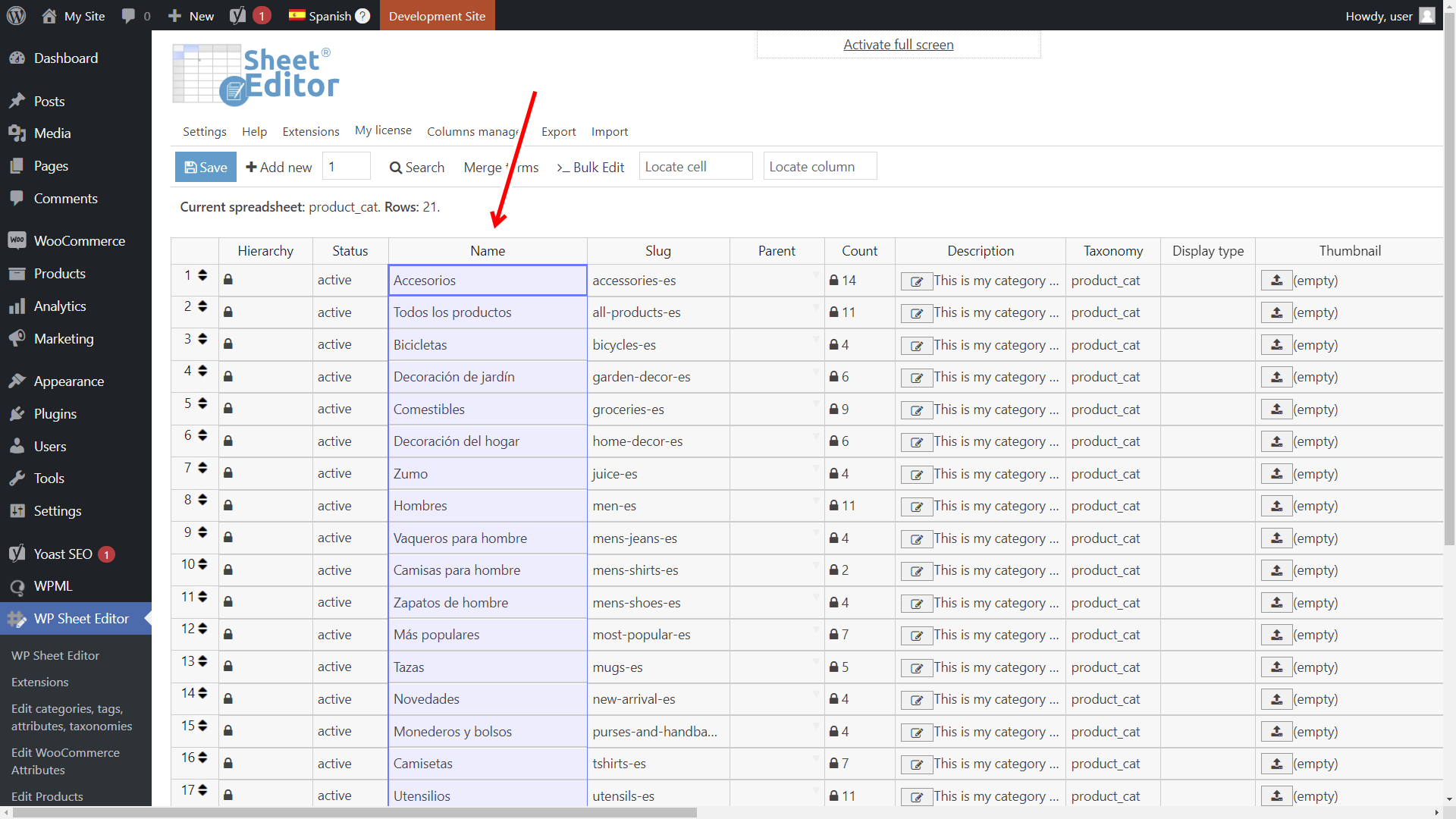
a) Translate category or tag names
Open the spreadsheet in the language you want to edit. Go to the Name column and type the translated title directly into each cell. You can also paste translated content from another source if you prepared it in advance.
b) Translate category or tag descriptions
Descriptions often contain more text than titles, and the spreadsheet handles this with a pop-up editor. Click the edit icon inside the Description cell to open a text editor window. Type or paste your translated description, save it, and move to the next row with a single click.

The pop-up editor gives you a full text editing area. After saving, you can immediately move to the next description without closing and reopening the editor.

c) Translate SEO titles, descriptions, and keywords for categories and tags
WP Sheet Editor is compatible with all popular WordPress SEO plugins, including Yoast SEO, Rank Math, and All in One SEO. The SEO fields appear as columns in the spreadsheet, just like the Name and Description columns. You can translate the SEO title, meta description, and focus keywords for each category or tag directly in the grid.

After you finish editing all the translated fields, click Save at the top of the spreadsheet to write every change at once. There is no need to save each row individually.
You can download the plugin here:
Download Categories, Tags, Product Attributes, Taxonomies Spreadsheet Plugin - or - Check the features
Frequently Asked Questions
Do I need to create the translations before editing them in the spreadsheet?
Yes. The spreadsheet can only display content that already exists in the database. You must create the translation copies first using the WPML – Duplicate column or the Bulk Edit tool. After the copies exist, switch to the target language spreadsheet and edit the translated text.
Can I translate categories and tags without having products in those categories yet?
Yes, as long as the categories and tags exist in your main language. You can create translation copies for any term using the WPML – Duplicate column, regardless of whether any products are assigned to it. This is useful for pre-building your taxonomy structure before adding products.
What happens to the original English category if I change a translation in the spreadsheet?
Nothing changes in the original. The WPML – Duplicate column creates a separate copy for each language. Editing the Spanish translation only affects the Spanish version. The English source category remains untouched.
Does WP Sheet Editor work with all SEO plugins for translated categories?
WP Sheet Editor is compatible with Yoast SEO, Rank Math, All in One SEO, and most other popular SEO plugins. The SEO fields appear as columns in the spreadsheet, and you can edit them per language just like the Name and Description fields. If a specific SEO plugin is not detected automatically, you can add its fields manually through the plugin settings.
You can download the plugin here:
Download Categories, Tags, Product Attributes, Taxonomies Spreadsheet Plugin - or - Check the features