
Need to find WooCommerce products with the same featured image? You can’t do this with the native settings of WooCommerce. But in this tutorial, you’ll learn how to identify duplicate images in WooCommerce products using the WP Sheet Editor for WooCommerce Products plugin.
Instead of checking each product manually, we will use a search filter where the Featured Image field contains duplicate values. That means we’ll look for products that have the same image URL in the product image field.
You can download the plugin here:
Download WooCommerce Products Spreadsheet Plugin - or - Check the features
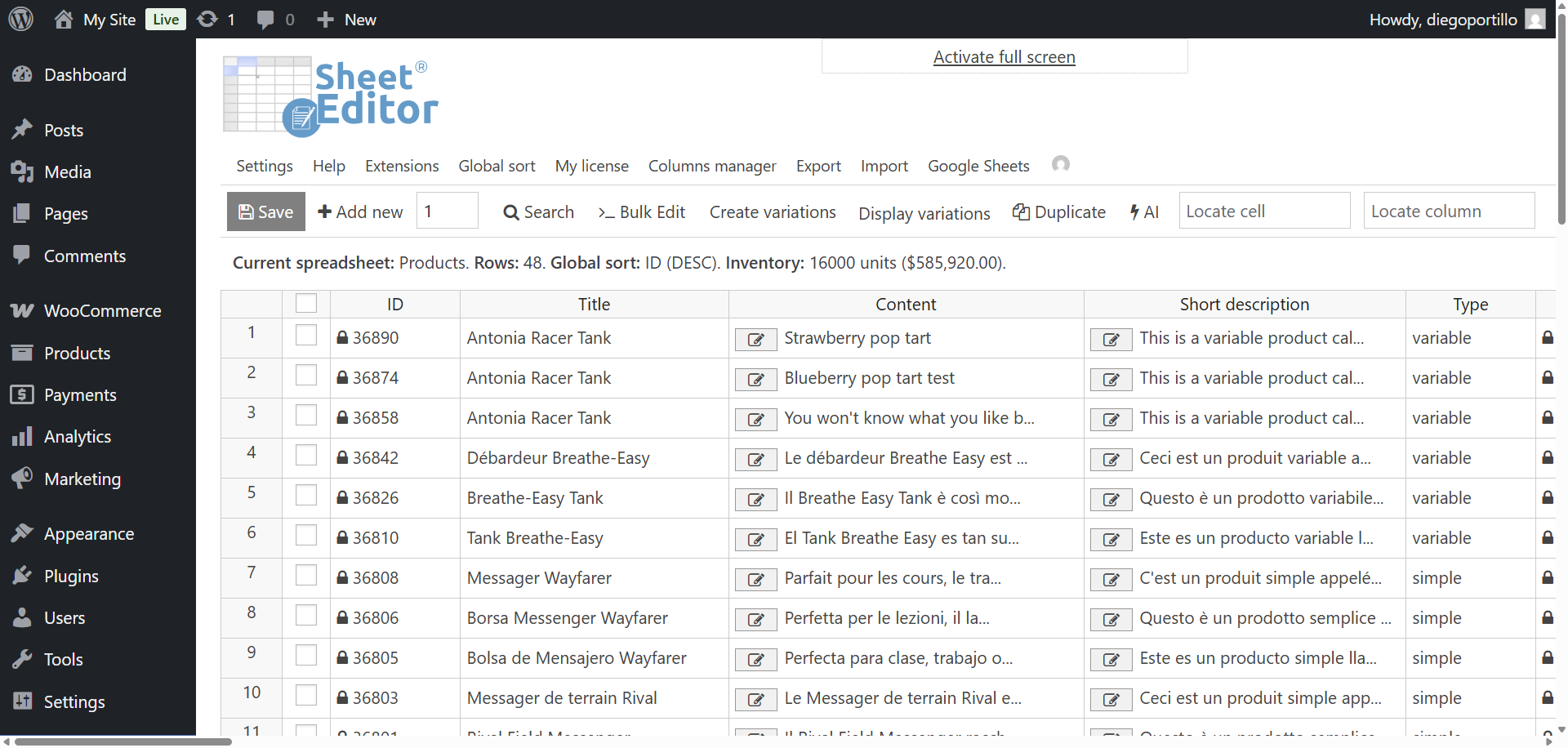
Step 1: Open the Products Spreadsheet
Go to WP Sheet Editor > Edit Products in your WordPress dashboard.
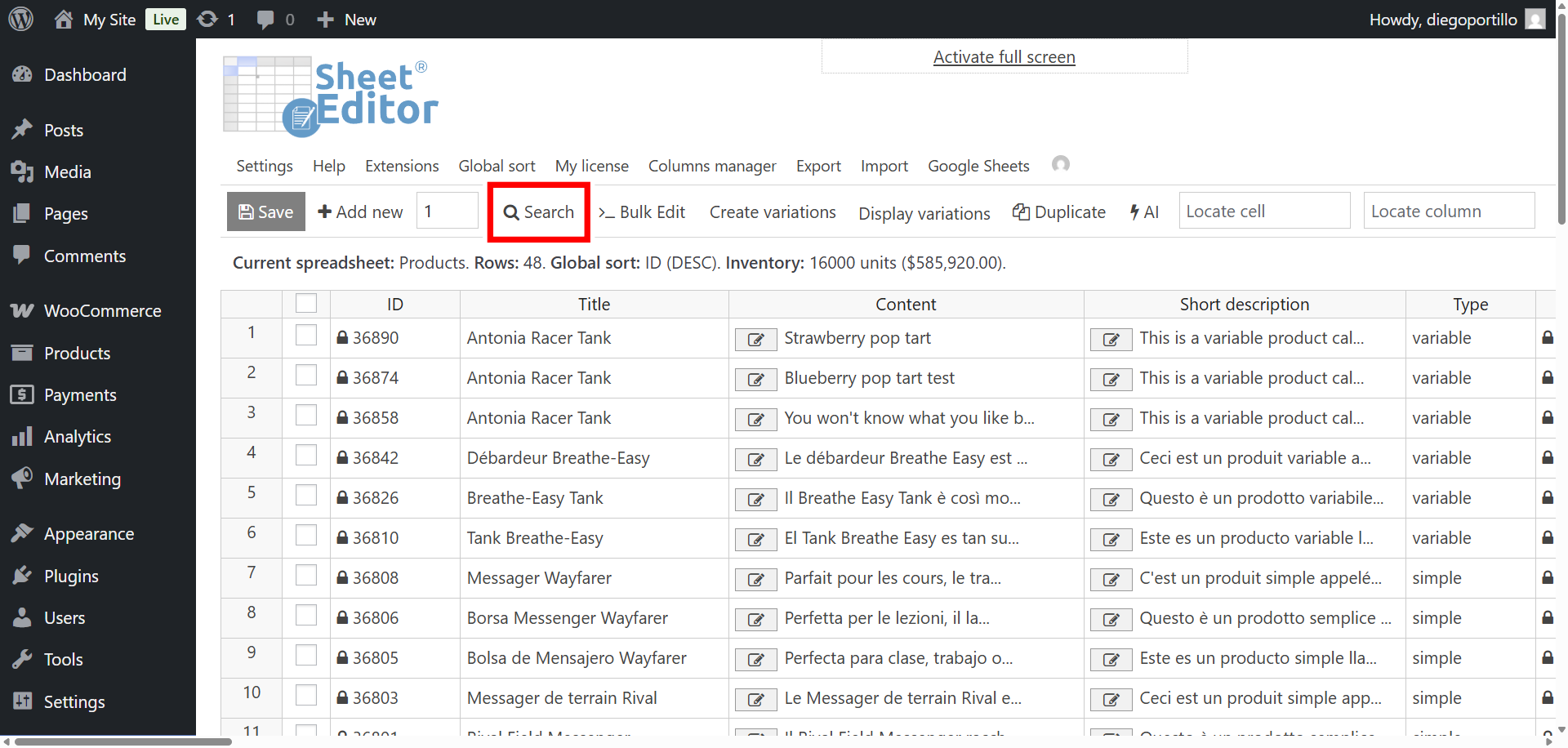
Step 2: Open the “Search” tool
The Search tool lets you find specific products based on any field in your store: titles, SKUs, descriptions, categories, prices, images, and even custom fields from other plugins.
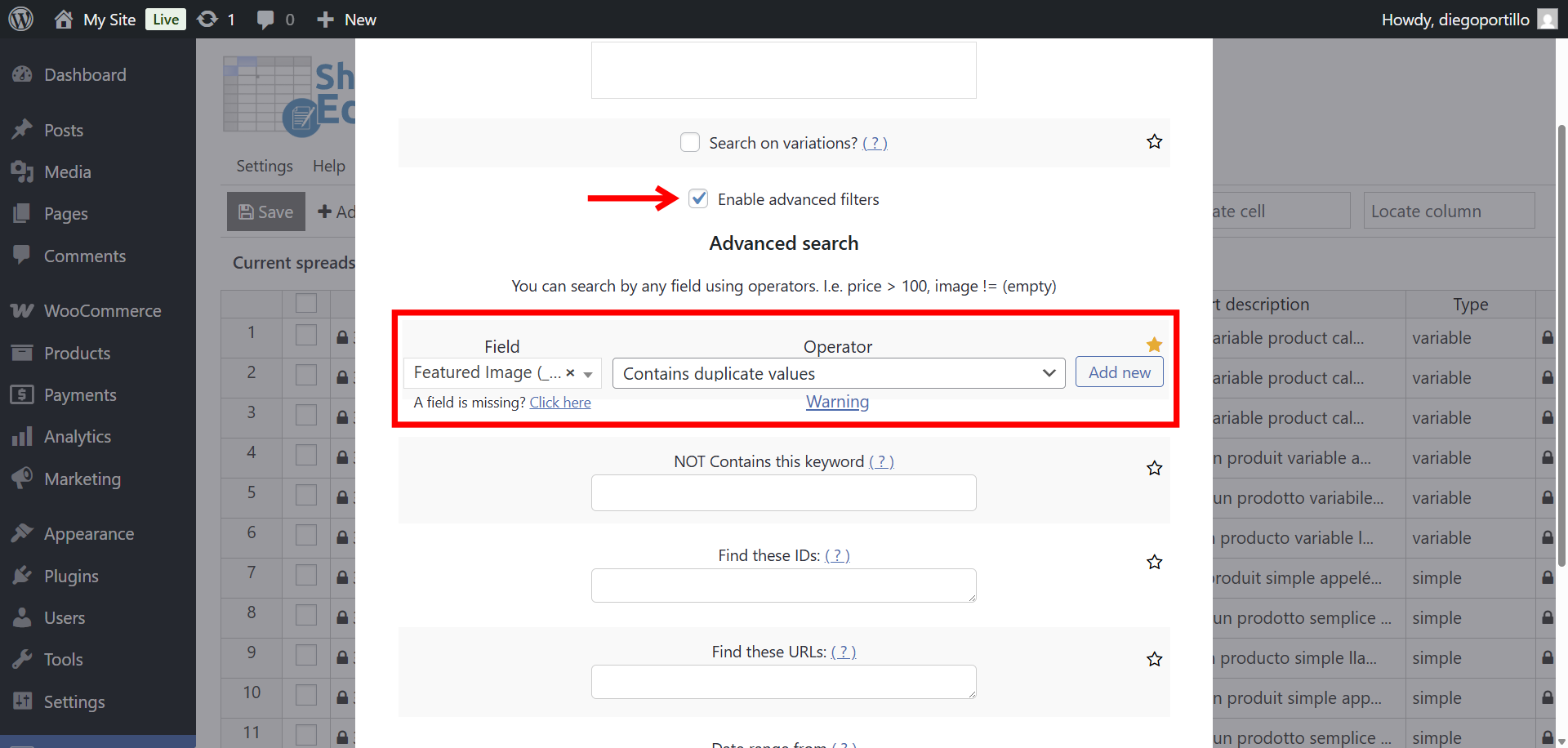
Step 3: Search for products with duplicate images
To find products with duplicate feature image, you need to select these values:
- Tick the Enable advanced filters checkbox
- Field: Featured Image
- Operator: Contains duplicate values
- Click Run search
The spreadsheet will show only the products that share the same featured image URL.
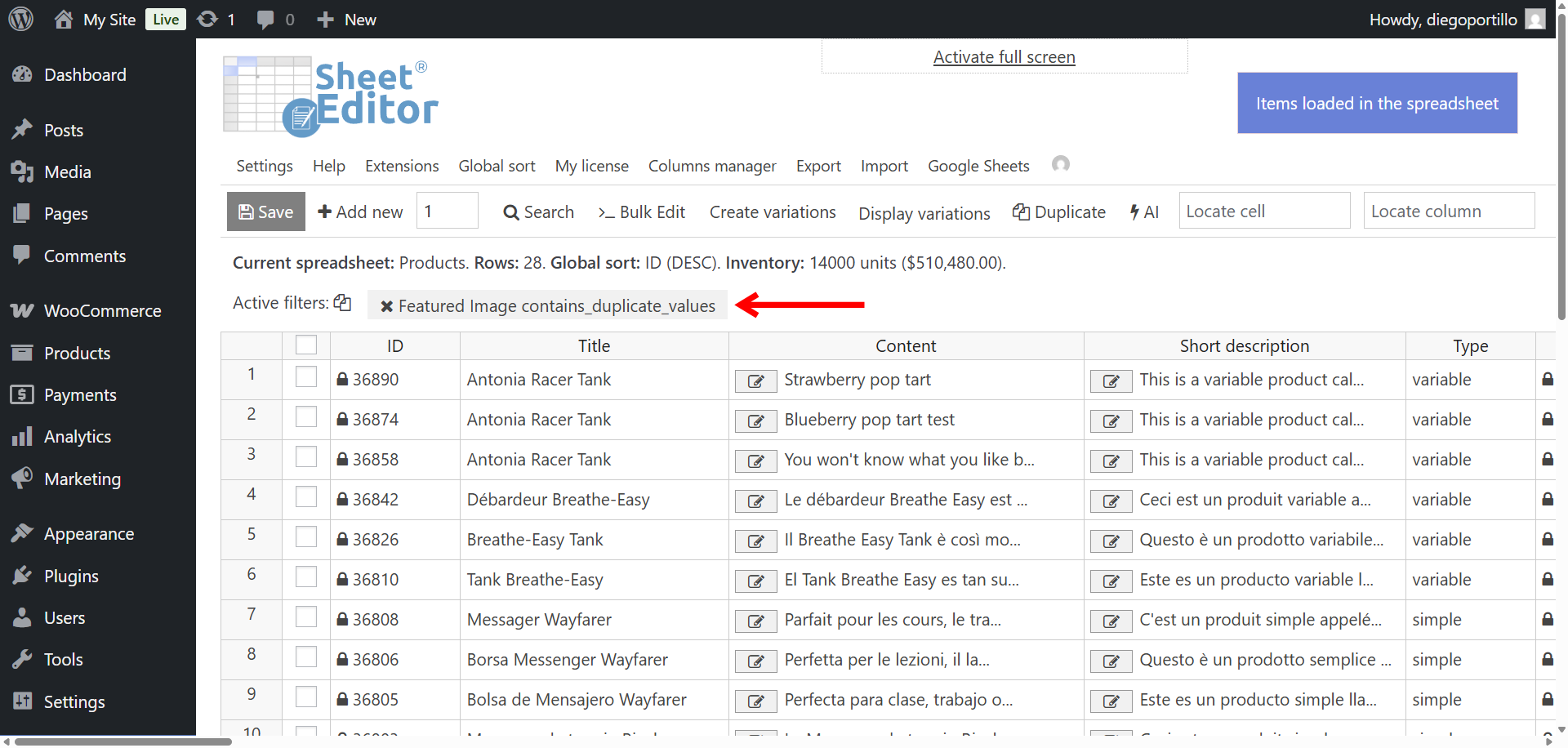
Now you can scroll through the results to quickly identify which products need new images.
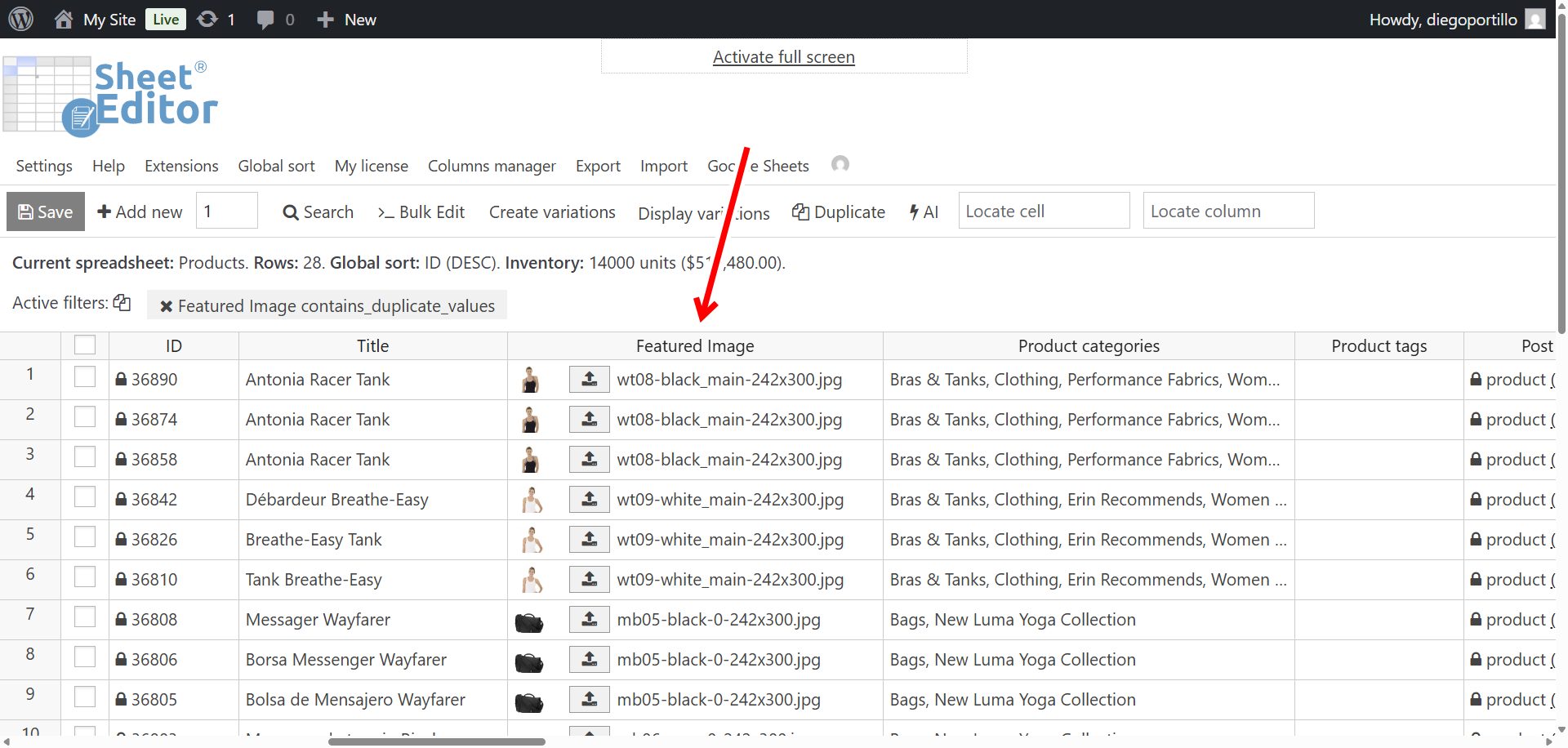
After filtering products with the same image, you can start fixing them quickly. For example, use the spreadsheet to change the images, import product data with the new images, etc.
You can download the plugin here:
Download WooCommerce Products Spreadsheet Plugin - or - Check the features