
Finding images that are currently being used as featured images in WordPress isn’t easy when you have a large Media Library. WordPress lets you upload and manage media files, but it doesn’t provide a built-in search filter for finding images based on whether they are assigned as featured images.
This becomes even more difficult on websites with hundreds or thousands of images, especially when you manage different types of content such as blog posts, WooCommerce products, pages, courses, or custom post types.
In this guide, you’ll learn how to find images used as featured images in WordPress and how to filter those images based on the type of content they’re associated with. This can help you identify which media files are being used, find featured images for specific post types, and manage your WordPress Media Library more efficiently.
We’ll use the WP Sheet Editor – Media Library plugin. It displays your WordPress media files in a spreadsheet and provides advanced search and filtering tools for finding specific images and understanding how they’re being used on your website.
You can download the plugin here:
Download Media Library Spreadsheet Plugin - or - Check the features
After installing and activating the plugin, go to WP Sheet Editor > Edit Media in your WordPress dashboard. This opens your Media Library in the spreadsheet editor.
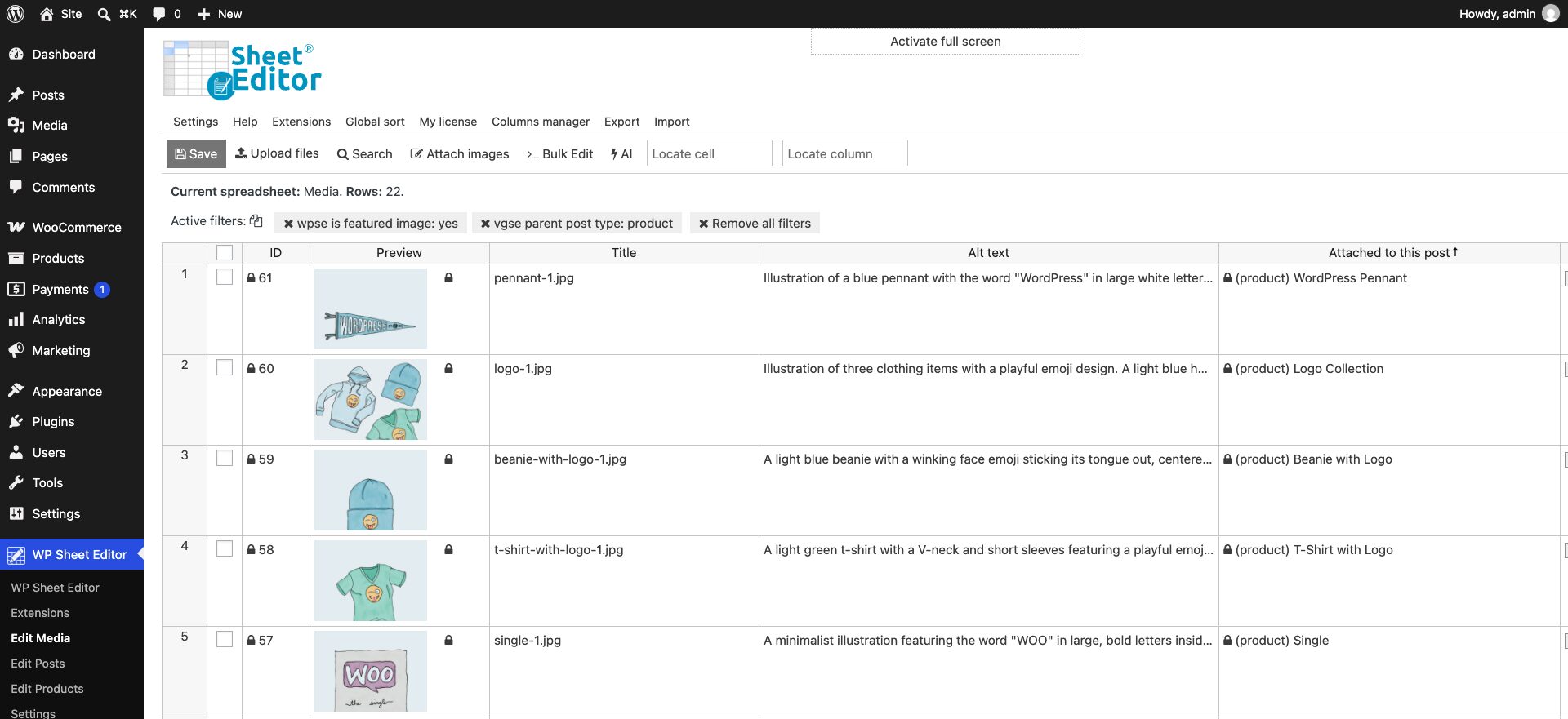
Open the Search tool
WordPress doesn’t normally let you search the Media Library based on an image’s role in your content. For example, you can’t use the standard Media Library search to find every image that is currently assigned as a featured image.
WP Sheet Editor solves this by providing an advanced Search tool with filters that can identify images based on how they’re used in WordPress.
This means you can search for media files that are being used as featured images instead of manually opening posts, products, or other content to check which image is assigned to each one.
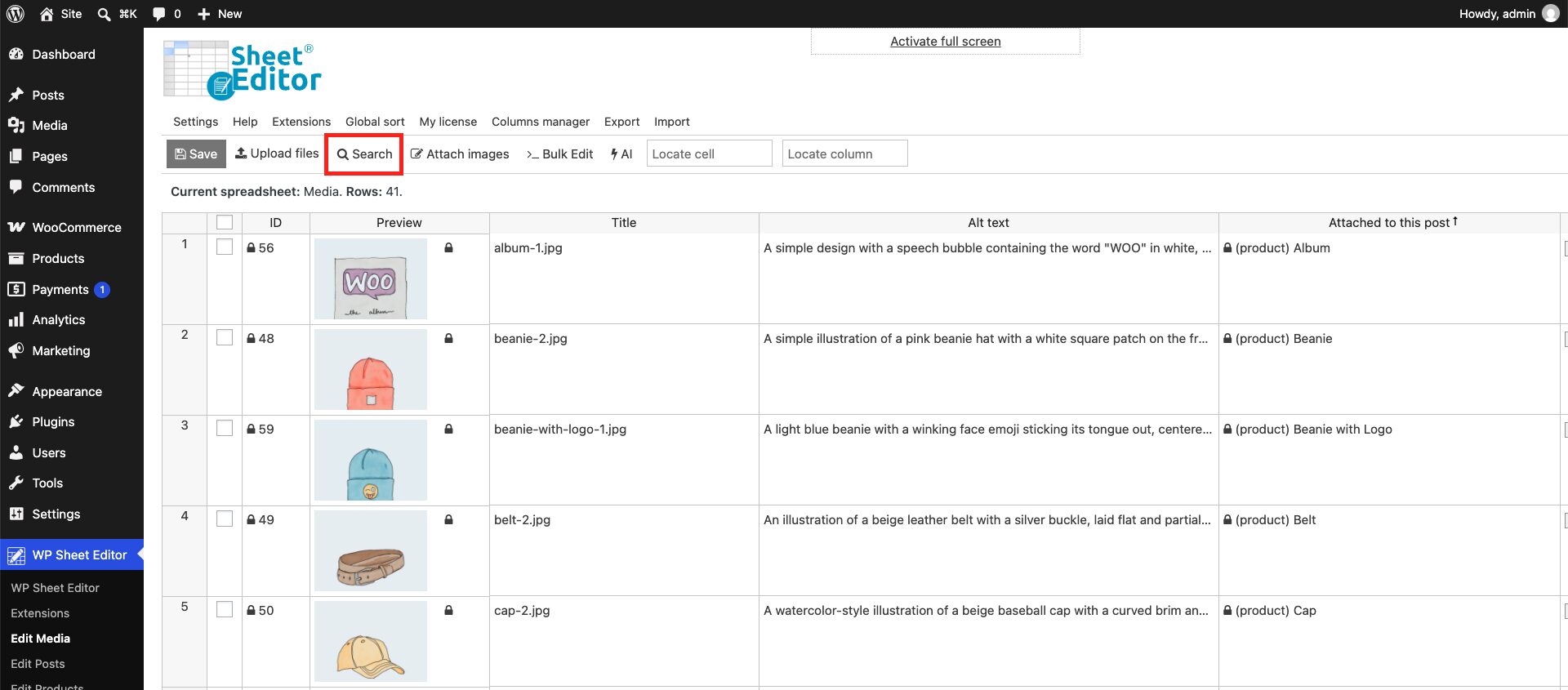
Find all images used as featured images
If your goal is to find every image in the Media Library that is being used as a featured image, you can use the advanced filters in the Search tool.
- Check Enable advanced filters.
- Check Is image used as featured image?.
- Click Run search.
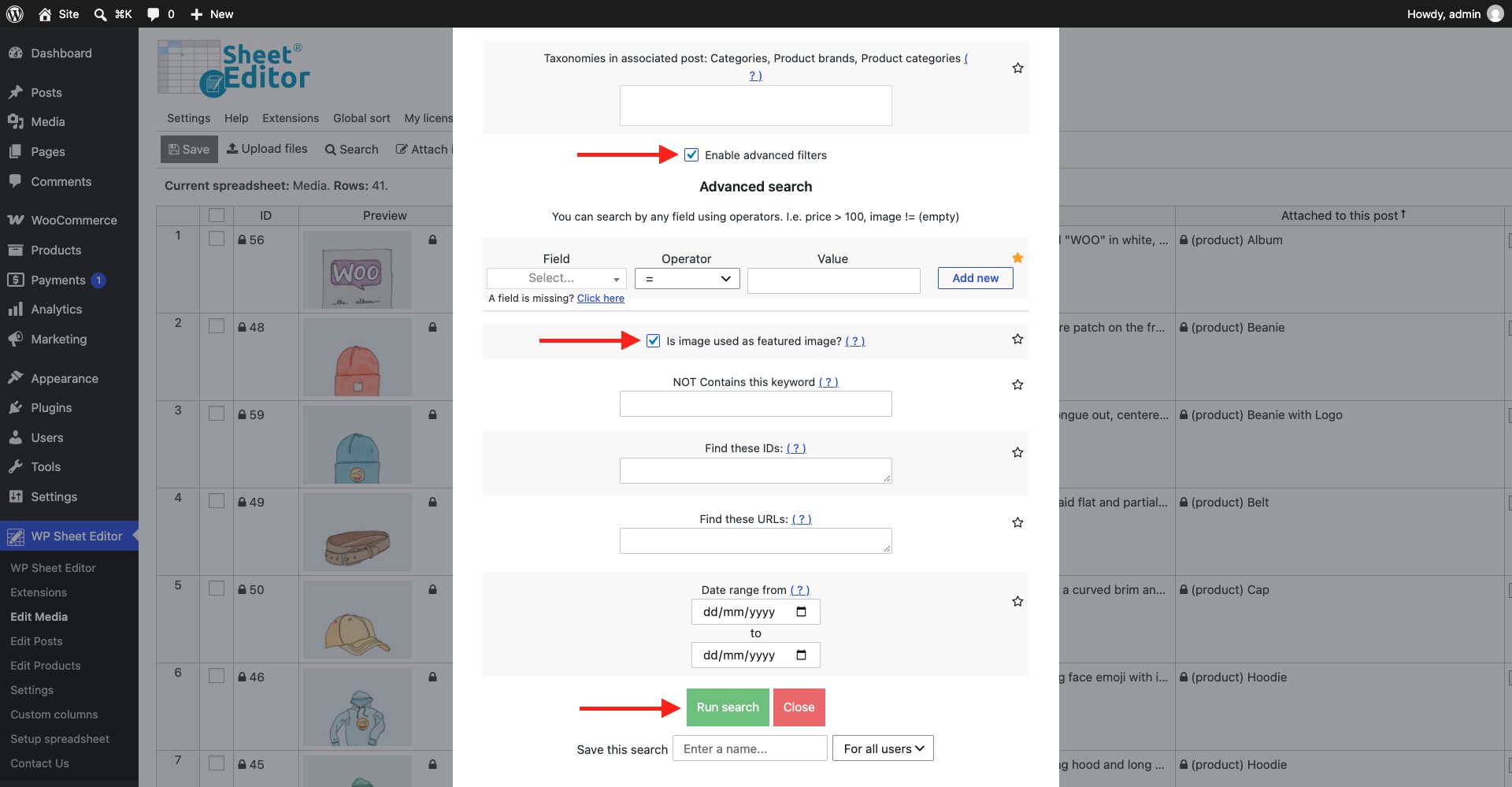
WP Sheet Editor will filter the media library and show the images that are currently assigned as featured images. This can include featured images used by different types of WordPress content.
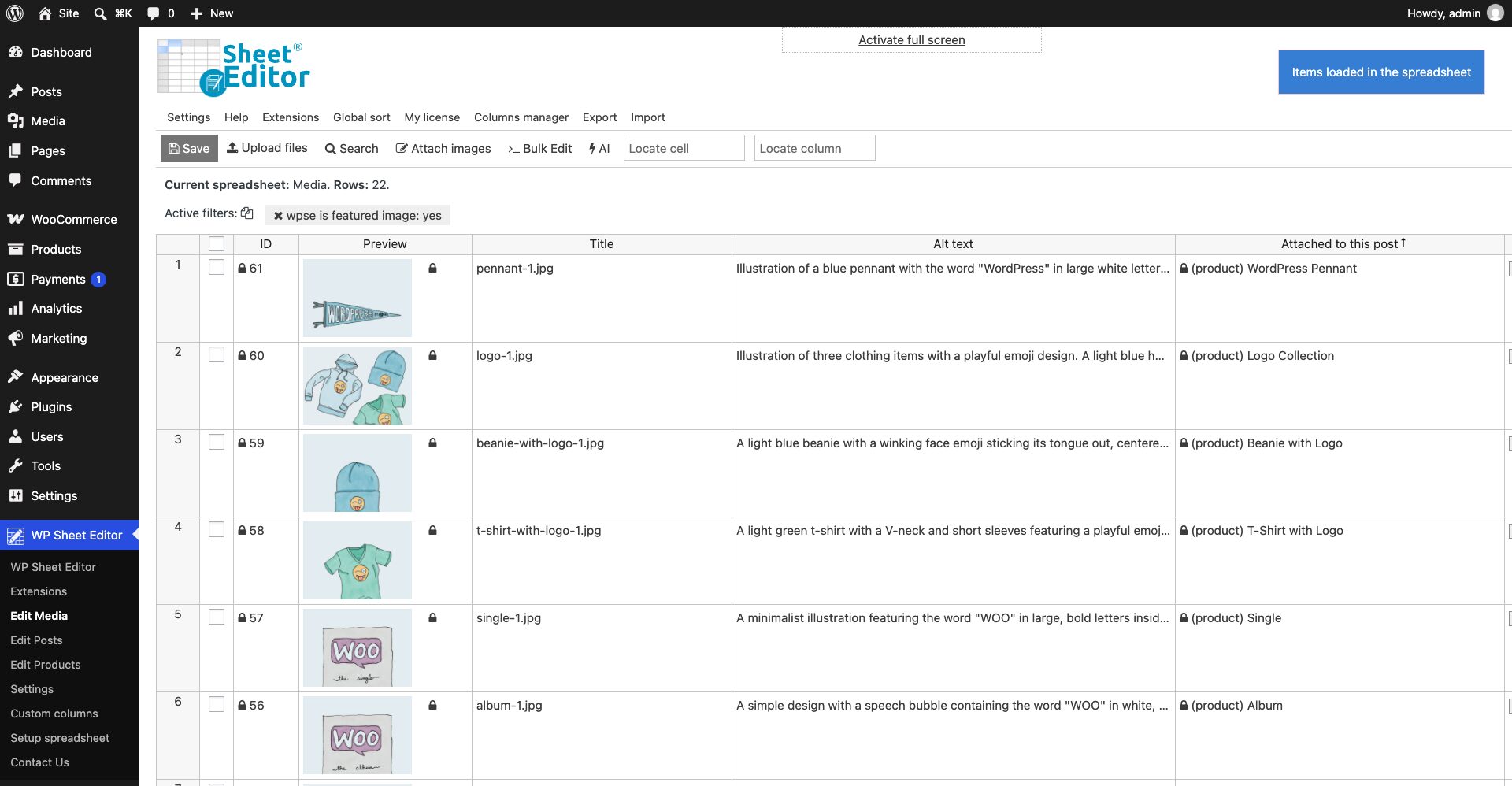
Find featured images by post type
Sometimes you don’t want to find every featured image on the website. You may only be interested in images used by a particular type of content.
For example, you might want to find:
- Featured images assigned to WordPress blog posts
- Featured images used by WooCommerce products
- Images assigned to pages
- Featured images used by courses
- Images associated with a custom post type
You can combine the post type filter with the featured image filter to narrow down the results.
In the Search tool:
- Select the relevant post type from the Files associated to dropdown. You can select products, posts, pages, courses, or another available post type.
- Check Enable advanced filters.
- Check Is image used as featured image?.
- Click Run search.
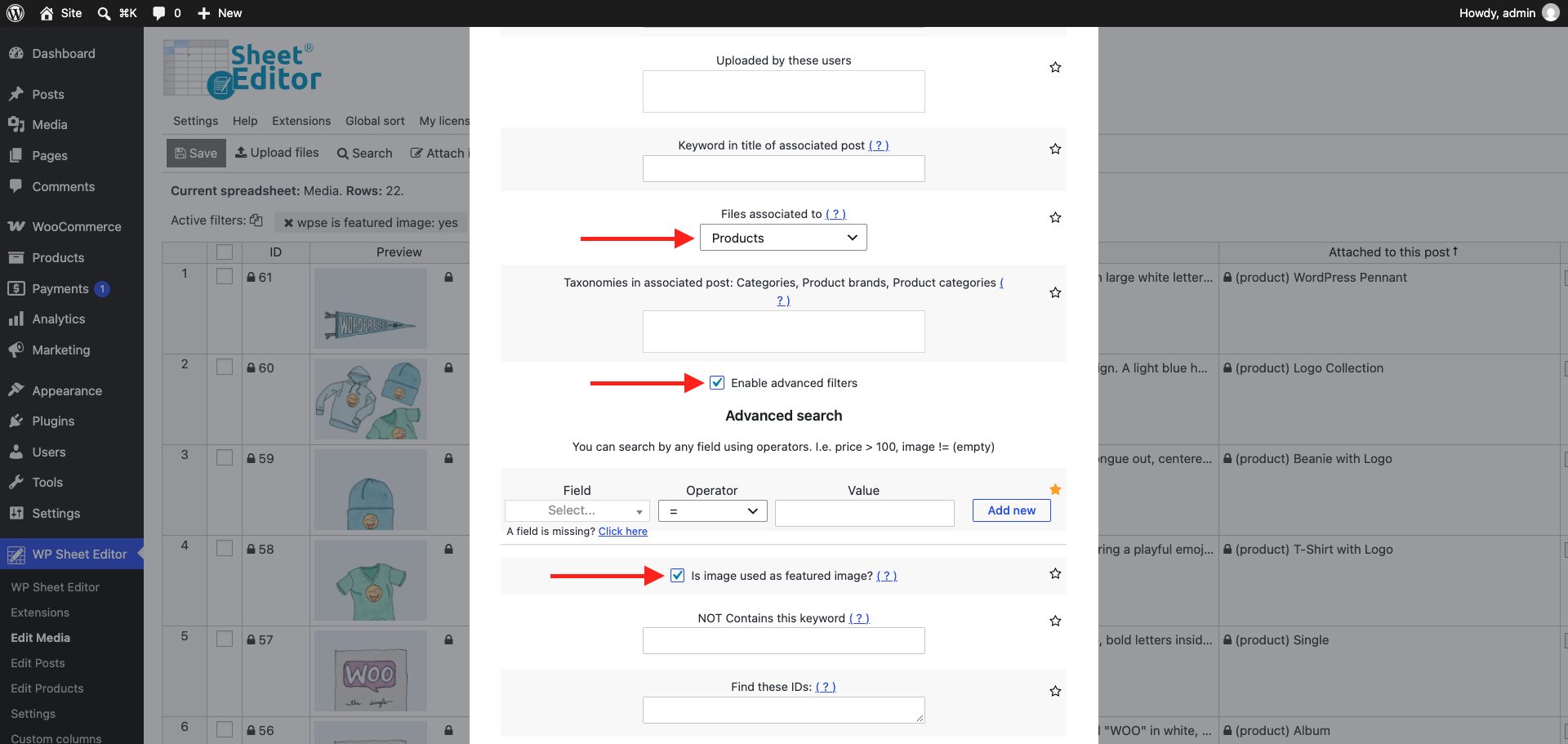
WP Sheet Editor will display all the images associated with the selected post type.
Why search for images used as featured images?
Knowing where your media files are being used can be useful when you’re managing a large WordPress website. Instead of browsing individual posts or products, you can search the Media Library and identify images based on their relationship to your content.
For example, this can help when you’re reviewing your featured images, organizing a large media library, working with WooCommerce product images, or trying to determine whether a particular image is being used on your site.
Manage WordPress featured images from the Media Library
The standard WordPress Media Library provides basic tools for finding uploaded files, but it doesn’t offer advanced filters for every way an image is used. WP Sheet Editor – Media Library adds spreadsheet-style management and advanced search capabilities to make this type of media management easier.
With the featured image filter, you can search across your media files and identify images currently assigned to posts, products, pages, courses, and other post types. You can also combine the filter with a specific post type to get more targeted results.
This makes it easier to understand how images are being used across your WordPress website without manually checking each piece of content.
You can download the plugin here:
Download Media Library Spreadsheet Plugin - or - Check the features