
Do you have hundreds of WordPress posts with poorly optimized, overly long, or messy URL slugs? By default, WordPress often generates slugs that include stop words, numbers, or the entirety of a long post title. A clean, keyword-rich permalink is essential for search engine optimization (SEO) and user experience, but manually editing every single slug across a massive content library is a tedious and time-consuming task.
But what if you could automate this entire workflow?
With WP Sheet Editor – AI, you can use the power of artificial intelligence to generate short, highly-optimized, and SEO-friendly slugs in seconds. Instead of manual data entry, you can let a Large Language Model (like GPT-4, Gemini, Claude, or Deepseek) analyze your post titles and automatically generate clean permalinks that search engines love.
In this tutorial, we will show you two powerful ways to generate SEO-friendly URL slugs: directly inside the spreadsheet cells using a custom AI shortcut, and in bulk for hundreds of posts at once.
Table of Contents
Tools for generating SEO slugs with AI
To follow this guide and optimize your WordPress URLs, you need to have these tools installed on your site:
1- WP Sheet Editor – Post Types
This plugin allows you to view and manage your WordPress posts, pages, and custom post types in an intuitive, professional spreadsheet. It makes it incredibly easy to filter content, run advanced searches, and edit fields like the post URL slug quickly.
You can download the plugin here:
Download Posts, Pages, and Custom Post Types Spreadsheet Plugin - or - Check the features
2- WP Sheet Editor – AI
This is the bridge that connects your WordPress spreadsheet to powerful artificial intelligence providers. It allows you to run cell-level and bulk actions using generative AI.
You can sign up here:
Sign up to the WP Sheet Editor - AI Service - or - Check the features
3- An External AI Provider
You need an active account and an API key from one of the major AI providers supported by our plugin (OpenAI, OpenRouter, or any OpenAI-compatible provider).
If you need help connecting your key, please refer to our configuration guide.
4- Redirection plugin
Download Redirection plugin here.
Since you are going to alter the URLs of your posts, you need a way to avoid broken URLs. For that, we are going to use the Redirection plugin, along with the free WP Sheet Editor – Redirection extension. This will ensure that when you edit the URL slugs in your posts in the spreadsheet, redirects from the old URLs to the new ones are created automatically.
5- WP Sheet Editor – Redirection extension
Creating a global prompt for writing SEO slugs
Let’s create a reusable AI prompt; this will simplify the task because you won’t have to manually type the instructions every time you want the AI to generate a slug.
Go to WP Sheet Editor > AI > Settings > Prompts.
Once you’re there, click on Add new.
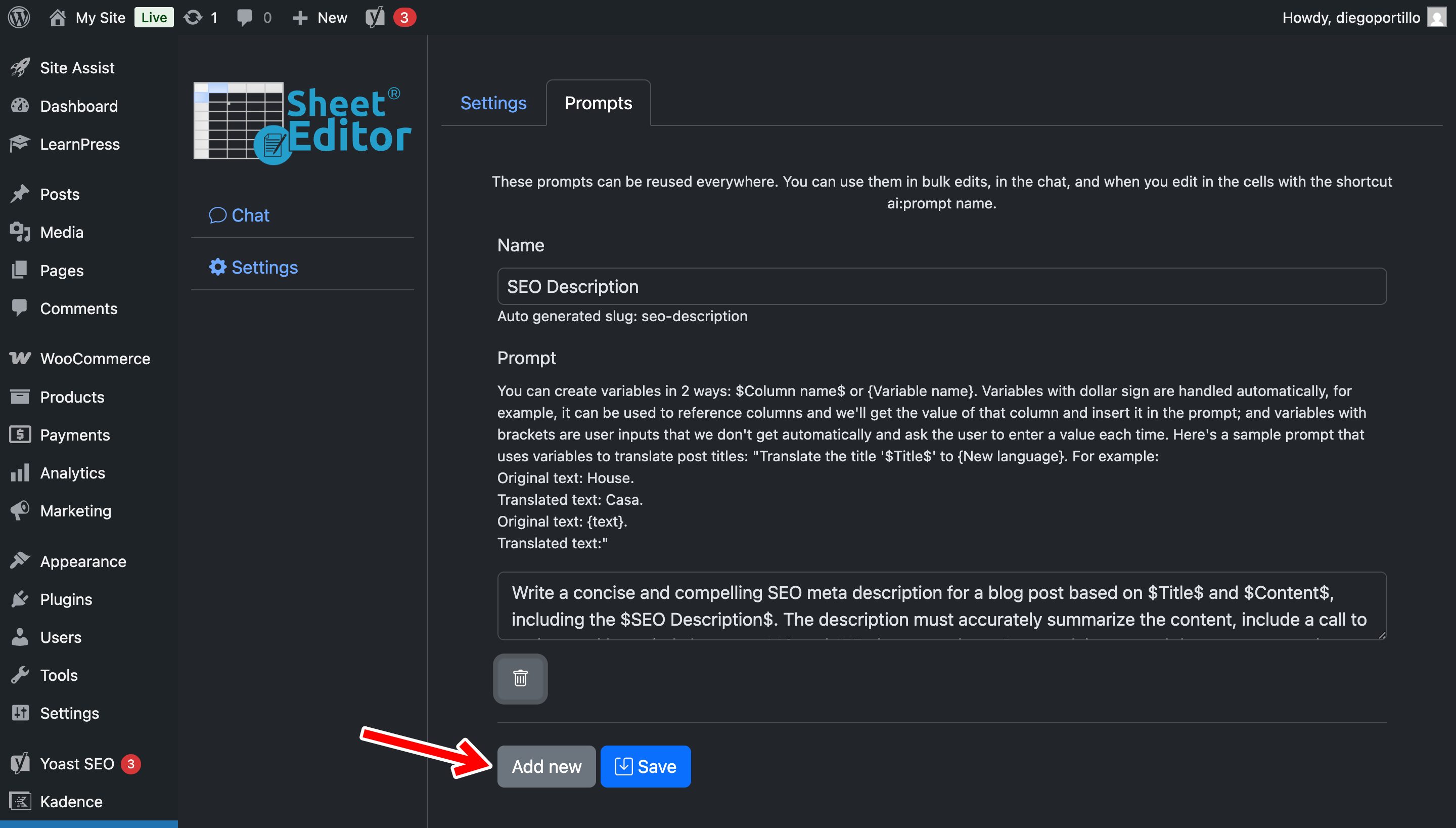
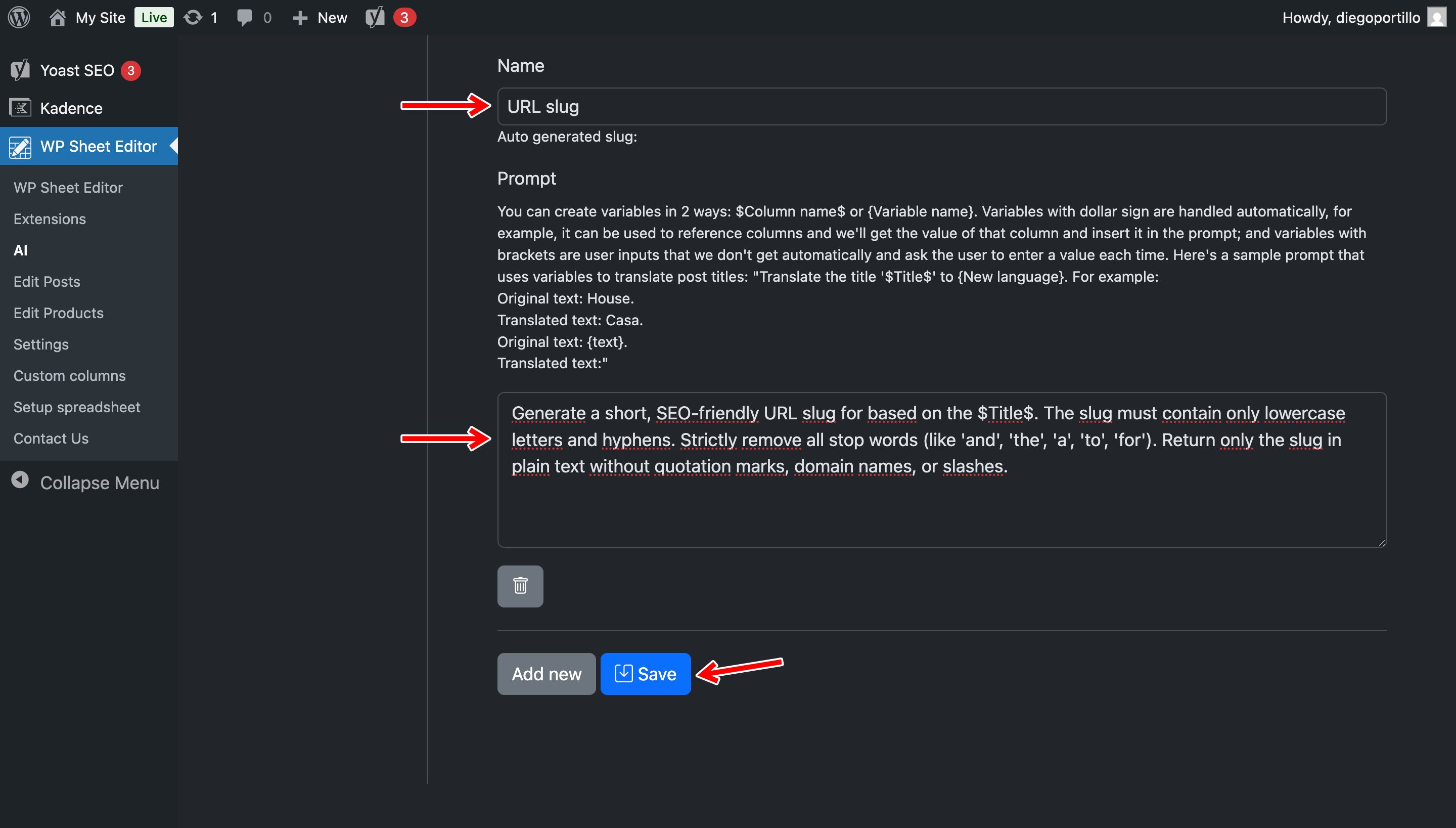
Now let’s create the prompt by using these values:
- Name your prompt: Let’s call it
URL Slug - Enter the following prompt template:
Generate a short, SEO-friendly URL slug for a blog post based on this title: $Title$. The slug must contain only lowercase letters and hyphens. Strictly remove all stop words (like 'and', 'the', 'a', 'to', 'for'). Return only the slug in plain text without quotation marks, domain names, or slashes.- Note: The system will automatically replace the
$Title$placeholder with the specific title from the row you are editing. - Click on Save.
After saving the prompt, you’ll see its auto-generated slug.
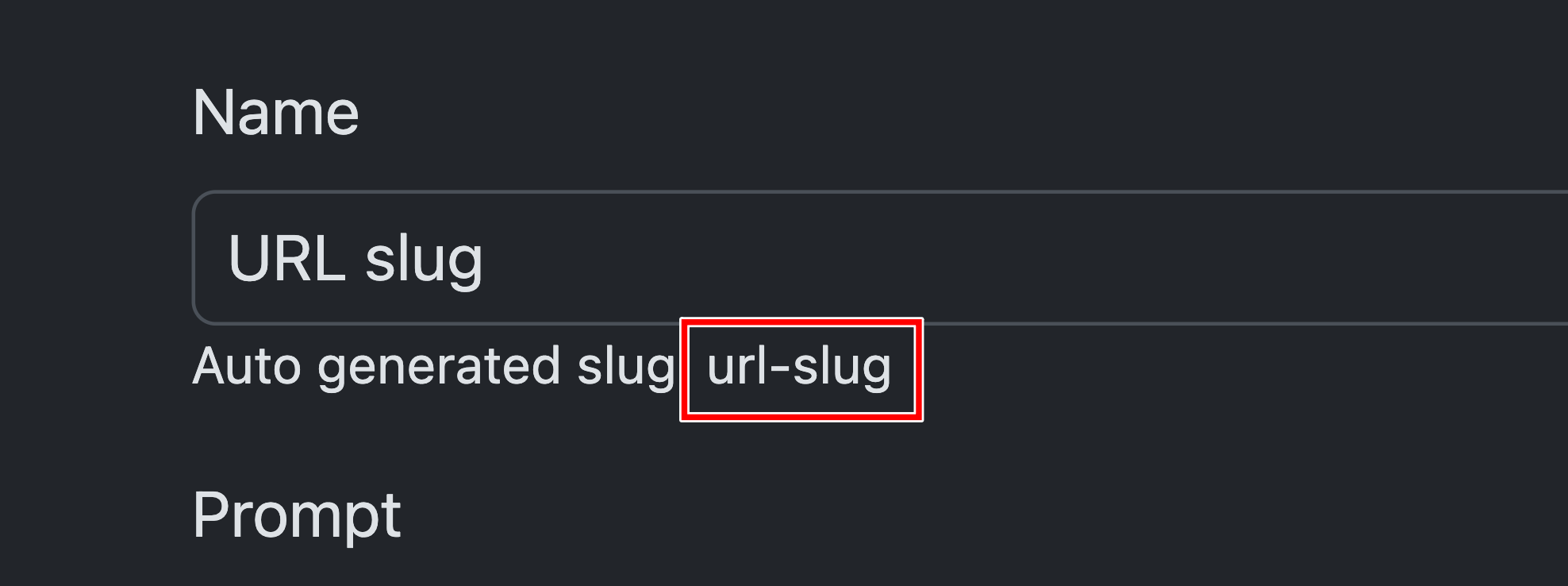
This is important because you can use this global prompt in spreadsheet cells in WP Sheet Editor by typing:
ai:prompt-slug
In this case:
ai:url-slug
Method 1: Generate SEO slugs directly in the spreadsheet
If you want to review posts individually and generate slugs one by one without leaving the spreadsheet view, you can use the global prompt shortcut in the cells of the Slug column. This is the fastest way to handle messy URLs as you scroll through your content.
Navigate to WP Sheet Editor > Edit Posts to open the WordPress posts spreadsheet.
Since the URL Slug column cells are blocked (read only), you need to click on Enable to make them editable.
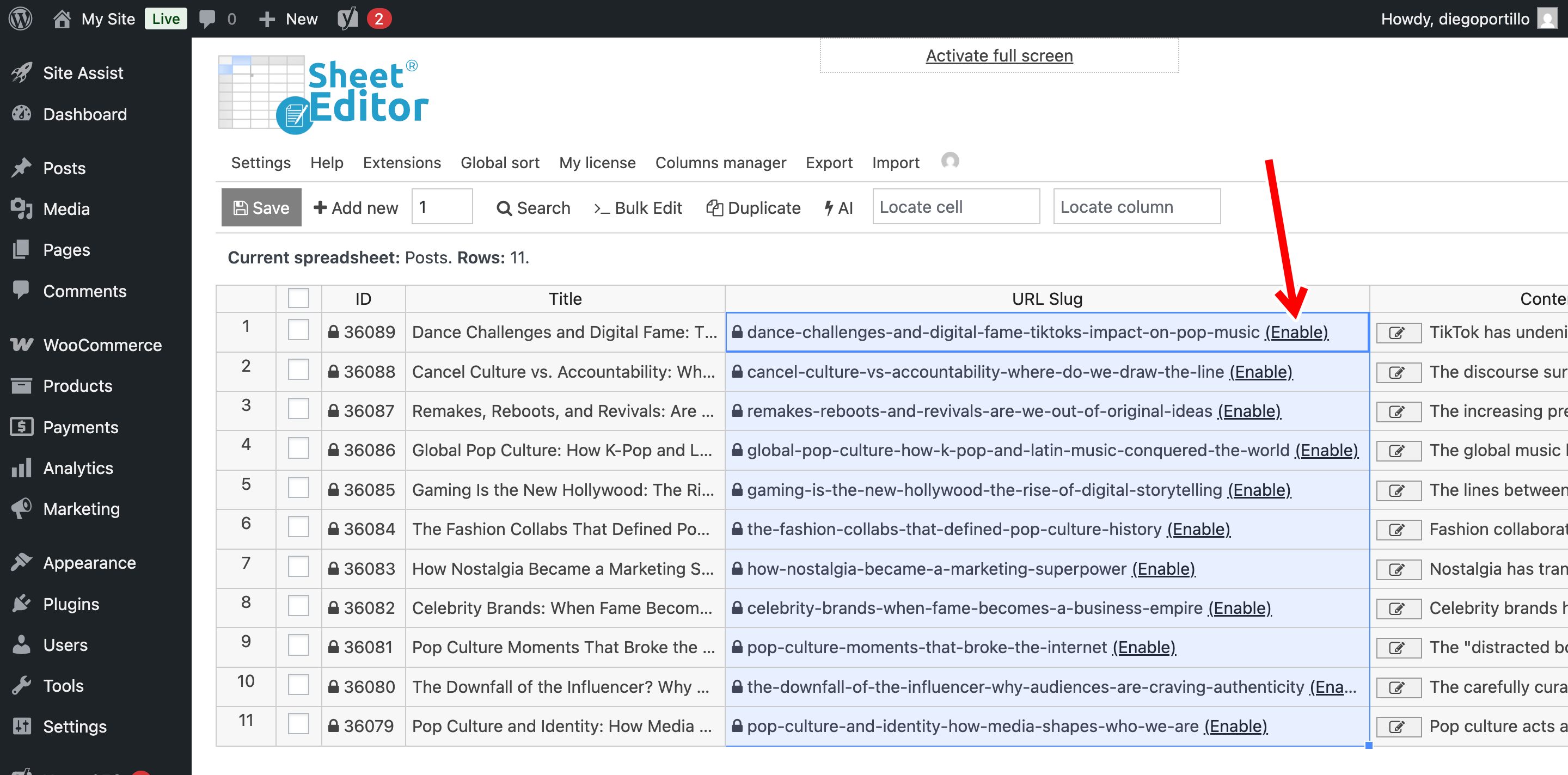
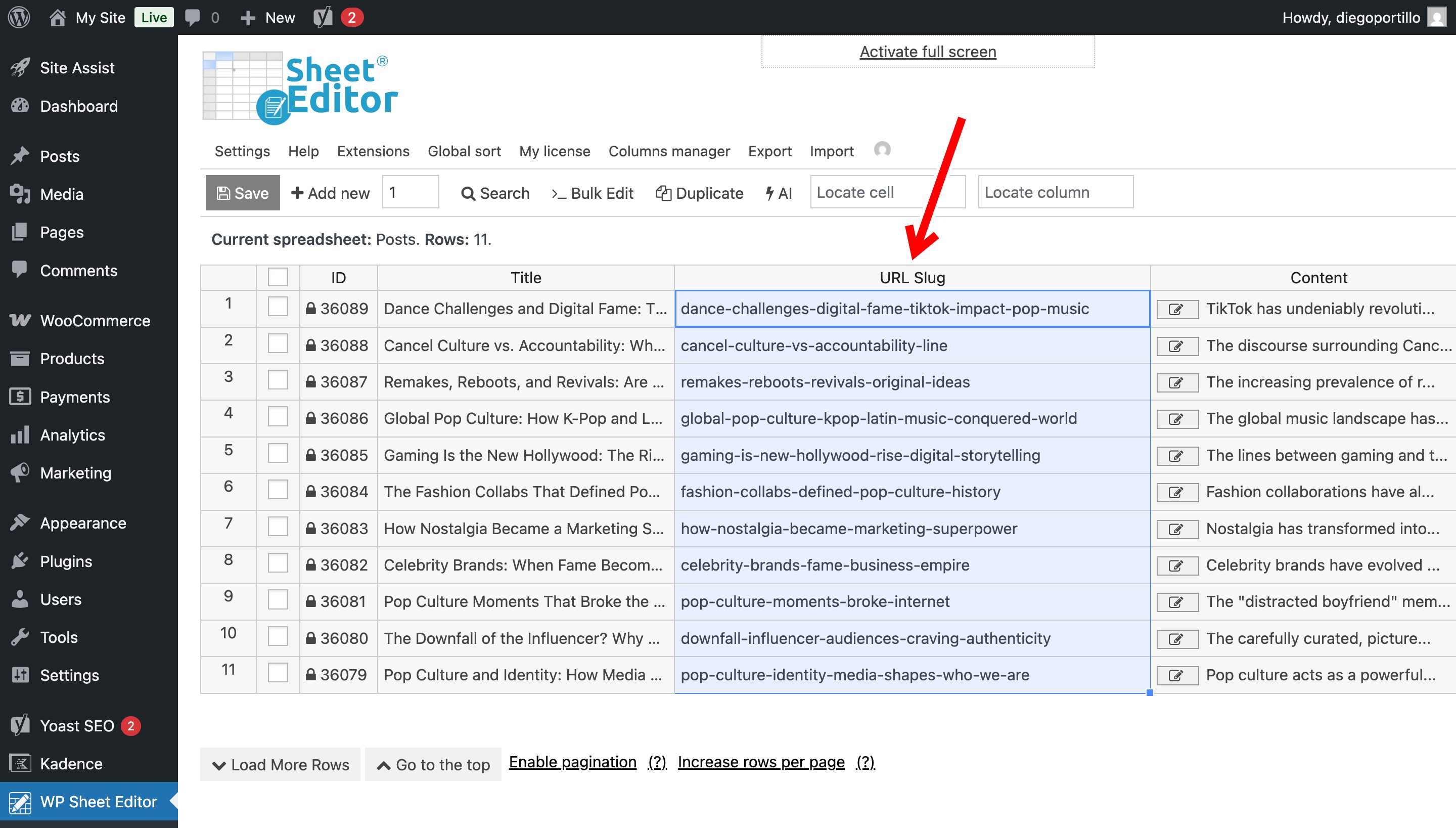
Locate the URL Slug column. Click directly on the cell of the post you want to optimize and type the following shortcut:
ai:url-slug
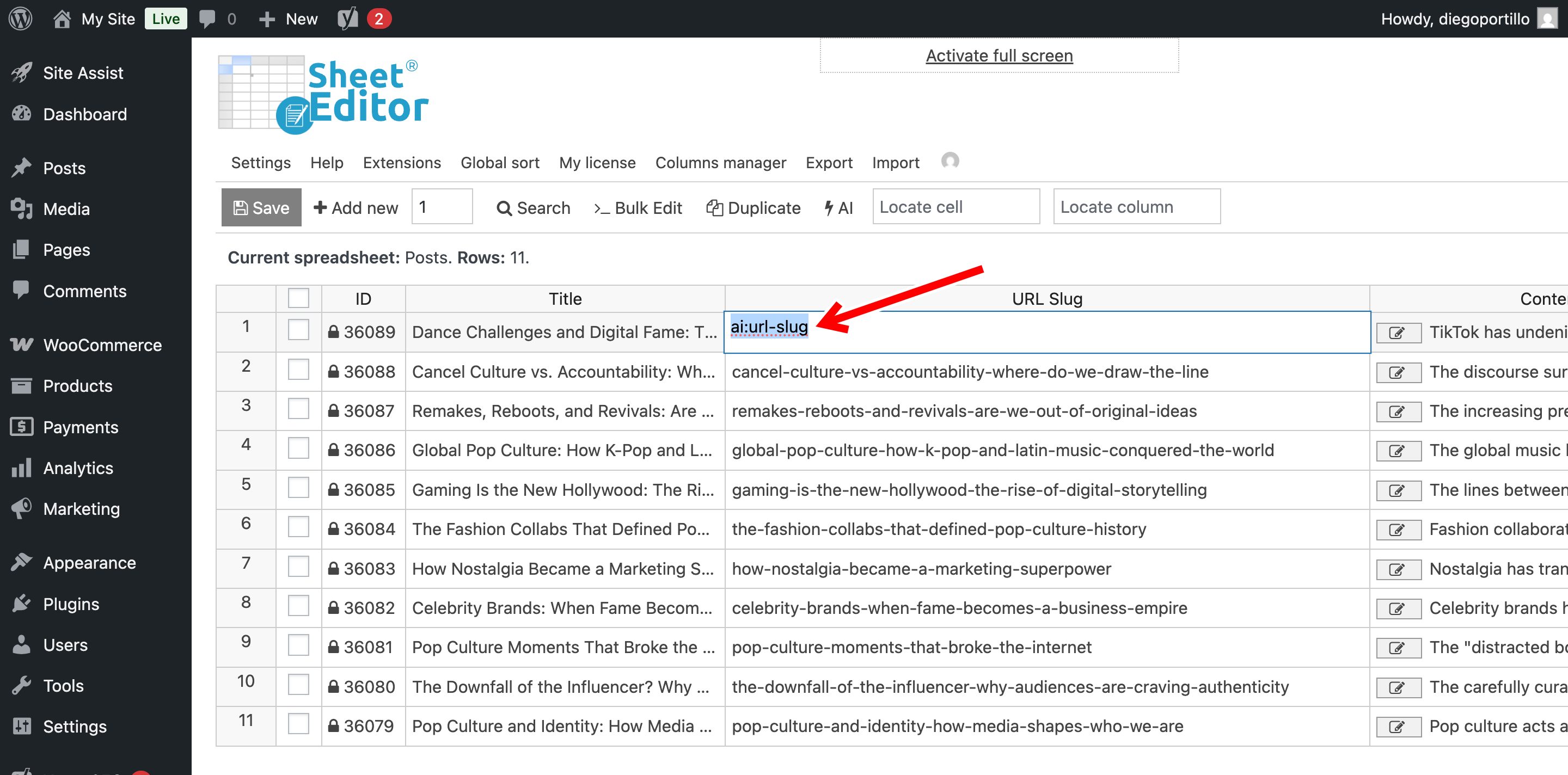
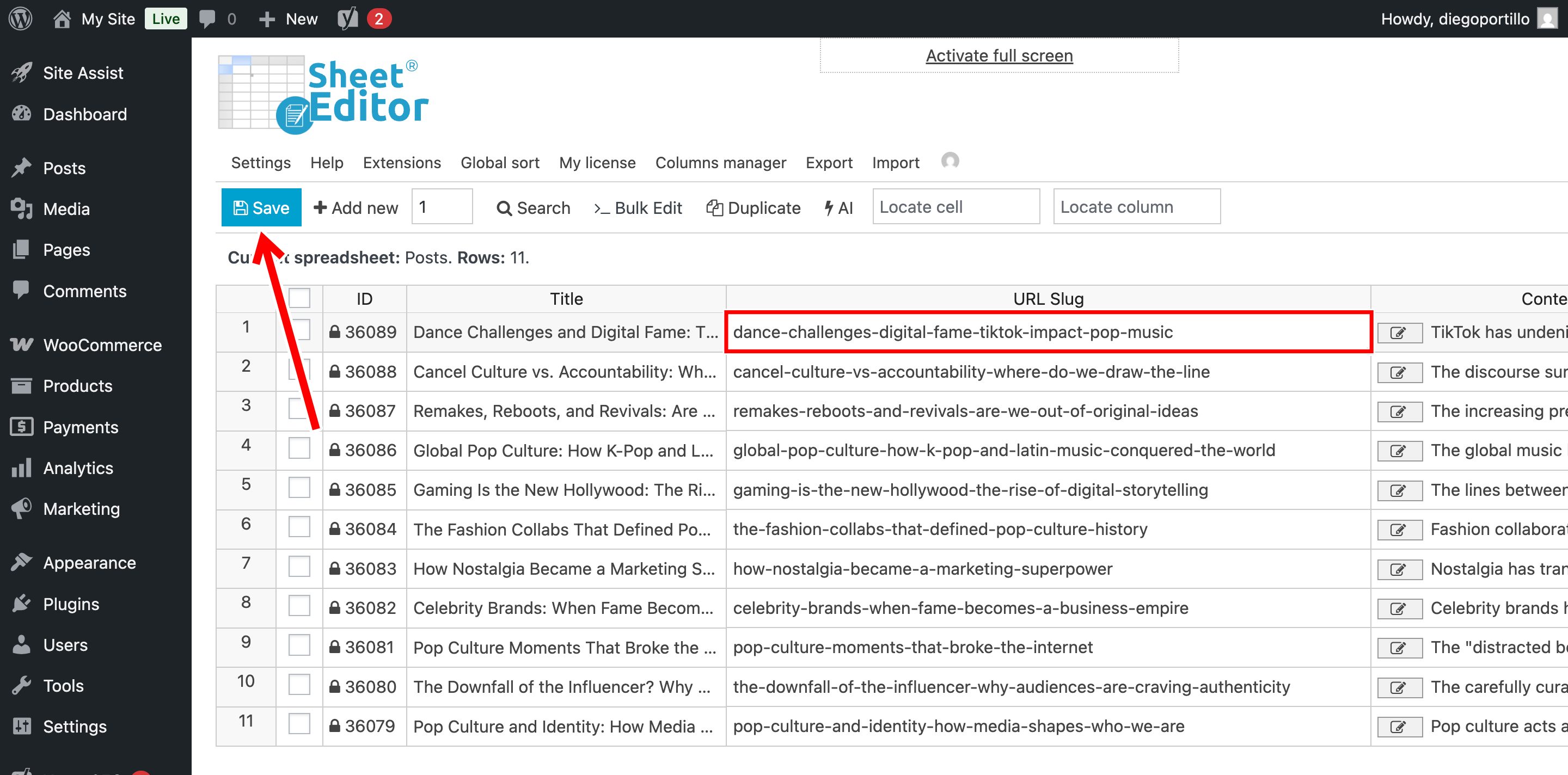
Press Enter and the AI will instantly run the global prompt you saved in Step 1, analyze that specific post title, and populate the cell with a perfectly clean, hyphenated URL slug.
You’ll see a loading icon in the cell while the AI is generating the text. You can repeat this process in any cell if you prefer, or you can use the method below to update slugs in bulk.
Once you have edited all the URL slugs you want, you can click on Save to apply the changes.
Method 2: Generate SEO-friendly slugs in bulk
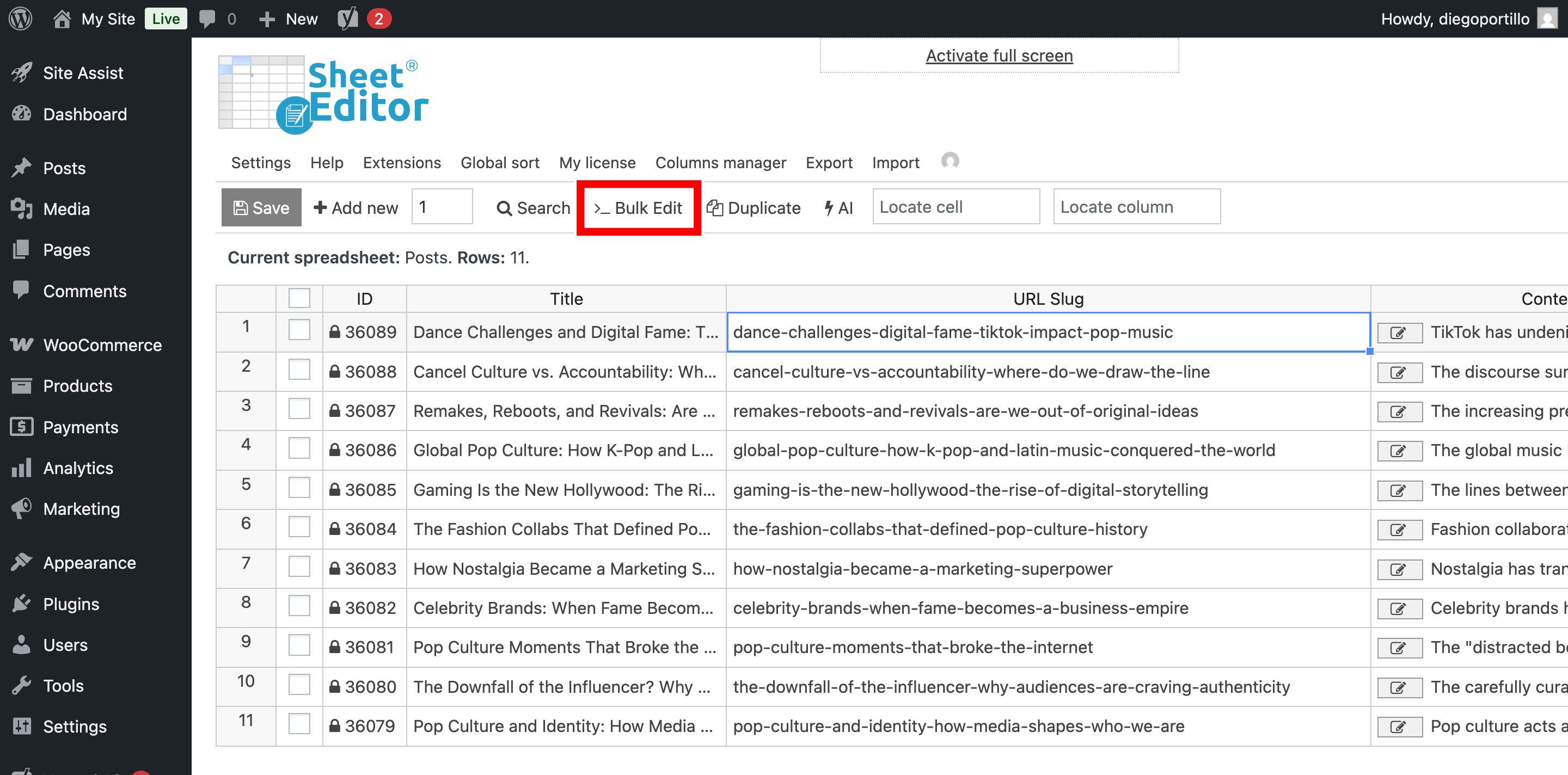
If you have hundreds of posts with unoptimized slugs and want to fix them all at once, you can automate the entire batch using the Bulk Edit tool.
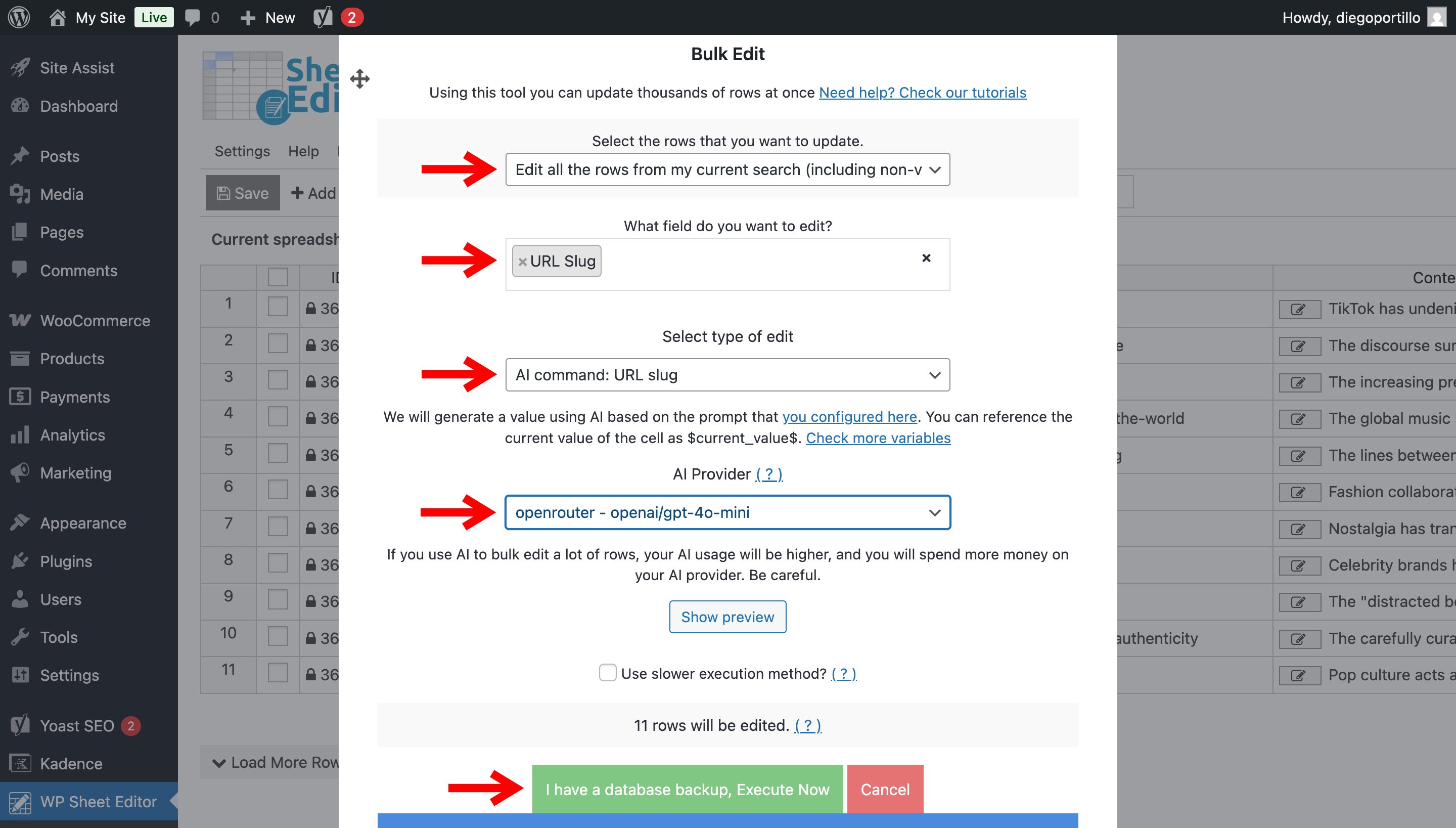
Set up the bulk generation with these parameters:
- Select the rows that you want to update: Edit all the rows from my current search
- What field do you want to edit: Choose the URL Slug field.
- Select the type of edit: We will use the global prompt we created earlier; in this case, let’s select AI command: URL Slug.
- AI Provider: Select your preferred model (e.g., GPT-4o mini or Gemini 1.5 Flash).
- Click on Execute Now.
The AI will start processing the posts in batches. Your site will not time out, and you will see the newly generated, SEO-friendly slugs appearing in the spreadsheet in real-time.
Conclusion
Optimizing your permalinks no longer has to be a manual, grueling process. WP Sheet Editor – AI is undeniably the fastest way to clean up messy URLs and improve your overall site structure. Stop letting long, unoptimized slugs hurt your search engine rankings, and let artificial intelligence handle the heavy lifting today!