
Let’s see how to generate WordPress URL slugs with AI using WP Sheet Editor. You can create slugs for individual posts or generate them in bulk.
Table of Contents
Tools you need
1. WP Sheet Editor – Post Types
WP Sheet Editor lets you manage WordPress posts, pages, and custom post types in a spreadsheet.
You can download the plugin here:
Download Posts, Pages, and Custom Post Types Spreadsheet Plugin - or - Check the features
2. WP Sheet Editor – AI
WP Sheet Editor – AI lets you run AI commands in spreadsheet cells and apply them to multiple rows.
You can sign up here:
Sign up to the WP Sheet Editor - AI Service - or - Check the features
3. An AI provider
Connect an AI provider such as OpenAI, OpenRouter, or another OpenAI-compatible provider.
See our AI configuration guide if you need help connecting a provider.
4. Redirection
If you’re changing slugs on published posts, use the Redirection plugin to redirect the old URLs.
5. WP Sheet Editor – Redirection
Use the WP Sheet Editor – Redirection extension with the Redirection plugin to create redirects when changing post URLs.
Create an AI prompt for generating URL slugs
Go to WP Sheet Editor > AI > Settings > Prompts.
Click Add new.
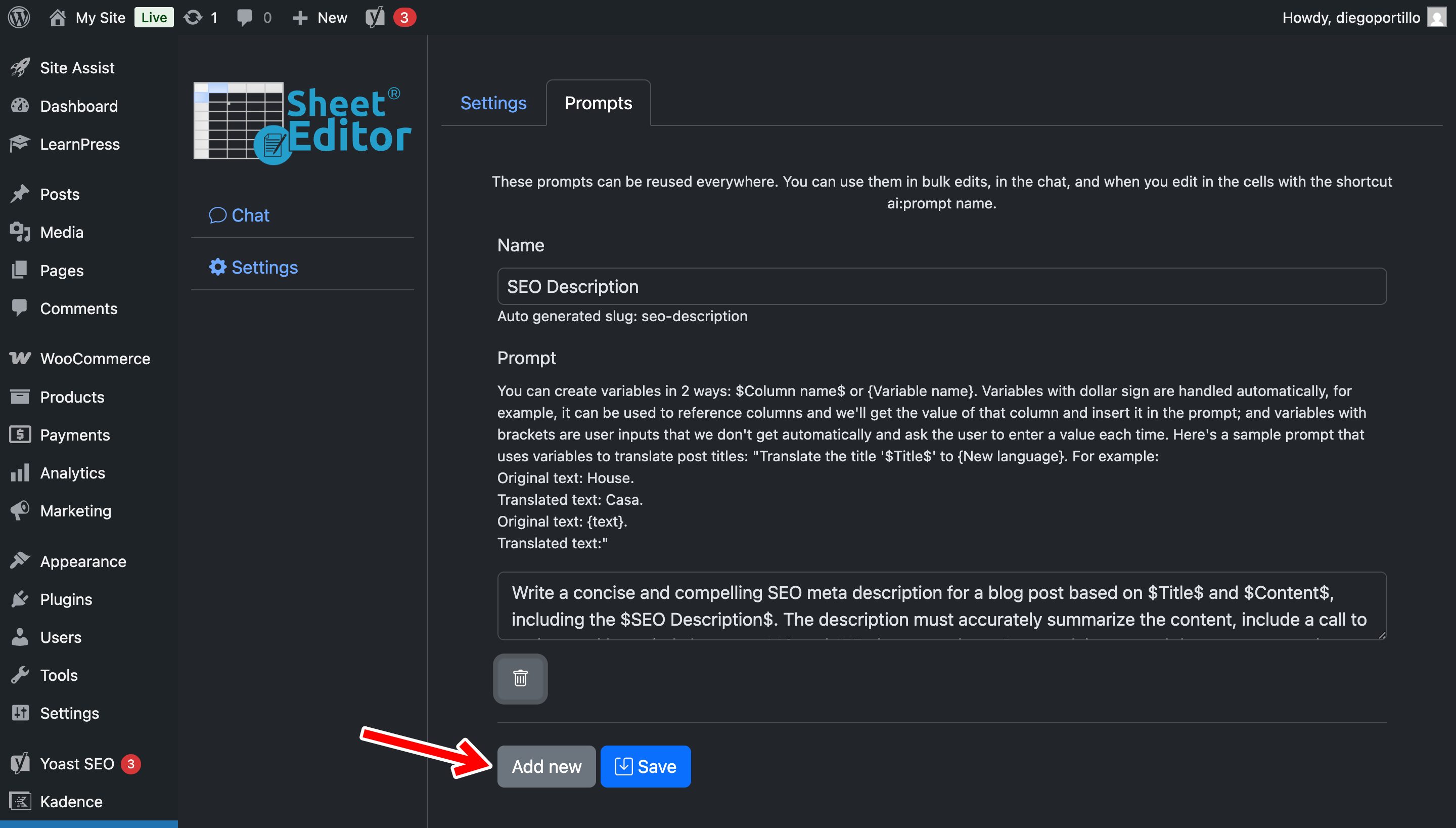
Use these settings:
- Name: URL Slug
- Prompt:
Generate a concise, descriptive URL slug for this WordPress post based on its title: $Title$. Use lowercase words separated by hyphens. Keep the main topic and important keywords. Remove unnecessary words, numbers, punctuation, and filler. Do not add information that is not present in the title. Return only the slug. Do not include quotation marks, slashes, the domain name, or any explanation.The $Title$ placeholder is replaced with the post title when the prompt runs.
Click Save.
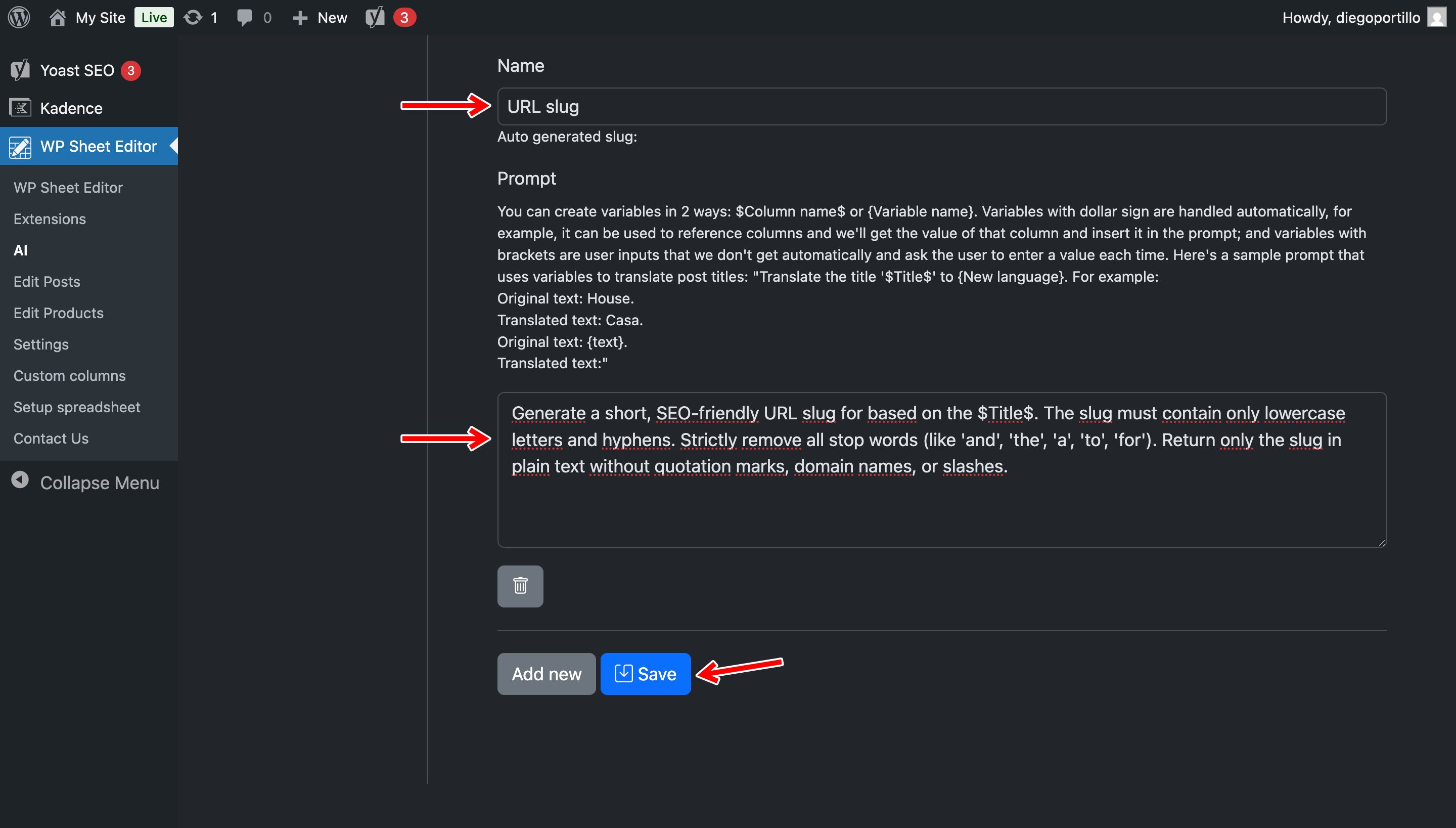
After saving, WP Sheet Editor generates a shortcut for the prompt.
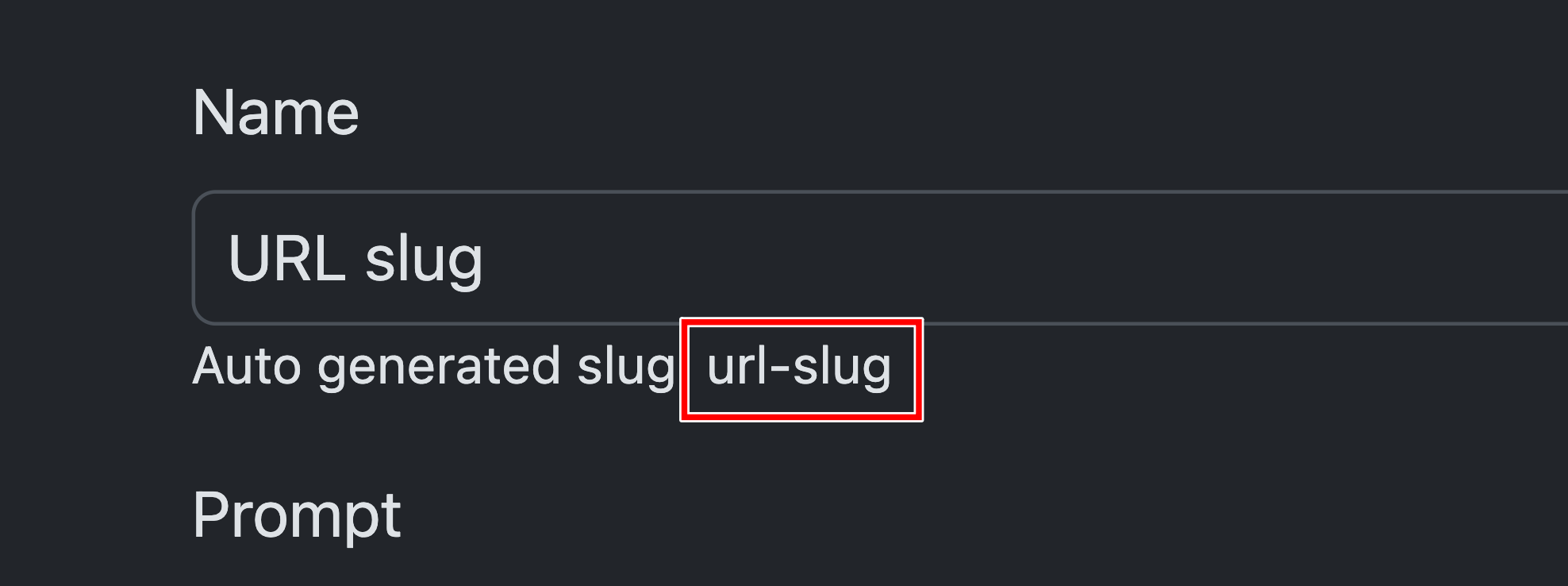
In this example, the shortcut is:
ai:url-slug
Generate a URL slug for an individual post
Go to WP Sheet Editor > Edit Posts.
If the URL Slug column is read-only, click Enable to make it editable.
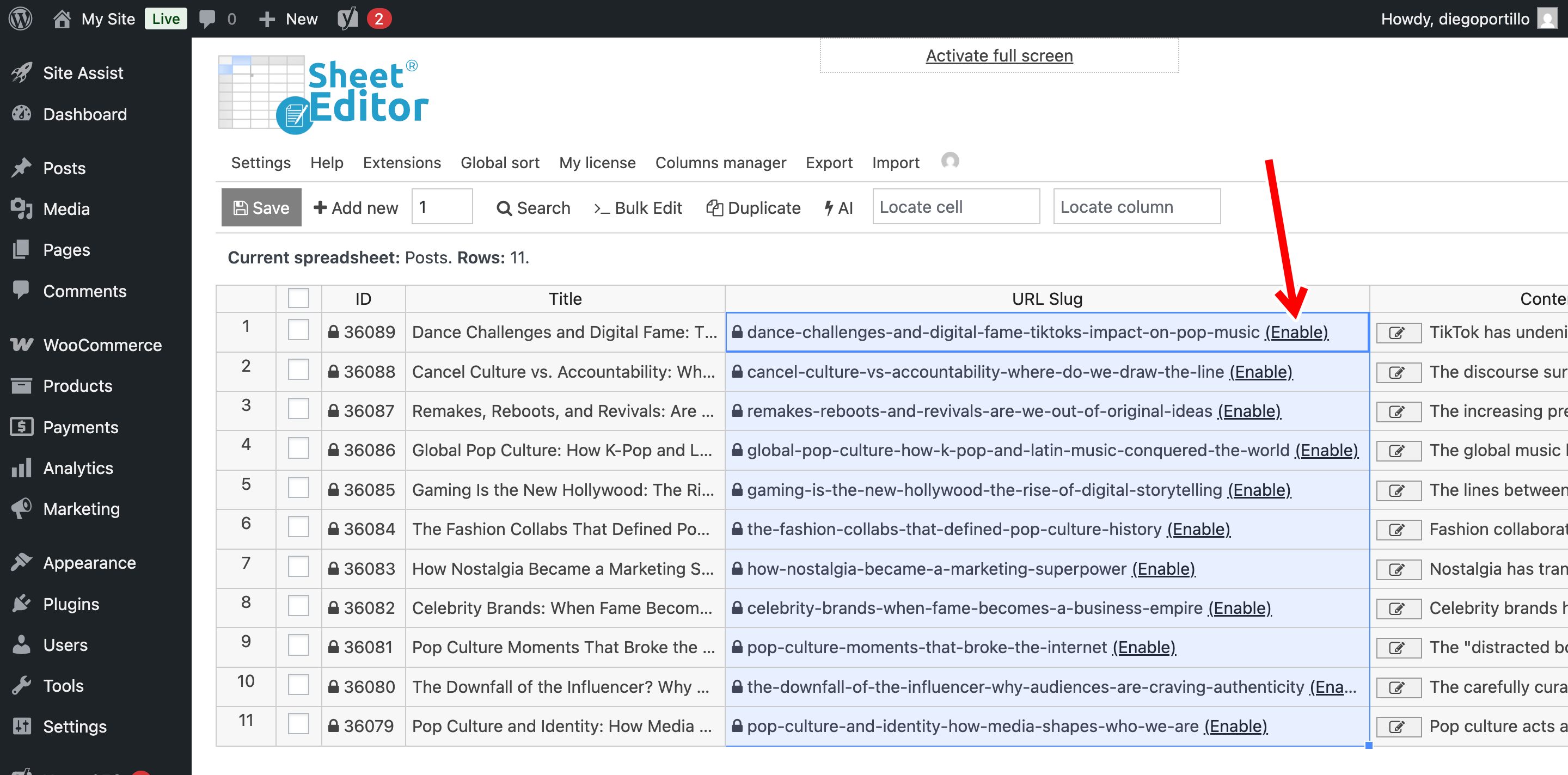
Find the URL Slug column and enter this shortcut in the post’s cell:
ai:url-slug
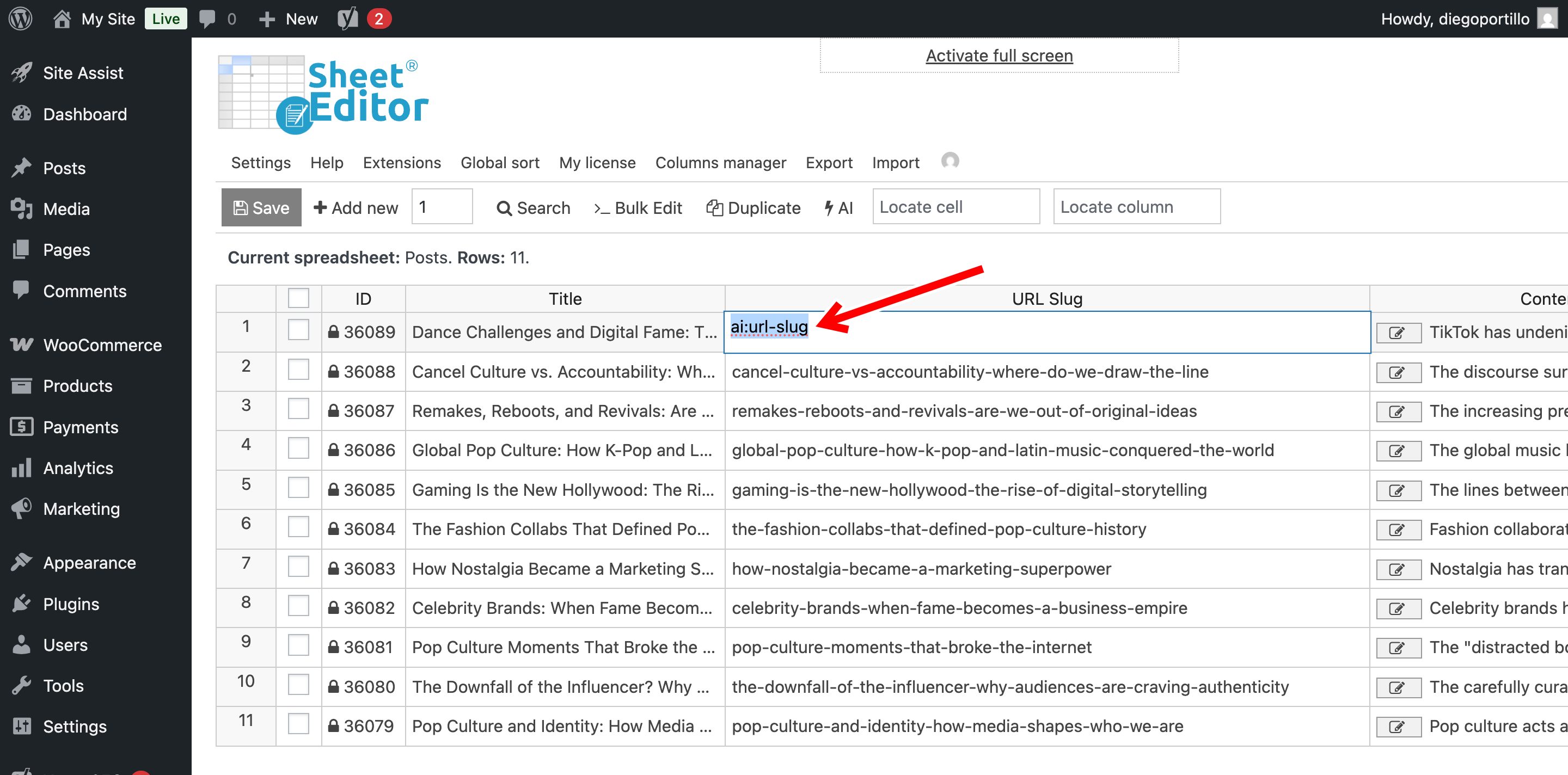
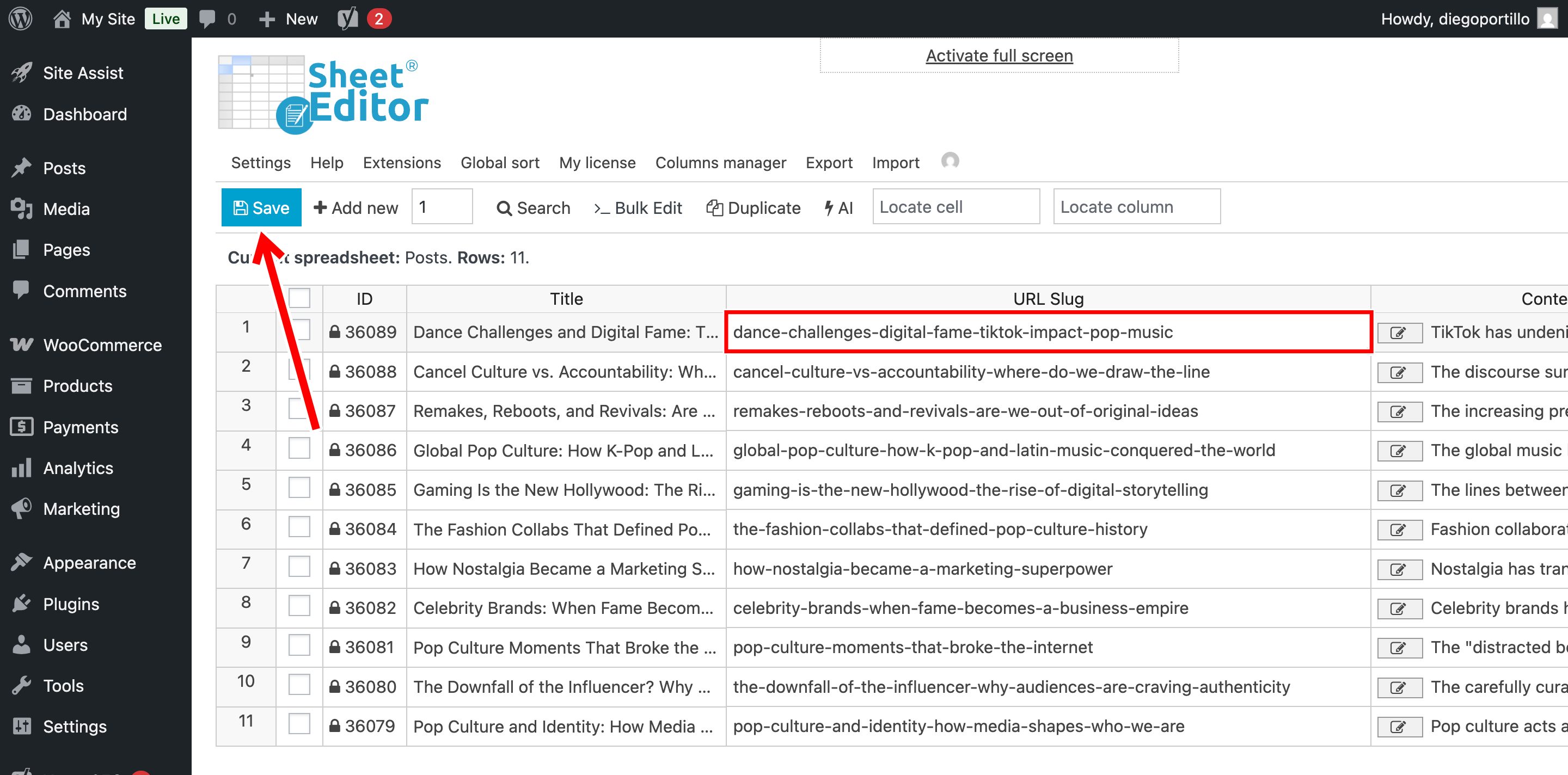
Press Enter. The AI command uses the post title and returns the generated slug in the cell.
Repeat the process for other posts, then click Save to apply the changes.
Generate URL slugs in bulk
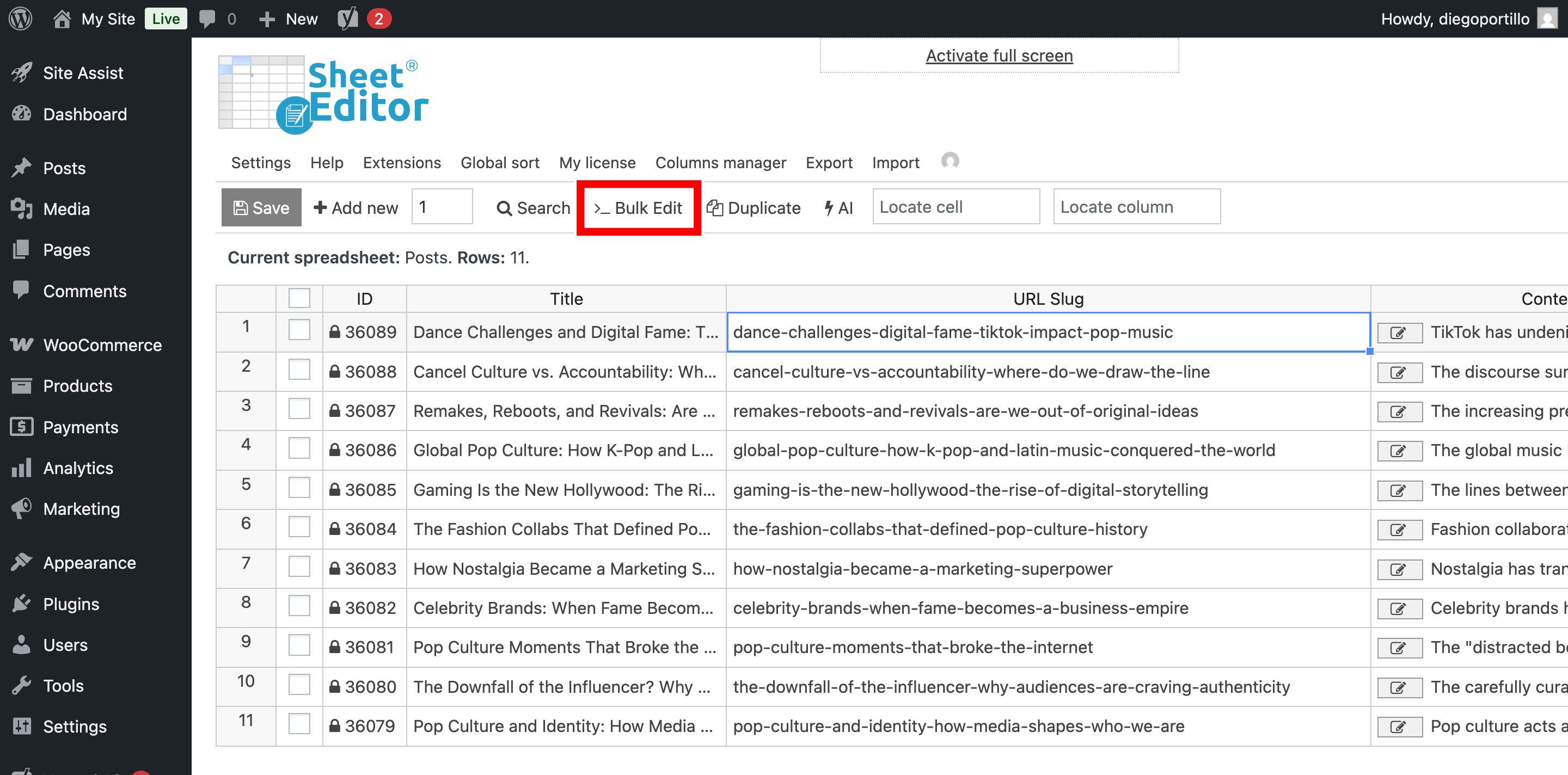
To generate slugs for multiple posts, filter the spreadsheet to select the posts you want to update and open Bulk Edit.
Use these settings:
- Select the rows that you want to update: Edit all the rows from my current search
- What field do you want to edit: URL Slug
- Select type of edit: AI command: URL Slug
- AI Provider: Select your configured provider
- Click Execute Now.
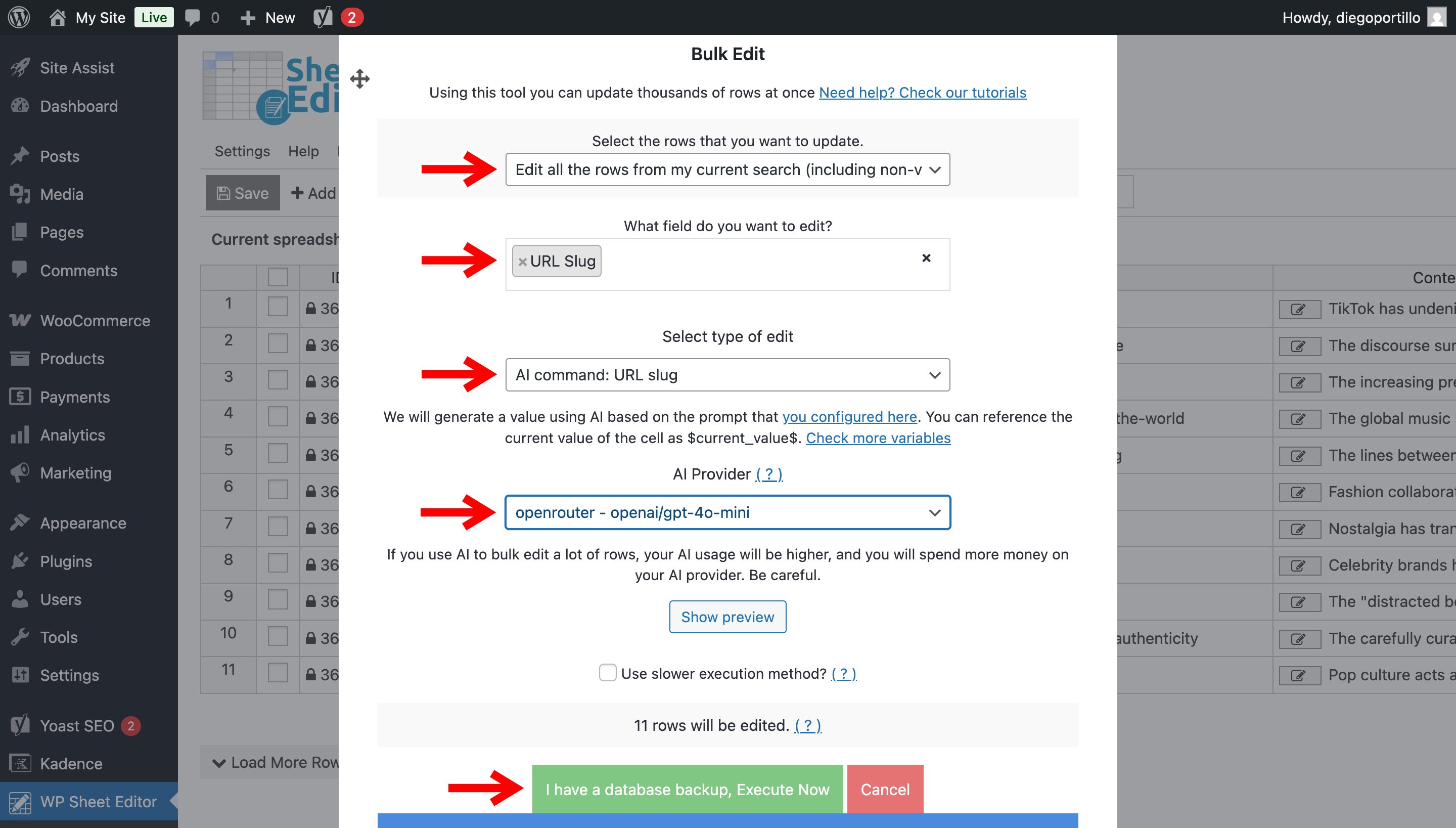
WP Sheet Editor processes the selected posts and generates the slugs.
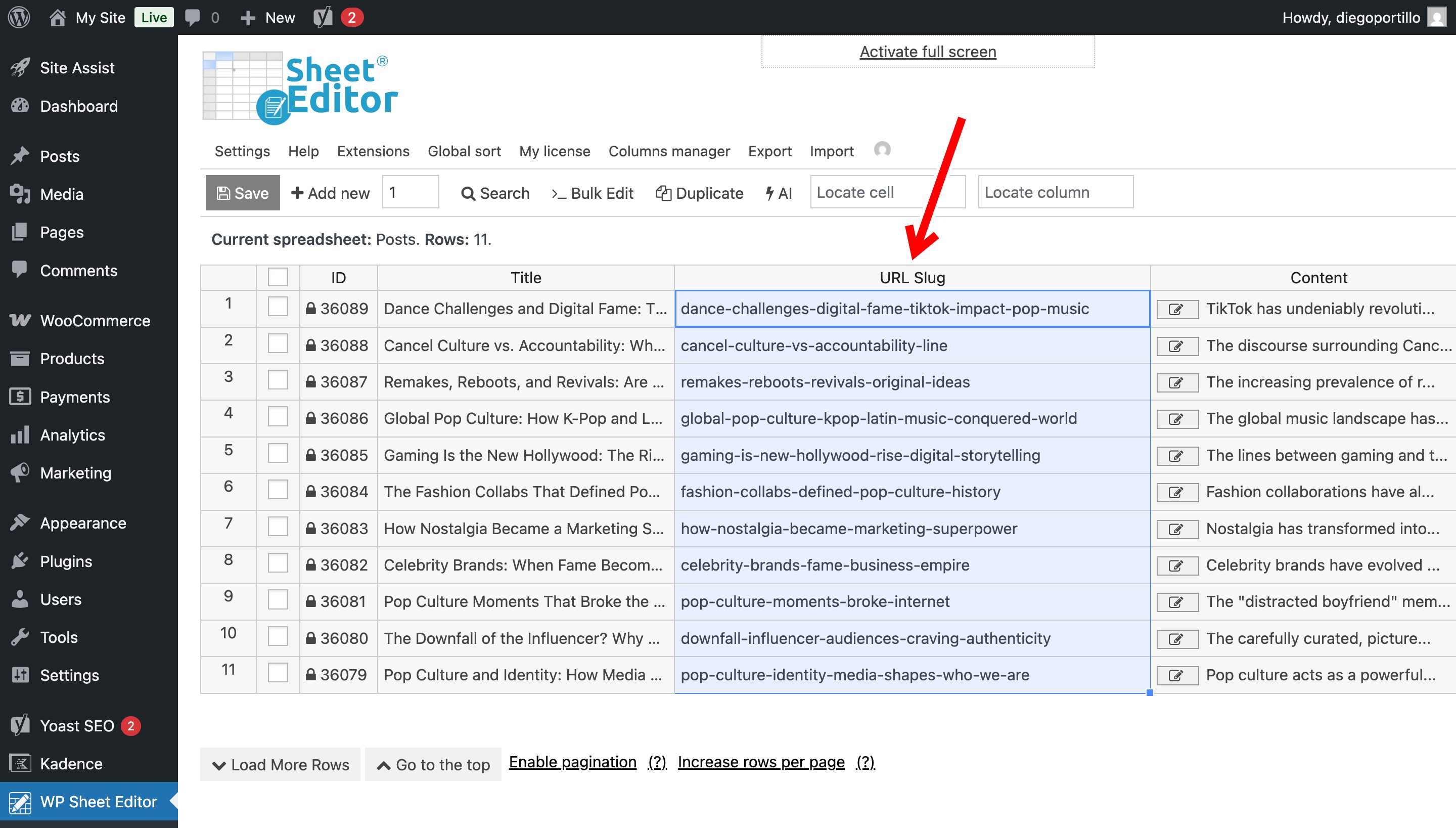
Review the generated slugs before saving, particularly for posts with similar titles.
Redirect old URLs
When you change the slug of a published post, the old URL may still be used by search engines, other pages, bookmarks, or external websites. That’s why the WP Sheet Editor – Redirection extension automatically creates a redirection for every URL edited. This helps prevent visitors from reaching a broken URL after you change the slug.