
Do your customers frequently search for products using specific model numbers, part numbers, or SKUs? If your WooCommerce product titles only contain generic names, you might be missing out on highly targeted search traffic and direct sales. Adding the SKU directly to the product title makes it significantly easier for buyers to find exactly what they are looking for, both on your site and on Google.
However, manually opening every single product page to copy the SKU and paste it at the end of the title is a mind-numbing task. If you have a large inventory, this could take hours or even days of repetitive clicking.
But what if you could append the SKUs to all your product titles in a few clicks?
With WP Sheet Editor, you don’t need to do any manual data entry. You can use a simple bulk edit command to automatically grab the unique SKU of every product and attach it to the end of the product name.
In this tutorial, we will show you how to add SKUs to product titles in WooCommerce in bulk using a fast, intuitive spreadsheet interface.
Table of Contents
What you need to bulk edit WooCommerce titles
To follow this guide and automate your product updates, you need this tool installed on your WordPress site:
WP Sheet Editor – WooCommerce Products
This plugin completely replaces the slow, default WooCommerce product list with a beautiful and efficient spreadsheet. It allows you to view all your product data (SKUs, prices, stock, and titles) in one place, run advanced searches, and make massive changes using the Bulk Edit tool.
You can download the plugin here:
Get the WooCommerce Spreadsheet Editor - or - Check the features
Step 1: Open the WooCommerce products spreadsheet
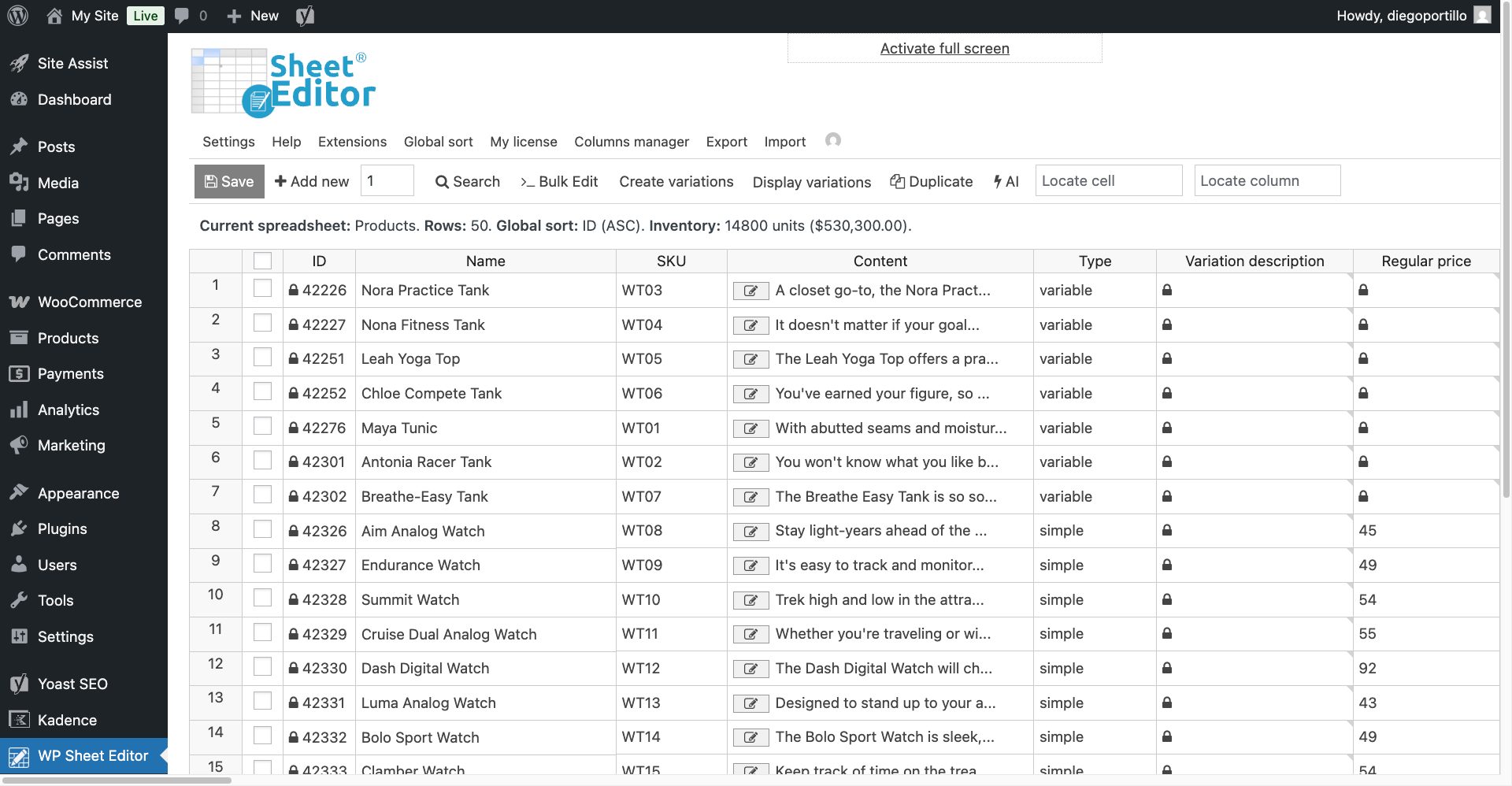
Navigate to your WordPress dashboard and go to WP Sheet Editor > Edit Products.
You will see all your store’s products laid out in a clean spreadsheet. You can clearly see the Name (Title) column and the SKU column side-by-side. If not, you can use the Columns manager to sort the columns and put them next to each other.
Step 2: Filter products that have an SKU (optional but recommended)
Before appending the SKU to the title, it is a good idea to exclude any products that currently do not have an SKU assigned. Otherwise, the system will just append a blank space to those titles.
To do this, we will search and edit all the products that HAVE SKU.
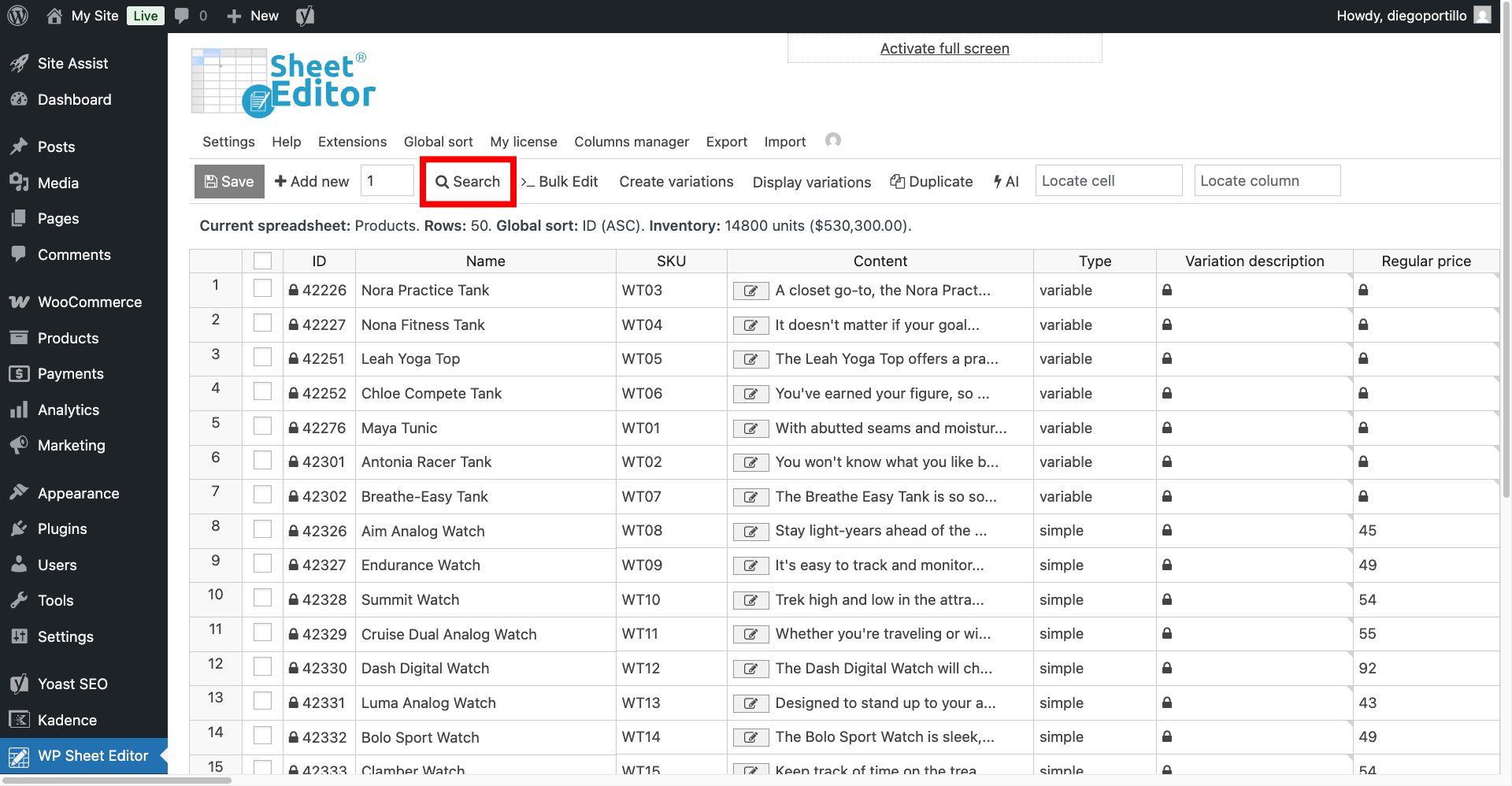
Click on the Search tool on the toolbar.
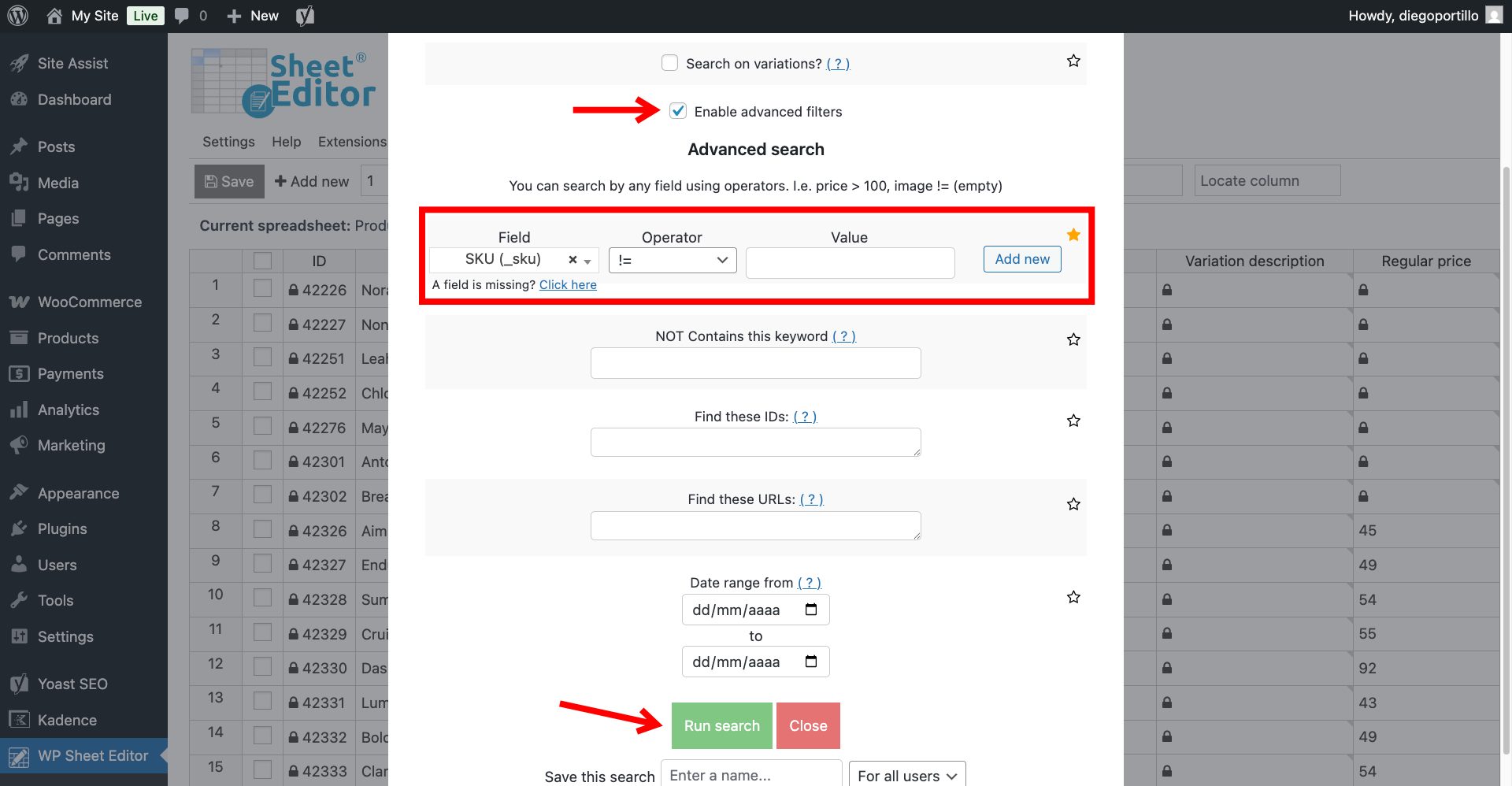
Once there, select these values:
- Check the Enable advanced filters box.
- Field: Select the SKU field.
- Operator: Choose != (is not equal to).
- Value: Leave this field completely blank.
- Click Run Search.
Step 3: Bulk append the SKU to the product title
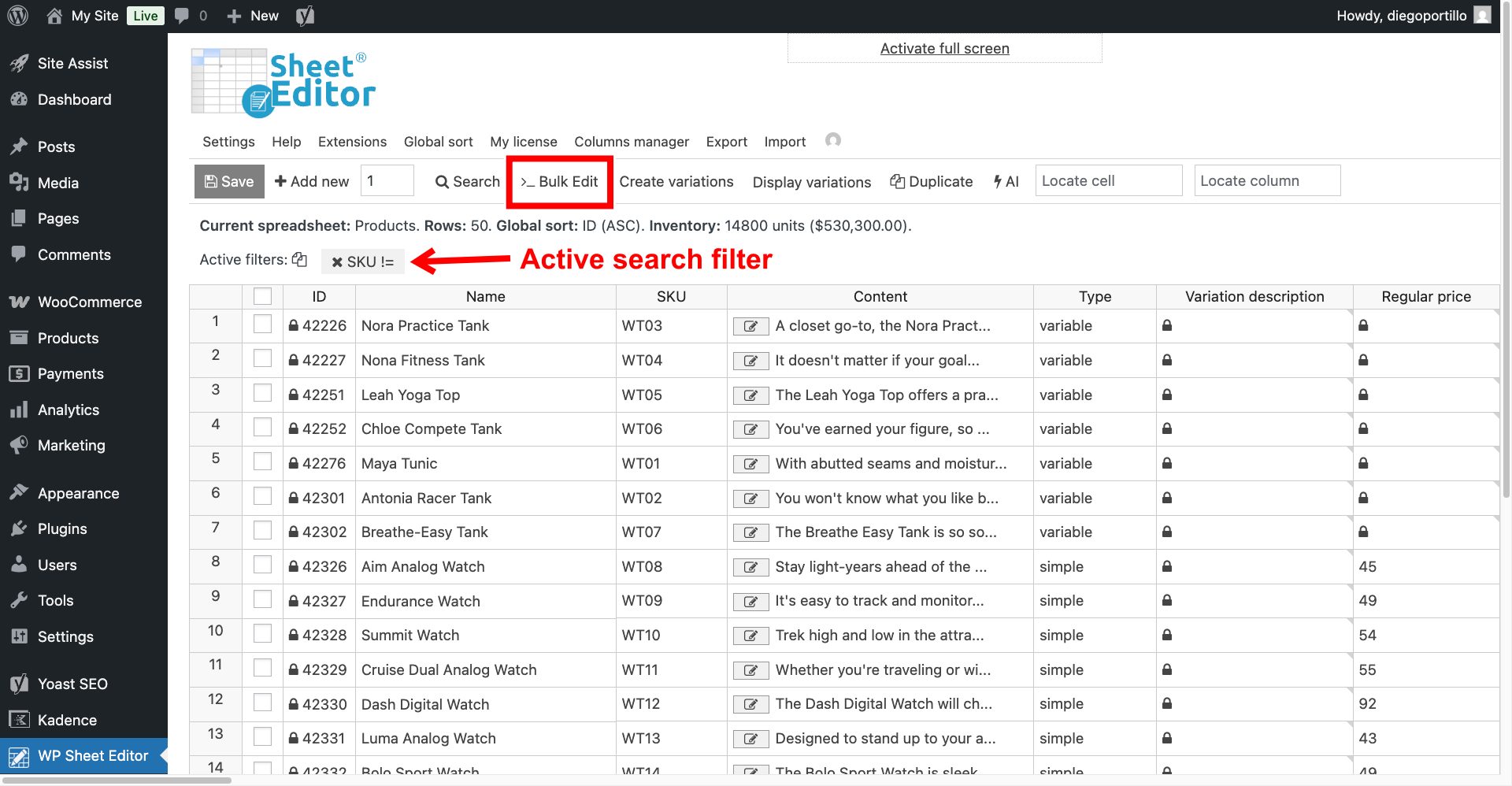
Now, your spreadsheet will only display products that actually contain an SKU. And with your products ready, it is time to perform the bulk update to append the SKUs to the product titles.
Click on the Bulk Edit tool in the toolbar.
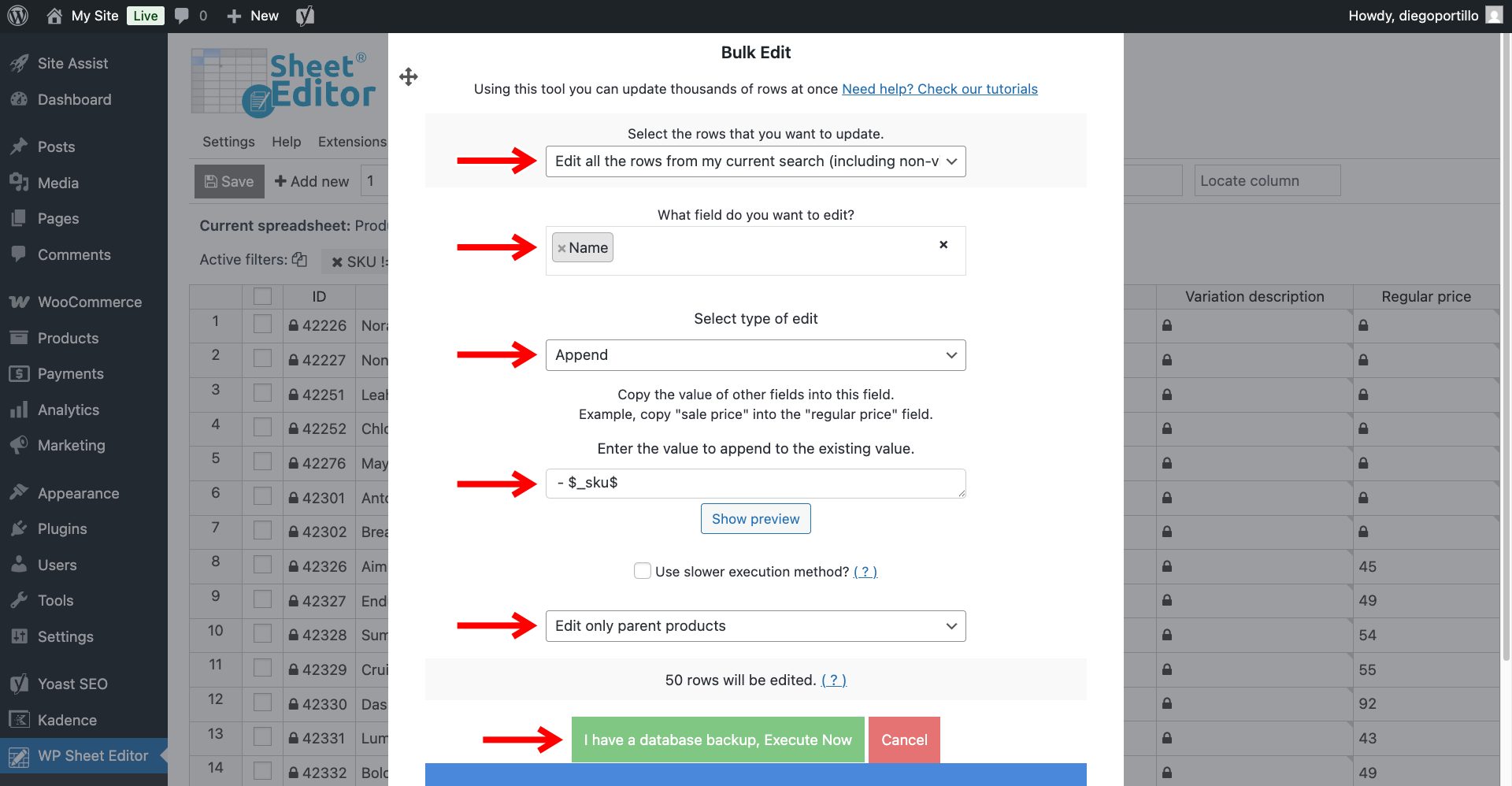
Now, configure the tool to automatically pull the SKU and add it to the product name. Set it up with these exact parameters:
- Select the rows that you want to update: Edit all the rows from my current search
- What field do you want to edit: Select the Name field.
- Select type of edit: Choose Append. (This ensures the SKU is added to the end of your existing title without deleting the current name).
- Enter the value to append to the existing value: Enter this exact text:
- $_sku$- Note: Start with a space so that the product SKU doesn’t get appended to the title without spaces.
- Select Edit only parent products.
- Click Execute Now.
How does the $_sku$ placeholder work?
In WP Sheet Editor, wrapping a column’s underlying key in dollar signs turns it into a dynamic placeholder. By typing - $_sku$, you are telling the plugin: “Add a space, a hyphen, another space, and then fetch the exact value found in the SKU column for this specific row.”
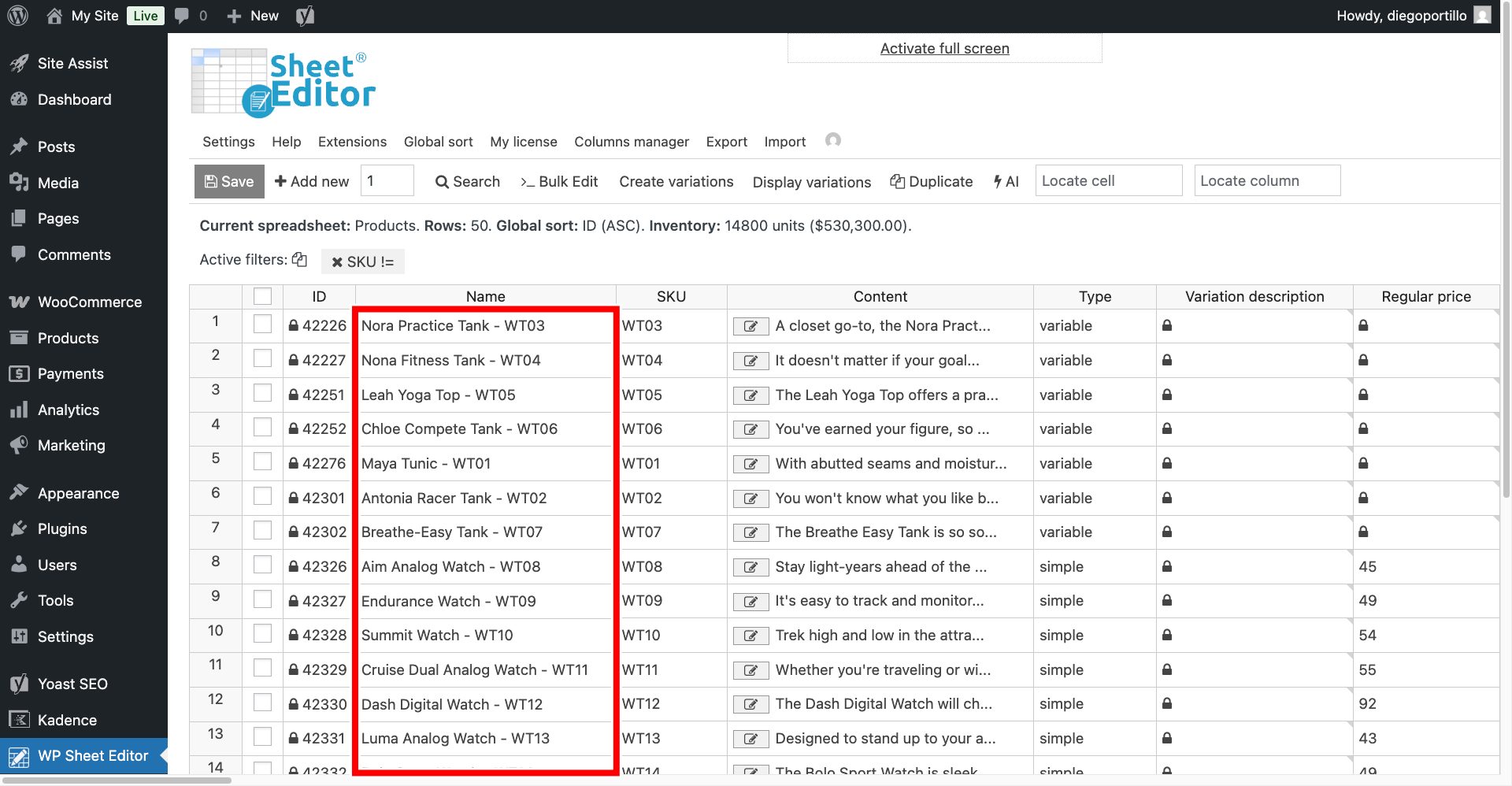
For example, if your product name is “Cotton T-Shirt” and the SKU is “TS-100”, the new title will automatically become Cotton T-Shirt – TS-100.
The plugin will process your products, the spreadsheet will refresh, and you will see that every single product title has been perfectly updated to include its unique SKU at the end.
Including SKUs in your product names is a fantastic way to capture high-intent search traffic and make inventory management easier for your team.
As you can see, you don’t need to spend days copying and pasting data. With WP Sheet Editor, you can use powerful dynamic placeholders to combine fields and bulk update your entire WooCommerce catalog in a few clicks!
You can download the plugin here:
Get the WooCommerce Spreadsheet Editor - or - Check the features