
This tutorial explains how to bulk increase WooCommerce product prices by a percentage using the WP Sheet Editor plugin. It covers multiple use cases: adjusting prices for simple products, product variations, specific categories or attributes, and products within a certain price range.
The native “increase existing price by fixed amount or percentage” option in WooCommerce is insufficient for stores that want to filter products based on various advanced criteria: category, attribute, simple product, variable product, current price range, etc.
If you need a comprehensive overview of general price editing options, see our guide on how to bulk edit product prices in WooCommerce.
There are several reasons that may prompt you to raise prices of your WooCommerce products by a specific percentage:
- Adjusting for Macroeconomic Inflation. When global or local inflation drives up your general operating costs (utilities, software subscriptions, packing materials), absorbing those losses isn’t sustainable. Instead of reworking your entire pricing model from scratch, a flat percentage increase helps you maintain your existing profit margins across the board.
- Passing Down Manufacturer or Supplier Cost Hikes. Suppliers frequently issue updated price sheets with across-the-board increases due to rising raw material or manufacturing costs. When an entire brand or product category becomes more expensive to procure, you have to pass that cost to the consumer.
- Peak-Season Pricing & Demand Surges. During busy shopping periods—such as the holiday season—or when inventory becomes scarce, demand for certain products can rise quickly. Applying temporary price increases to fast-selling items helps maximize revenue while supply is limited, especially when replenishing stock is costly, delayed, or difficult due to supply chain challenges.
Since the native WooCommerce method falls short, we will use the WP Sheet Editor plugin to raise prices in bulk. This plugin allows you to quickly search for the exact products you want to edit and bulk update the Regular price field.
You can download the plugin here:
Download WooCommerce Products Spreadsheet Plugin - or - Check the features
After installing and activating the plugin, go to WP Sheet Editor > Edit products to open the spreadsheet.
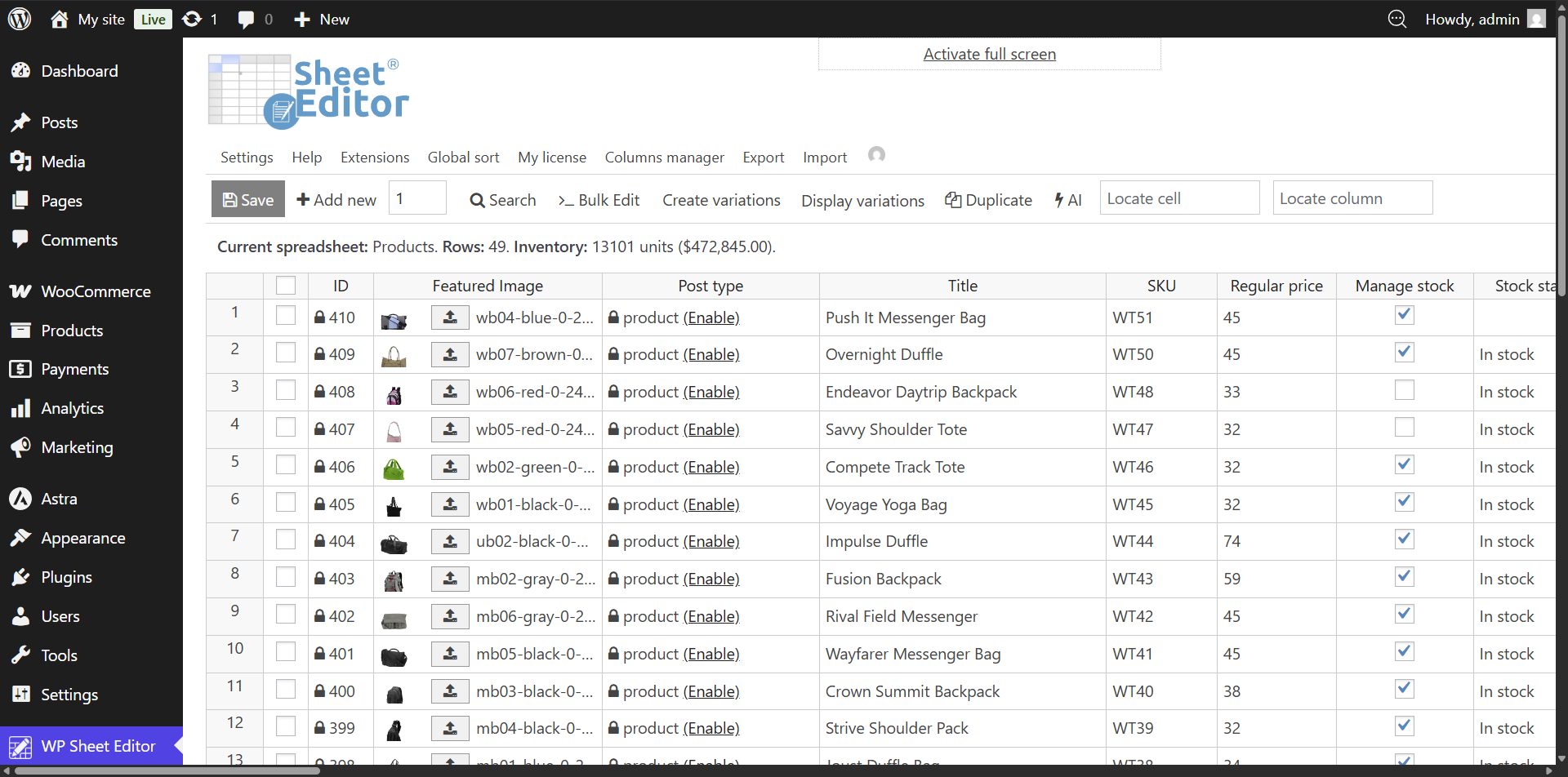
Table of Contents
Increase price by percentage for simple products
To increase the prices of simple products by a certain percentage, you need to follow two simple steps: 1) filter for all simple products and 2) edit their prices in bulk. Let’s see how to do it step by step.
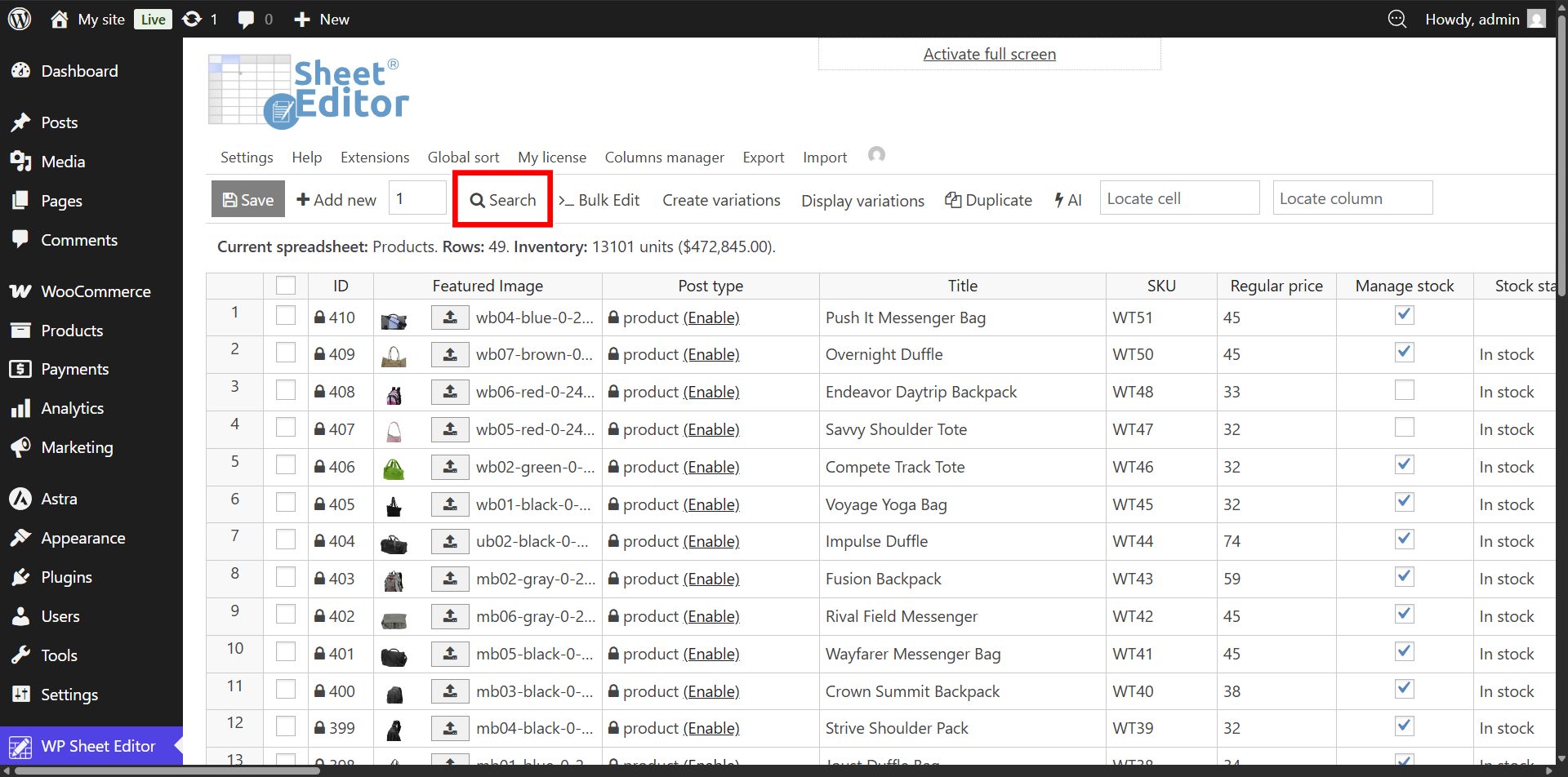
Step 1. Open the “Search” tool
Step 2. Search for simple products
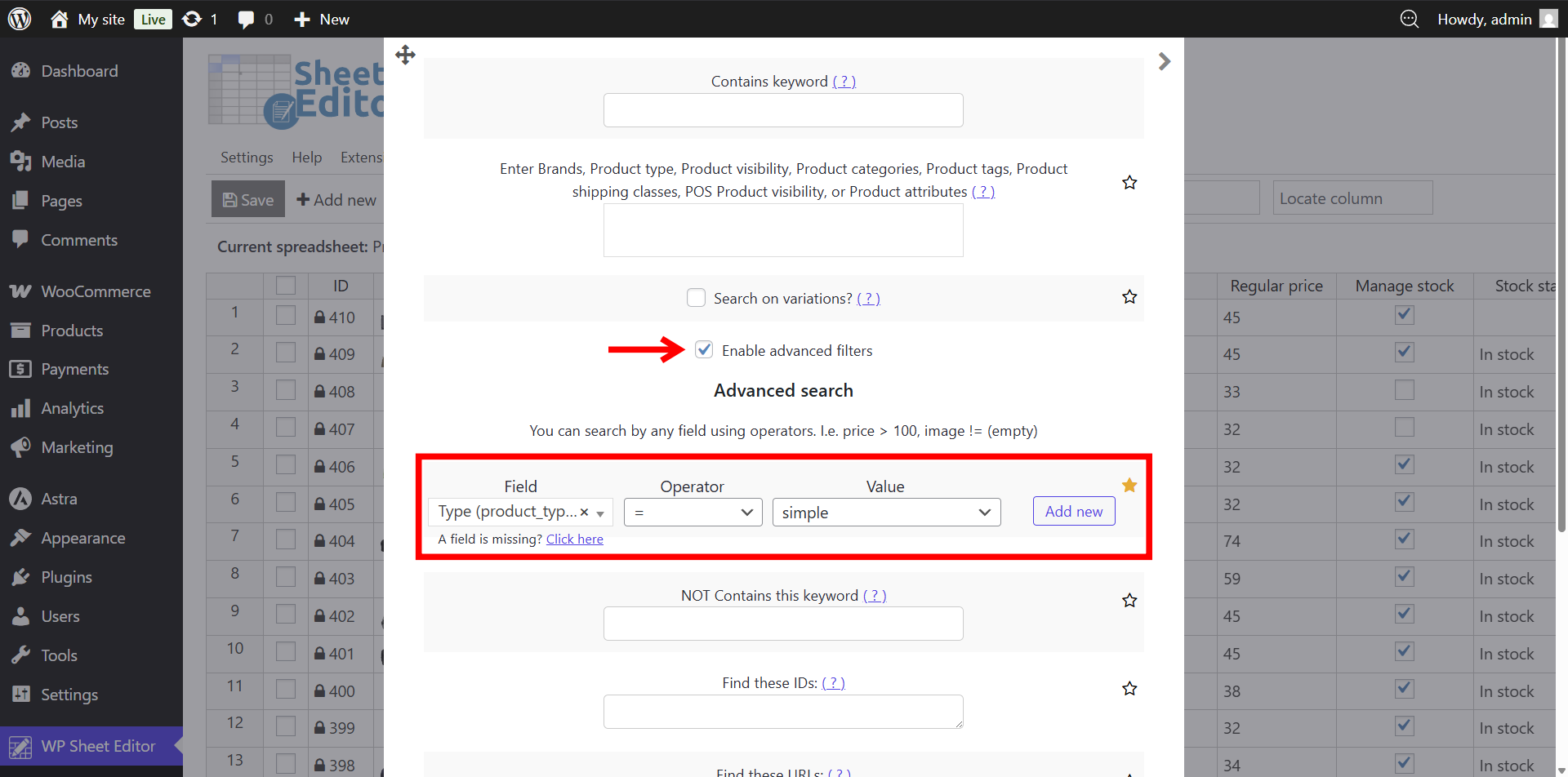
In the Search tool, you need to tick the Enable advanced filters checkbox and select these values:
- Field: Type
- Operator: =
- Value: Simple
Click on Run search.
Step 3. Open the “Bulk Edit” tool
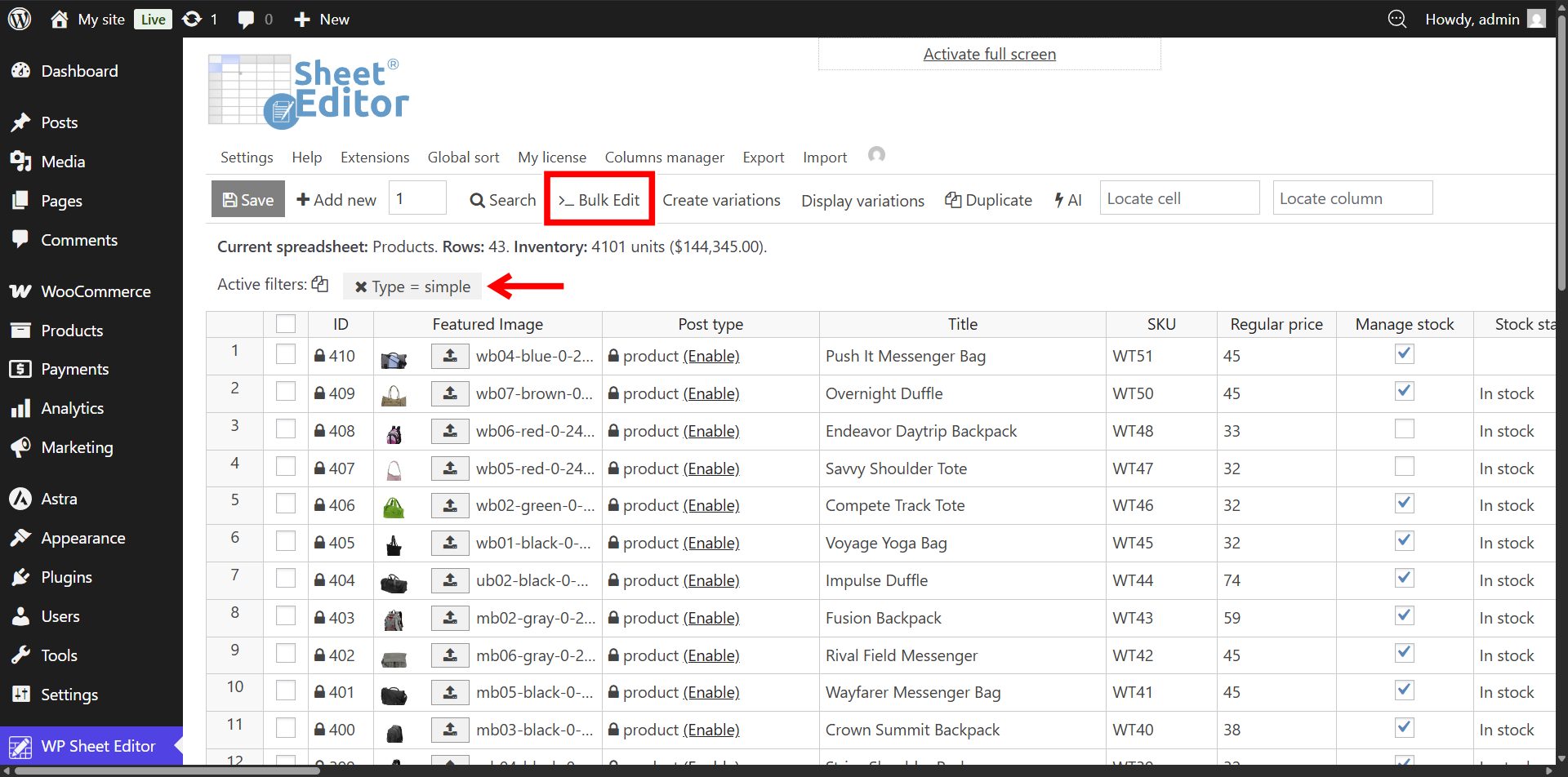
After running the search, the spreadsheet will display only simple products. Now you need to open the Bulk Edit tool from the top toolbar.
Step 4. Increase prices by percentage for simple products in bulk
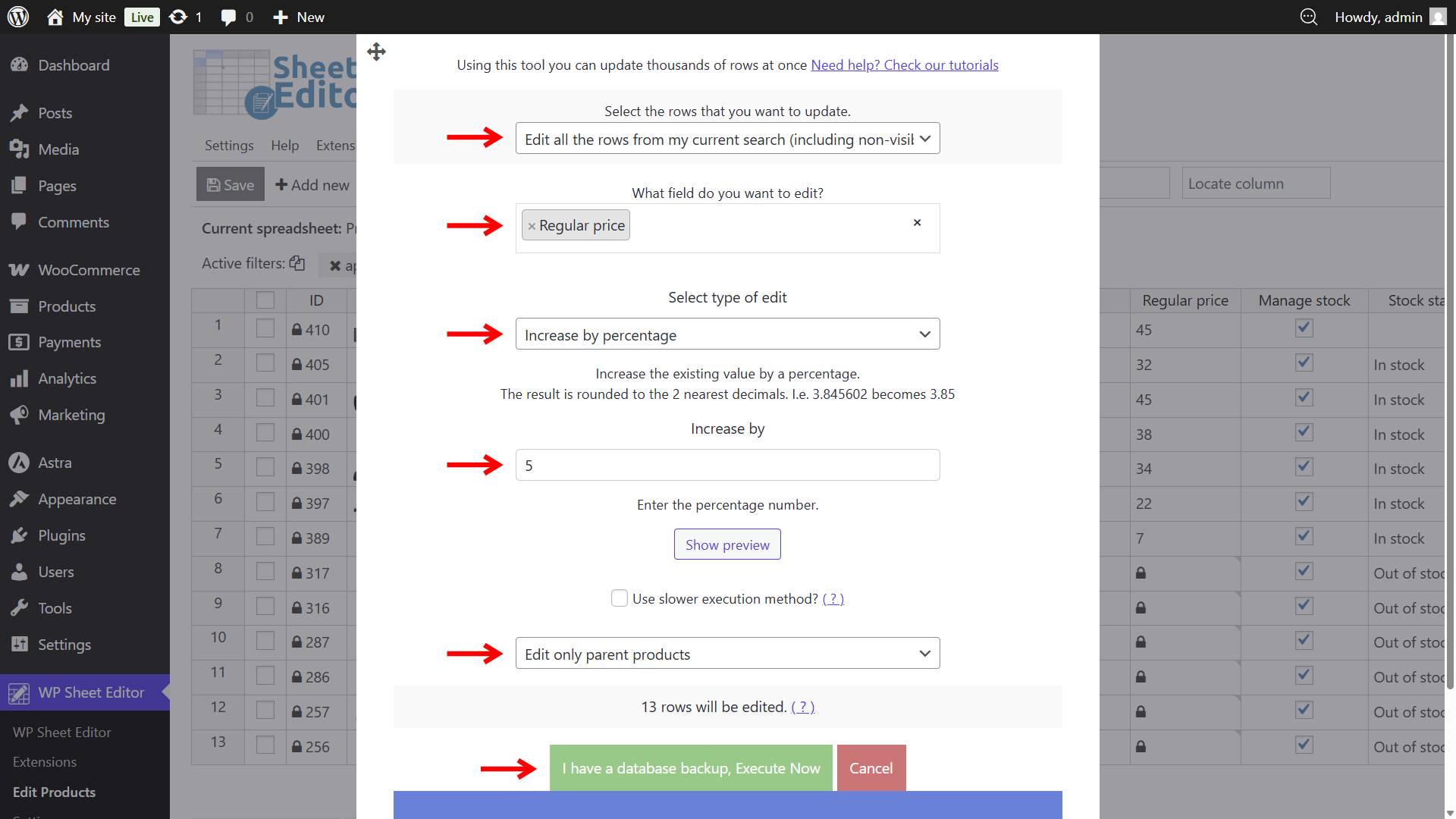
You need to select these values to bulk raise price by percentage across all filtered simple products:
- Select the rows that you want to update: Edit all the rows from my current search (including non-visible rows)
- What field do you want to edit: Regular price
- Select type of edit: Increase by percentage
- Increase by: In this example, we will increase products by 5, so we need to enter the number.
- Select Edit only parent products.
- Click on Execute Now.
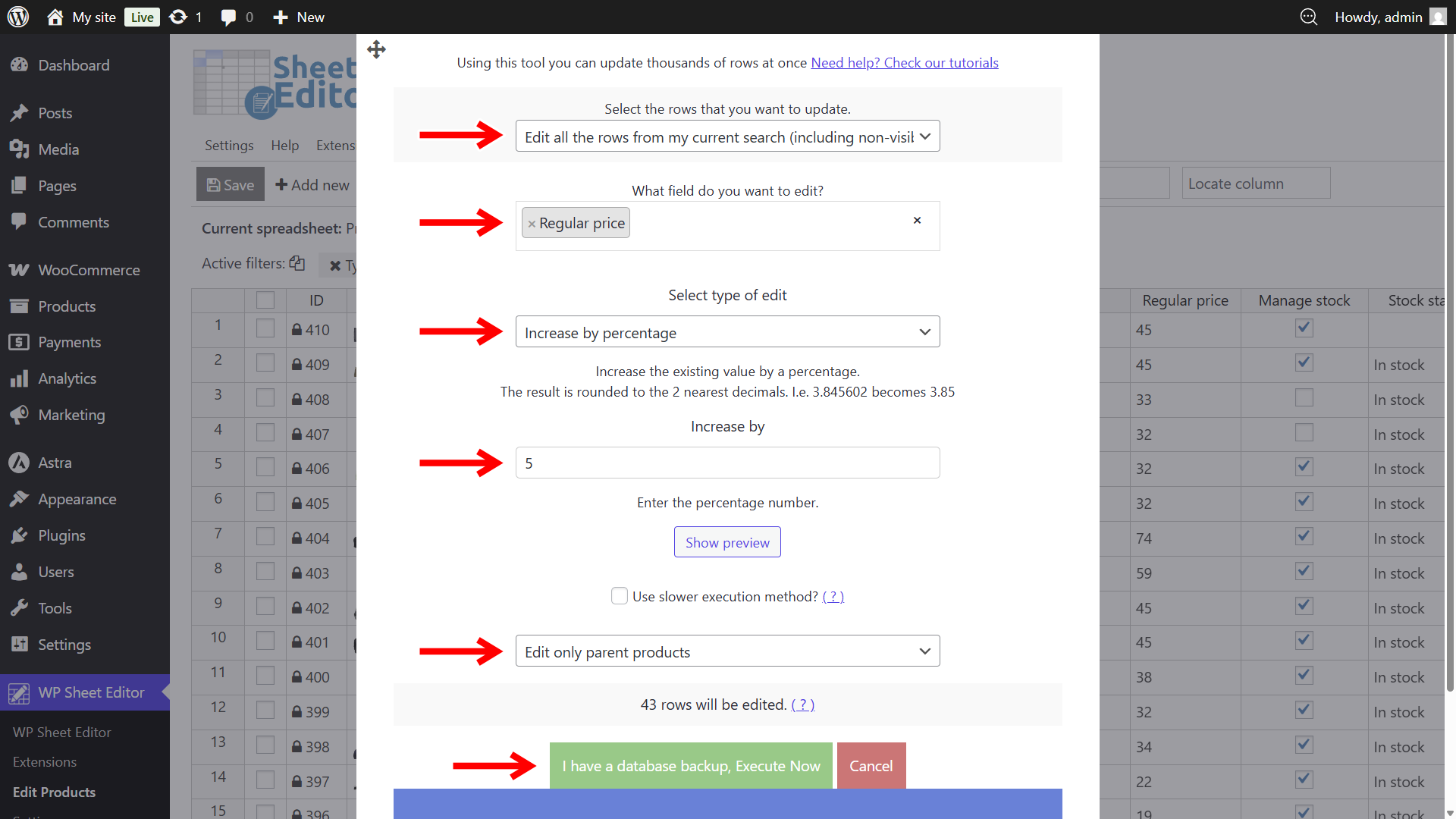
After applying these values in bulk, the regular price of all simple products will be raised by the selected percentage.
Increase prices by percentage for product variations
To increase the prices of your WooCommerce variations by a percentage, you need to open the Bulk Edit tool and apply a percentage price increase to all product variations only.
Note: This assumes that you want to edit the price for all variations globally. To learn how to search for variations by category, attribute, etc., go to the sections below.
Step 1. Open the “Bulk Edit” tool
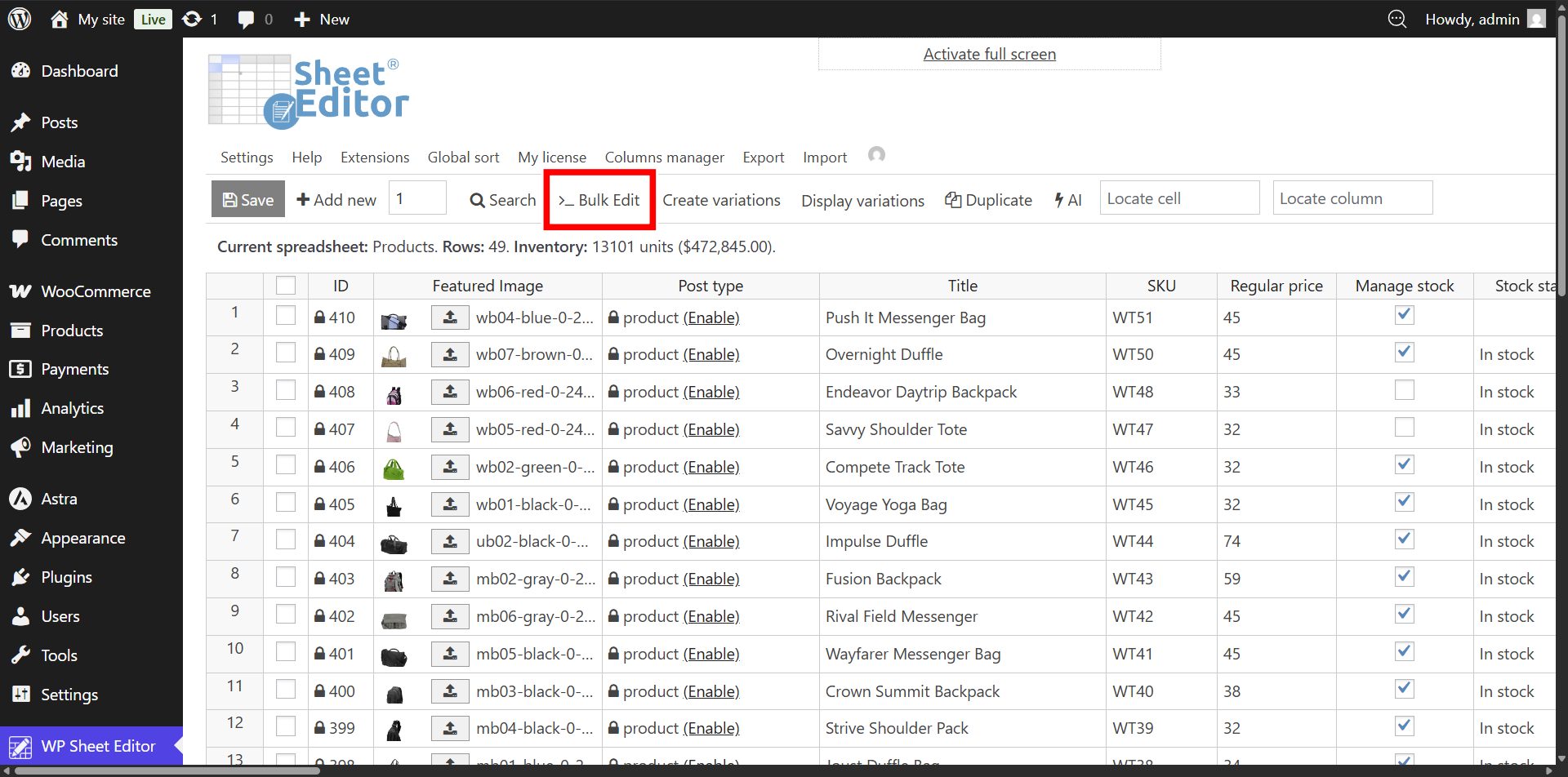
Step 2. Increase price by percentage for all product variations
Once you open the bulk editor, select these values to bulk increase variation prices by percentage:
- Select the rows that you want to update: Edit all the rows from my current search (including non-visible rows)
- What field do you want to edit: Regular price
- Select type of edit: Increase by percentage
- Increase by: In this example, we will increase products by 5, so we need to enter the number.
- Select Edit only variations.
- Click on Execute Now.
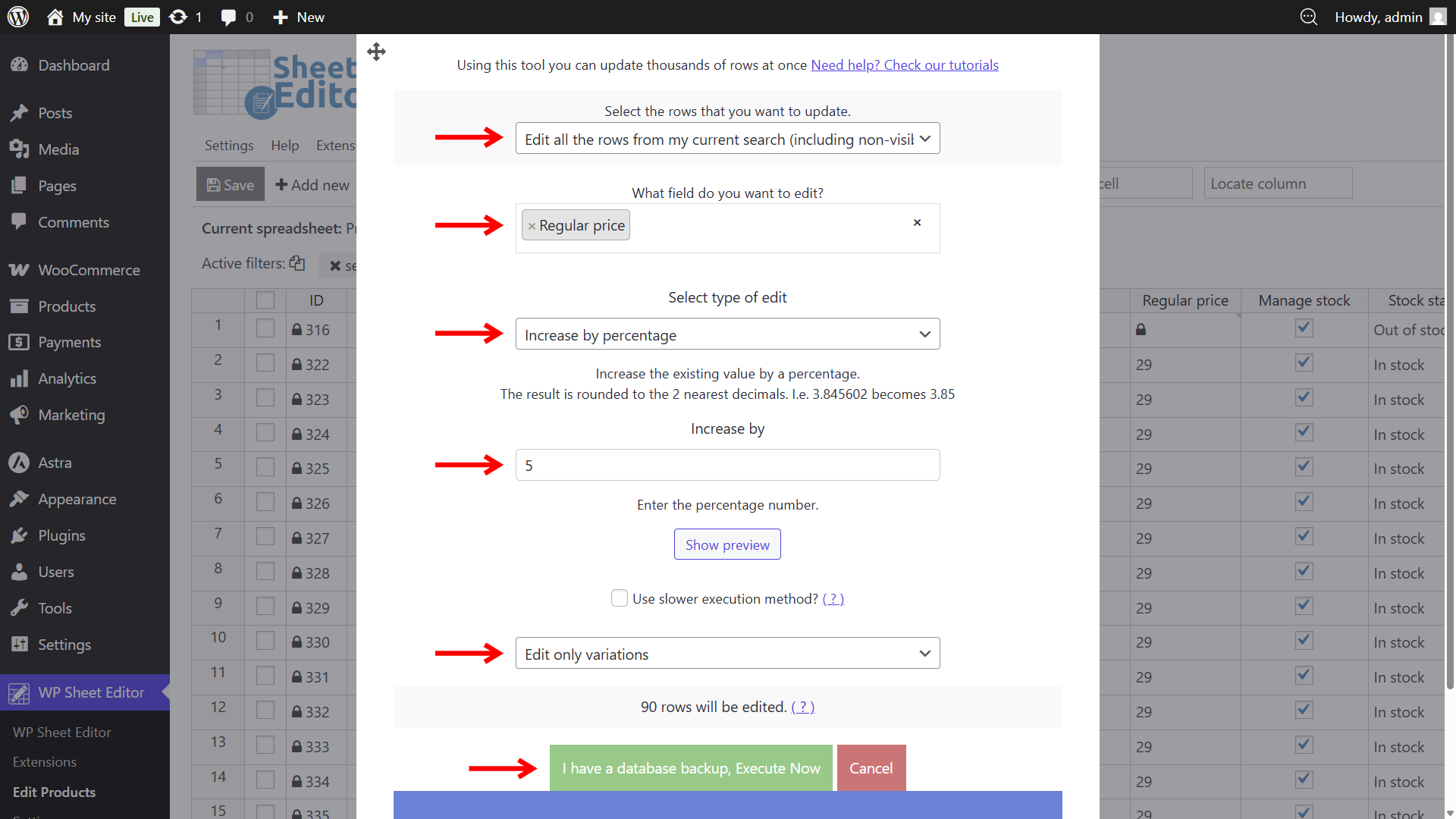
The Edit only variations option is key as it ensures only product variation prices are raised by the selected percentage while keeping parent products intact.
Increase prices by percentage for specific product category or attribute
If you want to edit only the products or variations that belong to a specific category or have a specific attribute, you can easily target them with WP Sheet Editor. Just filter the products by category or attribute and edit them in bulk.
Step 1. Open the “Search” tool
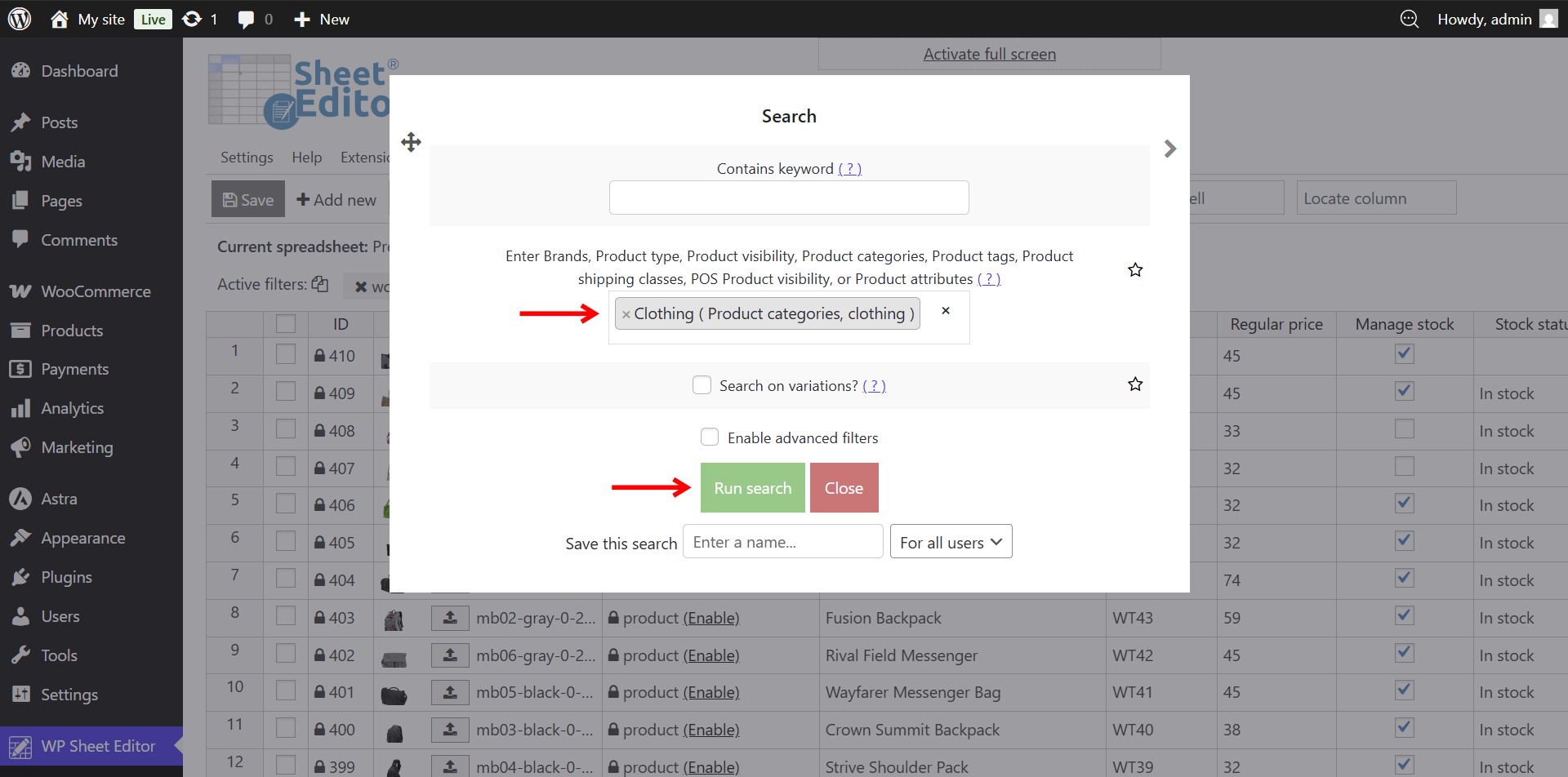
Step 2. Filter products by category or attribute
In the taxonomy search field (Enter Brands…), you can enter categories, attributes, brands, visibility, tags, or shipping classes. In this example, we will enter the Clothing category and click on Run search.
Step 3. Open the “Bulk Edit” tool
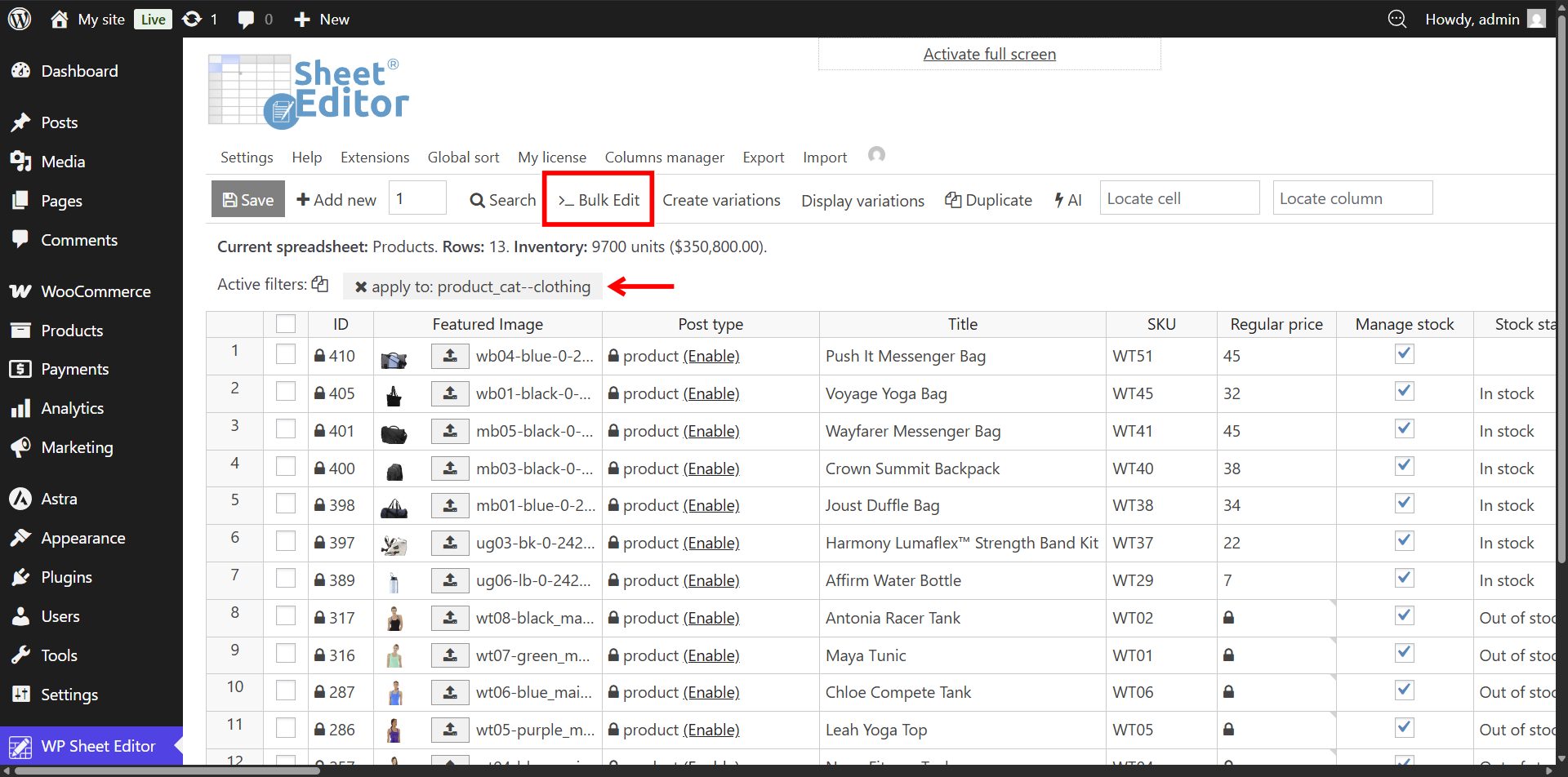
Step 4. Bulk raise prices by percentage for the selected category
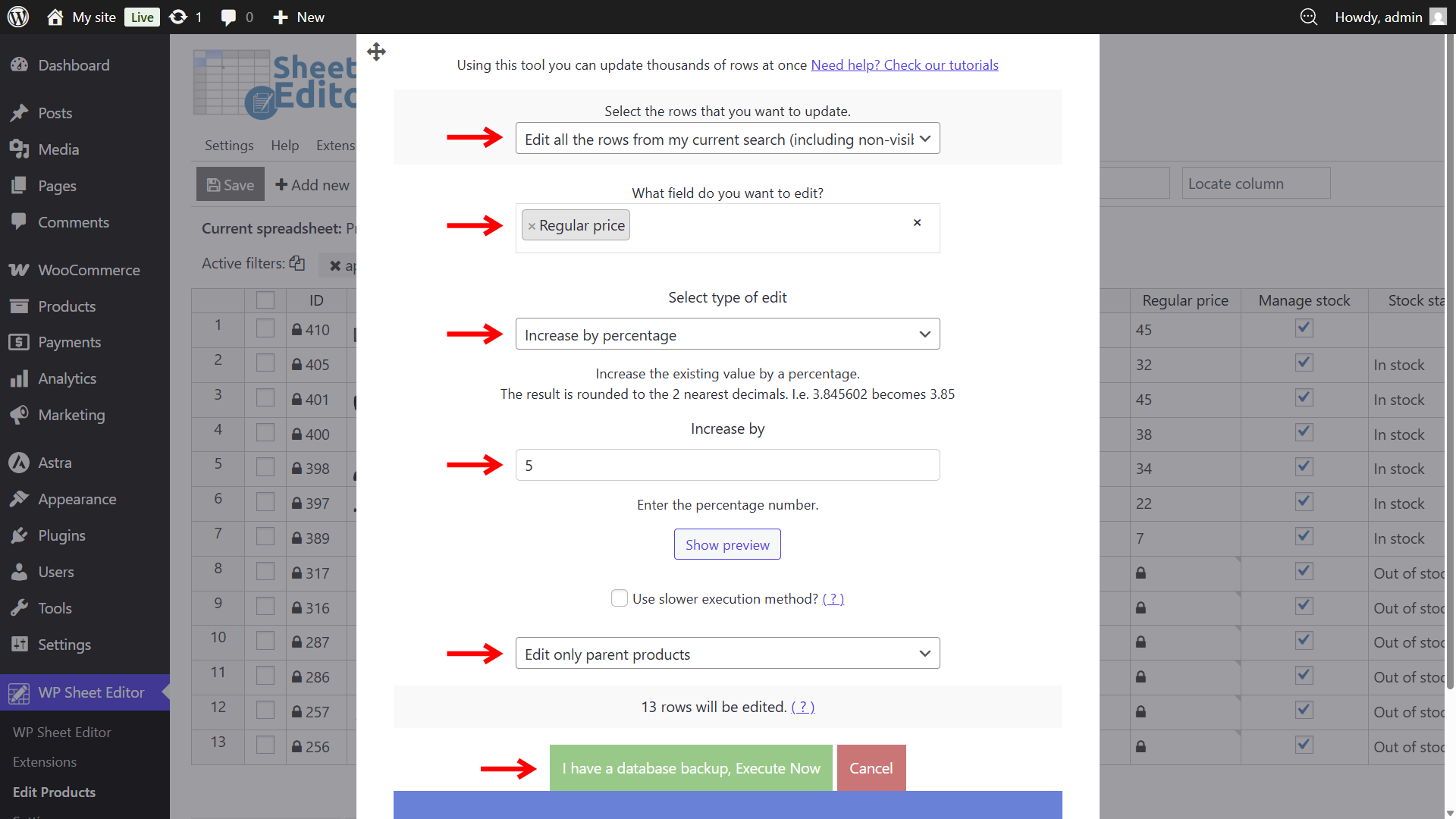
Once you open the bulk editor, select these values to update your filtered items:
- Select the rows that you want to update: Edit all the rows from my current search (including non-visible rows)
- What field do you want to edit: Regular price
- Select type of edit: Increase by percentage
- Increase by: In this example, we will increase price by 5, so we need to enter the number.
- Select if you want to Edit only parent products or Edit only variations depending on your store setup.
- Click on Execute Now.
Increase price by percentage for specific price range
To raise the prices of products currently priced below $20, filter your catalog by price range in the search tool and apply the percentage increase with the bulk editor.
Step 1. Open the “Search” tool
Step 2. Filter products by price range
Tick the Enable advanced filters checkbox and select these values to filter products priced at less than $20:
- Field: Regular price
- Operator: <
- Value: 20
Once you have selected the values, click on Run search.
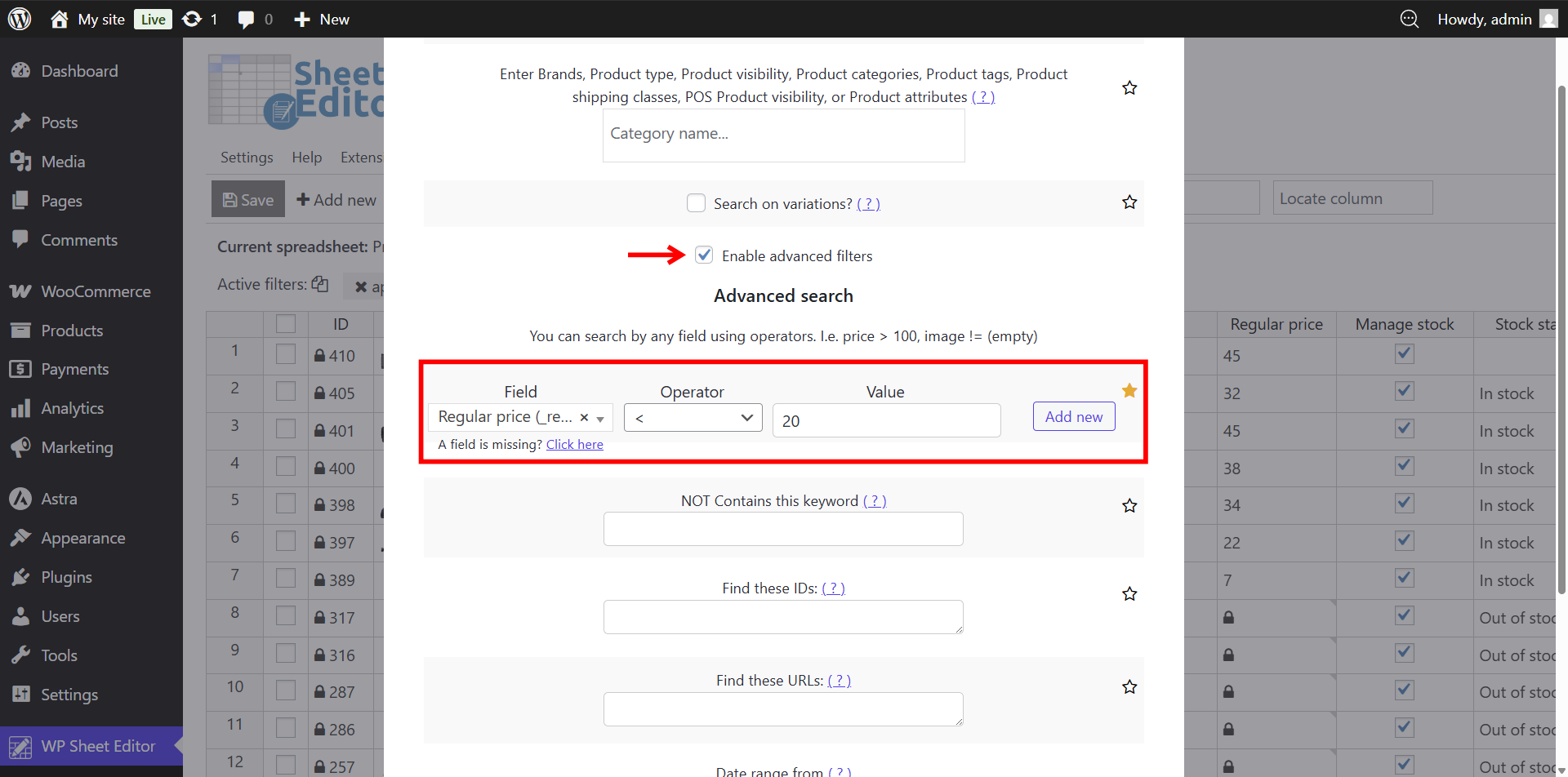
Note: You can use multiple advanced filters and operators simultaneously to target a highly specific price range—for example, filtering for products with a regular price greater than $10 but less than $20.
Step 3. Open the “Bulk Edit” tool
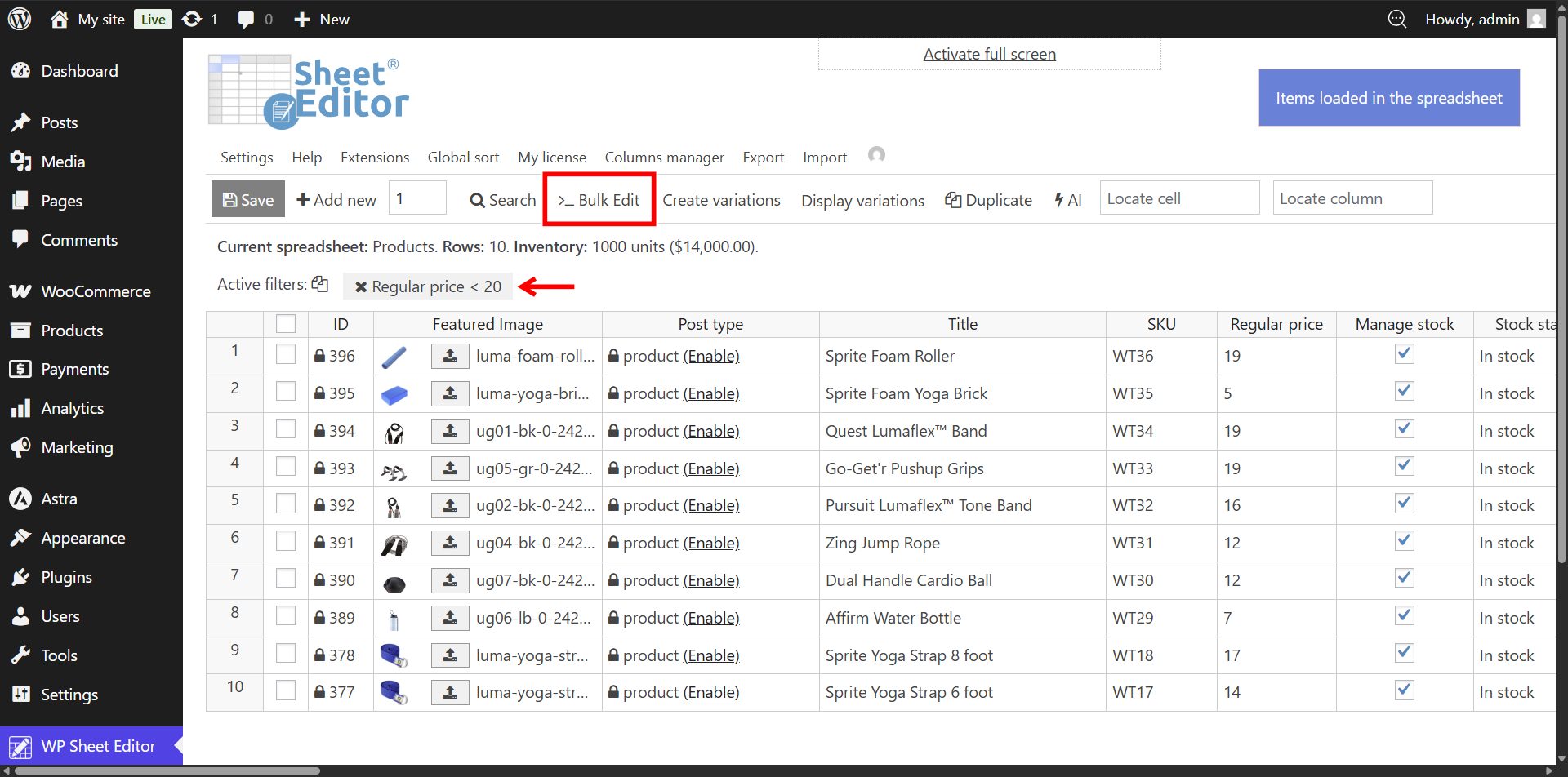
Step 4. Bulk raise price by percentage for the selected price range
Once you open the bulk editor, select these values to run the price modification:
- Select the rows that you want to update: Edit all the rows from my current search (including non-visible rows)
- What field do you want to edit: Regular price
- Select type of edit: Increase by percentage
- Increase by: In this example, we will increase prices by 5, so we need to enter the number.
- Select if you want to Edit only parent products or Edit only variations.
- Click on Execute Now.
Frequently Asked Questions
Can I bulk increase prices by fixed amount?
Yes, you can read our step-by-step guide on how to increase prices by fixed amount in bulk.
Can I bulk increase sale prices instead of regular prices?
Yes. In the Bulk Edit tool, select Sale price instead of Regular price in the field dropdown menu. You can apply the percentage increase to sale prices using the same filtering options.
Does increasing the price of a parent product automatically update its variations?
No. WooCommerce treats variation prices independently from parent product prices. To update variable products, select Edit only variations in the Bulk Edit tool so the percentage increase applies to every individual variation row.
Can I round updated prices to end in .99 or whole numbers after applying a percentage increase?
Yes. Follow this tutorial.
You can download the plugin here:
Download WooCommerce Products Spreadsheet Plugin - or - Check the features