
You can manage WooCommerce coupons in Google Sheets using WP Sheet Editor – WooCommerce Coupons and the Google Sheets Sync service. This tutorial shows you how to connect your coupons spreadsheet to Google Sheets, edit discount amounts, expiry dates, and usage limits, and sync those changes back to WooCommerce.
This is what you need to manage coupons in Google Sheets
WP Sheet Editor – WooCommerce Coupons lets you view and edit your coupons in a spreadsheet inside WordPress.
You can purchase the plugin here:
Get the WooCommerce Coupons spreadsheet - or - Check the features
Google Sheets Sync helps you connect that spreadsheet to Google Sheets so you can export coupons and import your changes.
You can sign up to the service here:
Sign up to the Google Sheets Sync Service - or - Check the features
Step 1. Open the coupons spreadsheet
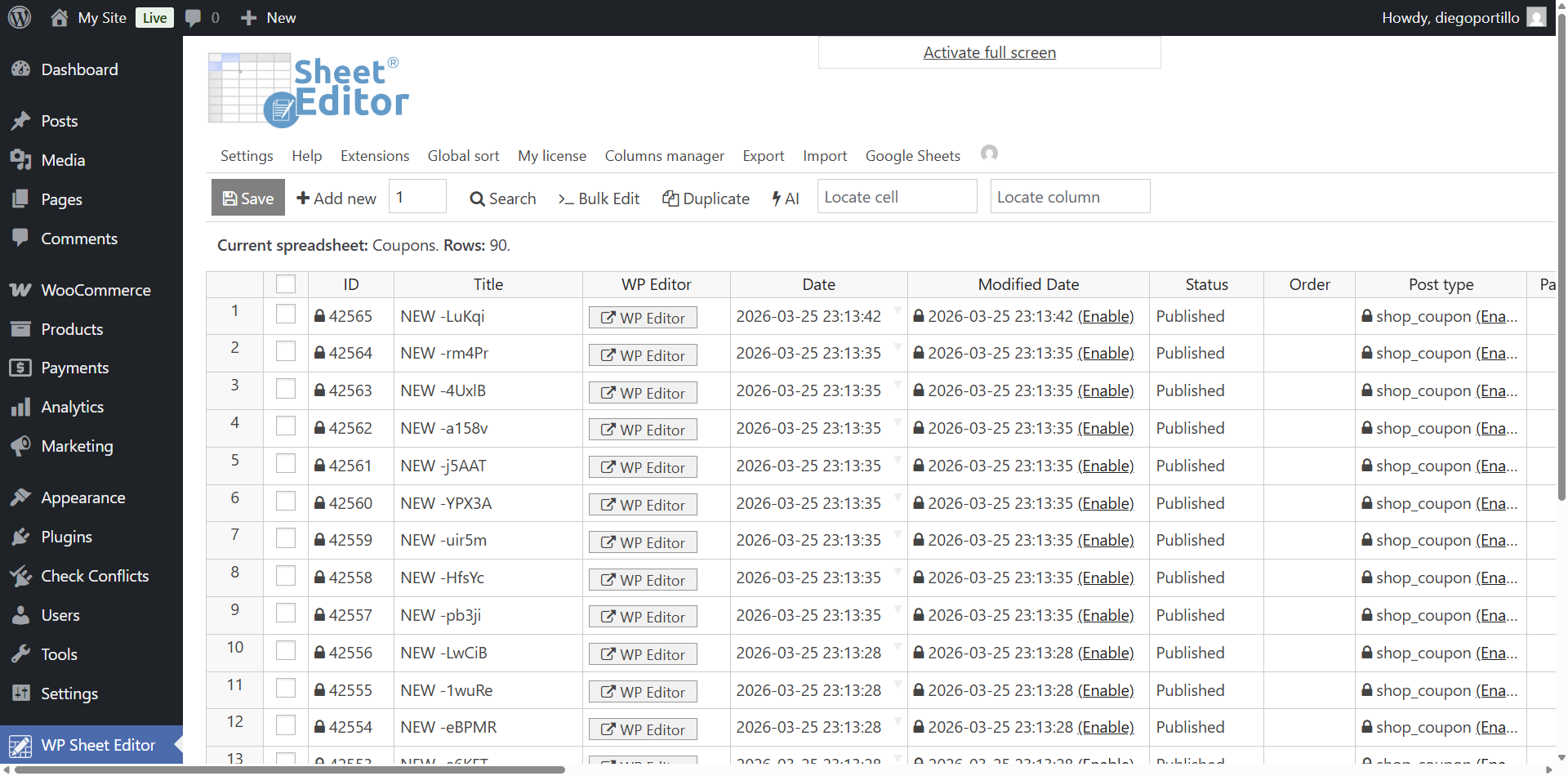
Go to WP Sheet Editor > Edit Coupons.
Step 2. Connect WordPress to Google Sheets
When you subscribe to Google Sheets Sync, you receive a helper plugin to connect your WordPress site to your Google account.
Follow the installation guide to install it and authorize the connection.
Step 3. Set up bidirectional synchronization
A bidirectional sync sends changes from WordPress to Google Sheets and imports spreadsheet edits back into WordPress.
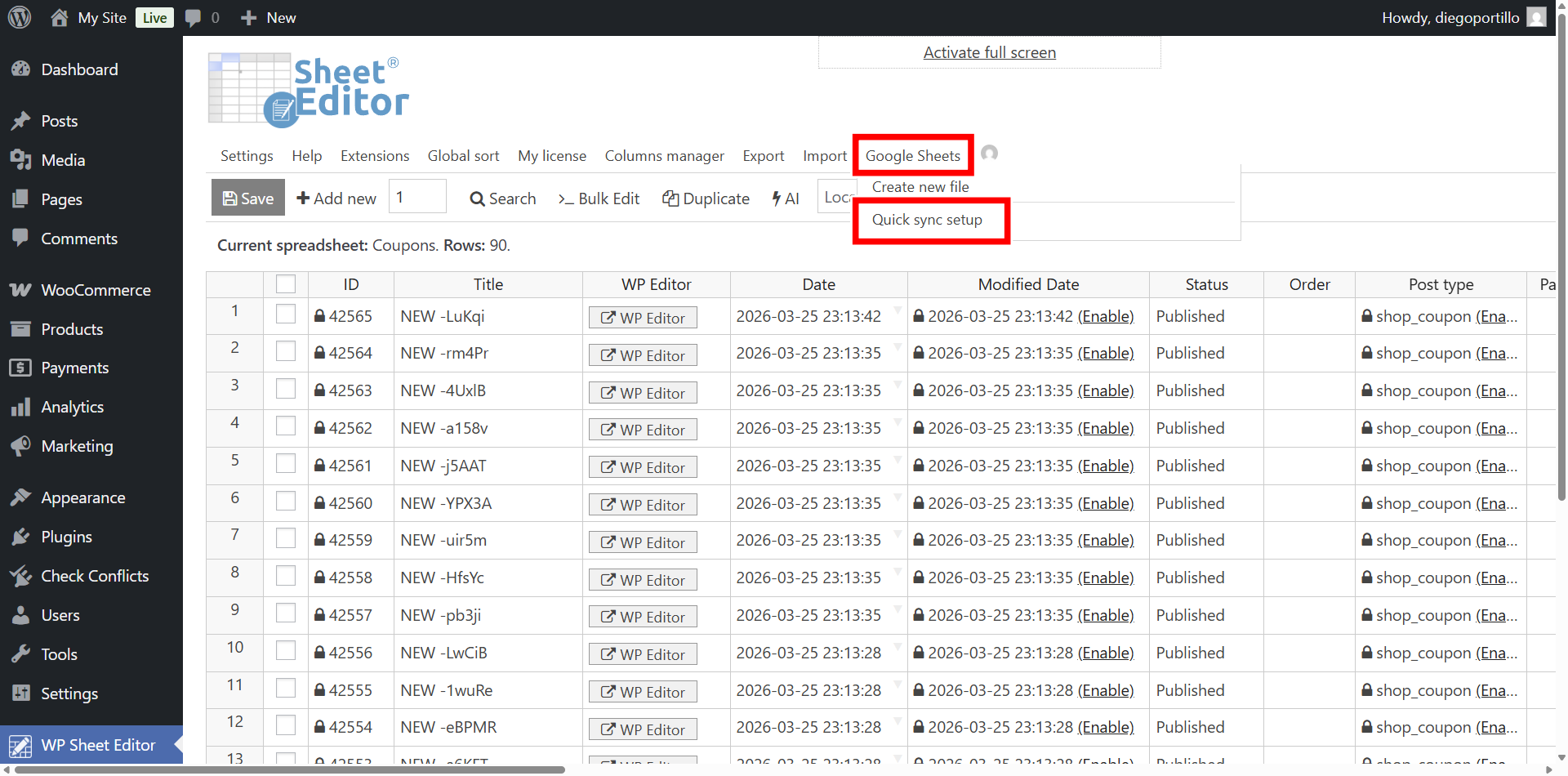
Hover over the Google Sheets tool and select Quick sync setup.
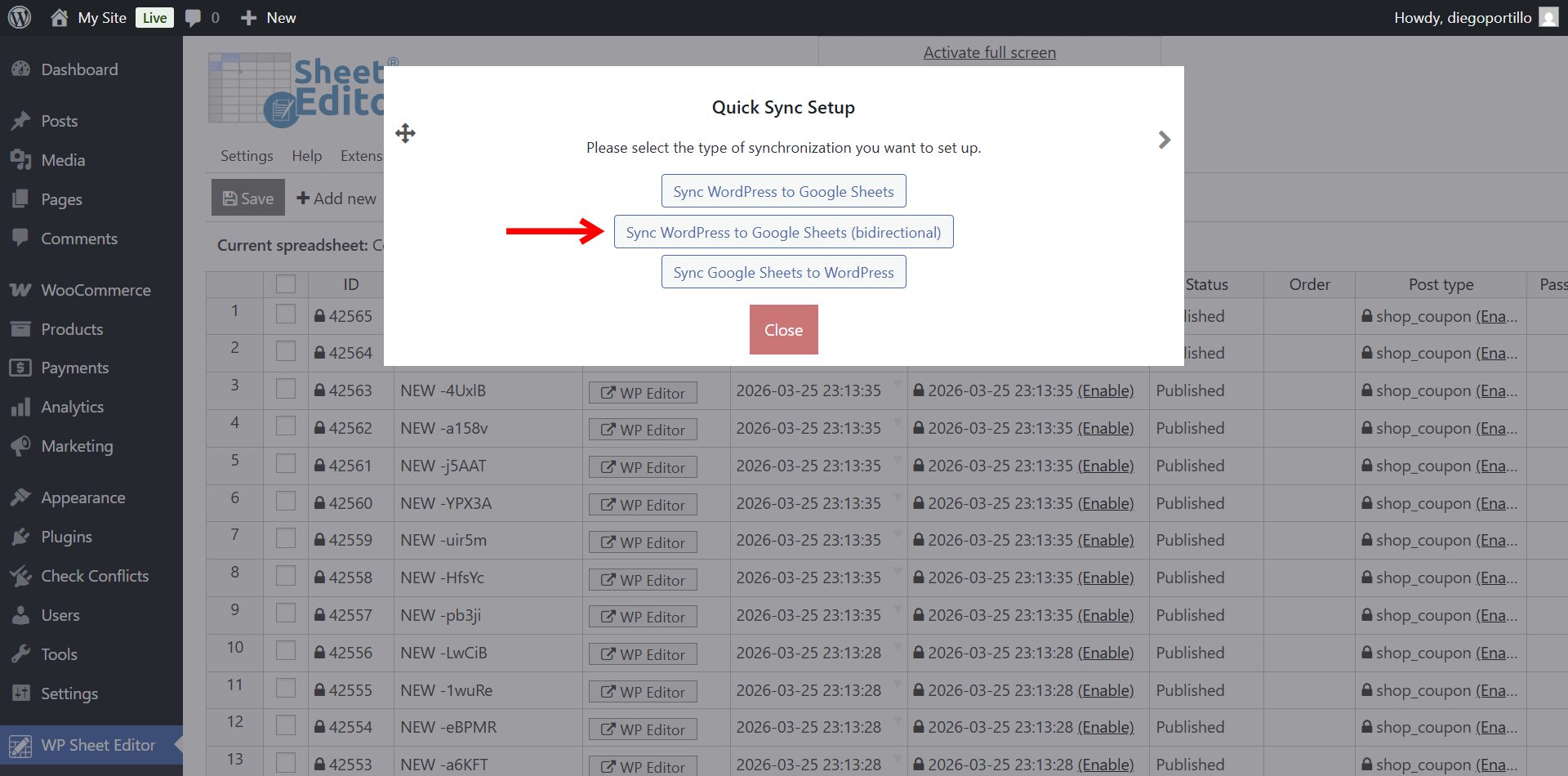
Click Sync WordPress to Google Sheets (bidirectional).
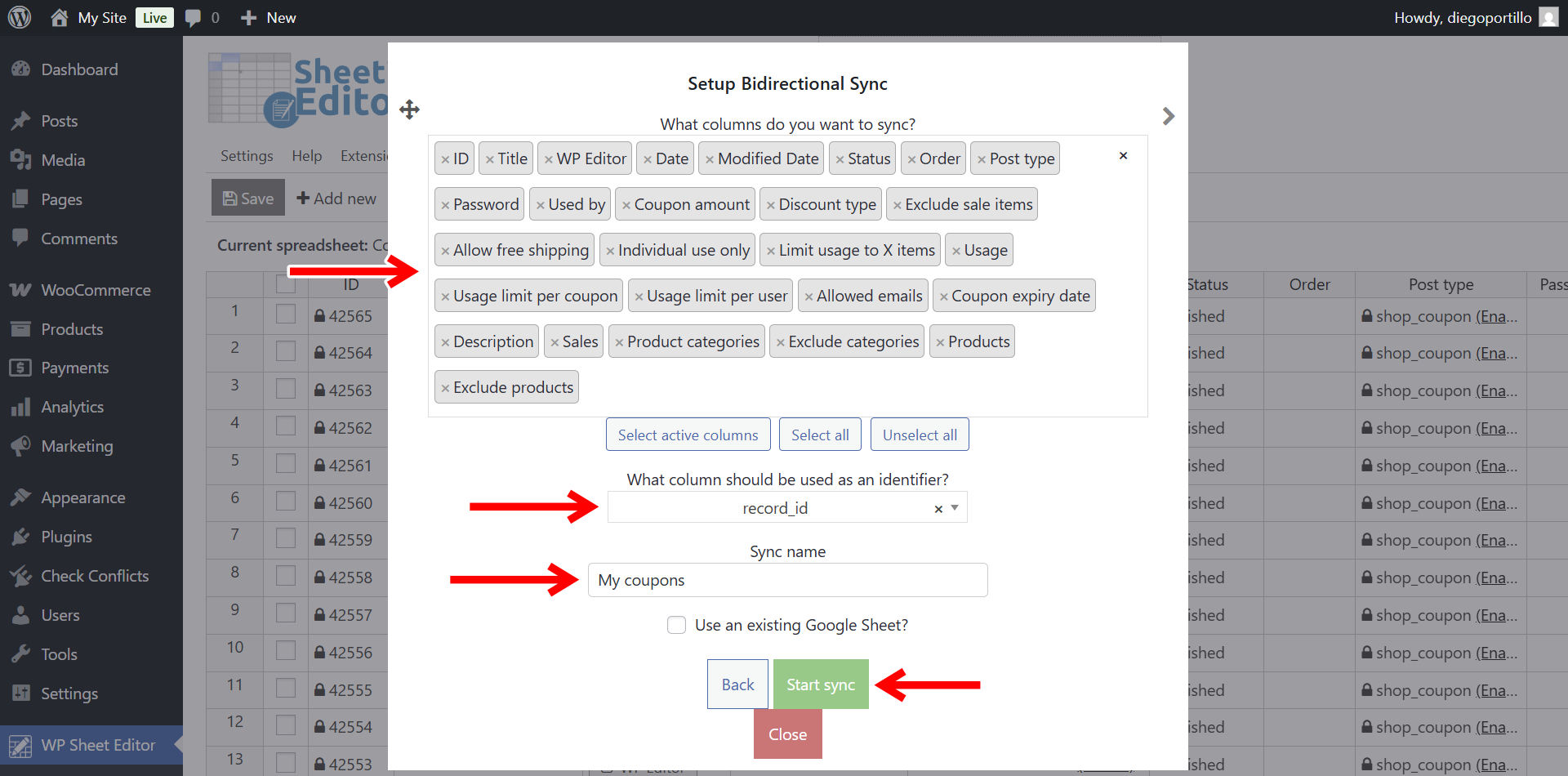
Configure these settings in the export popup:
- What columns do you want to sync: Select all columns or choose the ones you want to manage.
- What column should be used as an identifier: Select record_id (ID) to match existing coupons.
- Sync name: Enter a name for the sync.
- Click Start sync and wait for the initial export to finish.
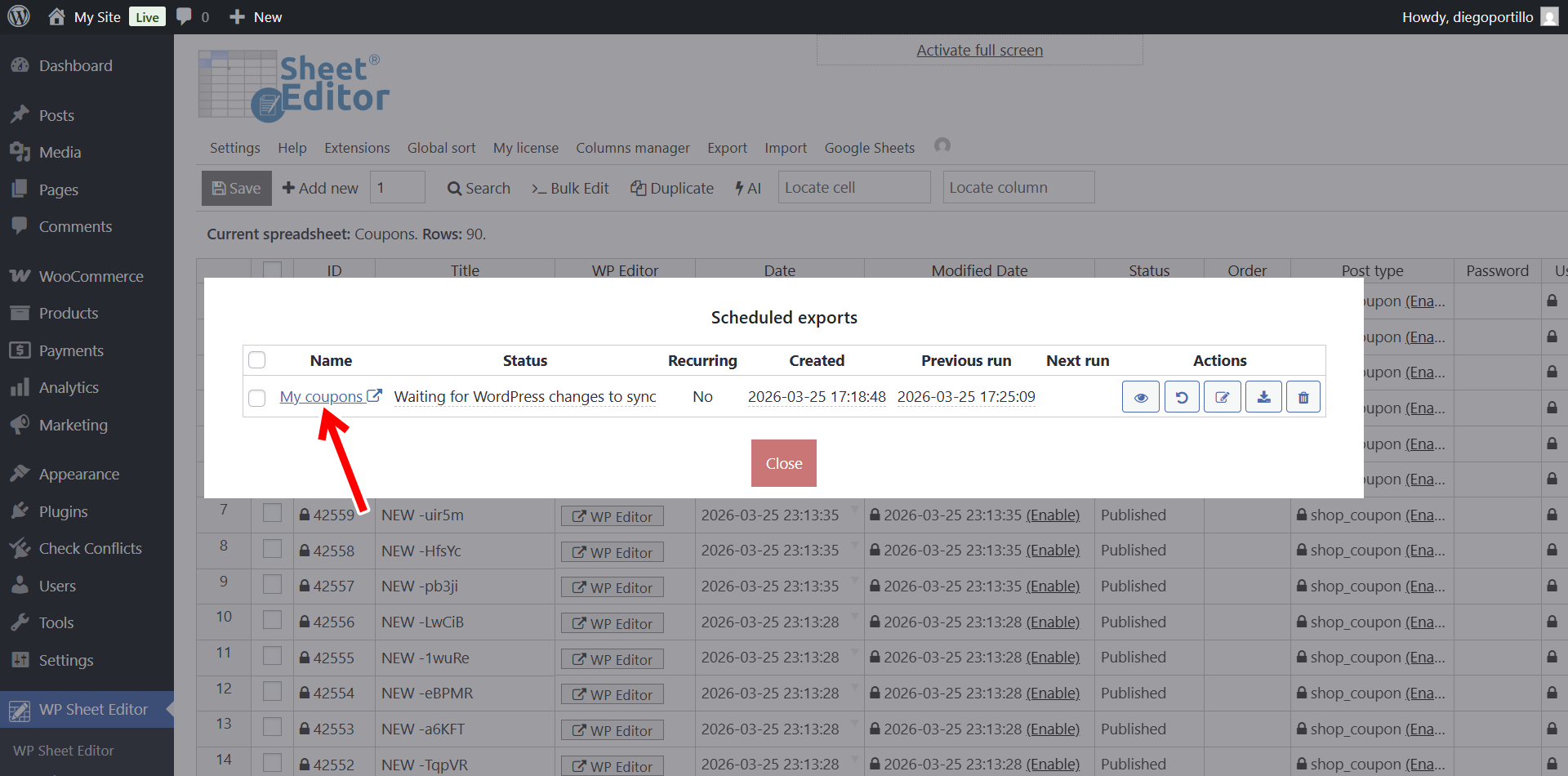
Go to Export > View scheduled exports to see the sync details. Once the export is complete, click its name to open the Google Sheet.
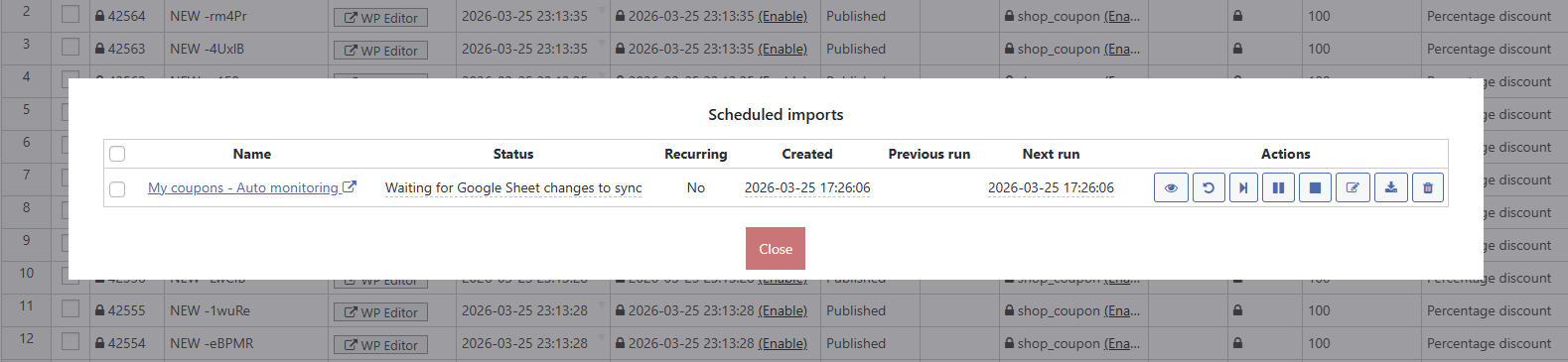
Under Import > View scheduled imports, you can also see the automatic import created to bring your Google Sheets changes back into WordPress.
Step 4. Edit your coupons in Google Sheets
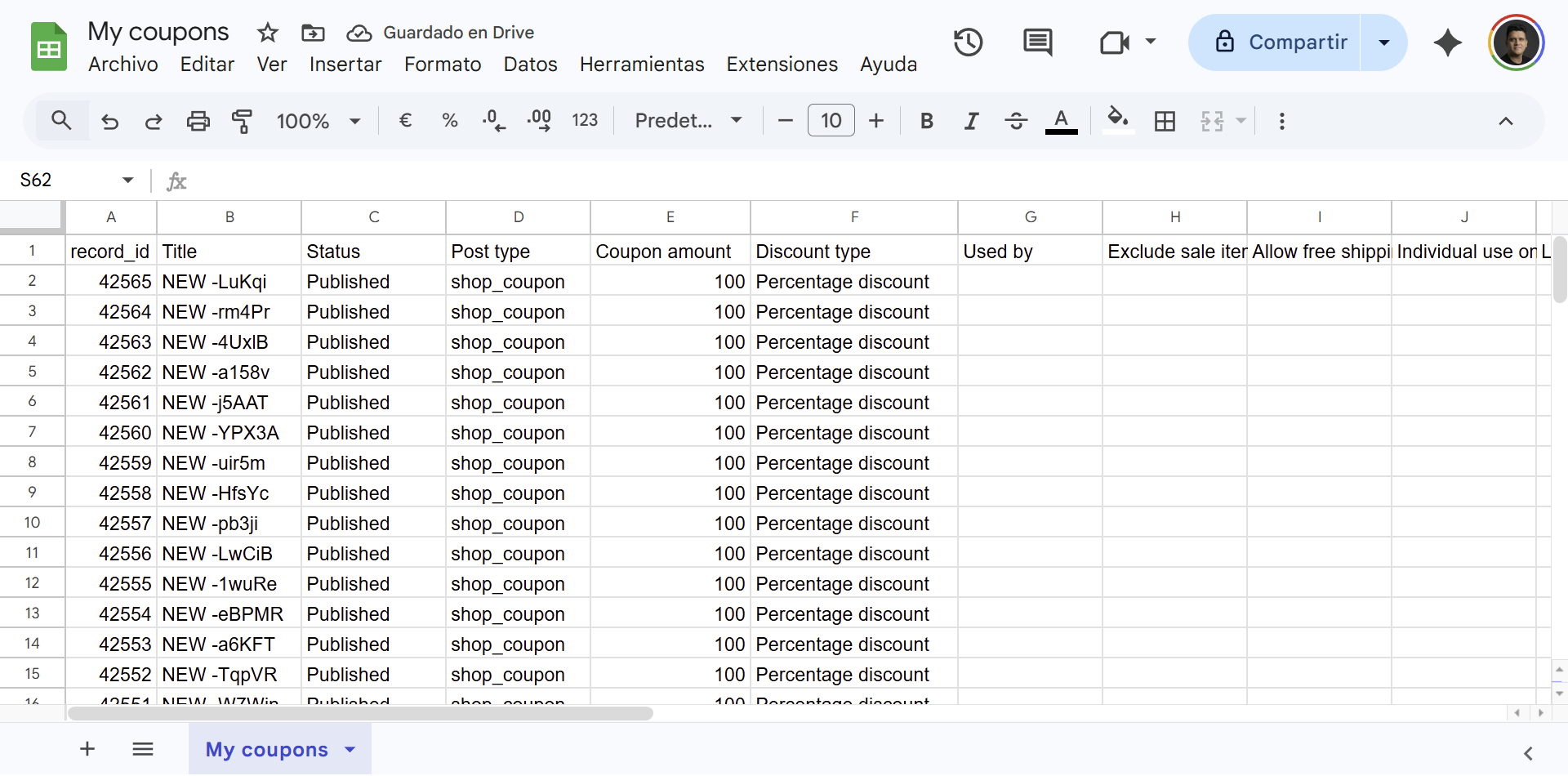
Your Google Sheet displays each coupon in a row, with its fields in separate columns. Keep the record_id (ID) values unchanged so edits can be matched to the correct coupons.
Step 5. Sync changes back to WooCommerce
The automatic import applies your spreadsheet edits to WooCommerce without a manual CSV upload.
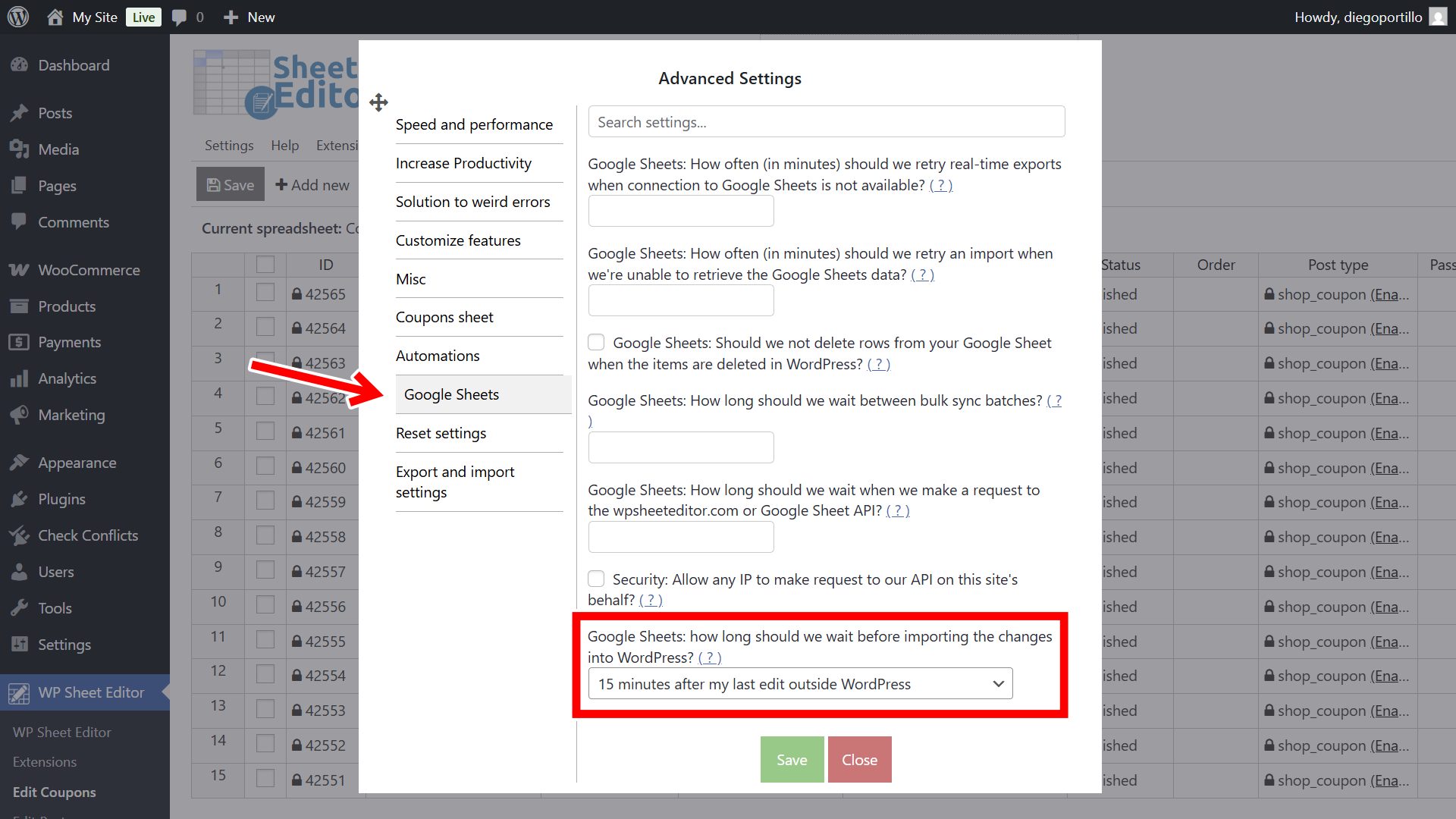
To allow time to finish editing before an import runs, go to Settings > Advanced Settings > Google Sheets in WordPress. Set how long the plugin should wait after your last edit, for example, 15 minutes.
After the import finishes, check the updated coupons in WP Sheet Editor > Edit Coupons to confirm that the amounts, dates, and limits are correct.
With the sync configured, you can edit coupon details in Google Sheets and have those changes imported into WooCommerce. Use the same spreadsheet for future updates to discount amounts, expiry dates, and usage limits.