
Last updated: August 16, 2026.
To bulk increase or decrease item prices on pending WooCommerce orders, install the WP Sheet Editor – WooCommerce Orders plugin, filter your orders by the “Pending payment” status using the Search tool, and use the Bulk Edit tool to adjust prices across all selected orders at once. This modifies the line-item prices on existing order records without changing the base product prices in your store catalog.
Looking to update your store catalog instead?
If you want to change prices for your general store inventory, see our guide on how to bulk increase WooCommerce product prices by percentage. This tutorial applies only to modifying amounts on orders already placed by customers.
Table of Contents
Managing pricing on pending orders is a common requirement for WooCommerce store owners. Line-item prices on existing orders often need downward adjustments due to misapplied coupons, honoring post-checkout promotional rates, or resolving customer support disputes. Conversely, order totals may need an upward adjustment to account for missed shipping surcharges, supplier price changes that took effect before payment, or currency conversion errors.
In default WooCommerce, adjusting multiple pending orders requires:
- opening each order screen,
- editing individual line items,
- recalculating totals,
- and saving one by one.
The WP Sheet Editor – WooCommerce Orders plugin replaces this manual workflow by loading your store’s orders into a spreadsheet interface where you can search, filter, and modify order line items in bulk.
You can download the plugin here:
Download WooCommerce Orders Spreadsheet Plugin - or - Check the features
Once you install and activate the plugin, you can follow this guide to set up the spreadsheet bulk editor for WooCommerce orders.
Open the WooCommerce orders spreadsheet
In your WordPress admin dashboard, go to WP Sheet Editor > Edit Orders.
The spreadsheet will load every order as a row, with columns representing order fields such as status, customer details, line items, and totals.

Filter orders by “Pending Payment” status
To modify only pending orders without affecting processing or completed orders, start by opening the Search tool.

Once you’re in the tool:
- Check the Enable advanced filters box.
- Set the filter parameters:
- Field:
Status - Operator:
= - Value:
Pending payment
- Field:
- Click Run search.

The spreadsheet will refresh to show only orders with the “Pending payment” status.
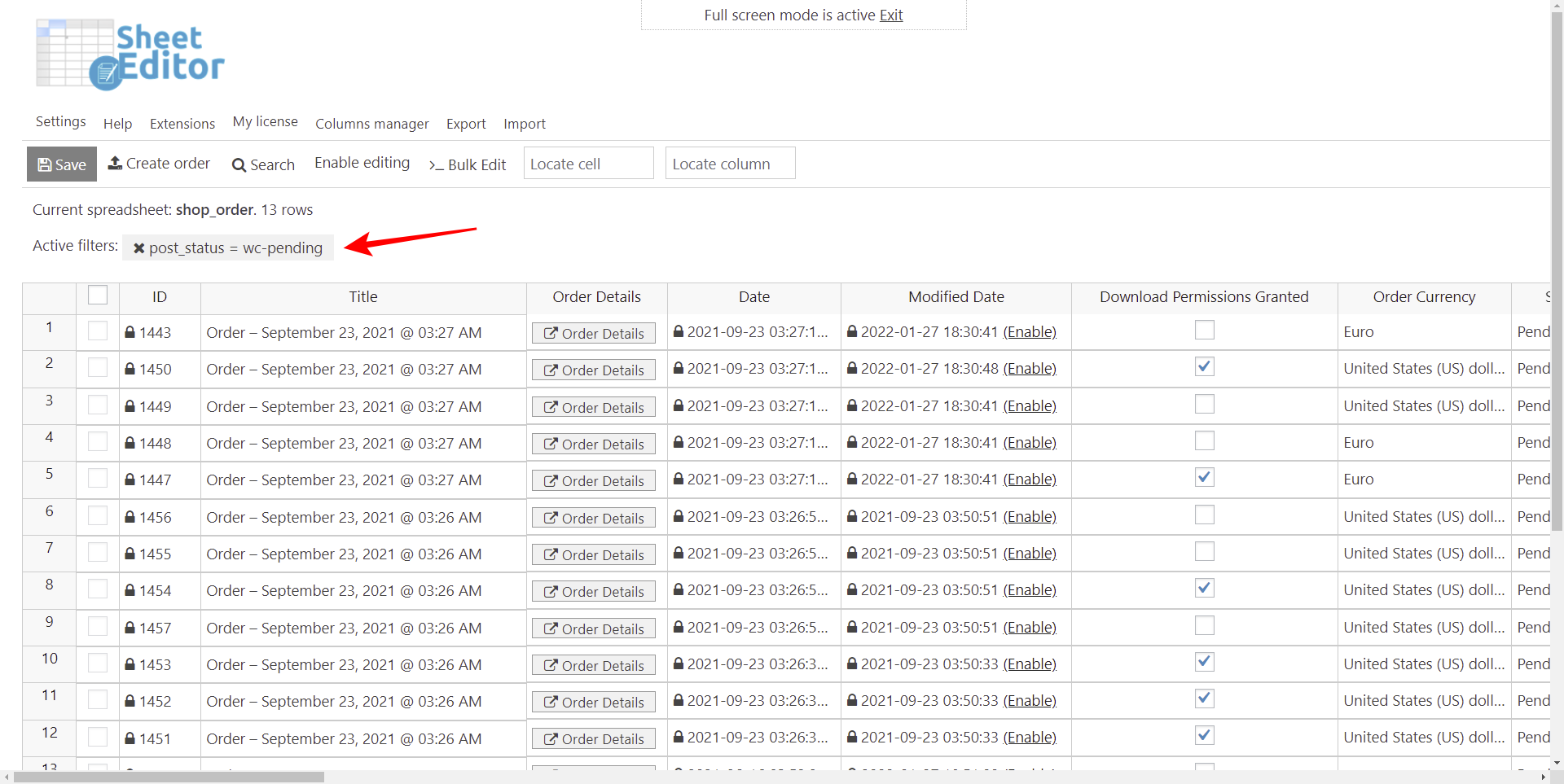
Option 1 – Bulk decrease line-item prices
If you want to decrease line-item prices, hover the mouse over the Bulk Edit tool, and select one of these options:
- Decrease product prices by percentage
- Decrease product prices by number

Next, you need to set up the bulk edit like this:
- Select the rows that you want to update: Edit all the rows from my current search.
- Select type of edit: Select
Decrease product prices by percentageorDecrease product prices by number - Enter the percentage or fixed value you want to subtract in the input field.
- Click on Execute Now.
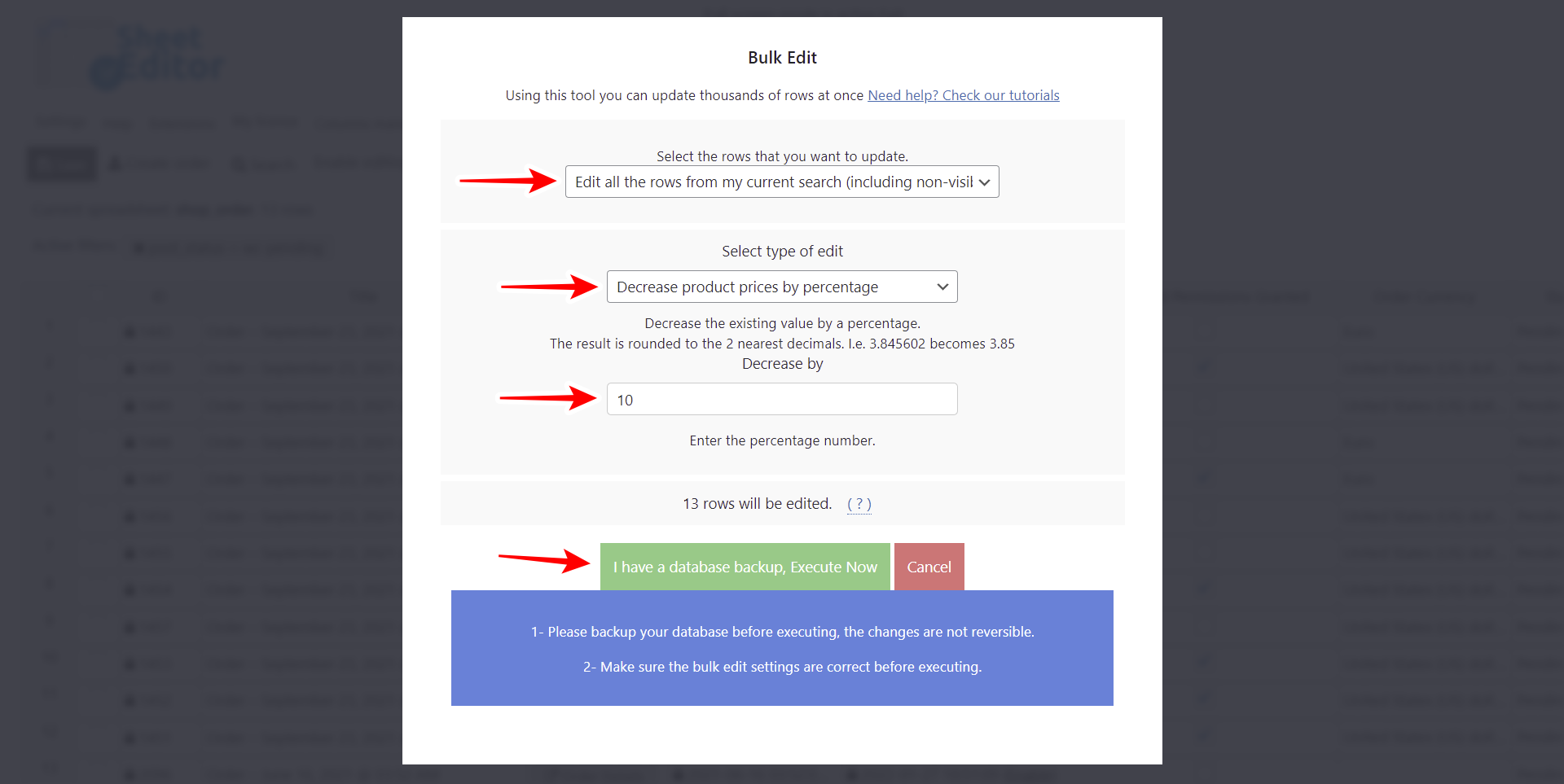
The plugin will update the line-item prices and recalculate the totals across all filtered pending orders.
Option 2 – Bulk increase line-item prices
Bulk increasing item prices in pending orders is almost the same process as decreasing prices. You just need to:
- Hover the mouse over the Bulk Edit tool
- Select one of these options:
- Increase product prices by percentage
- Increase product prices by number

Next, you need to set up the bulk update like this:
- Select the rows that you want to update: Edit all the rows from my current search.
- Select type of edit: Select
Increase product prices by percentageorIncrease product prices by number - Enter the percentage or fixed value you want to add to the item prices in the input field.
- Click on Execute Now.

Frequently Asked Questions
Does this bulk edit change the product’s catalog price or only the order?
This method only modifies the line-item prices on the selected order records. It does not alter your store’s base catalog prices. To update catalog product prices, you can read the tutorial on How to Bulk Edit WooCommerce Product Prices (3 Methods).
Start managing WooCommerce orders in a spreadsheet
With WP Sheet Editor, adjusting amounts on WooCommerce pending orders does not require editing individual order records manually. By filtering orders by status with the Search tool and applying percentage or fixed-amount modifications through the Bulk Edit tool, you can update line items across hundreds of pending orders simultaneously while keeping your base product catalog untouched.
You can download the plugin here:
Download WooCommerce Orders Spreadsheet Plugin - or - Check the features