
You can generate WooCommerce product tags with AI using WP Sheet Editor – WooCommerce Products and WP Sheet Editor – AI. Create a prompt that suggests tags from product titles and descriptions, then run it in spreadsheet cells or apply it to multiple products with Bulk Edit.
This tutorial covers both methods, including how to find products without tags.
Table of Contents
When should you use WooCommerce product tags?
Product tags group related products without using parent and child categories. For example, products in different home decor categories might share tags such as minimalist or coastal.
Use product attributes for details such as size, color, and material, especially when customers use them to filter products or choose variations. Add those details as tags only if they serve another useful purpose.
WooCommerce can use shared categories and tags to identify related products. Whether tags affect your store’s search results or filters depends on its configuration.
What you need
You’ll need WooCommerce, these two plugins, and an AI provider connection.
WP Sheet Editor – WooCommerce Products
This plugin displays your products in a spreadsheet where you can edit tags, find products without them, and make changes in bulk.
You can download the plugin here:
Get the WooCommerce Spreadsheet Editor - or - Check the features
WP Sheet Editor – AI
This add-on lets you run saved AI prompts in spreadsheet cells and through Bulk Edit.
You can download the plugin here:
An AI provider connection
Connect OpenAI, OpenRouter, or another supported provider by following the AI setup guide. Enable the provider for cell editing and bulk editing if you plan to use both methods.
You pay your AI provider separately from WP Sheet Editor – AI. Costs and processing time depend on the model, the amount of text it processes, and the number of products.
Create a product-tagging prompt
Go to WP Sheet Editor > AI > Settings > Prompts and click Add new.
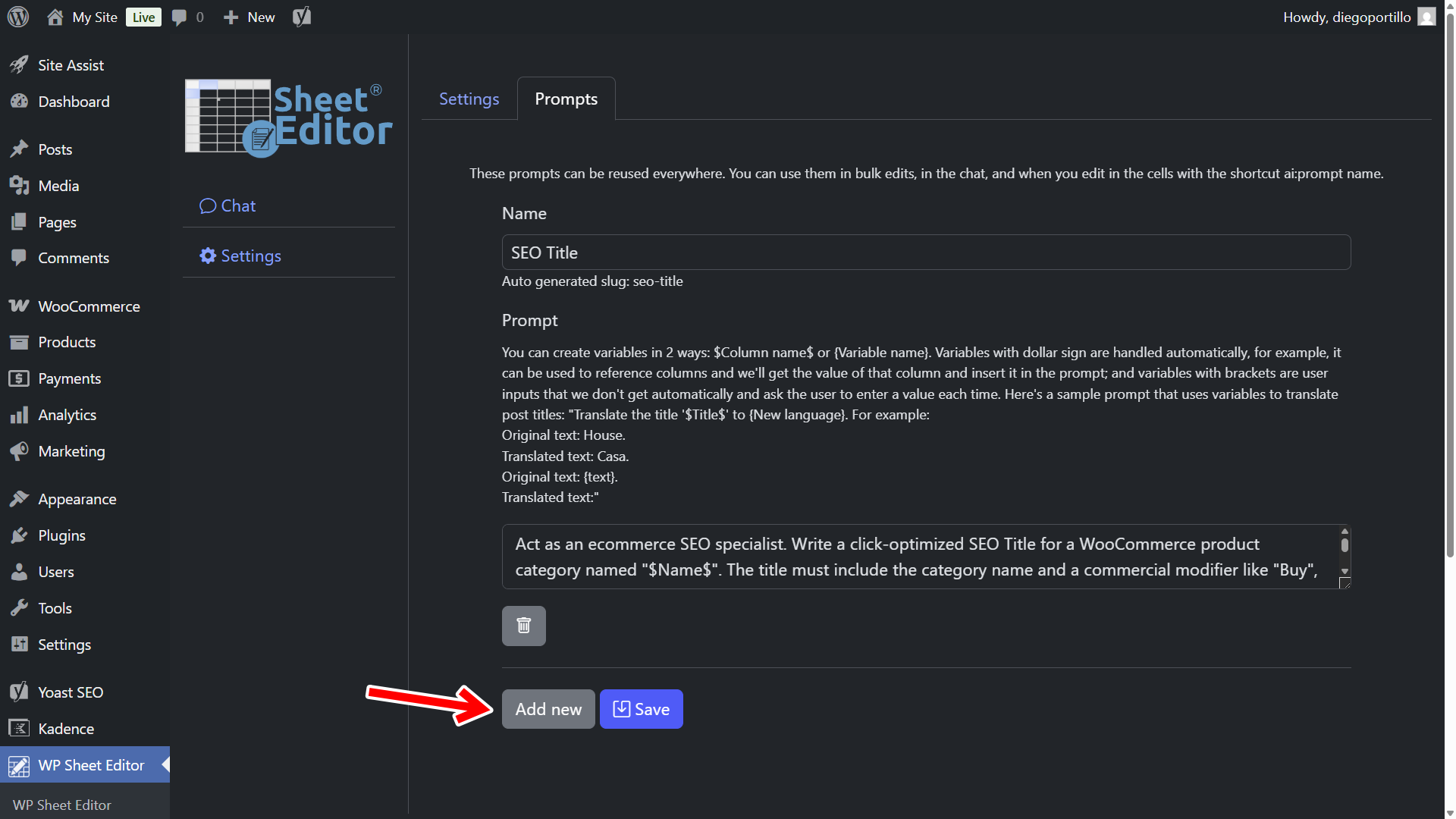
Enter Product Tags in Prompt Name. In Prompt Template, enter instructions such as:
Generate up to 4 useful product tags from the following information.

Title: "$Name$"
Product description: "$Content$"

Rules:
- Use only characteristics explicitly stated in the supplied information.
- Prefer short labels for styles, themes, or intended uses.
- Do not infer certifications, dietary suitability, safety claims, or manufacturing methods.
- Do not return duplicate tags or different tags with the same meaning.
- Return fewer than 4 tags if the information does not support 4.
- Use lowercase.
- Output only comma-separated tags, without explanations or quotation marks.
Confirm that $Name$ and $Content$ match the field placeholders available in your spreadsheet. If they differ, use the placeholders shown in your installation.
To keep using your existing tags, add a list of those tags to the prompt and tell the AI to choose only from that list. If a product’s title and description lack useful details, add those details before generating tags.
Click Save. The screenshot shows the configuration screen; its prompt text may differ from the example above.
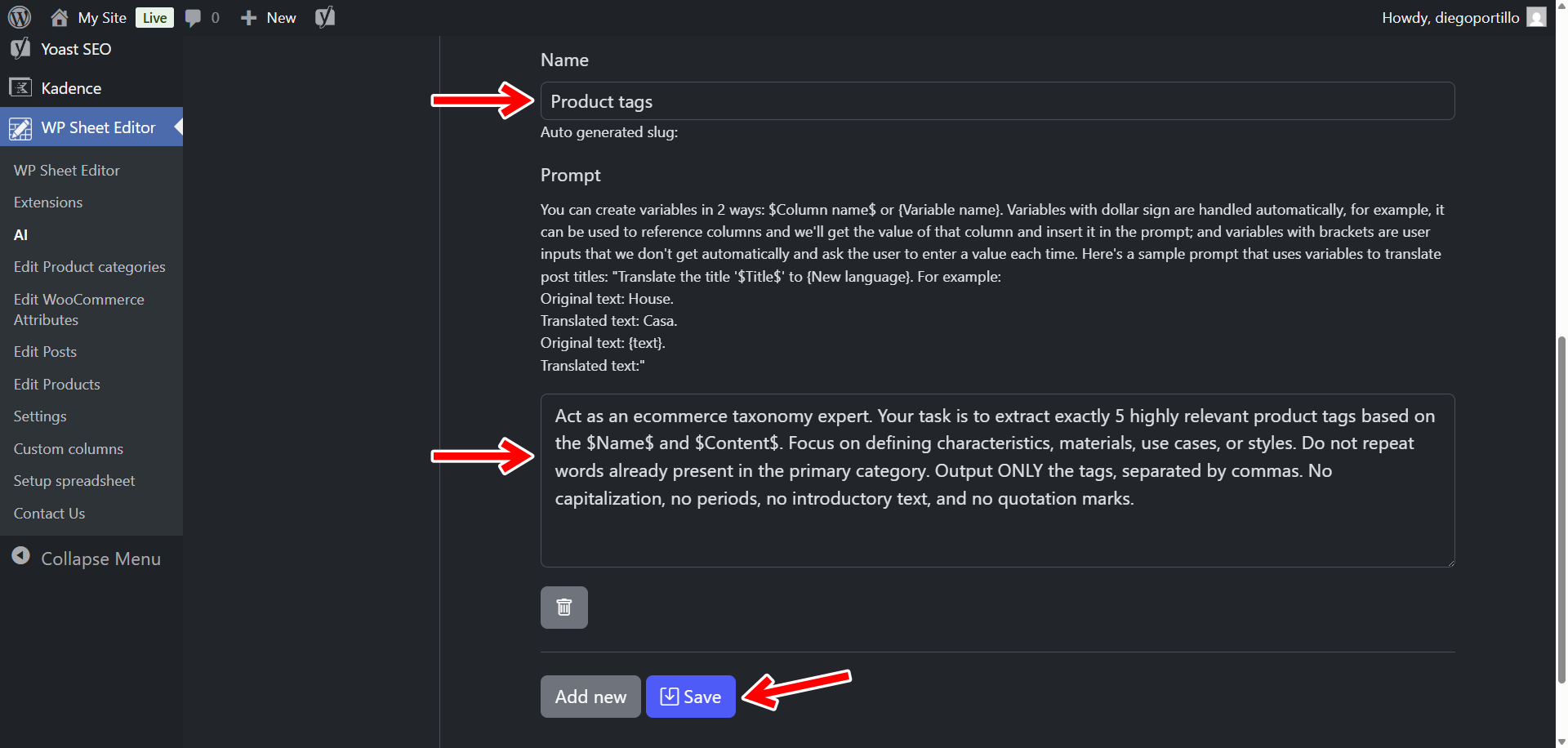
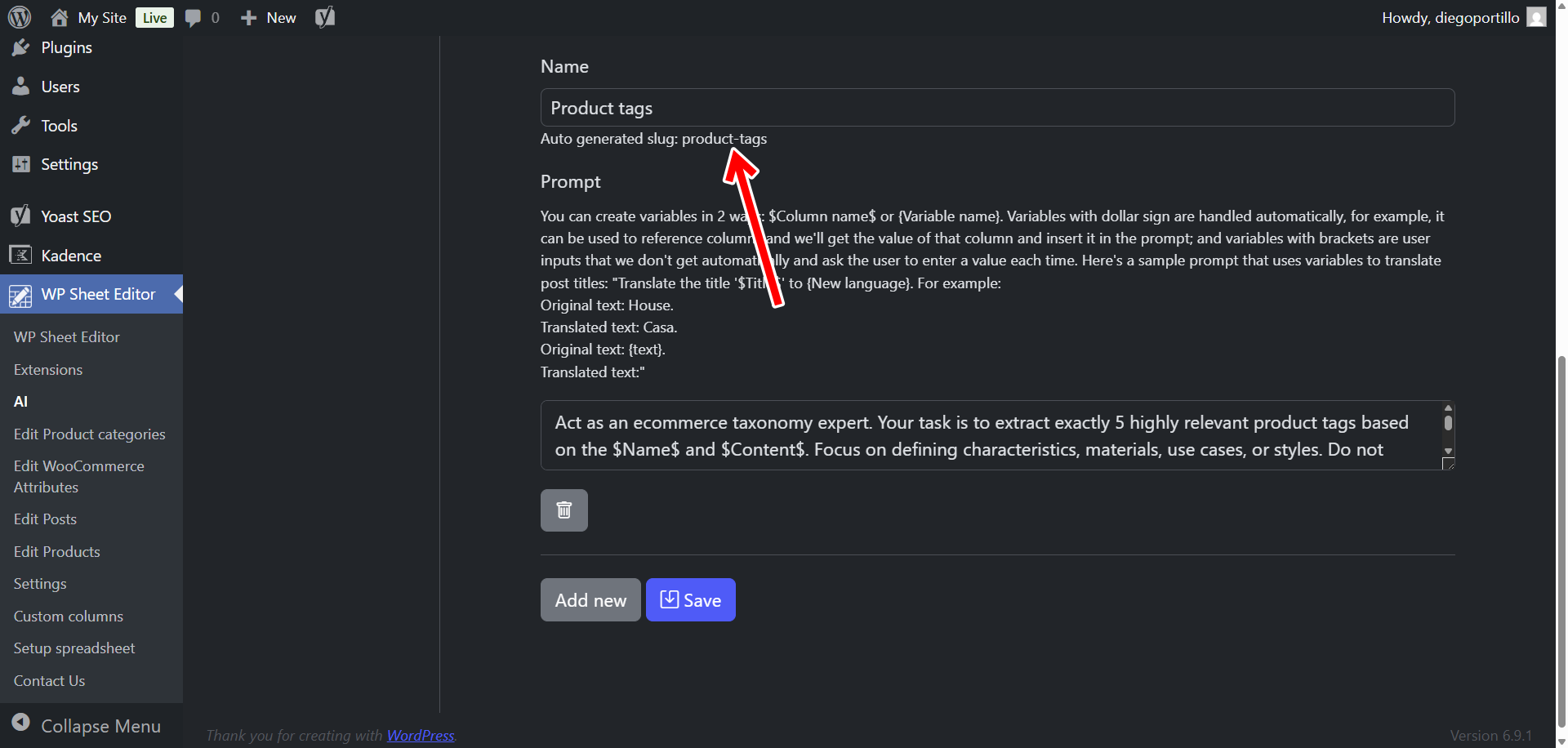
Copy the prompt slug generated by the plugin. This is the identifier you’ll use to run the saved prompt.
For example, if the slug is generate-tags, enter this shortcut in a cell:
ai:generate-tags
Your slug may differ. Use the value shown in your settings throughout the following steps.
Method 1: Generate product tags in spreadsheet cells
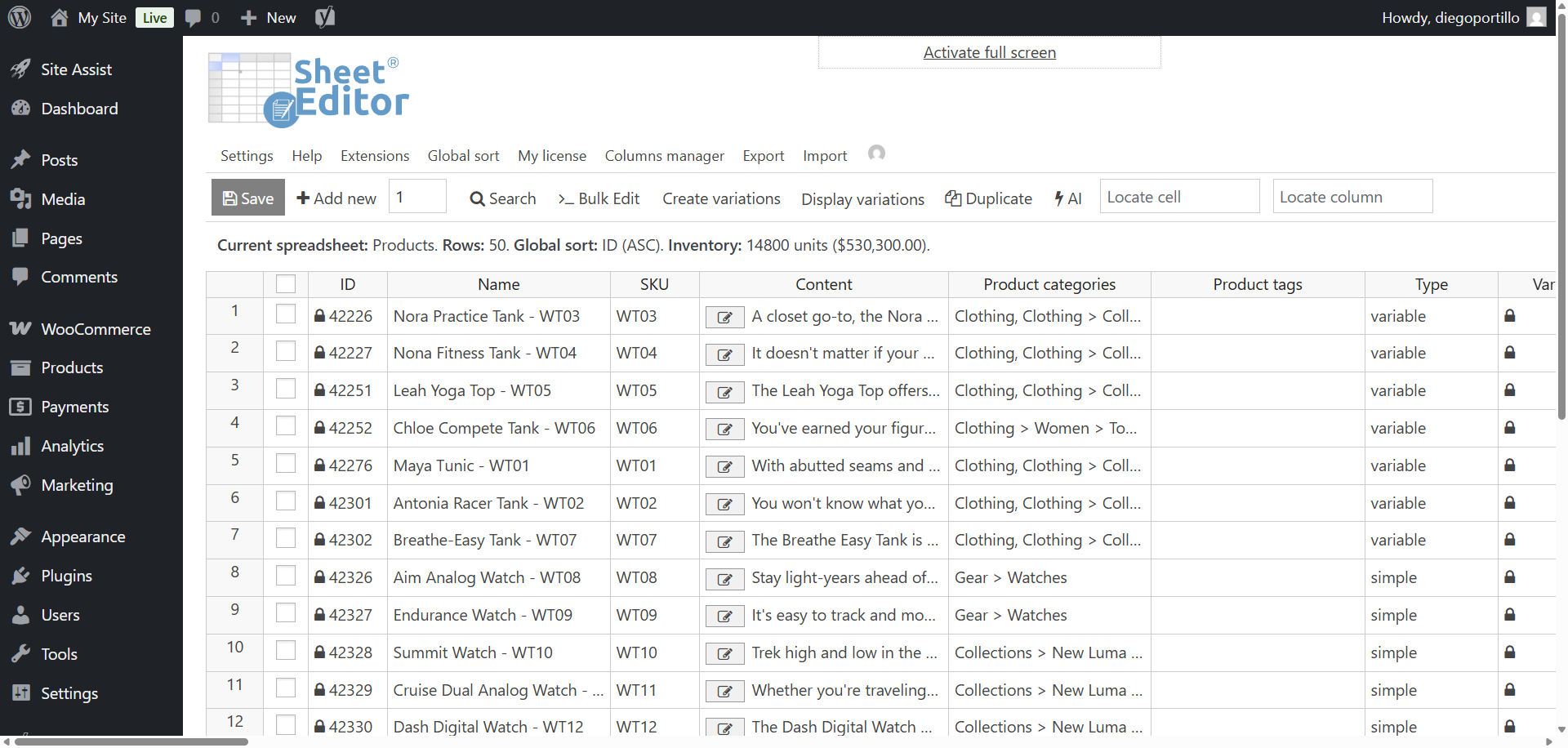
Go to WP Sheet Editor > Edit Products.
Set up the tag cells for prompt entry
For this method, open Settings.
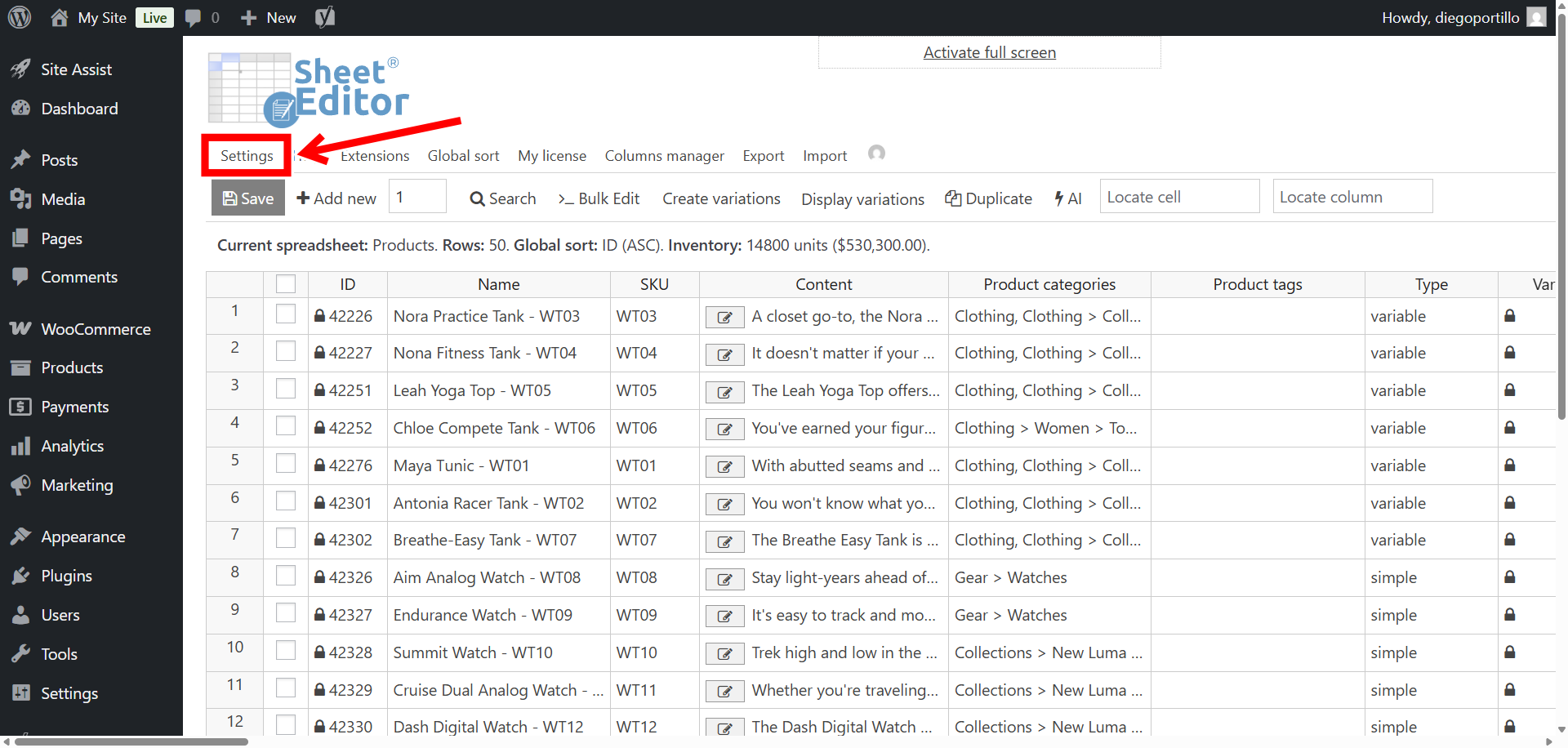
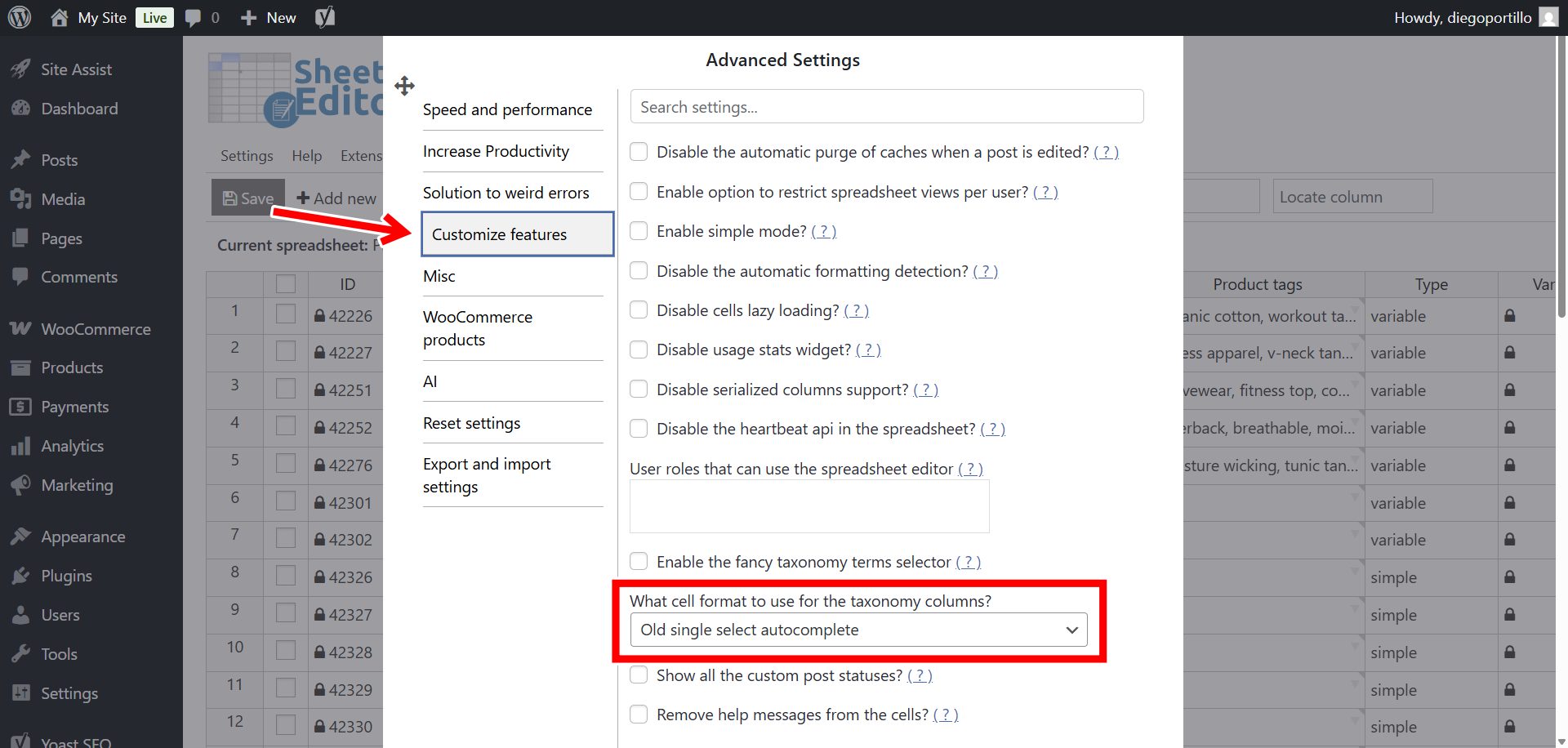
Under Customize features, locate What cell format to use for the taxonomy columns.
Select Old single select autocomplete and click Save. This setting also affects other taxonomy columns, such as categories.
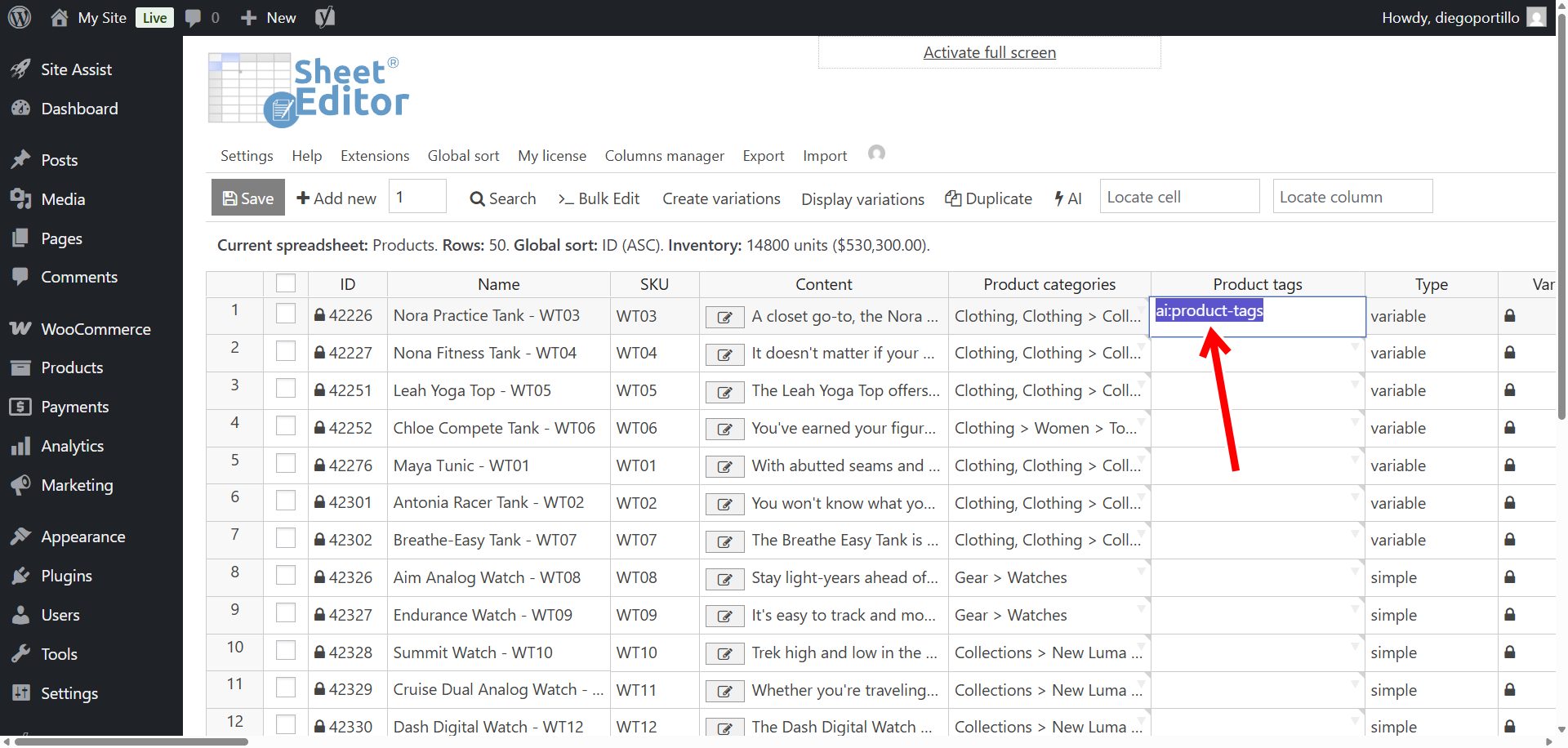
Run the prompt in an empty tag cell
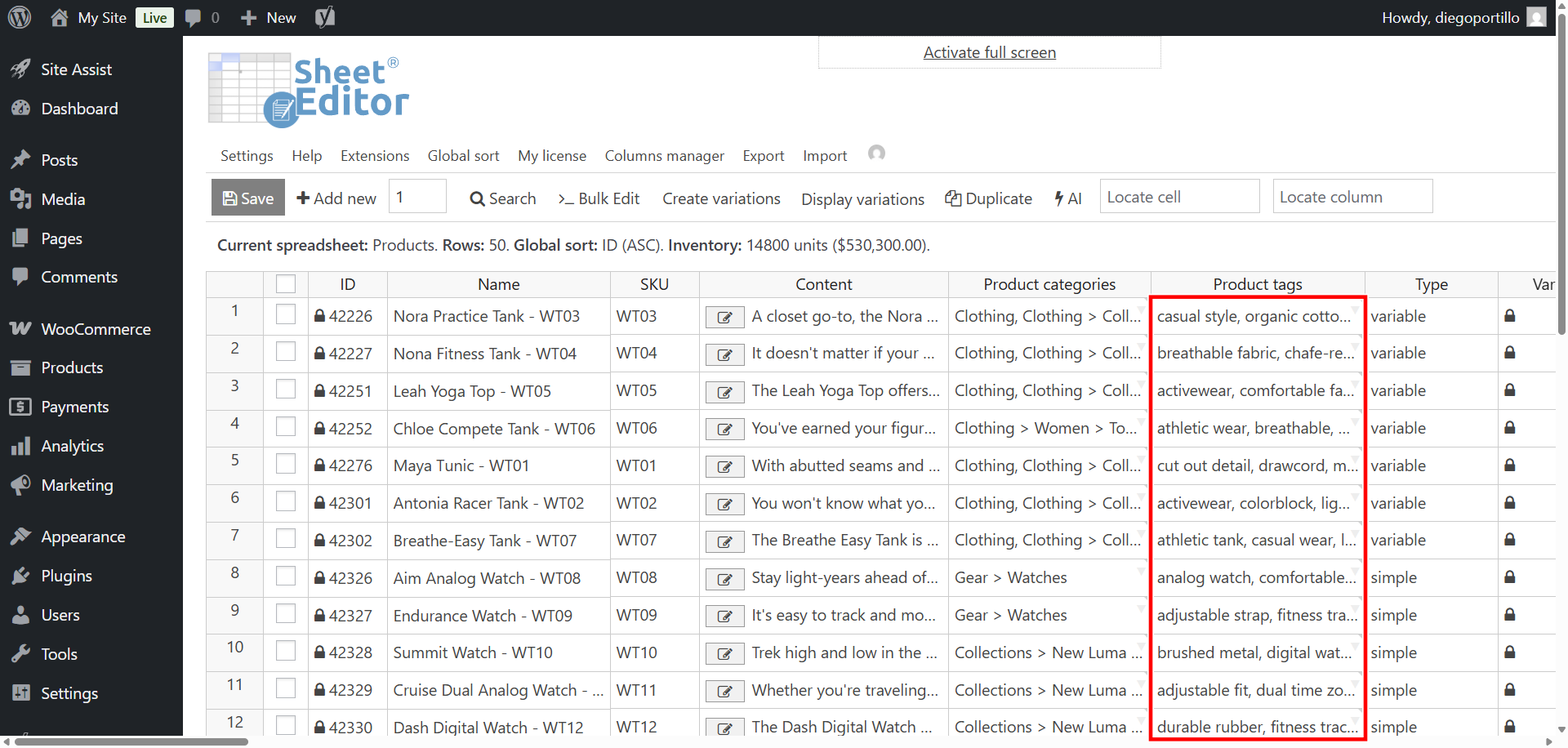
Locate the Tags column. The same field is labeled Product tags in the Search and Bulk Edit instructions below.
Enter your saved prompt shortcut in an empty cell and press Enter:
ai:generate-tags
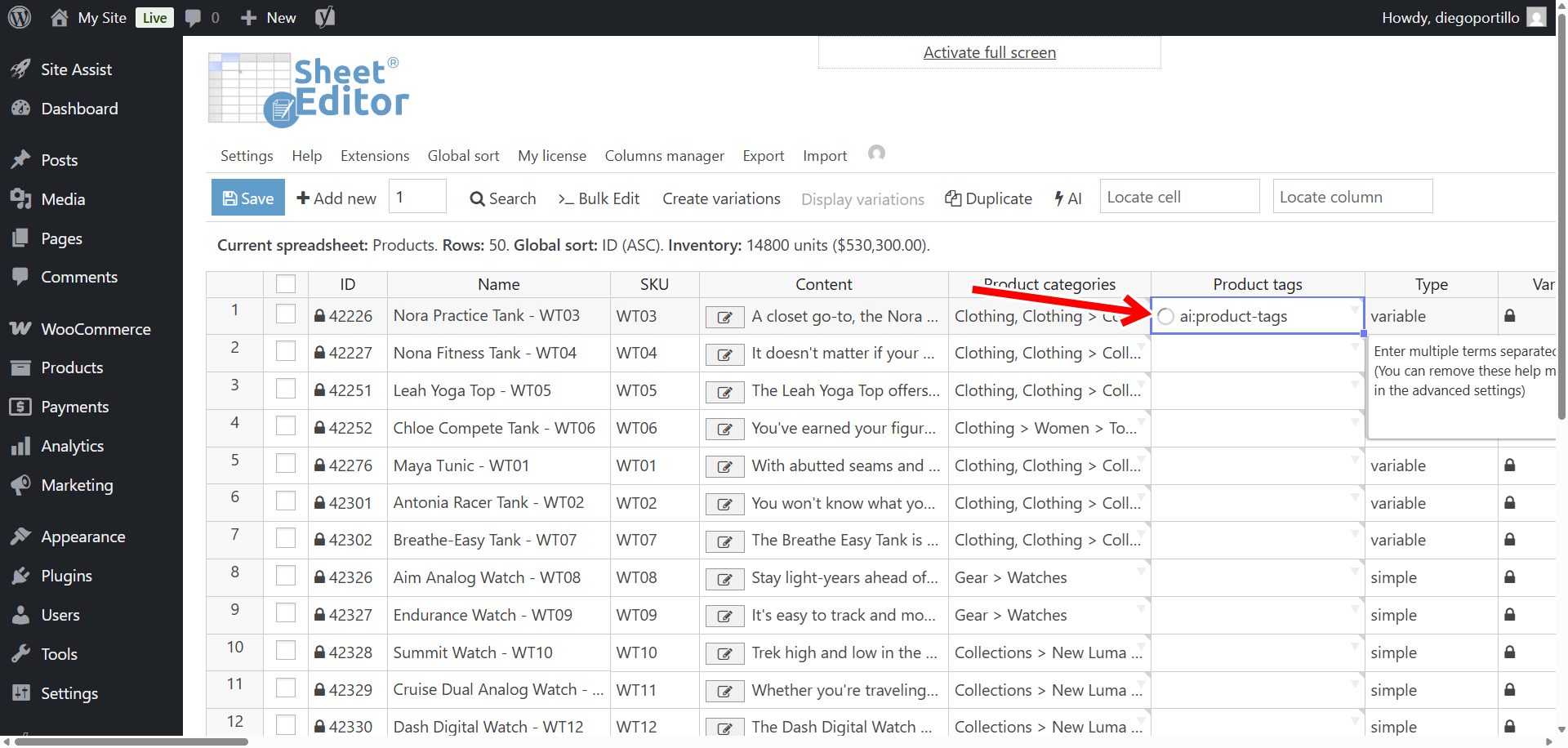
A loading indicator appears while the AI generates the tags.
The generated tags appear in the cell when the request finishes.
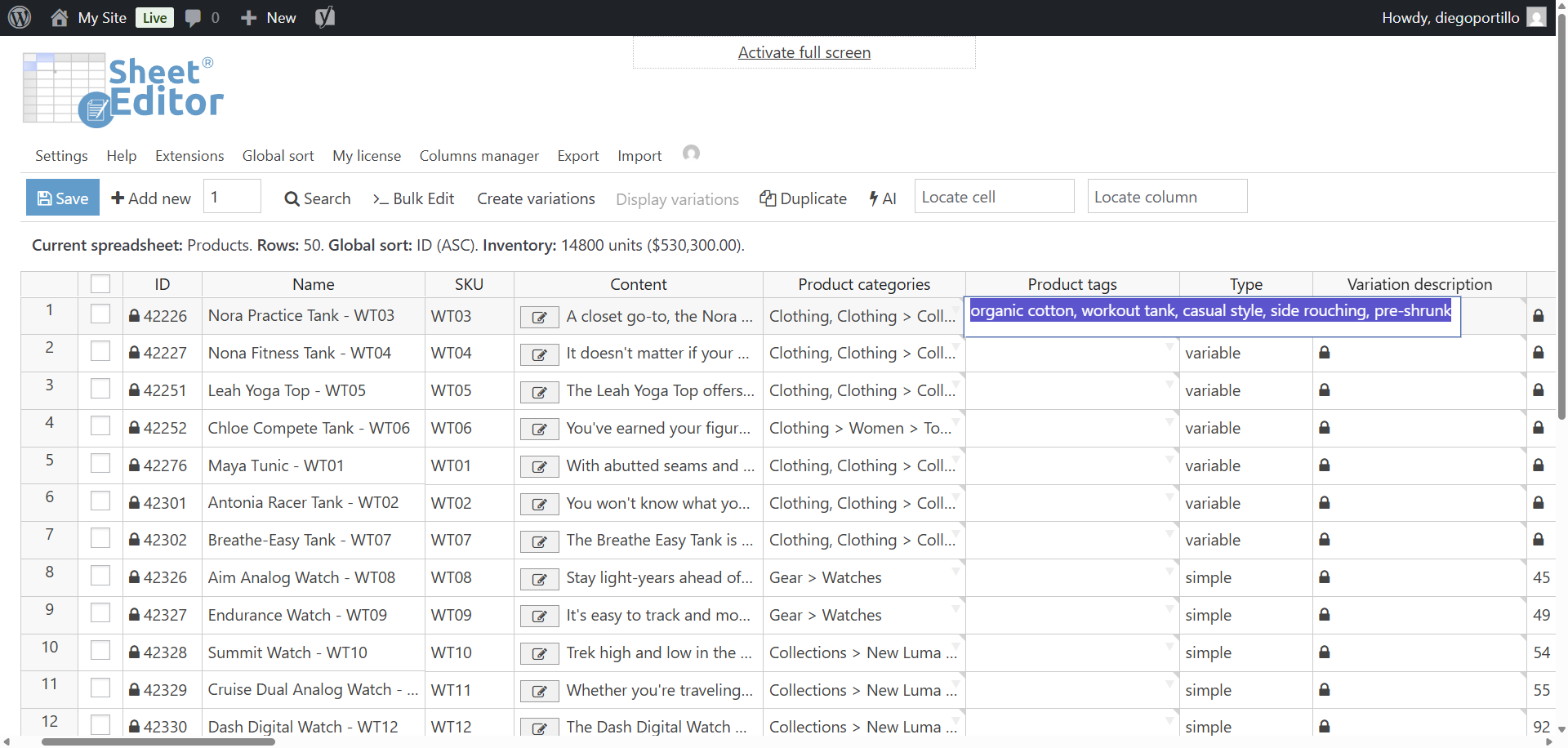
To generate tags for several products, paste the same shortcut into multiple empty tag cells. The AI uses each product’s title and description to generate its tags.
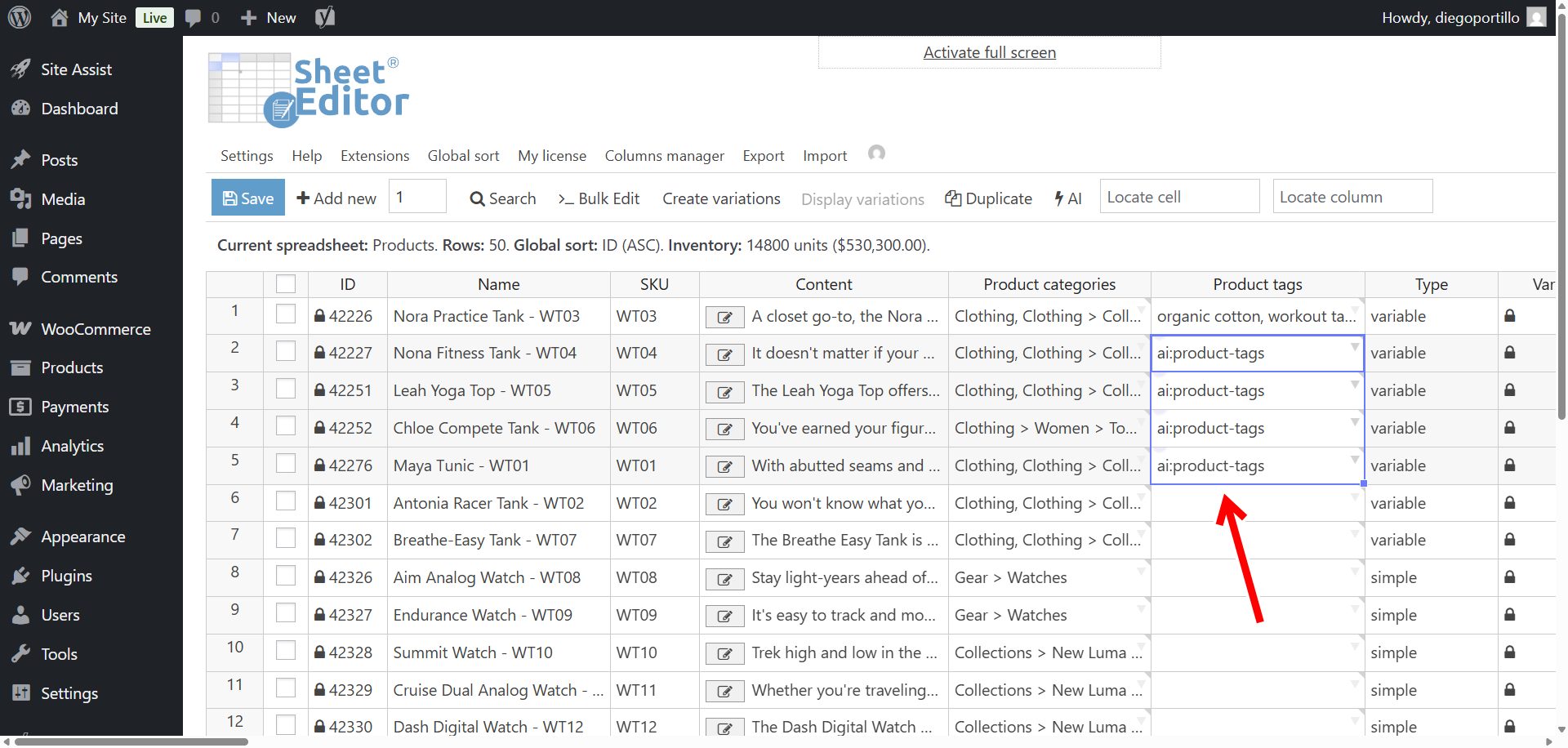
Before saving, check that the tags:
- Describe details actually stated in the product information.
- Use the same names and spelling as your existing tags.
- Group related products without creating several tags for the same idea.
- Contain no explanations or other unwanted text.
Correct any unsuitable terms, then click Save.
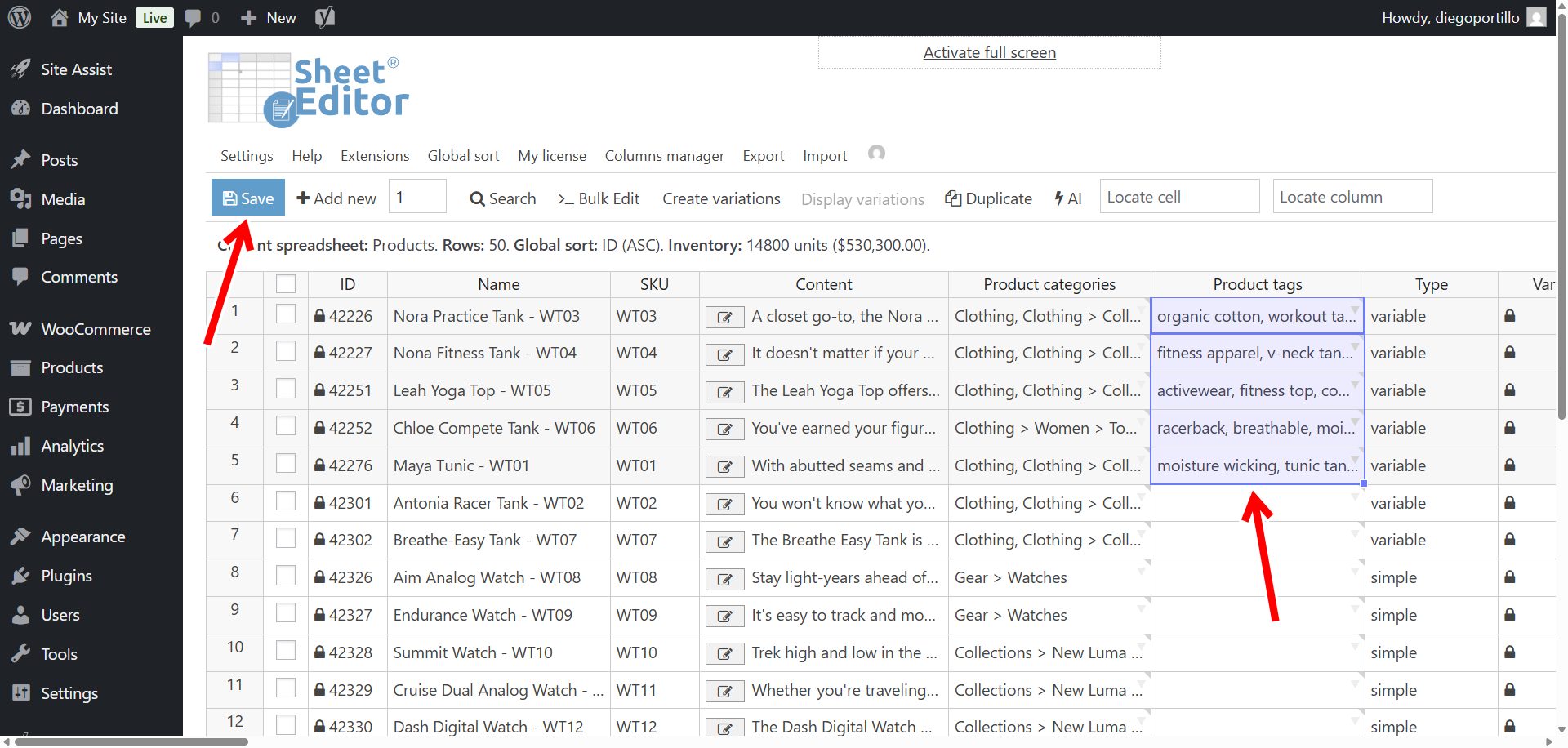
Method 2: Generate WooCommerce product tags in bulk
Use Bulk Edit to apply the prompt to products matching a search. Try the prompt on a few products first and review the results before running a larger update.
Find products without tags
Open Search on the toolbar.
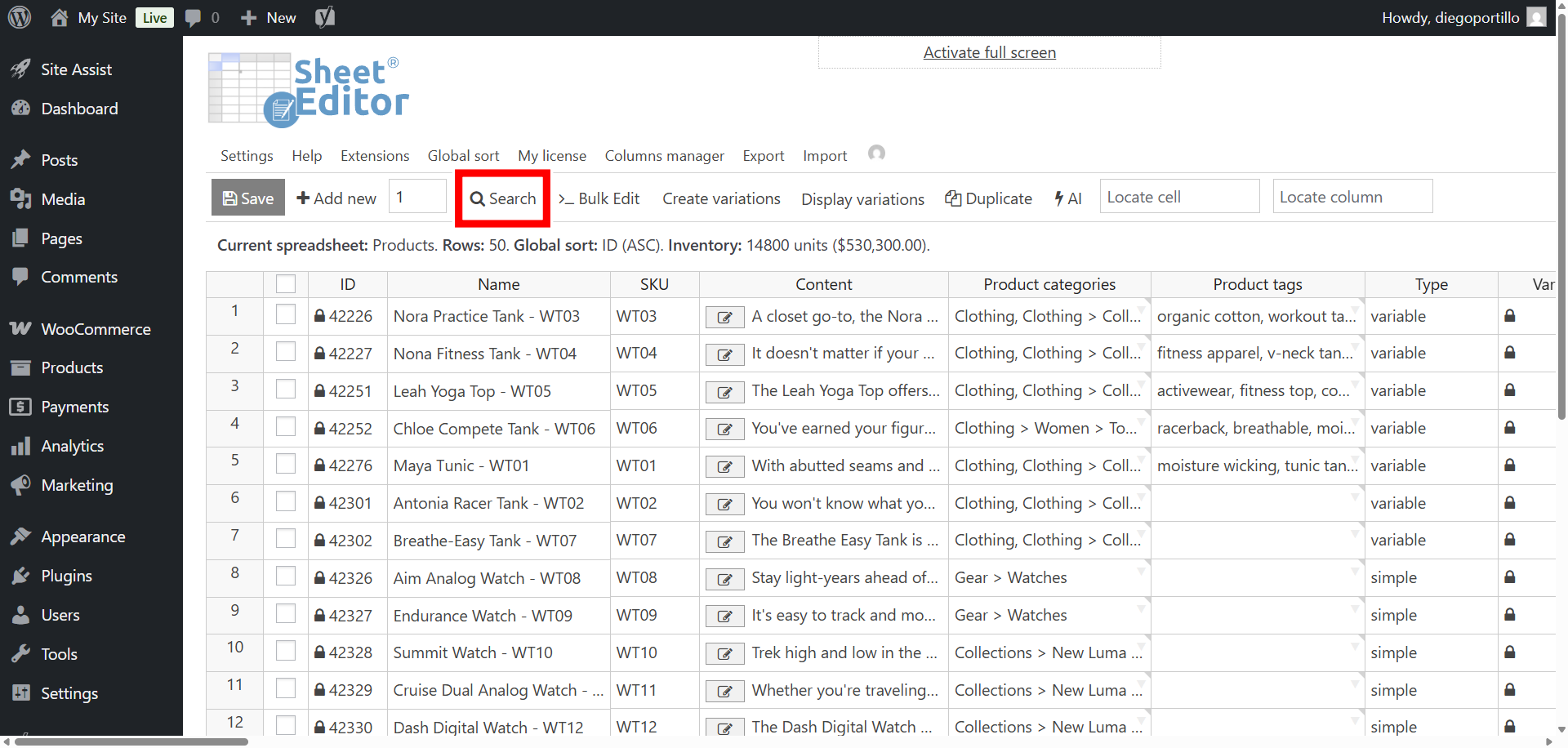
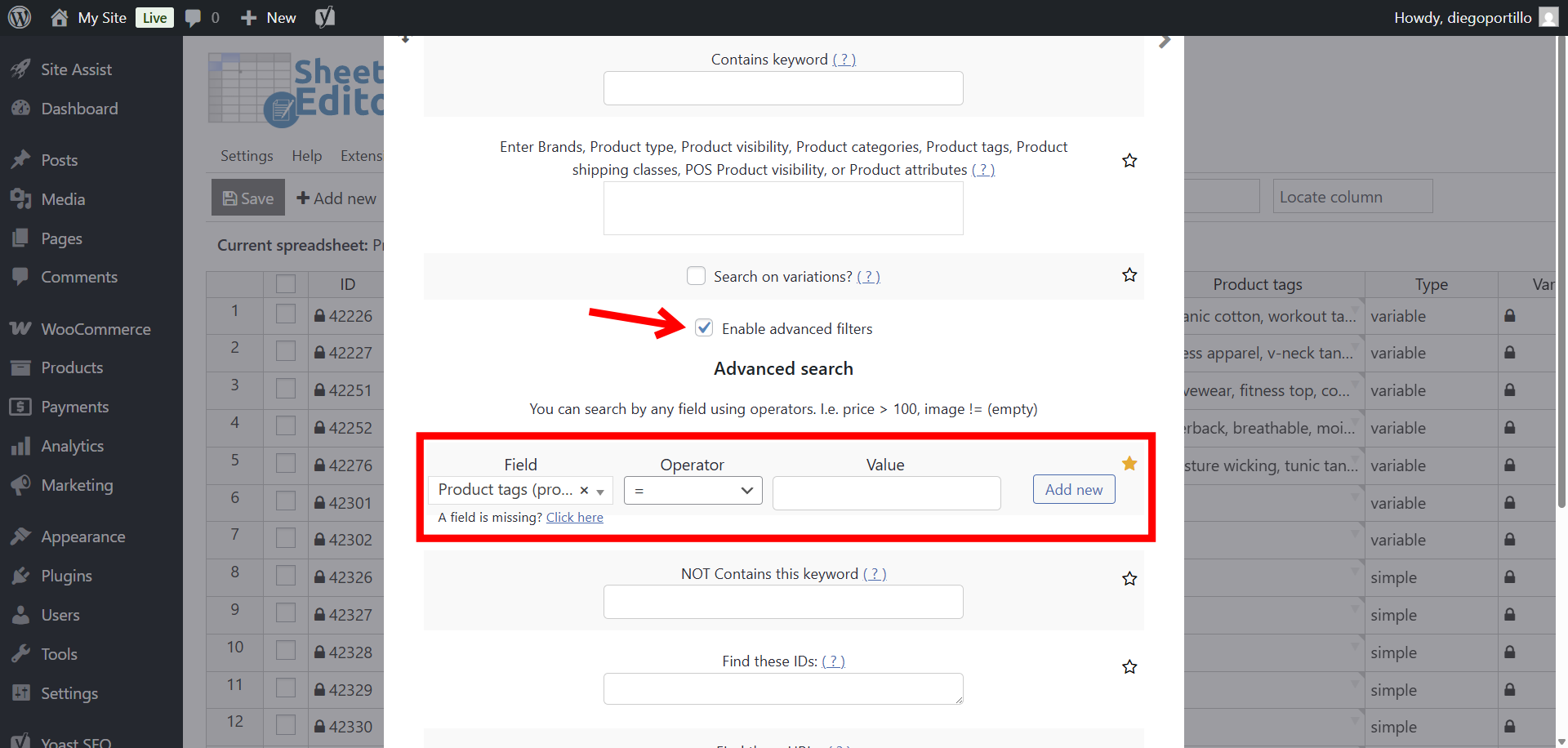
Set up the filter:
- Activate Enable advanced filters.
- Field: Product tags
- Operator: =
- Value: Leave blank.
- Click Run Search.
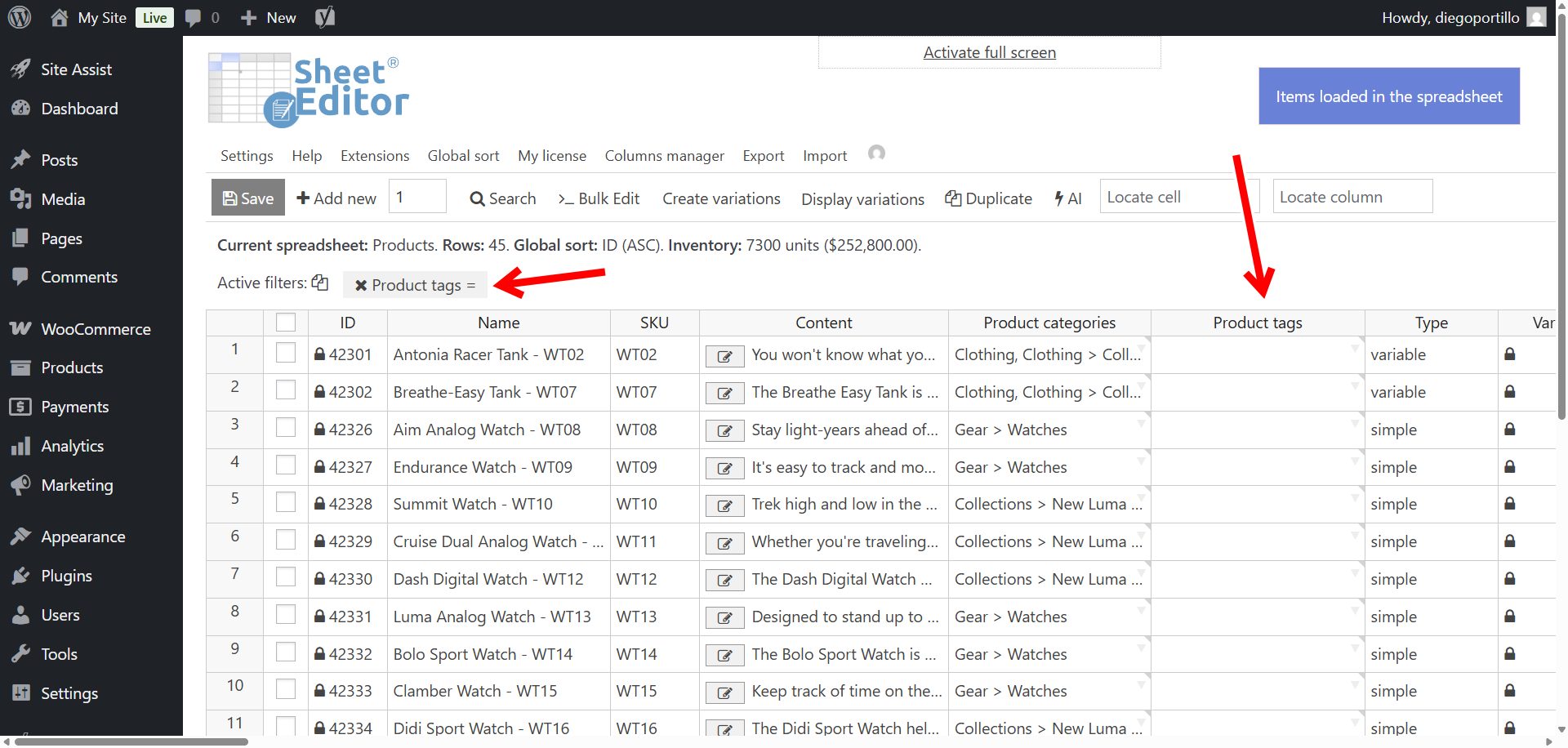
The spreadsheet shows products without tags that also match any other active filters. Check that these are the products you want to update.
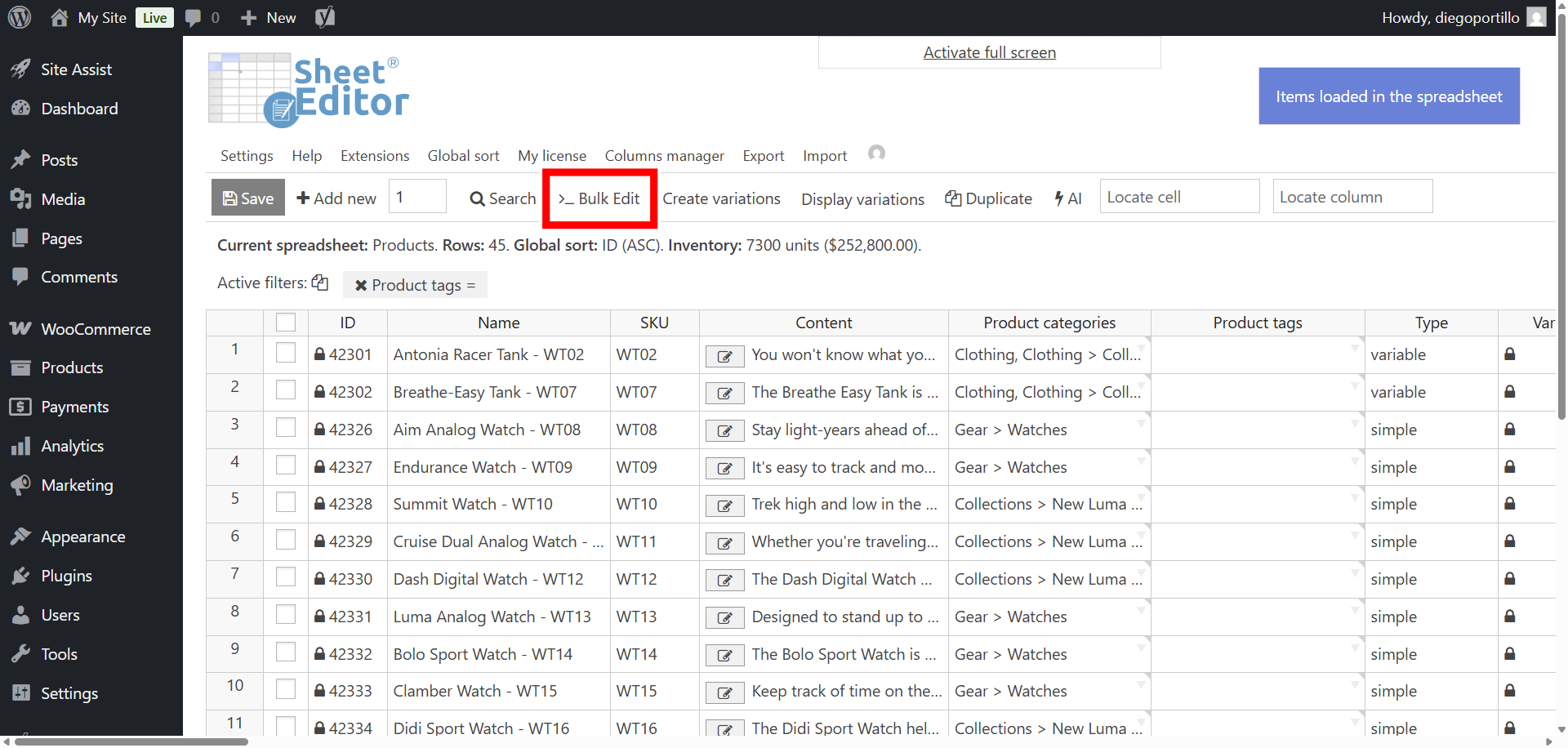
Run the saved AI command
Open Bulk Edit.
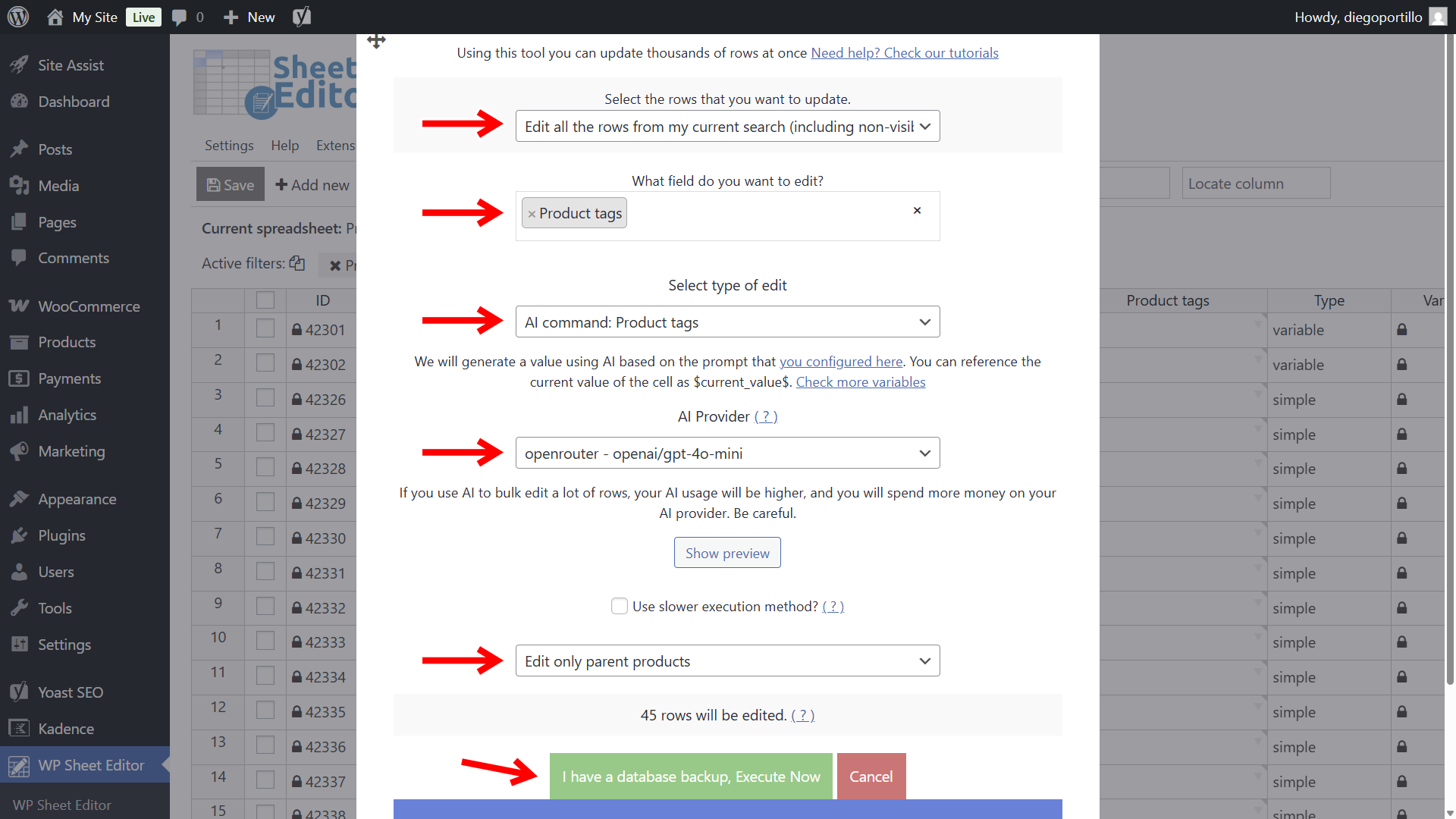
Select these settings:
- Select the rows that you want to update: Edit all the rows from my current search
- What field do you want to edit: Product tags
- Select the type of edit: AI command: Product Tags
- AI Provider: Select the provider you configured.
- Select Edit only parent products to exclude variation rows.
Confirm the settings, then click Execute Now to run the bulk update.
The plugin processes the selected products in batches. When it finishes, check for errors and review the generated tags.
Clear the empty-tag filter if necessary to view the updated products. Run that filter again to find products that still need tags.
Frequently asked questions
Will this preserve existing product tags?
The bulk example searches for empty tag fields, so products that already have tags won’t be included.
Will new products be tagged automatically?
No. These methods require you to run a cell command or Bulk Edit operation. They do not set up automatic tagging for future products.