
To sync WooCommerce with Google Sheets, you can use the Google Sheets Sync service from WP Sheet Editor. It lets you export and import WooCommerce products directly between your WordPress site and Google Sheets. You can also choose how often the data is synchronized, whether you need a one-time export or import, a scheduled or recurring sync, or a real-time connection.
Tools to connect WooCommerce with Google Sheets
The Google Sheets Sync service works with all WP Sheet Editor spreadsheets, so you can use it to sync WooCommerce products, orders, coupons, customer profiles, categories, attributes, tags, and more.
For this example, we’ll be syncing WooCommerce products, so you’ll need the following tools:
1- WP Sheet Editor for WooCommerce Products
This plugin lets you view and edit your WooCommerce products in a spreadsheet directly from your WordPress admin dashboard. It gives you an easy way to manage your product data in bulk.
You can download the plugin here:
Download WooCommerce Products Spreadsheet Plugin - or - Check the features
2- WP Sheet Editor – Automations
This plugin lets you automate different WP Sheet Editor tasks, including exporting, importing, bulk editing, and creating or saving data. It is included with your Google Sheets Sync service subscription.
Follow this guide to set up Automations.
3- Google Sheets Sync connector plugin
This plugin connects your WordPress site to your Google Sheets account, allowing you to export and import content using WP Sheet Editor spreadsheets.
You can sign up to the service here:
Sign up to the Google Sheets Sync Service - or - Check the features
Follow this guide to set up the Google Sheets connection.
If you’re interested in how the Google Sheets Sync service by WP Sheet Editor handles privacy, you can read the privacy policy here.
Sync WooCommerce with Google Sheets in real time
In this example, we’ll sync WooCommerce product data with Google Sheets. You can use the same service to sync other types of WooCommerce content such as orders, coupons, and customers. You’ll just need the corresponding WP Sheet Editor plugin for the content you want to synchronize.
Google Sheets Sync gives you three live synchronization options:
- From WordPress to Google Sheets
- From Google Sheets to WordPress
- Two-way synchronization
Step 1. Open the WooCommerce products spreadsheet
First, go to WP Sheet Editor > Edit products in your WordPress admin dashboard. This will open your WooCommerce products in the spreadsheet.
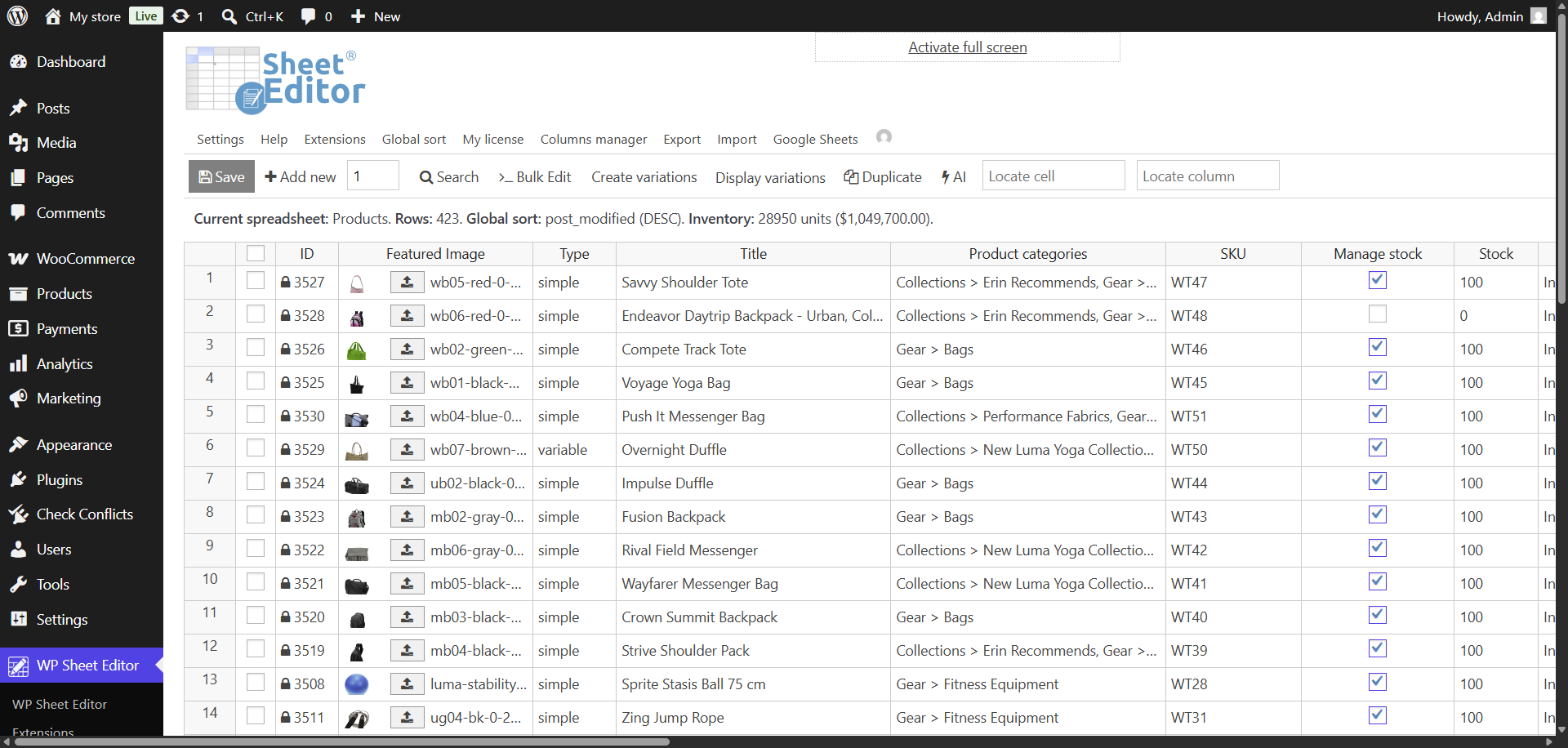
Step 2. Create a quick sync
To quickly live connect your WooCommerce products to Google Sheets, hover over Google Sheets and click Quick sync setup.
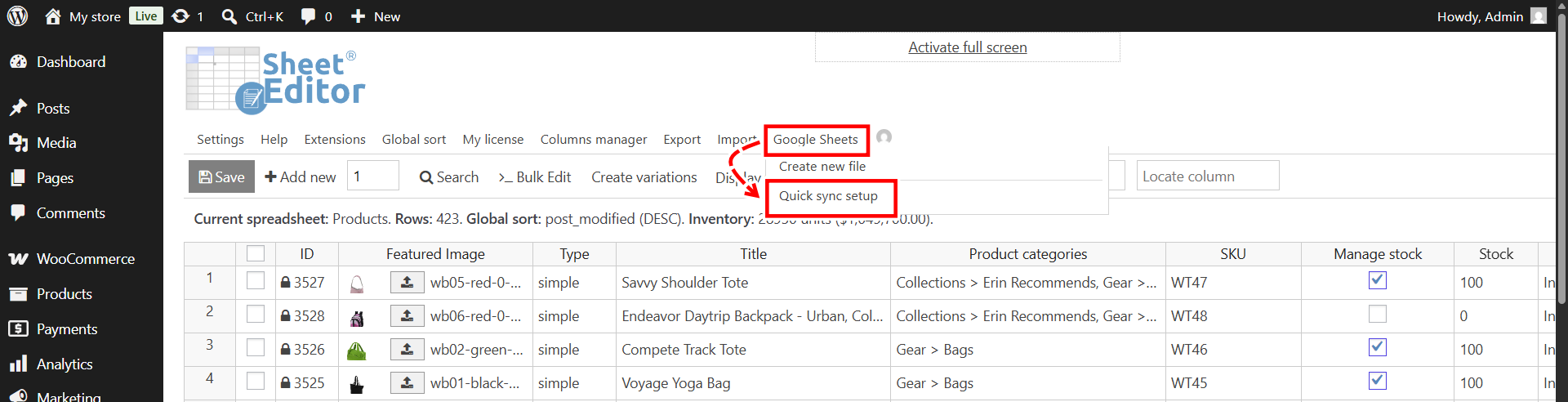
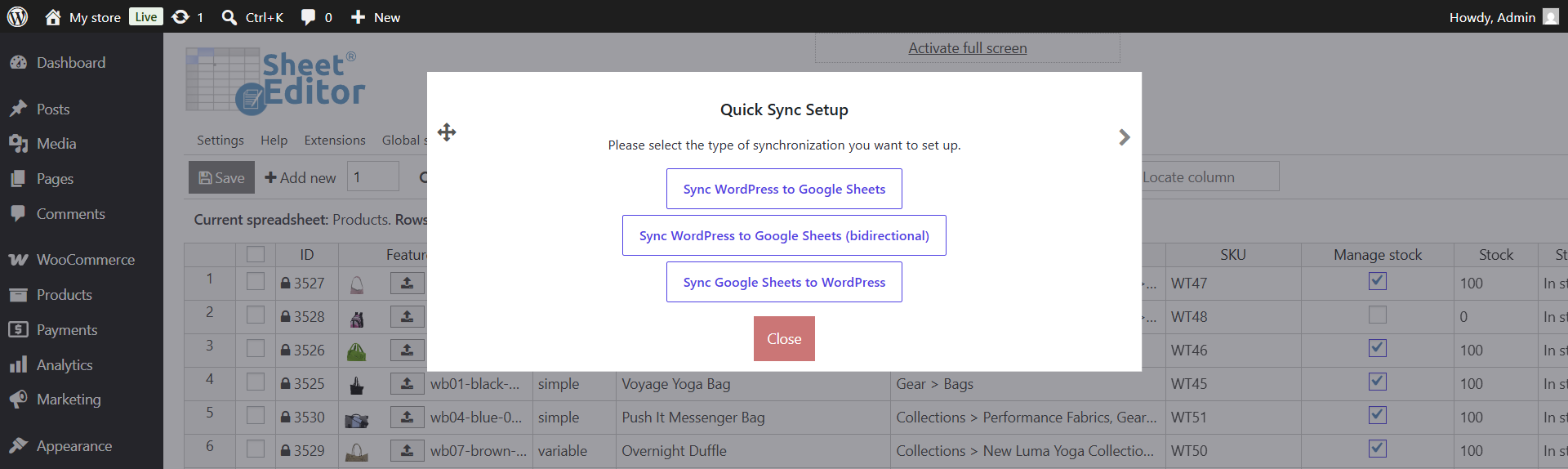
You’ll then see the three types of live sync available:
- WordPress to Google Sheets only
- Google Sheets to WordPress only
- Bidirectional (two-way synchronization)
For this example, we’ll create a bidirectional live sync so changes can be synchronized in both directions.
In the Set up Bidirectional Sync popup:
- Select the WooCommerce filelds (columns in WP Sheet Editor) you want to synchronize. You can choose specific columns or include all of them.
- Select a column to use as the identifier for matching rows. For example, you can use the SKU to identify each product.
- Enter a name for the live sync.
- Click Start sync.
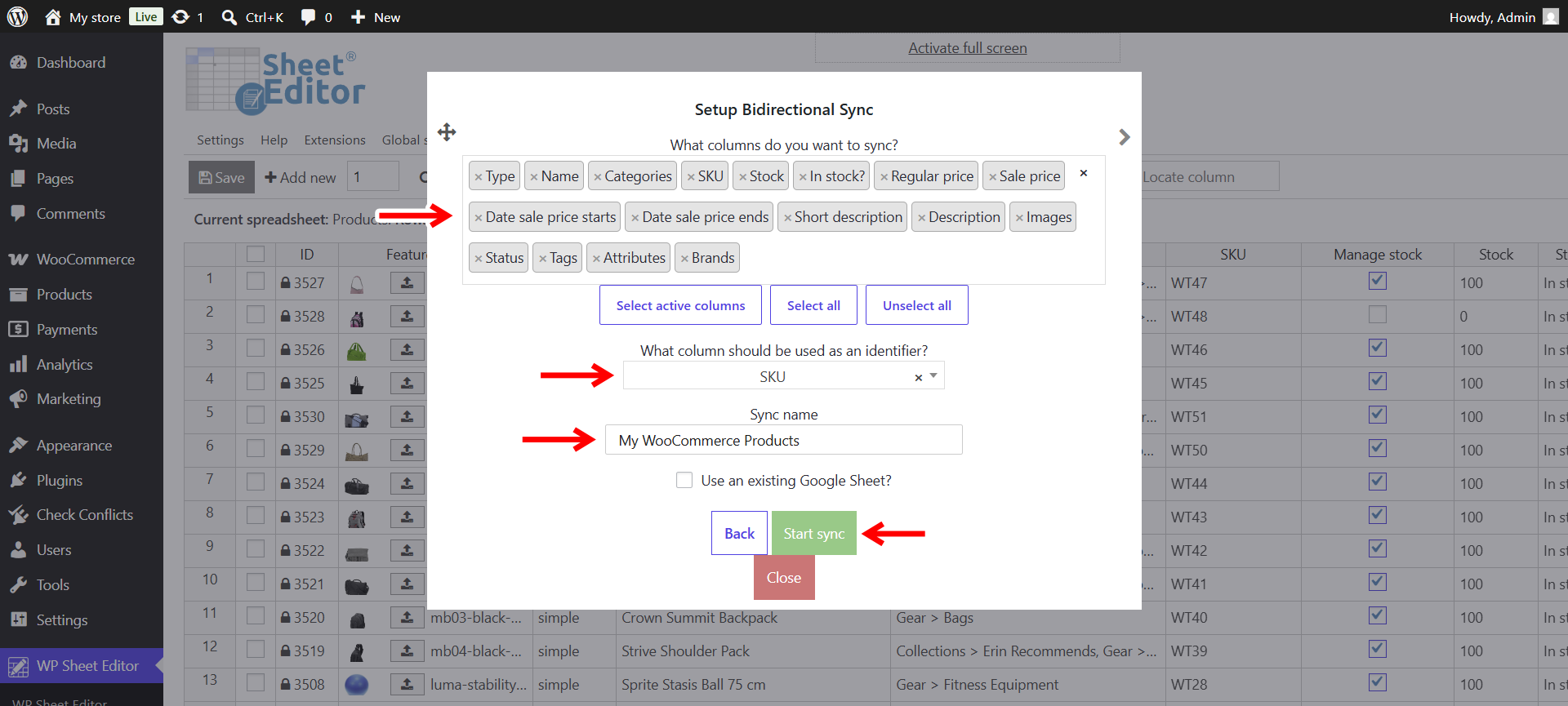
You can also choose Use an existing Google Sheet if you already have a spreadsheet that was created through the service. For example, you can hover over Google Sheets, click Create new file, and then use that Google Sheet for the synchronization.
How to live sync variations
Before creating the live synchronization, make sure to click on Display variations to include the childe variations next to their parent products in the synced Google Sheet.
Step 3. Start managing your live sync
Once the synchronization is created, hover over the Export tool and look for the automated task in the Scheduled exports panel.
Click the task name to open the Google Sheet created for the synchronization.
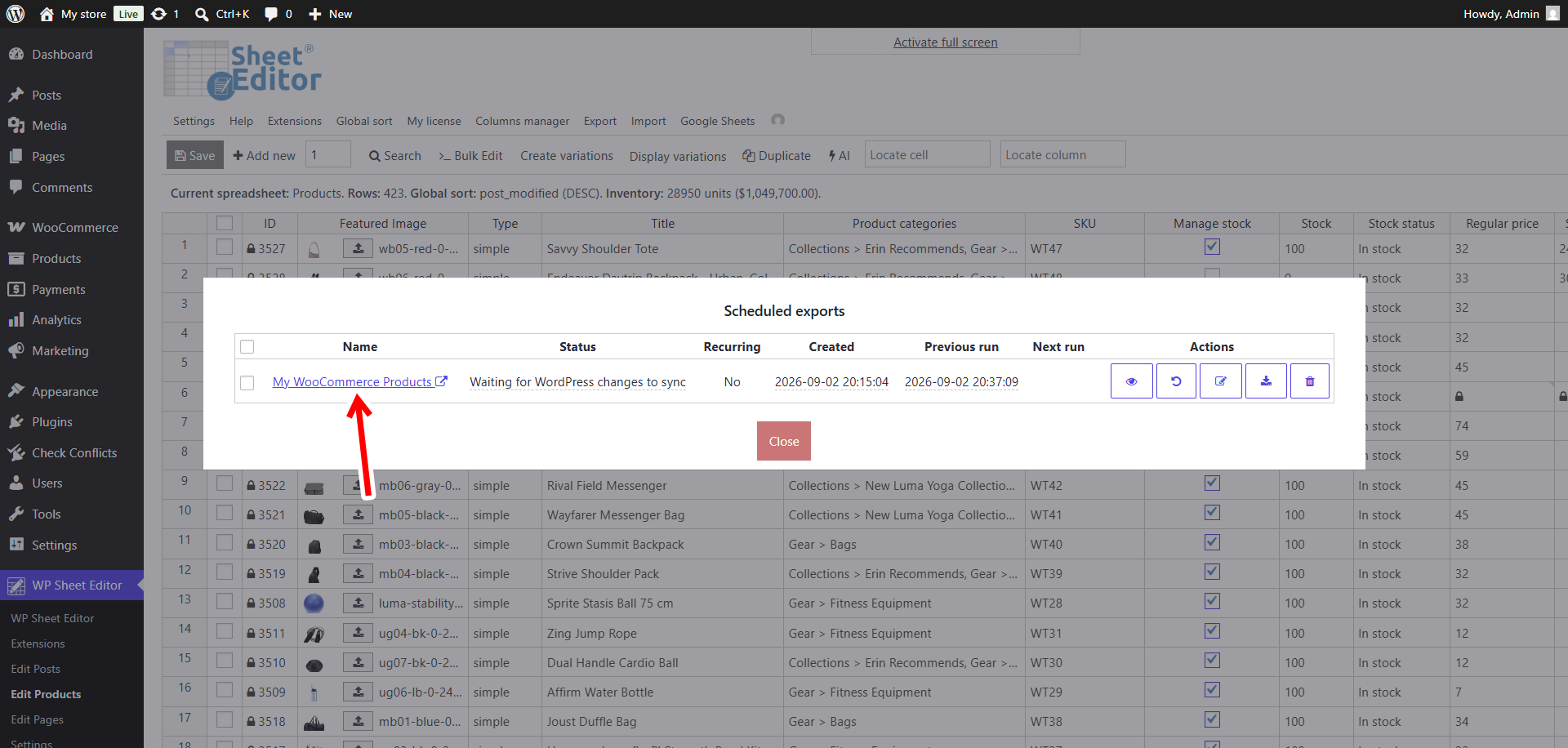
Because this is a bidirectional sync, an automated import is also created to monitor changes made in Google Sheets and bring those changes back into WordPress.
You can find this task in the Scheduled imports panel. Hover over the Import tool and click View scheduled imports.

Here’s the Google Sheet generated by the sync. It monitors changes made to your WooCommerce products in WordPress and also checks the sheet for changes that need to be imported back into WordPress.
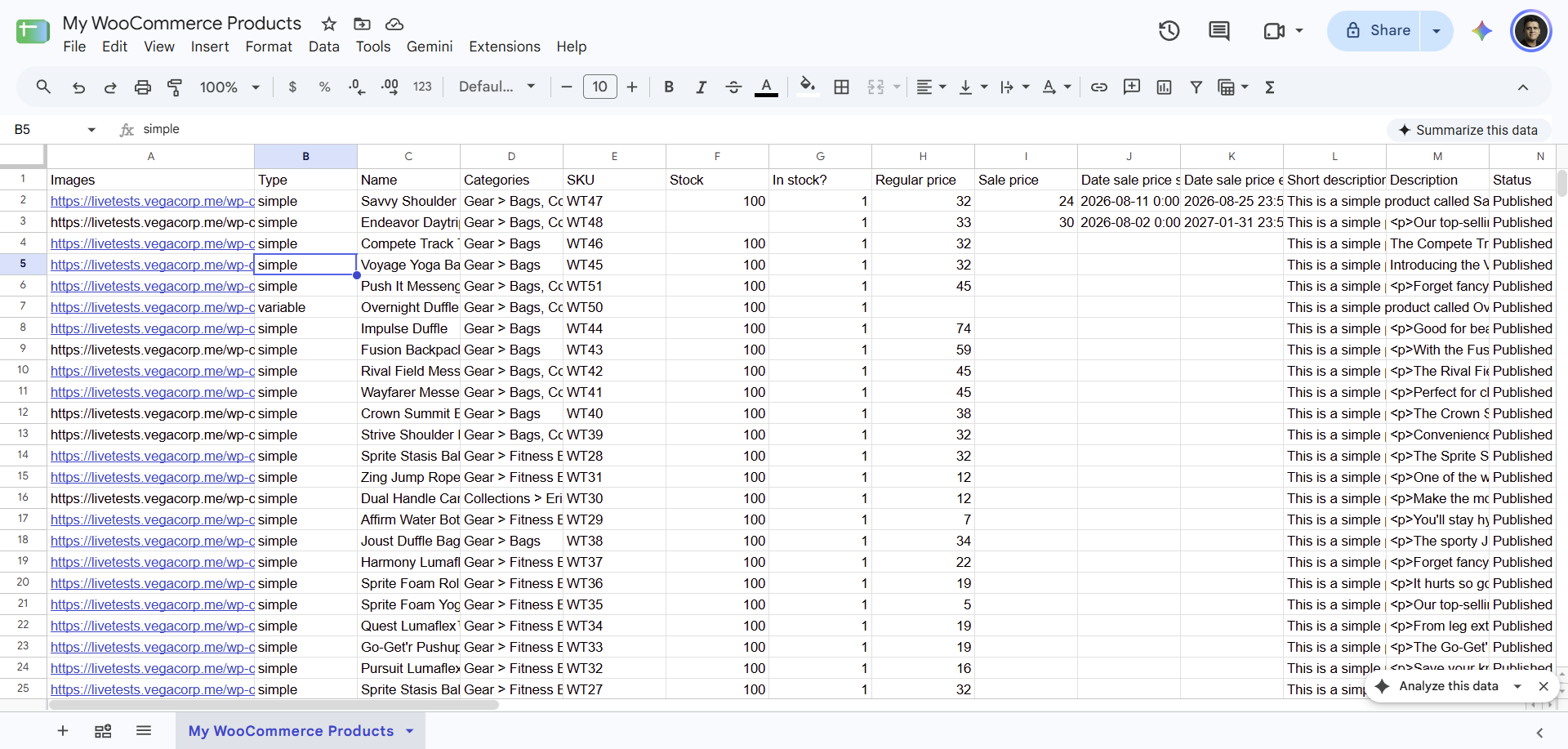
Once the sync is running, you can use it to:
- Synchronize WooCommerce product prices in real time
- Automatically keep WooCommerce inventory updated
- Give your team access to update product descriptions in Google Sheets and automatically import those changes into WooCommerce
Live sync import delays
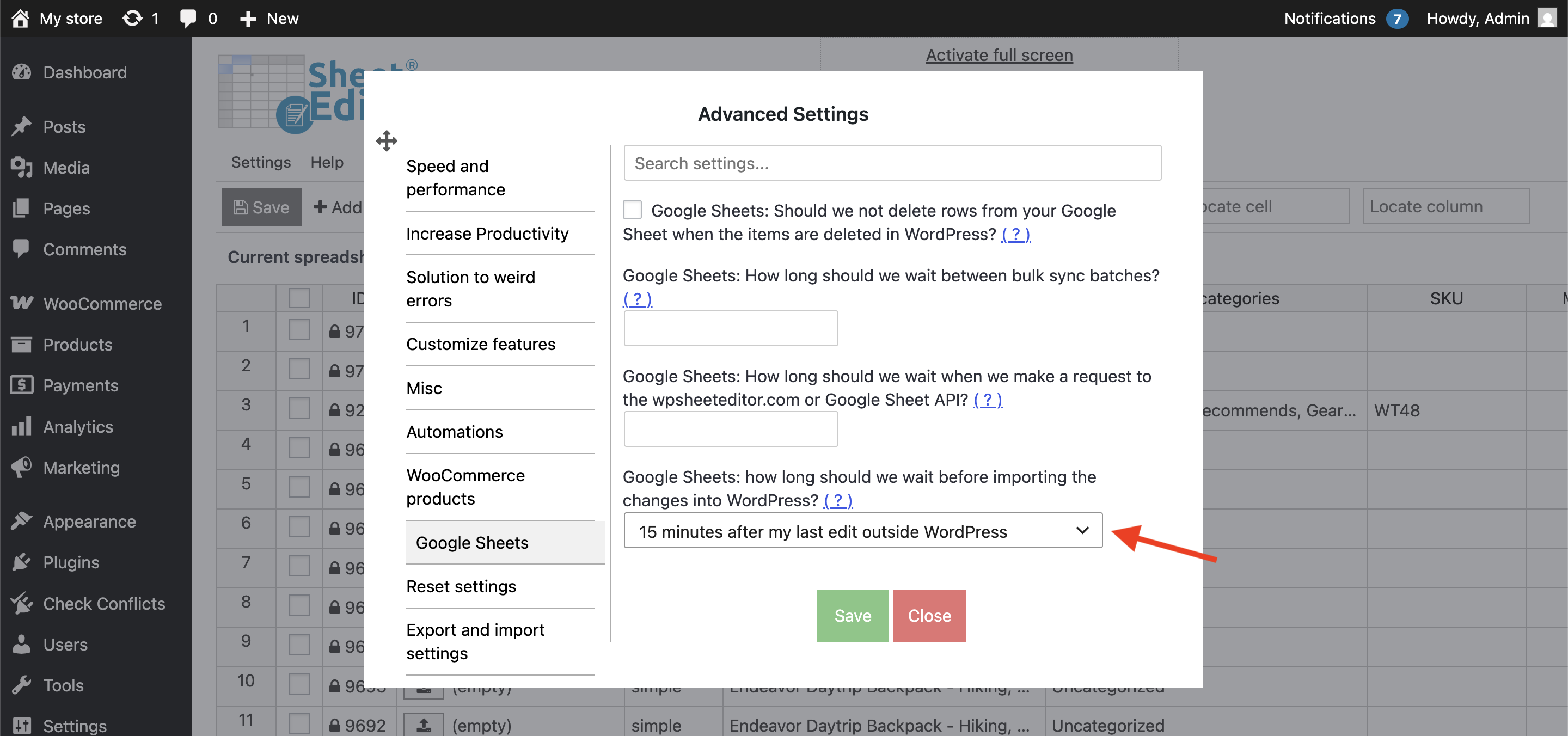
To ensure that you don’t import incorrect or incomplete data, Google Sheets Sync uses an import delay. Basically, this is a wait period after you’ve made your last change in Google Sheets.
Go to Settings > Advanced settings > Google Sheets, where you can choose any of these delays:
- 15 minutes
- 30 minutes
- 1 hour
- 2 hours
- 3 hours
- 6 hours
- 12 hours
Automate WooCommerce data with Google Sheets
Syncing WooCommerce with Google Sheets gives you a convenient way to manage store data without having to work directly in the WordPress admin all the time. With WP Sheet Editor’s Google Sheets Sync service, you can create a one-way or two-way connection and keep product details, prices, inventory, and other data updated automatically.
Once your sync is running, you can:
- Update WooCommerce product prices in bulk from Google Sheets and have the changes reflected on your site in near real time.
- Manage stock levels and inventory from a spreadsheet and automatically send those changes back to WooCommerce.
- Let team members update product descriptions, titles, and attributes in Google Sheets without giving them access to your WordPress dashboard.
- Sync other WooCommerce data, including orders, coupons, and customer profiles, using the same tools.
You can sign up to the service here:
Sign up to the Google Sheets Sync Service - or - Check the features