
When you manage hundreds or even thousands of products in your WooCommerce store, it’s easy to lose track of your images. Sometimes, after a bulk import or when duplicating products, multiple items end up sharing the same featured image. While this might not break your site, it can make your catalog look repetitive and confusing for customers. Fortunately, with the WP Sheet Editor – Products WooCommerce, you can now instantly find and fix duplicate featured images using a new operator in the search tool.
This tutorial will show you exactly how to locate products that use the same featured image, so you can keep your store visually consistent and professional.
You can download the plugin here:
Download WooCommerce Products Spreadsheet Plugin - or - Check the features
Step 1: Open the Products Spreadsheet
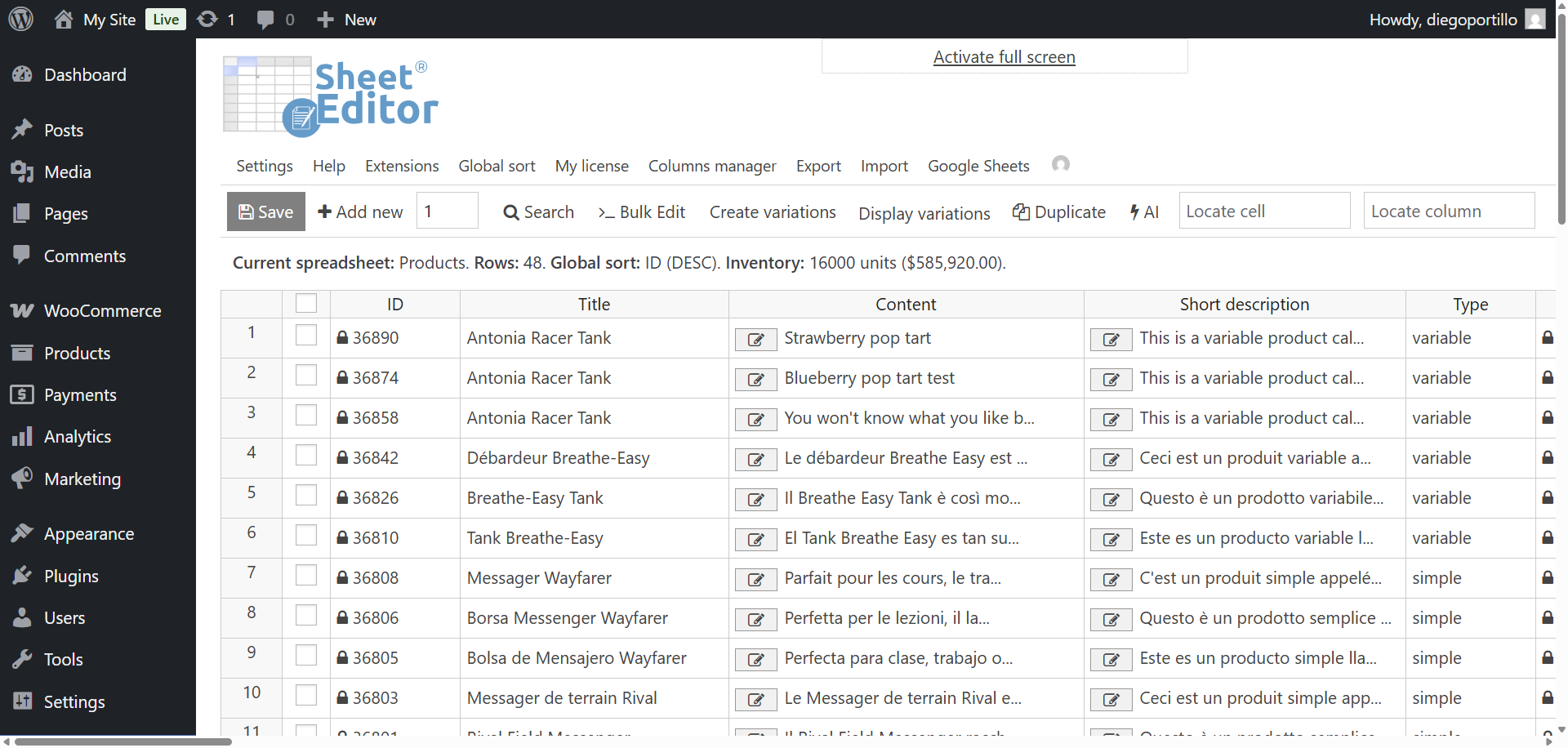
Go to WP Sheet Editor > Edit Products in your WordPress dashboard. This will open the spreadsheet editor where you can view and manage all your WooCommerce products in an intuitive table format.
Each row represents a product, and each column corresponds to a product field, such as Title, Price, SKU, Stock, Categories, Featured Image, and more. This interface allows you to edit hundreds of products at once, just like working in Excel, but directly in WordPress.
Step 2: Open the “Search” tool
Click the Search button in the toolbar to open the advanced search panel. This tool lets you find specific products based on any field in your store: titles, SKUs, descriptions, categories, prices, images, and even custom fields from other plugins.
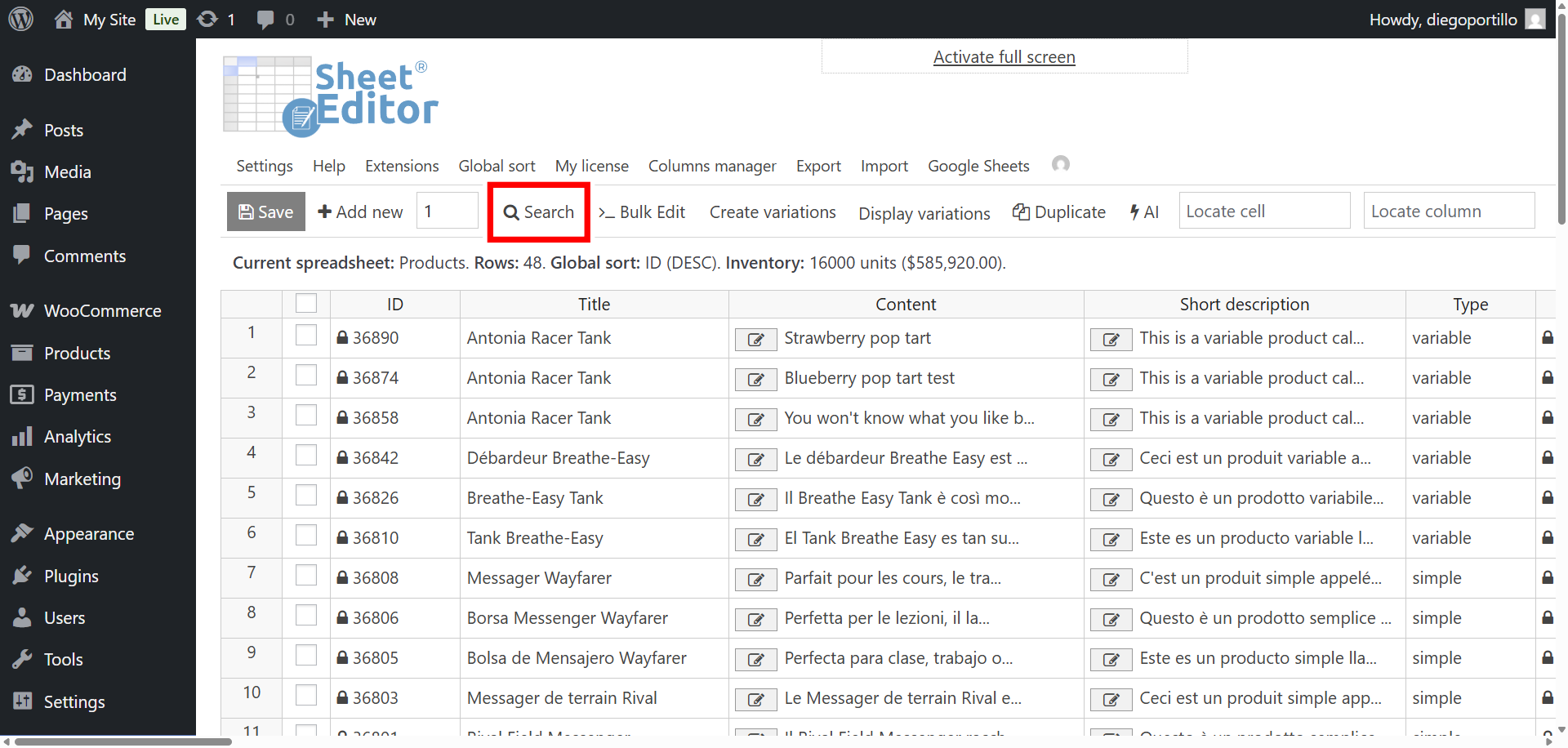
The search system in WP Sheet Editor is incredibly flexible. You can create precise filters, combine multiple conditions, and save your searches for later. In this case, we’ll focus on the featured image field to identify duplicates.
Step 3: Search for products with duplicate images
We’ve added a new search operator called “Contains duplicate values” that makes it easy to find repeated data in any field. You can use it to detect duplicate SKUs, repeated descriptions, and now duplicate featured images.
Here’s how to use it:
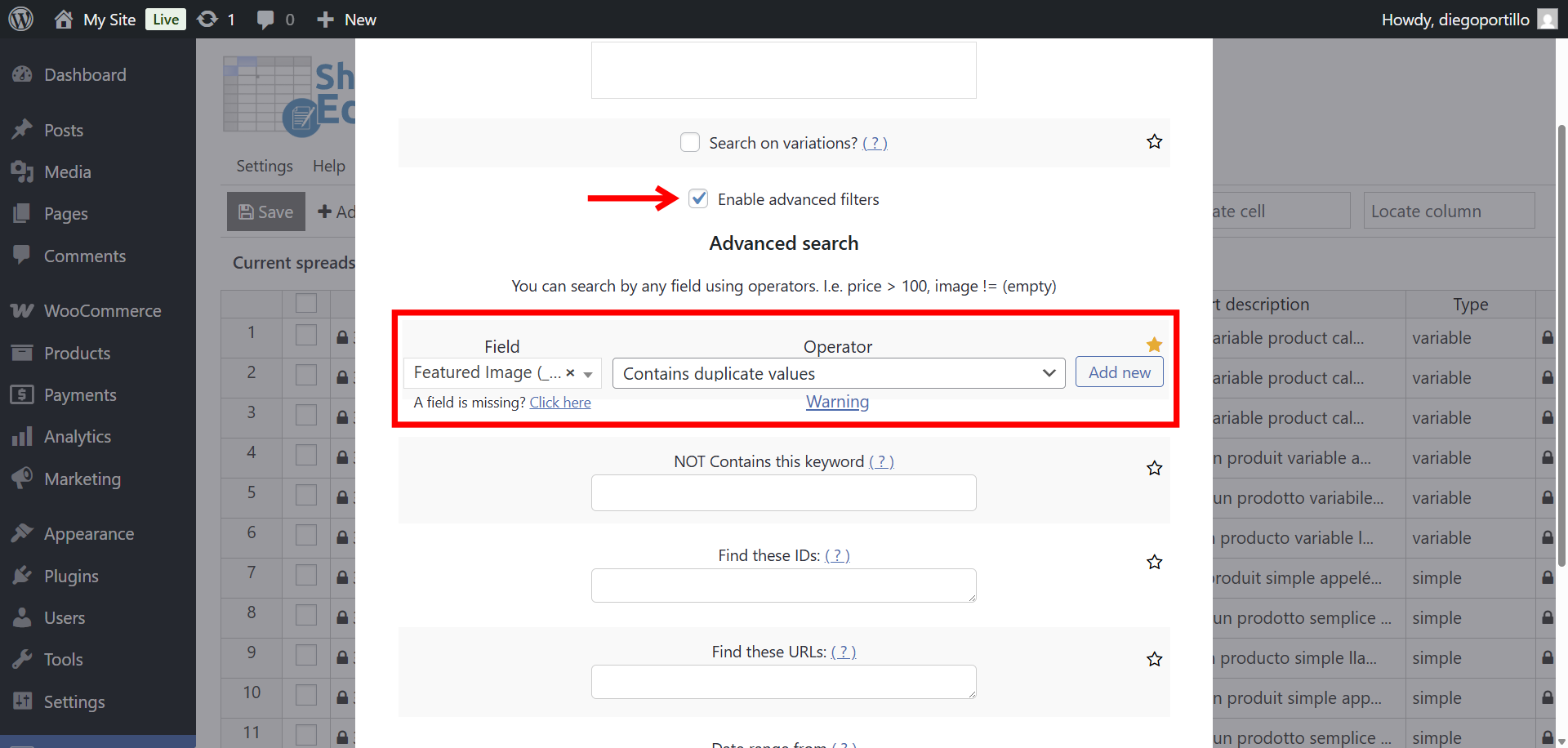
- Tick the Enable advanced filters checkbox.
- In the Field dropdown, select Featured Image.
- In the Operator dropdown, choose Contains duplicate values.
- Click Run search.
The spreadsheet will instantly refresh and show only the products that share the same featured image URL.
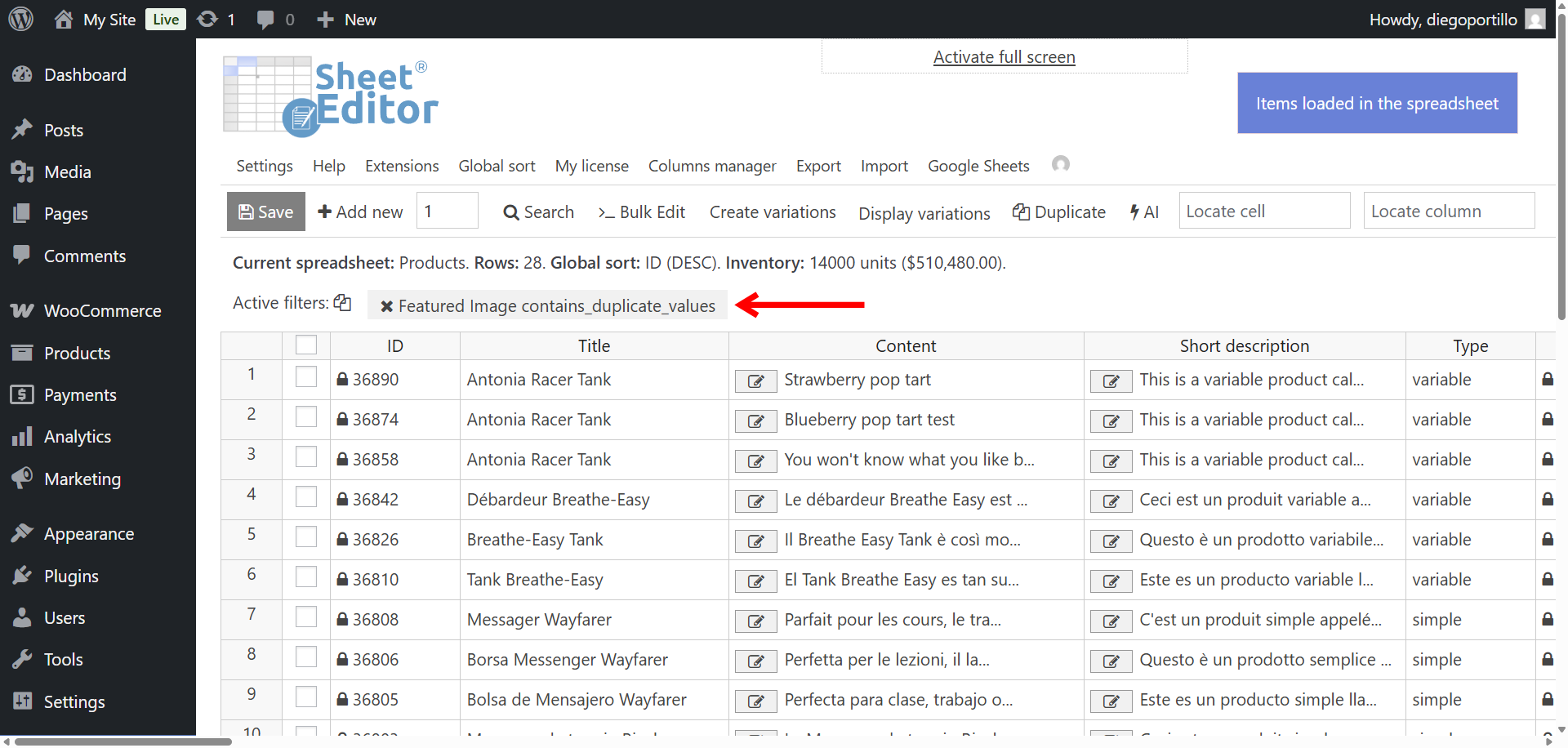
You can scroll through the results to quickly identify which products need updates.
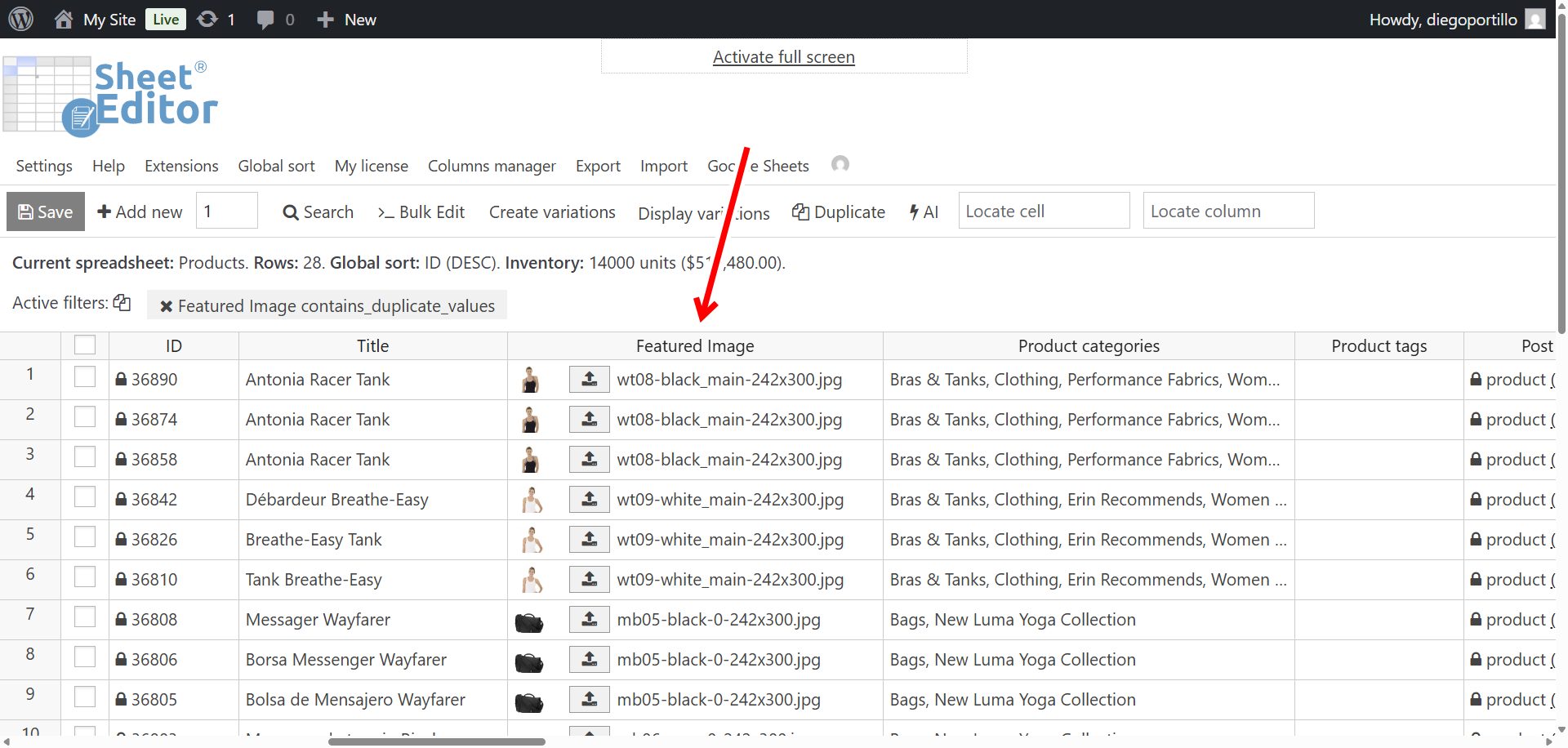
Step 4: Review and fix duplicate images
Once you’ve identified the duplicates, you can edit the Featured Image column directly from the spreadsheet. Click on the image cell to open the WordPress Media Library, select a new image, and the change will apply instantly. No need to open each product individually!
If you prefer, you can also bulk edit or replace images using the Bulk Edit tool to save even more time. For example, you can change all products that share a specific image at once.
Why fixing duplicate featured images matters
Many store owners underestimate how much product images influence buyer decisions. A clean, unique image for every product helps your customers easily differentiate between items and builds trust in your brand.
Here are a few reasons to keep your images unique:
- Better user experience: Shoppers won’t confuse similar products or think your catalog is incomplete.
- Improved SEO: Repeated images often reuse the same alt text and metadata, which can hurt search performance.
- Professional appearance: A diverse, high-quality visual presentation builds credibility and increases sales.
Duplicate images can slip into any WooCommerce store — especially when importing or cloning products. But with the “Contains duplicate values” operator in WP Sheet Editor, finding and fixing them takes just seconds. You can run the search, review the results, and clean up your catalog without ever leaving the spreadsheet.
Keep your store organized, consistent, and visually engaging — all while saving hours of manual work. Start using WP Sheet Editor today and take control of your WooCommerce data.
You can download the plugin here:
Download WooCommerce Products Spreadsheet Plugin - or - Check the features