
You can manage WooCommerce sale prices and sale dates in Google Sheets with a bidirectional sync. This lets you edit the sale price fields in a spreadsheet and have the changes imported into WordPress.
This tutorial shows how to connect the products spreadsheet to Google Sheets, include product variations if needed, and sync sale prices and dates.
What you need to manage sale pricing in Sheets
WP Sheet Editor – WooCommerce Products displays your WooCommerce products in a spreadsheet inside WordPress.
You can purchase the plugin here:
Get the WooCommerce Products spreadsheet - or - Check the features
Google Sheets Sync connects the spreadsheet to Google Sheets for two-way exports and imports.
You can sign up to the service here:
Sign up to the Google Sheets Sync Service - or - Check the features
1. Connect WordPress to Google Sheets
Subscribe to Google Sheets Sync and install its helper plugin. Then follow the installation guide to connect your Google account.
2. Set up a bidirectional sync
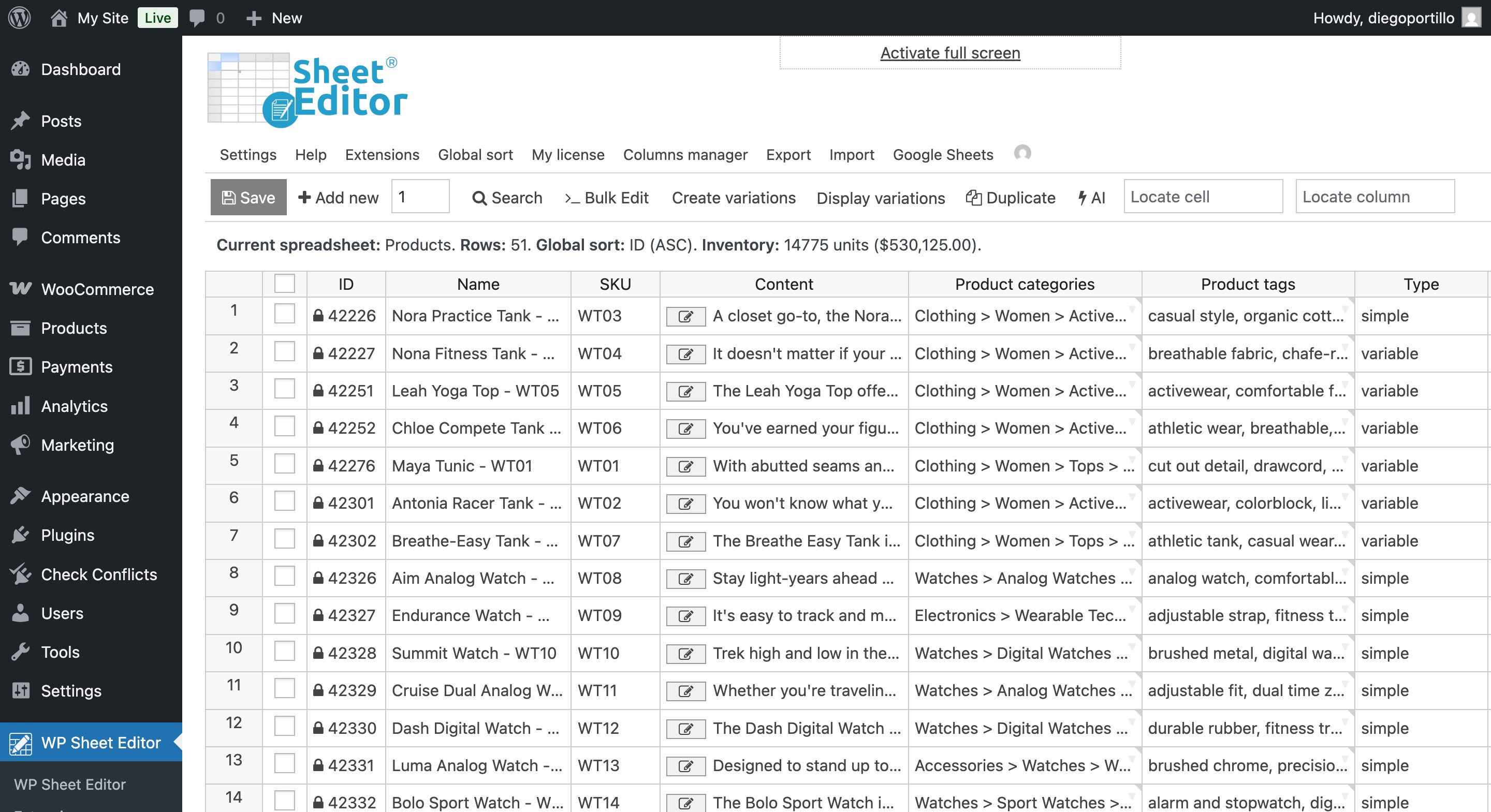
In WordPress, go to WP Sheet Editor > Edit Products.
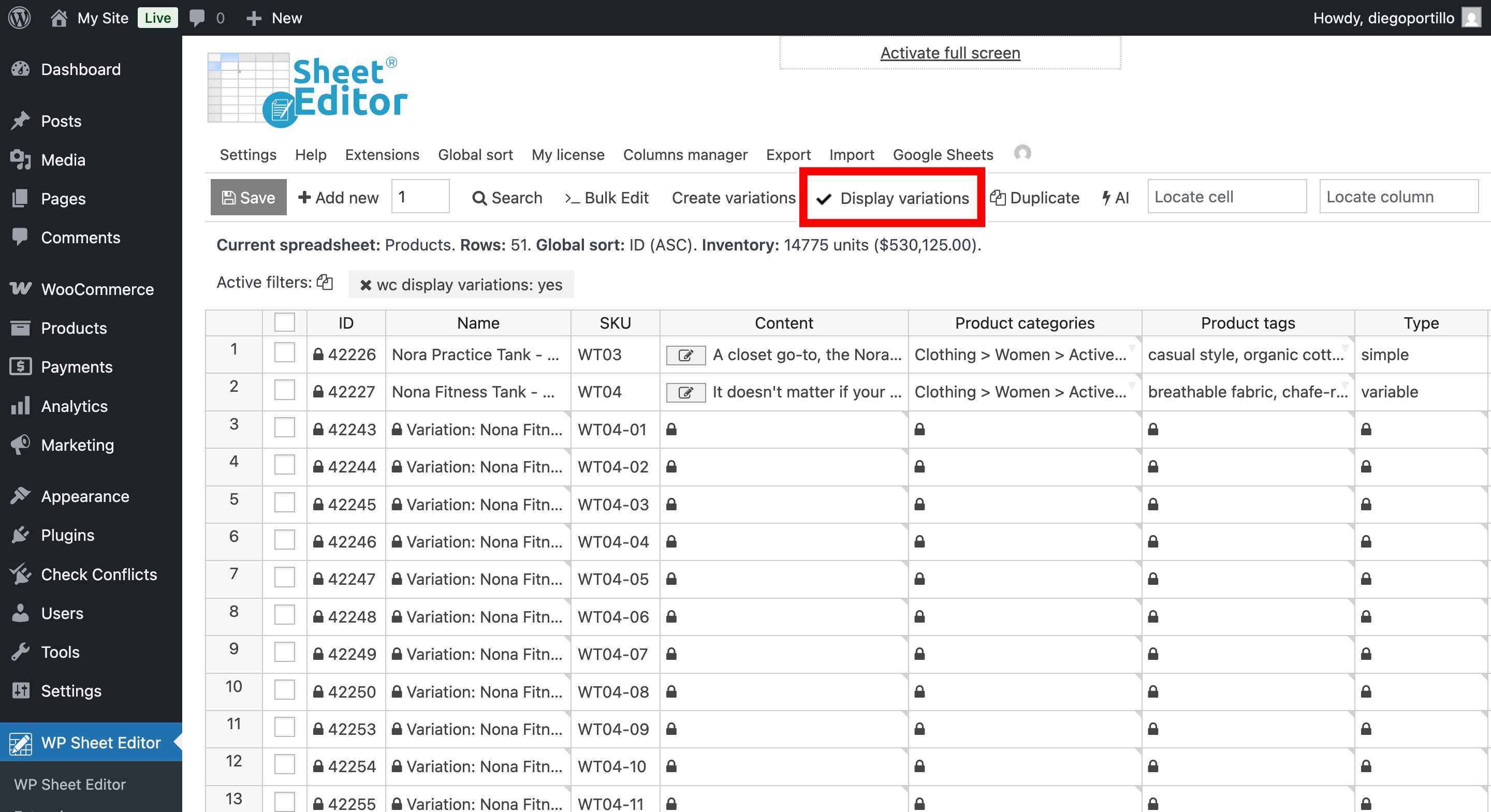
To include product variations, click Display variations. This adds the variations to the spreadsheet and the sync.
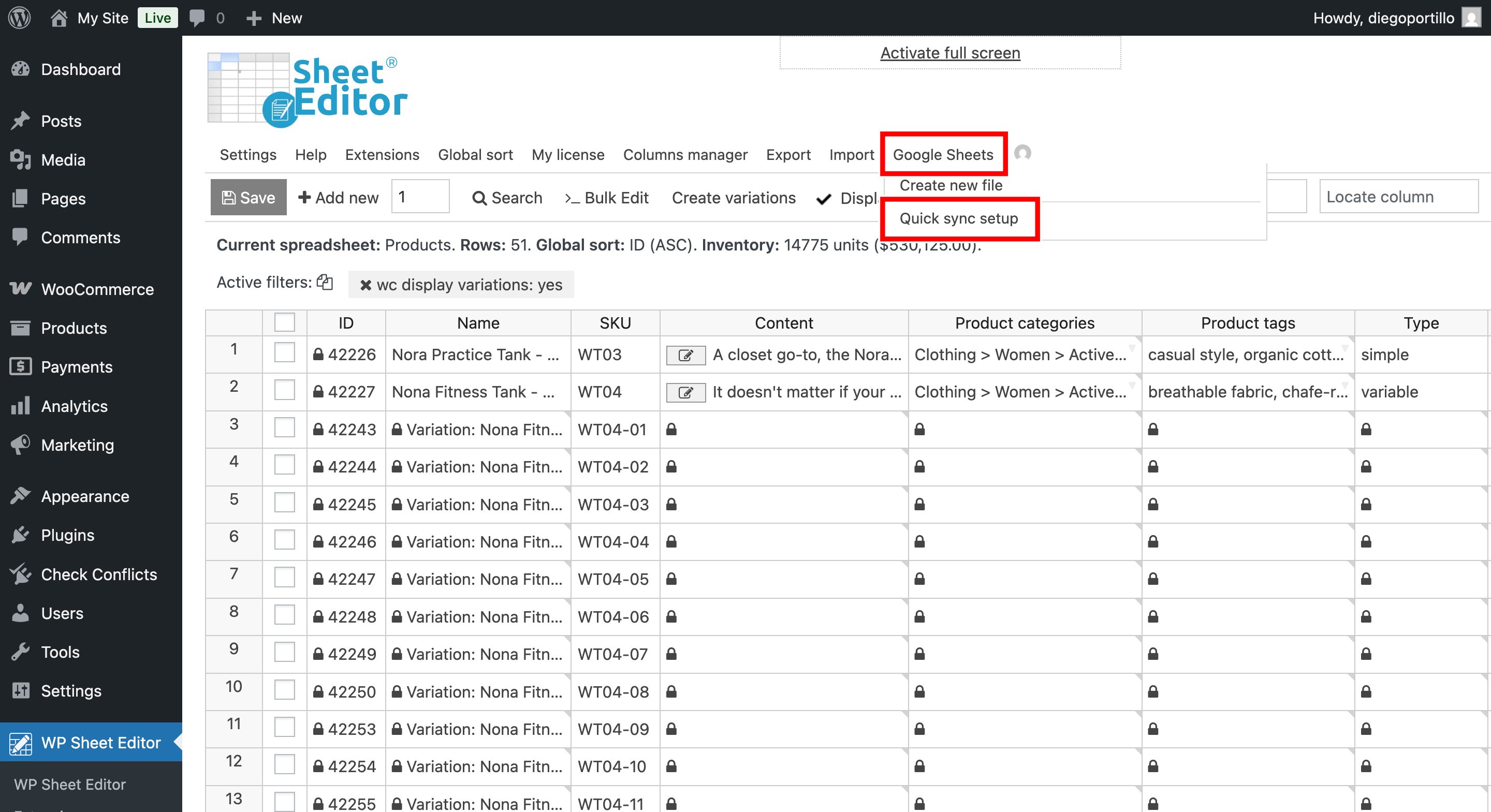
Hover over Google Sheets and click Quick sync setup.
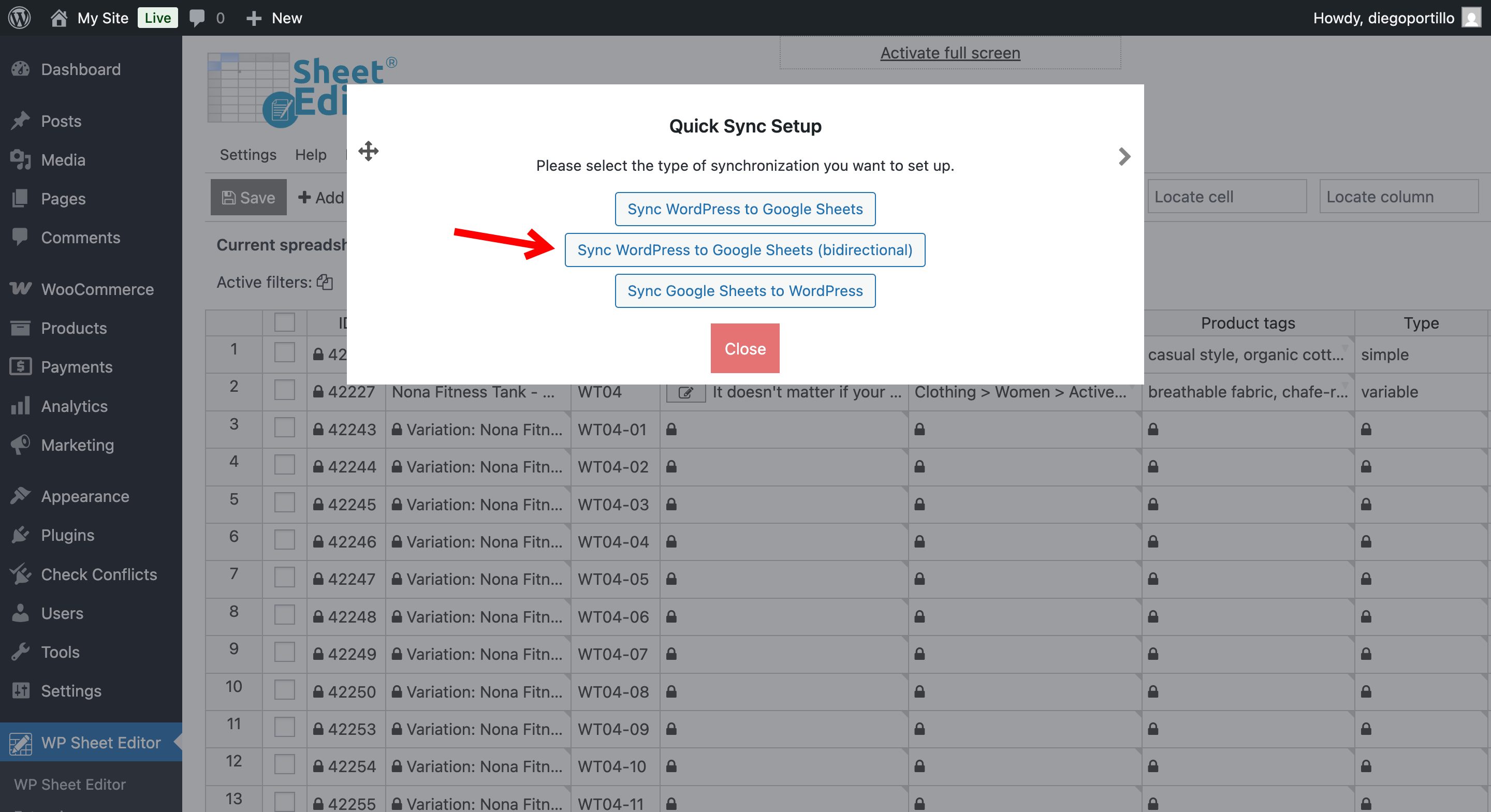
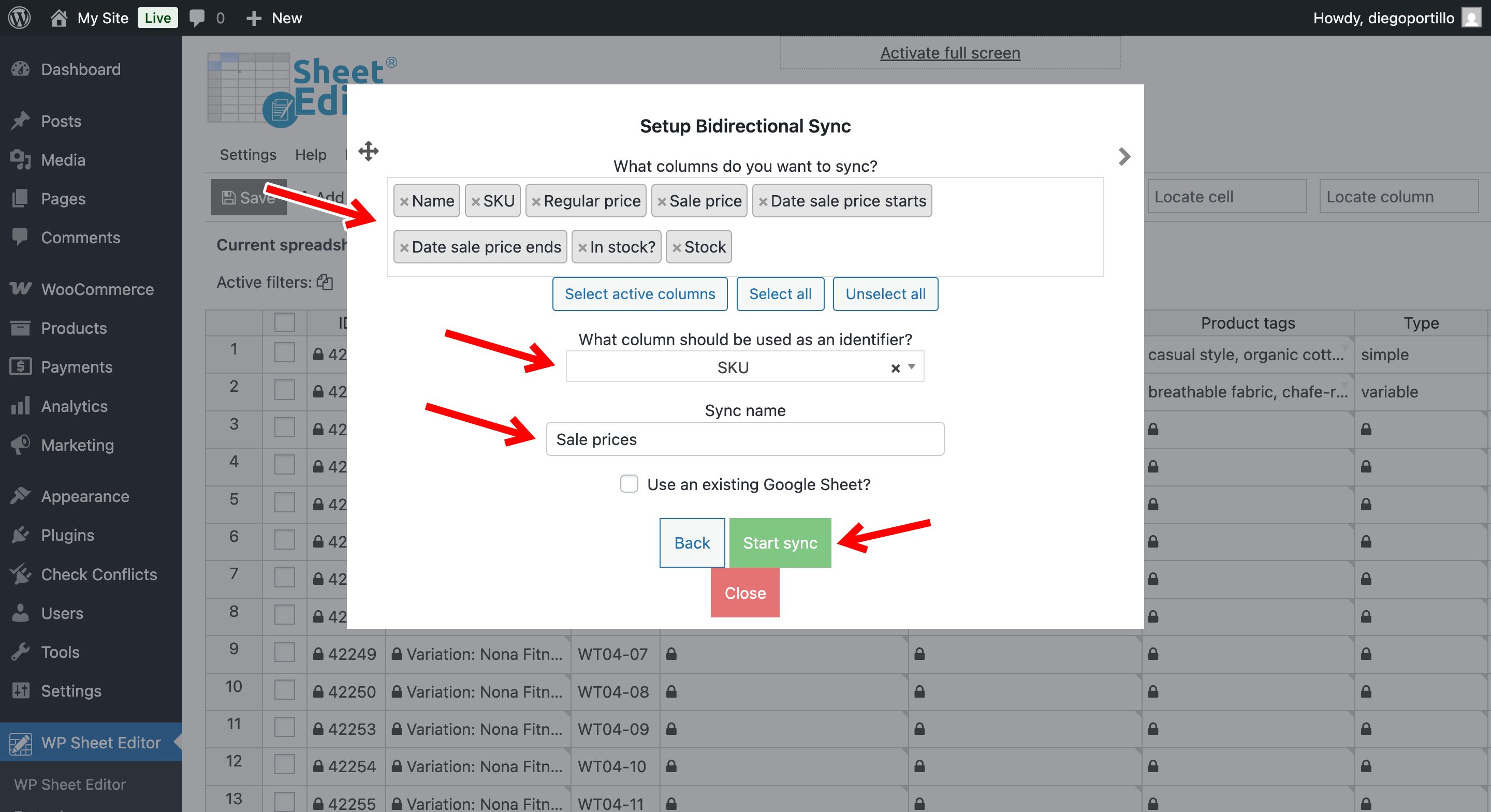
In the setup window, select Sync WordPress to Google Sheets (bidirectional).
Choose the fields to sync:
- Name
- SKU
- Regular price
- Sale price
- Date sale price starts
- Date sale price ends
Choose an identifier to match each product or variation between WordPress and Google Sheets. Enter a name for the sync, then click Start sync.
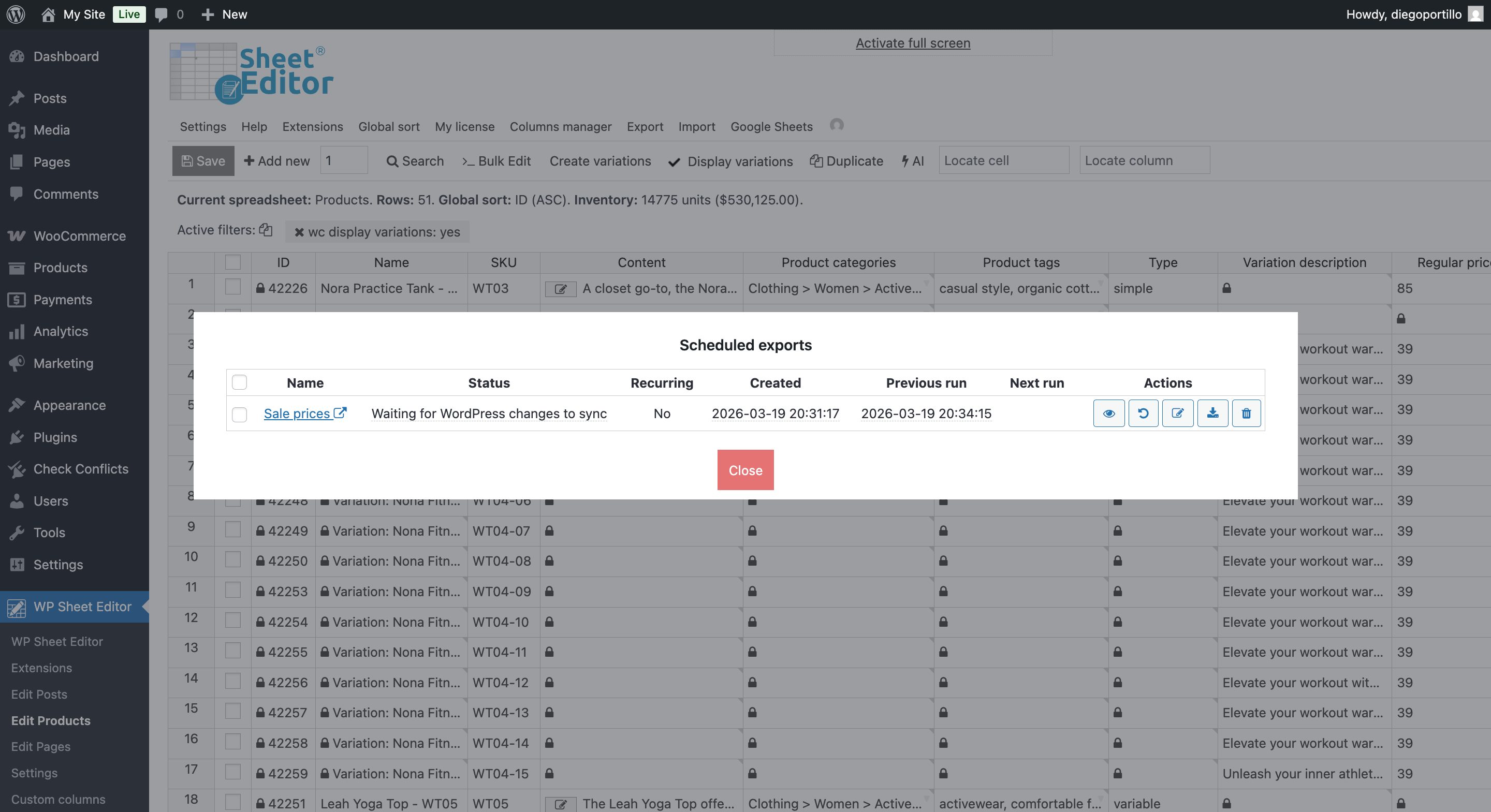
To view the sync, go to Export > View scheduled exports.
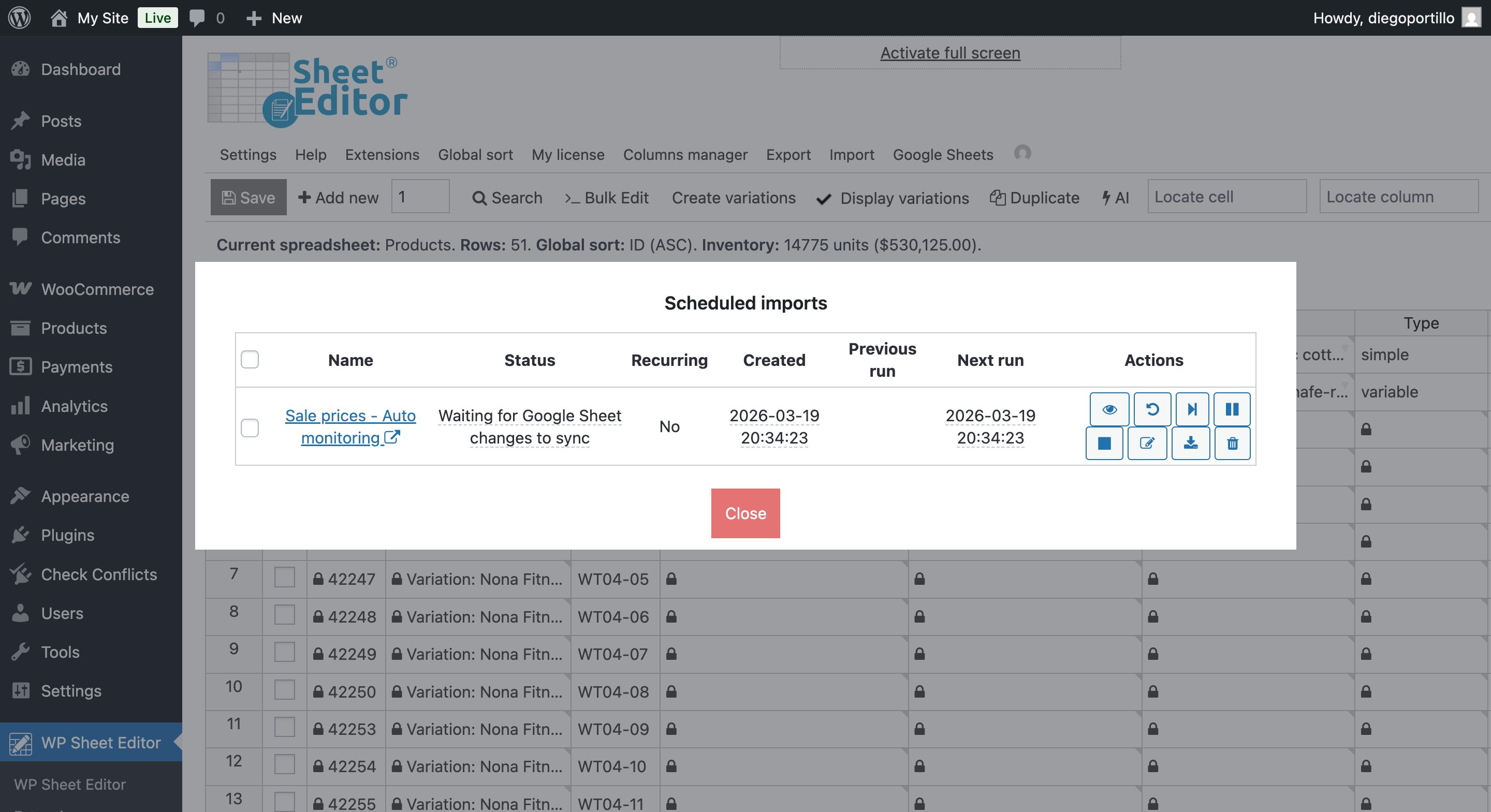
The sync creates a Google Sheet and an import that checks for changes made there. Click the export or import name to open the sheet.
3. Edit sale prices and dates in Google Sheets
In the sheet, update the Sale price, Date sale price starts, and Date sale price ends columns.
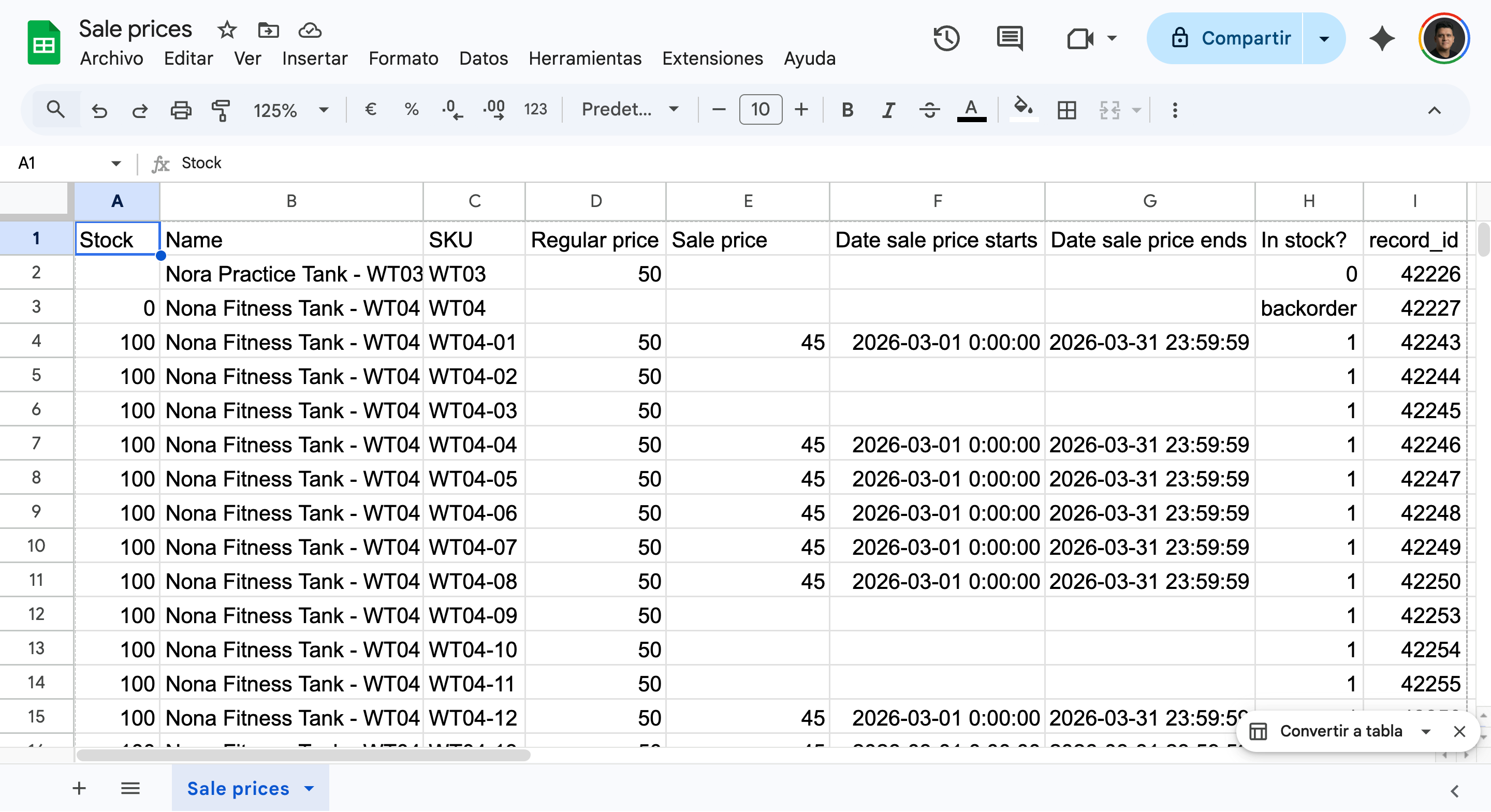
- Sale price: Enter the discounted price. You can also use a Google Sheets formula based on the regular price.
- Sale price dates: Enter the start and end dates using the format
YYYY-MM-DD HH:MM:SS.
4. Set when changes are imported
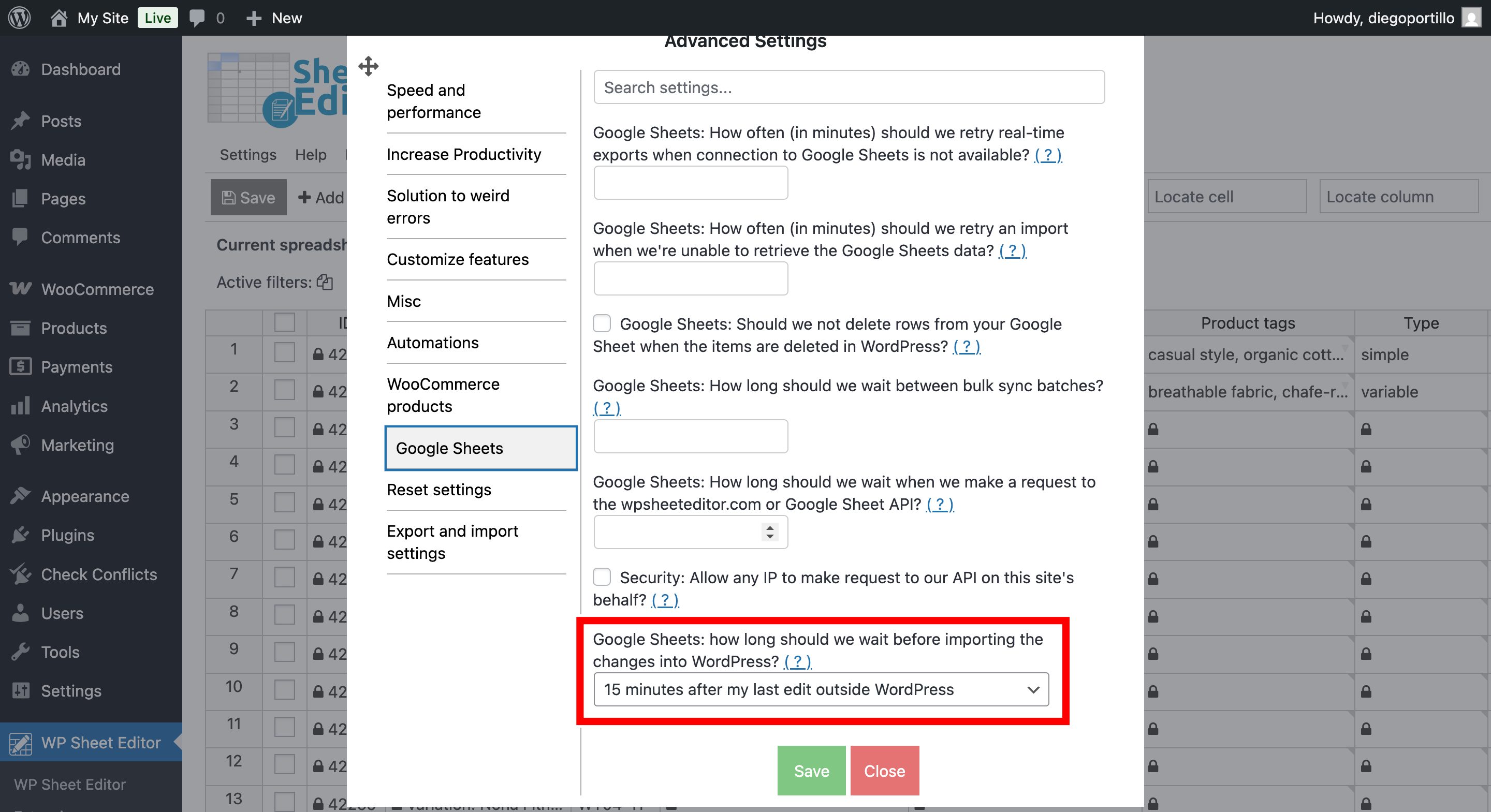
The sync imports changes from Google Sheets into WordPress after a waiting period. To adjust it, go to Settings > Advanced Settings > Google Sheets and select a time under Google Sheets: How long should we wait before importing the changes into WordPress. The available delay can range from 15 minutes to 12 hours.
Manage WooCommerce sale prices in Google Sheets
Once the bidirectional sync is set up, edit the sale price and sale date fields in Google Sheets. WP Sheet Editor imports those changes into WooCommerce after the configured waiting period.