
Let me show you how to import WooCommerce variable products with variations from Google Sheets. We will use WP Sheet Editor for WooCommerce Products and the Google Sheets Sync service. This allows you to update existing variations, add new variations to existing products, or import completely new variable products with their variations from a Google Sheet.
First, I will export variable products with their variations to Google Sheets. Then, I will show you how to edit the product data there. And finally, import the products with variations back into WooCommerce. Also, I will explain how to prepare new variations and match existing products by product or variation SKU.
Table of Contents
What You Need to Import WooCommerce Variable Products from Google Sheets
WP Sheet Editor for WooCommerce Products
WP Sheet Editor – WooCommerce Products lets you manage products and variations in a spreadsheet inside WordPress. You can edit prices, SKUs, attributes, stock, images, and other product fields in bulk. It also includes the Search, Export, and Import tools we’ll use in this tutorial.
You can download the plugin here:
Download WooCommerce Products Spreadsheet Plugin - or - Check the features
WP Sheet Editor – Google Sheets Sync
Google Sheets Sync helps you connect WP Sheet Editor to Google Sheets. You can export WooCommerce products to a Google Sheet, edit their data, and import the changes back into WordPress without manually downloading or uploading CSV files. You can also create new products and variations in the Google Sheet and import them into WooCommerce.
You can sign up to the service here:
Sign up to the Google Sheets Sync Service - or - Check the features
Step 1: Open the WooCommerce Products Spreadsheet
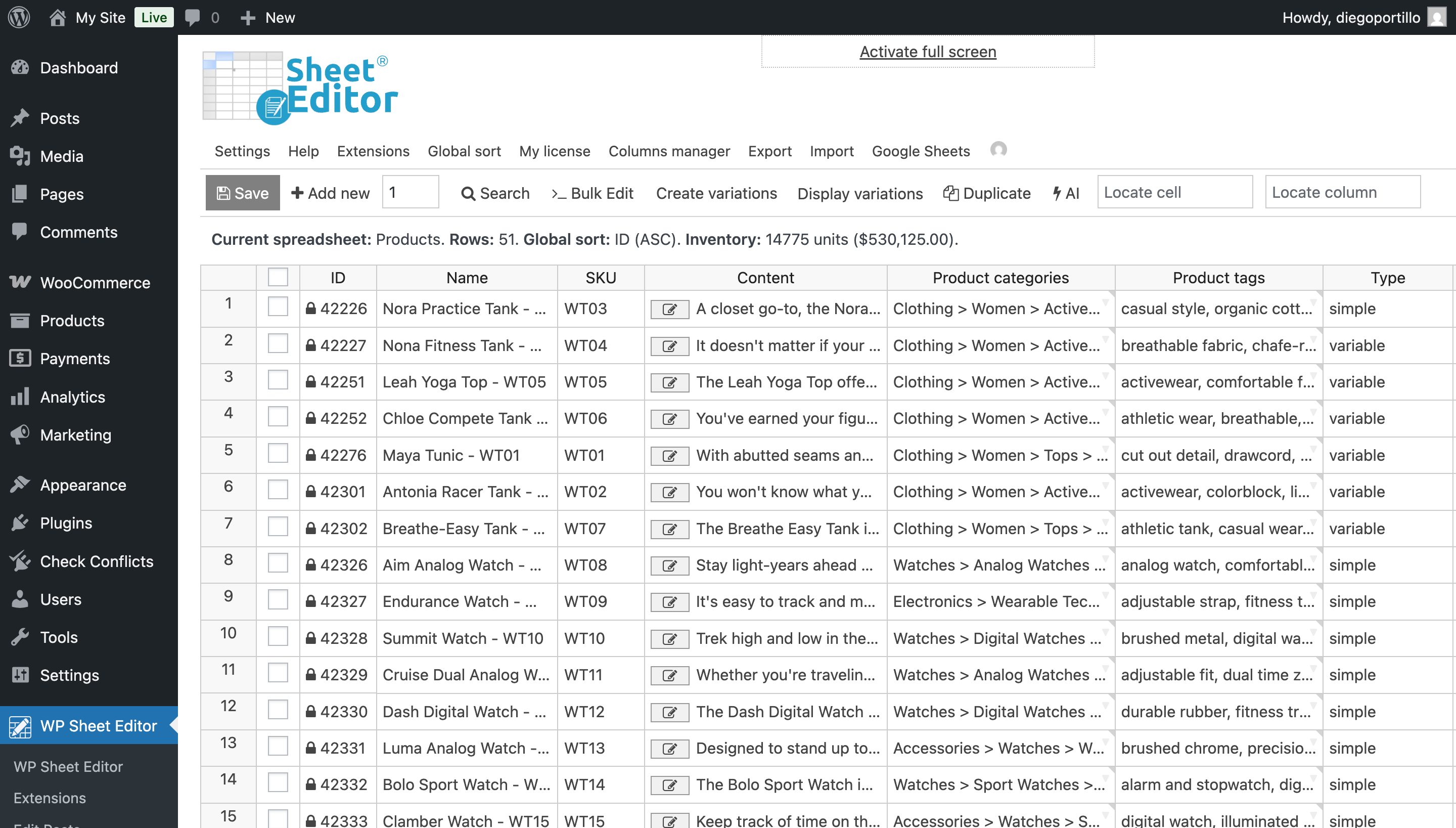
In your WordPress dashboard, go to WP Sheet Editor > Edit products. You’ll see your WooCommerce products in the spreadsheet, with columns for product names, SKUs, prices, attributes, stock, and other fields.
Step 2: Connect WooCommerce to Google Sheets
After signing up for the Google Sheets Sync service, you’ll get a helper plugin that helps you connect your WordPress site to Google Sheets using the WP Sheet Editor API and the Google API.
Follow our Google Sheets Sync installation and setup guide to complete the connection.
Step 3: Filter Variable Products and Display their Variations in the Spreadsheet
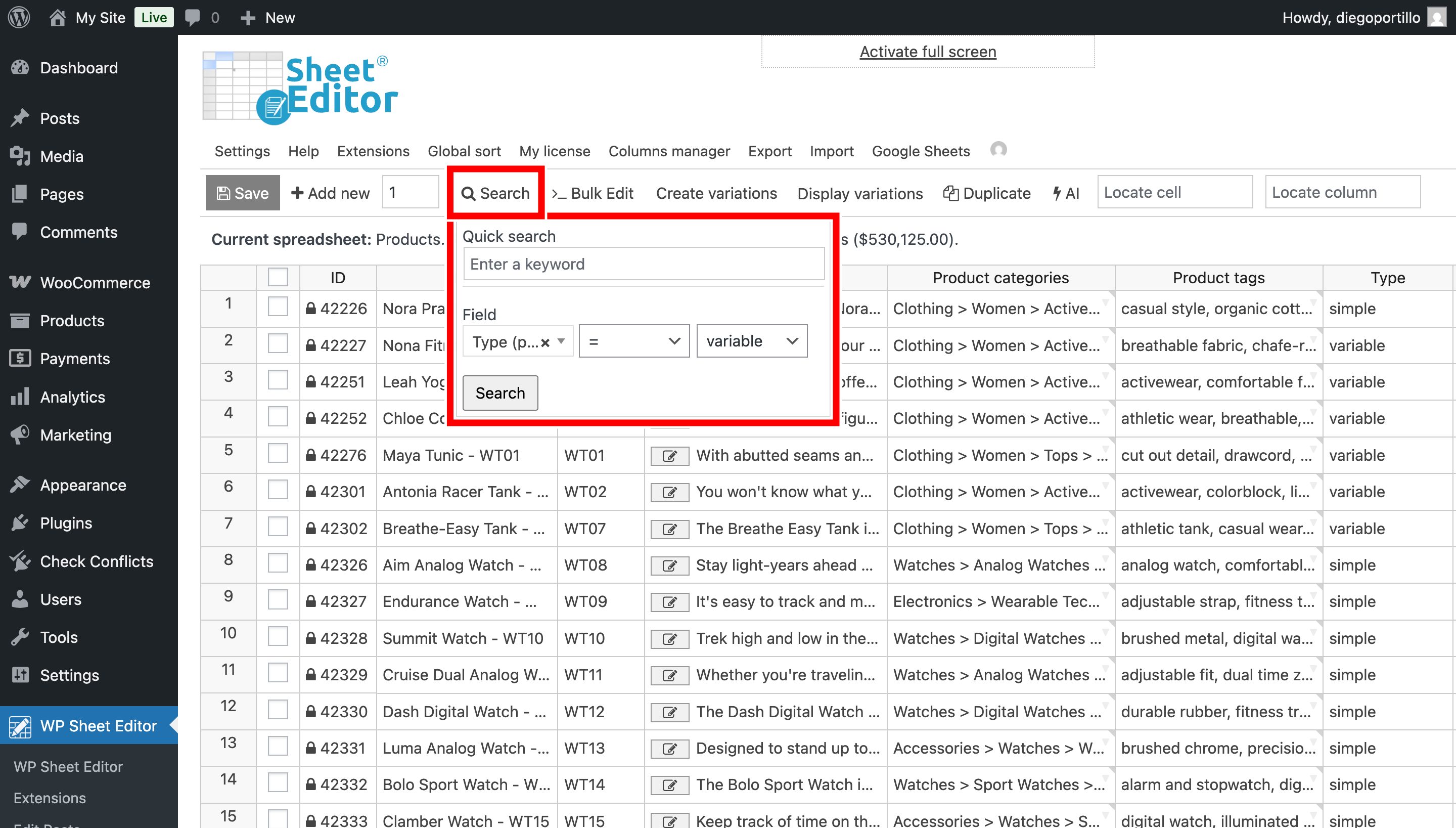
We will use the Search tool to find all the variable products we want to export.
Just hover over the Search tool and select these values in the quick search panel:
- Type = Variable
Click Search.
If the advanced filters are not enabled for the quick settings:
- Click on Search.
- Tick the Enable advanced filters.
- Select these values:
- Field: Type
- Operator: =
- Value: Variable
- Click on Run search.
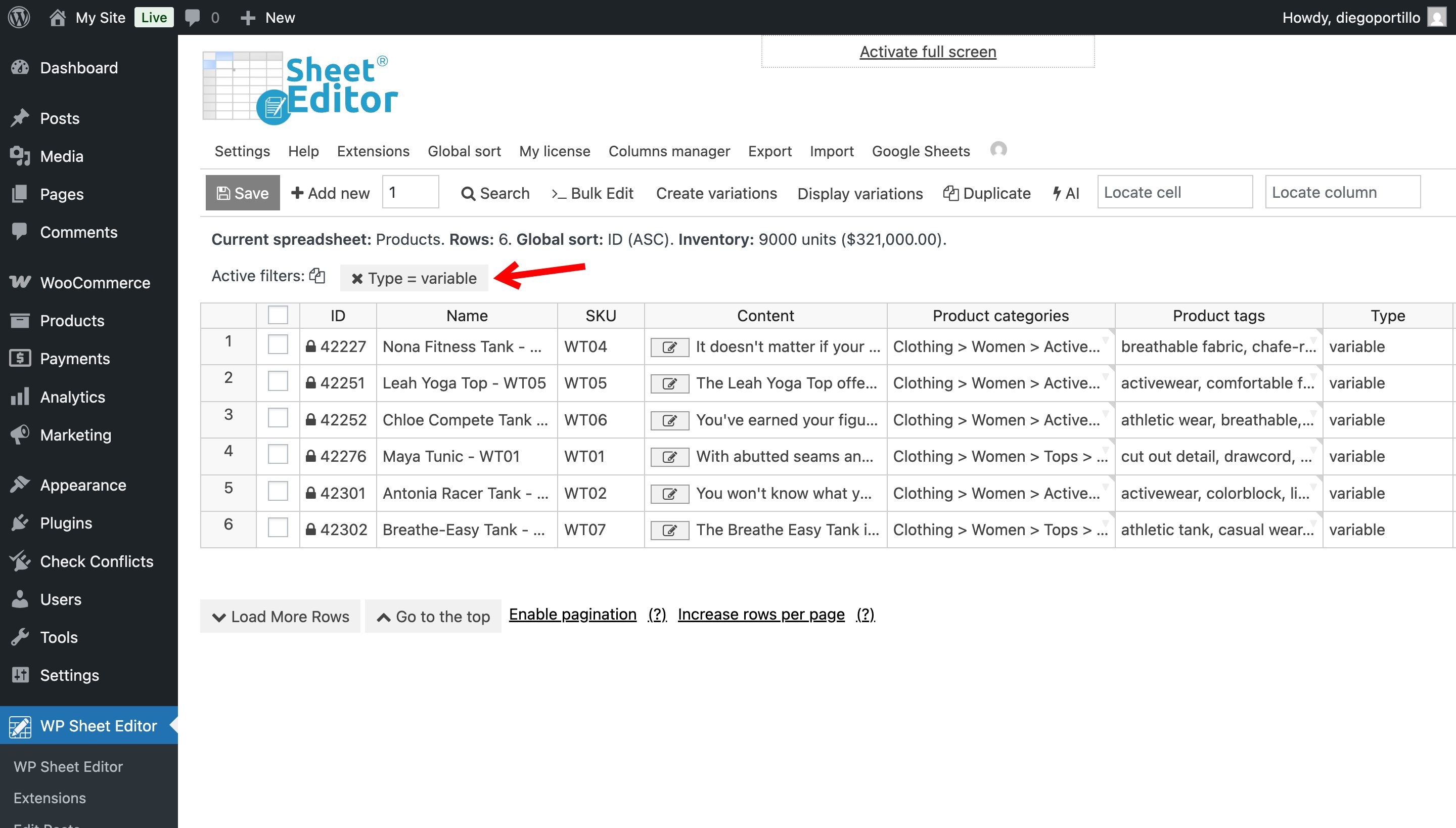
The spreadsheet will display the variable products.
Now click on Display variations to show the variations alongside their parent products.
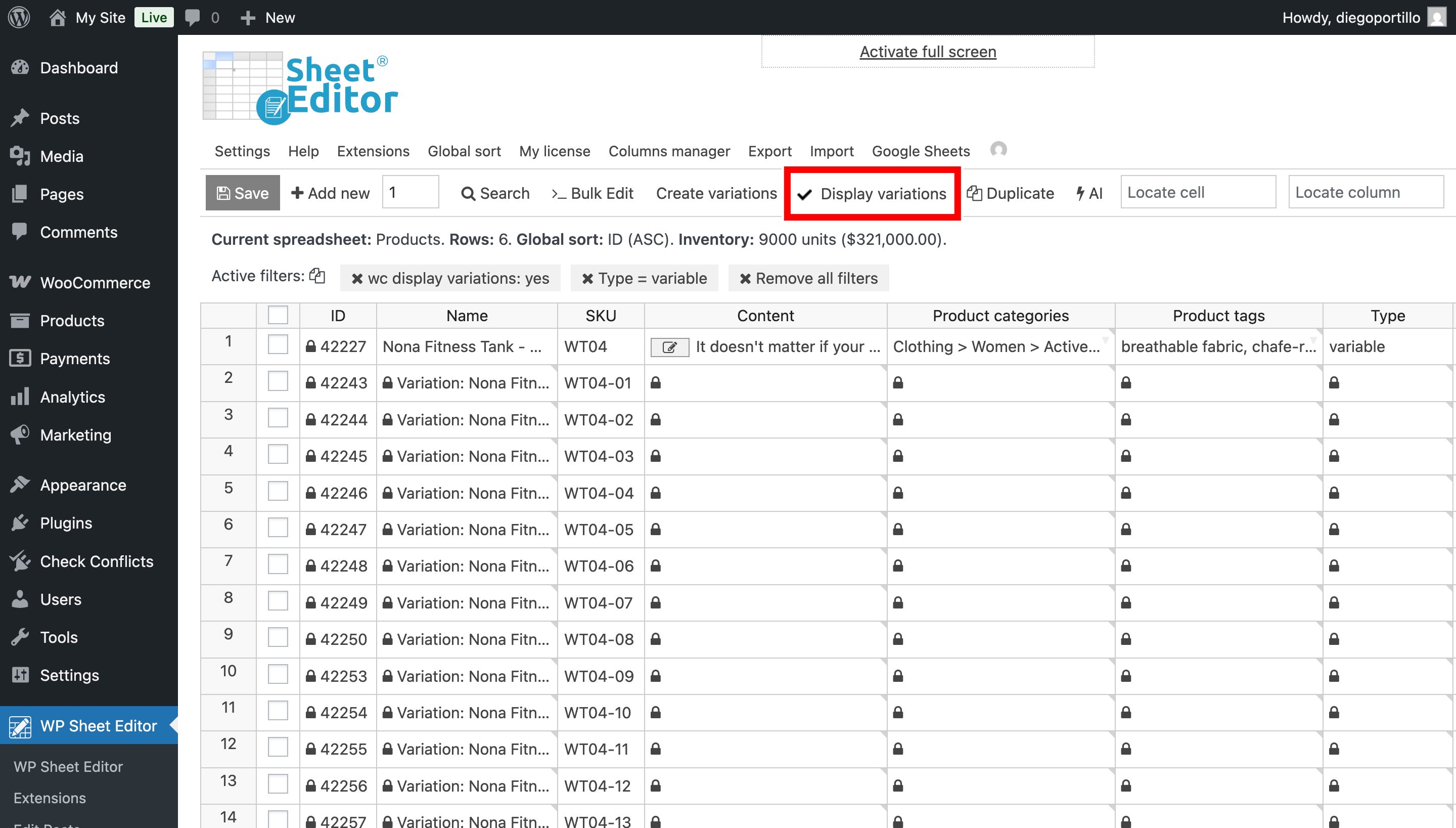
Each variation will appear in its own row next to their parent product, so you can export both the parent products and their variations to Google Sheets.
Step 4: Export variable products with variations to Google Sheets
Google Sheets Sync allows you to import only spreadsheets previously exported or created through the service.
That’s why we’ll export our existing variable products first. This gives us the necessary fields and variation data in Google Sheets, which we can edit or use as a reference when adding new products with variations.
Open the Export tool.
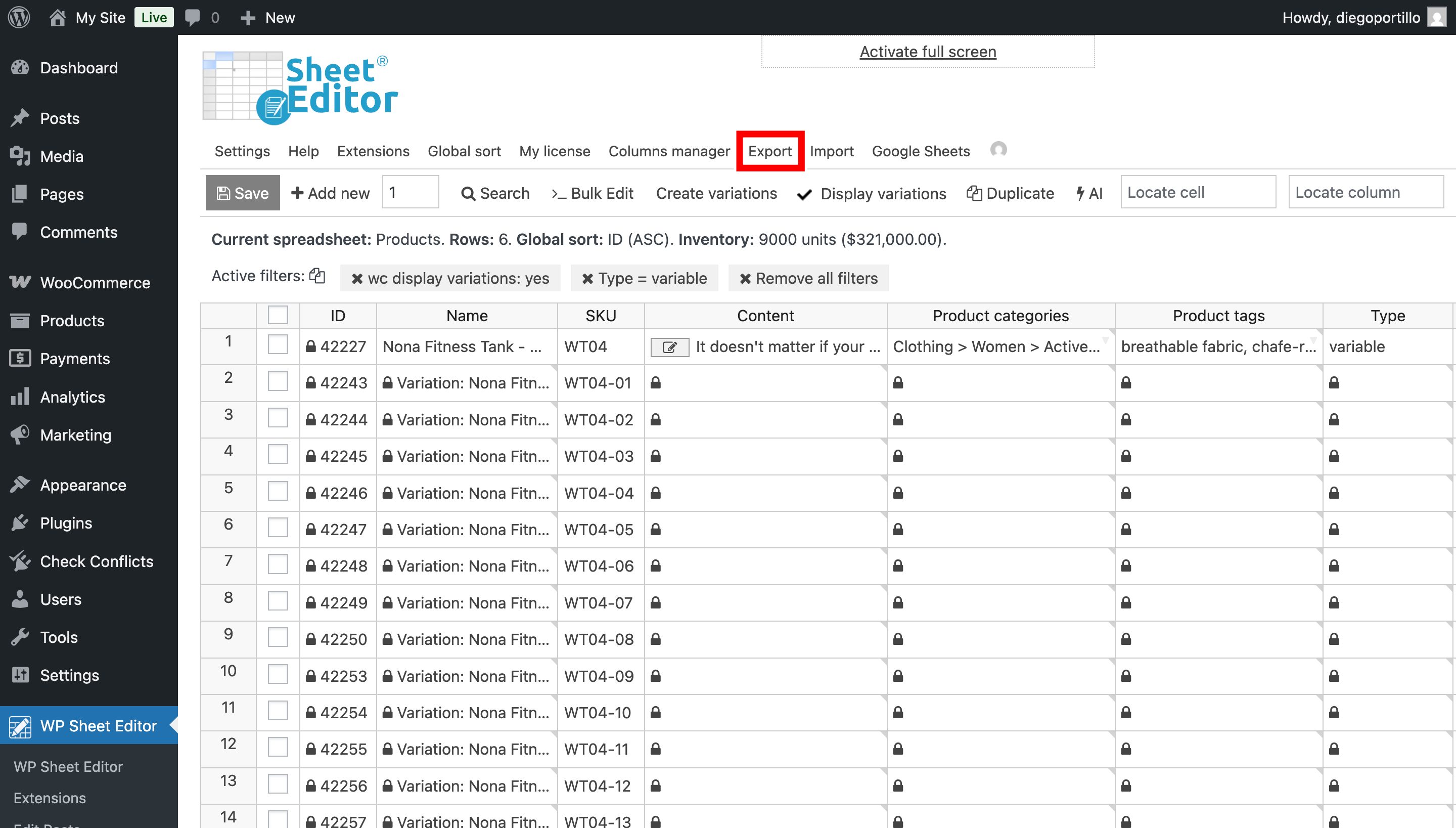
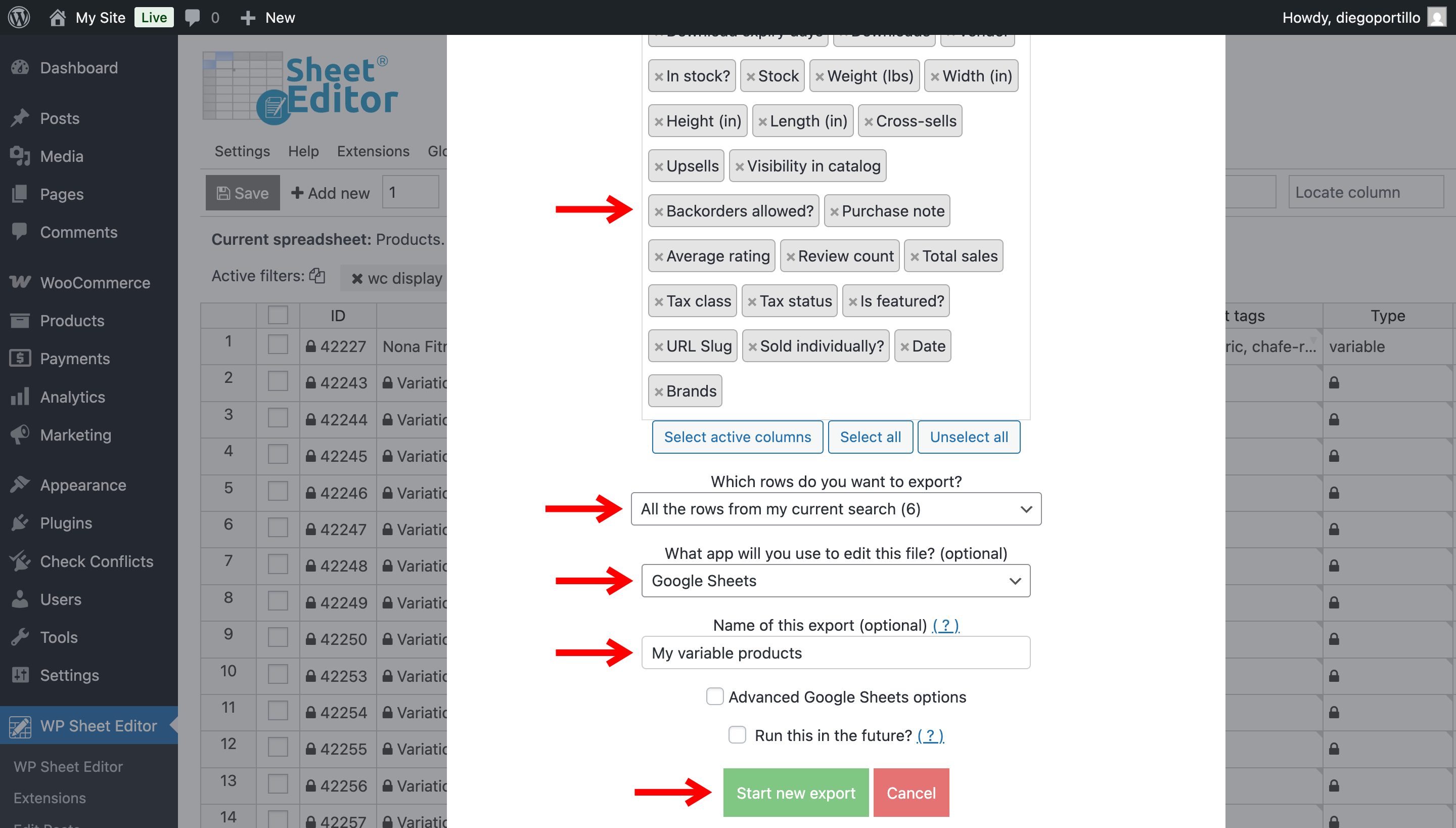
Select these values:
- What columns do you want to export: You can export all the fields or specific fields only.
- Which rows do you want to export: All rows from the current search.
- What app will you use to edit this file: Google Sheets.
- Name of this export: Enter a name for the Google Sheet.
- Click Start new export.
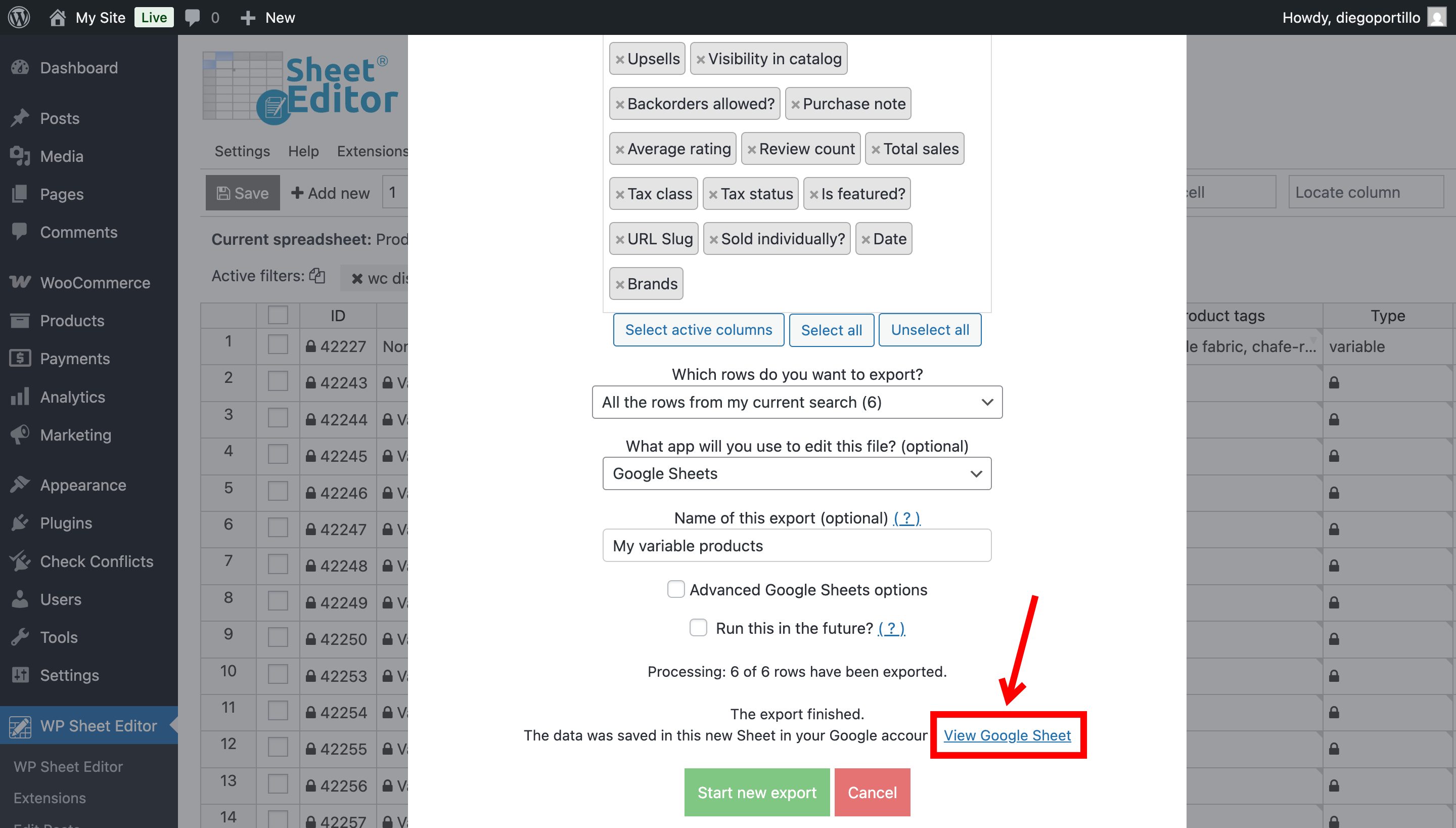
Once the export finishes, click View Google Sheet to open the generated file.
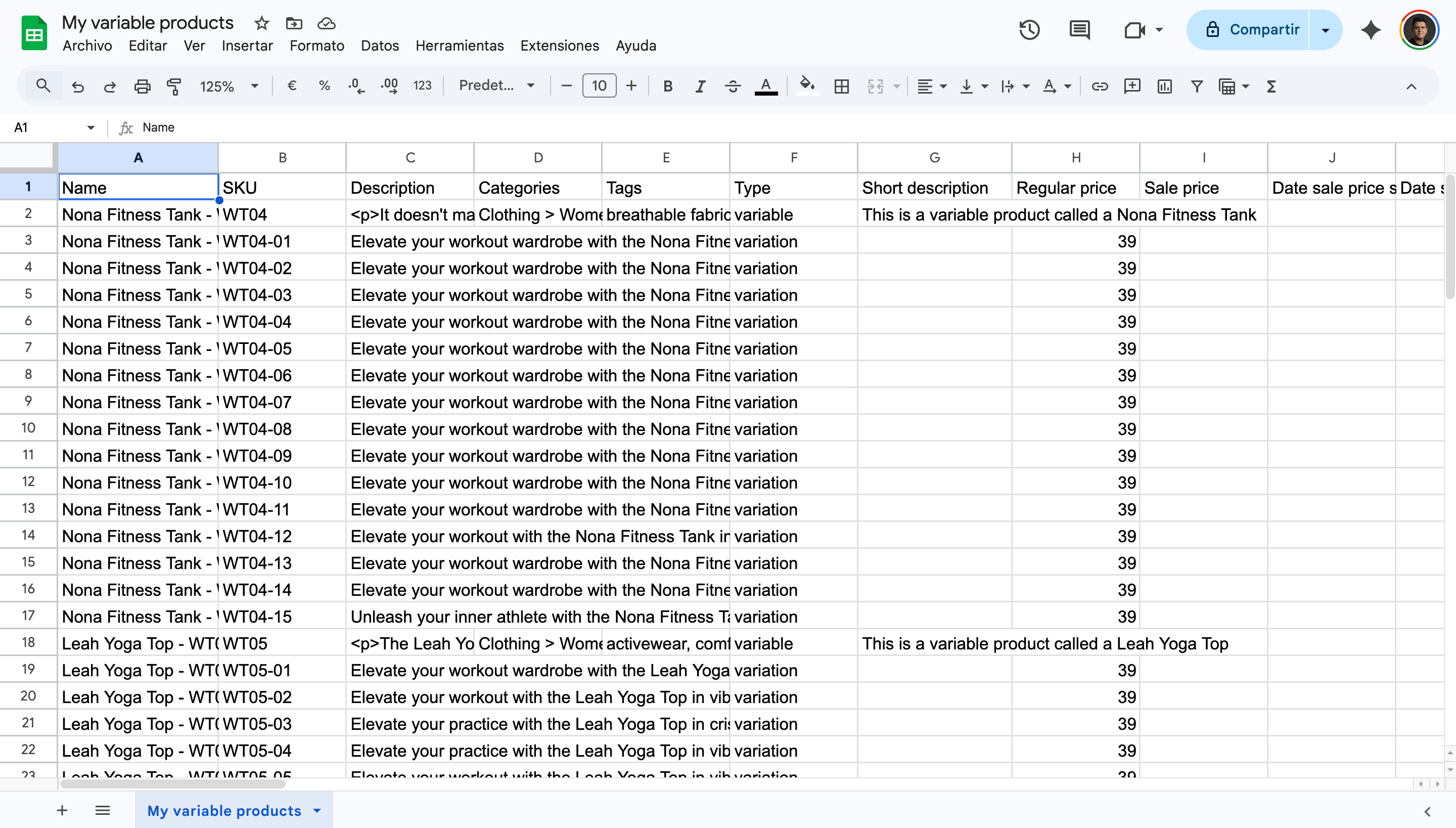
Step 5: Edit or create variable products and variations in Google Sheets
Your Google Sheet now contains the exported parent variable products and their variations. You can update existing variation fields, add new variations to existing products, or prepare completely new variable products.
Update existing product variations
- Find the variation’s row in the Google Sheet.
- Make changes to the fields that can be edited for product variations, including price, stock, variation description, etc.
- Make sure you don’t change the SKU because you’ll use it to match the data when importing.
Add new variations to existing variable products
Suppose your T-shirt comes in Small and Medium, and you want to add a Large variation.
- Add a new row right next to the variations of the product to which you want to add the new variation.
- In the new variation row, find the Parent column and add the SKU of the parent product.
- In the parent product’s row, look for the Attribute X name column which belongs to the attributes your new variation contain. For example, to add a variation with the Large attribute, I will find the Attribute 2 Name and make sure the value in the cell is Size.
- In the Attribute 2 value(s) column, I will append the new size to the existing sizes list in the parent product.
- Also, I will add the variation attribute in the new variation’s row.
- Crucial: The SKU of each variation MUST be different from the parent product’s SKU.
- Continue adding the other data such as price, variation description, stock, etc.
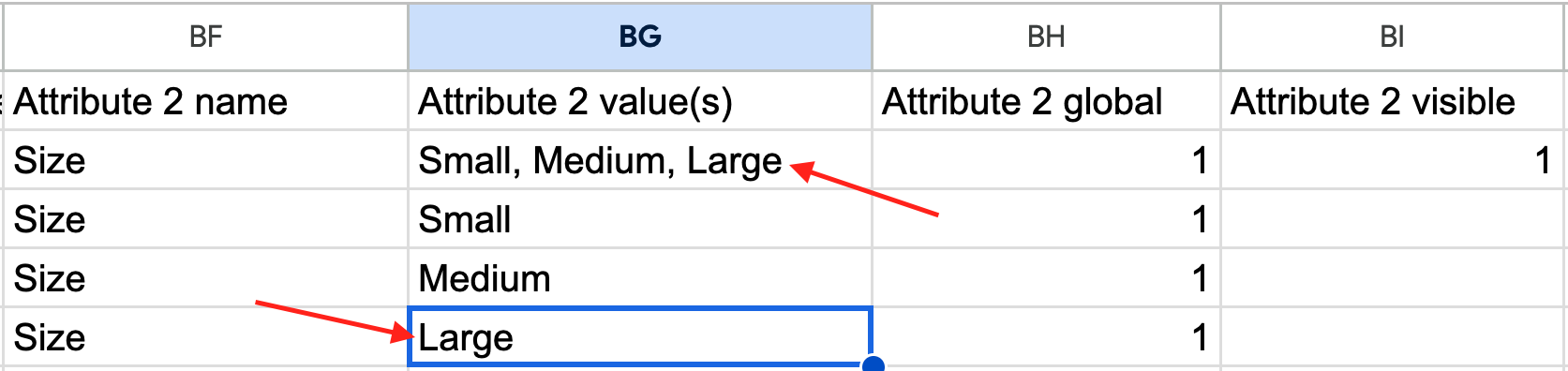
Note. Since this variation doesn’t exist in your database, you can leave the WordPress ID empty for a new variation instead of copying an existing variation’s ID.
Import new variable products with their variations
You can also create new parent products and add them variations in the same Google Sheet.
For example, to import a Hoodie in three sizes, prepare a parent product row with its type set to Variable, then add variation rows for Small, Medium, and Large.
Each variation should contain its corresponding attribute values, SKU, price, and other required fields. Make sure the variations reference the correct parent product using the parent SKU in the Parent column.
Tip. You can use an existing product with variations as a model just updating the actual data for the new variable product with its variations.
Step 6: Import variable products and variations from Google Sheets
Important. Always make sure to backup your site before importing.
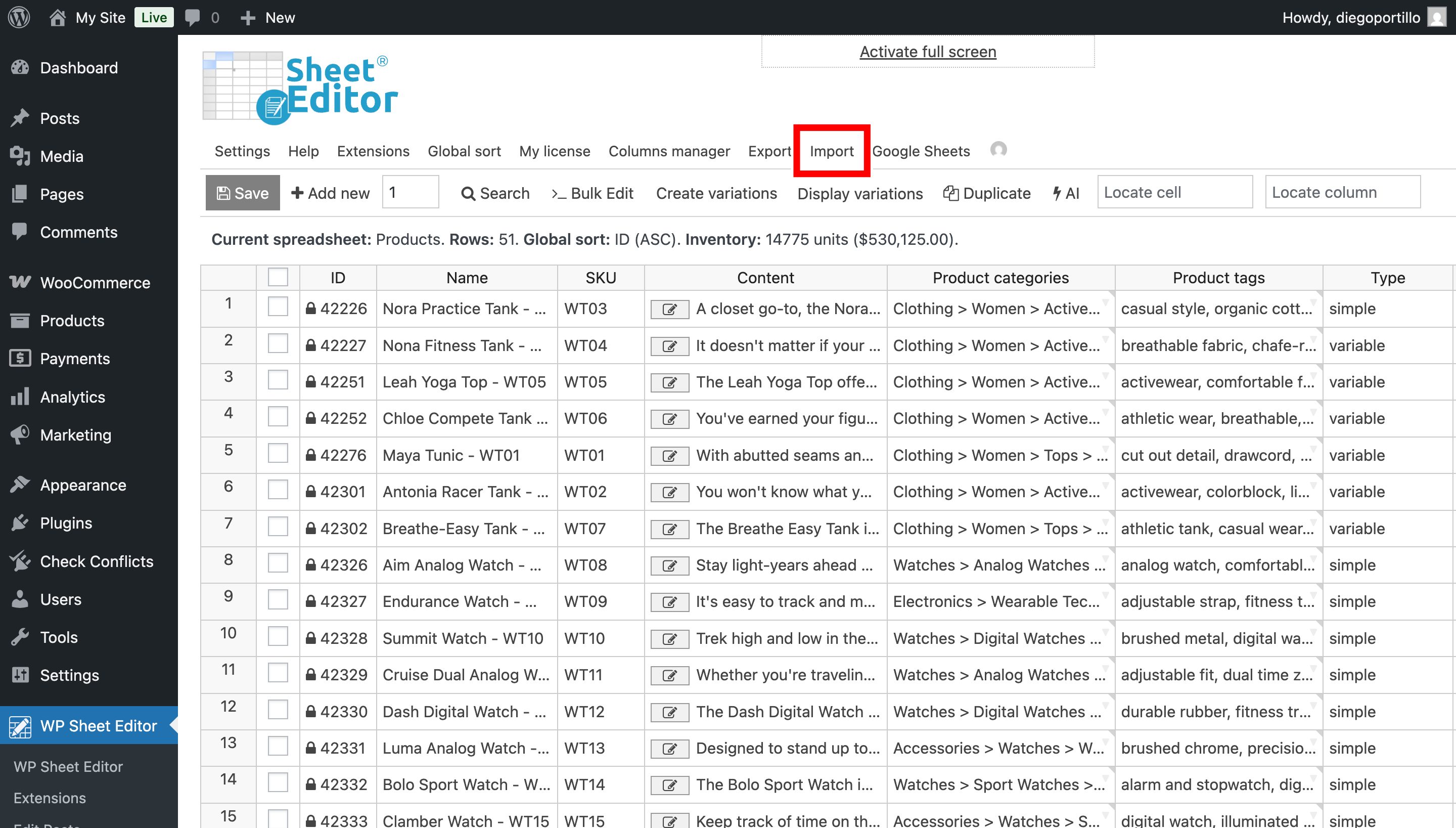
After editing your Google Sheet, return to WP Sheet Editor in WordPress and open the Import tool.
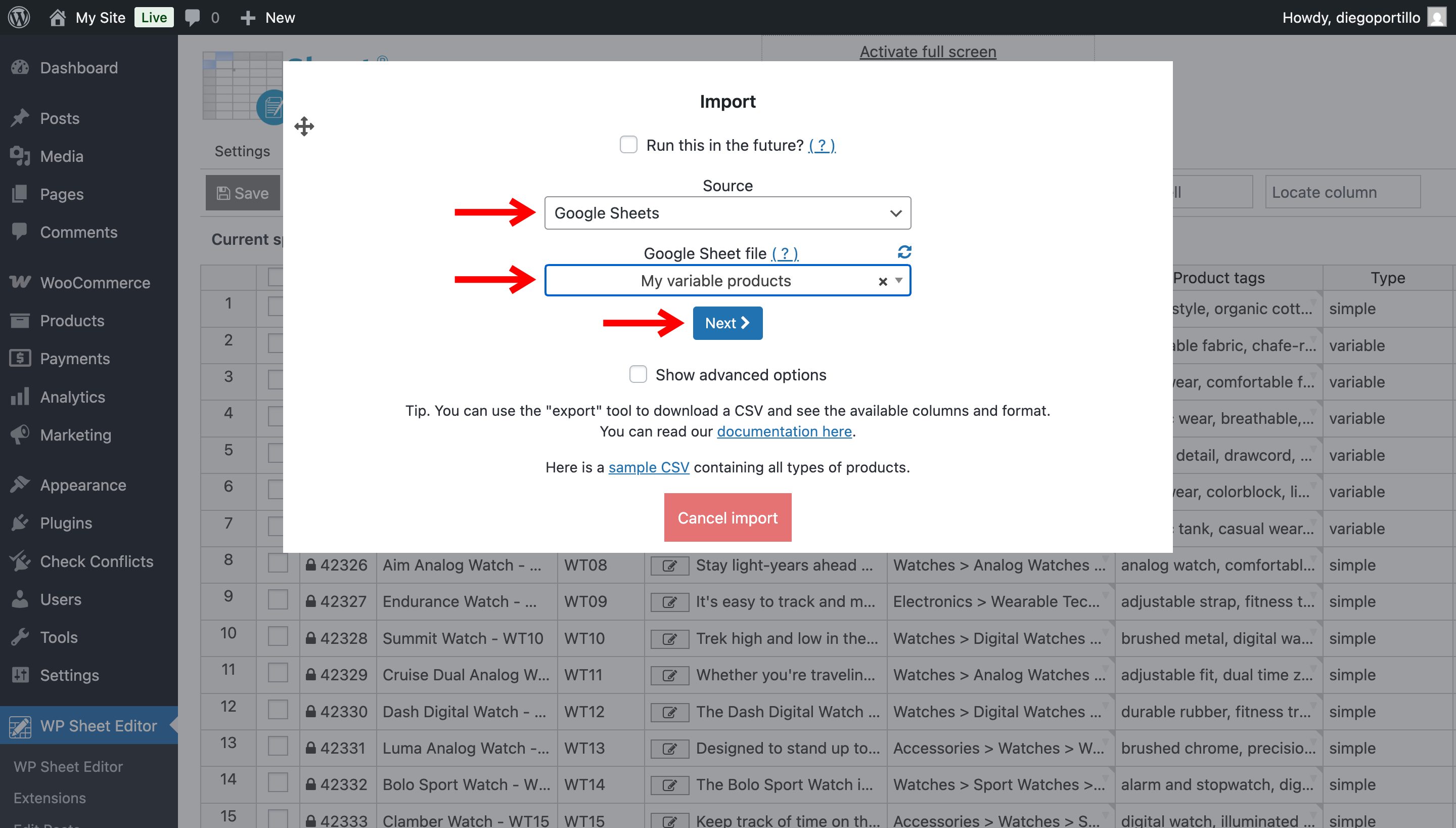
Choose these settings:
- Source: Google Sheets.
- Google Sheet file: Select the sheet containing your variable products and variations.
Click Next.
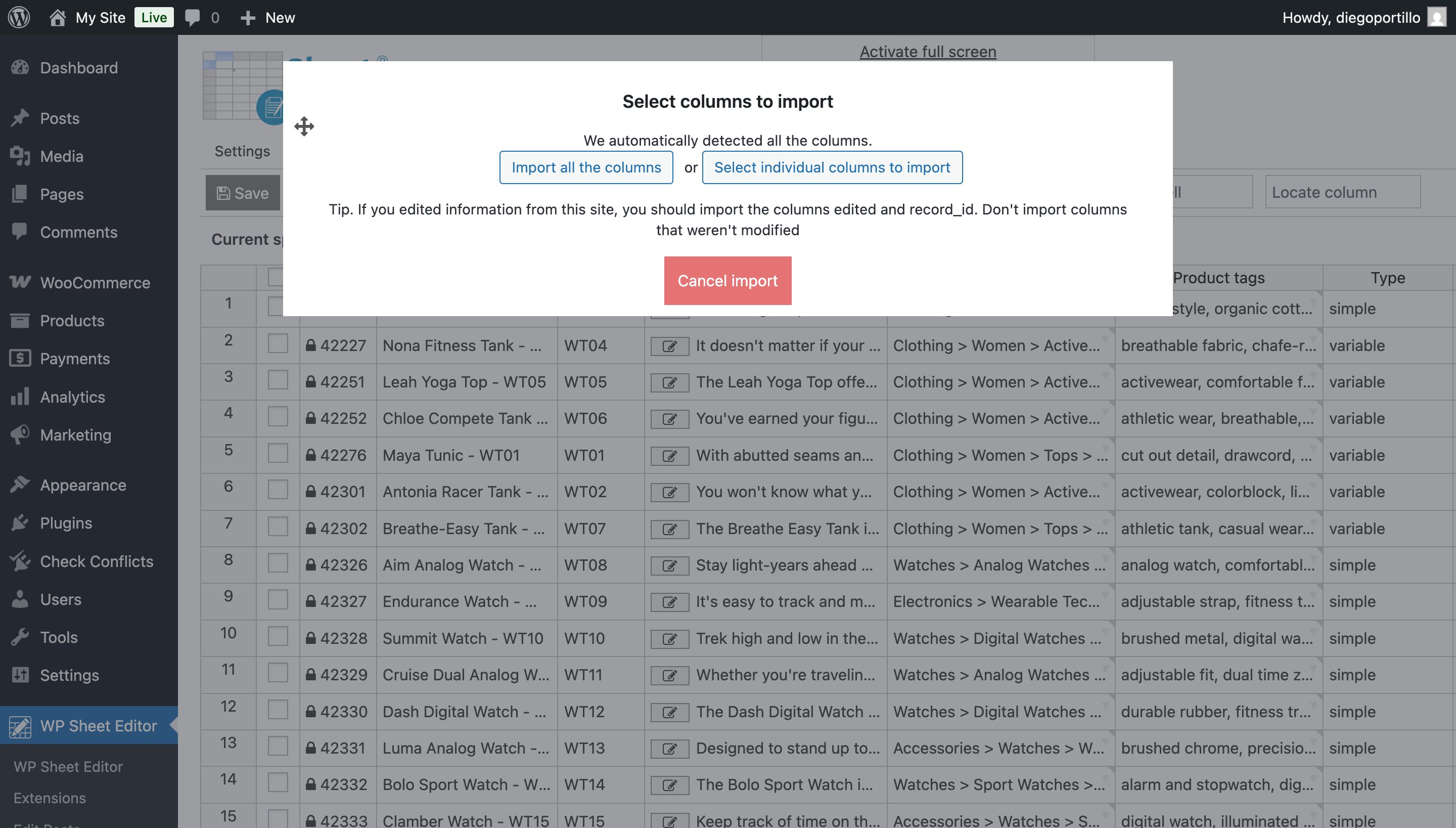
Next, select Import all the columns or Select individual columns to import.
For this example, we’ll import all columns. If you’re only updating existing variation prices or stock, you can select the relevant columns instead.
Now choose how WP Sheet Editor should handle the imported rows. You’ll find these options:
- Import all rows as new: Import every row as a new item.
- Only create new items, ignore existing items: Create new items without updating existing ones.
- Update existing items, ignore new items: Update matching items without creating new ones.
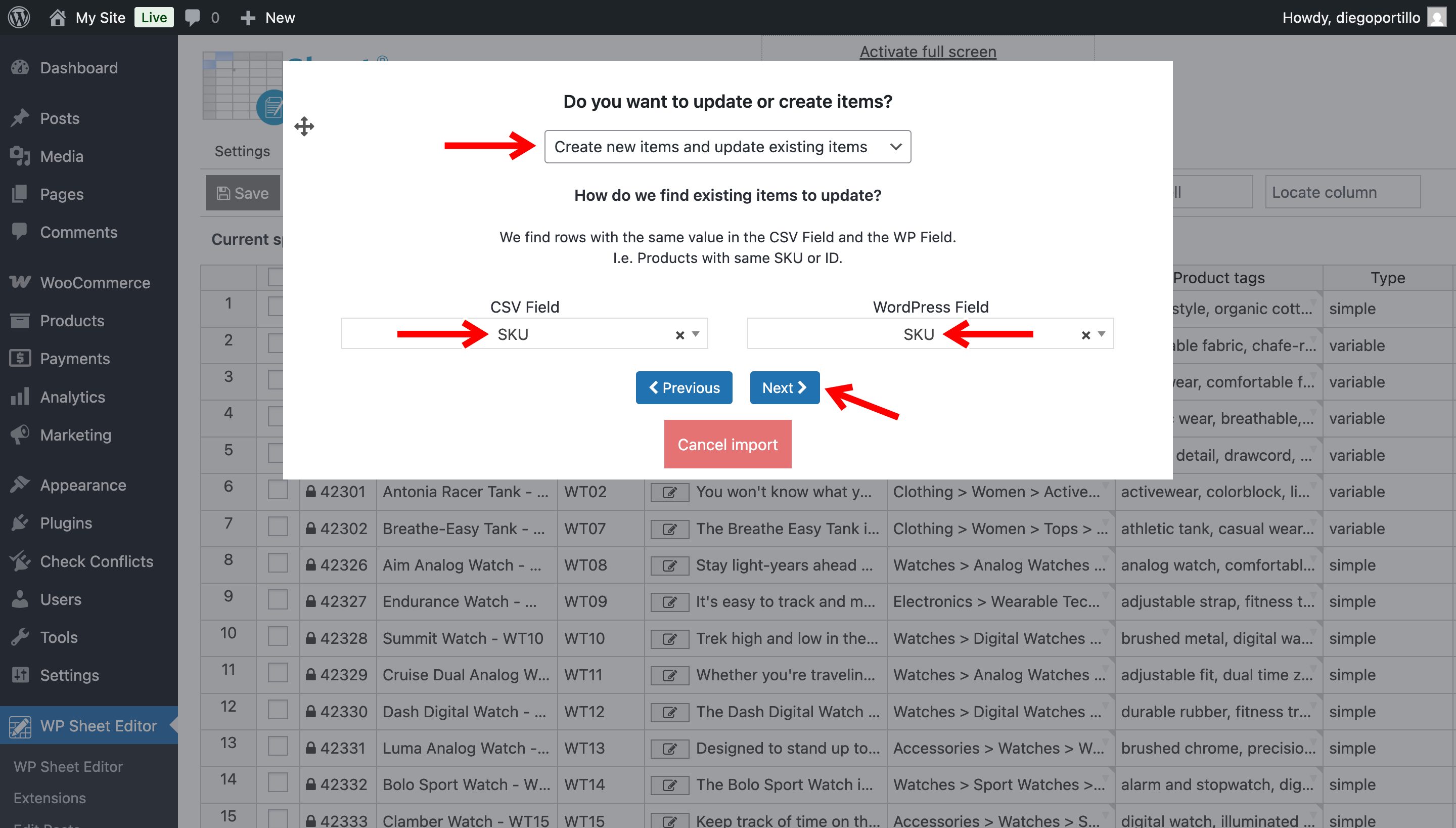
- Create new items and update existing items: Update matching items and create new ones.
I will select Create new items and update existing items. This allows us to update existing variable products and variations while also importing new ones.
For matching existing items, select SKU as the identifier.
WP Sheet Editor will use the SKUs in Google Sheets to find corresponding WooCommerce products and variations. Rows without a match can be created as new items, based on the selected import option.
Click Next.
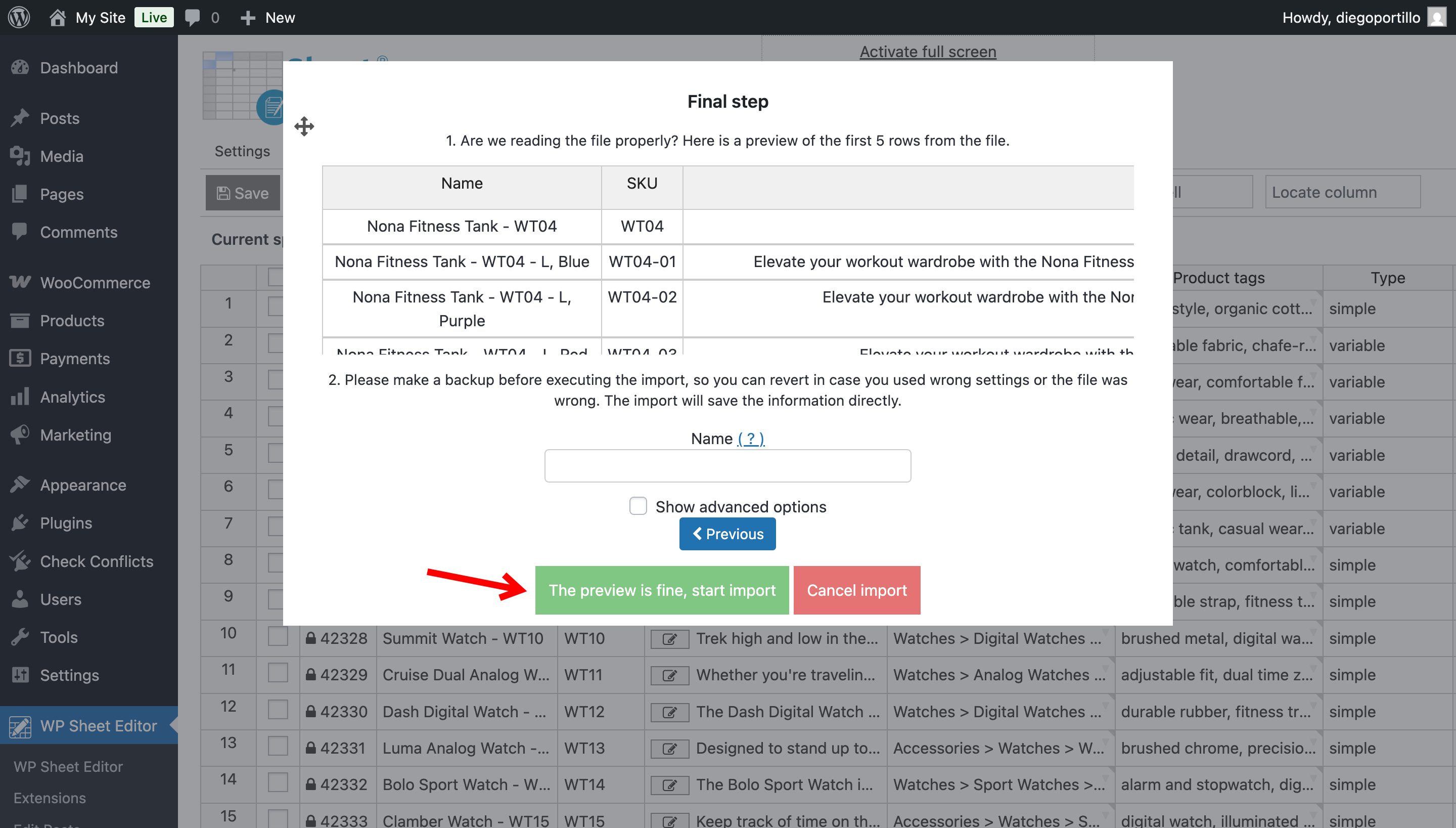
Finally, review the import preview. Check that the expected products and variation data are included.
If everything looks correct, click The preview is fine, start import.
Once the import finishes, open one of the updated or newly created variable products in WooCommerce. Check that its variations appear under the correct parent product, with the expected attributes, SKUs, prices, and stock quantities.
For large imports, I recommend testing a few products first to confirm that the data and matching settings work as expected.
Import WooCommerce variations directly from Google Sheets
With WP Sheet Editor for WooCommerce Products and Google Sheets Sync, you can import and update variable products and their variations without manually transferring CSV files.