
WooCommerce lets you add a purchase note to a product. The note is sent to the customer after purchase and can include instructions, links, or other product information. If you need to add or update notes for many products, you can edit them in Google Sheets and import the changes in bulk.
This tutorial shows how to export WooCommerce products to Google Sheets, edit the Purchase note column, and import the updated data with WP Sheet Editor.
What you need
WP Sheet Editor – WooCommerce Products displays your WooCommerce products in a spreadsheet inside WordPress.
You can purchase the plugin here:
Get the WooCommerce Products spreadsheet - or - Check the features
Google Sheets Sync connects the spreadsheet to Google Sheets so you can export and import product data.
You can sign up to the service here:
Sign up to the Google Sheets Sync Service - or - Check the features
1. Connect WordPress to Google Sheets
After subscribing to Google Sheets Sync, install its helper plugin and connect your Google account. Follow the installation guide to complete the setup.
2. Export WooCommerce products
In WordPress, go to WP Sheet Editor > Edit Products.
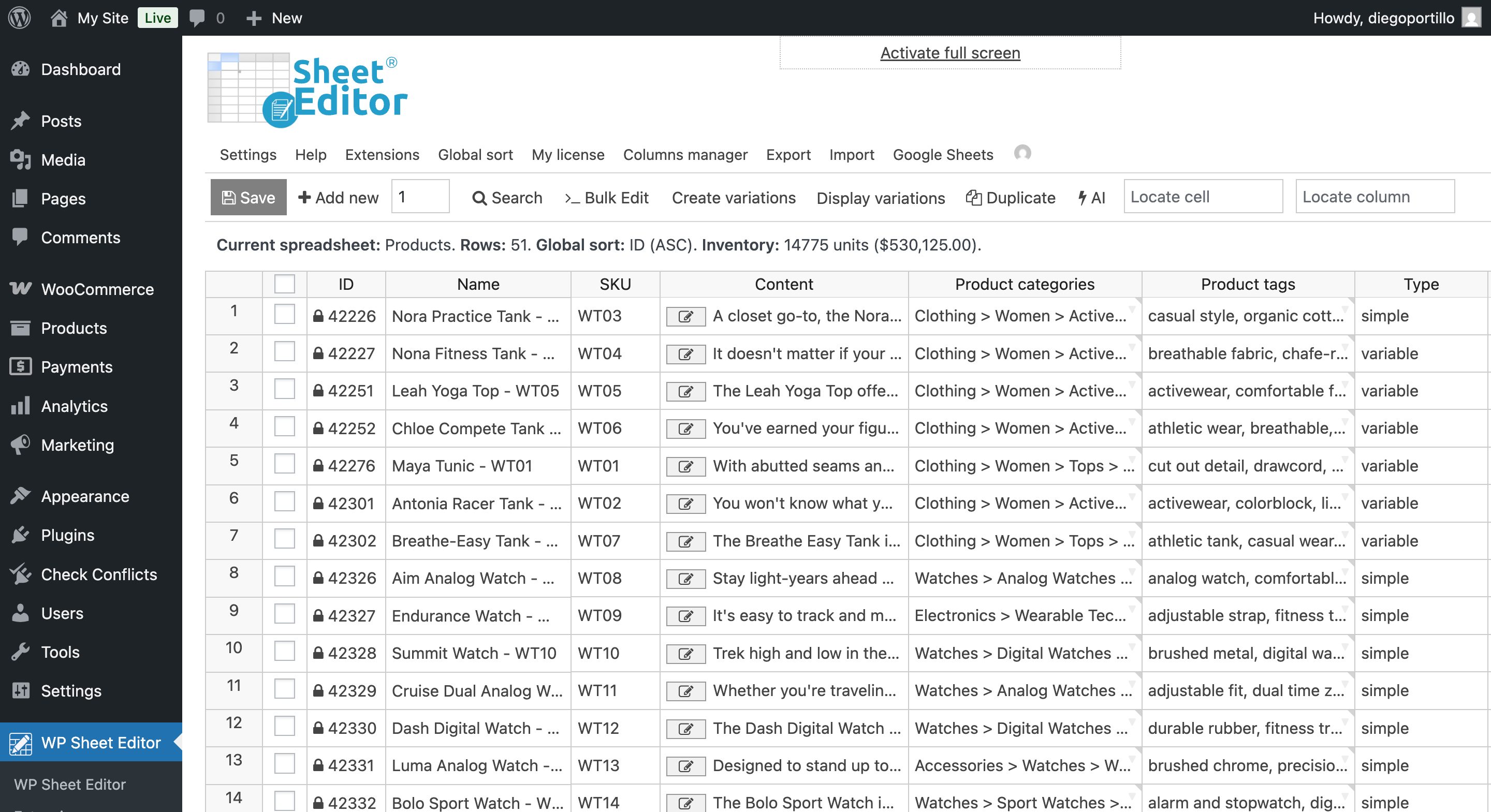
Google Sheets Sync can work with sheets created through the service. Create a new Google Sheet or export your product data to a new sheet using the steps below.
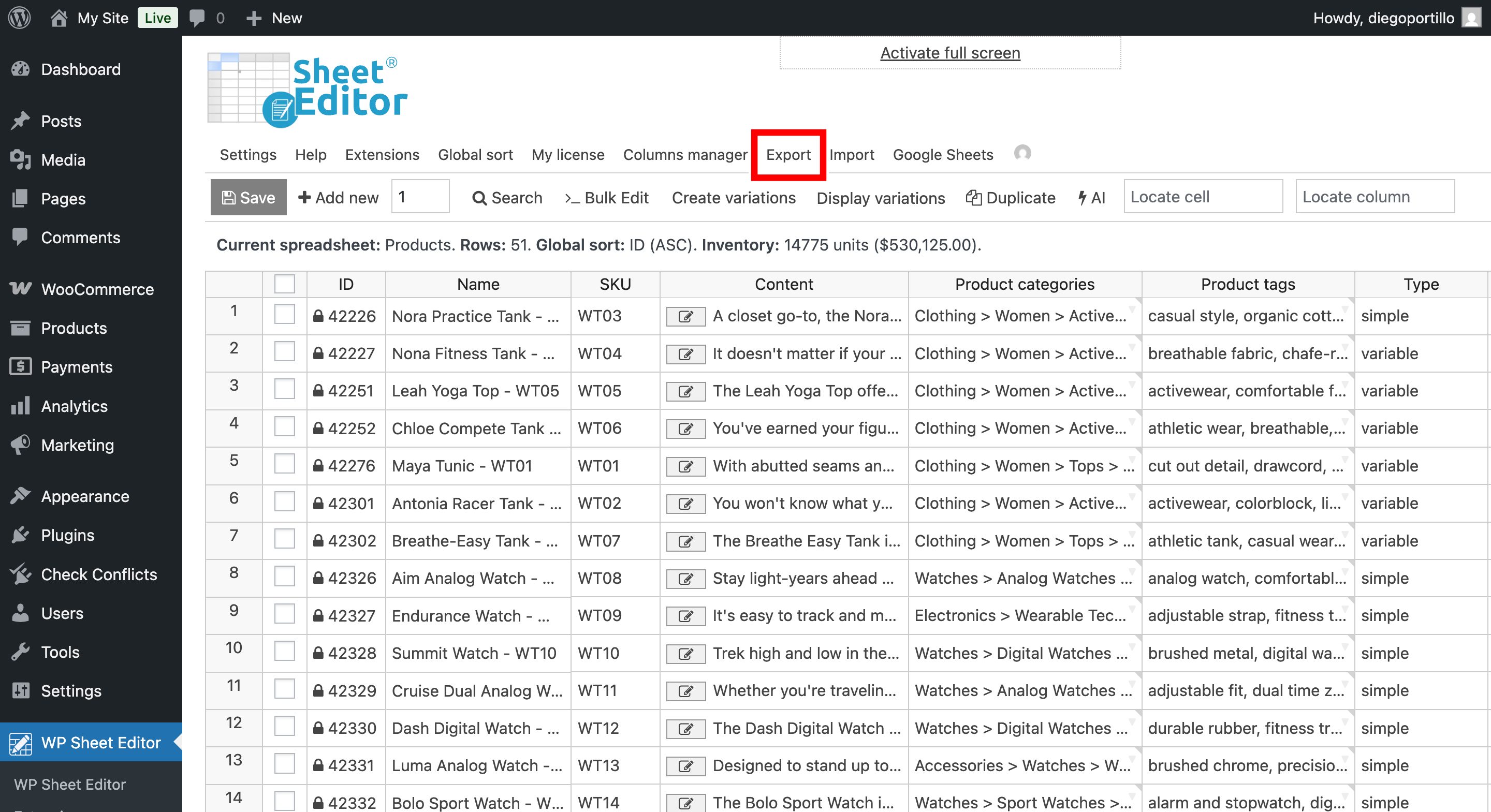
Click Export in the top toolbar.
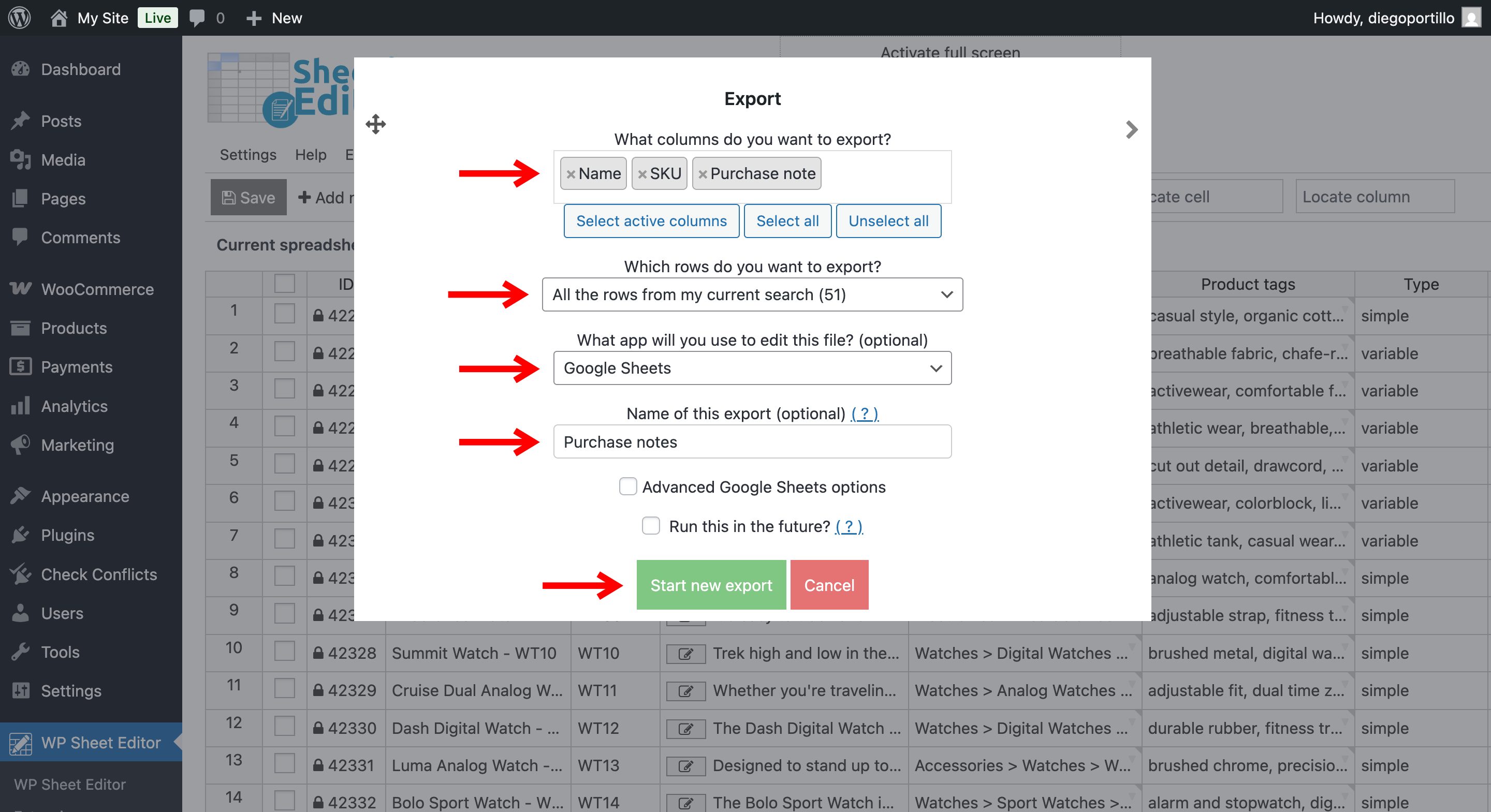
In the export popup, choose the product data to include. Select the Name, SKU, and Purchase note columns. Include the product ID if you plan to match products by ID during import.
- Which rows do you want to export? Select All rows from my current search to export all products in the current results.
- What app will you use to edit this file? Select Google Sheets.
- Name of this export: Enter a name, such as “WooCommerce Purchase Notes.”
Click Start new export.
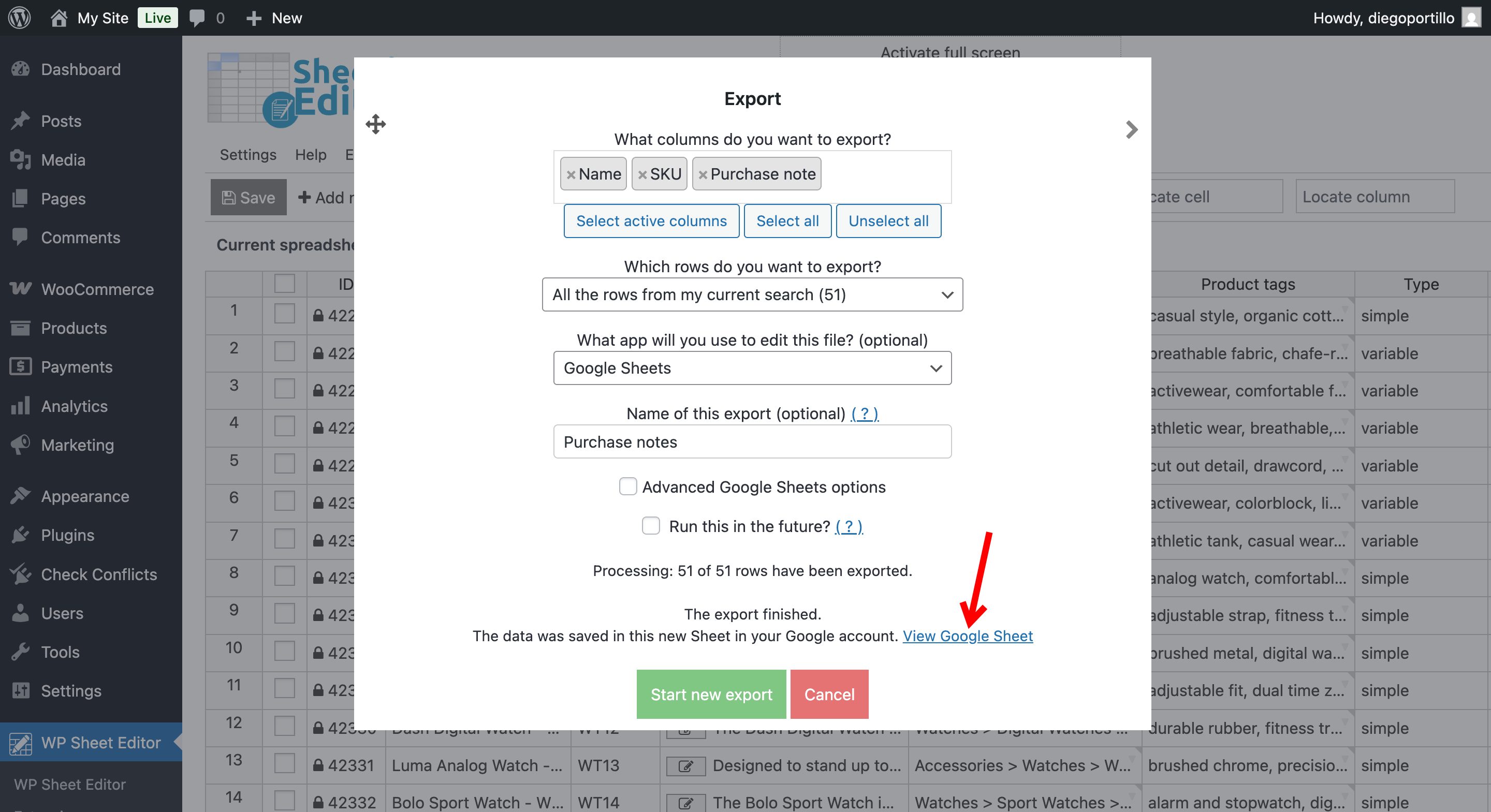
When the export finishes, click View Google Sheet to open the file.
3. Edit the purchase notes in Google Sheets
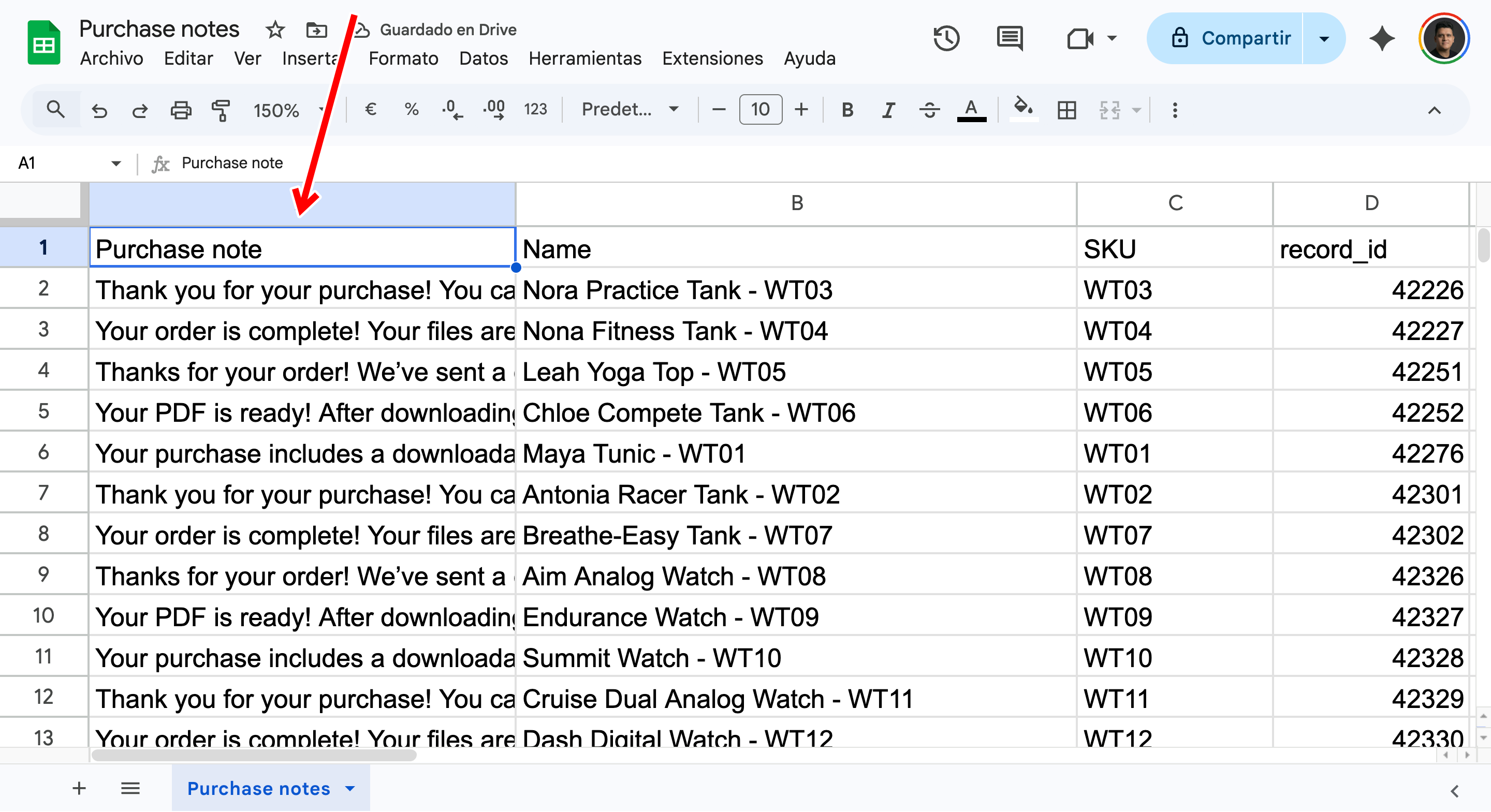
Find the Purchase note column. Enter or update the message for each product. You can copy a note into multiple rows if several products need the same message.
4. Import the purchase notes into WooCommerce
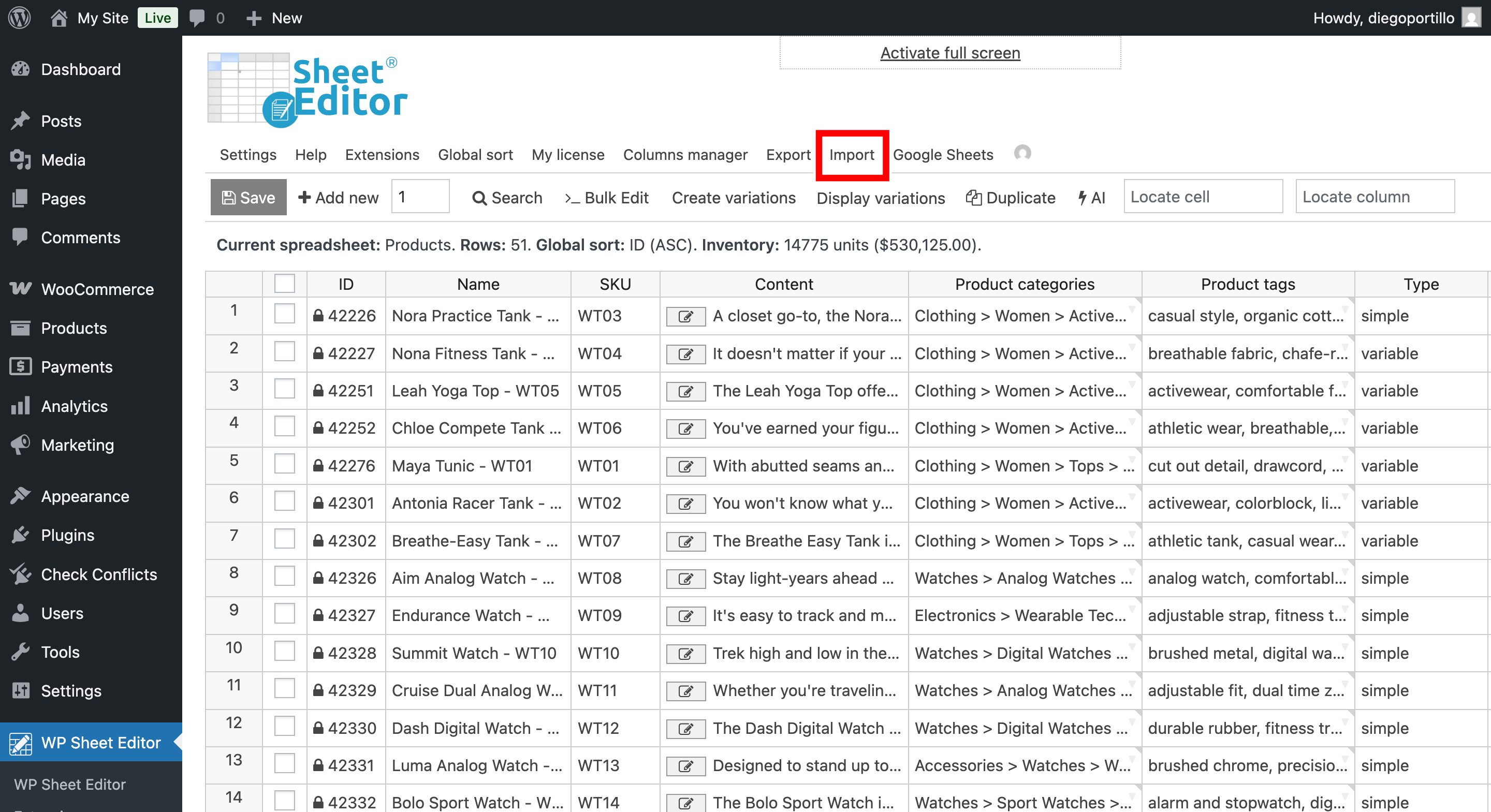
Return to WP Sheet Editor and click Import in the top toolbar.
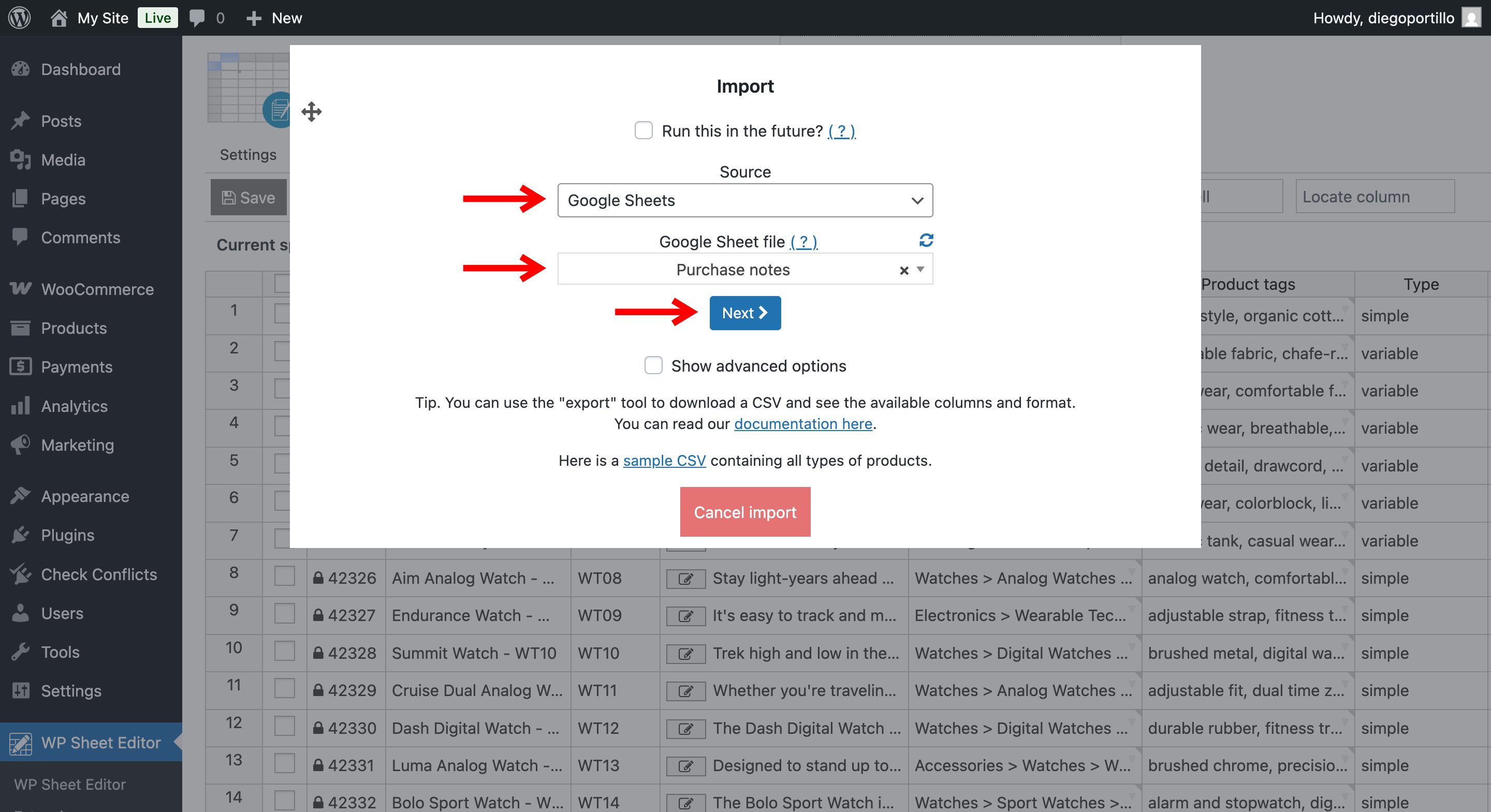
In the import wizard:
- For Source, select Google Sheets.
- Choose the sheet you edited.
- Click Next.
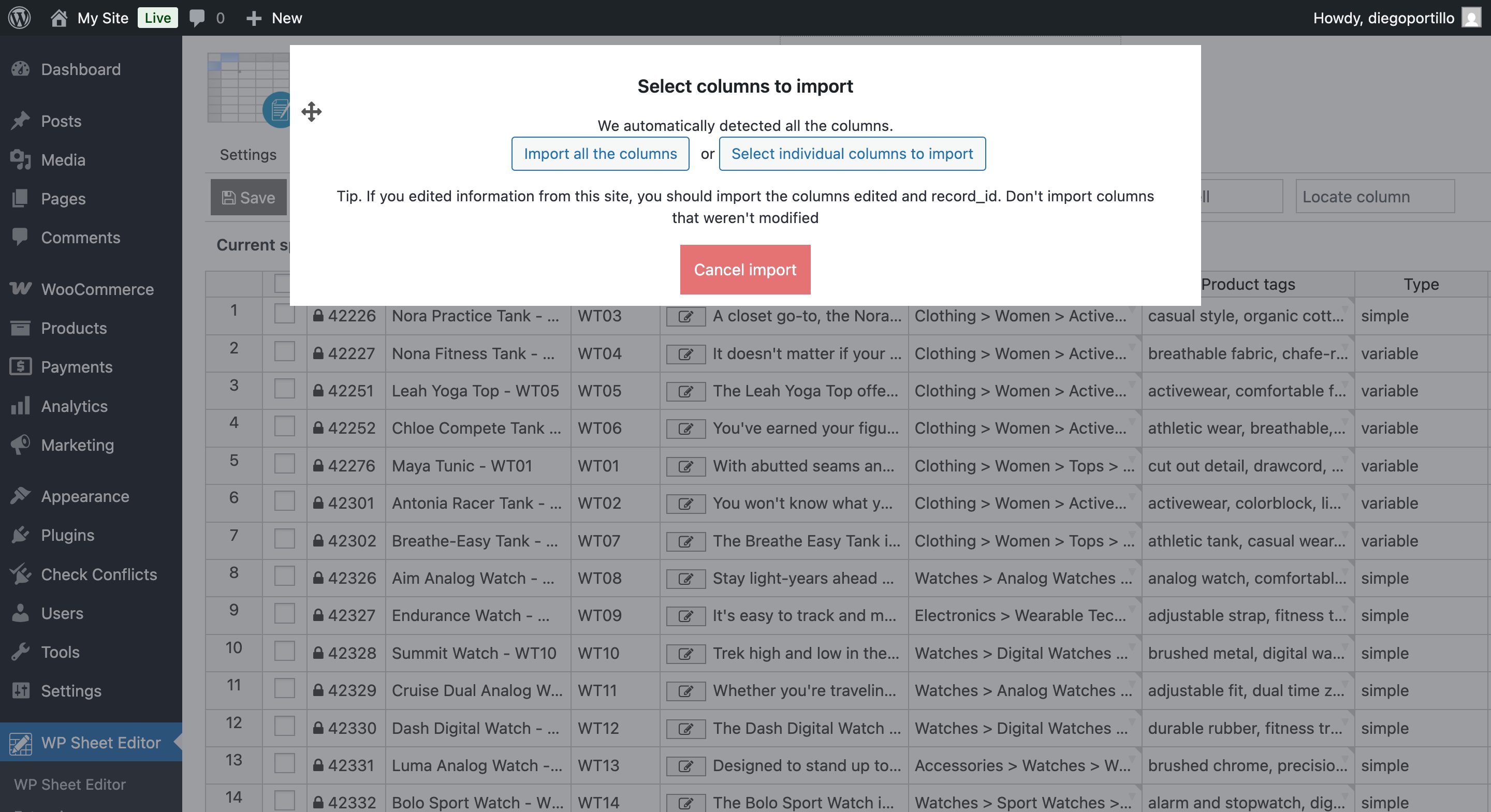
Choose whether to import all columns or map them manually.
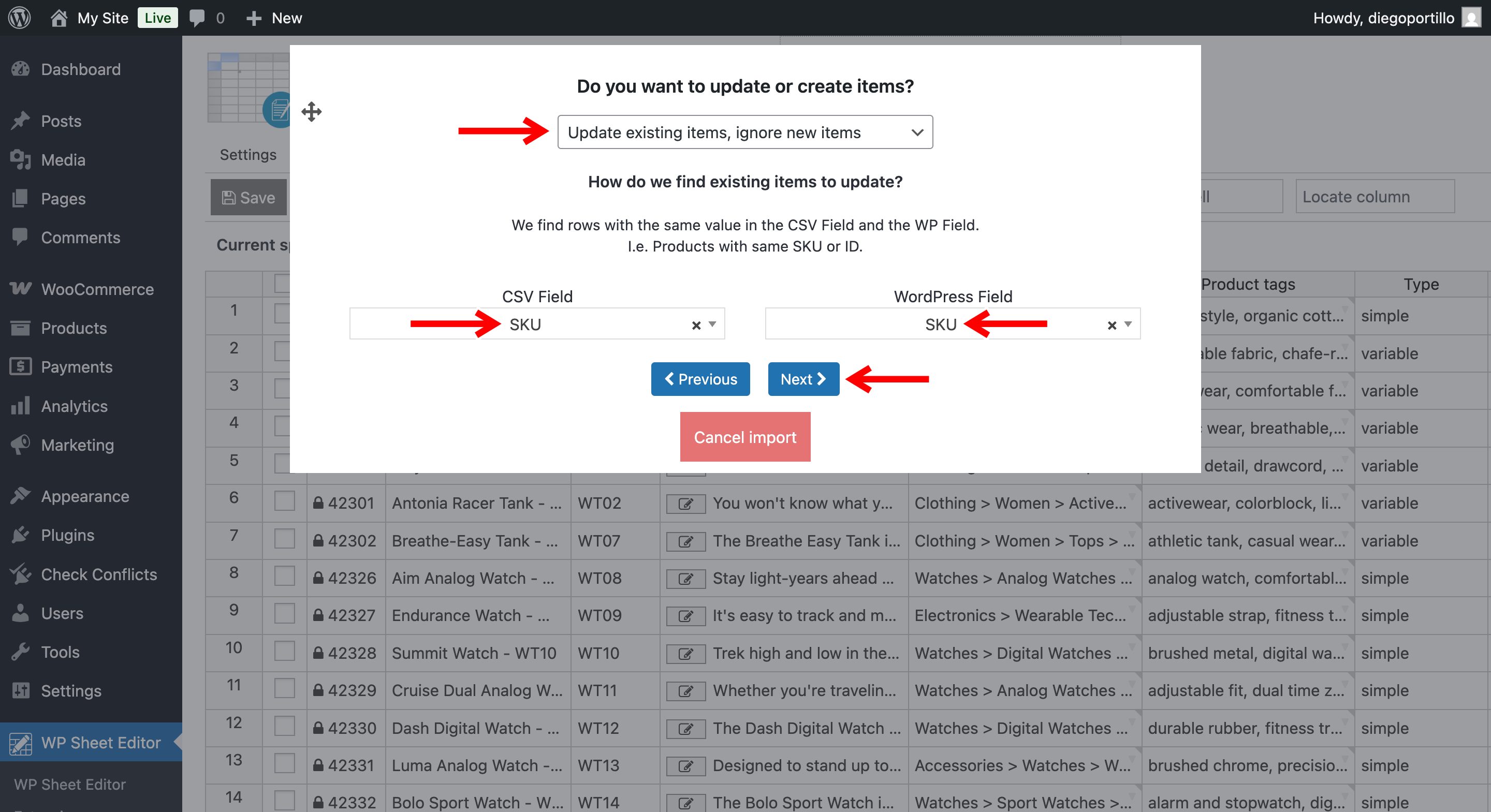
Under Do you want to update or create items?, choose to update existing products. Match them by SKU or ID, using the identifier included in your sheet.
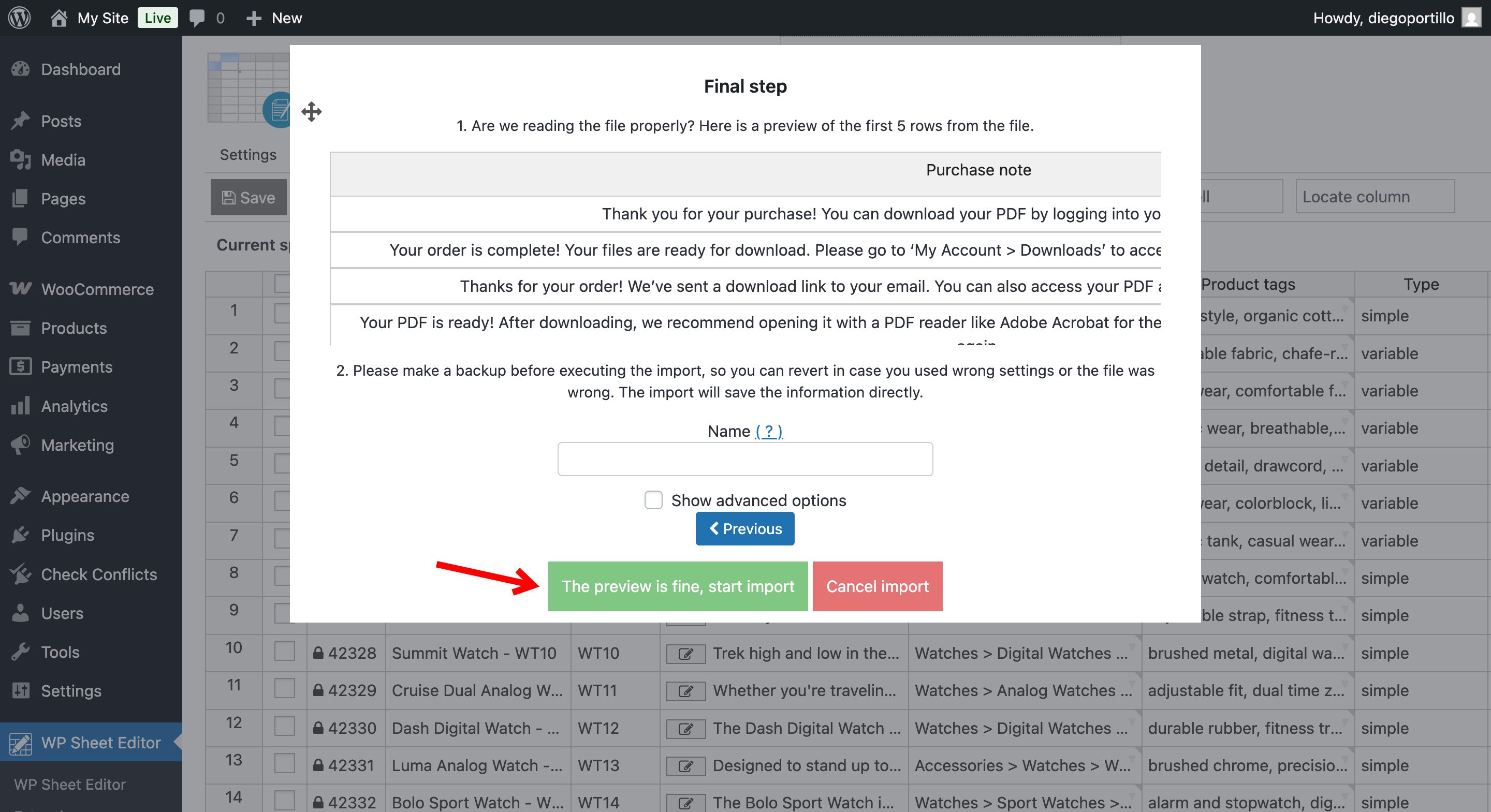
Review the preview, then click The preview is fine, start import.
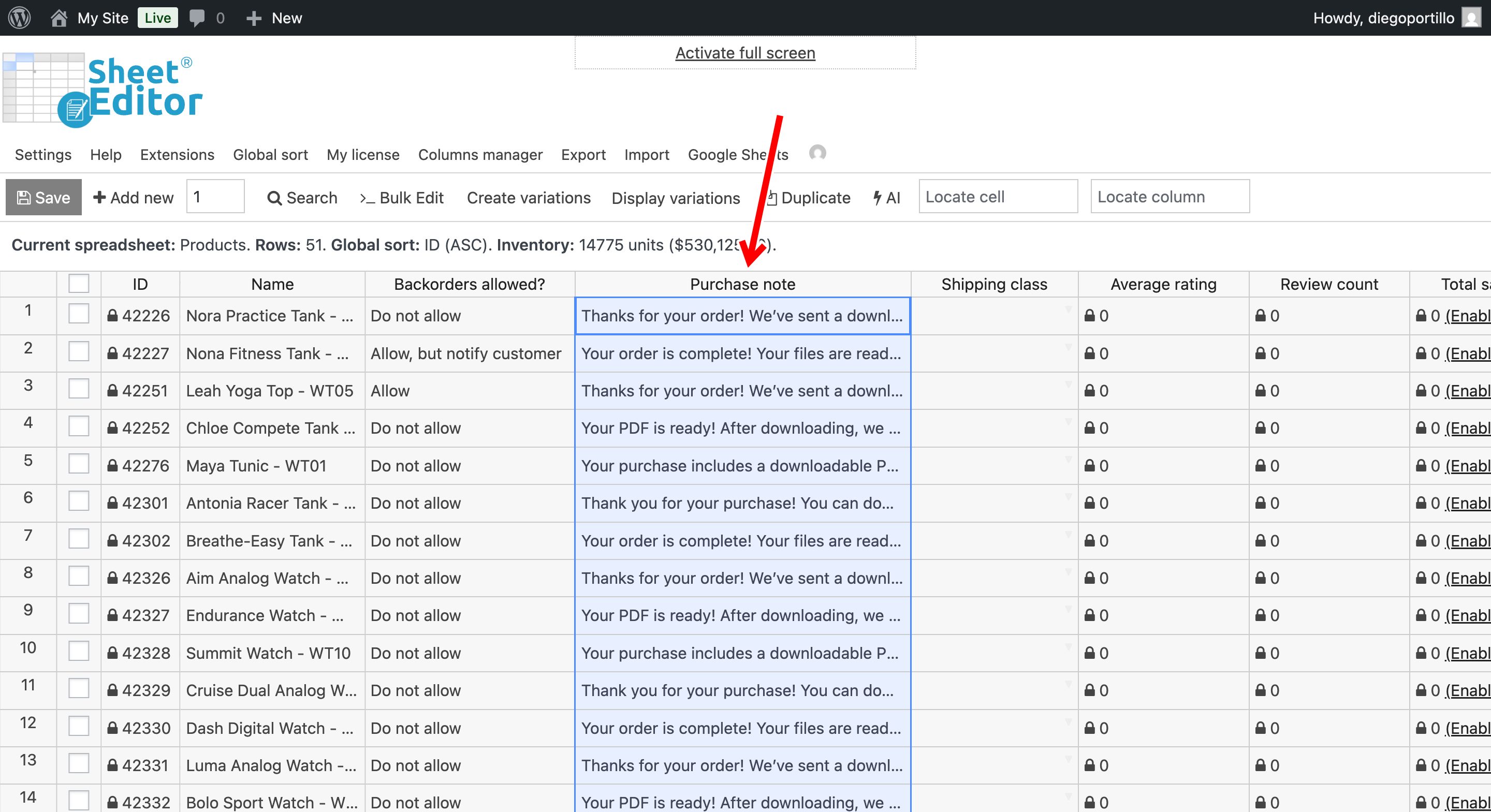
After the import, the updated purchase notes appear in the product spreadsheet.
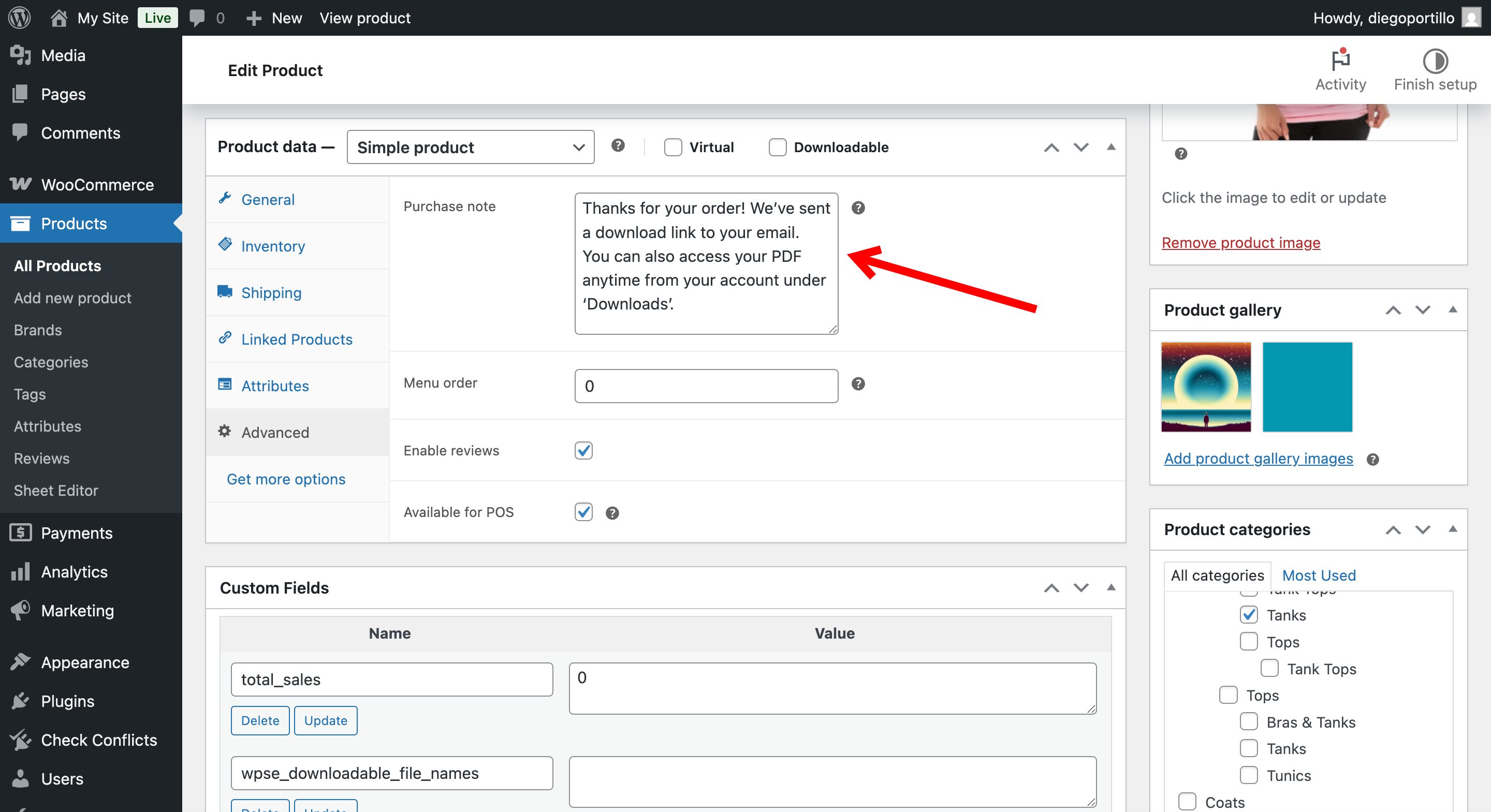
You can also open a product in the classic editor to confirm that its purchase note was updated.
Import WooCommerce purchase notes from Google Sheets
Export your products, edit the Purchase note column in Google Sheets, and import the sheet to update the notes in WooCommerce. This lets you manage purchase notes for multiple products in one workflow.