
When you have thousands of products in your WooCommerce store, locating a specific item can quickly become a frustrating task. Often, we don’t remember the exact product title or even the primary keyword used in the listing.
In these situations, you basically have two options in native WooCommerce: you can abandon the search entirely (which isn’t viable if it’s an urgent catalog update), or you can waste hours scrolling through dozens of pagination pages trying to spot your item. Because the default WooCommerce search relies on broad keyword matching, it doesn’t allow for precise alphabetical filtering.
The good news is that we have a much better, faster solution. In this tutorial, we will show you how to execute an advanced search and find WooCommerce products whose titles start with a specific letter (for example, finding all items that begin with the letter “S”).
Why Filter WooCommerce Products by Initial Letter?
Searching your catalog by the starting character is incredibly useful for several store management tasks:
- Alphabetical Audits: Reviewing your inventory naming conventions alphabetically to ensure consistency across your store.
- Finding Brands or Models: Quickly isolating all items from a specific brand when you forgot the exact model number (e.g., searching for “S” to find all Samsung or Sony products).
- Bulk Editing: Filtering products alphabetically to apply mass price changes, update stock statuses, or assign categories systematically.
1. Install the WooCommerce Products Spreadsheet Plugin
To bypass the limitations of the default WordPress dashboard, we will use the WP Sheet Editor – WooCommerce Products plugin. This powerful tool displays all your products in an interactive, Excel-like spreadsheet, helping you easily manage your e-commerce store.
You can save countless hours of manual labor because the spreadsheet contains an advanced Search tool and a robust Bulk Edit feature.
You can download the plugin here:
Download WooCommerce Products Spreadsheet Plugin - or - Check the features
Once you install and activate the plugin, open the spreadsheet interface by navigating to WP Sheet Editor > Edit Products.

2. Open the Advanced Search Tool
With this feature, you never have to worry about losing track of your products again. You can save a massive amount of time by applying dynamic search operators to filter your entire catalog quickly.
Click on the Search button located on the plugin’s top toolbar to open the filtering panel.

3. Filter Your Products by Title’s Initial Letter
Once you open the plugin’s Search tool, you can easily configure the query to find exactly what you need.
Tick the Enable advanced filters checkbox to reveal the dynamic search operators, and then select the following values to filter your products by their starting character:
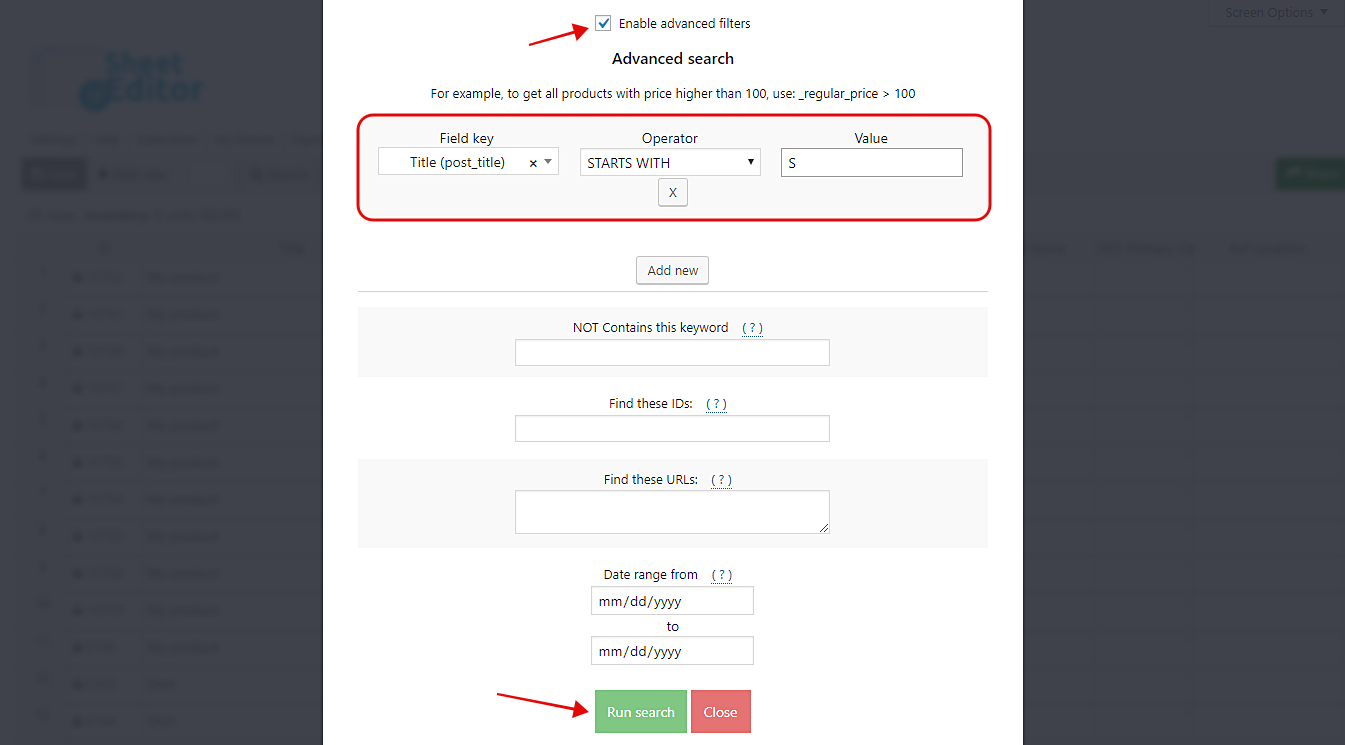
- Field key: Title
- Operator: STARTS WITH
- Value: Enter the target initial letter in this field (for example, type S to find all products starting with the letter S).
Once you’ve set these simple search parameters, click on the Run search button to filter your database.
4. Review and Manage Your Filtered Products
Done! It’s a piece of cake.
After running the search, the spreadsheet will reload, and all the products whose titles begin with your specified letter will be perfectly isolated and displayed on the grid.

From here, you can easily review your inventory, update prices, or fix naming inconsistencies directly in the spreadsheet cells.
By leveraging the WP Sheet Editor plugin, you can save countless hours trying to locate your products. Beyond searching by the initial letter, you can use these same advanced filters to find items by keyword, category, author, attribute, date, content, and so much more.
You can download the plugin here:
Download WooCommerce Products Spreadsheet Plugin - or - Check the features