
Learn how to bulk edit sale prices to put hundreds of WooCommerce products on sale. You’ll see how to easily apply flat or percentage discounts, how to schedule sale start and end dates, and even how to clear promotions with WP Sheet Editor.
When you launch a promotion in your WooCommerce store, you can feel excited or worried! No middle ground. Let’s say you want to launch a seasonal sale, clear out old stock, or maybe test a storewide discount. You surely need to get sale prices live fast. But WooCommerce’s built-in bulk editor limits how many products you can touch at once, leaves product variations out entirely, and gives you no way to schedule when a sale starts or ends.
WP Sheet Editor for WooCommerce Products fixes that. This plugin turns your WooCommerce products into an editable spreadsheet where you can:
- apply sale prices to hundreds of products at once,
- calculate discounts automatically from the regular price,
- schedule start and end dates,
- and clear promotions when the campaign is over.
And you do it all from the WordPress admin dashboard. So if you want to bulk edit sale prices in parent products and variations and schedule promotional dates, keep reading.
You can download the plugin here:
Download WooCommerce Products Spreadsheet Plugin - or - Check the features
Native bulk actions for sale pricing
If you want to use the normal bulk editor to manage sale prices, you only have these option:
- Change to
- Increase existing price by (fixed amount or %)
- Decrease existing price by (fixed amount or %)
- Set to regular price decreased by (fixed amount or %)
That sounds reasonable until you actually run a promotion. Here’s where the native tools break down:
- You cannot schedule sale dates in bulk.
- You cannot discount product variations.
- You can get
max_execution_timeor 504 Gateway Timeout errors.
Please always make sure to back up your WooCommerce database before applying bulk pricing changes across your catalog. Keep in mind that changes made with WP Sheet Editor are written into the database directly.
Opening the product spreadsheet
To bulk edit sale prices, first load your products into the WP Sheet Editor spreadsheet:
- Go to WP Sheet Editor > Edit products.
- Your products appear as rows, with pricing columns such as Sale price, Sale start date and Sale end date.
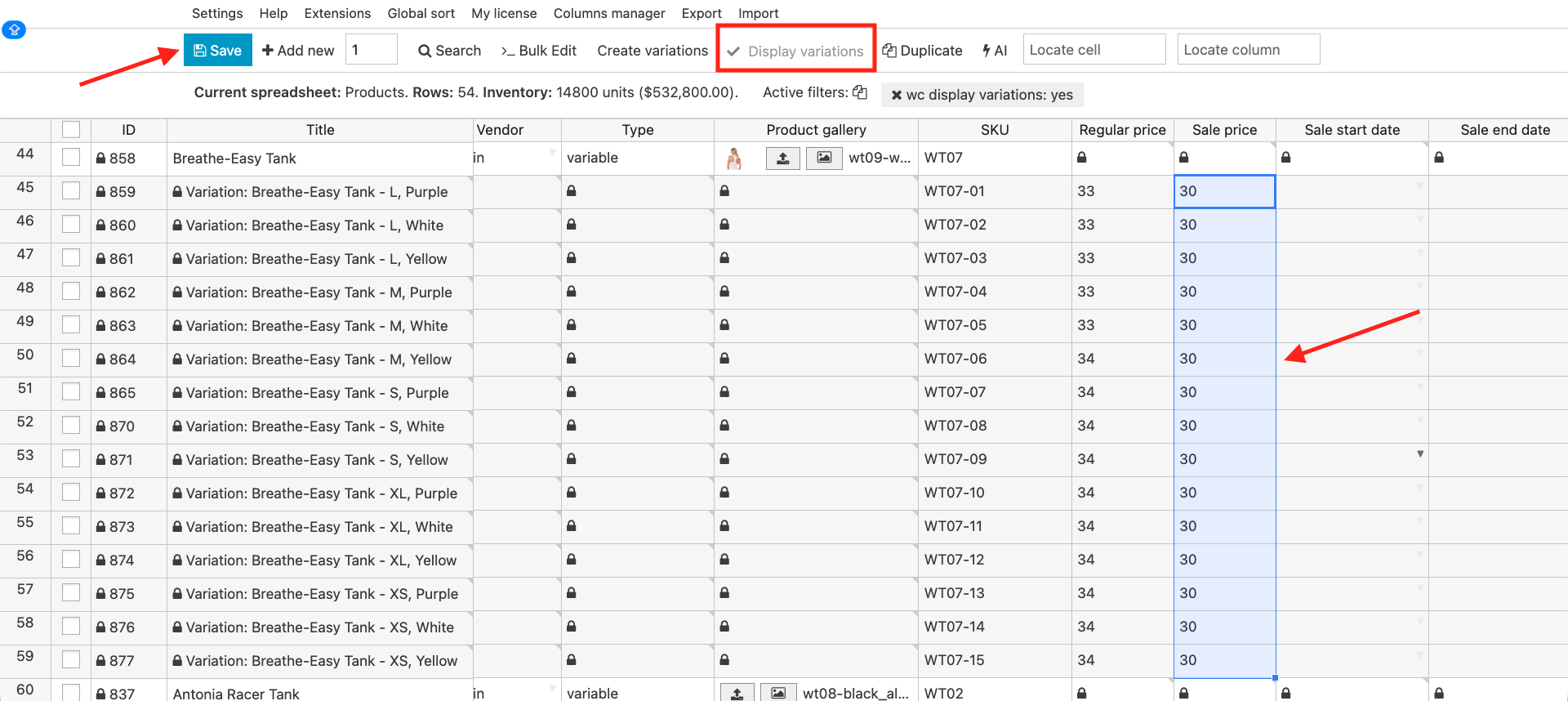
- Click Display variations in the toolbar to include child variations.

Looking for regular price edits instead? See our guide to bulk editing WooCommerce regular prices.
How to Bulk Edit WooCommerce Sale Prices
With WP Sheet Editor you can edit WooCommerce sale prices using the spreadsheet or using the bulk editor tool. Let’s see both options.
Editing sale prices in the spreadsheet
Locate the columns to manage your sale pricing:
- Sale price: Type your discounted price here.
- Sale start date: Double-click to select the exact date the sale price begins.
- Sale end date: Double-click to select the date the sale automatically expires.
Note: Defining sale start and end dates is completely optional. If left blank, the sale price will remain active indefinitely until you remove it.

If you want to edit sale prices on product variations using the spreadsheet:
- Click on Display variations.
- Locate the Sale price column.
- Change the sale prices in the spreadsheet cells.
- Once you’re done, click on Save to apply the changes. Note. You can also edit the Sale start date and the Sale end date columns.
Bulk updating sale prices
If you want to update the sale price for many products at once, it’s best to use the bulk editor, since you can put products on sale with just a few clicks.
Step 1. Select the products you want to edit
Selecting which products to edit is a key step since it allows you to choose whether to edit all products, only specific products selected manually, or run a search to edit products that share key parameters such as category, stock status, attributes, and so on.
Option 1. Edit all the products
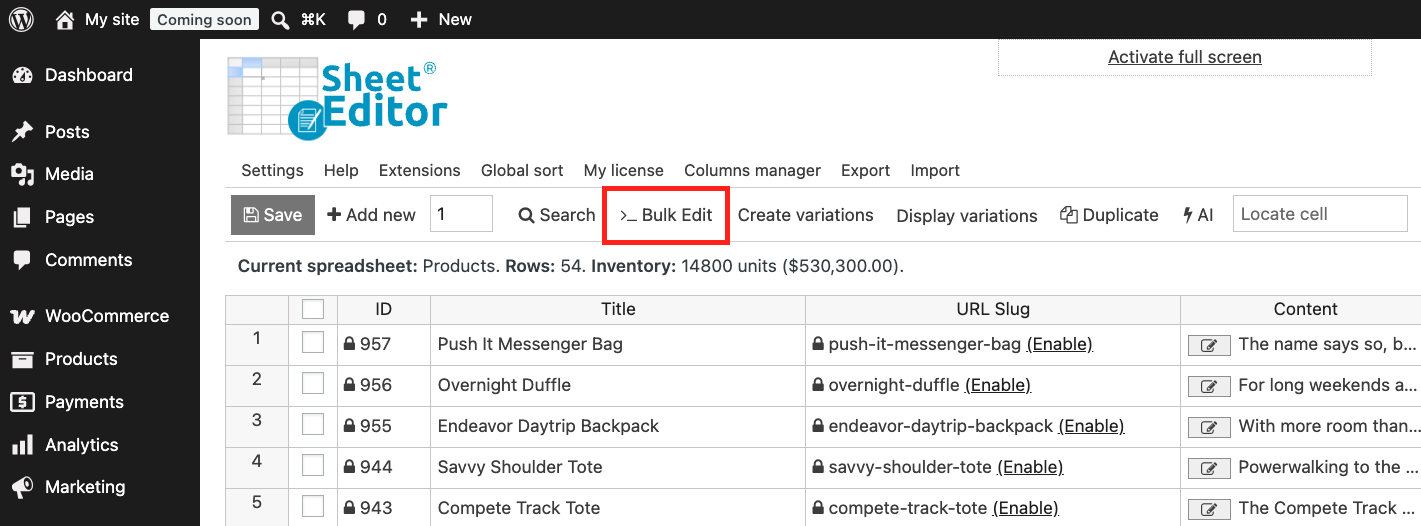
You don’t need to filter or select anything if you’re going to edit your entire catalog. Just open the Bulk Edit tool and go to Step 2.
Option 2. Edit specific products selected manually
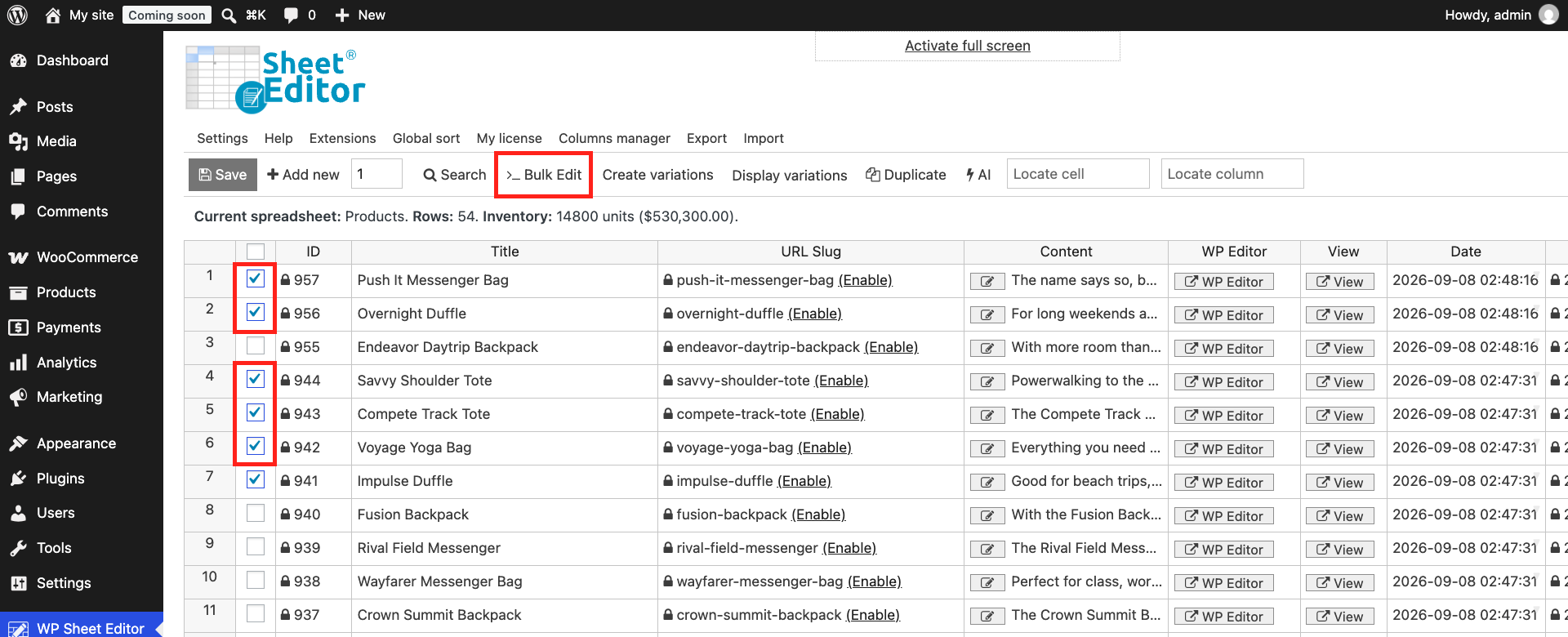
Perfect when you want to edit products that aren’t linked by a common category, price, or stock status. For example, a curated list of featured items you want to put on sale. You just need to use the checkbox selector that appears on the left side of the spreadsheet.
Once you have selected the products, you have to open the Bulk Edit tool and go to Step 2.
Option 3. Edit all the products from a search
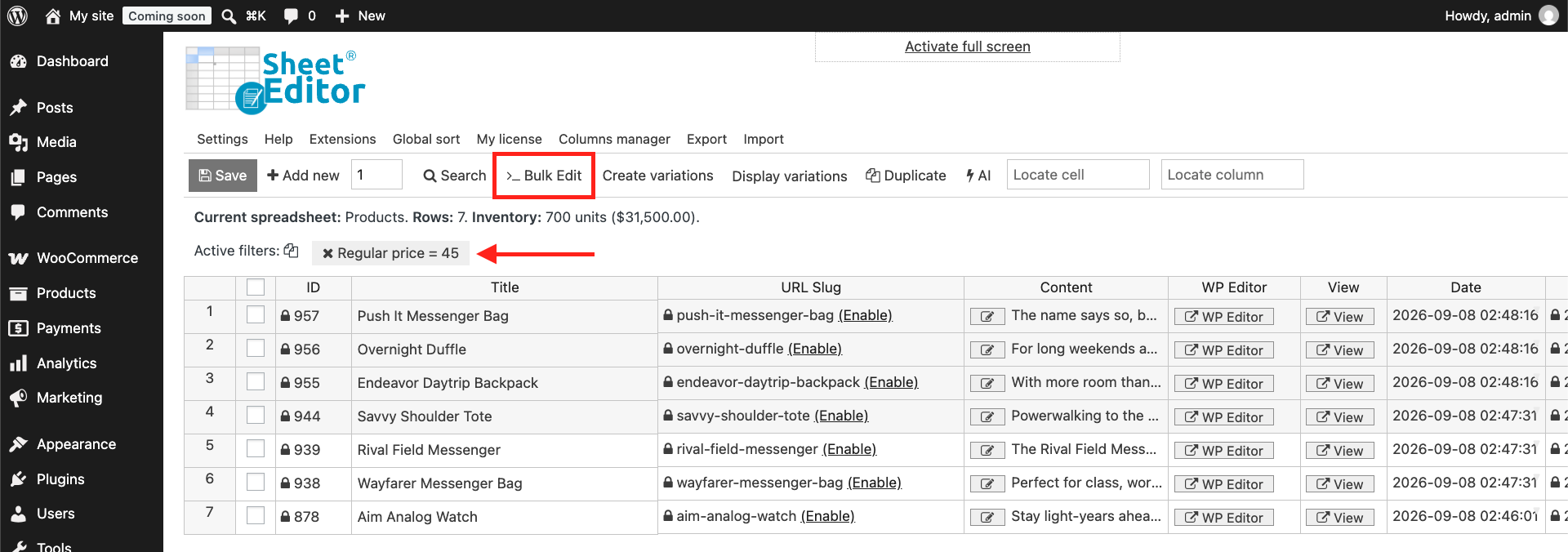
For example, if you want to put on sale all products priced at 45 dollars, you can use the Search tool to filter products where Regular price = 45.
Open the Search tool.

Set these settings to find products with regular price = 45:
- Tick the Enable advanced filters checkbox.
- Field: Regular price
- Operator: =
- Value: 45
- Click Run search.

Once the products matching the search criteria are displayed in the spreadsheet, you need to open the Bulk Edit tool and go to Step 2.
Step 2. Bulk update sale prices
In the Bulk Edit tool, you need to set these values to bulk add or update the sale prices:
- Select the rows that you want to update: This depends on how you selected the products (all, search, manual selection).
- What field do you want to edit: Sale price
- Select type of edit: There are several bulk update options you can use to edit the sale prices of your WooCommerce products:
- Set value: Use this to apply the exact same flat sale price (e.g., $10.00) to all selected products. It’s the equivalent of the Change to option in the native editor.
- Increase by percentage / number: This type of edit lets you increase an existing sale price by a specific number or percentage.
- Decrease by percentage / number: This one is great to lower an existing sale price even further.
- Copy regular price and decrease by number: Use this option if you want to lower the current regular price of the products by $2.
- Copy regular price and decrease by percentage: Use this option if you want to apply a specific percentage discount to the current regular price.
- Value: Enter the numeric discount amount or percentage into the field that appears for your selected calculation.
- Select what you want to edit:
- Edit only parent products
- Edit only variations
- Click on Execute Now.

Example: Apply a percentage discount to the regular price
Let’s say you want to run a 20% off storewide promotion. In the Bulk Edit tool, select:
- What field do you want to edit: Sale price
- Select type of edit: Copy regular price and decrease by percentage
- Value: 20
- Select what you will edit:
- Only parent products
- Only variations
- Click on Execute Now.
The plugin calculates the discounted sale price for every selected product automatically.
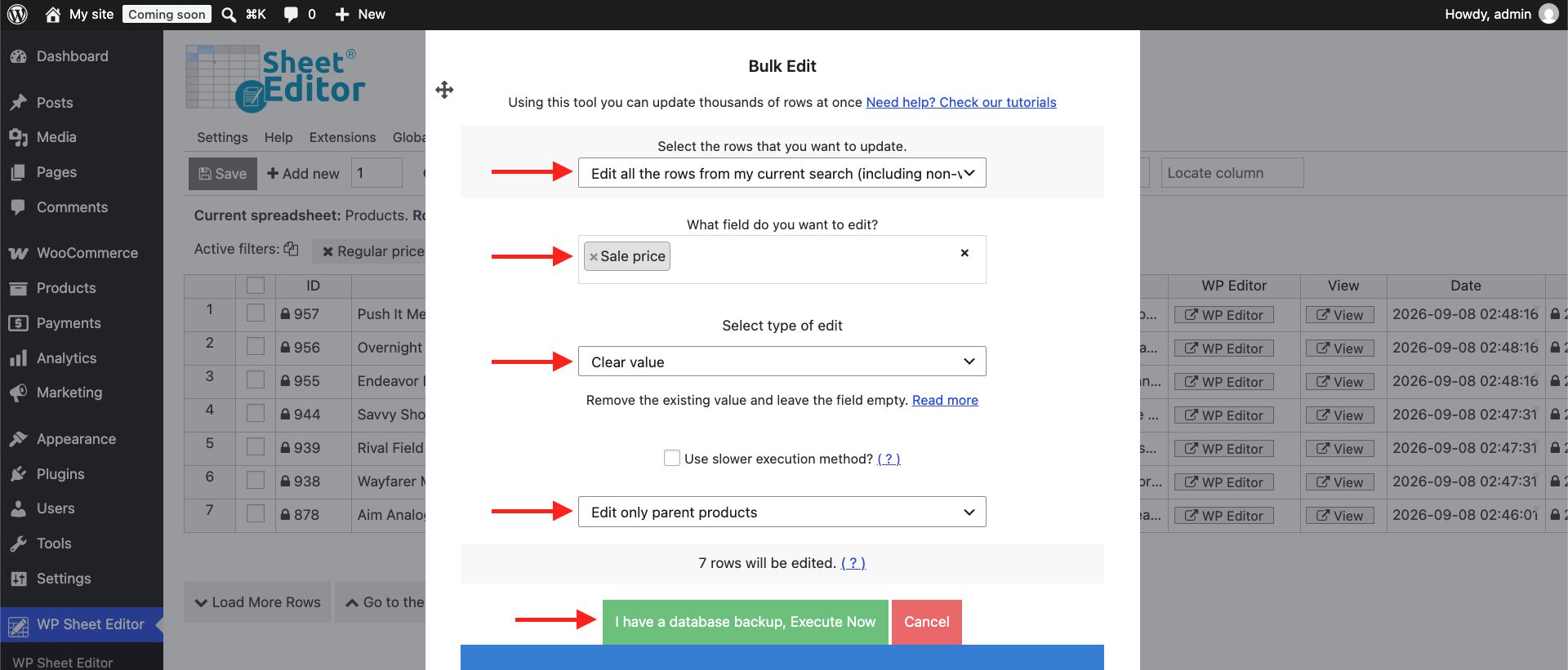
Example: Clear sale prices in bulk to end promotions
Let’s say you set sale prices for many WooCommerce products. However, you didn’t add expiration dates for the promotion. In this scenario you may need to remove or clear the promotional prices to end the promotion. But if you edit the products one by one, you’ll end up spending many hours on it. With the Bulk Edit tool you can clear the values of the Sale price field for hundreds of products with just a few clicks.
Select these values in the Bulk Edit tool to clear sale prices:
- Select the rows that you want to update: This depends on how you selected the products (all, search, manual selection).
- What field do you want to edit: Sale price
- Select type of edit: Clear value
- Select what you will edit:
- Edit only parent products
- Edit only variations
- Click on Execute Now.
Optional: Bulk update sale dates
In addition to editing the sale price field, you can edit the start and end dates of a promotional price in bulk. This lets you schedule a promotion that starts and ends automatically across your entire catalog.
a) Bulk update the start dates
In the Bulk Edit tool, you need to select these values to set a new sale start date:
- Select the rows that you want to update: This depends on how you selected the products (all, search, manual selection).
- What field do you want to edit: Sale start date
- Select type of edit: Set value
- Replace existing value with this value: Select the sale start date.
- Select what you will edit:
- Edit only parent products
- Edit only variations
- Click on Execute Now.

b) Bulk change sale end date
Select these values to define the date the sale price ends:
- Select the rows that you want to update: This depends on how you selected the products (all, search, manual selection).
- What field do you want to edit: Sale end date
- Select type of edit: Set value
- Replace existing value with this value: Select the sale end date.
- Select what you will edit:
- Edit only parent products
- Edit only variations
- Click on Execute Now.

Frequently Asked Questions
Can I edit sale prices on product variations?
Yes. If you’re editing in the spreadsheet, make sure to Display variations to edit variation sale prices. If you’re editing in the Bulk Edit tool, select the Edit only variations option.
How do I end a promotion that has no expiration date?
Use the Bulk Edit tool to clear the values in the sale price field.
You can download the plugin here:
Download WooCommerce Products Spreadsheet Plugin - or - Check the features