
You can use AI to categorize WooCommerce products in bulk based on their titles and descriptions. This is useful when you’ve imported products without the correct categories or need to organize existing products.
With WP Sheet Editor – AI, you can create prompts that analyze product information and generate category assignments, including parent and child categories. You can run these prompts directly in spreadsheet cells or use the Bulk Edit tool to categorize multiple products at once.
In this tutorial, we’ll show you how to generate WooCommerce product categories with AI, find products that need categorization, and assign categories in bulk.
Table of Contents
When to use AI for WooCommerce product categorization
You can use AI-generated category assignments for several tasks:
- Categorizing imported products: Assign categories to products imported from CSV files or supplier catalogs.
- Organizing migrated products: Generate category assignments for products imported from another ecommerce platform.
- Fixing uncategorized products: Find products assigned to the default Uncategorized category and generate more appropriate categories.
- Assigning parent and child categories: Generate hierarchical category paths based on product titles and descriptions.
AI-generated categories should be reviewed to ensure they match your store’s existing category structure and accurately describe each product.
Tools for AI-powered category sorting in WooCommerce
1- WP Sheet Editor – WooCommerce Products
This plugin allows you to view and manage your WooCommerce products in an intuitive spreadsheet on your WordPress dashboard.
You can download the plugin here:
Get the WooCommerce Spreadsheet Editor - or - Check the features
2- WP Sheet Editor – AI
This extension connects you WP Sheet Editor spreadsheets to your favorite AI providers to use your favorite AI models to generate or edit WordPress and WooCommerce content.
Ready to organize your catalog?
3- An AI Provider API Key
You need an active connection to an AI provider (such as OpenAI, OpenRouter, or any other OpenAI-compatible provider). If you haven’t established this connection yet, please refer to our API setup guide.
Create a global AI prompt
The AI prompt should analyze each product’s title and description and return the appropriate category hierarchy. In WP Sheet Editor, you can separate parent and child categories using the greater-than symbol (>), for example: Electronics > Computers > Laptops.
Important: Make sure your taxonomy term separator doesn’t conflict with existing category names. See how to resolve taxonomy term separator warnings.
To create a global AI prompt, go to WP Sheet Editor > AI > Settings > Prompts and click Add new.
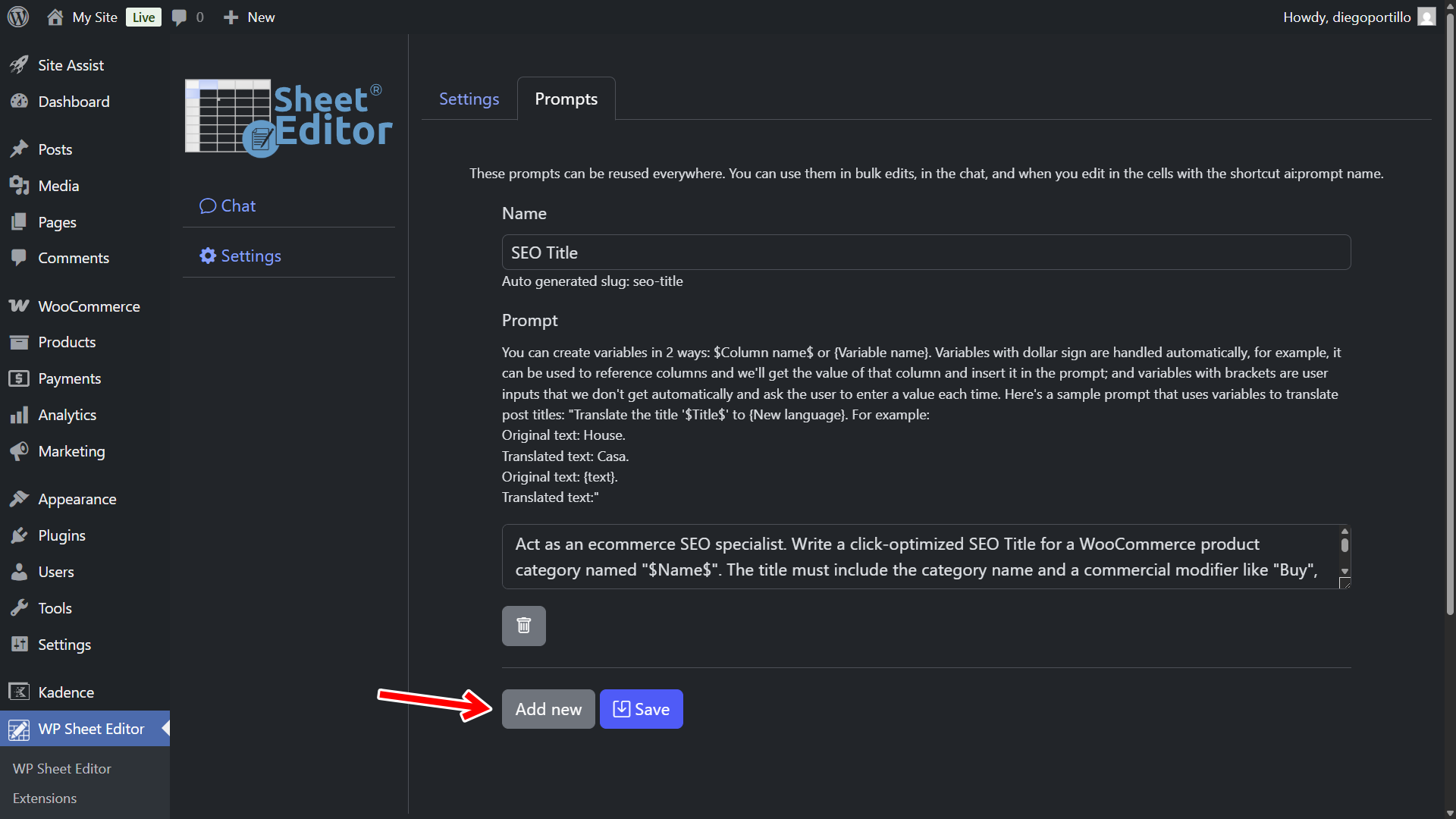
Set up your sorting logic with these parameters:
- Name your prompt:
Product Categories - Prompt:
Act as a master ecommerce taxonomist. Analyze this WooCommerce product based on its Name: "$Name$" and its Description: "$Content$". Determine the most logical category hierarchy for this item. You MUST format the output using the greater-than symbol (>) to mark the hierarchy from parent category to sub-categories. For example: Clothing > Women > Dresses. Return ONLY the category path in plain text. Do not include quotation marks, explanations, or introductory text.
- Click Save.
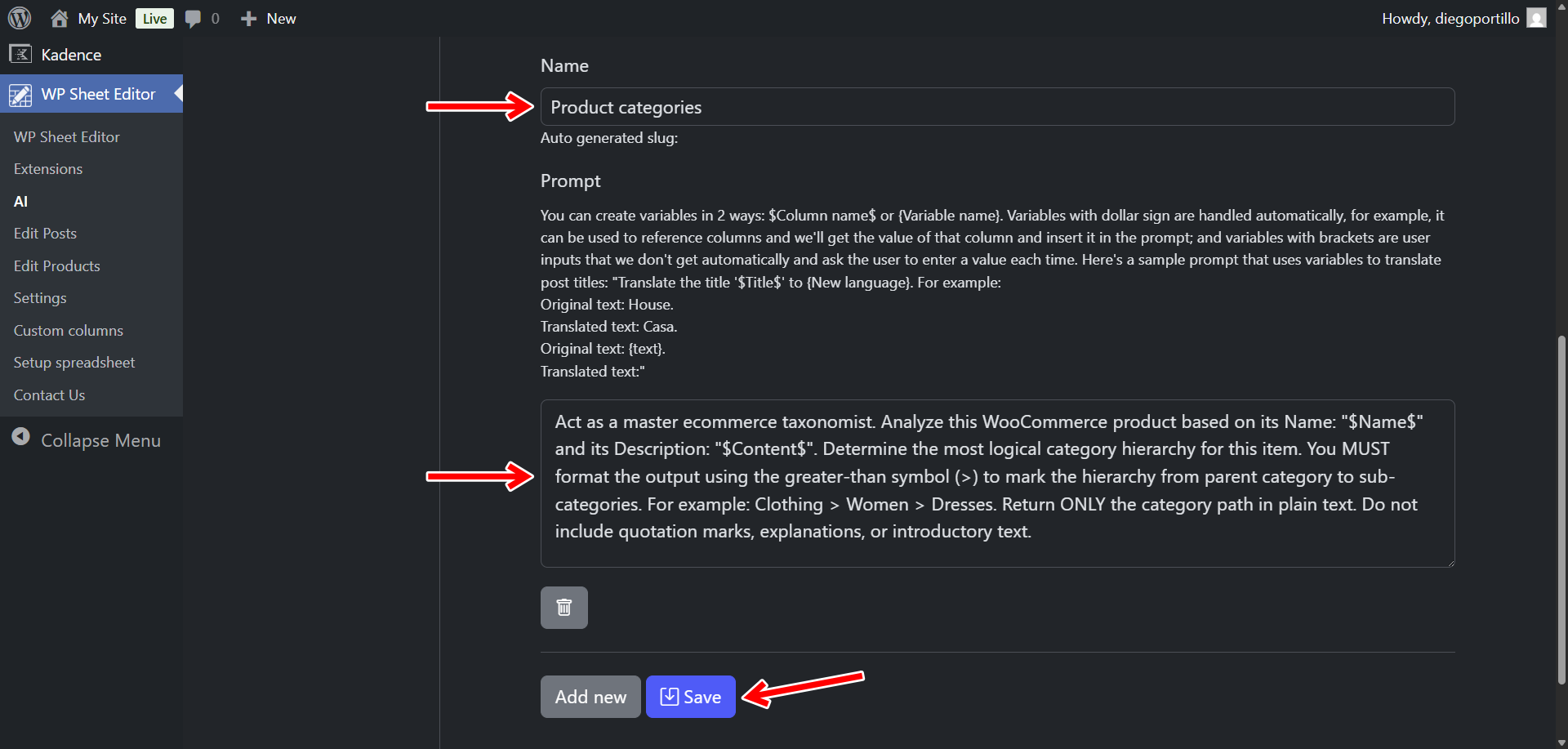
The plugin will assign a slug to this new prompt; in this case, it will be product-categories.
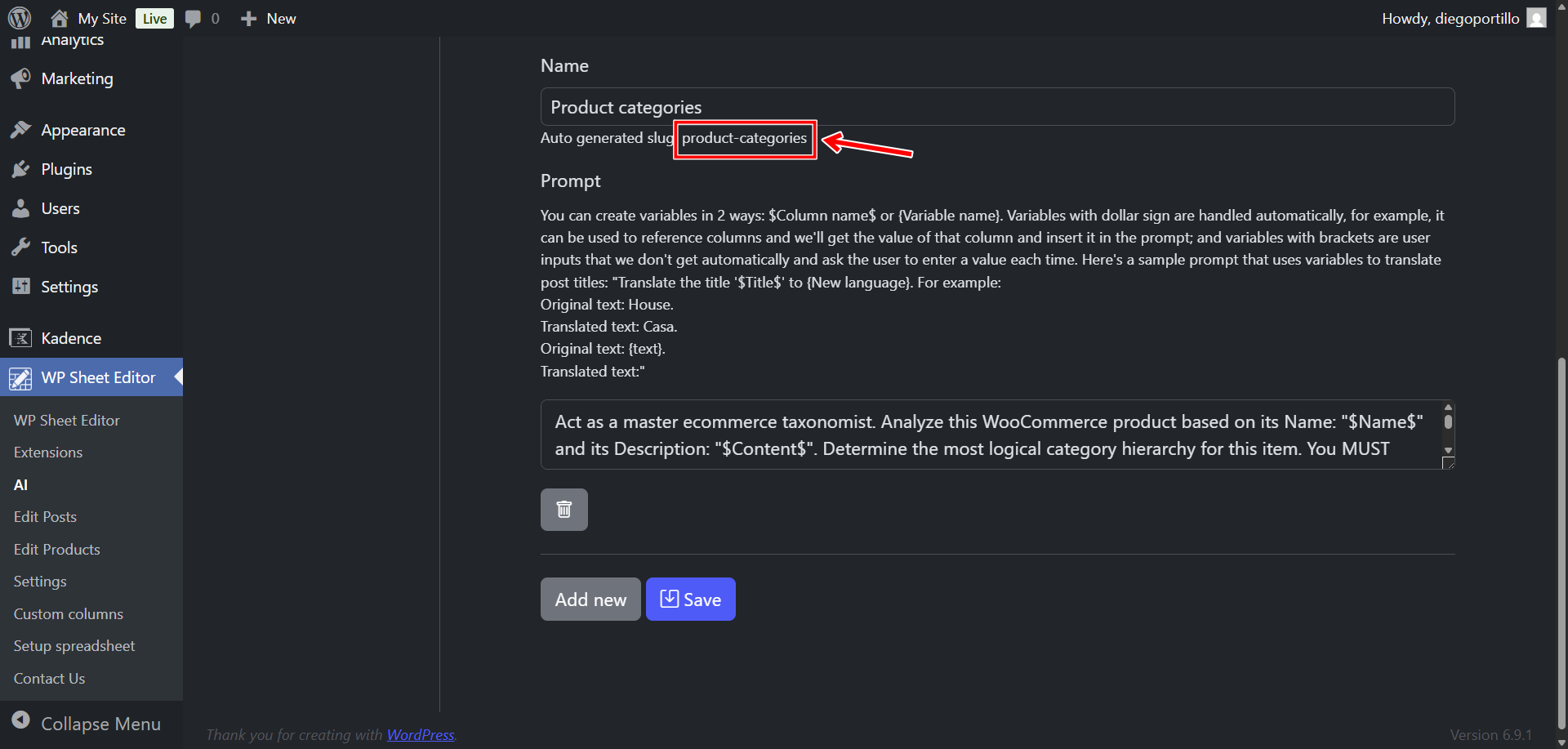
You will be able to use this prompt as a shortcut in spreadsheet cells like this: ai:categorize-product.
Select cell format for taxonomy term cells
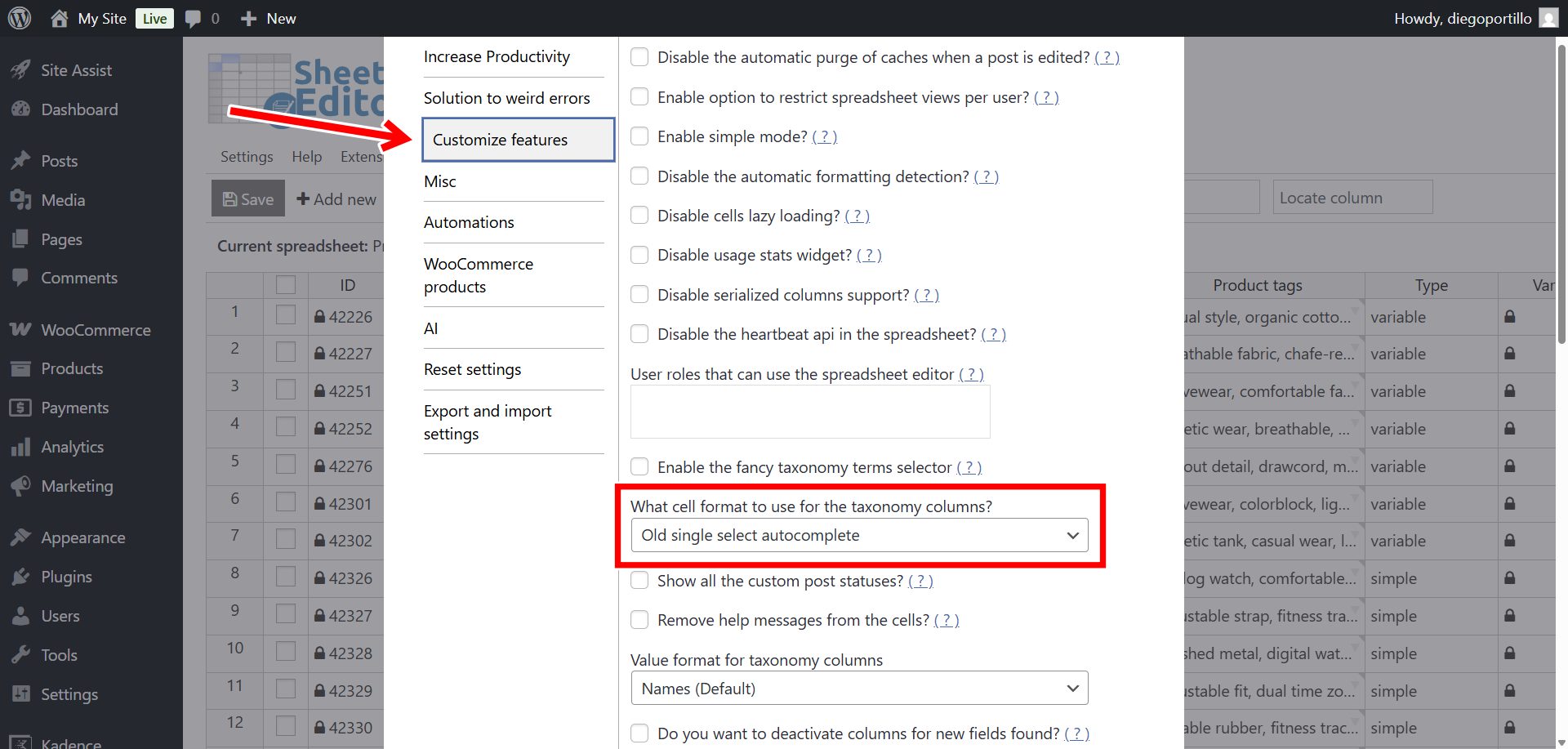
Make sure you select single select autocomplete format for your taxonomy term cells, so that you can write text in those cells.
Go to Settings > Advanced settings.
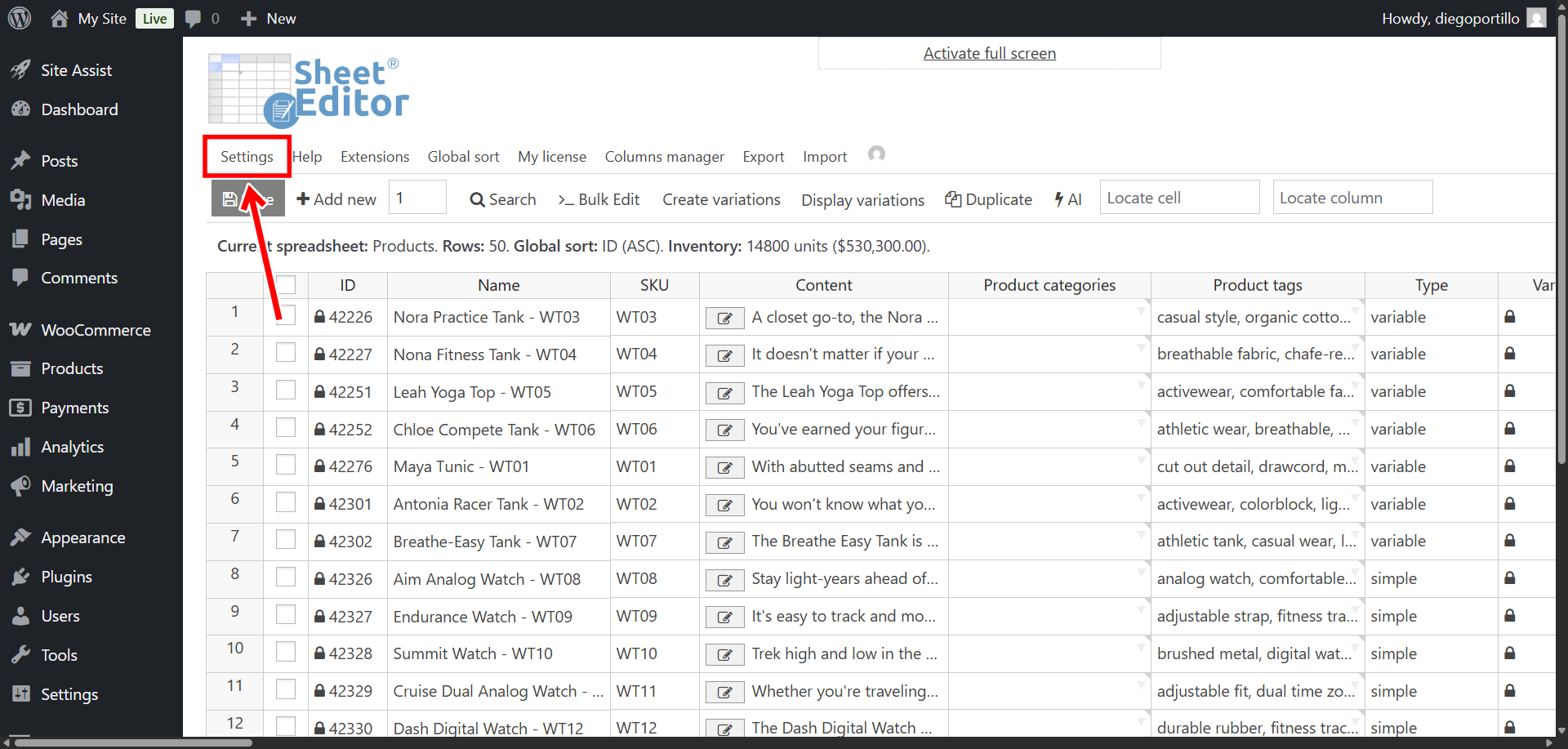
Now navigate to the Customize features tab and select this value:
- What cell format to use for the taxonomy columns: Old single select autocomplete
- Save the changes.
Method 1: Categorize products with AI in the spreadsheet
You can add categories to your WooCommerce products with generative AI in the spreadsheet.
Navigate to WP Sheet Editor > Edit Products to load your WooCommerce products in the spreadsheet.
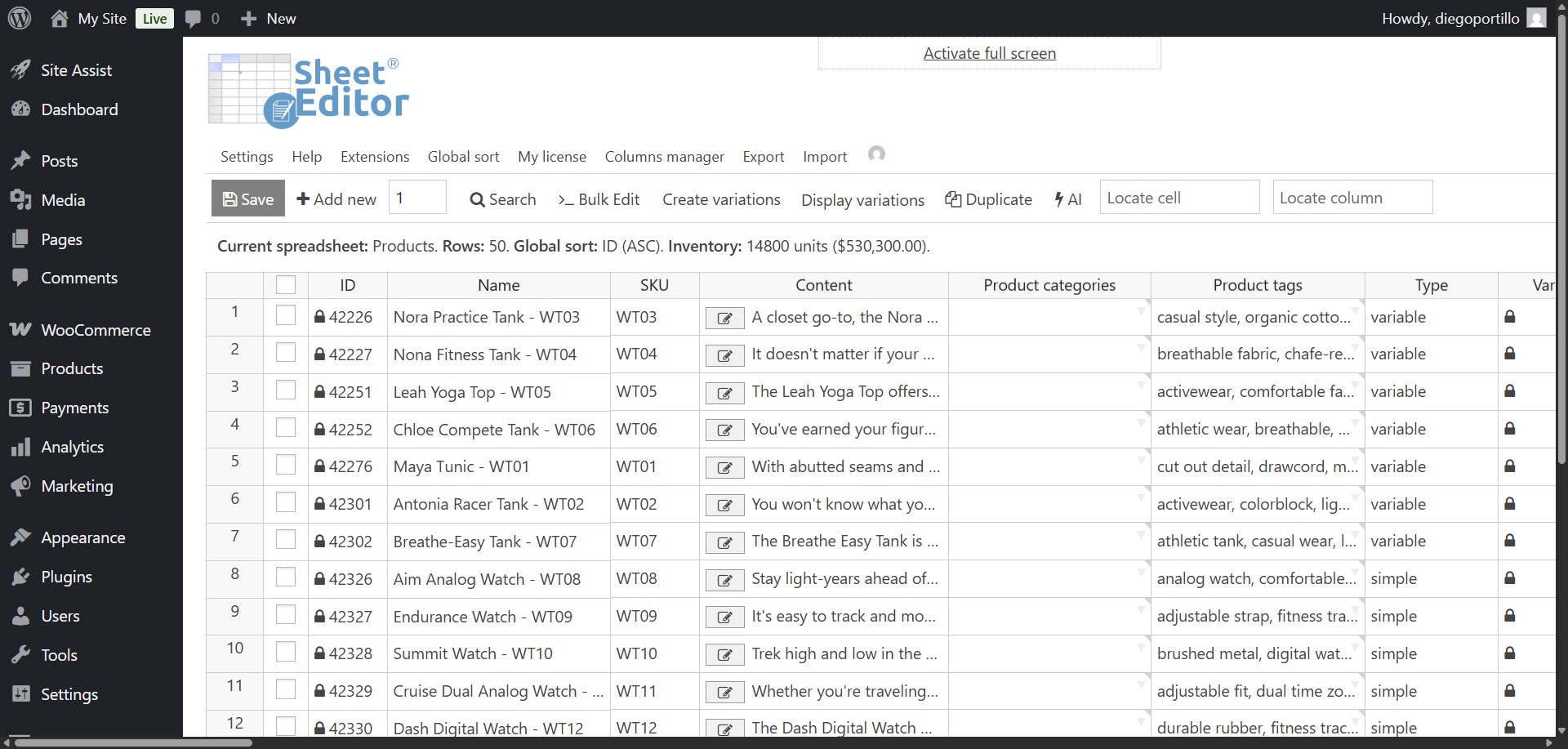
Scroll across the grid until you locate the Categories column.
Find products missing categories or products that currently have the “Uncategorized” category.
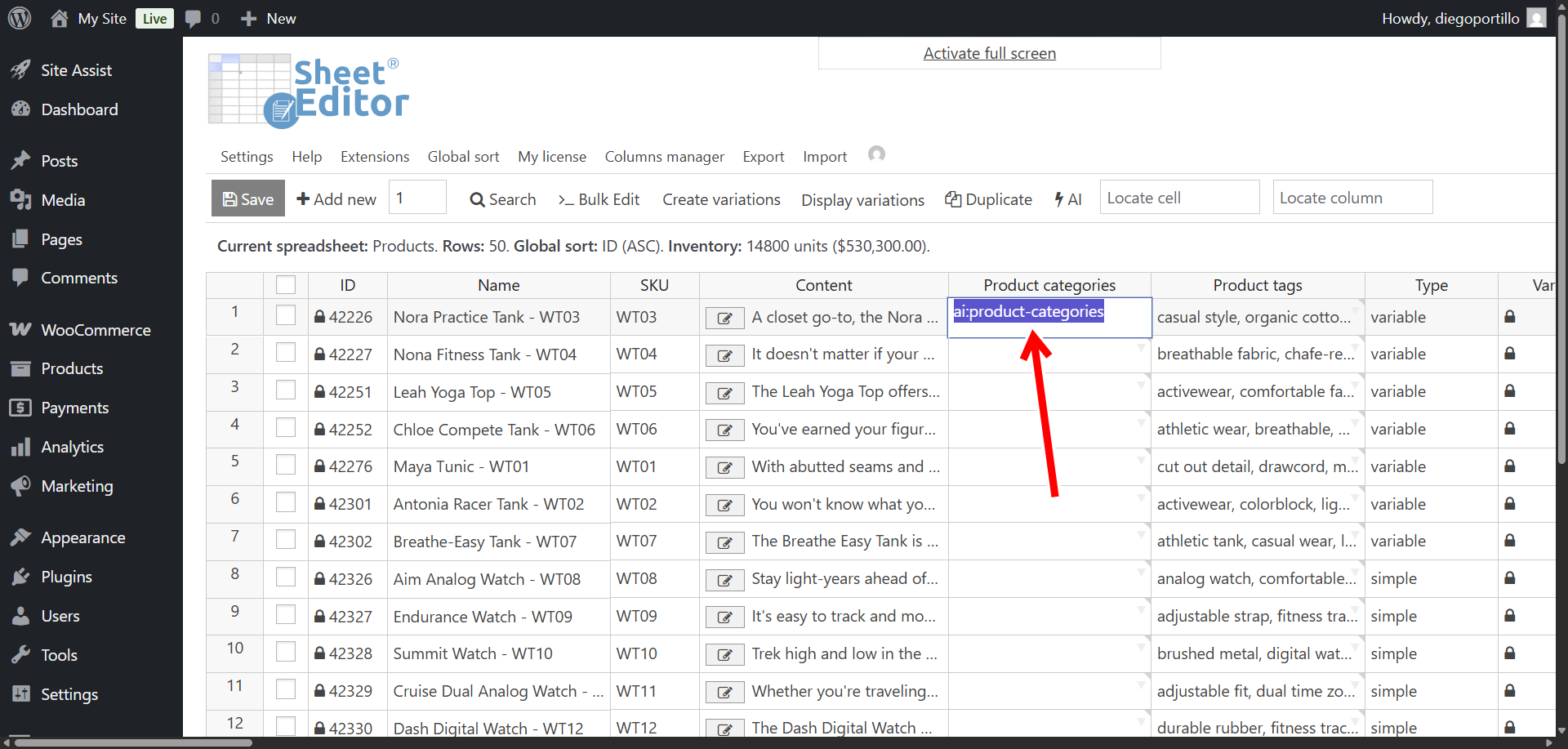
Click directly on that empty cell, and type your newly created shortcut:
ai:categorize-product
Press Enter.
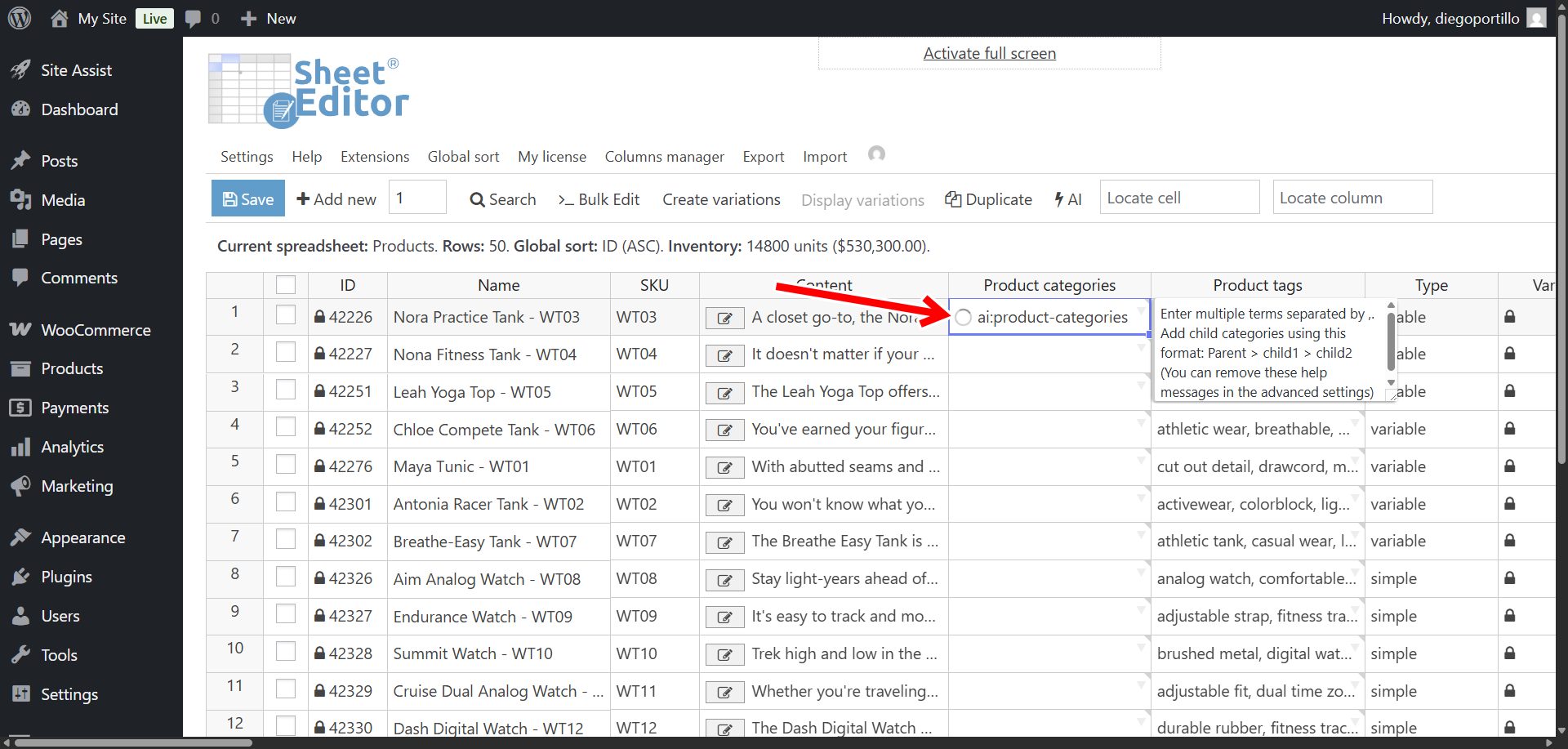
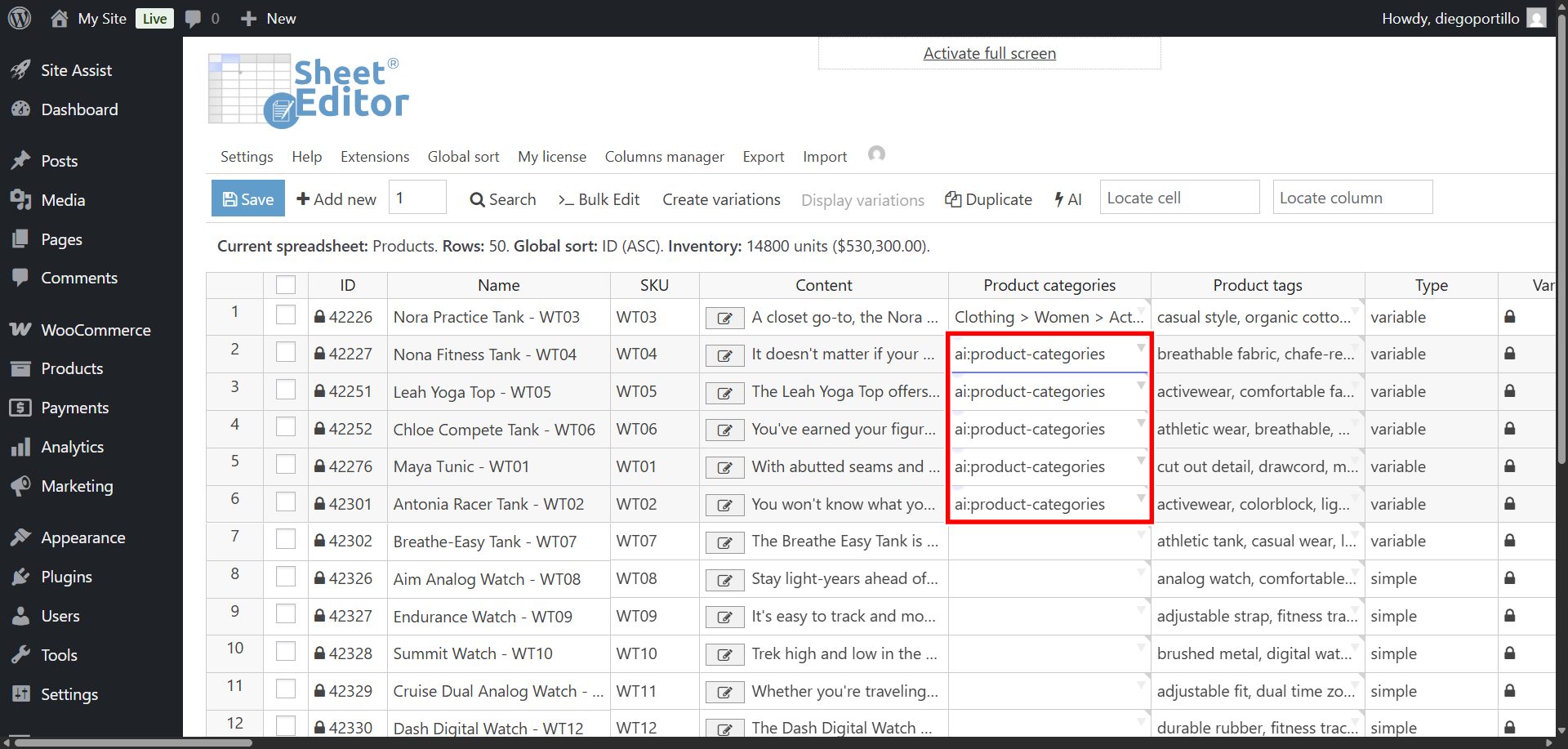
The AI will read the Name and Content fields of that specific row, process the logic, and output a formatted hierarchical string (e.g., Home & Garden > Kitchen > Appliances).
You’ll see a loading icon in the cell while the AI is working.
Once the process is complete, you categories with hierarchy will be added to the cell.
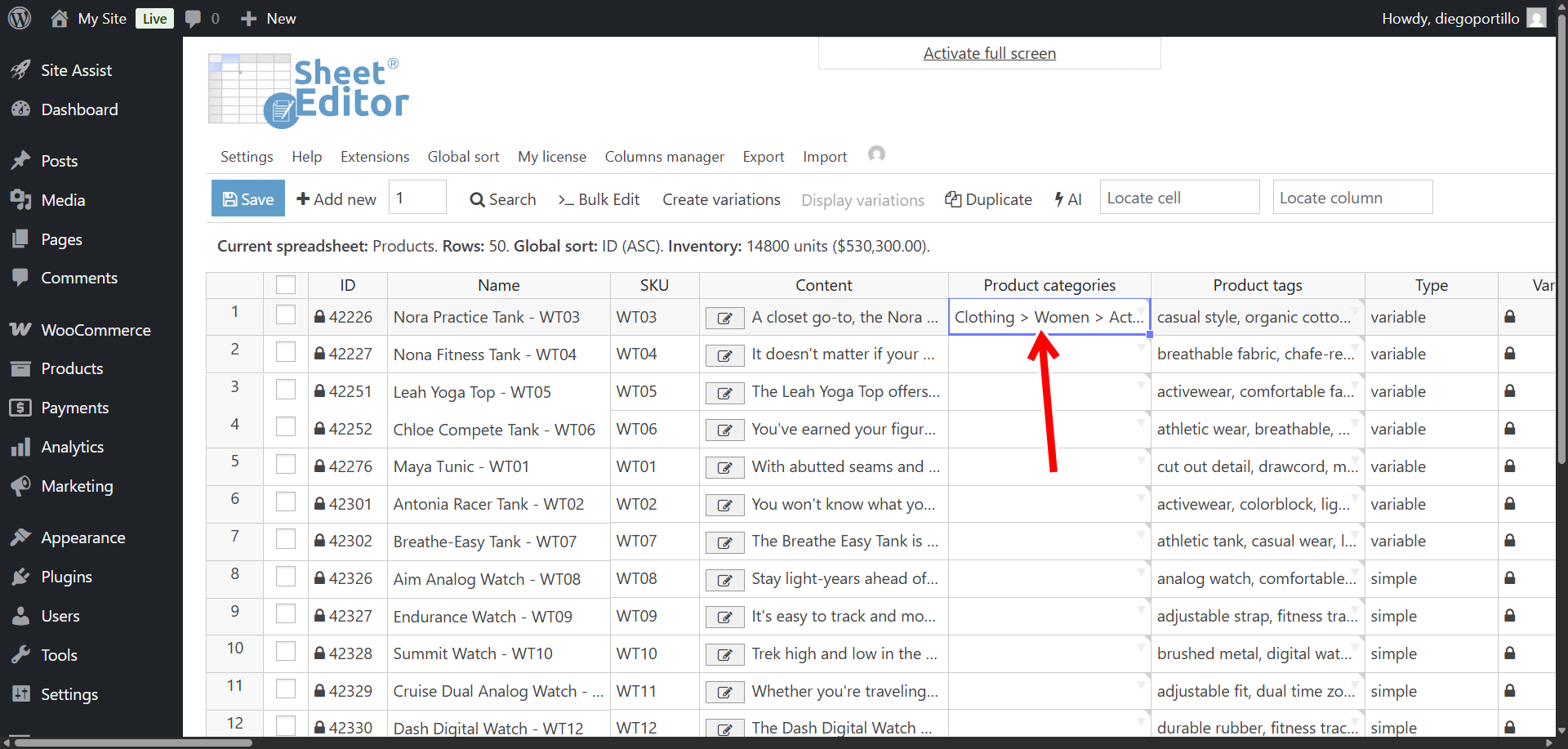
To generate categories for multiple products at once, paste the shortcut into multiple cells and hit Enter.
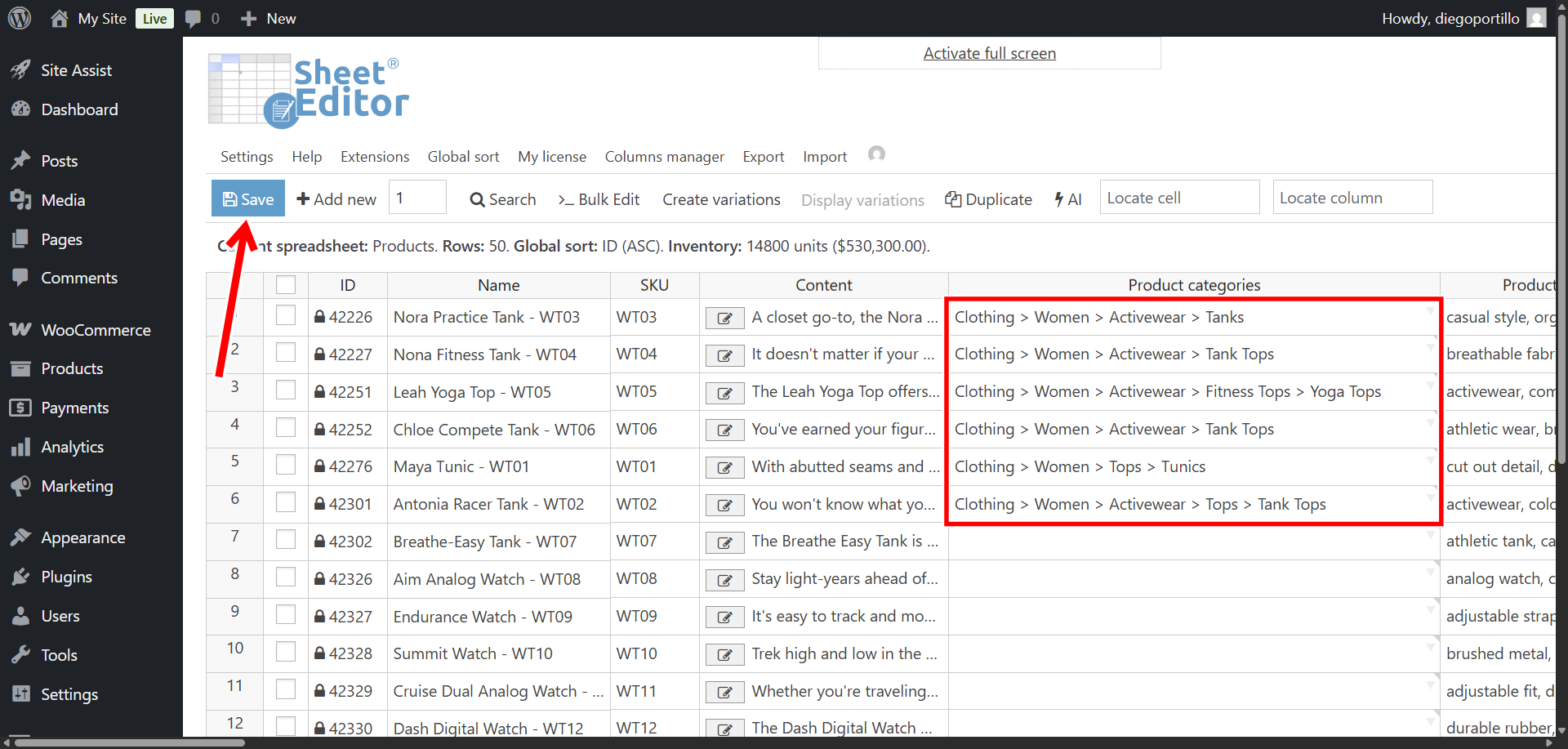
Once you’re done categorizing your WooCommerce products in the spreadsheet, you can click on Save to apply the changes.
Method 2: Bulk categorize products with AI
Ye can use the Bulk Edit tool to categorize all your products in bulk using generative AI.
Search for products missing categories
Let’s filter the spreadsheet so the AI only processes products that need to be categorized.
Open the Search tool located on the toolbar.
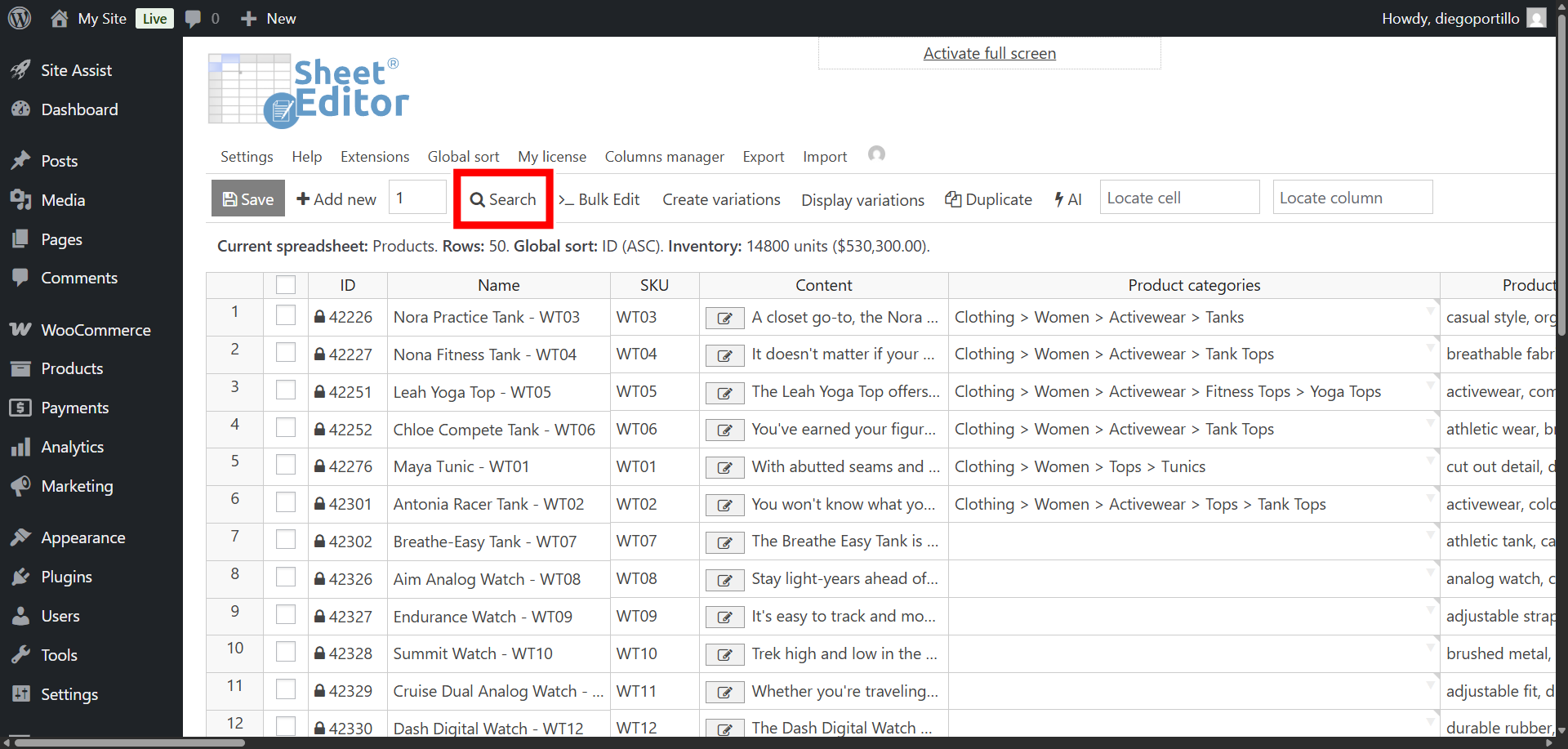
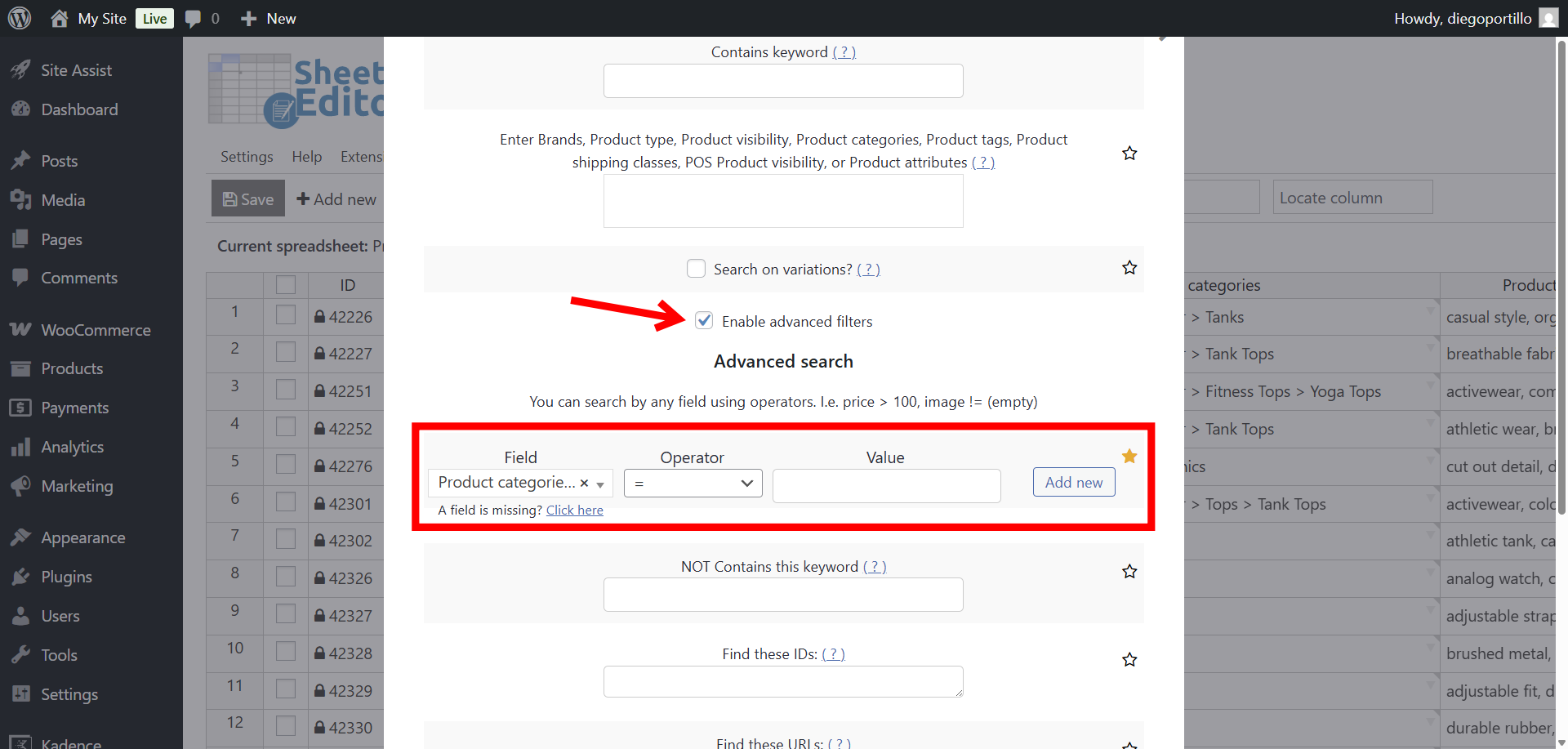
Once there, select these values to filter all products missing categories:
- Activate the Enable advanced filters checkbox.
- Field: Select the Product categories column.
- Operator: =
- Value: Leave this field empty.
- Click Run Search.
Your spreadsheet will reload, isolating only the stray products that require taxonomy mapping.
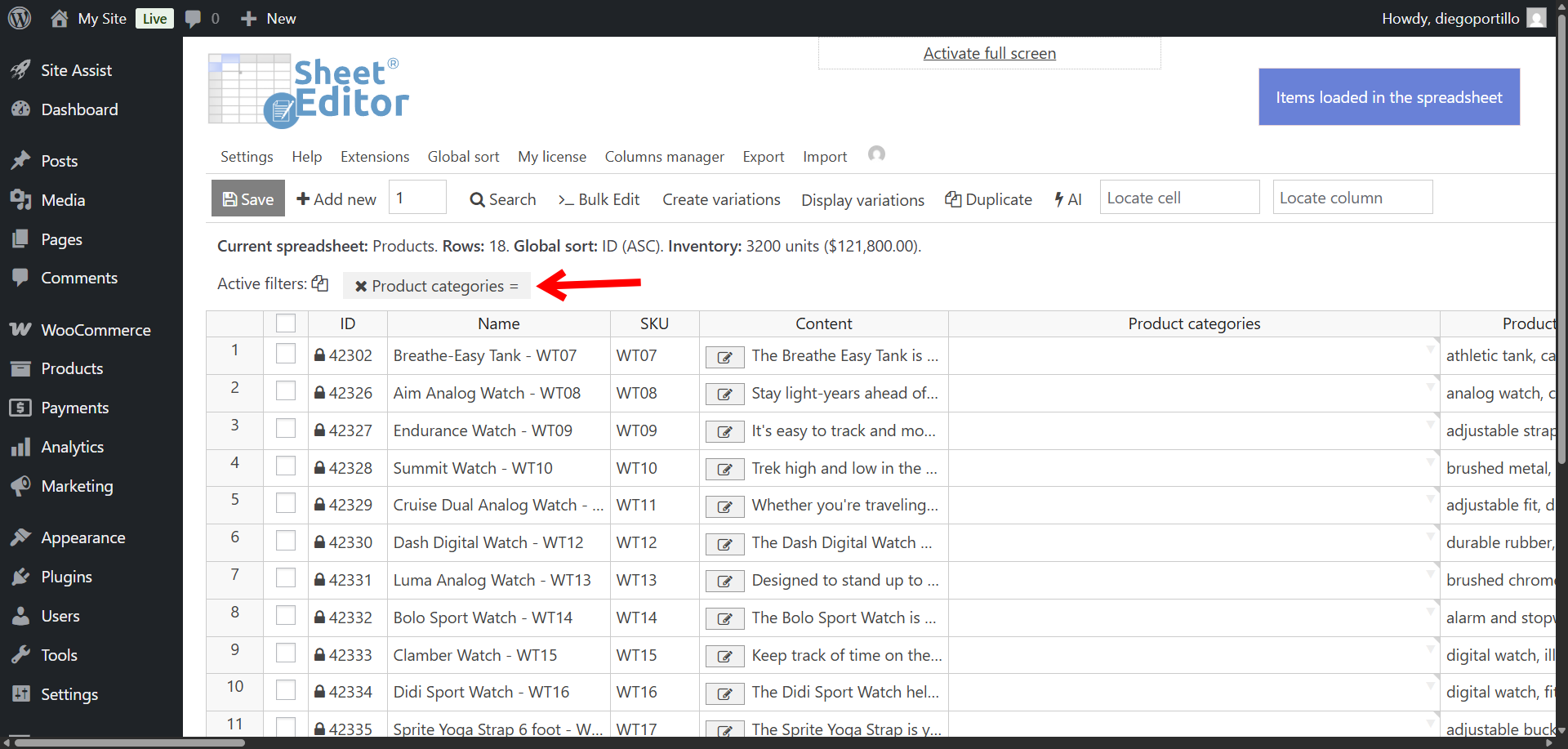
Bulk categorize products with artificial intelligence
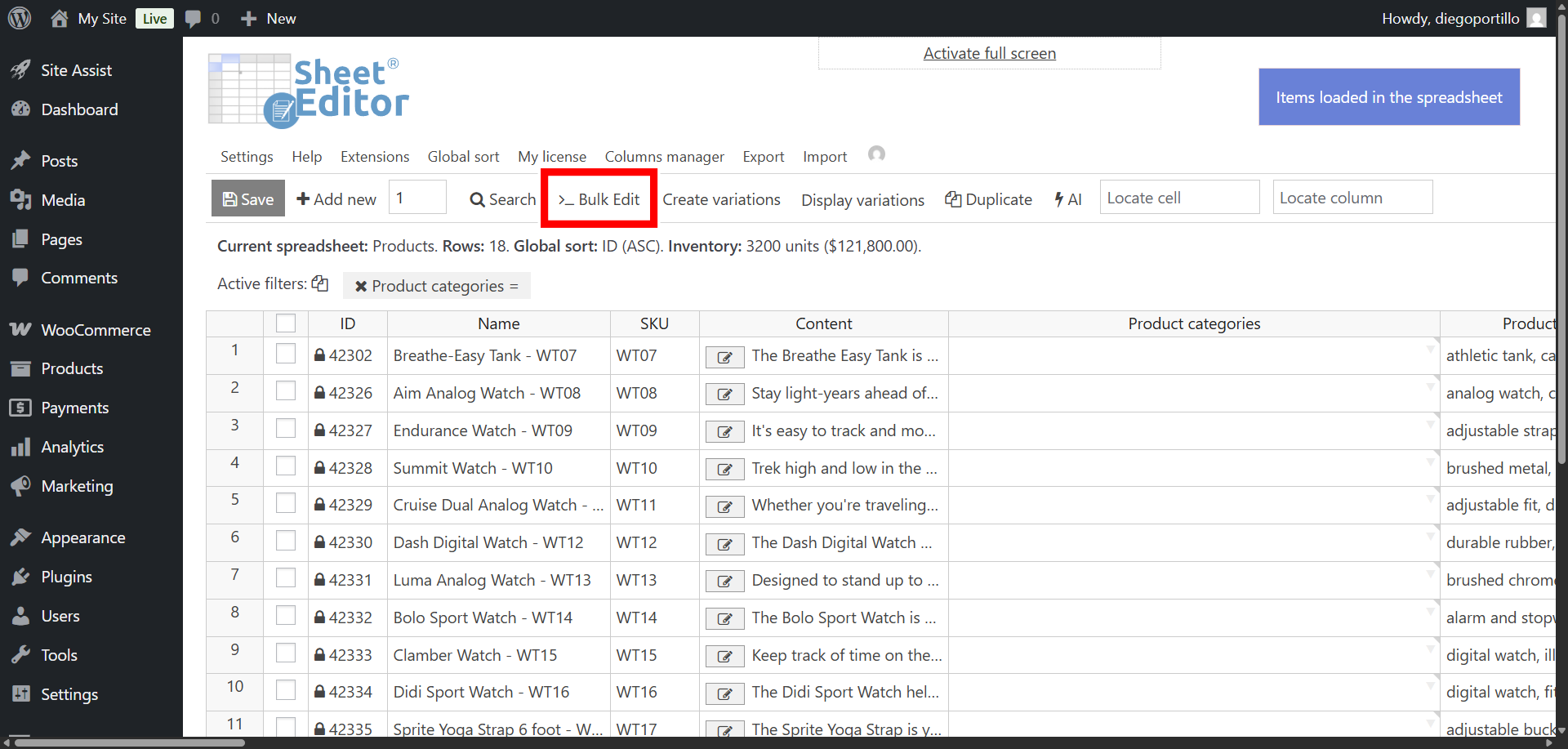
With your products list filtered, click the Bulk Edit tool.
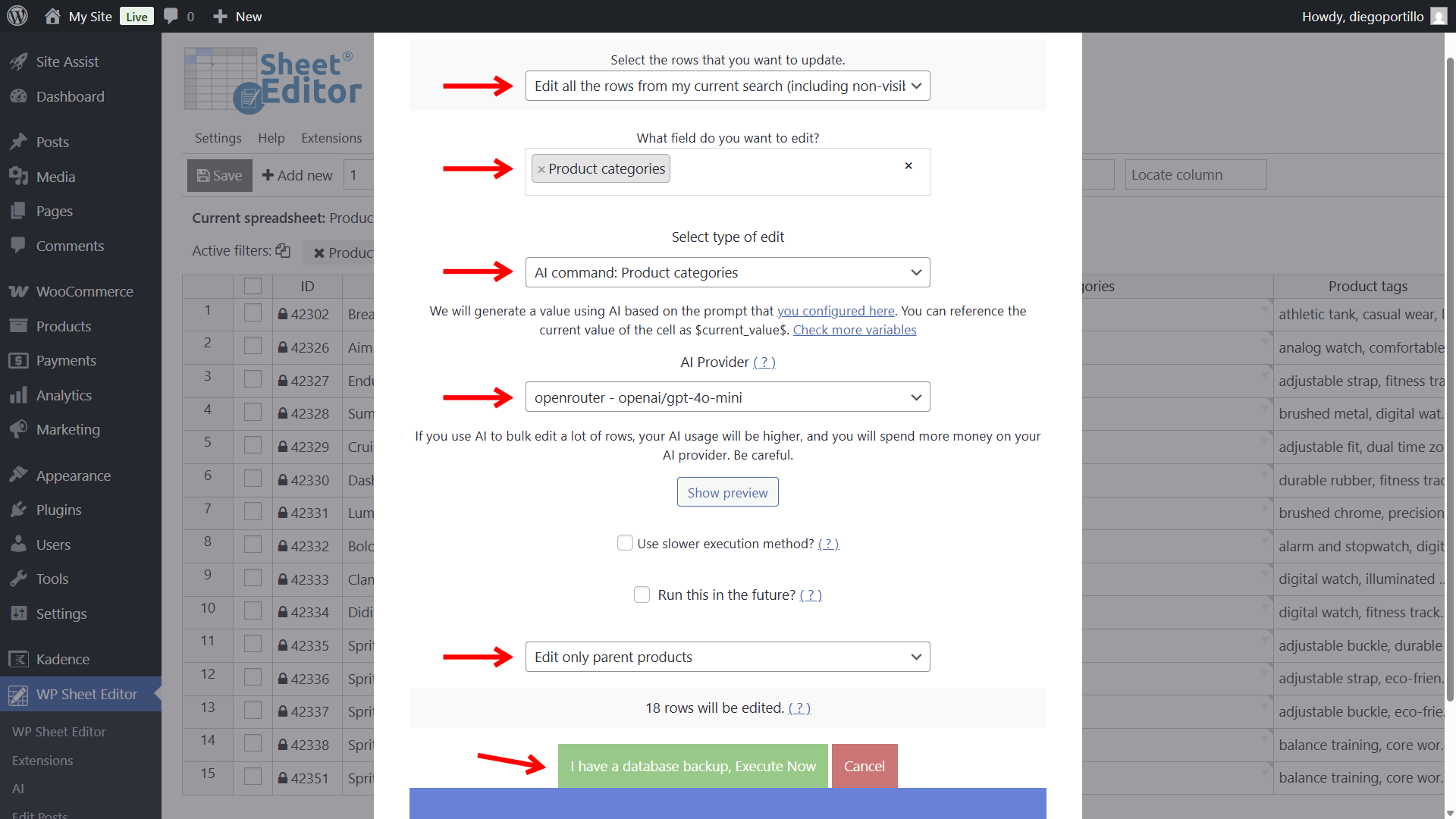
Configure the mass update using these precise settings:
- Select the rows that you want to update: Edit all the rows from my current search
- What field do you want to edit: Product categories
- Select the type of edit: AI command: Product categories
- AI Provider: Select your preferred LLM. In this example, we will use GPT-4o-mini through OpenRouter.
- Select Edit only parent products.
- Finally, click Execute Now.
The plugin will safely batch your products and send their Names and Content to the AI. Once the process is complete, all your products that previously had no categories will have categories with hierarchy.
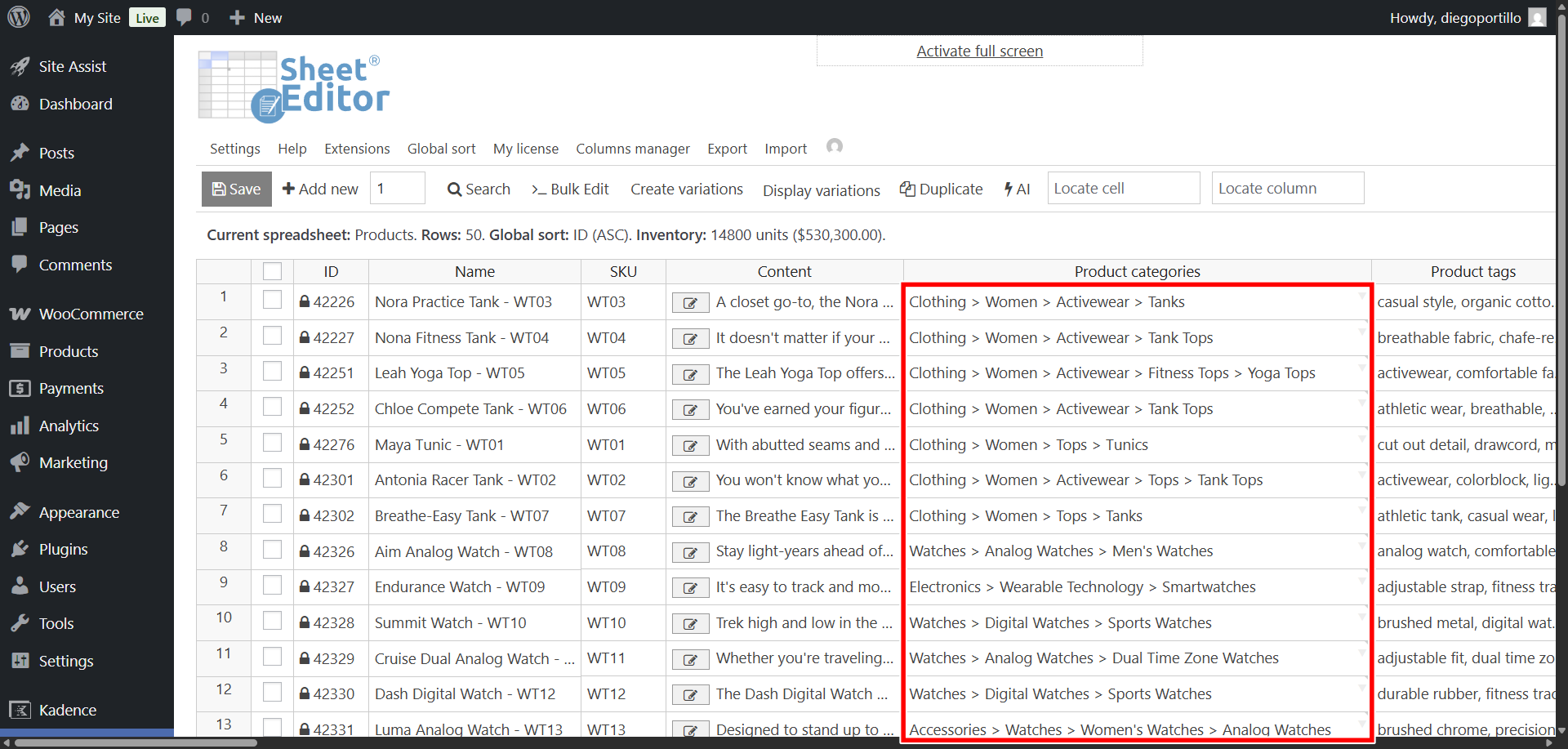
With WP Sheet Editor – AI, you can generate WooCommerce product category assignments in bulk based on product titles and descriptions. This can help you organize imported products, assign missing categories, and create parent-child category hierarchies.
Make sure to always review the AI-generated categories before saving to make sure they match your store’s structure.