
Do you have dozens or hundreds of empty categories or tags cluttering your WordPress site? Empty categories and tags are those that have no posts or products assigned to them. Over time, they can accumulate and cause several issues.
Common problems caused by unused or empty categories and tags include:
- Slower site performance and increased server load due to unnecessary database entries.
- Confusion when managing content; it becomes hard to find the categories or tags you actually use.
- Wasted time scrolling through long lists every time you assign a post or product to a category or tag.
- Poor SEO signals; search engines may see a cluttered taxonomy structure as low-quality.
Cleaning up empty categories and unused tags is a smart maintenance task that helps keep your WordPress site organized, faster, and more professional. In this guide, you’ll learn two easy ways to delete all empty categories or tags in WordPress — one manual (via spreadsheet) and one fully automated using bulk edit.
The fastest and most efficient solution is the Categories, Tags, Product Attributes, Taxonomies Spreadsheet plugin (part of WP Sheet Editor). It turns your categories, tags, and other taxonomies into a powerful, sortable spreadsheet where you can view, filter, edit, and delete thousands of items in minutes.
You can download the plugin here:
Download Categories, Tags, Product Attributes, Taxonomies Spreadsheet Plugin - or - Check the features
Video Tutorial: Delete Empty Categories and Tags in WordPress
Watch the step-by-step video guide:
Method 1: Delete Empty Categories or Tags Using the Spreadsheet (Manual Selection)
This method gives you full control. Ideal when you want to review and selectively delete empty taxonomies.
1. Open the Taxonomy Spreadsheet
- For Categories: Go to Sheet Editor > Edit categories
- For Tags: Go to Sheet Editor > Edit post tags
2. Load All Categories or Tags into the Spreadsheet
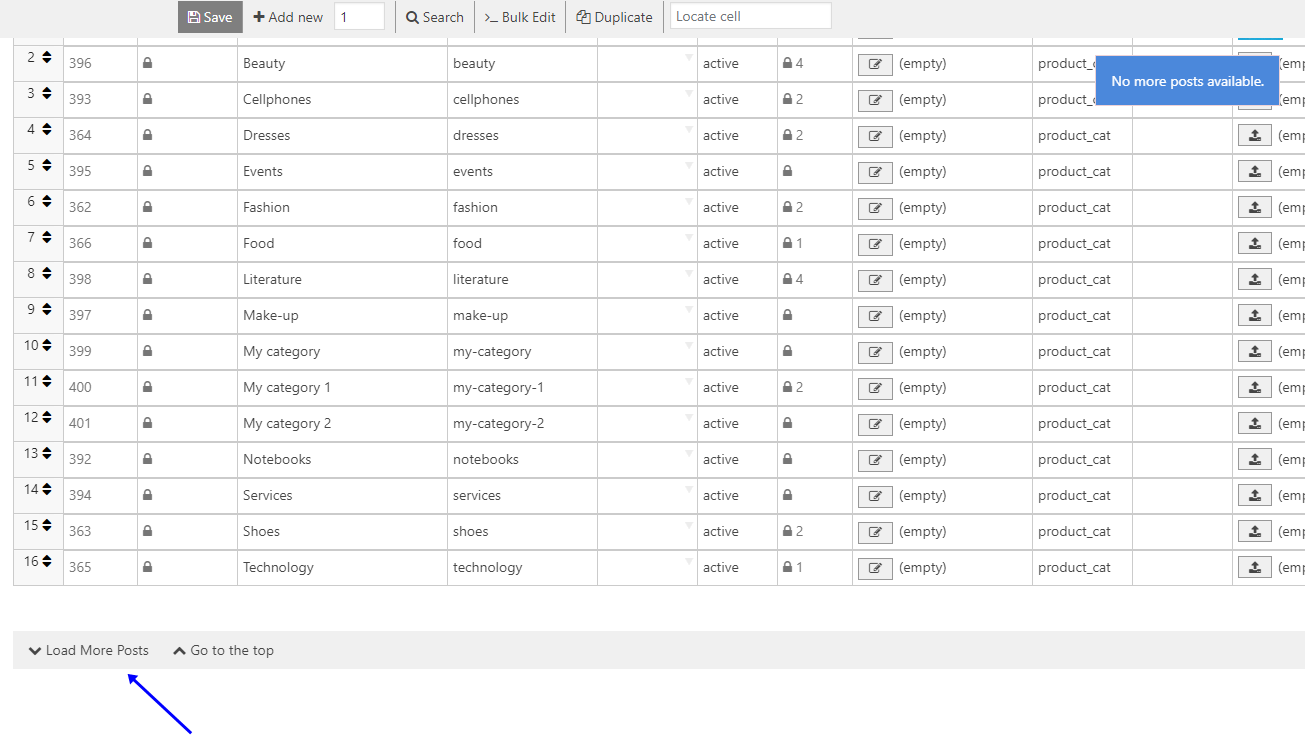
Scroll down using your mouse or click the Load More Posts button at the bottom until all your categories or tags are loaded.
3. Sort by the Count Column to Find Empty Ones
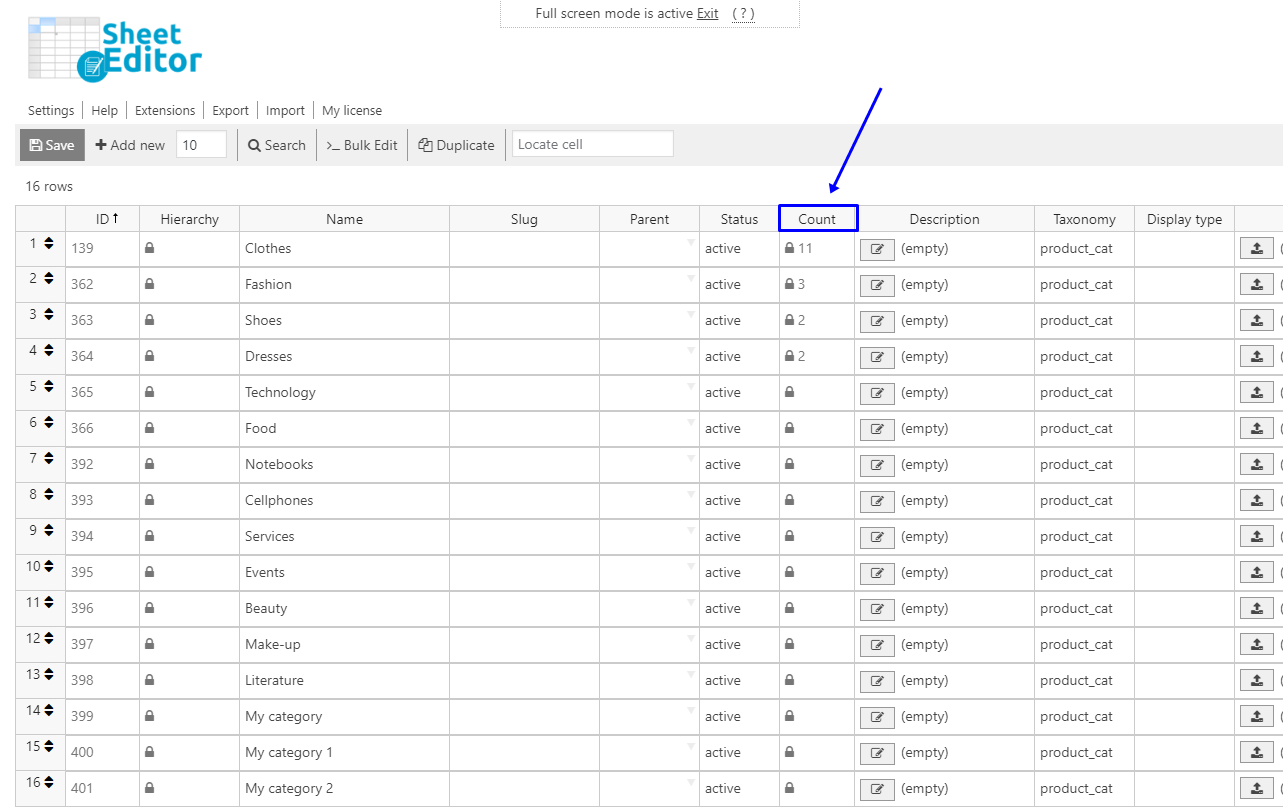
Click on the header of the Count column. This will sort the list so empty categories and tags (those with 0 posts assigned) appear together at the top or bottom.
4. Delete the Empty Categories or Tags
In the Status column of each empty row, select Delete.
You can speed this up by using the fill handle: click and drag the small square at the bottom-right of the first cell down to apply “Delete” to multiple rows at once.
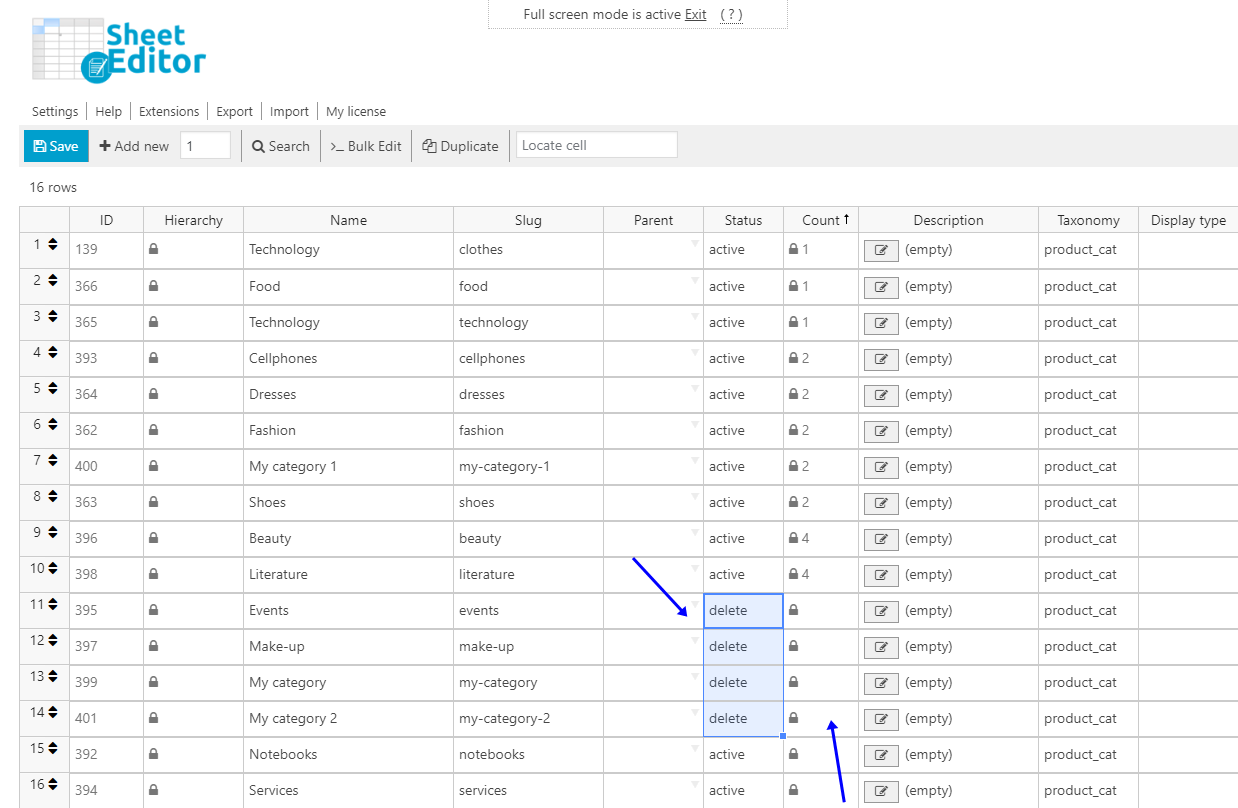
Once finished, click the Save button to apply all changes.
Method 2: Bulk Delete All Empty Categories or Tags (Recommended for Large Sites)
If you have many empty categories or tags, the Bulk Edit tool is the fastest way to remove them all at once.
a) Open the Bulk Edit Tool
Click on the Bulk Edit button in the toolbar at the top of the spreadsheet.

b) Search for All Empty Categories or Tags
Select “I want to search rows to update and edit all search results” in the “Select the rows that you want to edit” field.

Tick the Enable advanced filters checkbox and set these values:
- Field: Count (product_count_product_cat) for categories or Count (product_count_product_tag) for tags
- Operator: =
- Value: 0 (Note: Use 0 for truly empty; some setups may show 1 — test accordingly)
- Click Run search

c) Bulk Delete the Empty Categories or Tags
Configure the Bulk Edit as follows:
- Select the rows that you want to edit: I want to search rows to update and edit all search results
- What field do you want to edit?: Status
- Select type of edit: Set value
- Replace existing value with this value: Delete
- Click Execute Now

Done! Your WordPress Site is Cleaner
With the Categories, Tags, Product Attributes, Taxonomies Spreadsheet plugin, deleting empty categories and unused tags becomes a quick and painless task — whether you prefer manual selection or full bulk deletion.
Keeping your taxonomies clean improves site speed, makes content management easier, and helps maintain a professional, well-organized WordPress website.
Common Use Cases
- After importing content or running SEO plugins that create many automatic tags.
- Cleaning up old blog categories that are no longer used.
- Maintaining large WooCommerce stores with product categories and attributes.
- Preparing a site for migration or redesign.
Frequently Asked Questions
Is it safe to delete empty categories and tags?
Yes — since they have no assigned posts or products, deleting them won’t affect your content.
Can I recover deleted categories?
Unfortunately, no. We recommend exporting your taxonomies first if you’re unsure.
Does this work for custom taxonomies?
Yes, the plugin supports categories, tags, product attributes, and most custom taxonomies.
Can I delete categories with only 1 post?
You can adjust the search value accordingly if needed.
You can download the plugin here:
Download Categories, Tags, Product Attributes, Taxonomies Spreadsheet Plugin - or - Check the features