
You can generate WooCommerce product descriptions with AI by connecting your store to an AI provider through the WP Sheet Editor – AI extension, then typing a prompt into a spreadsheet cell, a popup text editor, or the Bulk Edit tool to write the Content (long description) and Short Description fields for one product or your entire catalog at once, without leaving WordPress.
This guide covers every part of that workflow: connecting OpenAI, Gemini, DeepSeek, Grok, Claude, and any other model, writing prompts that actually produce usable copy, and running the process across a handful of products or an entire catalog of thousands.
Quick Summary
| Question | Answer |
|---|---|
| What it does | Connects your WooCommerce catalog to an AI provider and generates the Content and Short Description fields for one or many products from inside WordPress |
| Plugins required | WP Sheet Editor – WooCommerce Products, plus the WP Sheet Editor – AI extension |
| AI providers supported | OpenAI, OpenRouter (DeepSeek, Grok, Claude Sonnet, Gemini, and others), Open LM, and any provider that follows the OpenAI API format. Even cus |
| Where descriptions are edited | The Content and Short description columns in the products spreadsheet |
| Ways to generate | Type a prompt in a spreadsheet cell, use the popup AI text editor, or run a Bulk Edit job across a filtered list of products |
Table of Contents
What “AI-Generated Product Descriptions” Means in WooCommerce
A WooCommerce product has two separate description fields: the Content field (the main product description shown on the product page) and the Short Description field (the summary shown next to the product images, directly above the “Add to Cart” button). Both are stored as regular WordPress post content and post excerpt data.
WP Sheet Editor – AI is an extension that connects these fields, and any other field in your WP Sheet Editor spreadsheets, to an external large language model through an API call. When you type a prompt into a cell or run a Bulk Edit job, the extension sends your prompt (with any $Field Name$ placeholders replaced by real product data) to the AI provider you configured, receives the generated text back, and writes it into the cell. Saving the spreadsheet writes that text to the product in your WordPress database, exactly as if you had typed it yourself.
Nothing about this changes how WooCommerce stores or displays the fields. The AI is only replacing the manual step of writing the text.
Why Generate Product Descriptions with AI Instead of Writing Them Manually
- Speed at scale. Writing 500 unique product descriptions by hand takes days. Filtering those same 500 products and running a Bulk Edit job takes minutes of setup plus processing time.
- Consistent structure. Every description generated from the same prompt follows the same format, tone, and length, so your catalog does not end up with a mix of writing styles from different authors over time.
- Descriptions grounded in real product data. Because prompts can reference fields like
$Title$,$Product categories$, or$SKU$, each generated description reflects the actual product instead of generic filler text. - No copy-pasting between tools. The prompt, the AI request, and the saved result all happen inside the same spreadsheet screen. You are not moving text between ChatGPT and the WordPress editor.
- Reusable across fields. The same setup that writes product descriptions can also generate SEO titles, meta descriptions, image alt text, and translations, using the same prompts and the same AI connection.
Tools You Need to Get Started
Besides your WooCommerce products, three things are required before you can write product descriptions with AI:
1. WP Sheet Editor – WooCommerce Products
This plugin displays your products in a spreadsheet interface inside your WordPress dashboard where you can view, filter, and edit all your products, including titles, descriptions, short descriptions, categories, and attributes, on one screen. It is the base plugin that the AI extension plugs into.
You can purchase the plugin here:
Get the WooCommerce Products Spreadsheet - or - Check the features
2. WP Sheet Editor – AI
This extension adds AI generation to every WP Sheet Editor spreadsheet. It connects your WordPress site to an external AI provider (OpenAI, OpenRouter, or any OpenAI-compatible API) so you can generate, translate, summarize, or rewrite content for any number of rows using prompts you write once and reuse.
You can sign up here:
Sign Up to the WP Sheet Editor – AI Service - or - Check the features
3. An API Key from Your AI Provider
You need an active API key from at least one supported provider:
- OpenAI (GPT-4o, GPT-4o mini, and other models)
- OpenRouter, which provides access to hundreds of models including DeepSeek, Grok, Gemini, Claude, Qwen, etc.
- Any provider that follows the OpenAI API request format
If you have not connected an API key yet, follow our complete API setup guide before continuing.
Choosing an AI Provider and Model
The model you choose affects both the quality of the writing and the cost per description. Of course, there is no single correct choice.
Our recommendation: Test the same prompt across two or three models on the same product using the Show preview option before committing to one for a full bulk run.
How to Write Prompts That Generate Good Product Descriptions
The AI only knows what you tell it in the prompt. A prompt that just says “write a product description” produces generic, interchangeable text. A prompt that specifies structure, length, tone, and which fields to reference produces text you can publish with little or no editing.
Prompt for Generating Long Product Descriptions
You are a professional eCommerce copywriter. Generate a complete and compelling WooCommerce product description for $Title$, considering $Product categories$, $Product Color$, and $Product Size$.

Maximum length: 200 words.
Write in HTML using only <p> tags (no lists, no Markdown).
Focus on benefits and practical use cases in a natural, persuasive tone.
Finish with a brief, clear call-to-action.
Prompt for Generating Short Descriptions (Summarization)
Summarize the $Content$ into 30 words, keeping relevant information to create a compelling short description.Prompt for Improving Existing Descriptions
Add important information about the product, like $Product categories$, $Product Color$, and $Product Size$, and make the description more appealing.Prompt for Translating an Existing Description
Translate $Content$ into Spanish. Keep the same HTML structure and the same tone. Do not add or remove any information.Customization options:
- Tone: “Write in a playful tone” or “Use a premium, minimal tone.”
- Keywords: “Include the keyword ‘organic cotton’ naturally, no more than twice.”
- Structure: “Open with a one-sentence hook” or “End with a clear call-to-action.”
- Field references: Use the
$Field Name$format to pull in any column from your spreadsheet, such as$Product Brands$,$Product Tags$, or$SKU$. - Length limits: Set a maximum word count that matches how much space your theme gives the description on the product page.
Test any new prompt on a small number of products first, using the Show preview button in the Bulk Edit tool, before applying it to your full catalog.
Saving Prompts as Global Commands for Reuse
Instead of retyping a full prompt every time, save it as a global prompt and trigger it later with a short command, such as ai:product-description.
- Go to WP Sheet Editor → AI → Settings → Prompts.
- Click Add new.
- Give your prompt a Name (for example, “Product description” or “Short description”).
- Paste your full prompt into the Prompt field.
- Click Save.

WP Sheet Editor generates a prompt slug automatically (for example, product-description). You can trigger this saved prompt anywhere in WP Sheet Editor by typing:
ai:product-description
You can build a library of saved prompts for different purposes: long descriptions, short descriptions, SEO titles, and translations, each with its own slug.
Three Ways to Generate Descriptions in WP Sheet Editor
WP Sheet Editor offers three ways to trigger AI generation, depending on how many products you are working on and how much manual review you want before saving.
| Method | Best for | Typical scale |
|---|---|---|
| Prompt in a spreadsheet cell | Quick, one-off generation while you are already editing the sheet | 1 to 10 products |
| Popup AI text editor | Reviewing and adjusting the output before saving | 1 product at a time |
| Bulk Edit with the Bulk AI API | Populating an entire catalog or category in one operation | Hundreds to thousands of products |
Method 1: Generate Descriptions Directly in Spreadsheet Cells
This is the fastest method for a small number of products. You can use a saved prompt shortcut or type a full prompt directly in the cell.
Using a Prompt Shortcut
- Go to WP Sheet Editor → Edit Products.
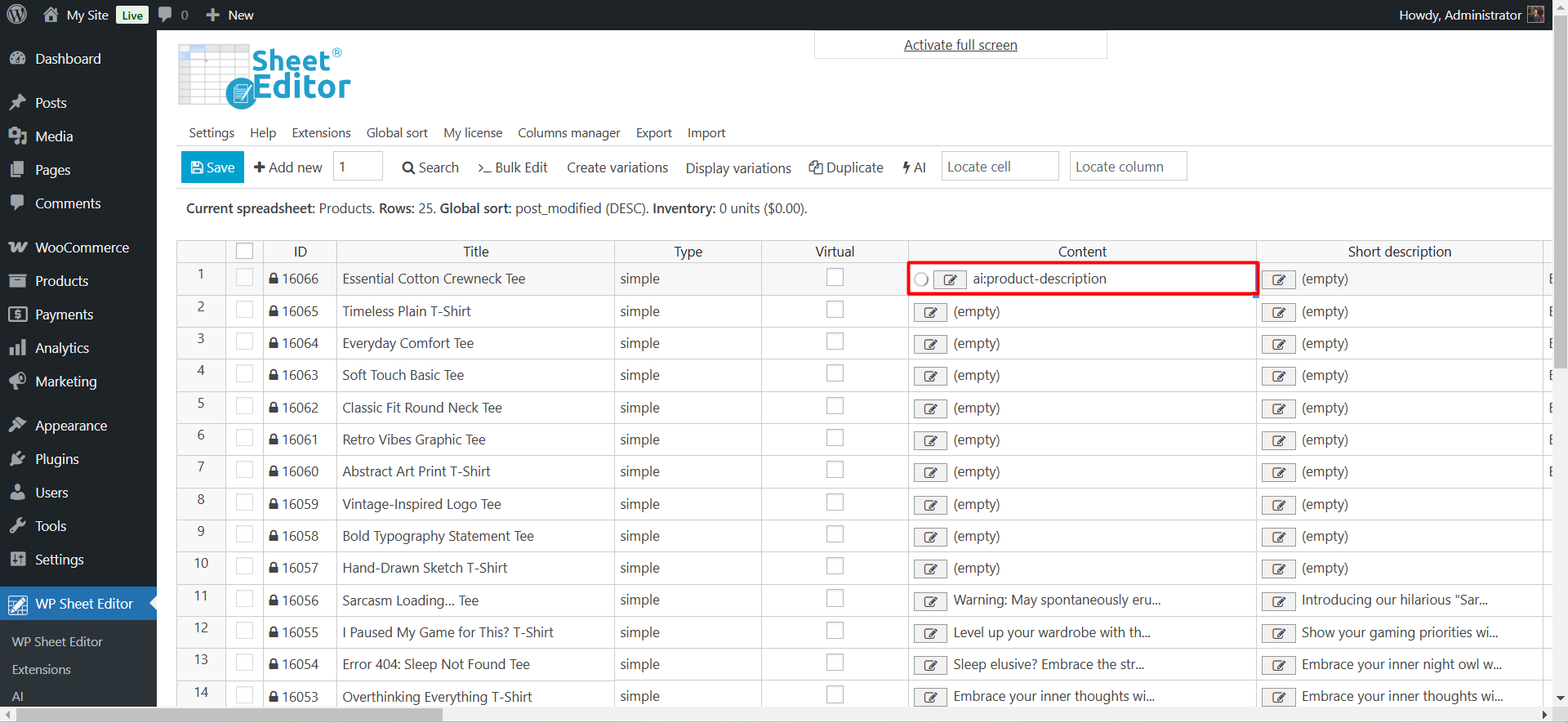
- In the Content column (the main product description), type your shortcut:
ai:product-description - Press Enter. The AI starts writing immediately.

While the request is processing, a loading icon appears in the cell. Once the request completes, the generated description appears automatically.
Using a Full Prompt
If you have not saved a global prompt, or you need a one-off instruction, type the complete prompt directly into the cell:
ai:generate a product description under 100 words based on the $Title$, $Product categories$, $Product color$ and $Product size$ fields.This is useful for:
- Rewriting an existing description with a specific instruction
- Writing a new description with a prompt composed on the spot
- Translating a description into another language

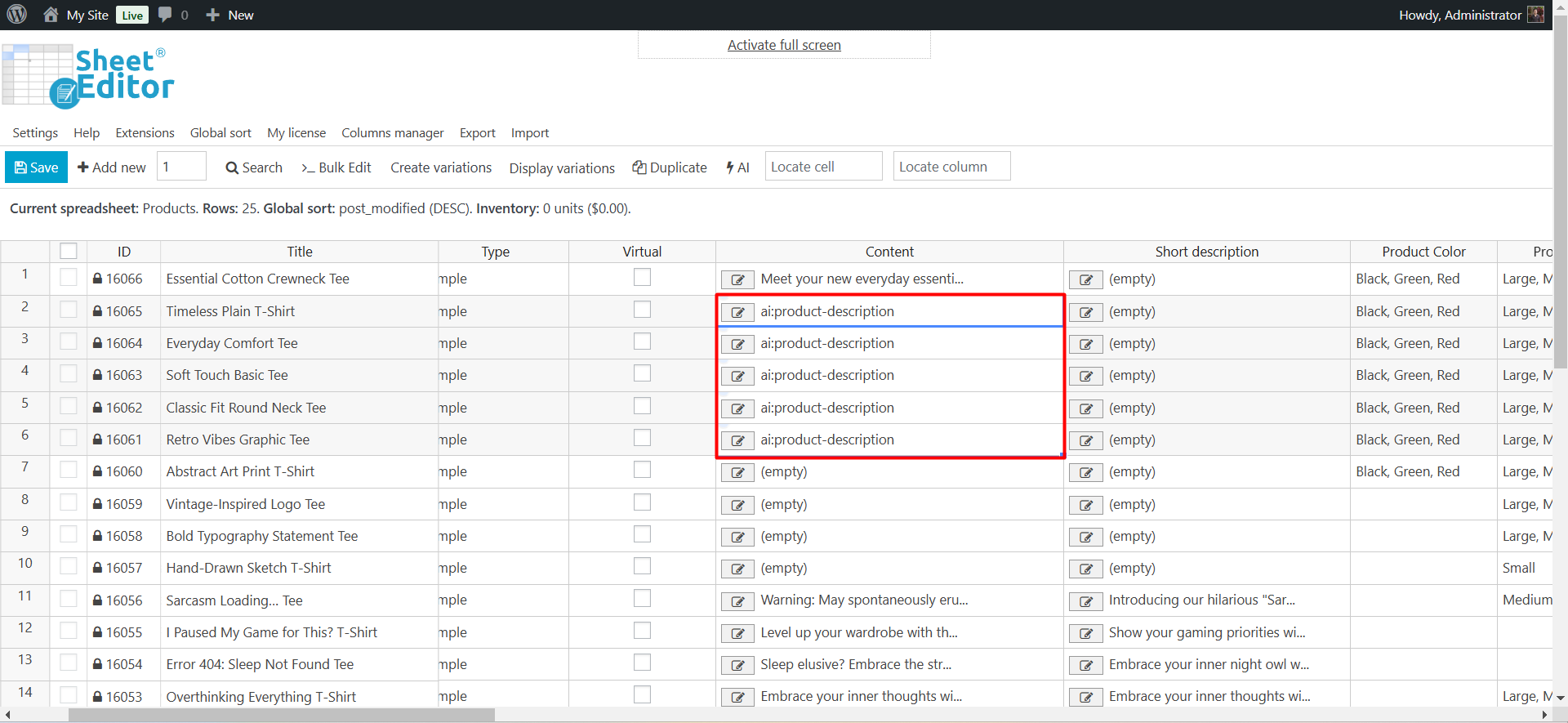
You can paste the same prompt shortcut or full prompt into multiple cells at once. Copy the prompt, select the target cells, and paste to generate descriptions for several products in one action.
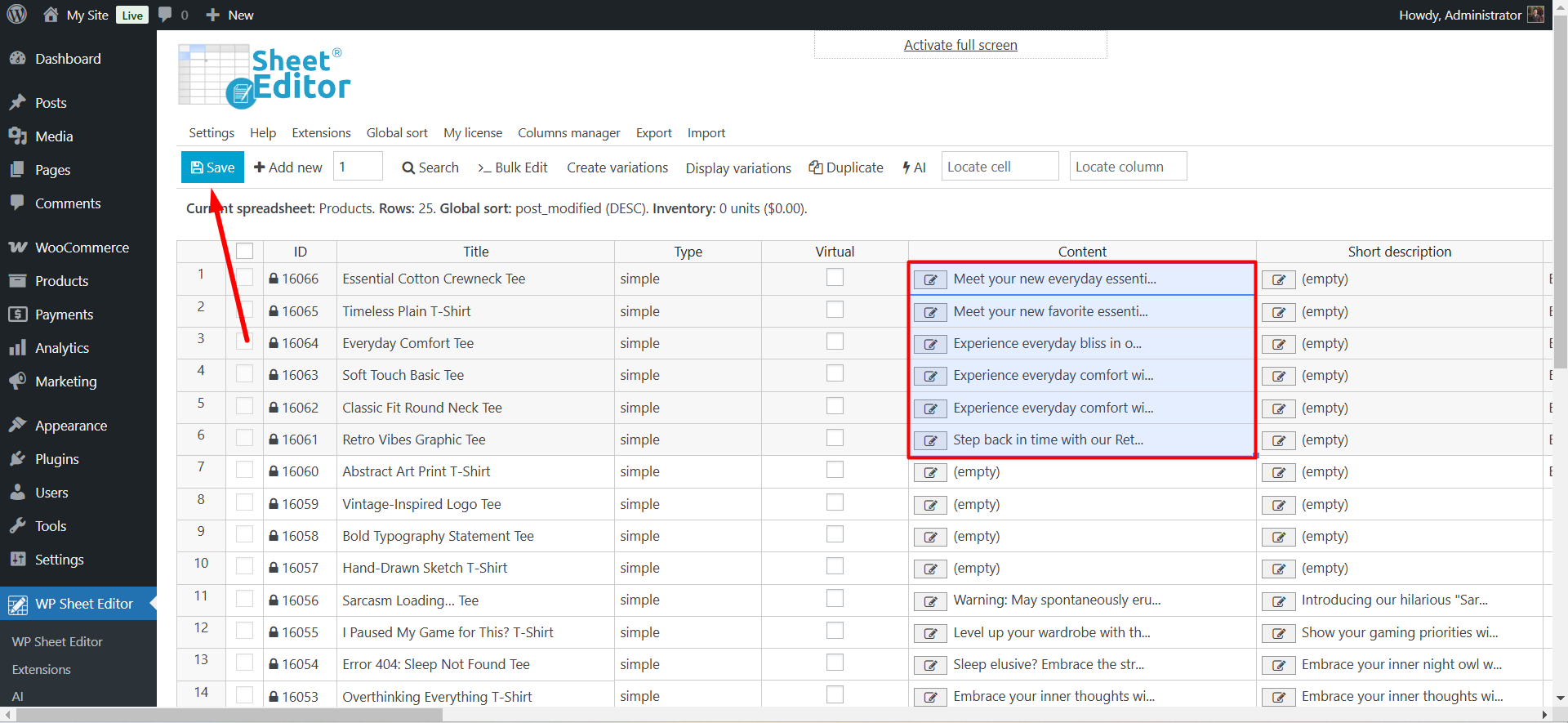
Once the descriptions are generated, click Save to write the changes to the database.
Method 2: Autofill Empty Description Cells with AI
Use this method to fill every empty description cell in your current view without writing or selecting a prompt for each one.
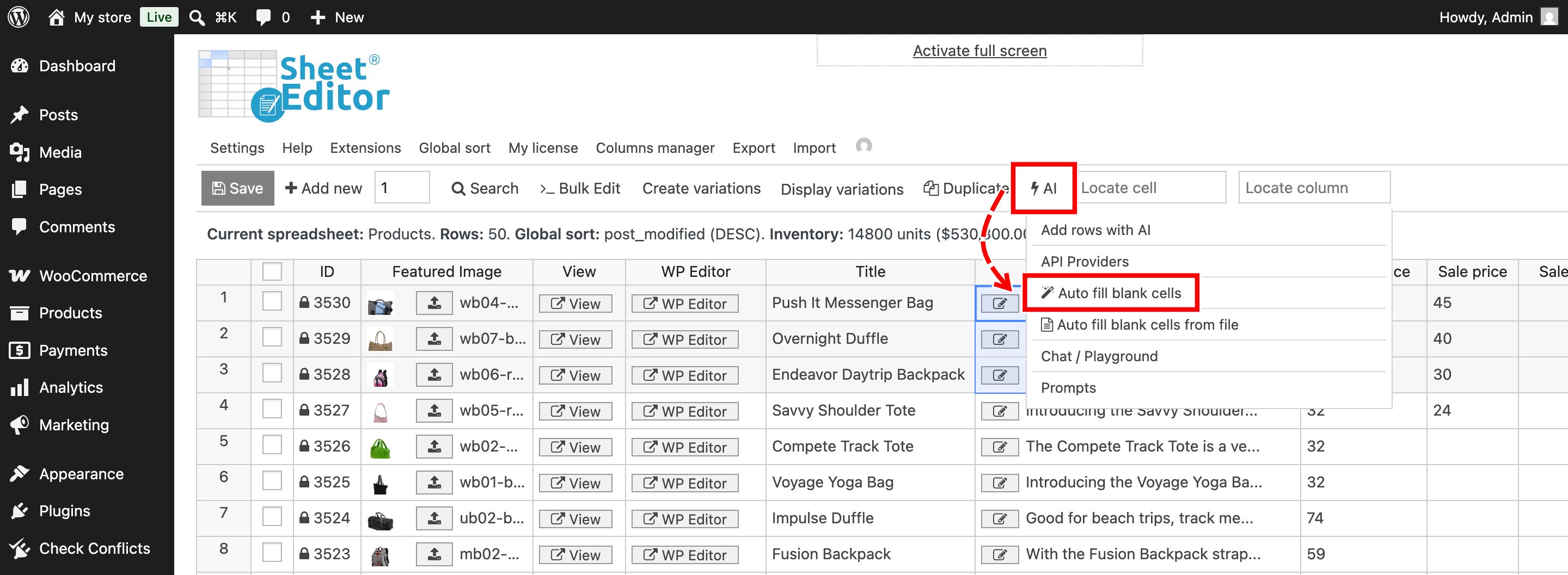
Select all the empty cells in the Content or Short Description column.
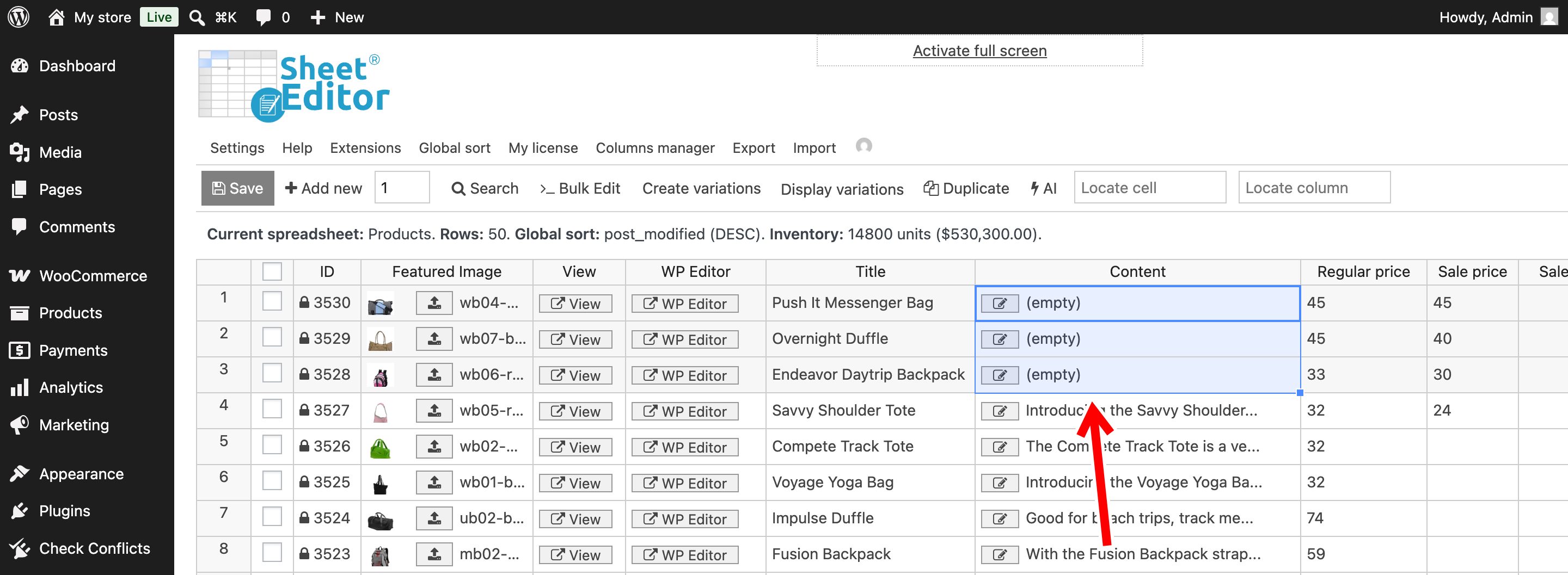
Go to AI → Autofill blank cells (or right-click over the selected cells and choose Autofill blank cells).
Click Submit on the popup that opens.
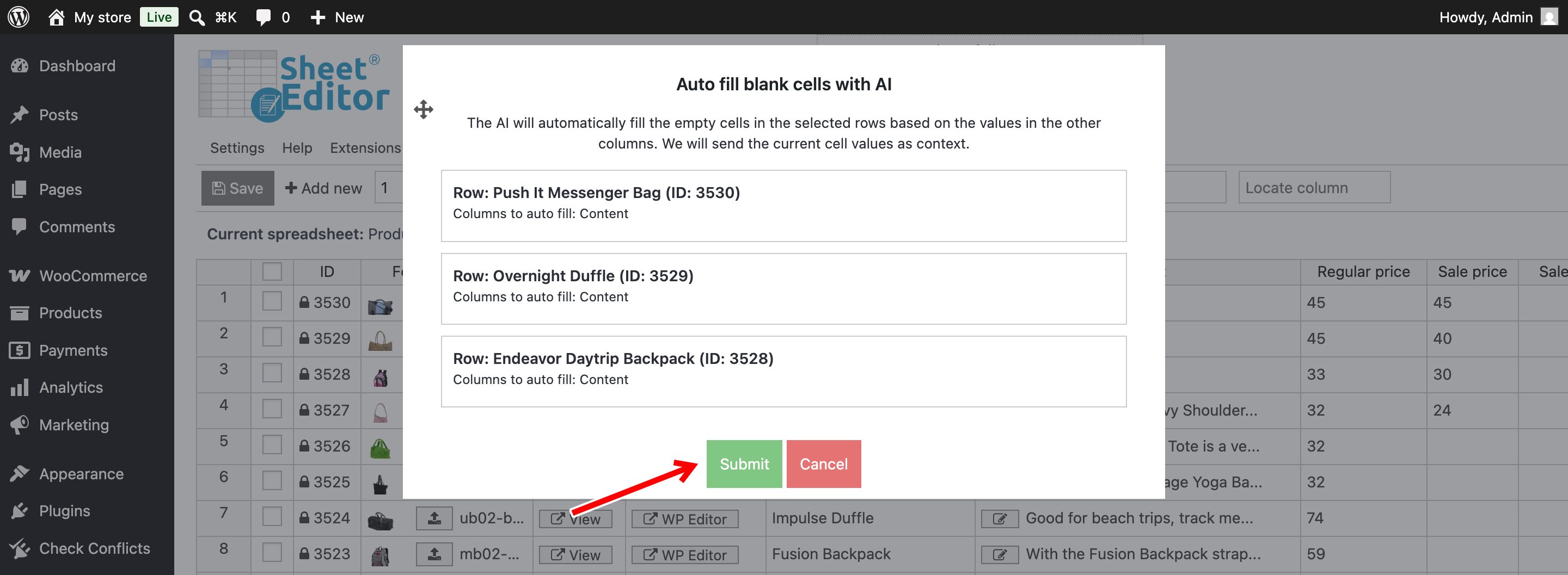
This sends the relevant data for each product, such as title, price, categories, SKU, and attributes, to your configured AI provider, which generates a description based on that data for every selected cell. It is a faster option than typing a prompt per cell when you just need to clear a batch of empty fields and are not customizing tone or structure for each one.
You can edit the prompt for blank cells generation by going to Settings > Advanced settings > AI > Prompt template for generating values for blank cells/fields.
Method 3: Use the AI Text Editor for Individual Products
Use the popup text editor when you want to review and adjust the AI output before it is saved.
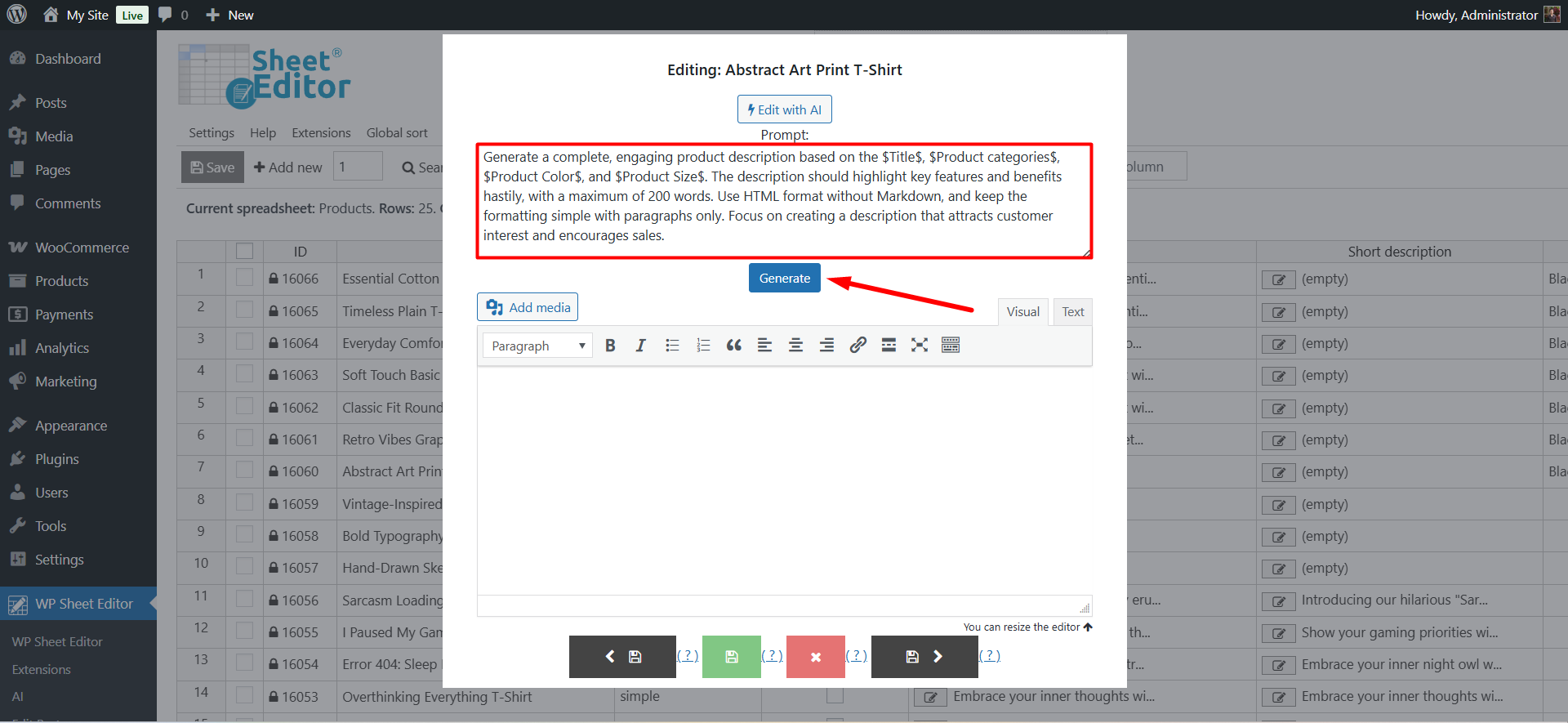
- Click the Edit button on the cell you want to modify (available for the Content and Short Description columns, which use TinyMCE editors).
- In the popup editor, click Edit with AI.
- Paste or type your prompt.
- Click Generate.
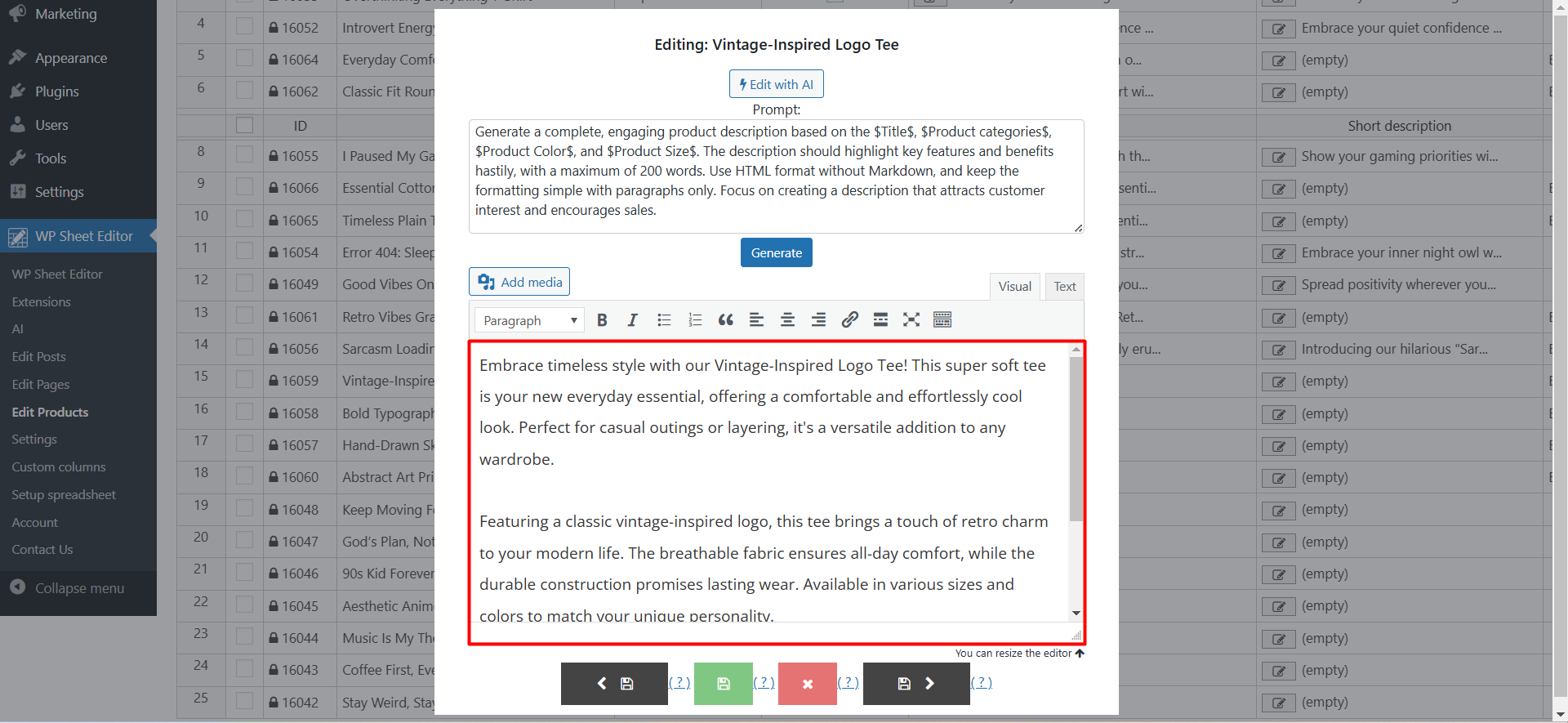
After the AI generates the description, you can review the text, edit it manually, and then save.
Method 4: Bulk Generate Product Descriptions
This method is for populating descriptions across hundreds or thousands of products in a single operation, using the Bulk Edit tool and the Bulk AI API.
Step 1: Filter Products Missing Descriptions
Isolate only the products that need a description before running the job.
Open the Search tool from the toolbar.
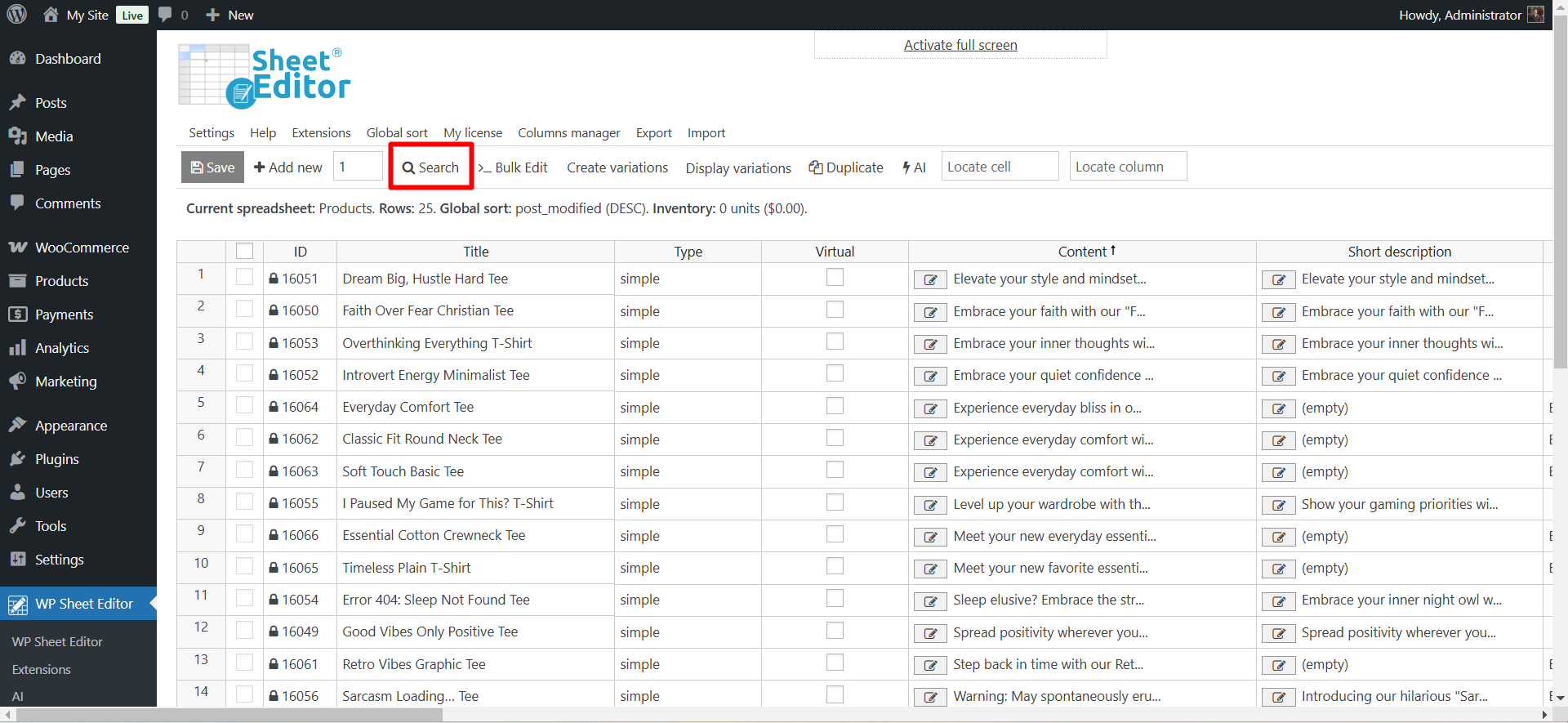
Once there, select these values:
- Tick the Enable advanced filters checkbox.
- Field: Content (for long descriptions) or Short description (for short descriptions)
- Operator: =
- Value: Leave this field empty
- Click Run search.

The spreadsheet now shows only products without descriptions, ready for the bulk job.
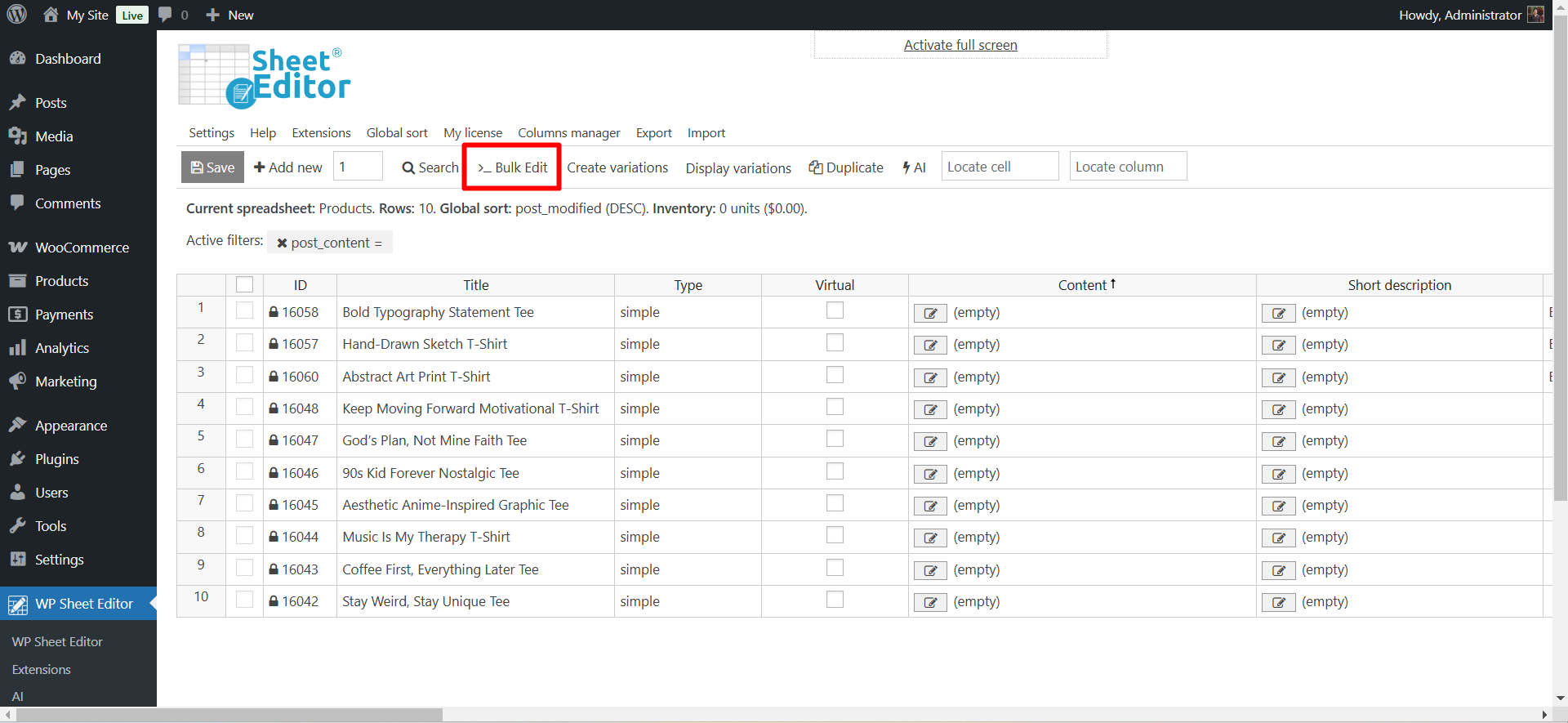
Step 2: Configure the Bulk Edit Tool
Click Bulk Edit on the toolbar.
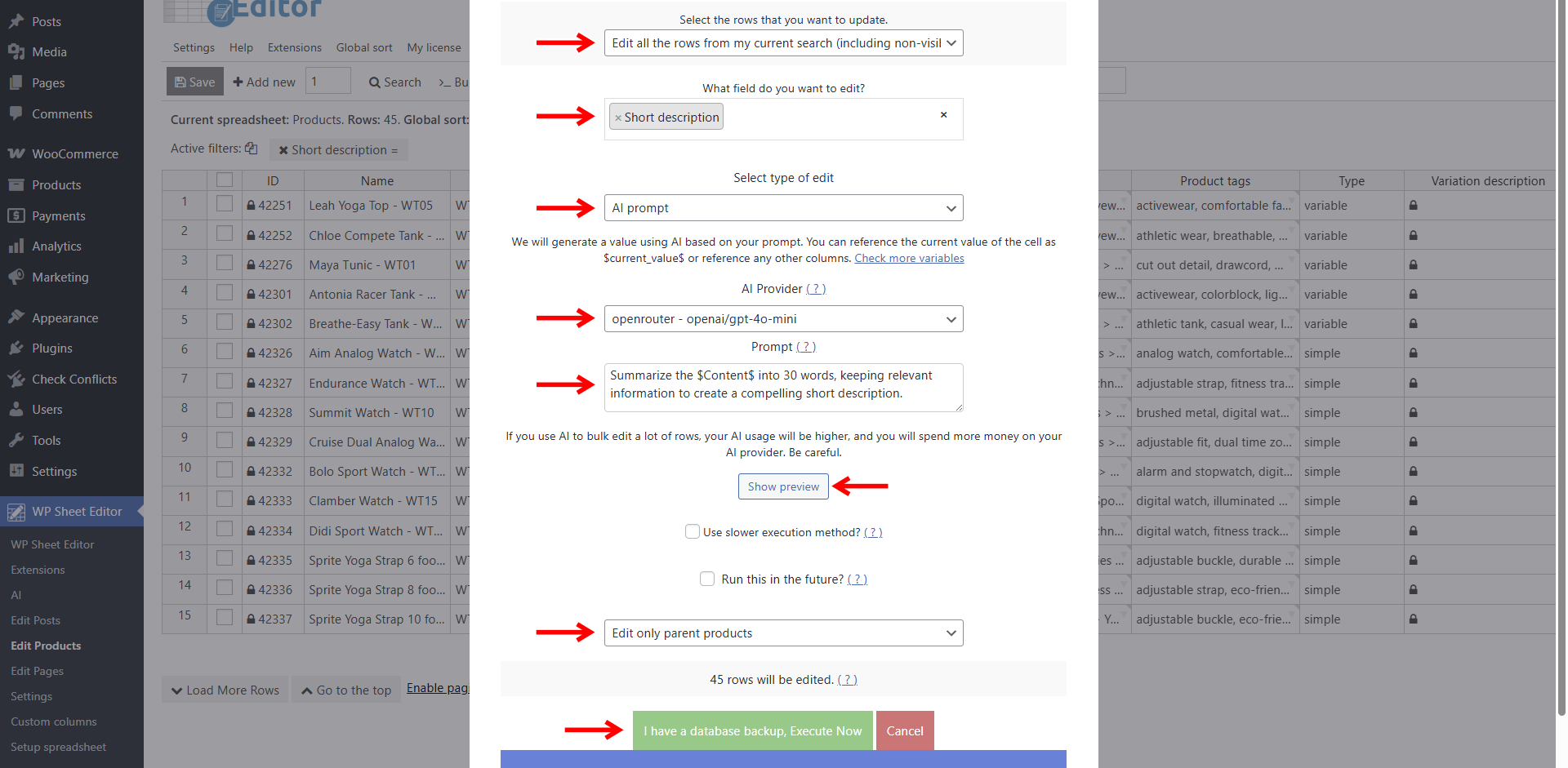
Then configure these values:
- Select the rows that you want to update: Edit all the rows from my current search
- What field do you want to edit: Content (for long descriptions) or Short description
- Select type of edit:
- AI Command: Select a saved global prompt (for example, “Product description”), no need to retype anything.
- AI Prompt: Paste or type a full prompt for a one-off job.
- AI Provider: Choose your configured model (GPT-4o, DeepSeek, Grok 3, Claude 3.7, etc.).
- Tick Edit only parent products (this avoids processing each product variation separately).
- Click Execute Now.

Before executing, click Show preview to see how the AI writes the description for one sample product. Checking this first catches prompt problems before they run across your entire catalog and consume tokens on results you would have to redo.
The AI processes every selected product and writes a description for each one.
Scheduling Bulk AI Generation for Later
If you use the Automations add-on, you can schedule the Bulk Edit job to run at a future date and time, or set it to recur on a schedule. Tick the Run this in the future checkbox and set the timing.

How to Generate Short Descriptions by Summarizing Long Descriptions with AI
The Short Description sits next to your product images, directly above the “Add to Cart” button, making it one of the highest-visibility pieces of copy on the page. If you already have long descriptions in the Content column, you can generate short descriptions by having the AI summarize them.
Option A: Generate Short Descriptions in Spreadsheet Cells
In the Short Description column, type:
ai:Summarize the $Content$ in 25 words
Press Enter and the AI reads the full description from the Content column and condenses it into a summary. (In WP Sheet Editor, the full product description column is labeled “Content.”)
Once generated, click Save to store the new short descriptions.
Option B: Bulk Summarize Short Descriptions
Use the Bulk Edit tool with these settings:
- Filter products missing short descriptions (Search tool: Field = Short description, Operator = =, Value = empty).
- Open Bulk Edit.
- What field do you want to edit: Short description
- Select type of edit: AI Prompt
- Prompt:
Summarize the $Content$ into 30 words, keeping relevant information to create a compelling short description. - Select your AI provider and click Execute Now.
Common Mistakes That Waste Tokens or Produce Bad Copy
- Running a bulk job without previewing first. Always click Show preview on one product before executing across hundreds. A bad prompt caught late means redoing the entire batch.
- Using one prompt for unrelated product categories. A prompt tuned for apparel usually produces awkward results for electronics or food products. Save separate prompts per category when your catalog spans different product types.
- Skipping the “missing description” filter. Running Bulk Edit against your full catalog instead of a filtered list overwrites descriptions you already wrote by hand.
- Writing prompts with no field references. A prompt with no
$Title$,$Product categories$, or similar placeholders produces generic text that could apply to almost any product. - Not setting a word limit. Descriptions with no maximum length often run long and break your product page layout, especially in the Short Description area.
- Assuming the most expensive model is always the best choice. For straightforward, high-volume catalogs, a lower-cost model with a well-written prompt often matches the output quality of a more expensive one.
Best Practices for Bulk AI Content Generation in WooCommerce
- Preview before executing. Use Show preview on a sample product to verify output before running a bulk job.
- Start with a small batch. Test a new prompt on 5 to 10 products before applying it to your full catalog.
- Use category-specific prompts. Save a separate global prompt for each product category that needs a different tone or structure.
- Monitor your AI token usage. WP Sheet Editor – AI manages the connection, but the AI provider bills you separately for the tokens used to generate text. Check your provider dashboard regularly.
- Review before publishing. Treat AI output as a first draft. Spot-check a sample of generated descriptions and adjust the prompt if you see recurring issues.
- Chain your prompts. Generate long descriptions first, then summarize them into short descriptions, then generate SEO titles, all using the same field-reference approach.
Frequently Asked Questions
Will the AI generate unique copy for each product?
Yes. Each description is generated independently based on that product’s title, categories, attributes, and any other fields referenced in your prompt. Because every product has a different title and set of attributes, the generated text differs from product to product, which keeps your catalog clear of duplicate content.
Can I generate both long and short descriptions with AI?
Yes. Save one global prompt for the Content field and another for the Short description field, then run each through WP Sheet Editor – AI. You can also generate short descriptions by having the AI summarize the long description you already generated.
Do I need to pay separately for AI tokens?
Yes. WP Sheet Editor – AI handles the connection between WordPress and your AI provider, but the AI provider (OpenAI, OpenRouter, etc.) bills you directly for the tokens used to generate the text. Cost depends on the model, the prompt length, and the output length. Generating a single product description typically costs a small fraction of a dollar, but you should check your provider’s dashboard to track actual usage.
What if my products already have basic descriptions?
You can prompt the AI to expand or improve an existing description instead of replacing it from scratch. For example: Expand and improve the existing description for $Title$, highlighting key benefits, and make it more persuasive. The AI edits and adds to what is already there rather than starting over.
Can I use the AI for fields other than descriptions?
Yes. WP Sheet Editor – AI works with any field available in the spreadsheet. Common uses beyond product descriptions include SEO titles, meta descriptions, product tags, image alt text, and translating content into other languages.
Does bulk generation work on product variations, or only parent products?
Yes. Here’s a tutorial on how to generate product variation descriptions.
How long does a bulk job take for a large catalog?
Processing time depends on the number of products, the AI provider’s response speed, and your chosen model. Smaller batches (under 100 products usually complete in a few minutes. Larger catalogs of several thousand products can take longer, which is why the Automations add-on lets you schedule bulk jobs to run in the background rather than waiting on the screen.
Learn more about our Bulk AI API here.
Can I undo AI-generated changes after saving?
WP Sheet Editor writes generated text to the product only after you click Save, so nothing changes until that point. Before saving, you can edit or clear any generated cell manually. After saving, changes follow the same behavior as any other edit made through WP Sheet Editor, so it is good practice to filter and preview a bulk job before running it on products you cannot easily re-edit by hand. Always make a backup of your site.
Start Generating WooCommerce Product Descriptions with AI
With WP Sheet Editor – WooCommerce Products and the WP Sheet Editor – AI extension, you can connect your catalog to OpenAI, DeepSeek, Grok, Gemini, Claude, etc. and generate Content and Short Description fields for one product or your entire catalog, directly inside your WordPress dashboard.