
If you need to bulk edit Tutor LMS lessons in Google Sheets, you can use WP Sheet Editor – Courses and Google Sheets Sync to connect your lessons to an editable Google spreadsheet.
This allows you to update lesson titles, descriptions, content, and video URLs without opening each lesson individually in WordPress. You can also configure bidirectional synchronization so changes made in Google Sheets are automatically imported into Tutor LMS.
In this tutorial, we’ll show you how to set up the connection and edit your Tutor LMS lessons from Google Sheets.
1. Install the plugins to edit Tutor LMS lessons in Google Sheets
You need two WP Sheet Editor tools to connect Tutor LMS lessons to Google Sheets.
WP Sheet Editor – Courses
This plugin displays your Tutor LMS lessons in a spreadsheet inside WordPress. You can view and edit lesson information, including titles, content, and other available fields.
You can purchase the plugin here:
Google Sheets Sync
This service connects WP Sheet Editor to your Google account and allows you to synchronize lesson data between WordPress and Google Sheets.
You can configure bidirectional synchronization to export WordPress changes to Google Sheets and import your Google Sheets edits back into WordPress.
You can sign up to the service here:
After installing the plugin and connecting the synchronization service, follow the steps below.
2. Open your Tutor LMS lessons in WP Sheet Editor
Go to WP Sheet Editor > Edit lessons in your WordPress dashboard.
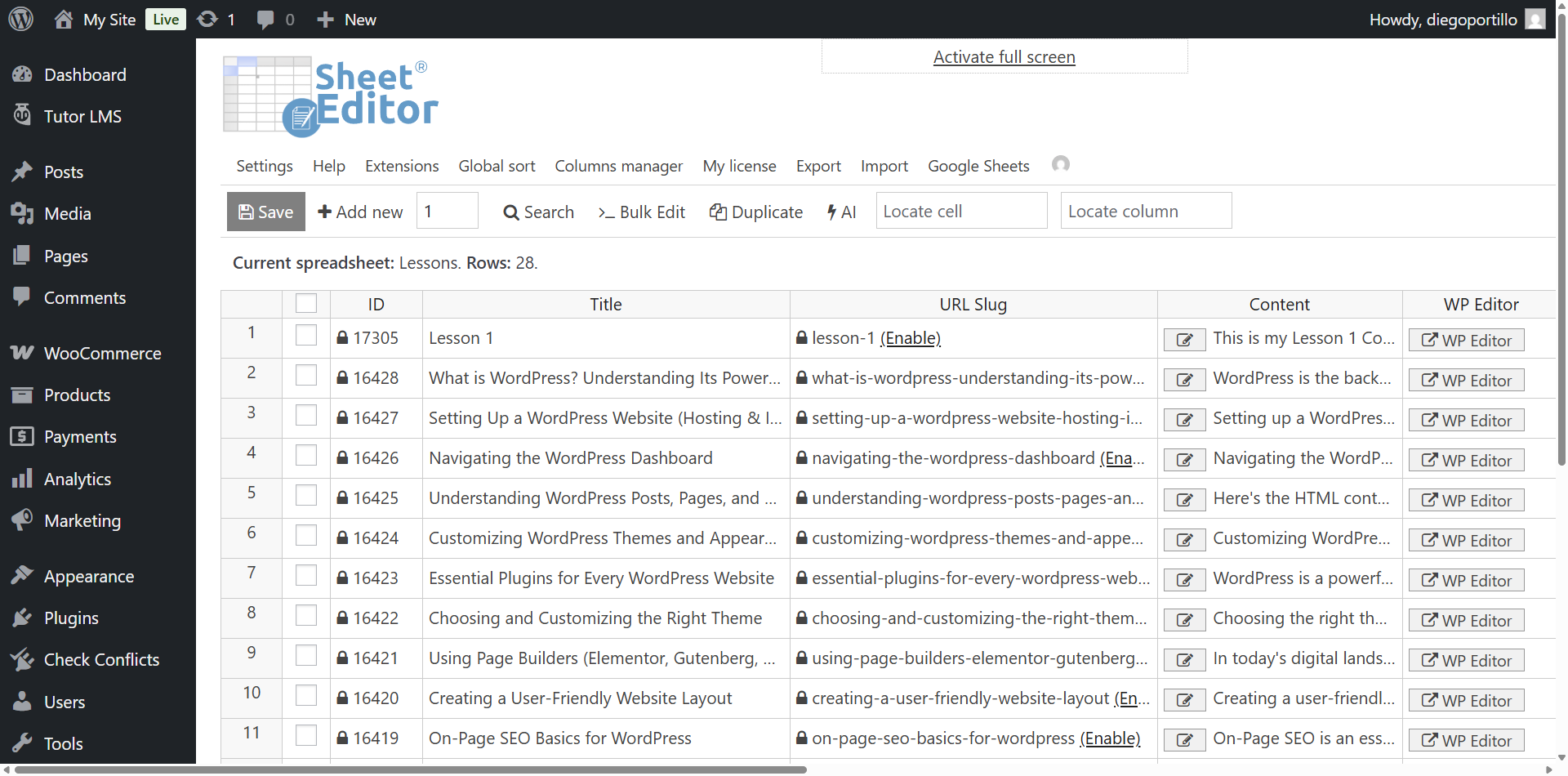
You’ll see your Tutor LMS lessons displayed in a spreadsheet, with lessons organized into rows and their available fields displayed as columns.
From here, you can review your lesson data and configure its synchronization with Google Sheets.
3. Connect Tutor LMS lessons to Google Sheets
Before synchronizing your lessons, you need to connect your WordPress website to your Google account.
When you subscribe to Google Sheets Sync, you’ll receive a helper plugin that handles the connection.
Follow the Google Sheets Sync installation and setup guide to install the helper plugin and authorize your Google account.
Once the connection is ready, return to the lessons spreadsheet.
4. Create a bidirectional sync for Tutor LMS lessons
You can now create a synchronization task that connects your Tutor LMS lessons to a Google spreadsheet.
Hover over the Google Sheets tool in WP Sheet Editor and select Quick sync setup.
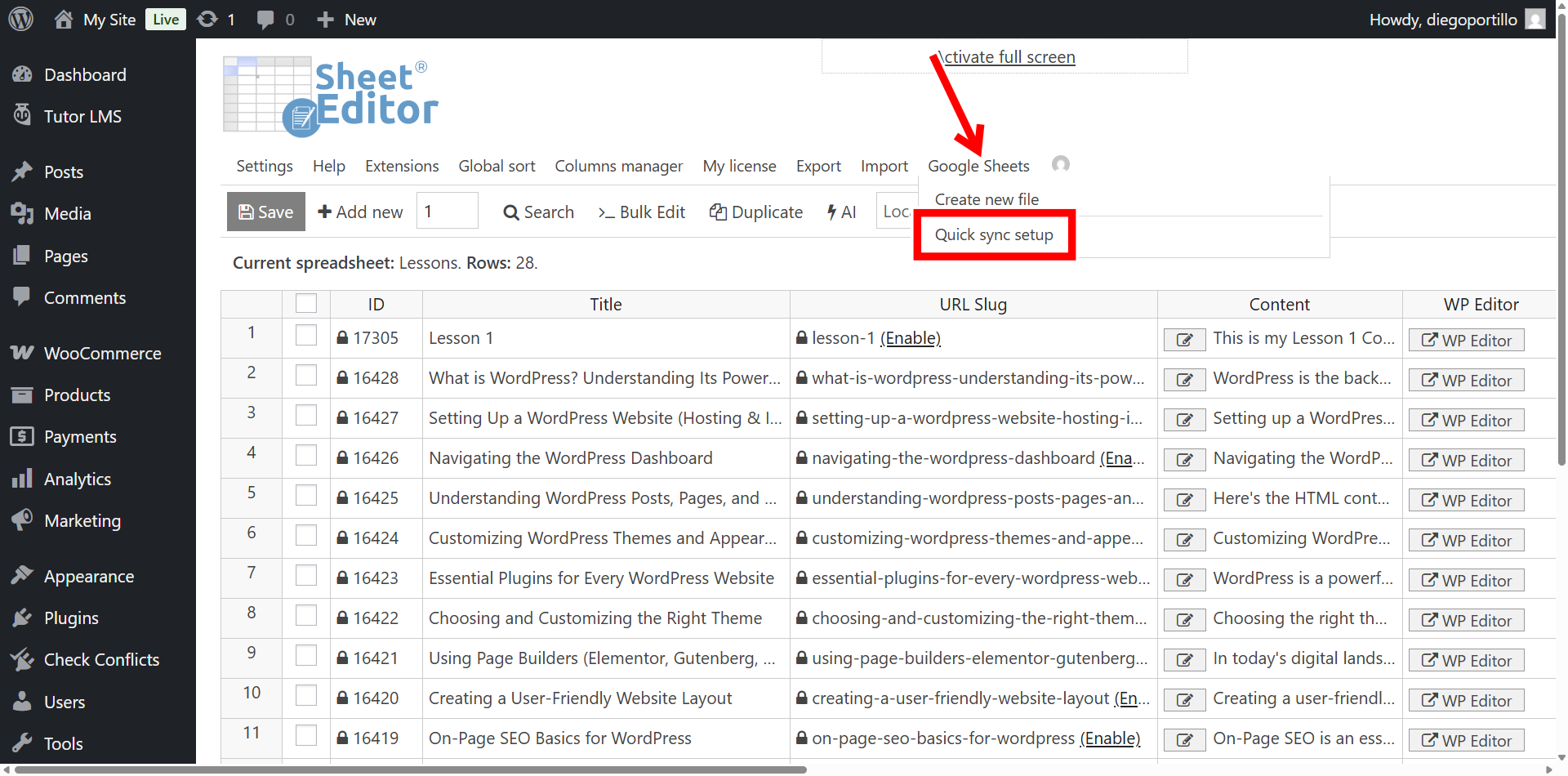
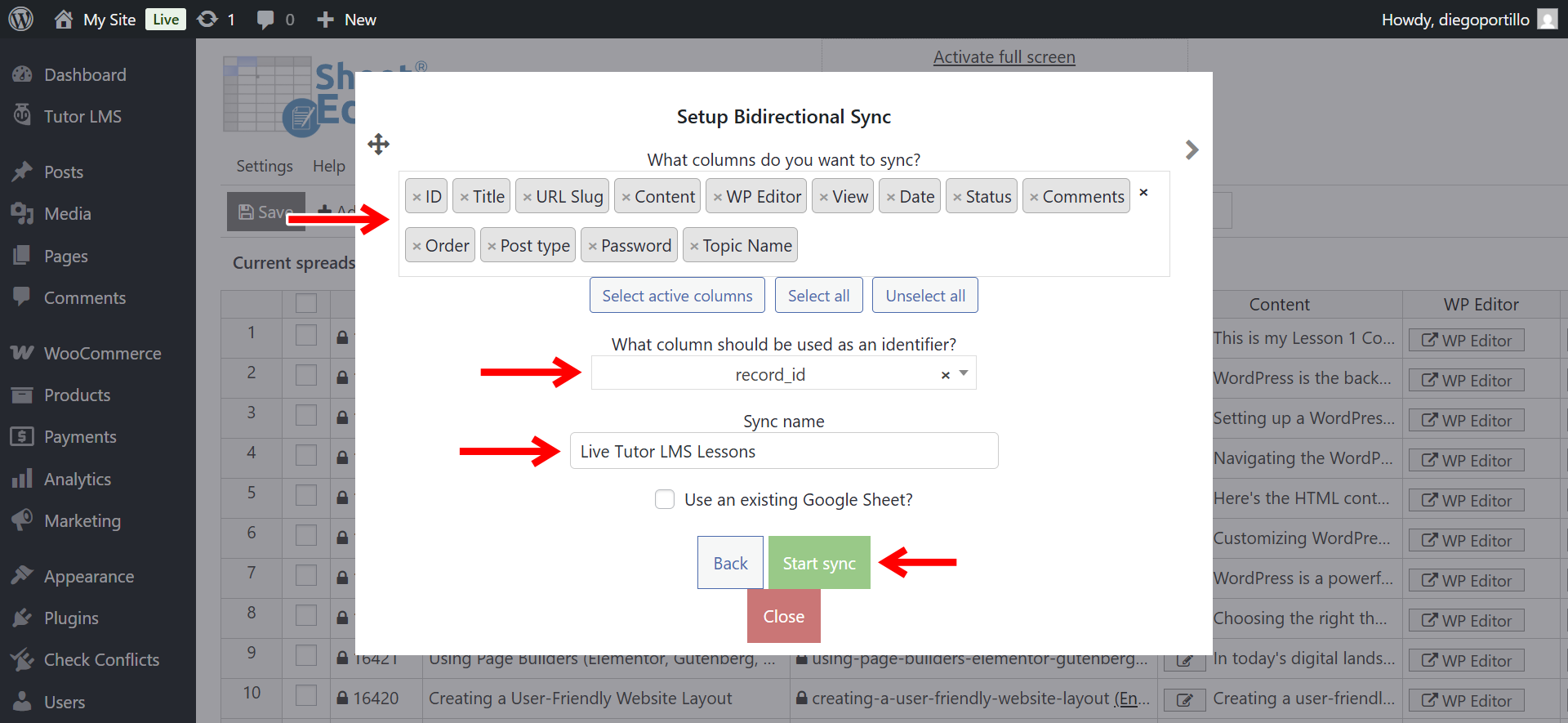
Select Sync WordPress to Google Sheets (bidirectional).
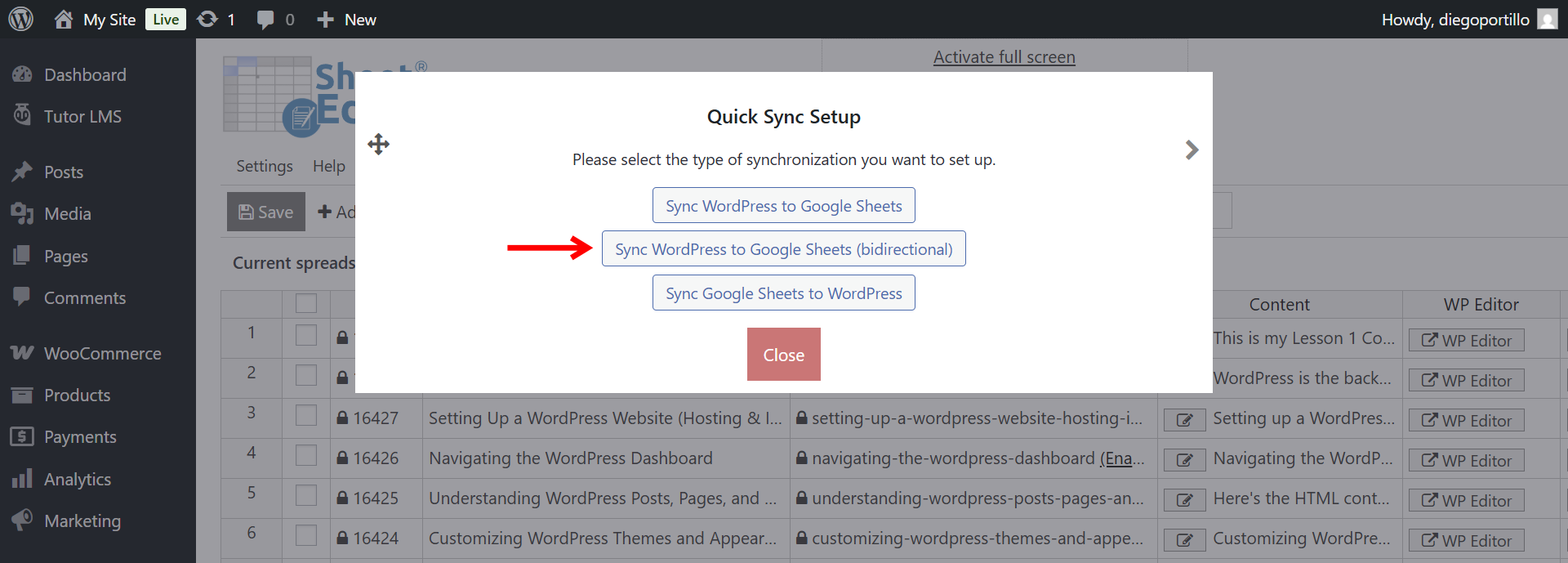
Next, configure the synchronization settings:
- What columns do you want to sync: Select all columns to synchronize the available lesson data, or select only the columns you need to edit.
- What column should be used as an identifier: Select record_id (ID) to match Google Sheets rows to the correct Tutor LMS lessons.
- Sync name: Enter a name such as “Tutor LMS Lessons Sync”.
- Click Start sync to create the synchronization task.
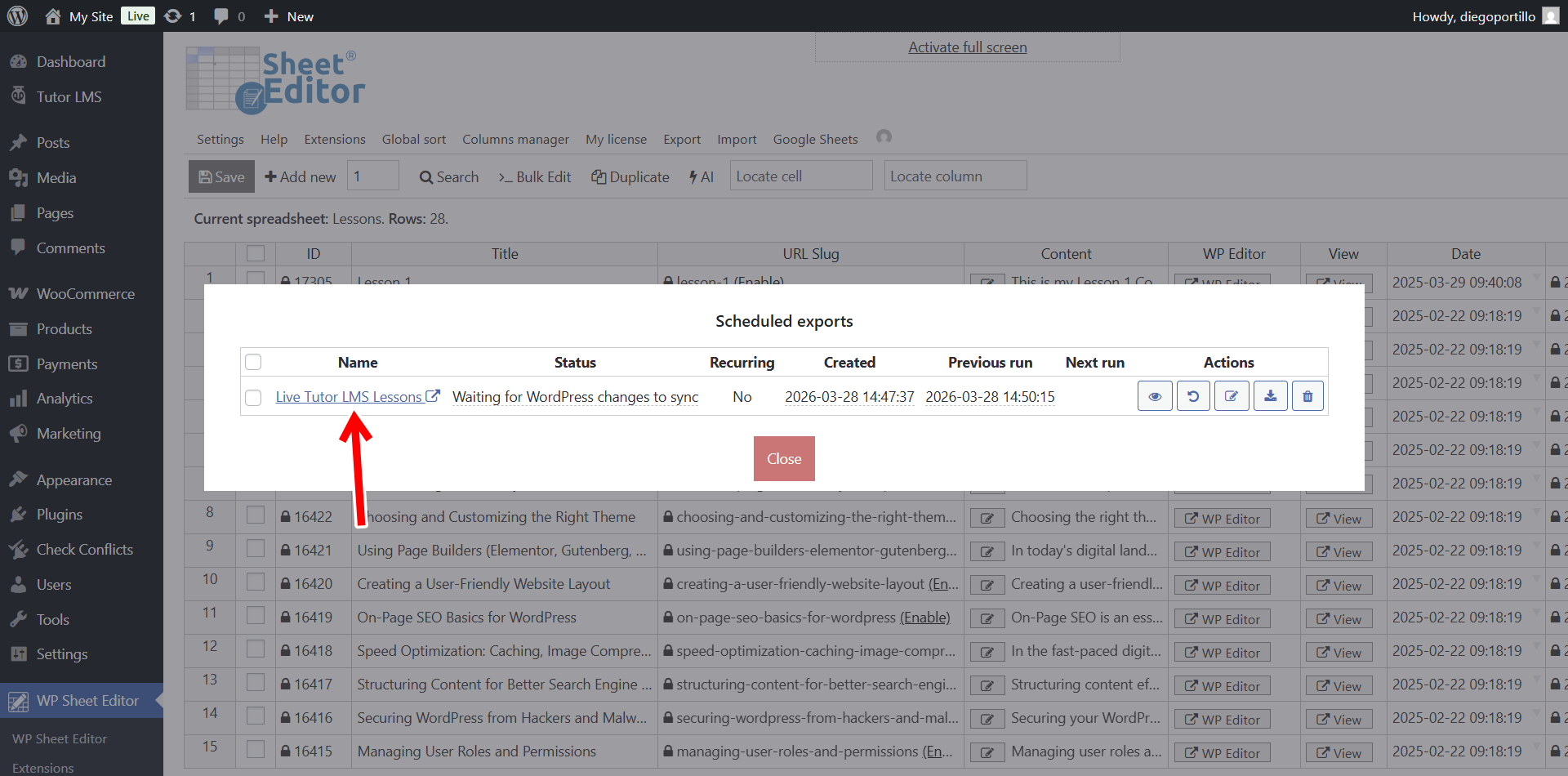
After starting the sync, go to Export > View scheduled exports.
You’ll find the synchronization task you created. Once the export completes, click its name to open the Google spreadsheet containing your Tutor LMS lessons.
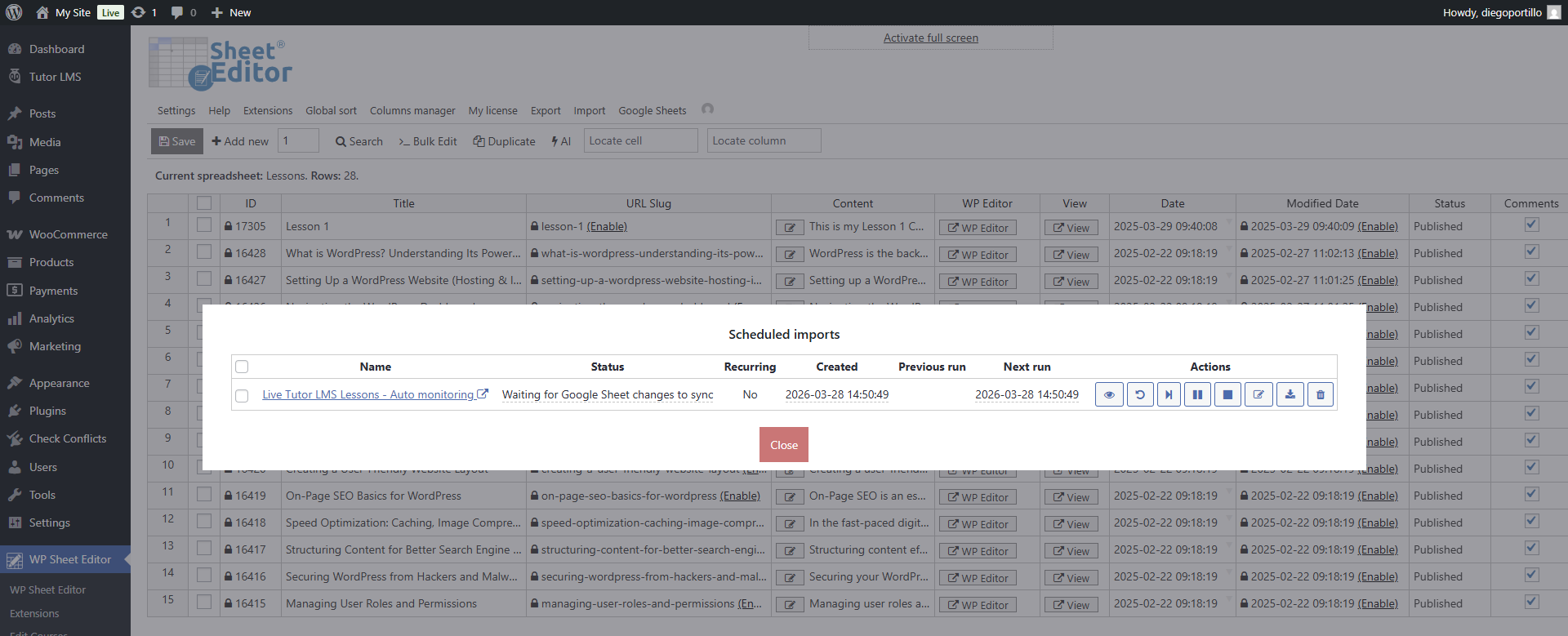
You can also go to Import > View scheduled imports.
You’ll see the automatic import task created by the bidirectional synchronization. This task is responsible for importing your Google Sheets edits back into WordPress.
5. Bulk edit your Tutor LMS lessons in Google Sheets
Open the Google spreadsheet generated by the synchronization task.
Your Tutor LMS lessons will appear as spreadsheet rows, with their synchronized fields organized into columns.
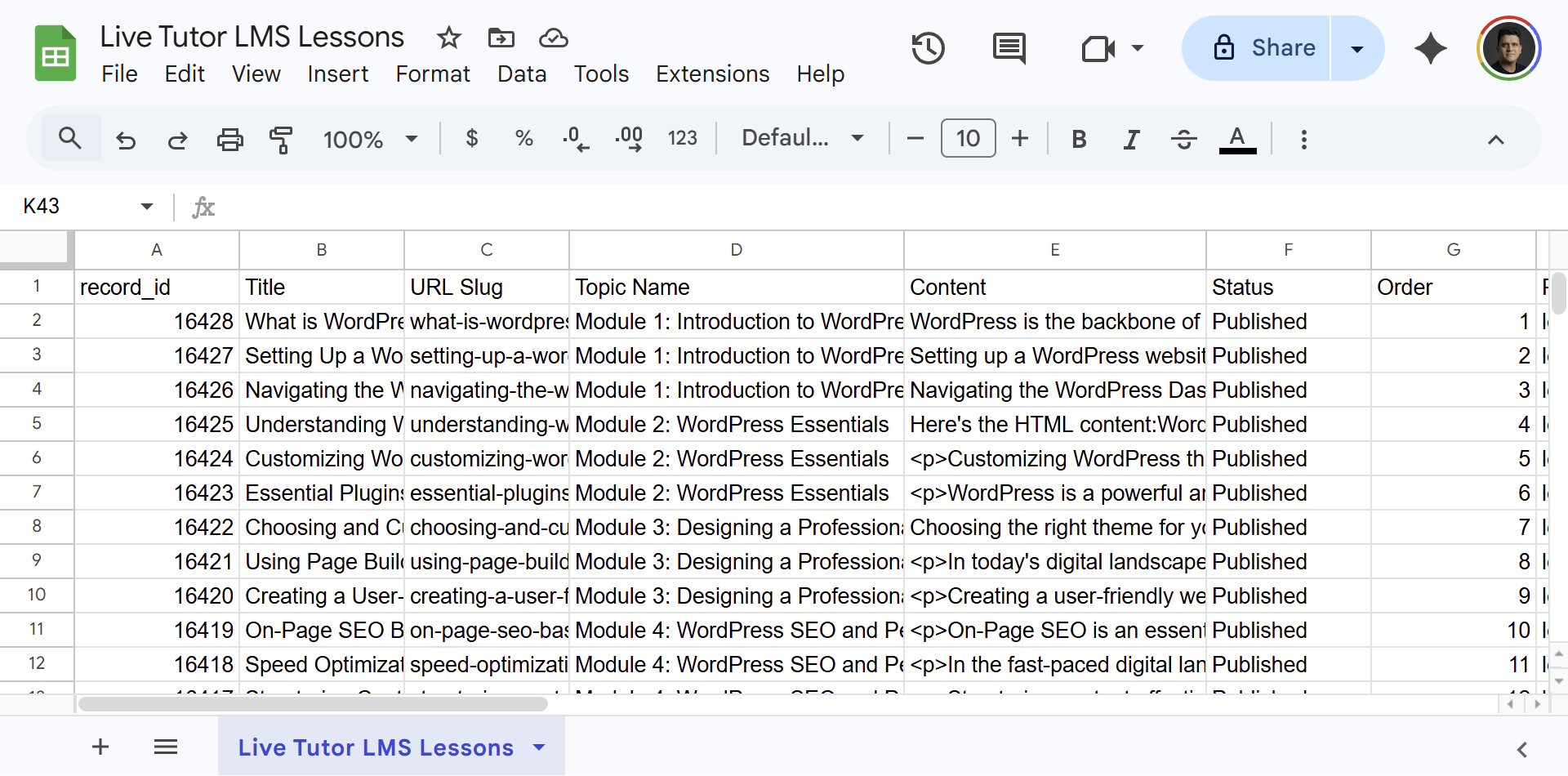
You can now edit multiple lessons directly in Google Sheets.
For example:
- Edit lesson titles: Update the titles of multiple lessons by editing their corresponding cells.
- Bulk update video URLs: Paste new video links into the appropriate video URL cells. This is useful when moving lessons from one video hosting platform to another.
- Edit lesson descriptions and content: Review and correct lesson text without opening each lesson in Tutor LMS.
- Update lesson relationships: Edit the available course or topic relationship fields when you need to move lessons, using the values and formats expected by those fields.
You can use Google Sheets features such as copy and paste, Find and Replace, and drag-to-fill to apply similar changes across multiple rows.
Important: Keep the record_id (ID) values unchanged so the synchronization can identify the existing lessons correctly. Also, avoid editing columns that contain identifiers or system-generated values unless you know how the corresponding field works.
6. Automatically sync your lesson edits back to Tutor LMS
After you edit your lessons in Google Sheets, the scheduled import handles the synchronization back to WordPress.
You don’t need to export a CSV file or manually import the spreadsheet after every change.
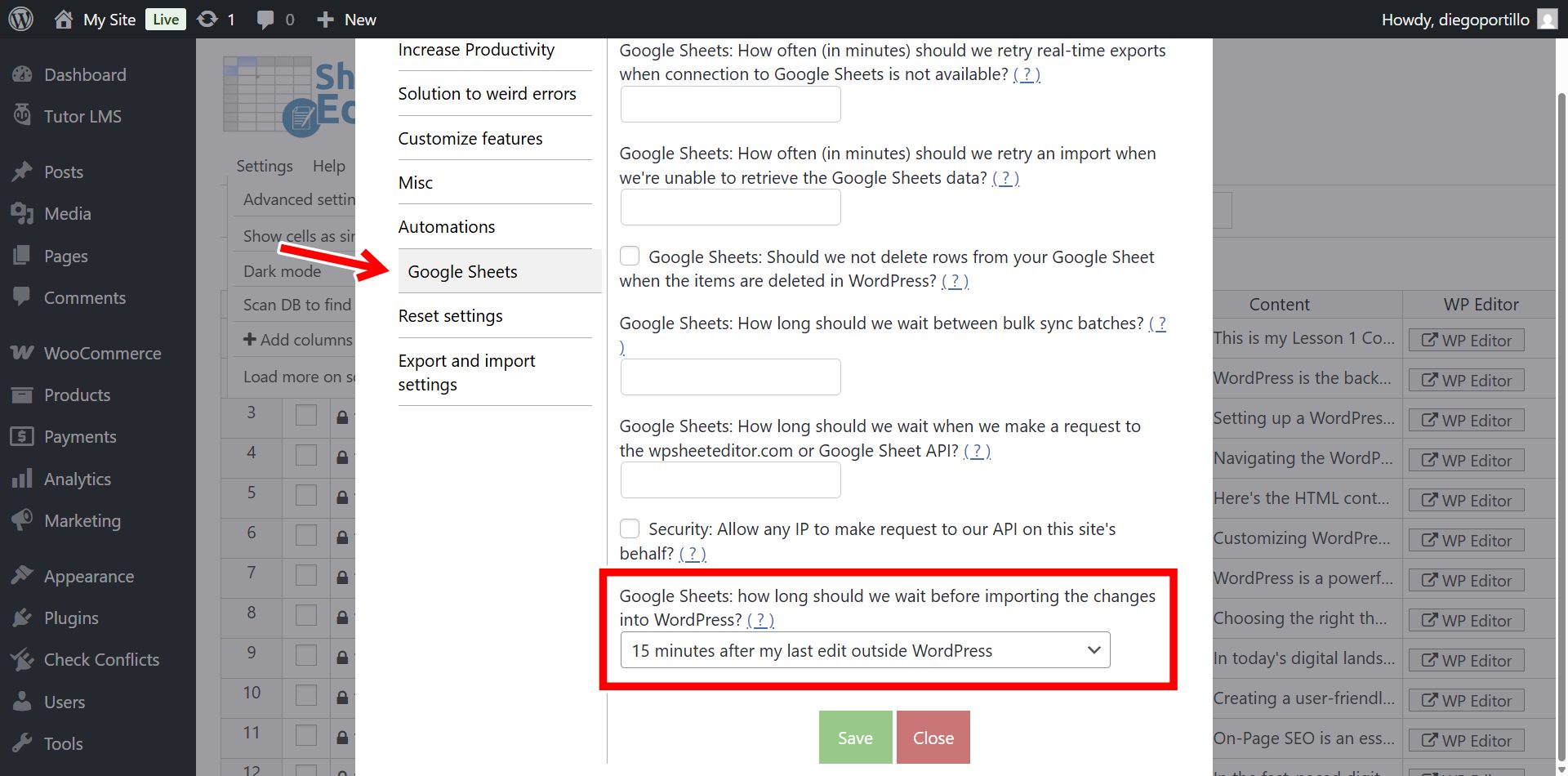
Google Sheets Sync also provides a setting that lets you define a delay before importing changes. This helps prevent unfinished edits from being imported while you’re still working.
To configure this delay, go to Settings > Advanced Settings > Google Sheets.
Set the time the service should wait after your last edit made in Google Sheets before running the import automatically. For example, you can configure a 15-minute delay.
Once the scheduled import processes your edits, open a few updated lessons in Tutor LMS to confirm that their titles, content, and video URLs were saved correctly.
Bulk edit Tutor LMS lessons without opening them individually
With WP Sheet Editor – Courses and Google Sheets Sync, you can maintain your Tutor LMS lesson information in a Google spreadsheet and synchronize those changes with WordPress.
This is particularly useful when you need to update lesson titles, replace video links, correct content, or make similar changes across multiple lessons.