The Definitive Guide to Bulk Editing WooCommerce Products at Scale

WP Sheet Editor lets you bulk edit WooCommerce products by loading your entire catalog into a spreadsheet inside your WordPress dashboard. You can view, search, and update hundreds of products (including variations, custom fields, and SEO metadata) simultaneously without page reloads, blind overlays, or risky CSV imports.

If you manage a WooCommerce store, you know it’s a great platform… until you need to update your inventory for hundreds of products.

When you have to:

  • Change prices for a seasonal sale,
  • Fix a typo across a hundred product descriptions,
  • Modify attributes for dozens of variations,
  • Or update stock statuses for hundreds of product variations…

The standard WordPress interface stops feeling like a management tool and starts feeling like a bottleneck.

Table of Contents

What Are the Limitations of the Native WooCommerce Bulk Editor?

The native WooCommerce bulk editor is limited by server timeouts, blind data entry, and single-field editing constraints. Editing 500 products can take hours and frequently results in out-of-memory errors on standard WordPress hosting due to strict PHP execution limits.

If you have ever tried using the built-in tool to manage a scaled-up catalog, you run into several exhausting issues:

  1. Editing products page by page: You are forced to check boxes and edit products across paginated screens. If you try to change your screen options to show more than 50 or 100 products at once to speed things up, there is a high chance your site will crash with a server timeout.
  2. Changing only one value at a time: The native tool only lets you tweak one single field per save. If you need to drop a price and adjust a shipping weight, you have to run through the entire bulk edit process twice. You cannot view or edit multiple different fields side by side.
  3. Not seeing current values: When you open the native bulk editor, a massive overlay box pops up and completely hides your actual data. You cannot see your current prices or stock levels while you are changing them, making it incredibly easy to make an expensive typo.
  4. Risky CSV imports: Most people get so tired of the native editor that they export their catalog to a CSV to edit it in Excel. But re-importing that file is a massive gamble. It is all too common to end up with broken variations, missing leading zeros in your SKUs, or corrupted text symbols.

When you are dealing with hundreds or thousands of product variations, relying on these default tools turns a quick afternoon task into hours of stressful database troubleshooting.

How Does WP Sheet Editor Solve WooCommerce Limitations?

Instead of treating every product like an isolated WordPress page, you can look at your database through a spreadsheet view where every row represents a product or variation, and every column represents an editable field.

Native Editor vs CSV Method vs WP Sheet Editor

To give you a look at how this changes your day-to-day store management, here is a quick breakdown of how a spreadsheet setup handles tasks compared to the default options:

Task Native Editor CSV Method WP Sheet Editor
Making Changes Inside floating pop-up windows. Offline using desktop software. Directly inside the live grid cells.
Working with Data Blind entry (cannot see current values). Full spreadsheet visibility, but offline. Full spreadsheet visibility, directly on your site.
Handling Large Updates Requires saving and reloading page by page. Requires a full catalog export and a full re-import. Applies filtering tools and runs updates directly in the database.
The Primary Risk Incredibly slow; human error from blind editing. Corrupted formatting or broken variation linkages during import. Applying a bulk rule to the wrong filtered selection (preventable with preview)

The Core Difference: You are still editing your actual WordPress database, but you are doing it using familiar navigation, like dragging a cell corner to copy values down a column or tabbing seamlessly through fields.

Because you have full visibility over your prices, SKUs, and stock levels all at once, you can spot mistakes immediately instead of discovering them later on a live product page. Let’s look at how to actually set up and run your first bulk update using this spreadsheet layout.

Compatible Plugins: Yoast SEO, ACF, WPML, and 40+ More

WP Sheet Editor is compatible with over 40 popular WordPress and WooCommerce plugins. It automatically detects third-party database entries (including SEO metadata, custom fields, and multilingual translations) and renders them as natively editable columns within the spreadsheet.

This compatibility allows you to modify third-party data without opening each product individually. The system automatically maps and supports the following toolsets:

SEO and Metadata Plugins

  • Yoast SEO: Bulk edit SEO titles, meta descriptions, and focus keyphrases directly in the spreadsheet. You can filter for products missing SEO metadata and populate them in bulk.
  • Rank Math SEO: Bulk update focus keywords, SEO titles, and meta descriptions side-by-side.
  • All in One SEO (AIOSEO) & SEOPress: Edit SEO titles, descriptions, and canonical URLs for hundreds of products simultaneously.

Custom Field Frameworks

  • Advanced Custom Fields (ACF): All core ACF field types (text, number, WYSIWYG, image, file, select, checkbox, date picker, Google Maps, repeater, and flexible content) appear as editable columns. You can search, filter, and mass update any ACF meta key across thousands of products.
  • PODS: Custom fields created with PODS are fully integrated, allowing inline editing of text, relationships, files, and date pickers.
  • Meta Box: All custom fields generated by Meta Box are detected automatically, enabling you to search your catalog by specific Meta Box values and apply instant batch updates.

Translation and Multilingual Plugins

  • WooCommerce Multilingual (WPML): Manage product translations across multiple languages from a single grid. The WPML – Duplicate and WPML – Relationship columns allow you to create translations and control synchronization settings in bulk.
  • Polylang for WooCommerce: The Polylang – Language and Polylang – Translation columns are fully supported. You can export products in a primary language, translate them offline, and import the updates back, or use the Google Sheets Sync service for collaborative translation management.

Store Operations and Product Management

  • WooCommerce Wholesale Prices: Bulk edit wholesale pricing tiers and minimum purchase rules for hundreds of products and variations instantly.
  • Composite Products & Product Bundles: Manage composite and bundled product data alongside your standard inventory within the same spreadsheet interface.
  • WooCommerce Max Quantity: Bulk configure or clear maximum purchase limits across your entire catalog.
  • Remove Add to Cart WooCommerce: Bulk import and manage inquiry links, custom button texts, and hidden price settings for B2B or wholesale storefronts.
  • Additional Compatibility: Full support for fields generated by PublishPress Permissions, WooCommerce Product Addons, Extra Product Options, and Flexible Product Fields.

This architectural compatibility ensures you do not have to learn a separate interface for every extension installed on your store. By centralizing SEO metadata, translations, and complex custom fields into a single grid, store managers bypass the need to copy, paste, and navigate across multiple different WordPress admin screens.

How to View WooCommerce Products in a Spreadsheet

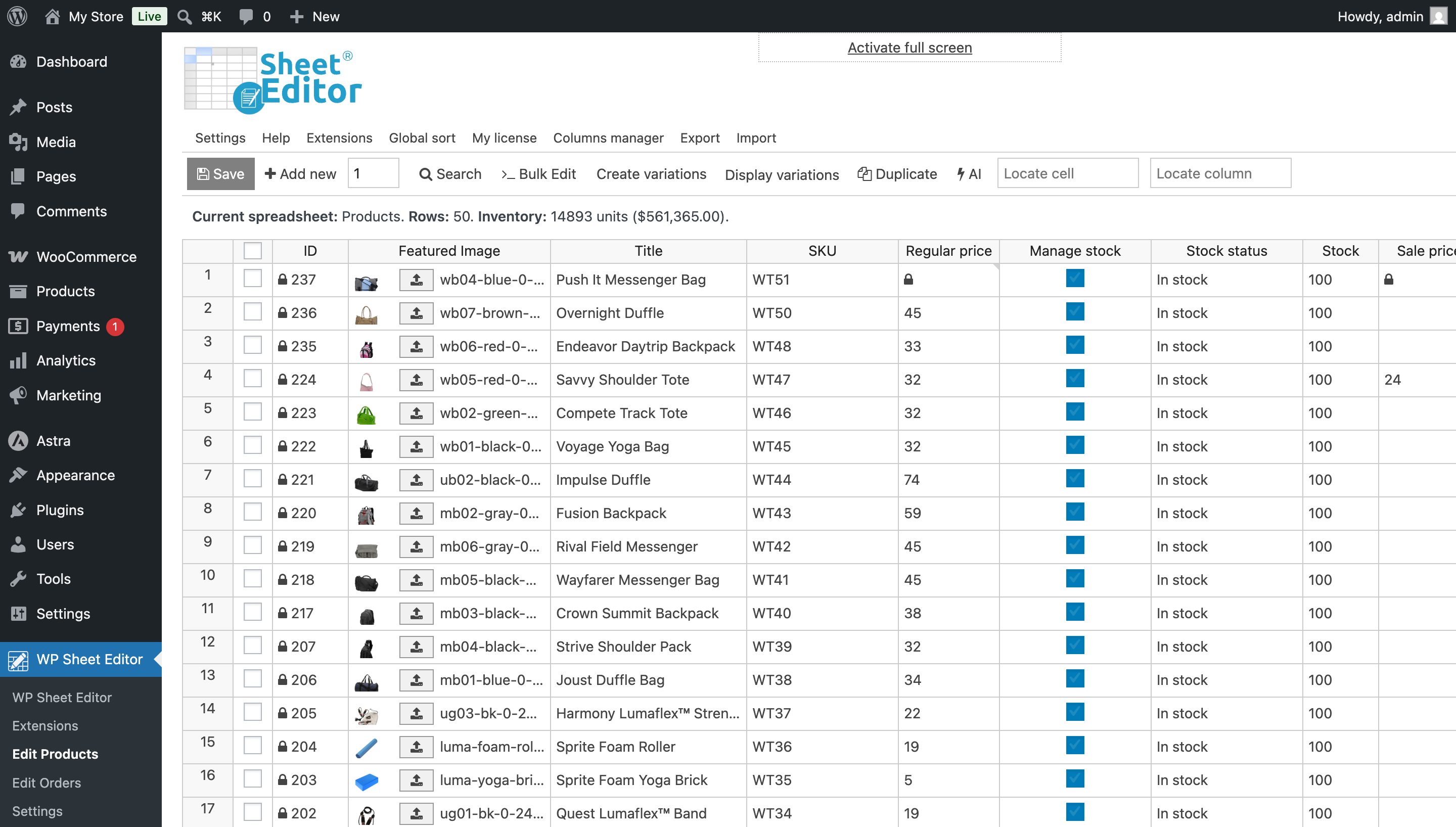
To view WooCommerce products in a spreadsheet, navigate to WP Sheet Editor > Edit Products in your WordPress dashboard.

WP Sheet Editor interface showing the WooCommerce products spreadsheet grid in light mode

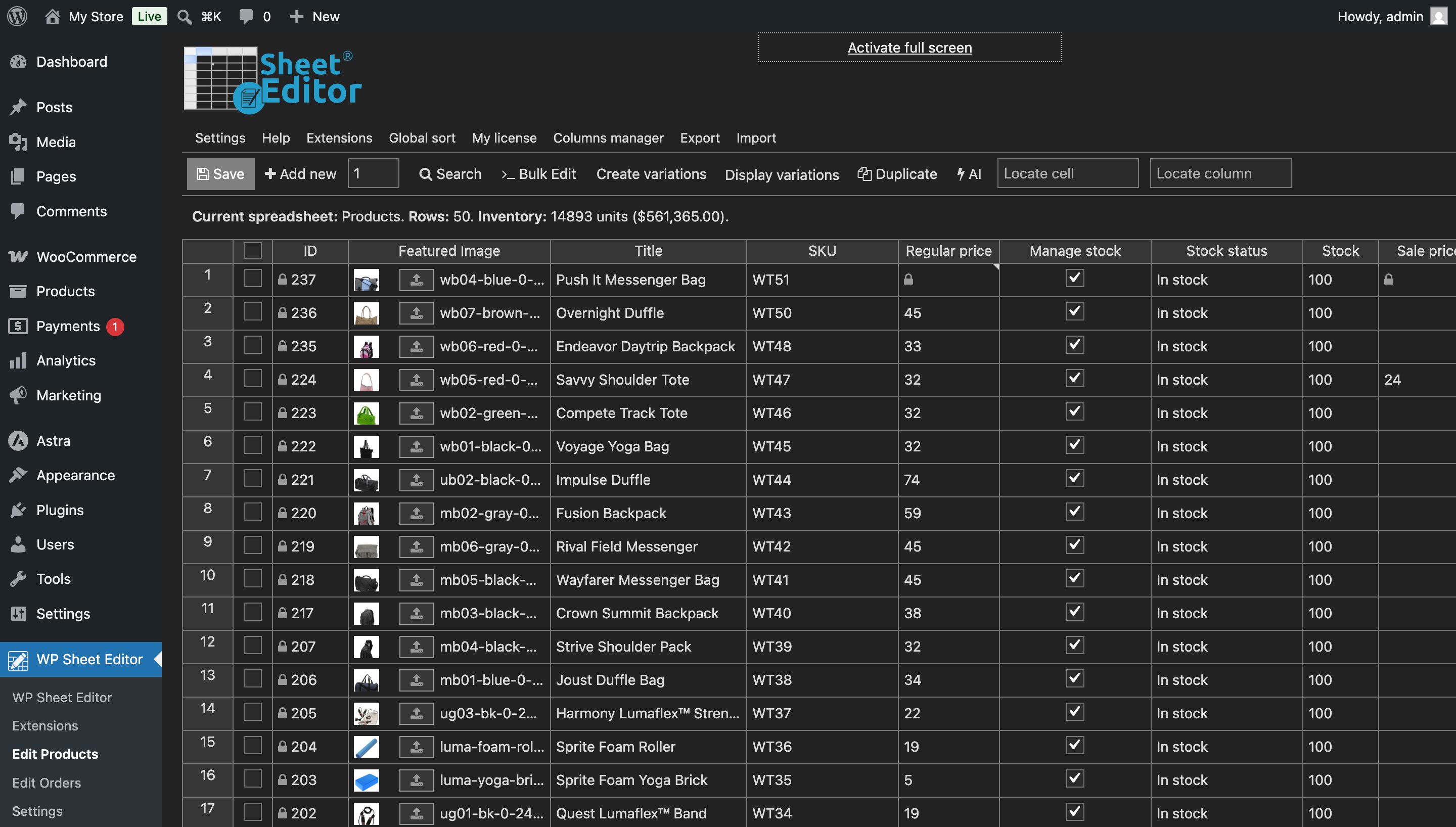
To view the spreadsheet in dark mode, click on Settings in the top menu and toggle on Dark mode.

WP Sheet Editor WooCommerce products spreadsheet interface with dark mode enabled

If you need help configuring the plugin for the first time, you can follow this quick setup guide to ensure your spreadsheet loads efficiently.

Understanding the Spreadsheet Layout

Before running massive updates, it is important to understand how the plugin translates raw WooCommerce database tables into a visual grid:

  • Rows: Every individual row represents a separate WooCommerce product. If a product has multiple variations (like sizes or colors), clicking Display variations expands them onto their own dedicated child rows.
  • Columns: Every column represents a specific product field. This includes basic metadata (SKUs, product title, regular prices, stock status) alongside hidden database settings (shipping classes, visibility tags, tax status).
  • Main Toolbar: Located directly above the grid, this menu contains your primary operational tools: the Search filter, the Bulk Edit engine, tools to Add new rows, and functions to Create variations or Duplicate items.
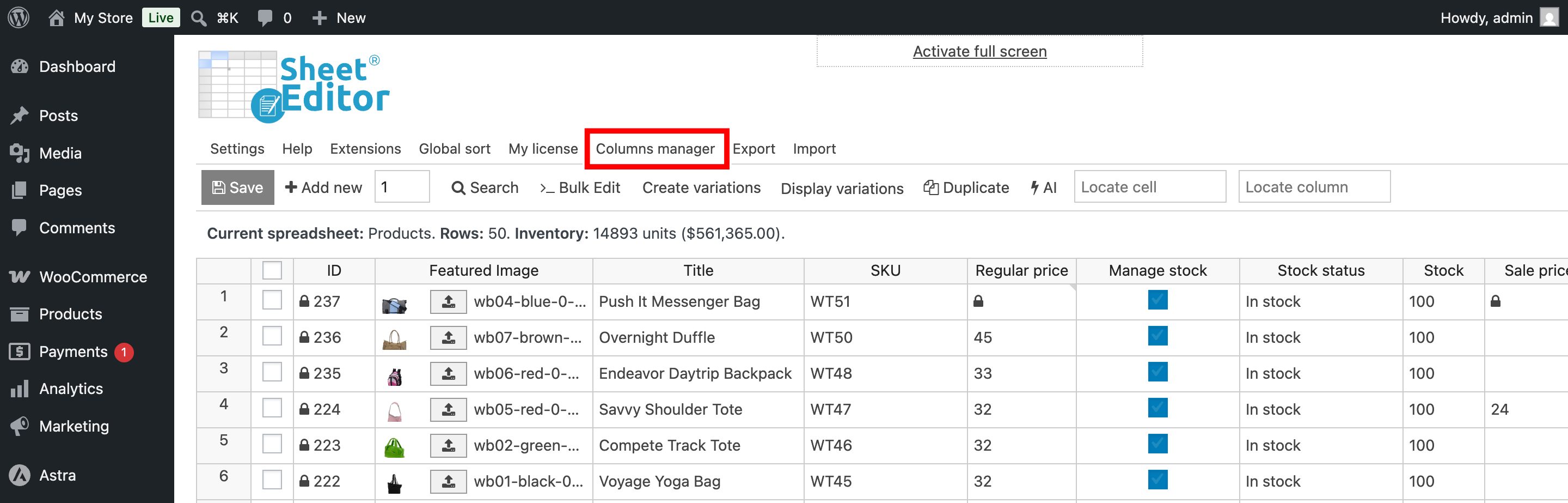
  • Top Toolbar: Positioned at the very top of the screen, this section houses global administrative tools, including the Columns manager, global sorting rules, user Settings, and the Export/Import functions.

How to Customize Spreadsheet Columns for Faster Editing

A default WooCommerce store tracks dozens of data points for every single item. To keep your workspace responsive and prevent browser memory overload, you should hide unnecessary database fields before executing bulk edits.

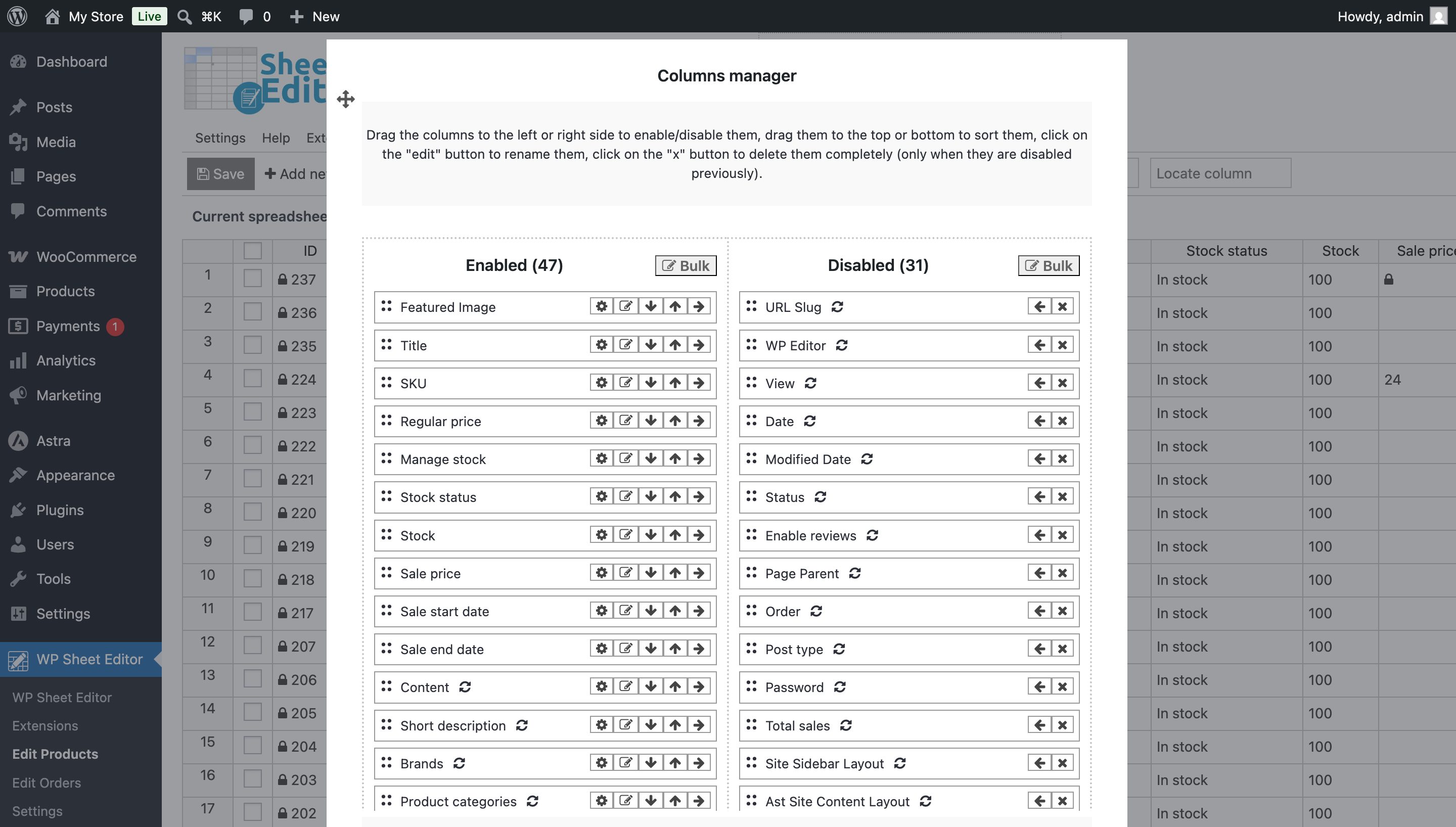
  1. Click on Column Manager in the top toolbar
    WP Sheet Editor column manager interface showing enabled and disabled database fields
  2. A list of all available database fields will appear. Move the columns you do not need from Enabled to Disabled (for example, hiding product descriptions and categories if you are only updating inventory).WP Sheet Editor column manager interface showing enabled and disabled database fields
  3. Drag and drop the remaining fields to rearrange their visual order. For maximum efficiency, pull the Regular Price, Sale Price, and Stock columns right next to the Title.
  4. Click Save settings. Your spreadsheet will refresh instantly, displaying only the exact data points you want to modify.

Method 1: Edit WooCommerce Products Directly in the Spreadsheet

You can edit WooCommerce products directly in the spreadsheet by clicking any cell and entering new values, selecting from dropdowns, or uploading media. The interface automatically adapts to specific WooCommerce field types, ensuring valid data formatting and eliminating the need to open individual product pages.

This intelligent field handling prevents database corruption and speeds up routine inventory management. Here is how the interface adapts to different data types:

  • Text Fields: For standard textual data like product titles, SKUs, or short descriptions, editing is as simple as typing directly into the cell. Just click, enter your new value, and navigate exactly like you would in Microsoft Excel.
  • Number Fields: Product prices, stock quantities, and physical weights are editable directly within their respective cells. You can type in new numerical values or leverage the drag-and-drop cell corner to copy values down a column for rapid price adjustments.
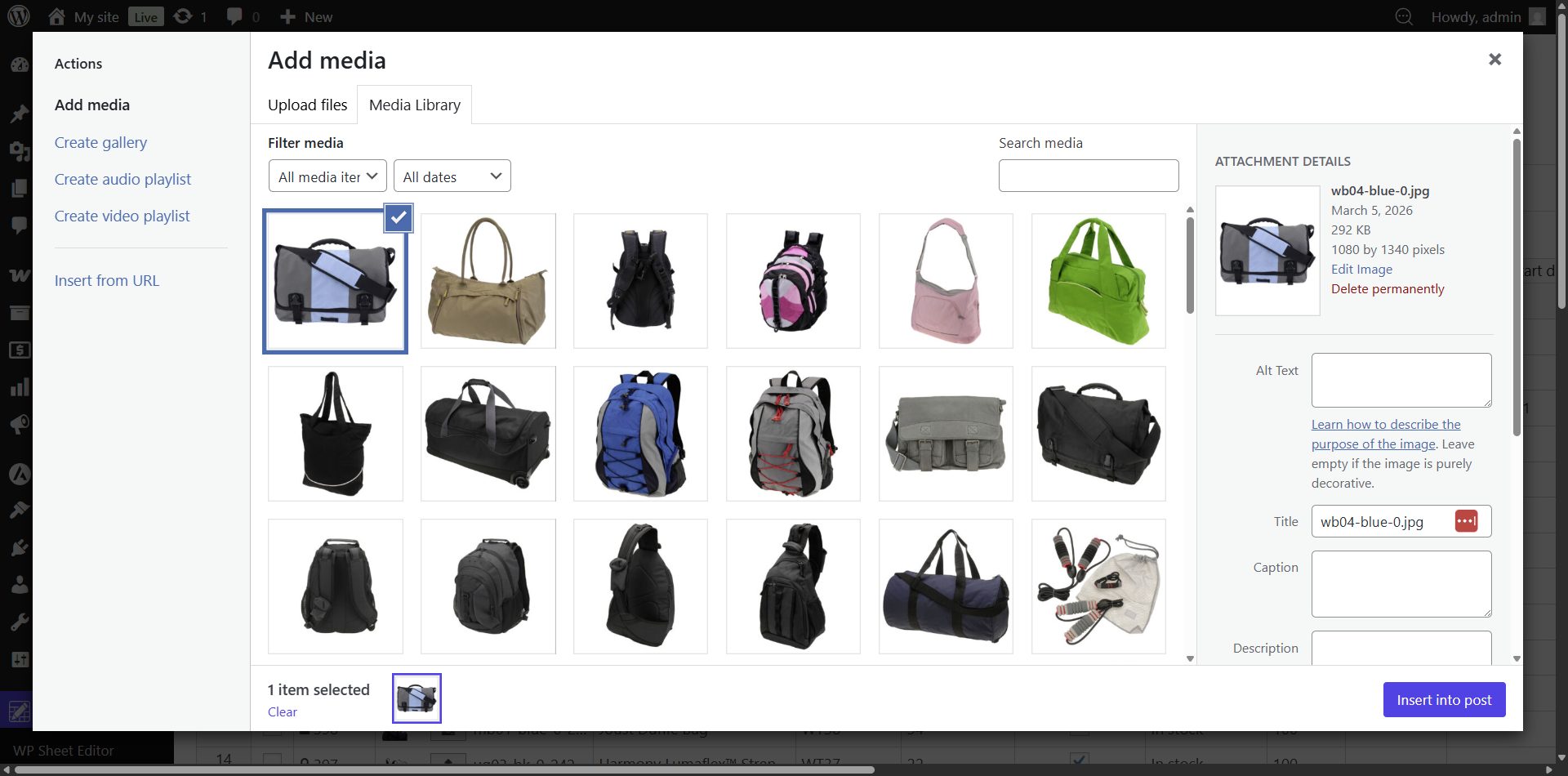
  • Image and File Fields: When managing product images or file attachments, clicking an image cell opens an intuitive interface allowing you to upload new media directly or select existing assets from your WordPress media library without leaving the grid.
    Uploading WooCommerce product gallery images directly from the WP Sheet Editor spreadsheet grid
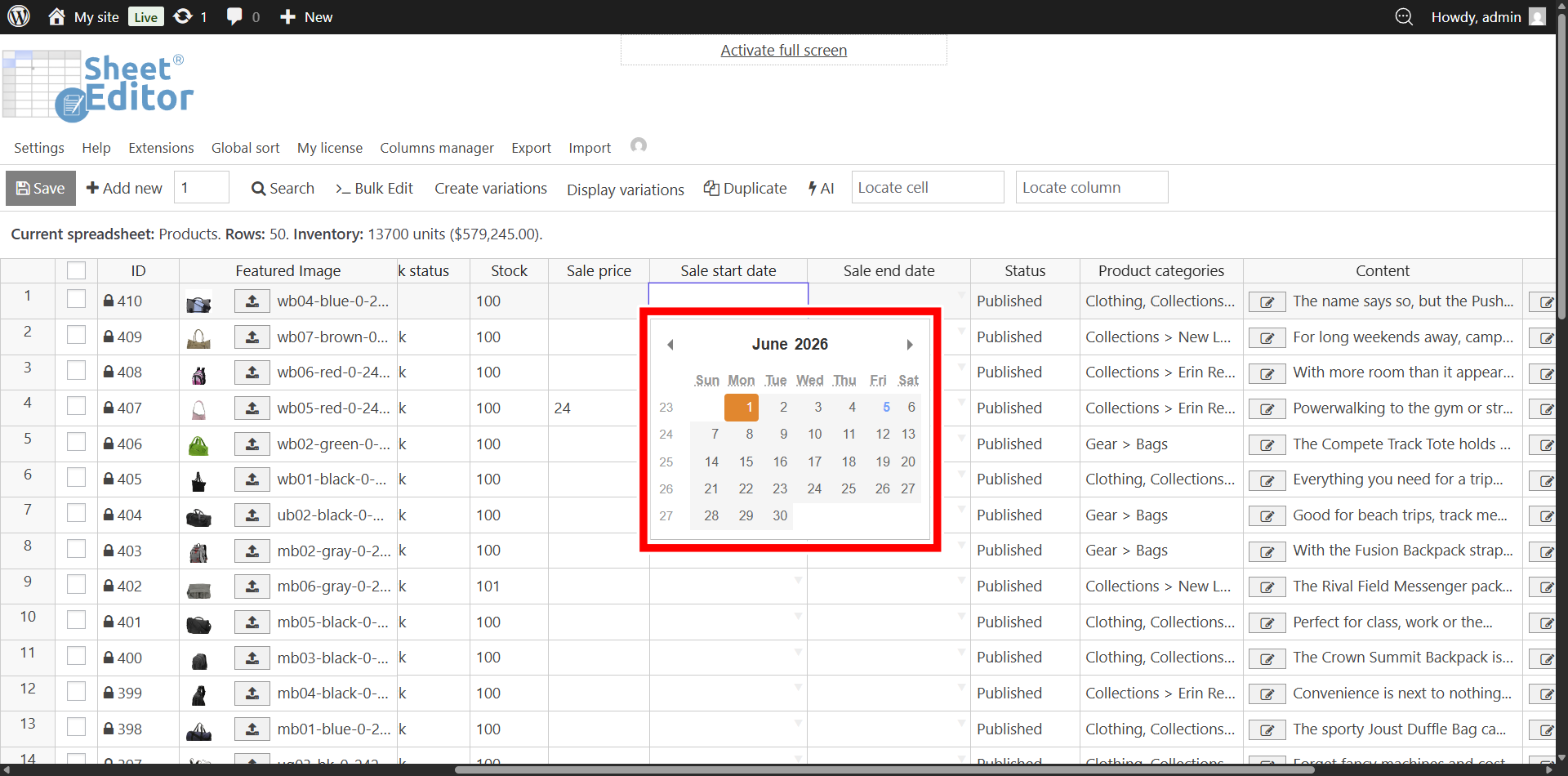
  • Date Fields: For scheduling fields like sale start dates or product publish dates, clicking the cell triggers a visual calendar selector. This ensures correct chronological formatting for WooCommerce sales.
    Using the visual calendar selector to schedule WooCommerce sale dates in bulk
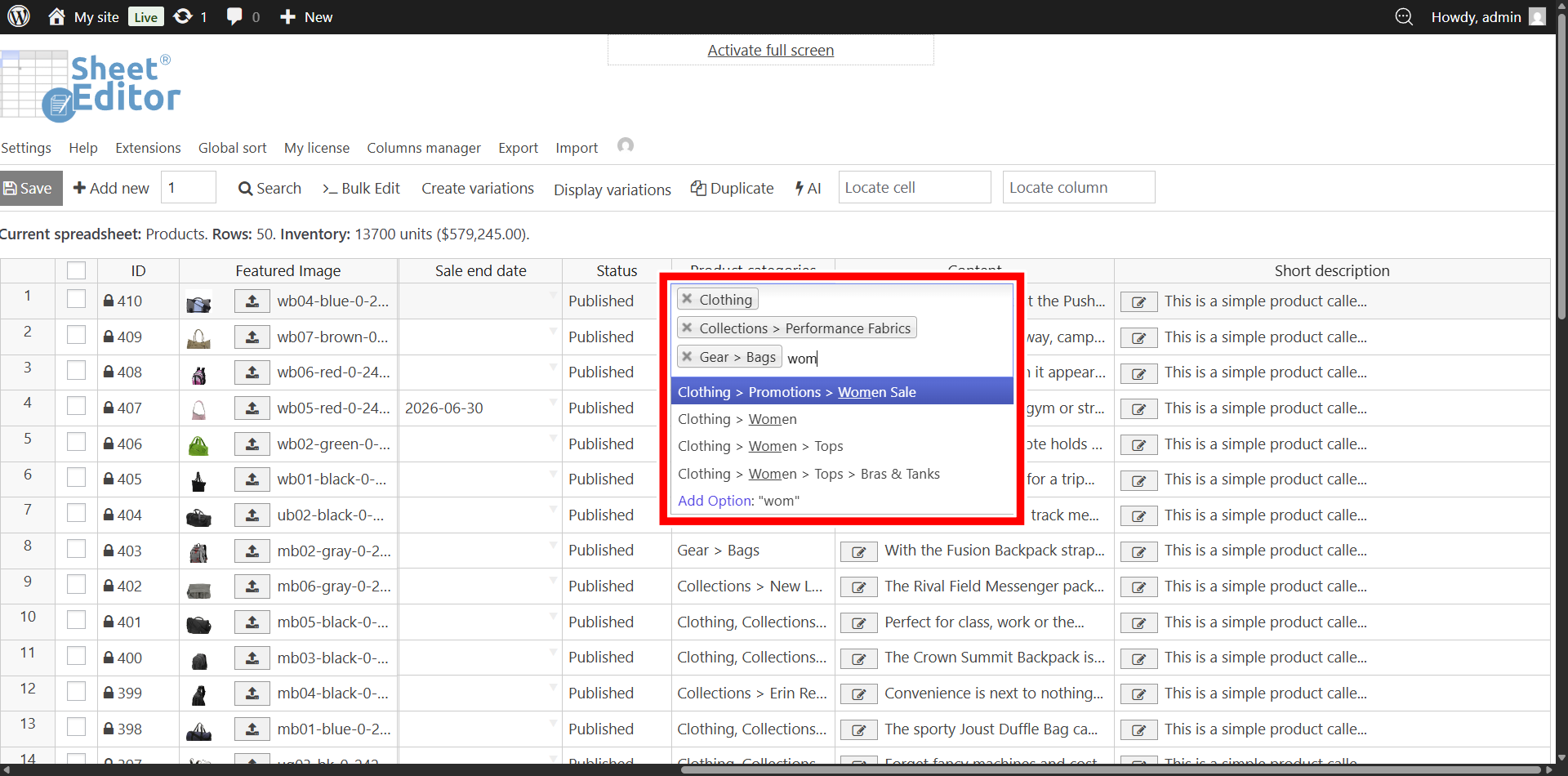
  • Taxonomy Term Fields: Product categories, tags, attributes, and custom taxonomies appear as multi-selection, searchable dropdowns. You can type to instantly assign multiple existing terms or create new classifications on the fly.
    Assigning WooCommerce product categories and attributes using the multi-selection searchable dropdown
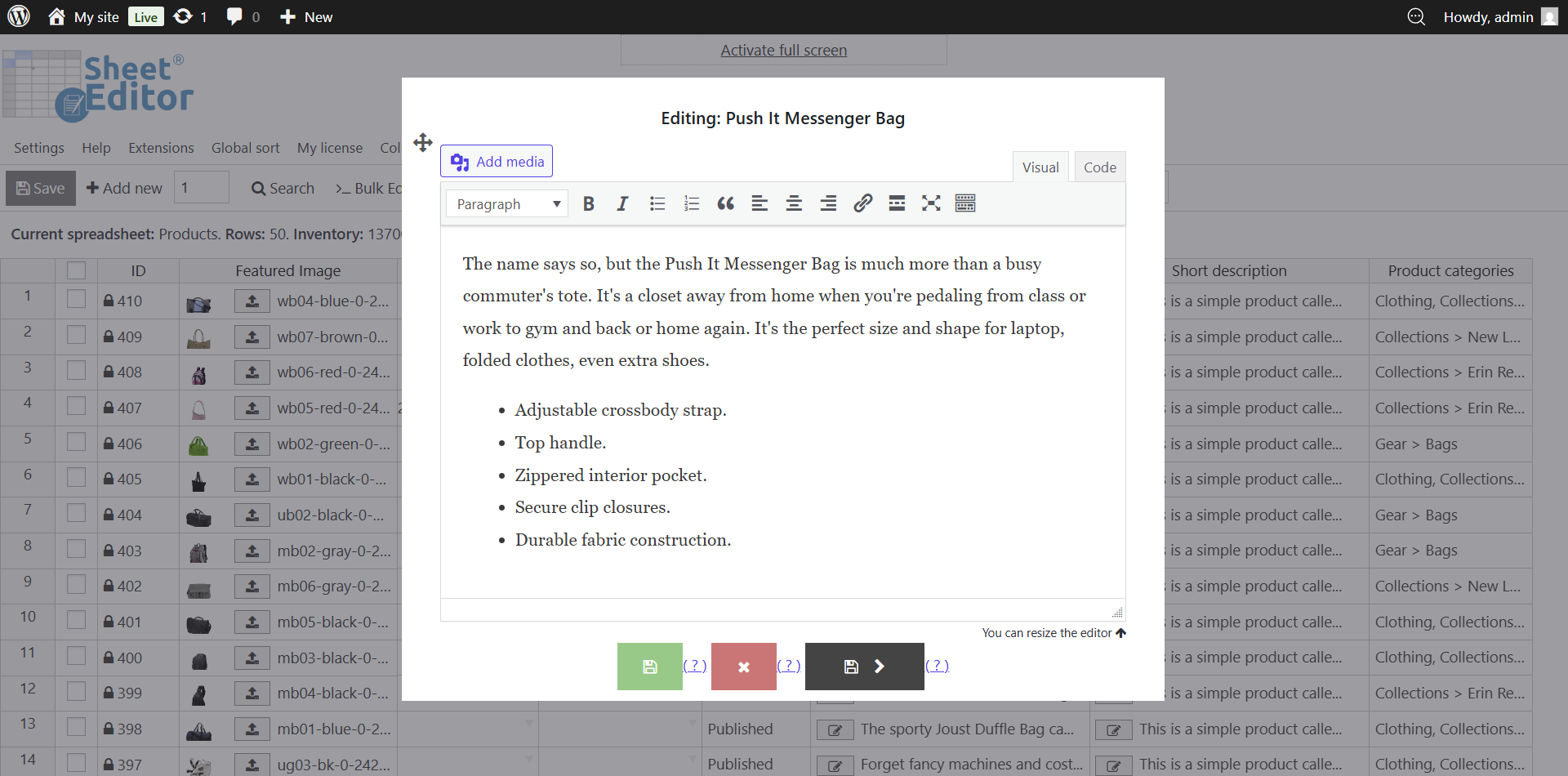
  • Text Editor Fields: For rich content like full product descriptions, clicking the cell opens a familiar WordPress WYSIWYG text editor in a compact pop-up. This provides full control over HTML and formatting without cluttering the main grid view.
    Editing long-form WooCommerce product descriptions using the compact pop-up text editor
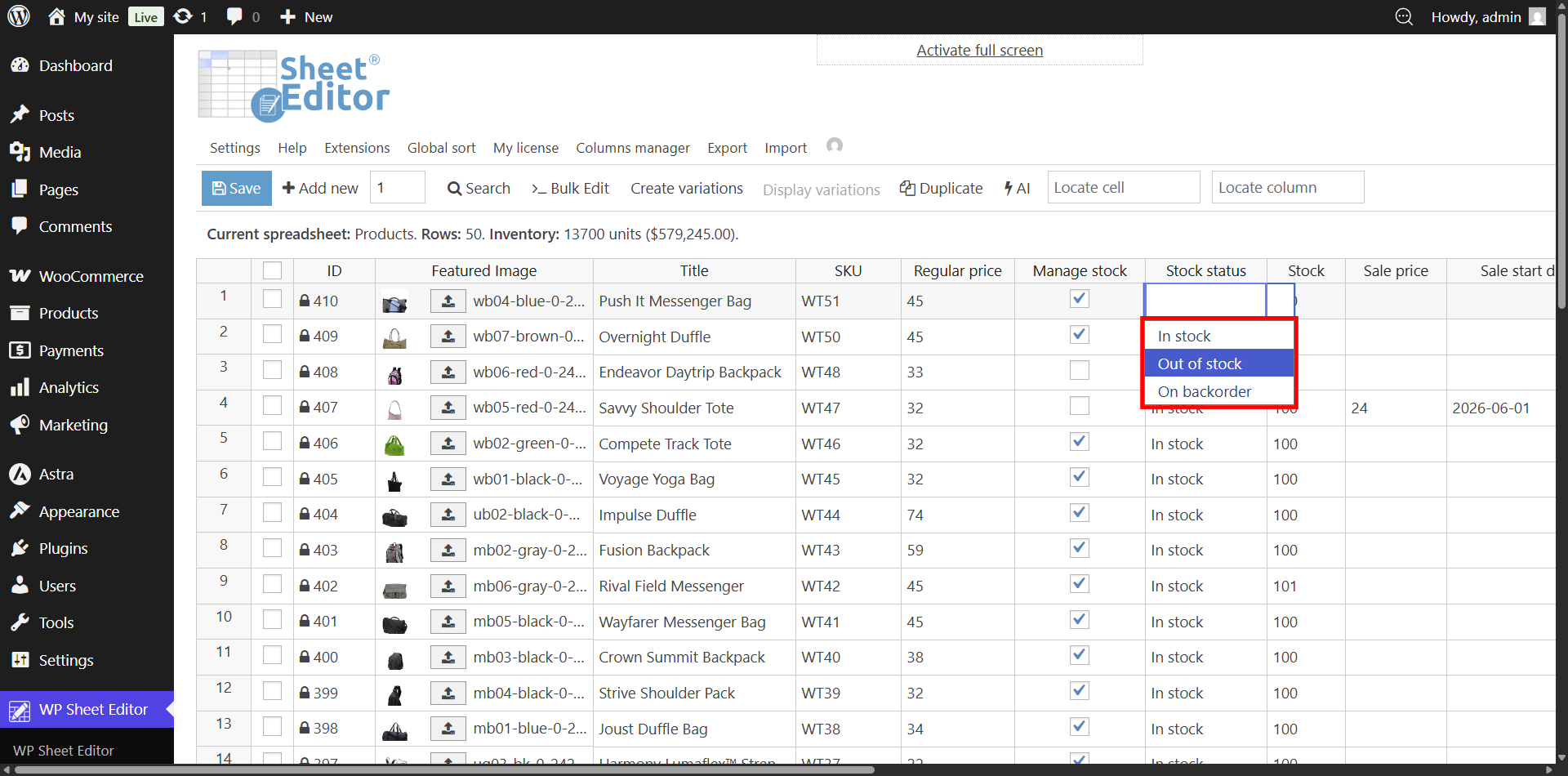
  • Dropdown Fields: Core WooCommerce settings such as stock status, tax status, and catalog visibility present as predefined dropdown lists, ensuring consistent data entry across your catalog.
    Changing WooCommerce stock status and catalog visibility using predefined spreadsheet dropdowns

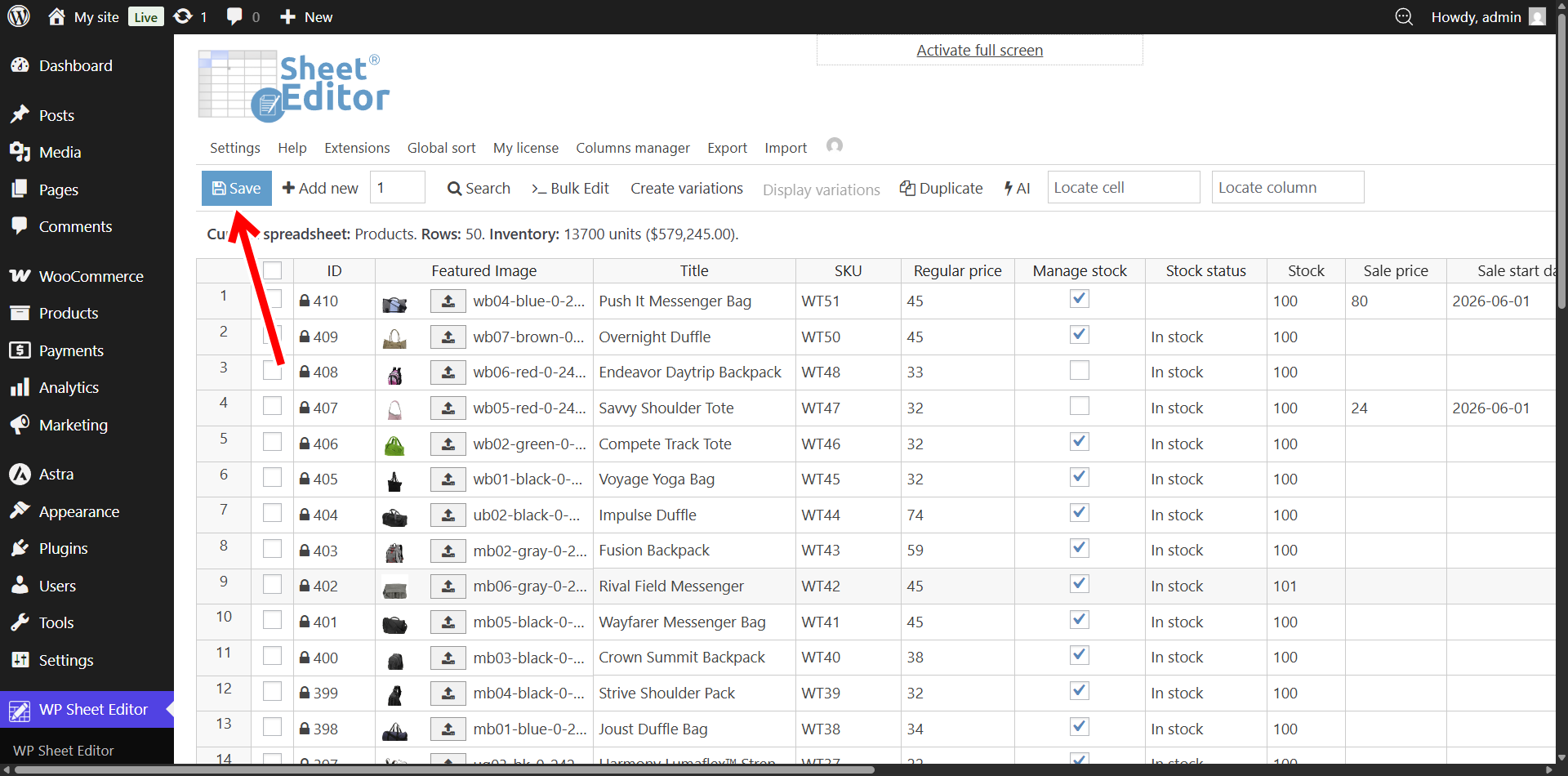
Once you finish making inline adjustments, click the Save button on the main toolbar to commit the batch directly to the live WordPress database.

Saving WooCommerce product edits to sync the spreadsheet grid with the live WordPress database

Method 2: Bulk Edit WooCommerce Products (Step-by-Step)

To bulk edit WooCommerce products, use the Search tool to isolate your target inventory, open the Bulk Edit interface, select your target field, and execute a mass calculation or text replacement. This process safely updates thousands of rows in background batches without crashing your server.

Applying a mass update always involves two primary phases: accurately selecting the target products and executing the desired calculation.

Step 1: Product Selection

Before any changes are applied, you must tell the plugin exactly which products you intend to modify. WP Sheet Editor offers three flexible methods for product selection.

Option 1: Edit All Products

If your intended change affects every single product in your store (e.g., a global price adjustment), you can skip advanced filtering. By default, the Bulk Edit tool targets all products currently loaded in your database.

Option 2: Pick Products Using Checkboxes

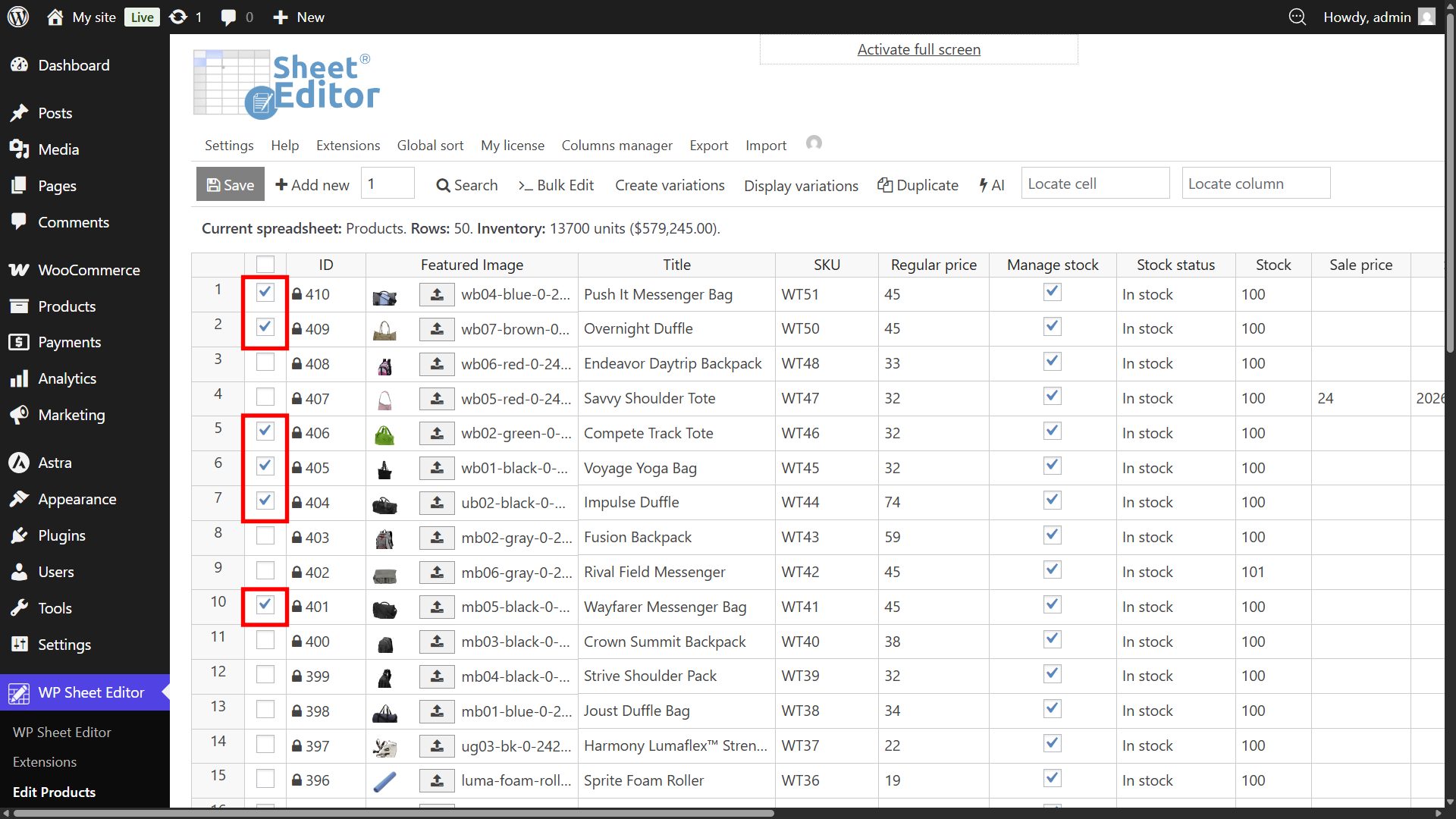
For small, focused updates, manually select items directly from the spreadsheet by clicking the checkboxes located on the far-left side of each product’s row.

Selecting specific WooCommerce products using the manual checkboxes in the WP Sheet Editor grid

Option 3: Search and Filter Products (Recommended for Large Batches)

For large batches that share specific characteristics (like a specific category or price range), the Search tool provides precise targeting.

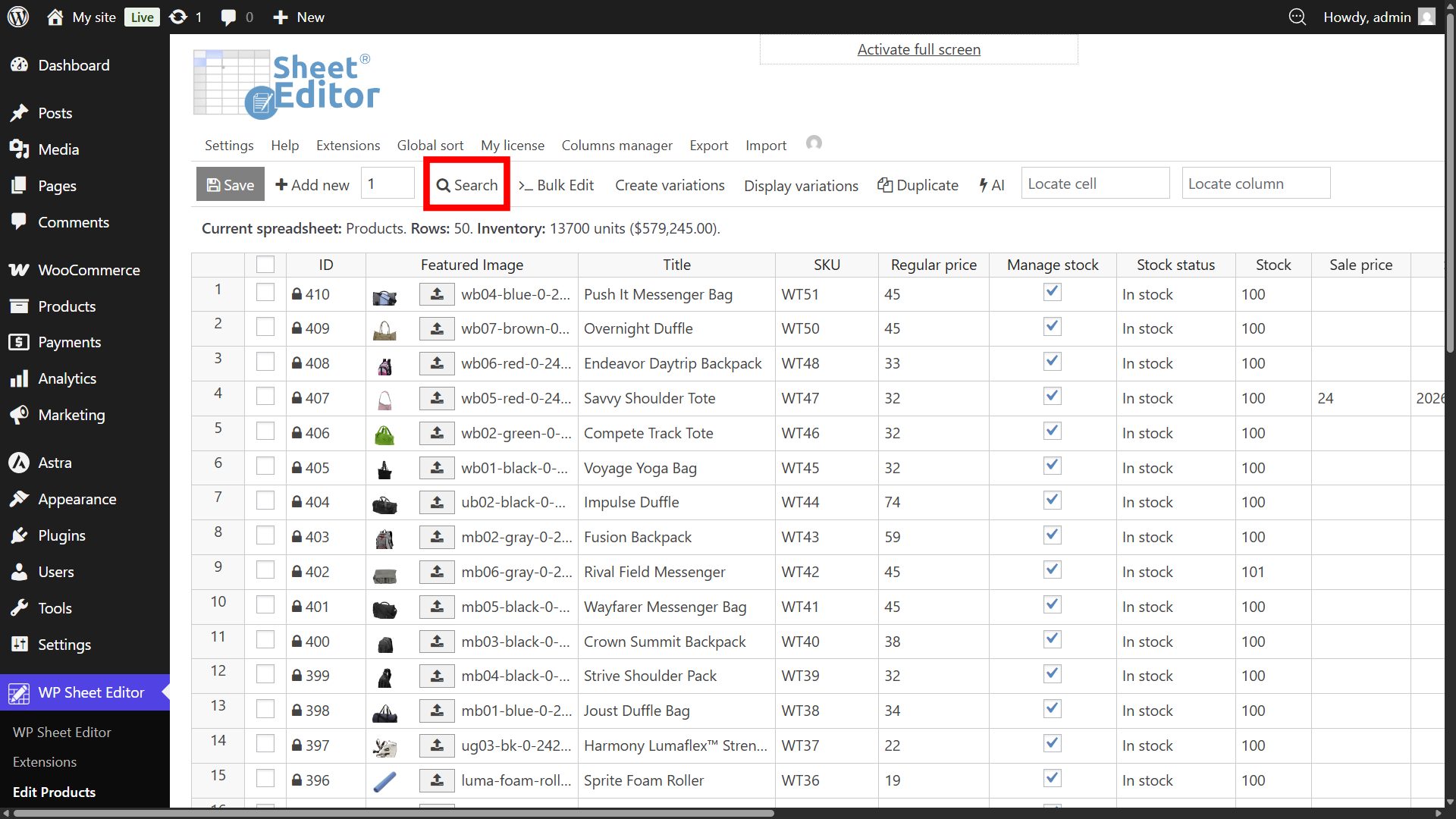
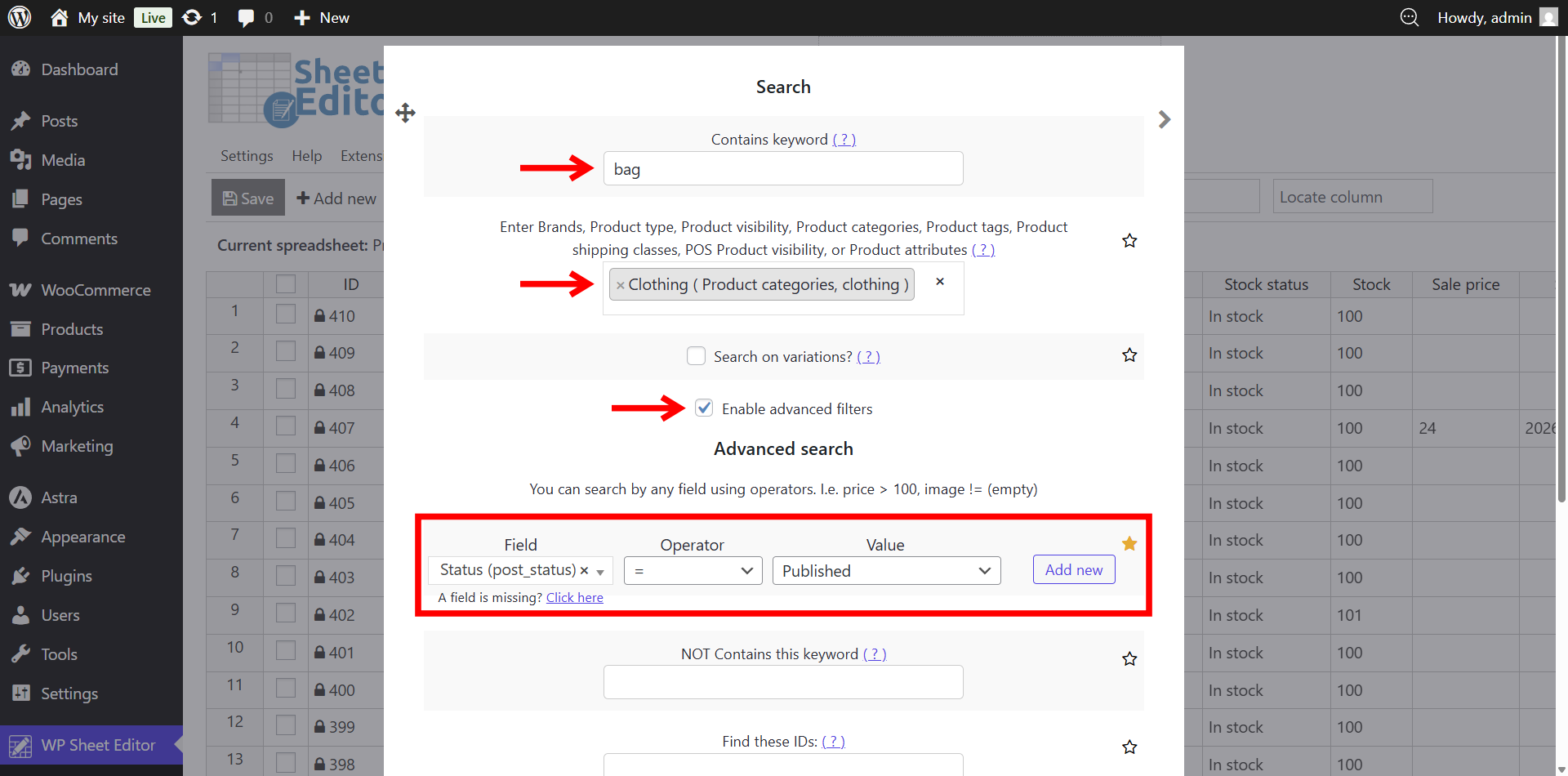
  1. Click on the Search tool in the main toolbar.

    Opening the advanced search tool to filter WooCommerce products for bulk editing
  2. Enter your target criteria. You can filter by keyword, specific taxonomies (categories, tags, shipping classes), or enable advanced filters to query number ranges (e.g., price > $50), exact dates, or custom fields.

    Configuring advanced search parameters to isolate specific WooCommerce products
  3. Check the Search on variations box if your bulk edit needs to apply exclusively to product variations (e.g., updating stock for all “red” shirts across various parent products).
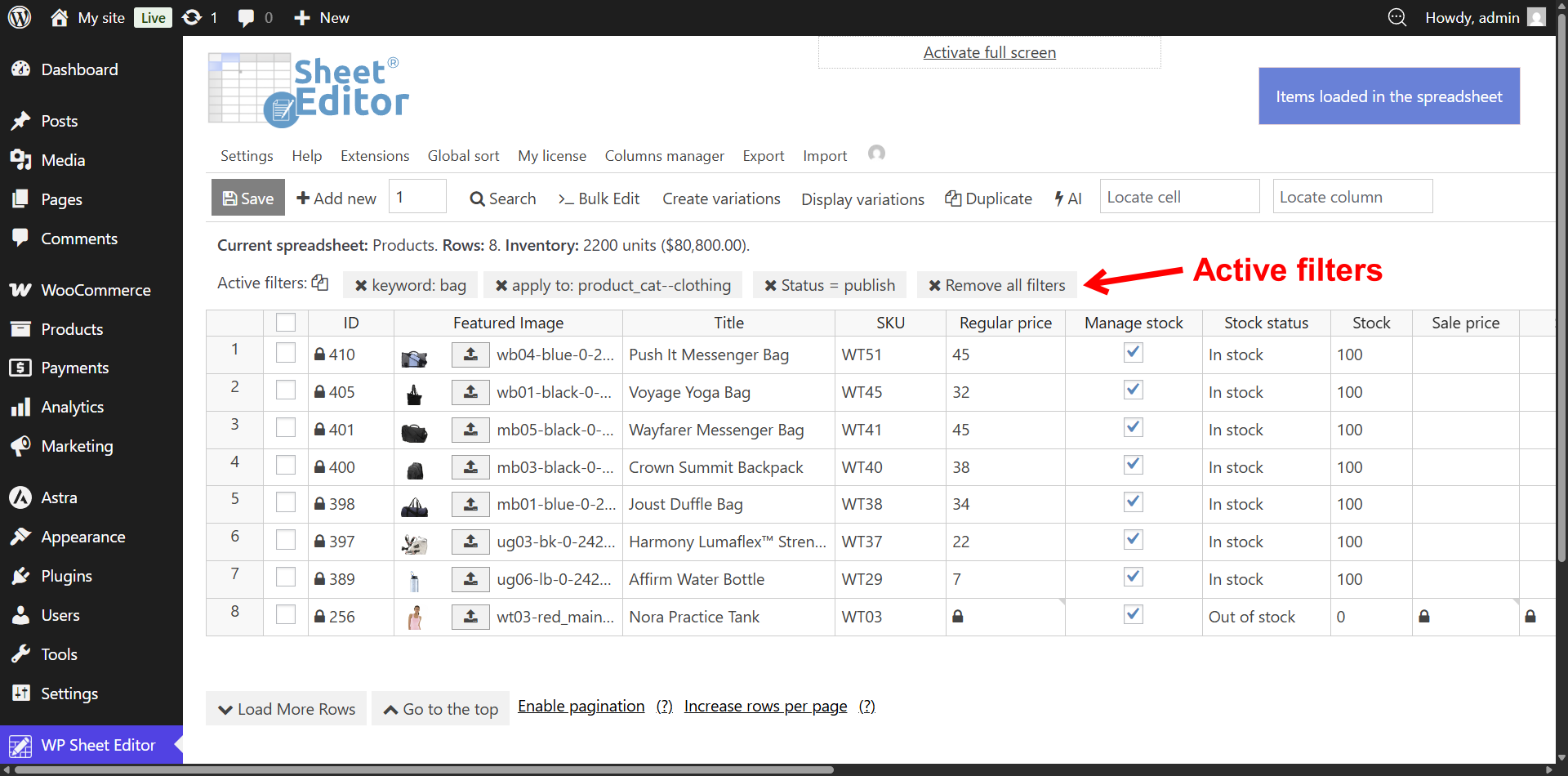
  4. Click Run search. Your spreadsheet will refresh, displaying solely the products that match your specified parameters.

    Viewing the filtered results of WooCommerce products ready for mass editing

Step 2: Bulk Edit (Applying the Changes)

Once you have precisely identified the products to be edited, you can apply your mass calculation, text replacement, or status update.

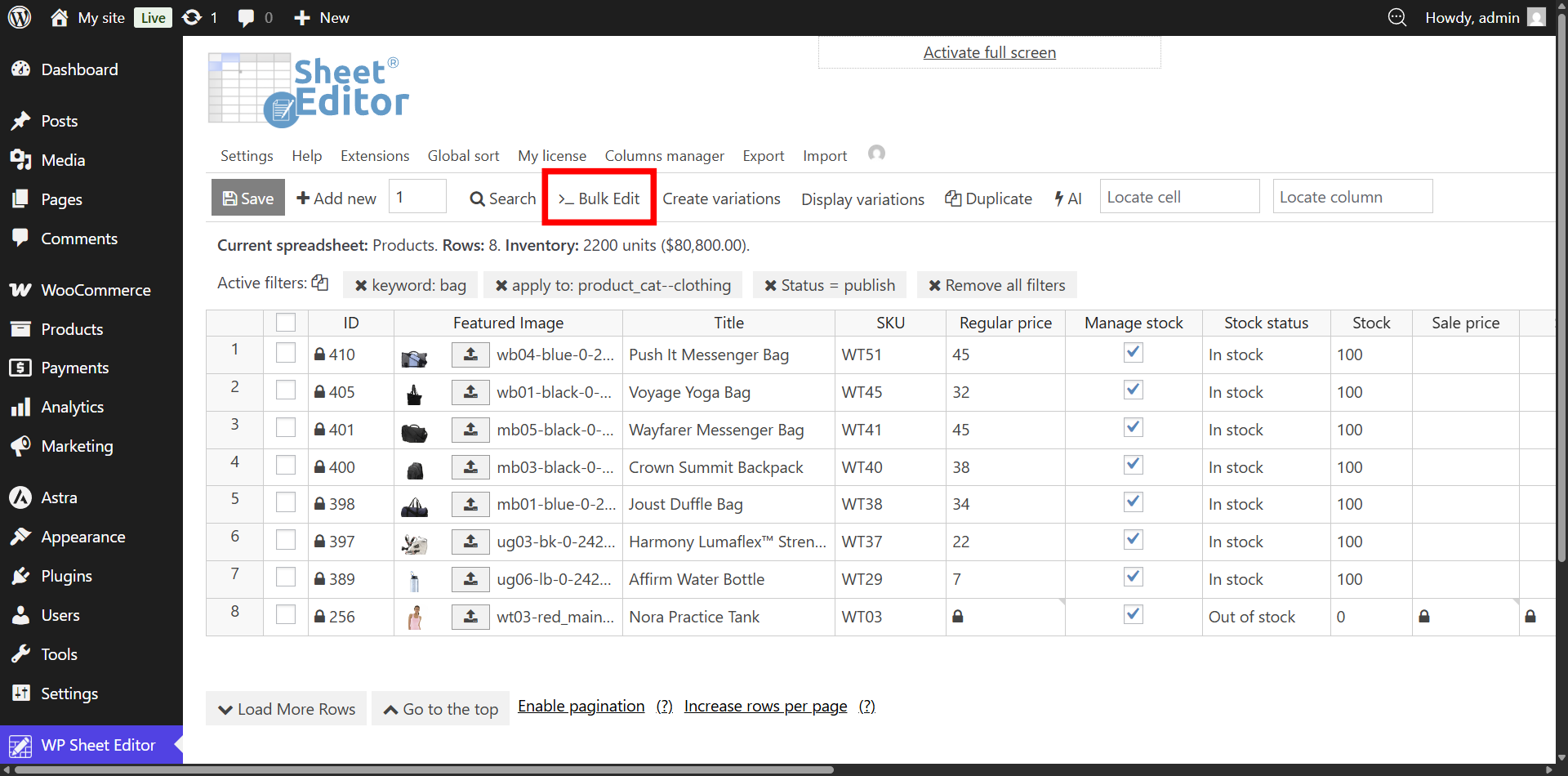
  1. Click the Bulk Edit button in the main toolbar.

    Opening the WooCommerce Bulk Edit tool interface in WP Sheet Editor
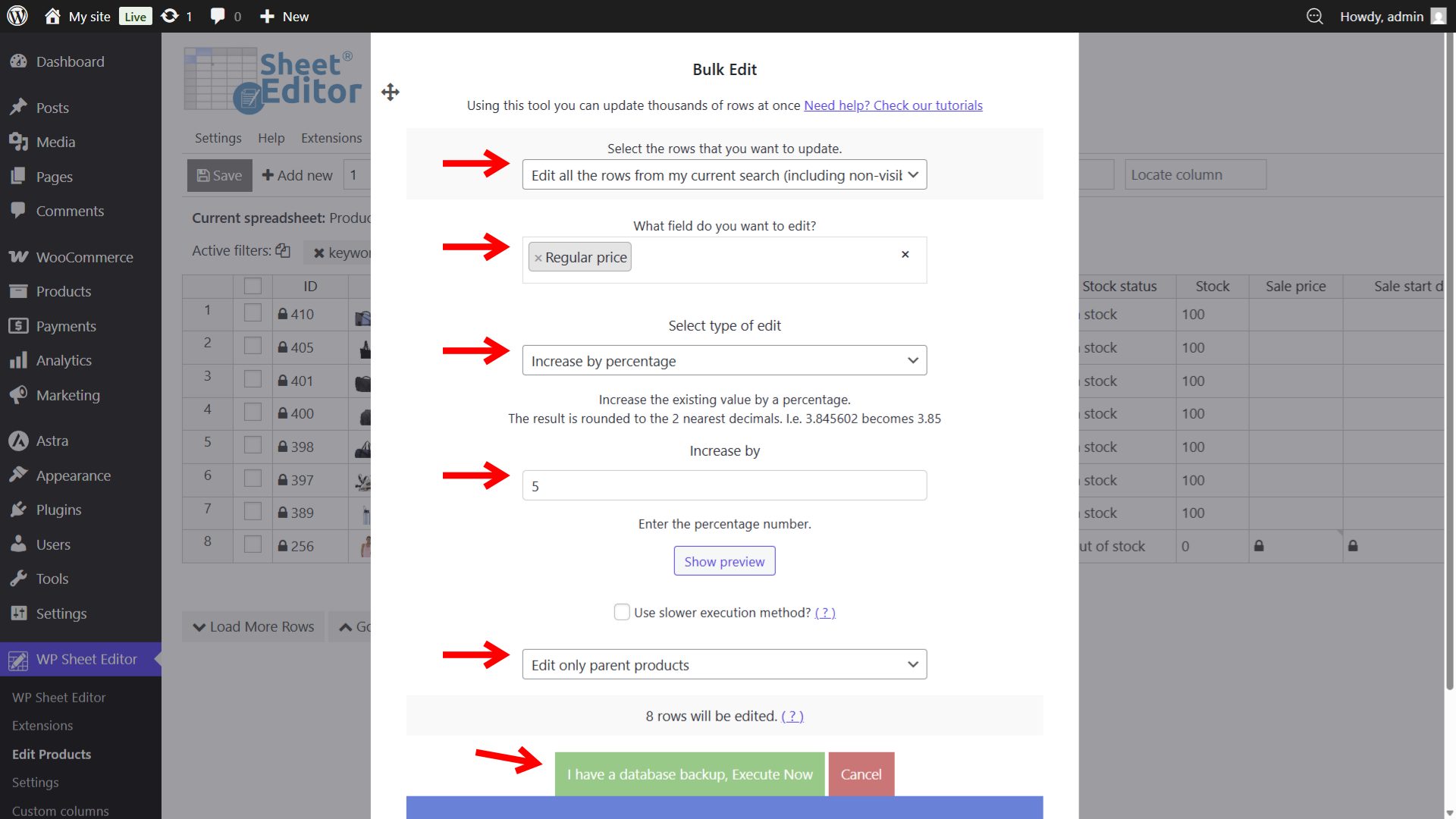
  2. From the Select the rows that you want to update dropdown, confirm your selection method (choose “Edit all the rows from my current search” or “Edit the rows that I selected manually”).
  3. In What field do you want to edit, select your target column. This can be any standard WooCommerce field (like Regular price or Stock status) or any custom field active in your spreadsheet.
  4. From the Select type of edit dropdown, choose your required action. The tool supports setting explicit values, replacing text strings, executing math operations (increase/decrease by percentages or numbers), and running custom PHP formulas.
  5. Input your exact new value, percentage, or text string into the final replacement box.
  6. Important: Use the dropdown to select “Edit only variations” or “Edit only parent products” to ensure your data applies to the correct hierarchy level.
  7. Click Execute Now.

Example: Bulk editing prices by a percentage
To mathematically mark up your catalog, you would select Regular price as your target field, select Increase by percentage as your edit type, input your numerical value, and hit Execute.

Applying a percentage-based bulk price increase to WooCommerce products

The spreadsheet will process the changes in background batches, updating your database across all selected rows. This batch processing ensures your server does not time out, even for massive updates.

Pro-Tip for Safe Editing: Always look at the text directly above the “Execute Now” button. It states exactly how many rows are about to be updated. If the tool indicates you are updating 5,000 products, but your target category only contains 200, you will immediately know you need to refine your product selection in the Search tool before proceeding. This simple check prevents accidental mass overwrites.

WooCommerce Bulk Editing Formulas (Cheat Sheet)

Now that you know the core workflow of the Bulk Edit tool, you can apply it to virtually any data point in your store. Since the process is always the same—filter your products, open the Bulk Edit tool, and run the mass formula—here is a quick cheat sheet for common time-saving updates:

  • Bulk Updating Stock Statuses: To instantly mark a discontinued brand as out of stock, target the Stock status field, select Set value, and choose Out of stock from the dropdown.
  • Optimizing SEO Titles: To clean up your metadata, target the Yoast SEO Title column, select Replace, and swap out old brand names or years (e.g., changing “2025” to “2026”) across your entire catalog.
  • Assigning Shipping Classes in Bulk: If you just imported heavy items, search for products with a weight over 50lbs, target the Shipping class field, and set the value to your “Freight” class.
  • Updating Custom Fields (ACF): The spreadsheet automatically detects third-party fields. You can target any custom meta key (like a “Supplier ID” or “Warranty Length” field) and apply a uniform text replacement to hundreds of rows instantly.
  • Read hundreds of tutorials on how to bulk manage your WooCommerce products with WP Sheet Editor.

Method 3: Export and Bulk Edit WooCommerce Products via CSV

To bulk edit WooCommerce products offline, you must export your filtered catalog to a CSV, apply mass calculations in Excel or Google Sheets, and import the file back into WordPress. The WP Sheet Editor export/import engine protects product variations and uses hidden ID numbers to safely overwrite live data.

While running mass calculations directly inside the grid is the fastest workflow, offline editing is necessary if you need to hand your catalog to an SEO agency, apply complex Excel macros, or sync inventory from a supplier’s spreadsheet.

Step 1: Export Your Target Products to a CSV

If you only need to bulk edit a specific brand or category, use the Search tool to filter your products first. Once your grid shows the correct items, initiate the export:

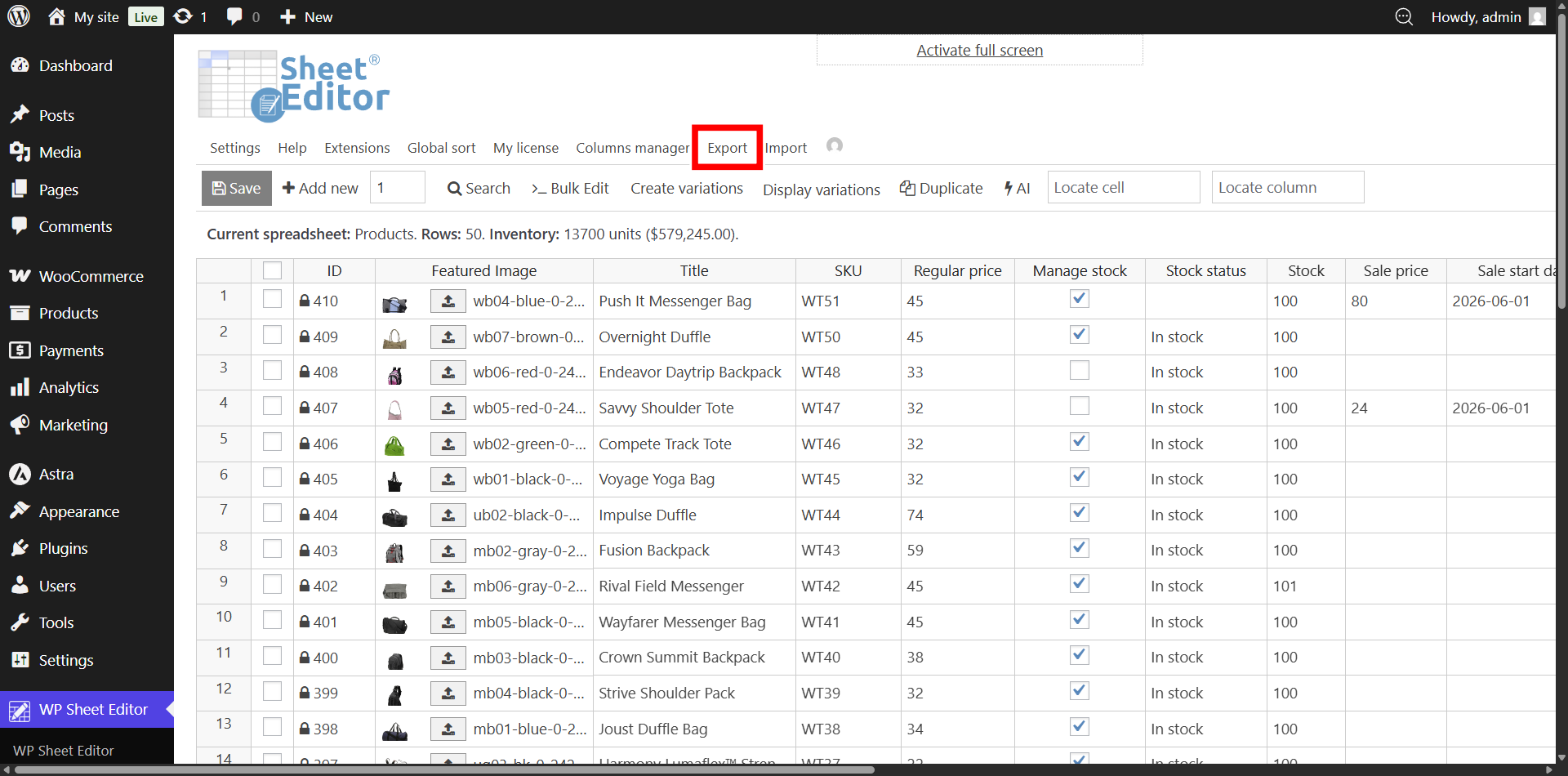
  1. Click the Export button in the top toolbar.

    Clicking the export button in WP Sheet Editor to download WooCommerce product data
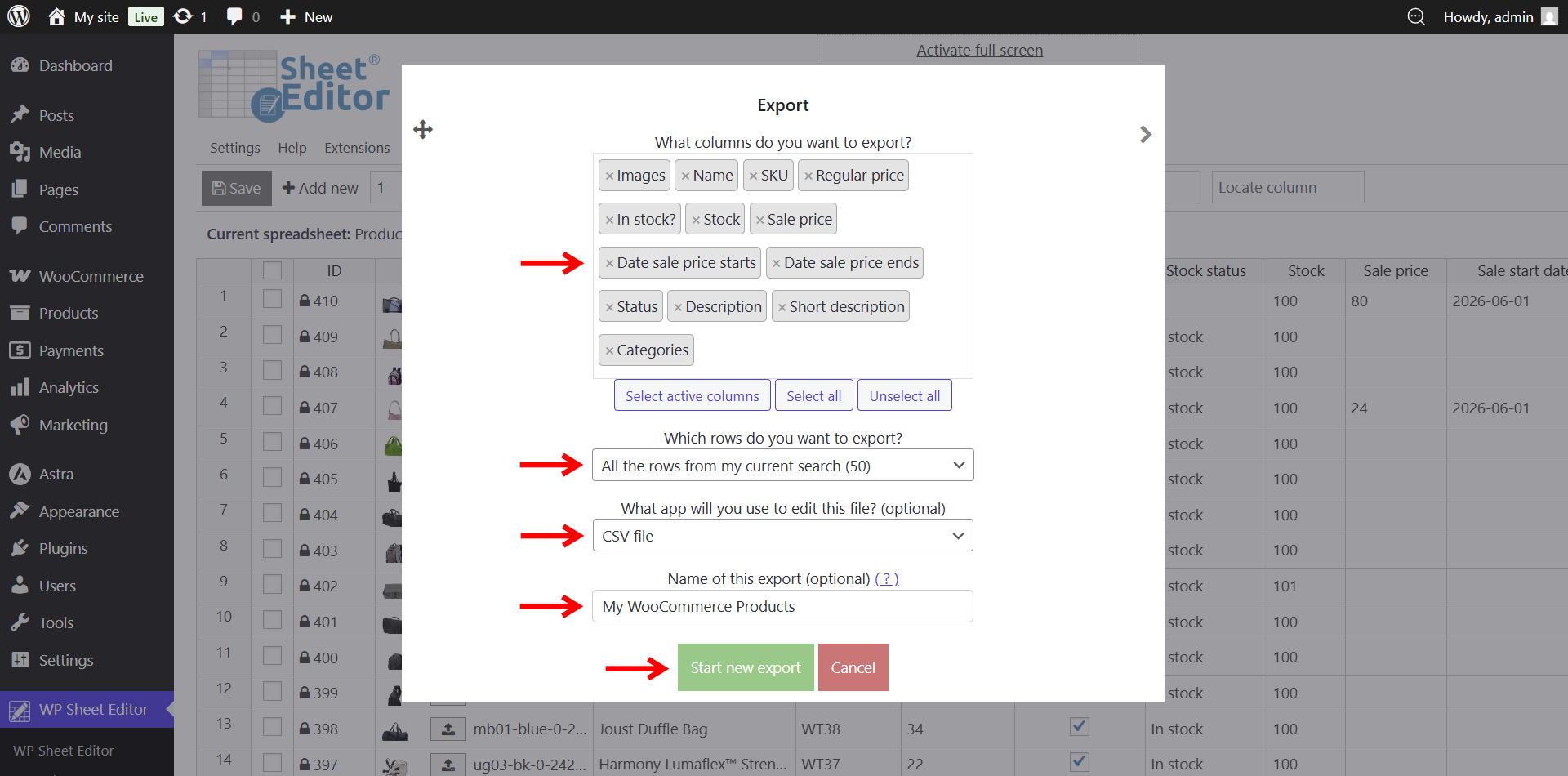
  2. What columns do you want to export: Select All columns, All active columns, or use Select columns to pick only the specific fields you plan to edit (like Prices or SEO fields).
  3. Which rows do you want to export: Check the box to export only the rows from your current search or manually selected products.
  4. What app will you use to edit this file: Choose your target software (Microsoft Excel, Google Sheets, or standard CSV) to ensure the data separators format perfectly.
  5. Name of this export: Add an optional name for your records.
  6. Click Start new export to download the spreadsheet to your local drive.

    Configuring the column, row, and software settings for a WooCommerce CSV export

Step 2: Bulk Edit the CSV File Offline

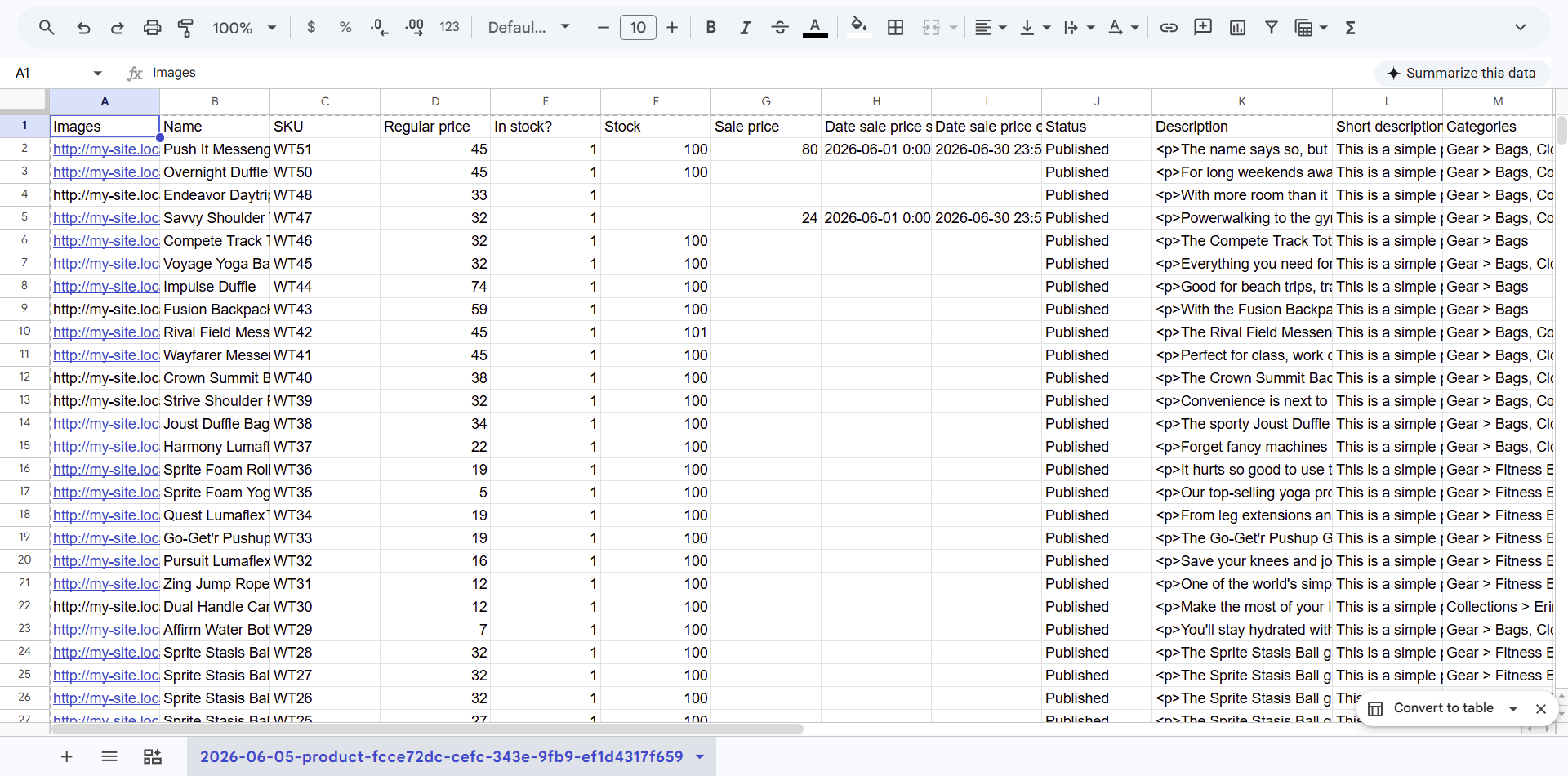
Open your downloaded file in Excel or Google Sheets. You can freely use standard spreadsheet formulas, drag-to-copy functions, or find-and-replace tools to mass update your prices, descriptions, or inventory counts.

You can even use this offline file to bulk create brand new WooCommerce products by adding completely new rows at the bottom of the document.


Editing WooCommerce product data offline using standard spreadsheet software like Excel or Google Sheets

The Golden Rule of CSV Bulk Editing: You must not delete, alter, or re-sort the ID column. The system relies on this hidden WordPress ID number to perfectly match your updated offline row to the correct product in your live database.

Step 3: Import the CSV to Apply the Bulk Updates

Once your offline mass edits are complete, save the file as a CSV and return to the WP Sheet Editor dashboard to push the changes live.

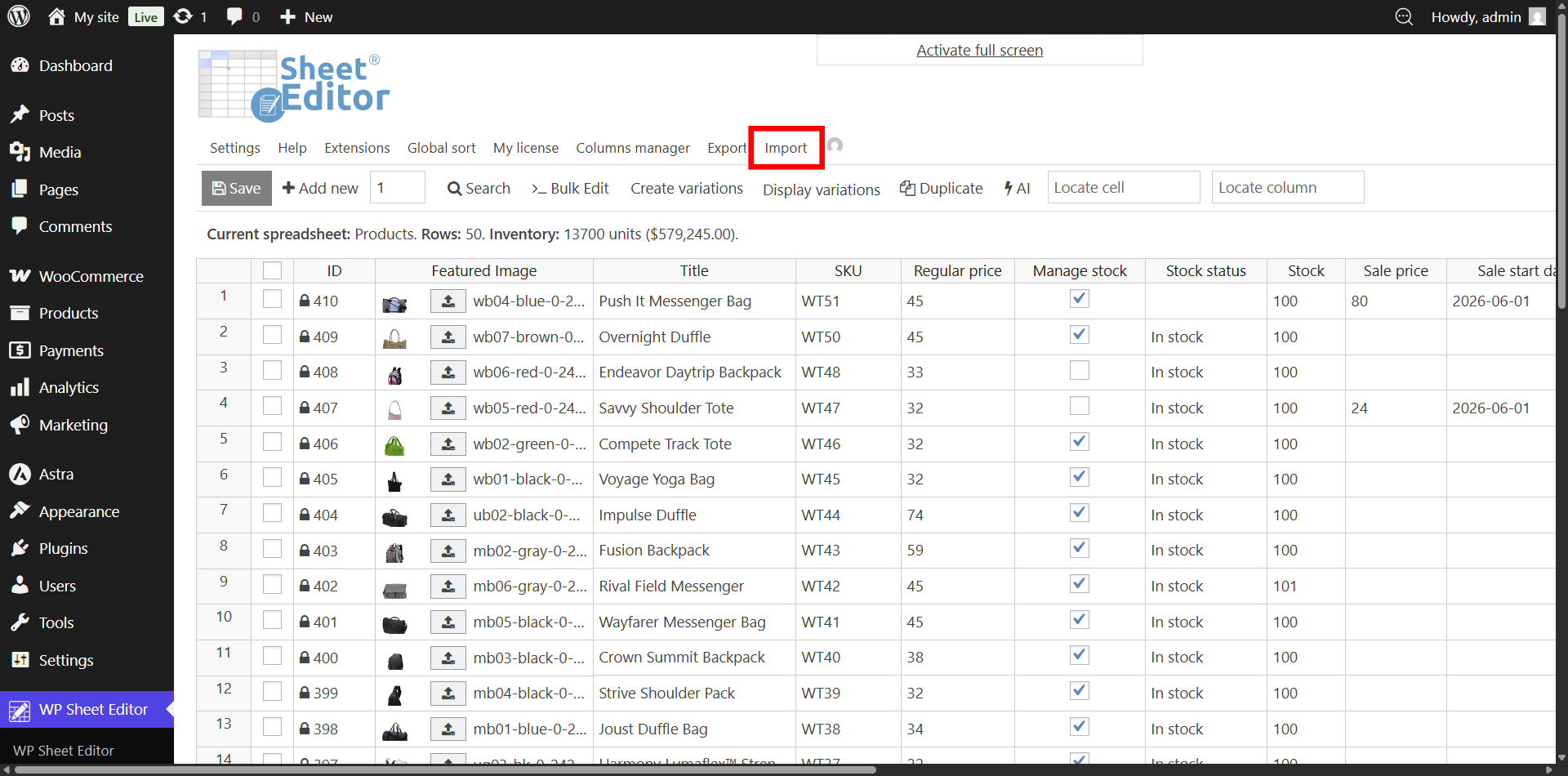
  1. Click the Import button in the top toolbar.

    Opening the WP Sheet Editor import tool to upload a modified CSV file
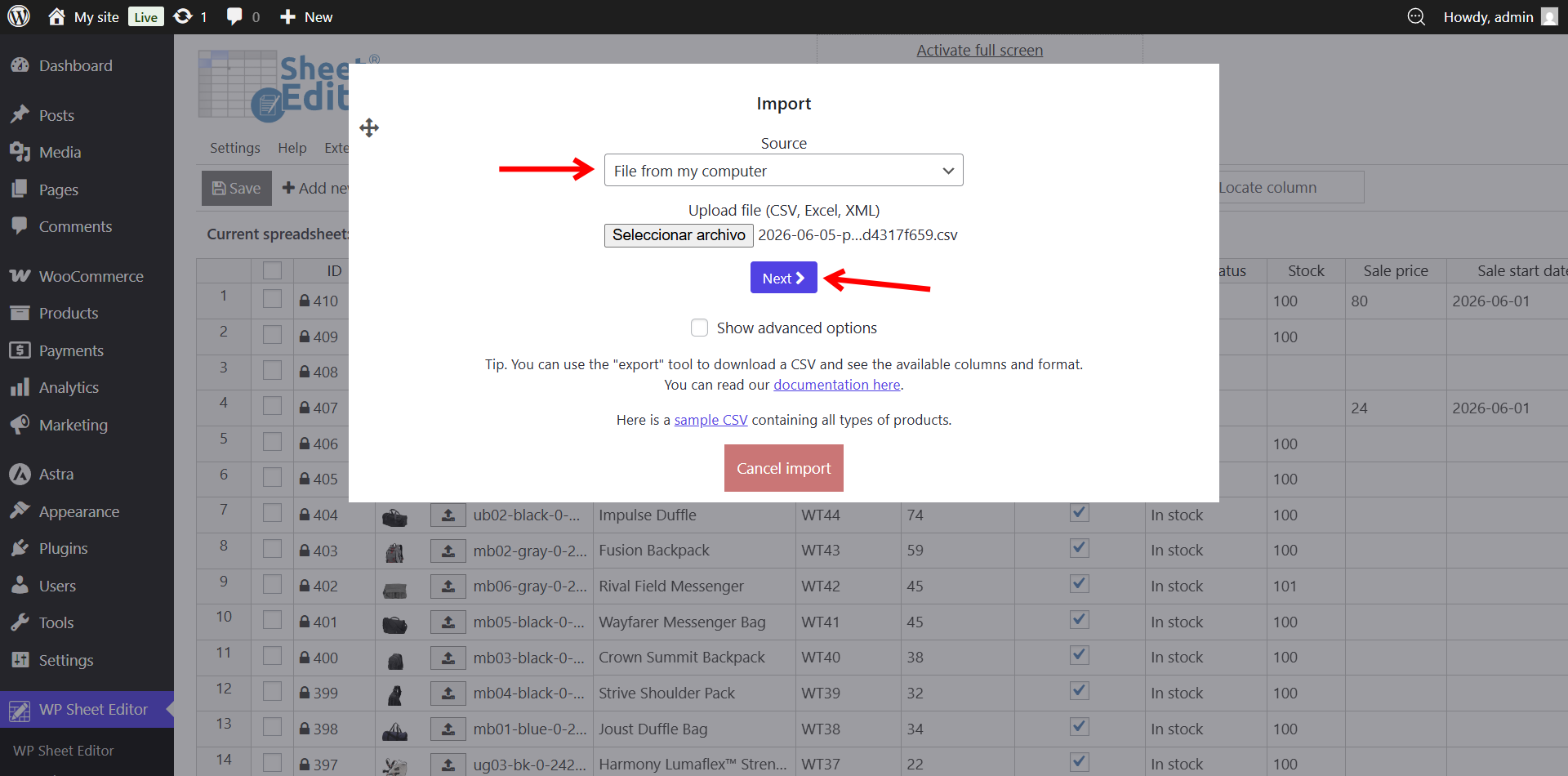
  2. Select your updated CSV file from your computer and click Next.

    Selecting the bulk edited CSV file from local storage for upload
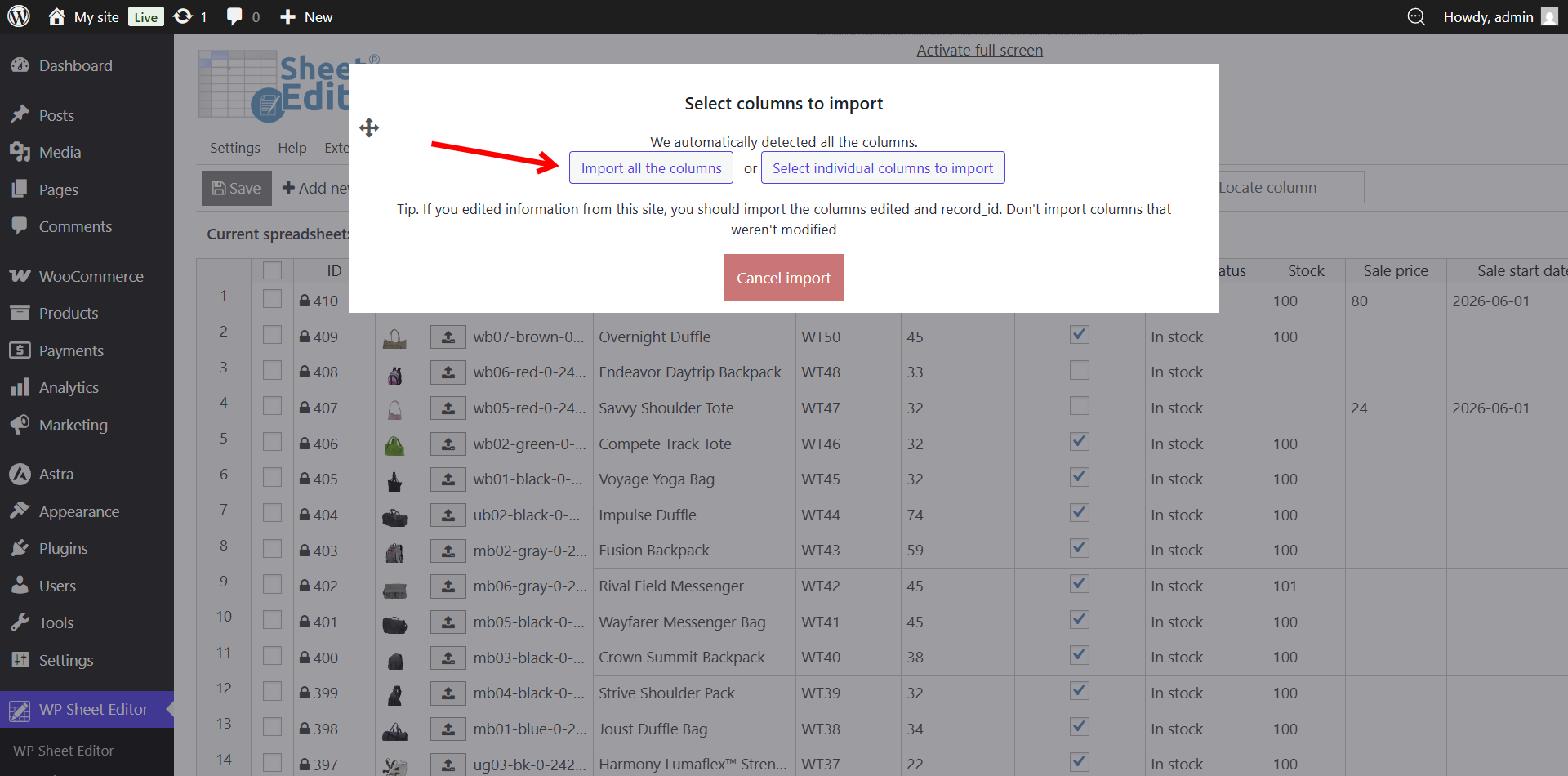
  3. Click Import all the columns. Since WP Sheet Editor generated the initial file, it will automatically map your edited CSV columns to the correct WooCommerce database fields.

    Automatically mapping the offline CSV columns to the live WooCommerce database fields
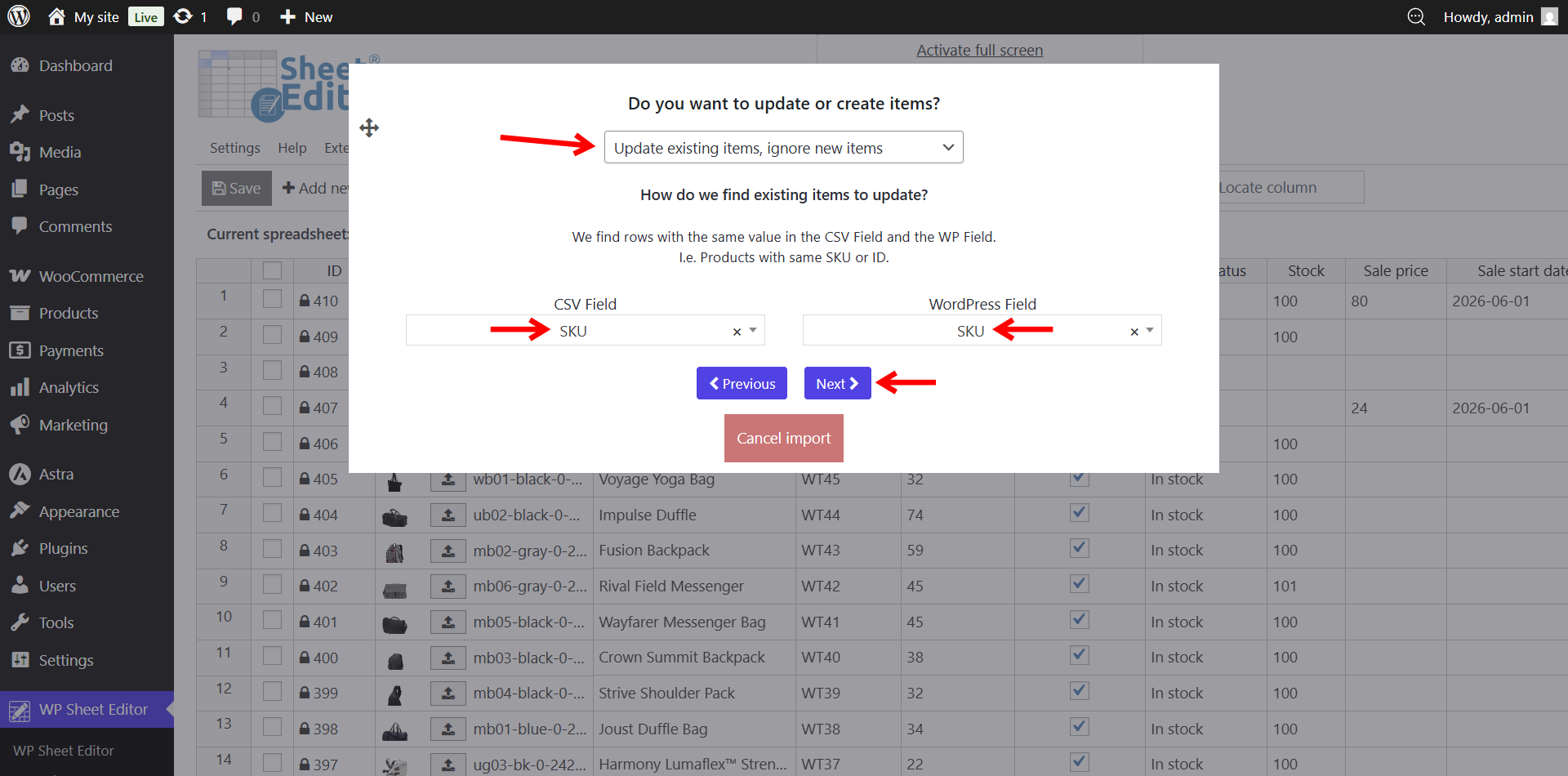
  4. Select Update existing items, ignore new items (or choose Create new items and update existing items if you added new rows). Match the items using the ID or the SKU field. This guarantees the importer updates the correct product, even if you changed the product’s title or SKU offline.

    Configuring the import engine to update existing products based on their unique ID
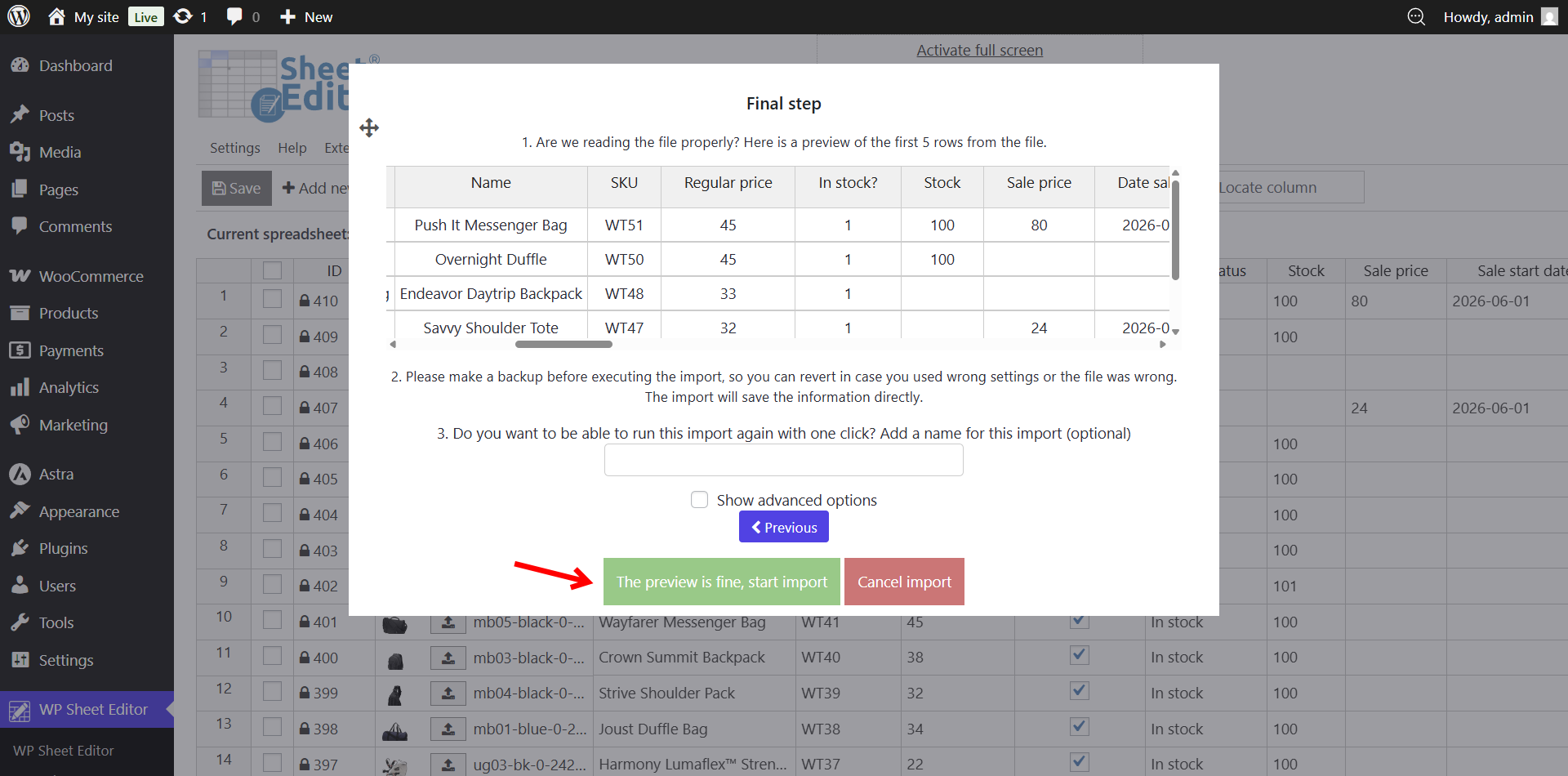
  5. Click Start new import.

    Executing the final CSV import to push all offline product updates to the live store

Pro-Tip for Bulk Editing with Supplier CSVs: If a wholesale vendor gives you their own CSV file with completely different column names (e.g., their sheet says “Wholesale Cost” instead of “Regular Price”), you do not have to manually copy and paste their data into your export file. WP Sheet Editor allows you to upload their raw CSV and manually map their columns directly to your WooCommerce fields during Step 3.

Frequently Asked Questions About WooCommerce Bulk Editing

What is the best way to bulk edit WooCommerce products?

An efficient method is using a spreadsheet-based plugin like WP Sheet Editor, which loads your catalog into a grid interface inside your WordPress dashboard. This allows you to apply bulk formulas—such as price increases or text replacements—and verify database values simultaneously, bypassing the standard WooCommerce page-by-page navigation.

Can I edit WooCommerce product variations in bulk?

Yes. WP Sheet Editor displays product variations as individual rows beneath their parent products. You can filter specifically for variations using the Search tool, apply bulk edit formulas to variations only (without affecting parent products), and update fields like variation price, stock, SKU, and attributes across hundreds of variations in a single batch operation.

Is WP Sheet Editor compatible with Yoast SEO and Rank Math?

Yes. WP Sheet Editor automatically detects SEO fields added by Yoast SEO, Rank Math, All in One SEO, and SEOPress, displaying them as editable columns. You can bulk edit SEO titles, meta descriptions, focus keyphrases, and canonical URLs for multiple products simultaneously without opening each product page individually.

How do I bulk update WooCommerce prices by a percentage?

  1. Filter the target products using the Search tool.
  2. Click the Bulk Edit button in the top toolbar.
  3. Select Regular Price or Sale Price as your target field.
  4. Choose “Increase by percentage” or “Decrease by percentage.”
  5. Enter the exact numerical value.
  6. Select “Edit only parent products.”
  7. Click Execute Now.

The update processes in background batches. You can customize the batch sizes based on your specific server capacity to prevent timeouts.

What is the difference between WP Sheet Editor and the native WooCommerce bulk editor?

The native WooCommerce editor processes changes through the standard WordPress UI, which often limits edits to 50 items per page to prevent server timeouts. It also hides current database values during the edit. WP Sheet Editor bypasses the standard UI rendering and processes updates in background batches, allowing you to queue edits for thousands of products while keeping the current values visible in the grid.

Is WP Sheet Editor compatible with Advanced Custom Fields (ACF)?

Yes. All core ACF field types (text, number, WYSIWYG, image, file, select, checkbox, date picker, Google Maps, repeater, and flexible content) appear as editable columns in the spreadsheet. You can search, filter, and bulk edit ACF meta keys across your catalog.

How long does it take to bulk edit 1,000 WooCommerce products?

The exact time depends on your server, but most stores on standard shared hosting see a 1,000-product update complete in 2–5 minutes from start to finish, including search filtering and formula configuration. The same task using the native editor takes 3–5 hours.

Do you need help?

You can receive instant help in the live chat during business hours, or you can contact us and we will help you via email.