
You can bulk edit WooCommerce product attributes with WP Sheet Editor, following three methods:
- Spreadsheet editing: Edit attribute columns directly in the spreadsheet, one cell or many at once. Best for smaller, precise changes.
- Bulk Edit tool: Set, replace, or remove attribute terms across hundreds or thousands of products or variations in one action. Best for large-scale changes.
- Export/Import: Download attribute data to CSV or Excel, edit it externally, then re-import to update products. Best when you’re working with external teams or tools.
WP Sheet Editor is a WooCommerce bulk editing plugin that allows you to manage your products and variations in a spreadsheet, so you can save hours of work.
You can download the plugin here:
Download WooCommerce Products Spreadsheet Plugin - or - Check the features
Table of Contents
Once you install the WP Sheet Editor plugin, open the spreadsheet by going to WP Sheet Editor > Edit Products. You’ll see all your products displayed in the spreadsheet.
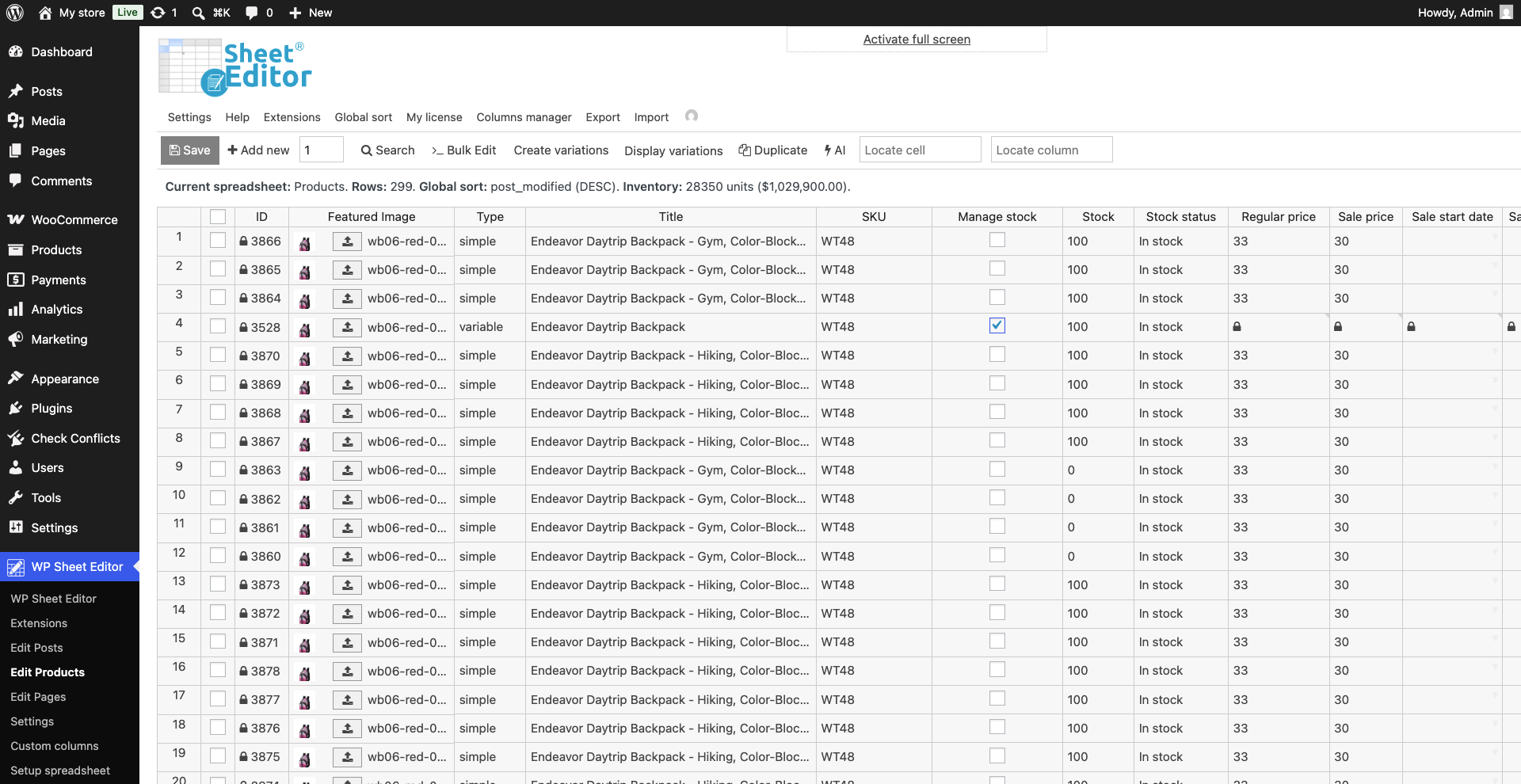
If you want to view and manage variations next to their parent products, click on Display variations.
Method 1: Edit product attributes in the spreadsheet
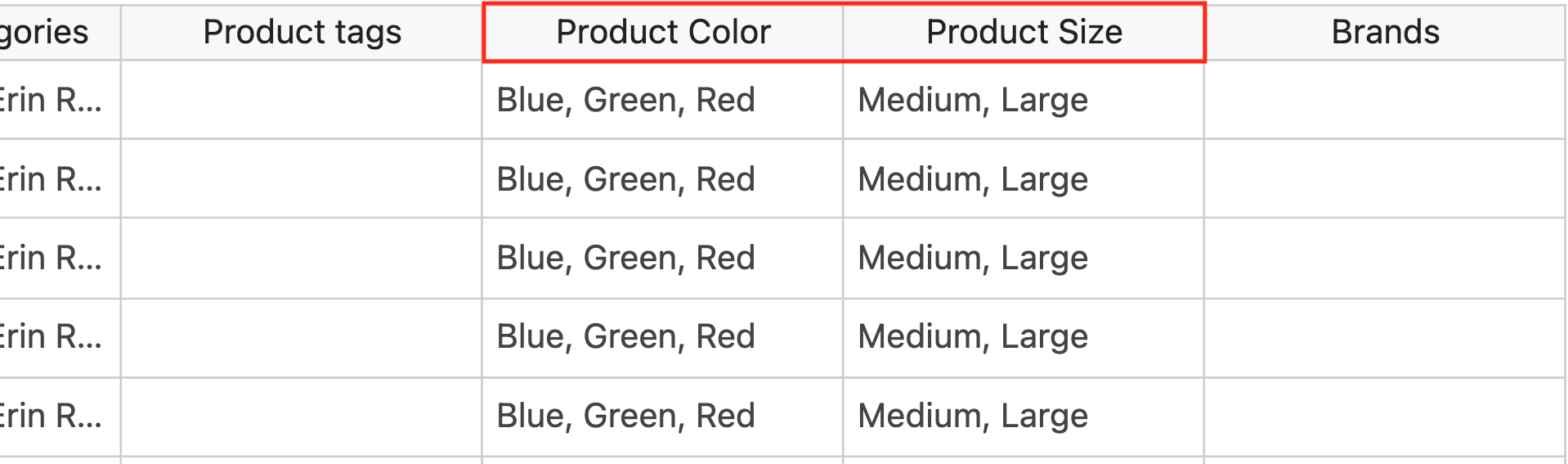
WP Sheet Editor displays product attributes in the spreadsheet. Every global attribute you have, as well as custom attributes, will appear in the spreadsheet as editable columns. In this example, you can see that our spreadsheet displays the Color and Size attributes.
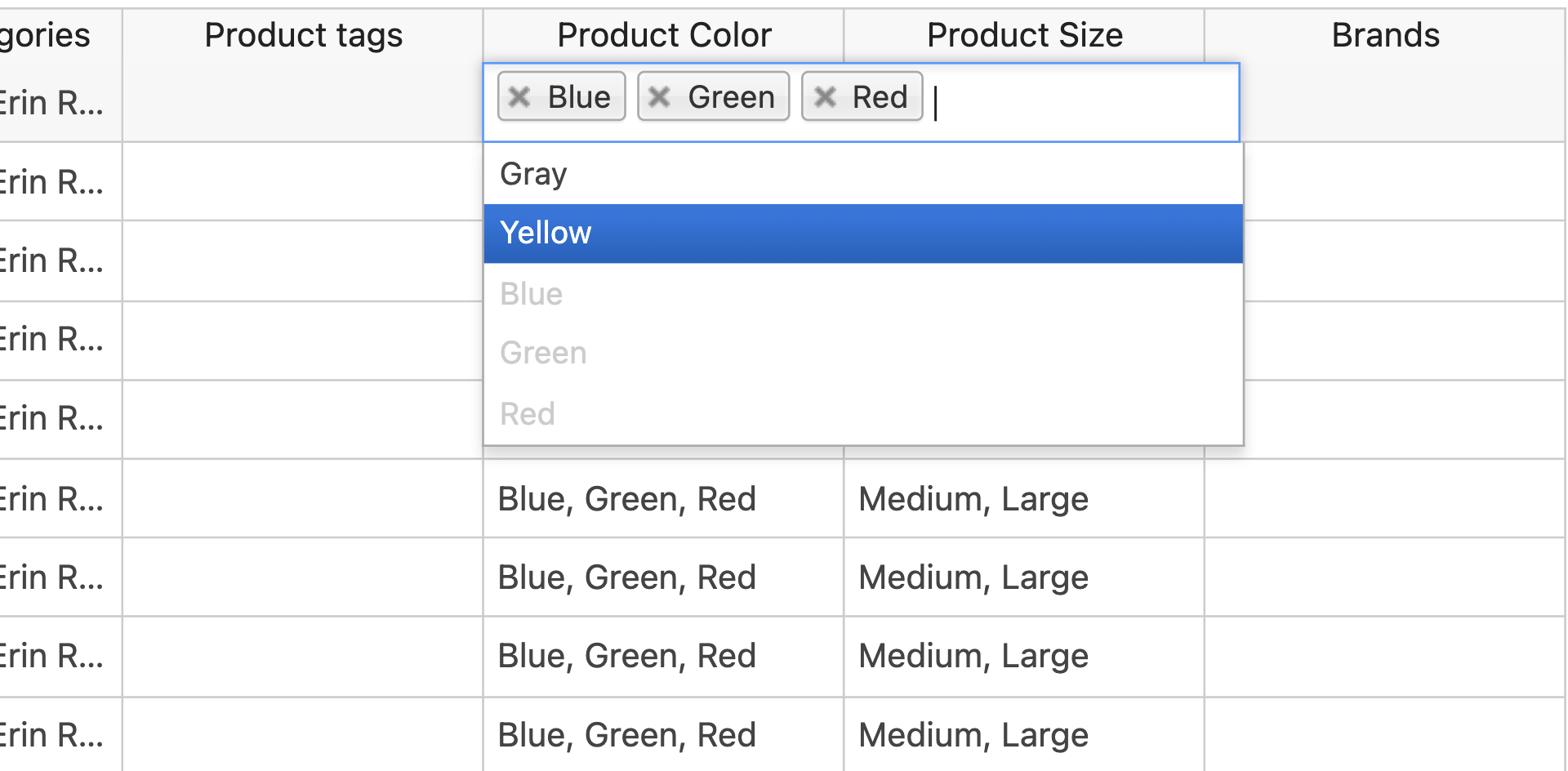
If you double-click a cell in an attribute column, you can easily select terms for that attribute from a searchable dropdown.
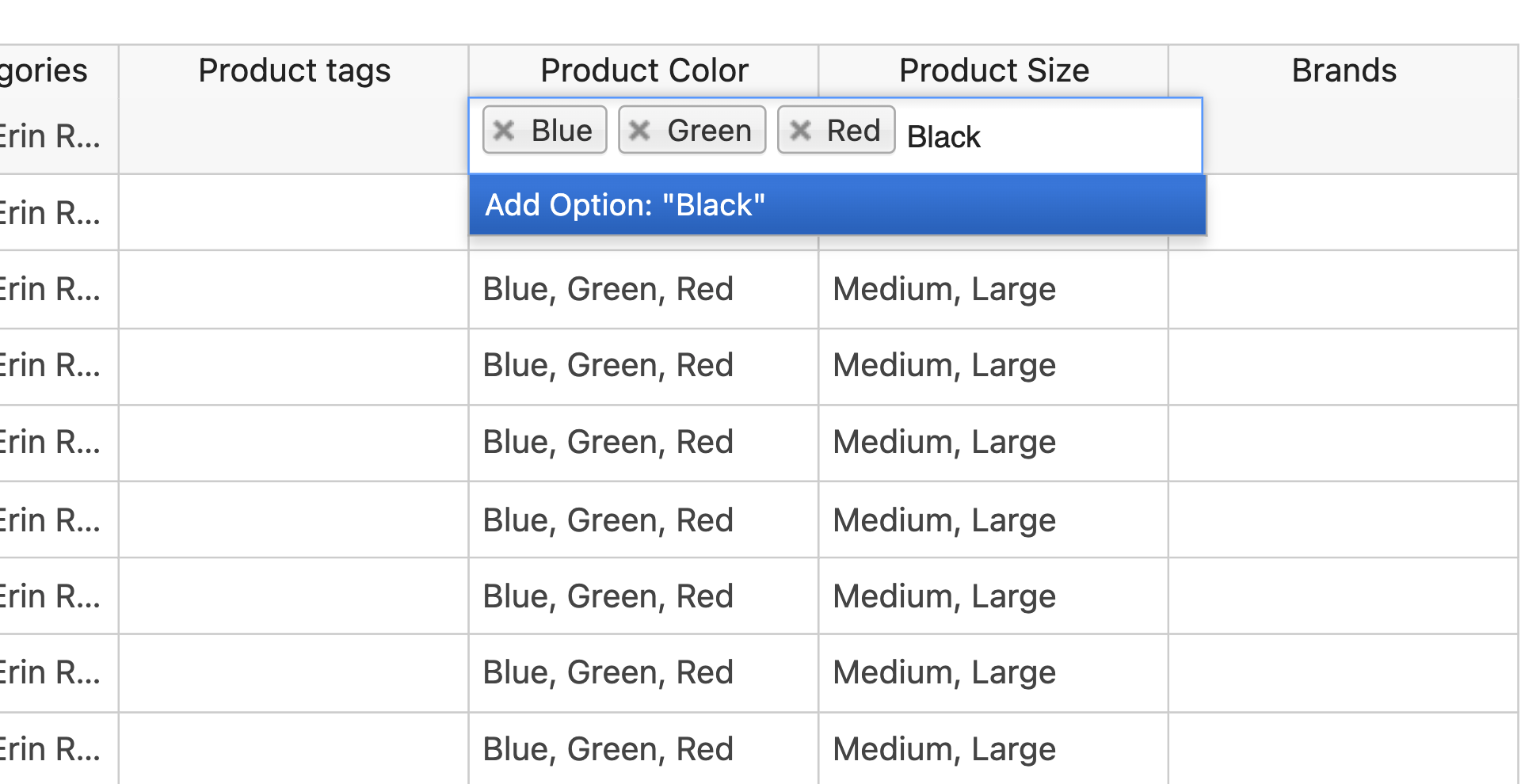
And if you want to add a new term without having to open WooCommerce’s native attributes page, you can do so directly from the spreadsheet cells. Just enter the new term, and click on Add option.
If the attribute itself doesn’t exist yet (for example, you don’t have a “Material” attribute at all), you’ll need to create it first from WooCommerce’s Products > Attributes page. Once the attribute exists, it will show up as a column in the spreadsheet and you can fill it in using the steps above.
You can also copy and paste between cells and columns, including copying values from a custom attribute column into a global attribute column, or autofill a column down to match a pattern. This makes it easy to standardize attribute data across many products without retyping anything.
Once you’re done managing your product attributes in the spreadsheet, click Save to apply the changes.
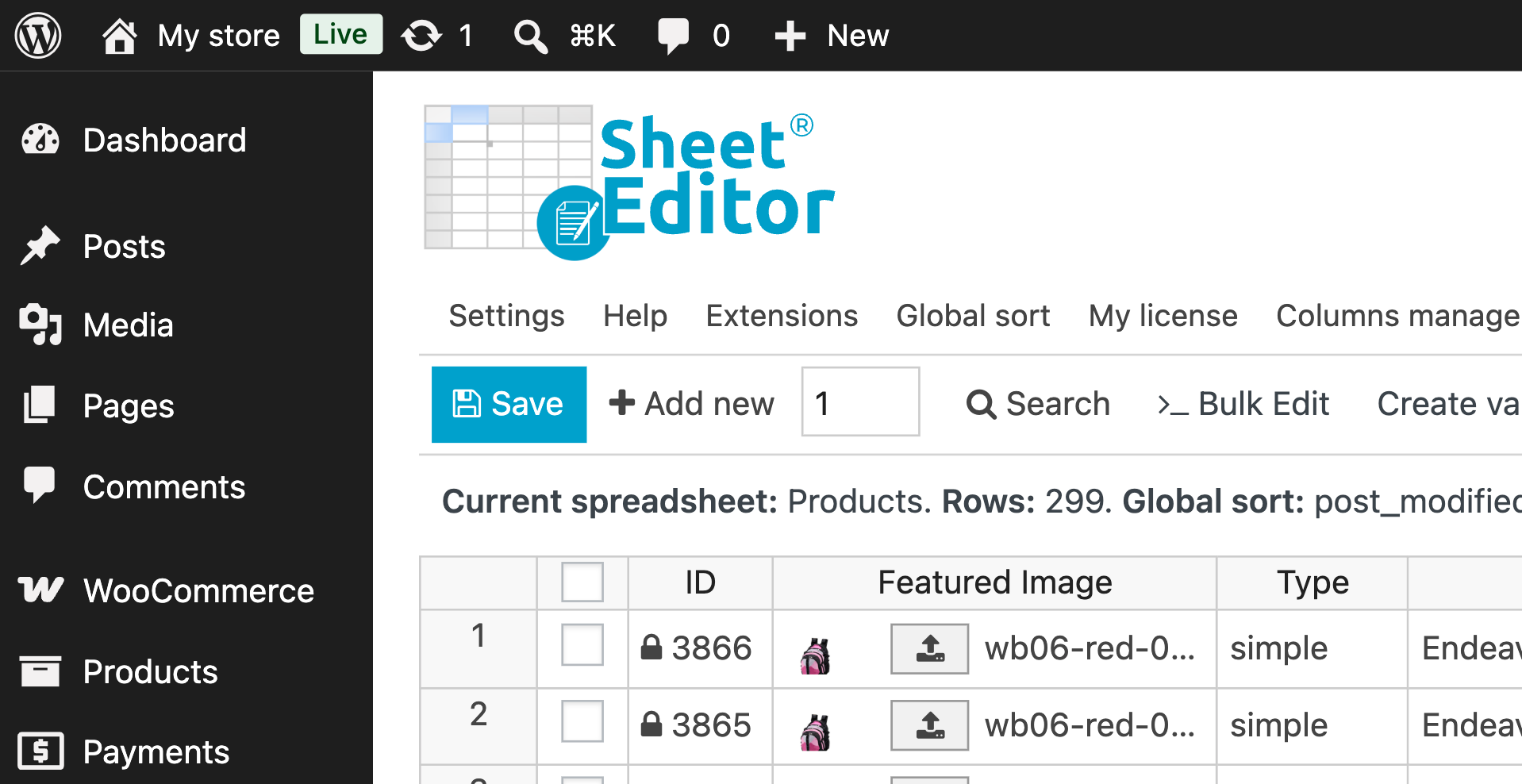
Method 2: Bulk update attributes
The Bulk Edit tool allows you to apply attribute changes to hundreds or thousands of WooCommerce products. This is useful when you don’t want to edit just a few products but dozens or hundreds/thousands of products at once.
Important: Before bulk updating products, always make a backup of your site since changes can’t be undone.
To choose which products you want to edit, you have at least three ways:
- Edit all products. Just open the Bulk Edit tool and select Edit all the rows from my current search, which will update the products currently loaded in the spreadsheet, whether there are active search filters or not.
- Manually select specific products. Use the checkbox picker on the left side of the spreadsheet to select the products you want to modify.
- Search for the products you want to edit. The Search tool allows you to filter WooCommerce products using any field as a search filter, combine different search filters, etc.
Whatever the selection method, you need to open the Bulk Edit tool after deciding which products you will update.
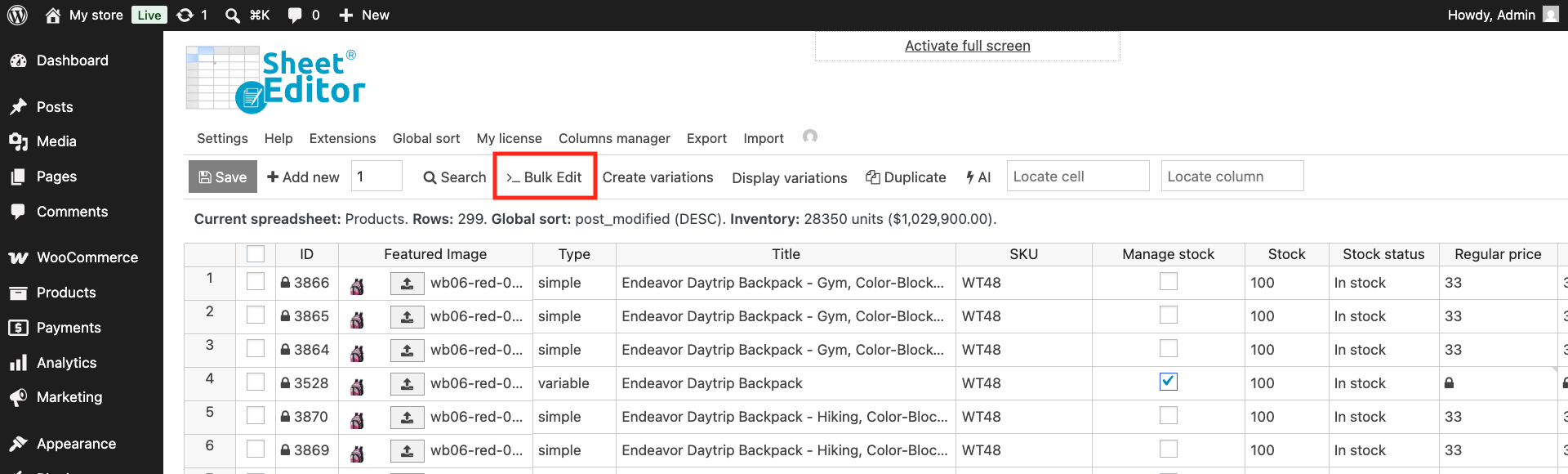
In the Bulk Edit tool, you need to:
- Select which products you will edit
- Choose the field you’re editing. In this case, it should be a product attribute field like Color, Size, Material, etc.
- Choose the type of edit you want to apply: Set a completely new value, replace specific attributes, etc.
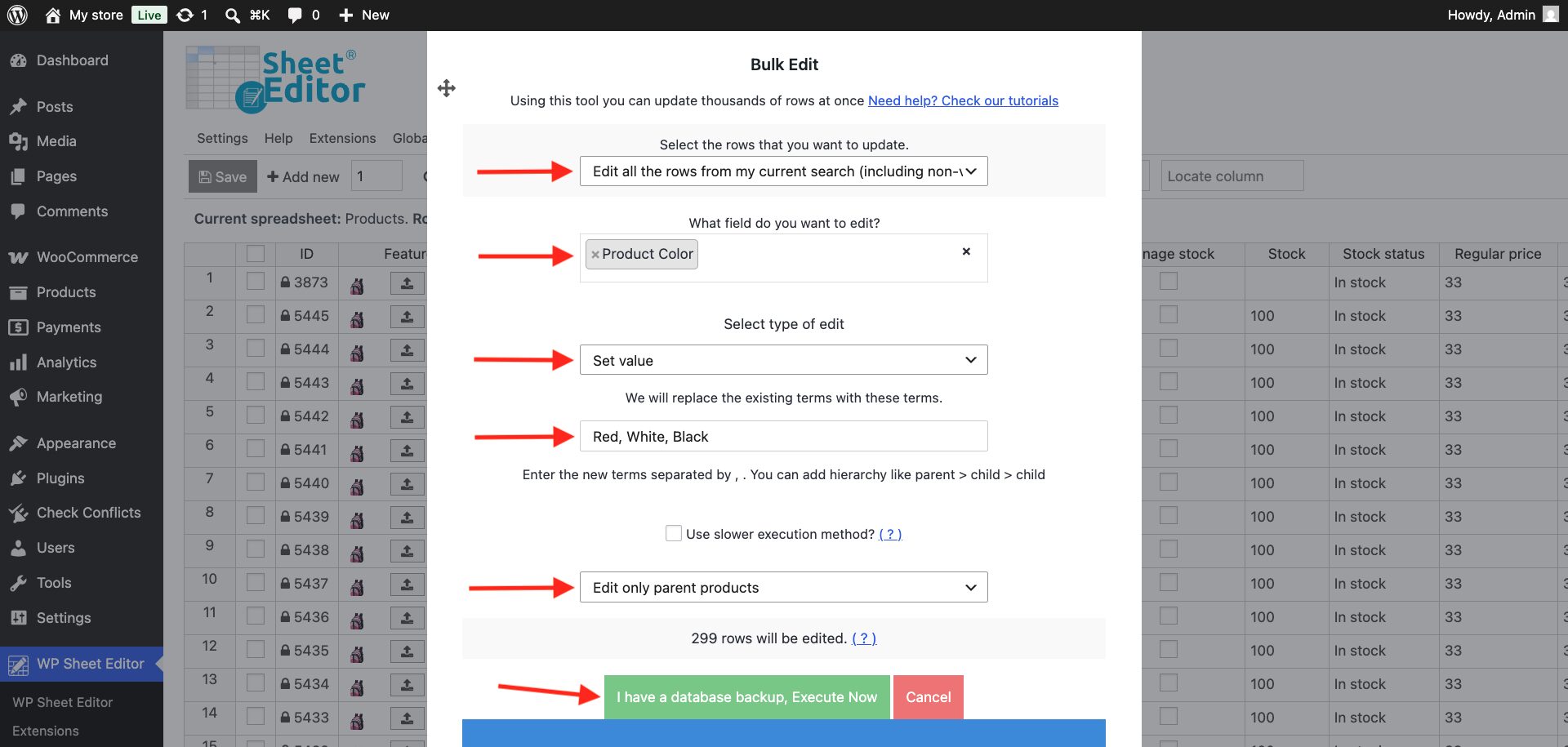
Set the same attributes to all selected products
- Select attribute field (Product color, size, material, etc.)
- Set value
- Enter the new attribute terms
- Select if you want to edit products or variations
- Execute
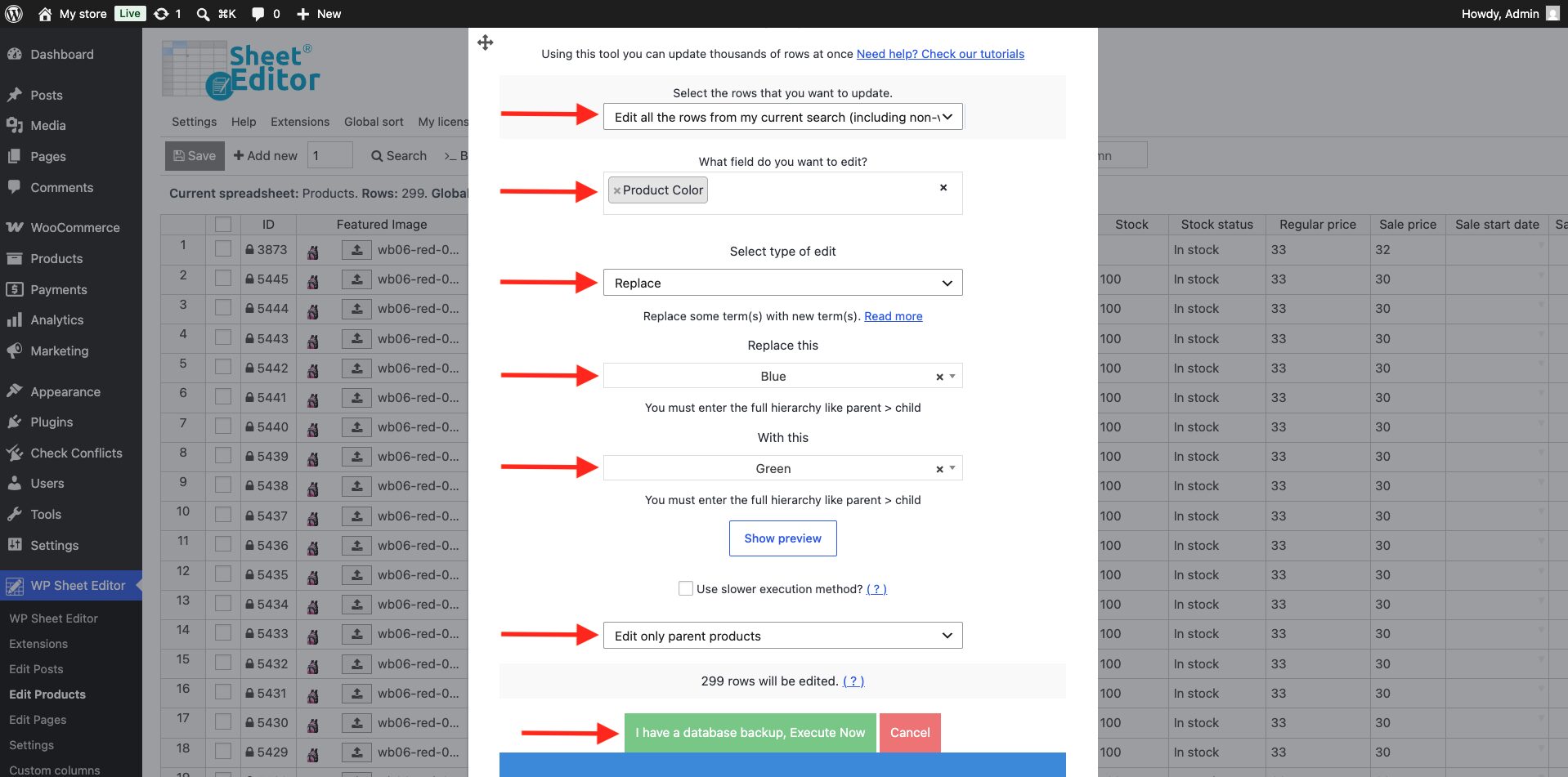
Bulk replace specific attributes
- Select attribute field (Product color, size, material, etc.)
- Replace
- Enter the attribute you want to remove
- Enter the attribute you want to add instead
- Select if you want to edit products or variations
- Execute
Remove specific attribute terms from products
- Select attribute field (Product color, size, material, etc.)
- Remove terms from posts
- Enter the attribute you want to remove
- Select if you want to edit products or variations
- Execute
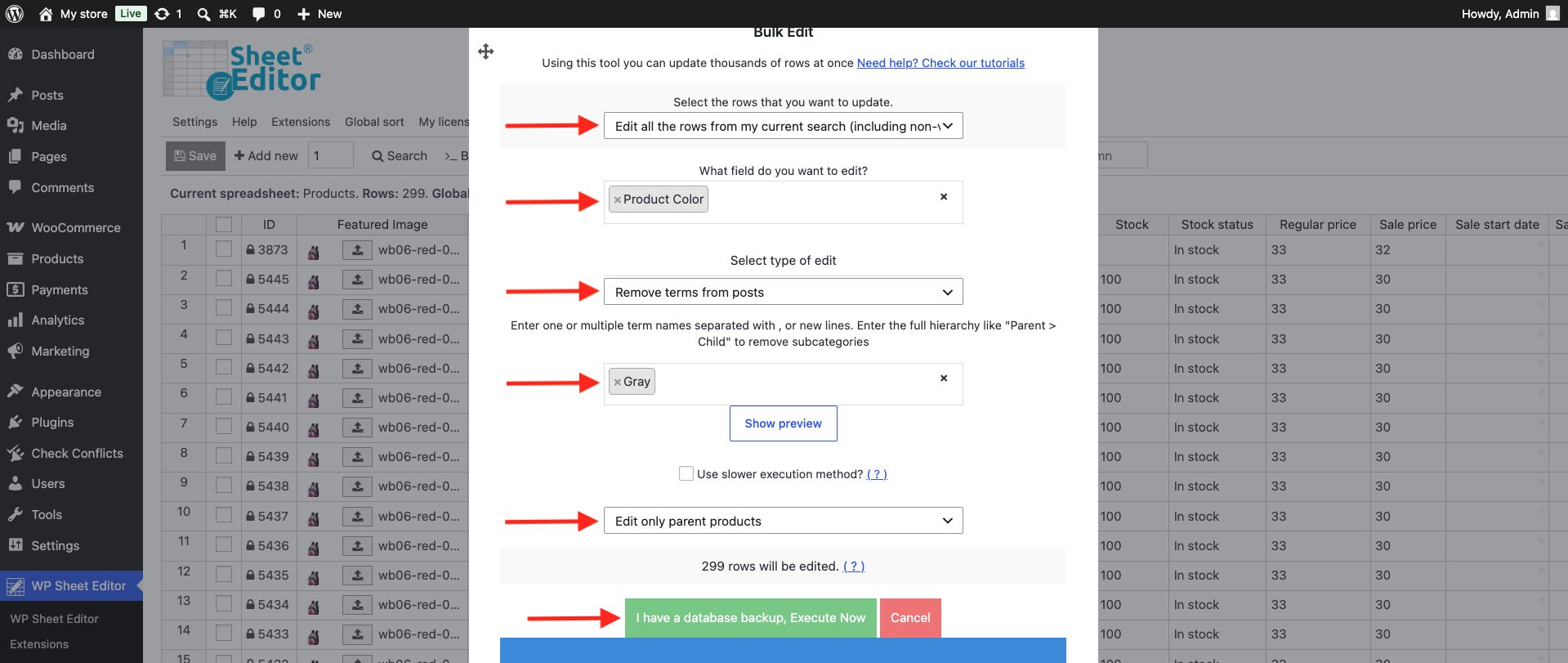
You can also copy from other columns; for example, copy from custom attribute columns to global attribute columns.
Method 3: Export and import product attributes using CSV, Excel, XML files
WP Sheet Editor lets you export and import WooCommerce attribute data using CSV, XLSX and XML files. This is useful when you want to edit attribute data outside WordPress, hand it off to someone else, or bring in attribute values generated by another system.
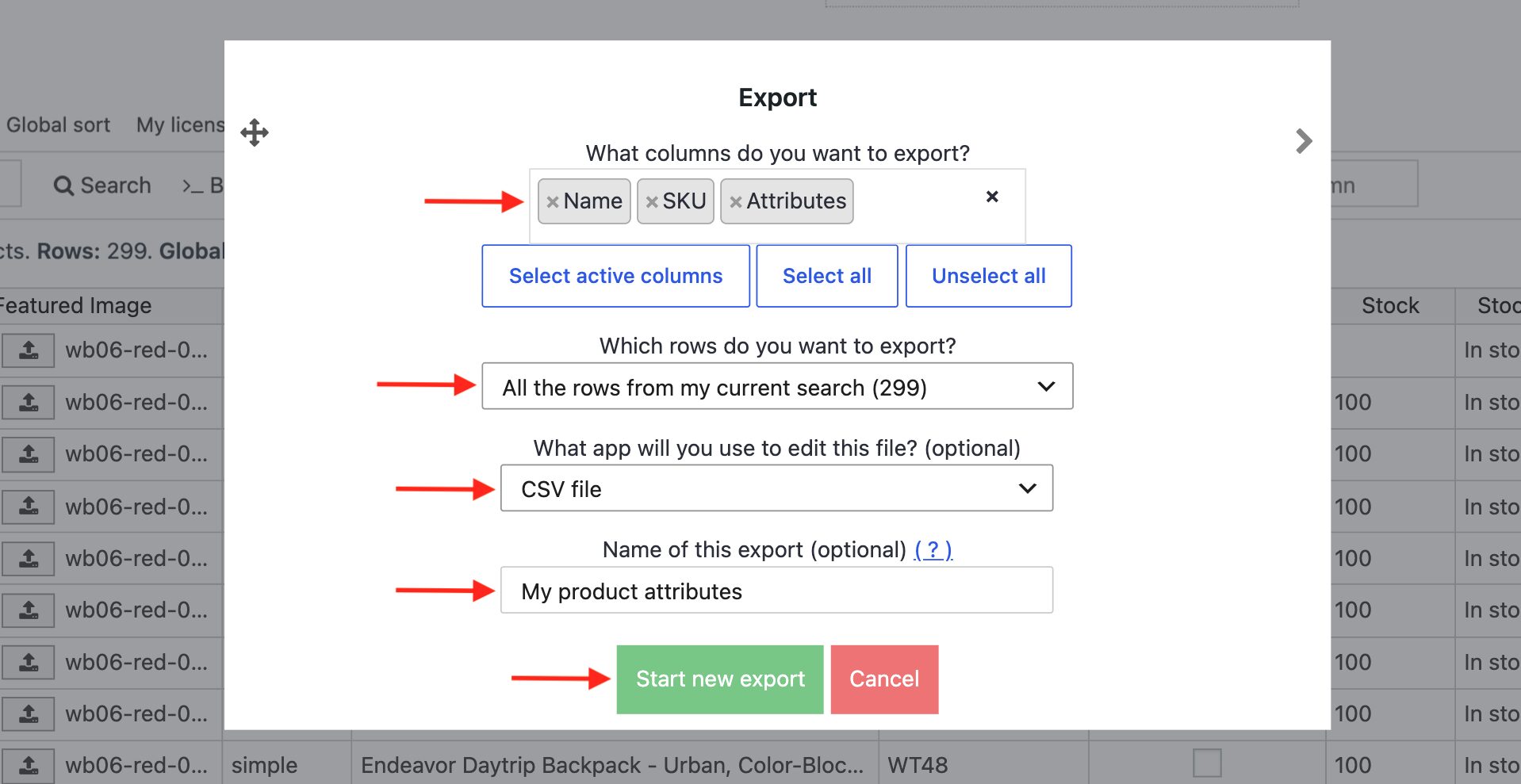
- Open the Export tool in the spreadsheet’s top toolbar.
- Select the fields you want to export. In this example, we will export the Product Color and the Product Size attributes.
- Select the rows you want to export: All rows, all rows from a search, only specific rows you have manually selected in the spreadsheet.
- Select the file extension. you can export CSV and Excel files.
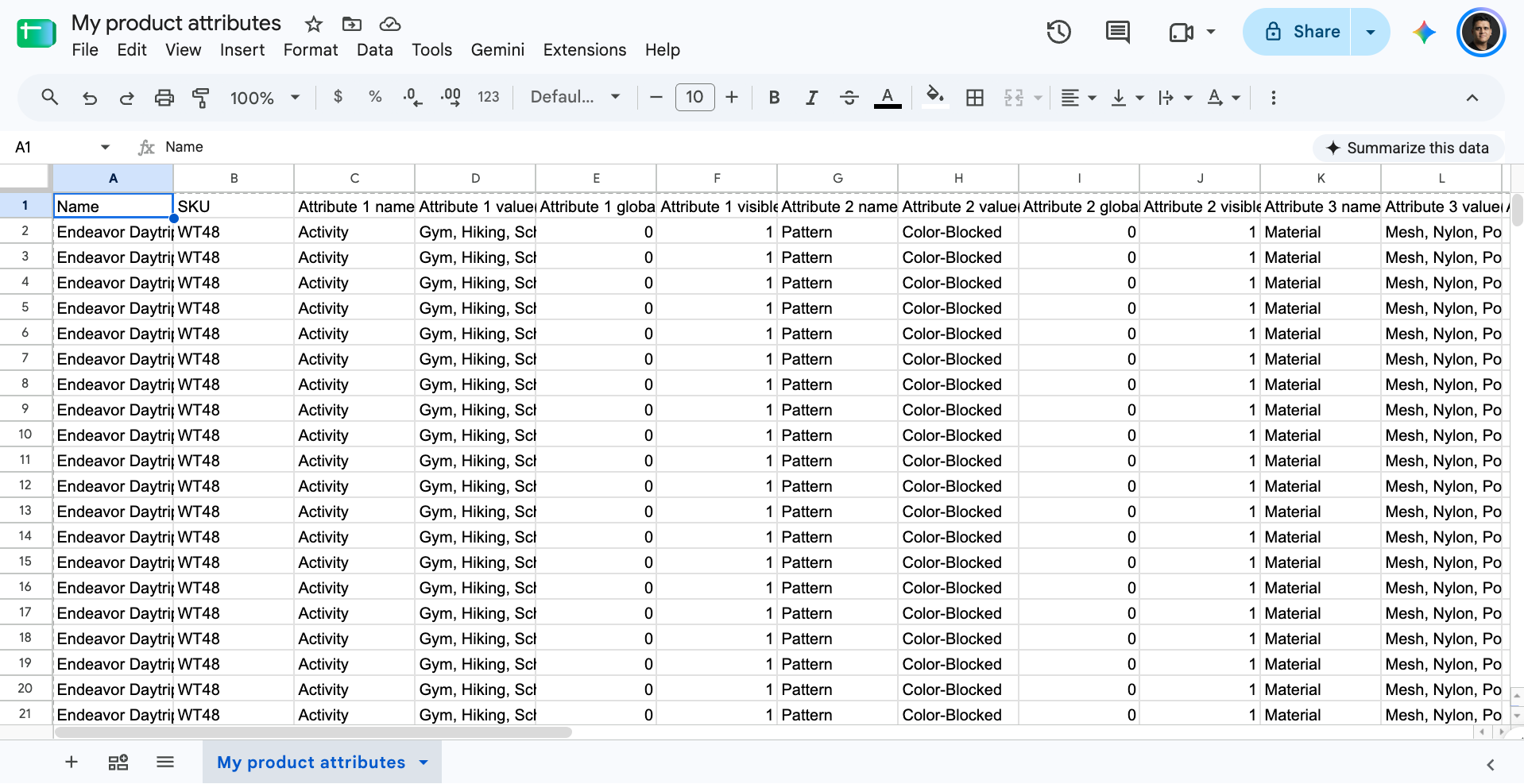
Once you have downloaded your WooCommerce product attribute data, you can apply all the changes you want in Excel or Google Sheets.
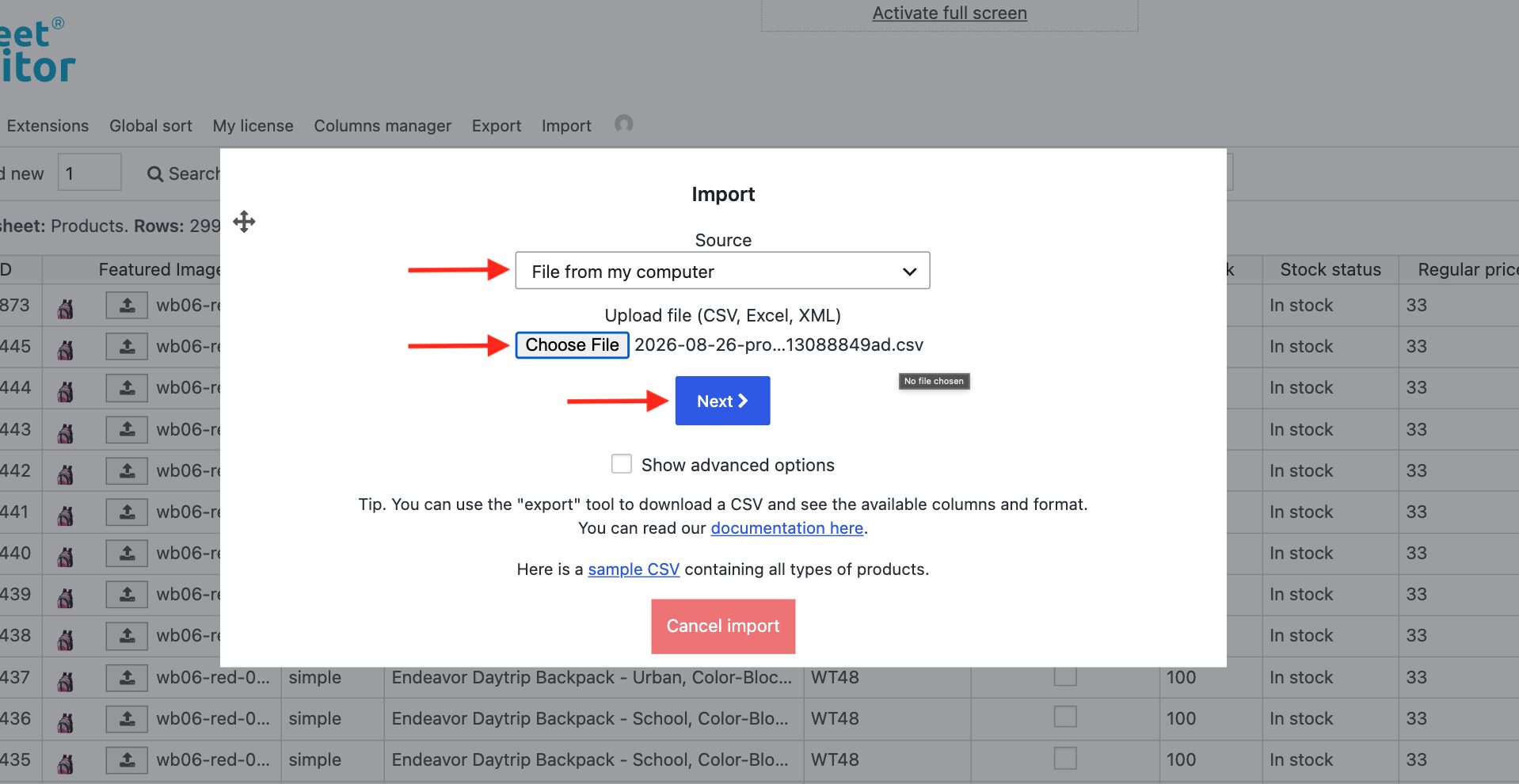
To import WooCommerce product attributes:
- Open the Import tool.
- Select the CSV, Excel or XML file from your computer.
- Map the columns (which will be automatically done if you exported the file with WP Sheet Editor)
- Select the product ID or SKU as an identifier to map the rows.
- Run the import to bulk update product attributes from the CSV, XSLX or XML file.
Importing is a solid way to manage WooCommerce product attribute terms in bulk, especially when the source data was generated outside WordPress.
Frequently Asked Questions on Bulk Managing Attributes
Can I bulk manage custom attributes?
Yes, here’s a step by step guide to bulk editing WooCommerce custom attributes with WP Sheet Editor.
Can I convert custom attributes into global attributes?
Yes, here’s a tutorial on converting custom attributes into global attributes in bulk.
Can I enable the “Used for variations” feature in bulk?
Yes, here’s a tutorial on how to bulk enable the used for variations feature on hundreds of attributes.
Can I bulk edit attributes at the taxonomy level?
The methods above cover editing attribute values on products (assigning terms like “Red” or “Large” to specific items). If you instead want to manage the attribute itself as a taxonomy (renaming terms, merging duplicates, or editing the full term list in a spreadsheet dedicated to that one attribute), that’s a different workflow. Here’s a tutorial on managing WooCommerce attribute taxonomies in a spreadsheet.
You can download the plugin here:
Download WooCommerce Products Spreadsheet Plugin - or - Check the features