
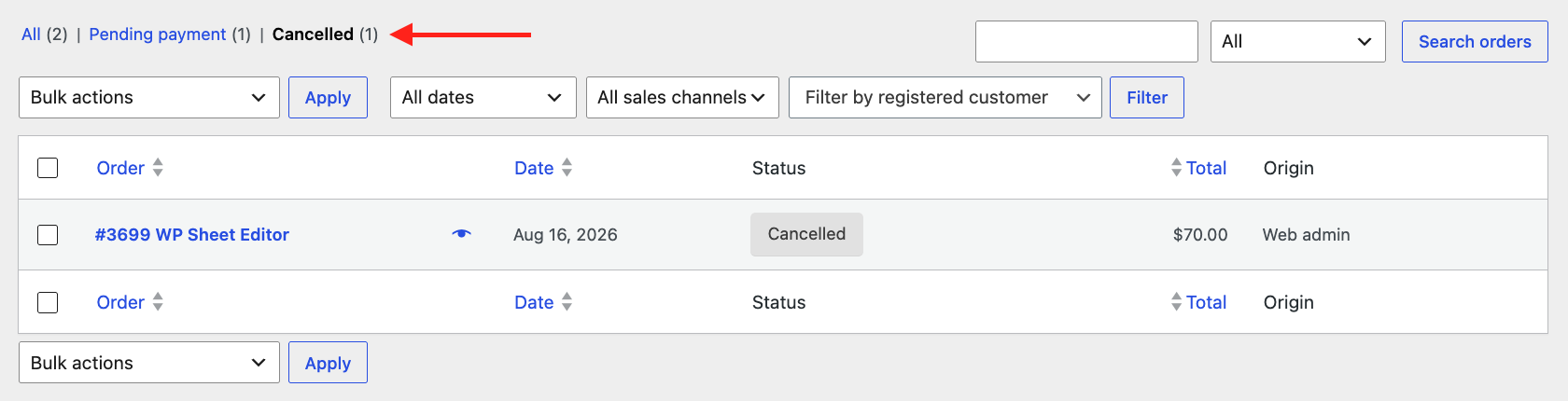
In this tutorial, we will show you how to export WooCommerce cancelled orders to a CSV or Excel file. In WooCommerce you can view your cancelled orders by clicking on the Cancelled status filter link. However, you cannot export them.
Thats why we will use the WP Sheet Editor – WooCommerce Orders plugin, which allows you to view and manage your order data in a spreadsheet inside WordPress. You can search and bulk edit, as well as export and import orders easily.
You can download the plugin here:
Download WooCommerce Orders Spreadsheet Plugin - or - Check the features
Why download a report of cancelled WooCommerce orders?
Here are some situations where exporting cancelled orders can help you:
- You want to discover the main reasons why customers are cancelling their purchases.
- The sales team has asked you to ensure that the inventory from revoked orders has been added back correctly.
- You need to conduct a customer win-back campaign, so you want to contact users who cancelled orders in order to offer them help or a discount coupon.
- The accounting team wants to make sure these cancelled transactions don’t mess up your revenue reports.
- Security has asked for help to identify strange patterns that might look like fraud or bot attacks.
- Sales wants to read customer notes to see if your checkout process is confusing.
In all these situations and many more, having a clear list of cancelled orders allows you to turn lost opportunities into better business decisions.
Step 1. Open the WooCommerce Orders spreadsheet
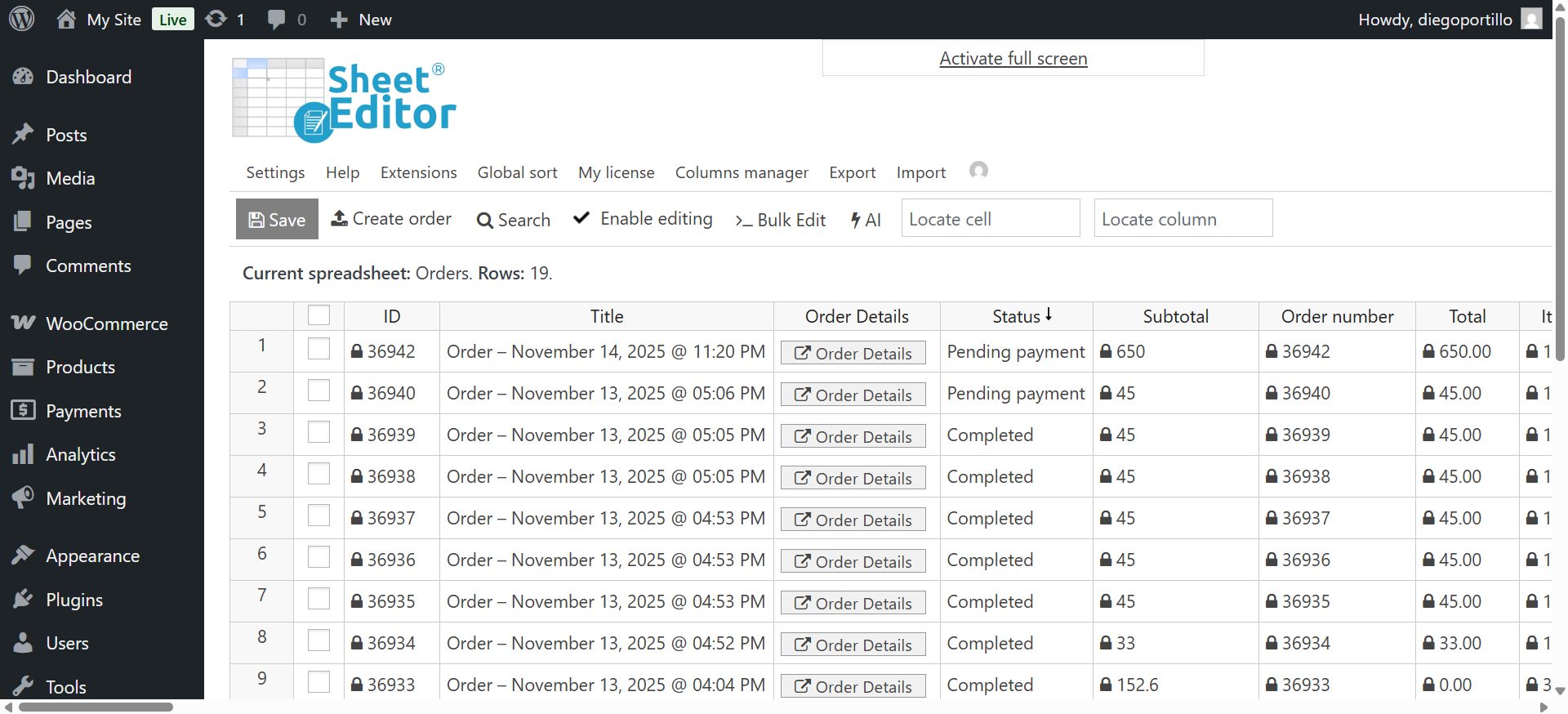
After installing the plugin and activating your license, go to WP Sheet Editor → Edit orders, where you will see a spreadsheet displaying all your orders, including their current status, billing info, and order totals.
Step 2. Open the “Search” tool
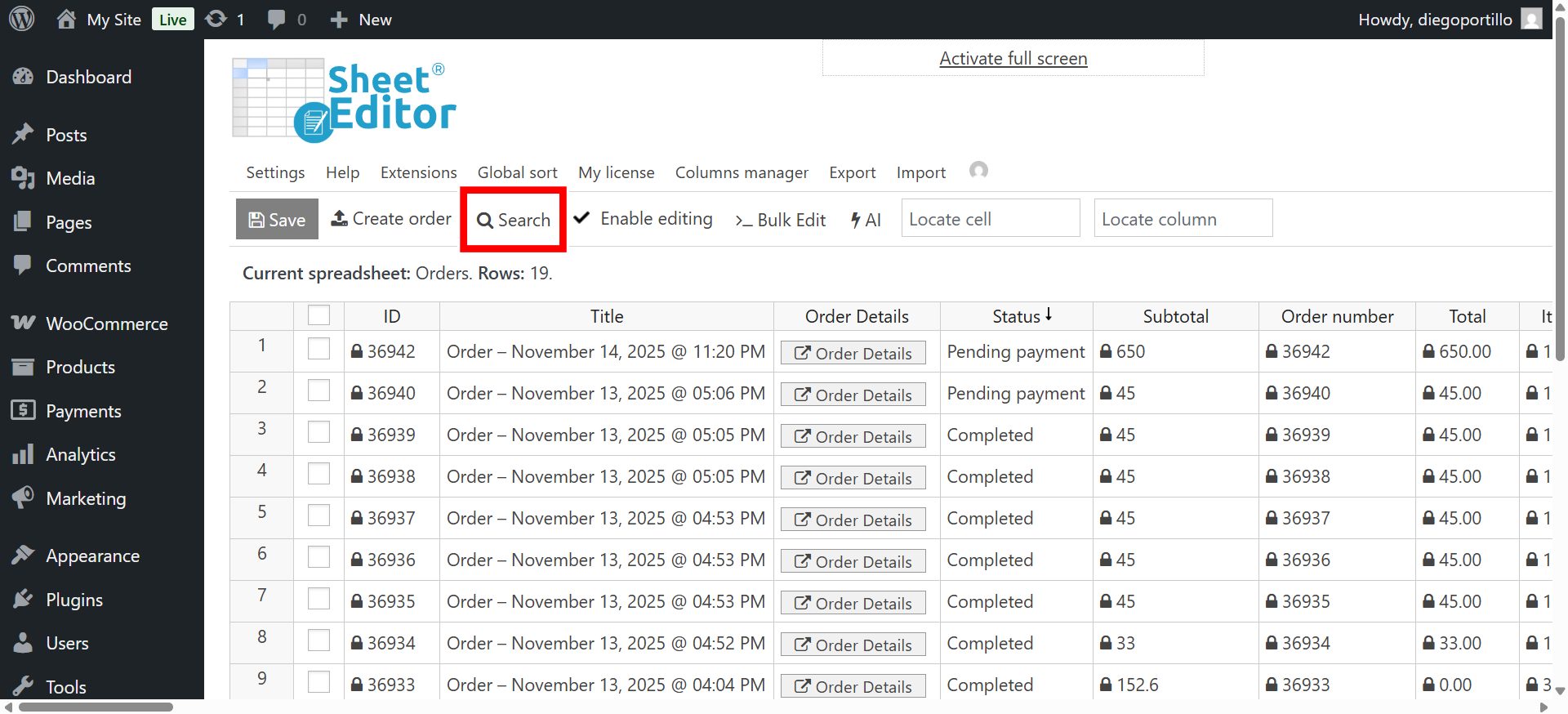
Click the Search button on the toolbar. This tool allows you to find specific data by status, date, or even the customer’s email address.
Step 3. Filter orders with “Cancelled” status
Now, use the Search tool to filter only the orders that were cancelled:
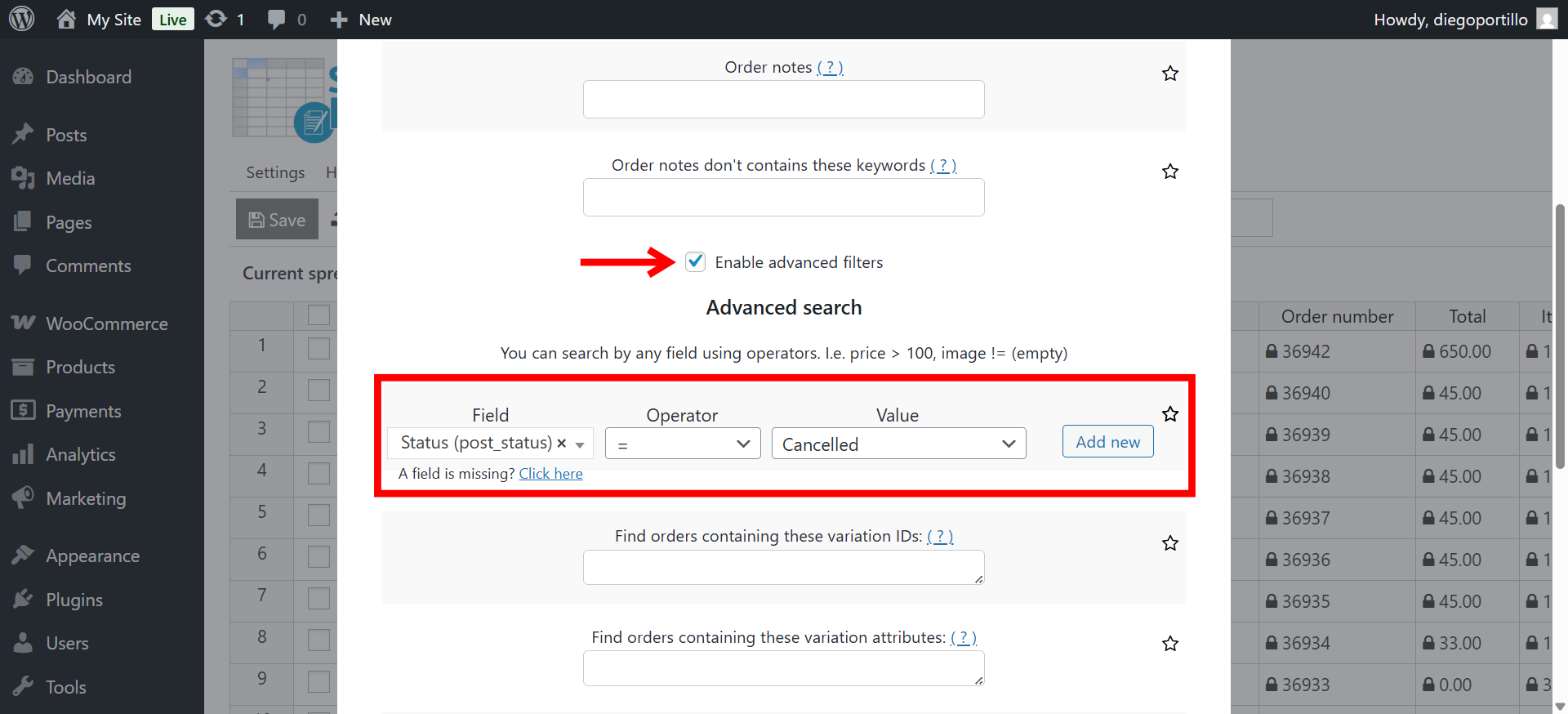
- Check the Enable advanced filters checkbox.
- Field: Status
- Operator: =
- Value: Cancelled
- Click Run search.
The spreadsheet will refresh and show only the Cancelled orders. You can browse this list or proceed to generate your CSV file.
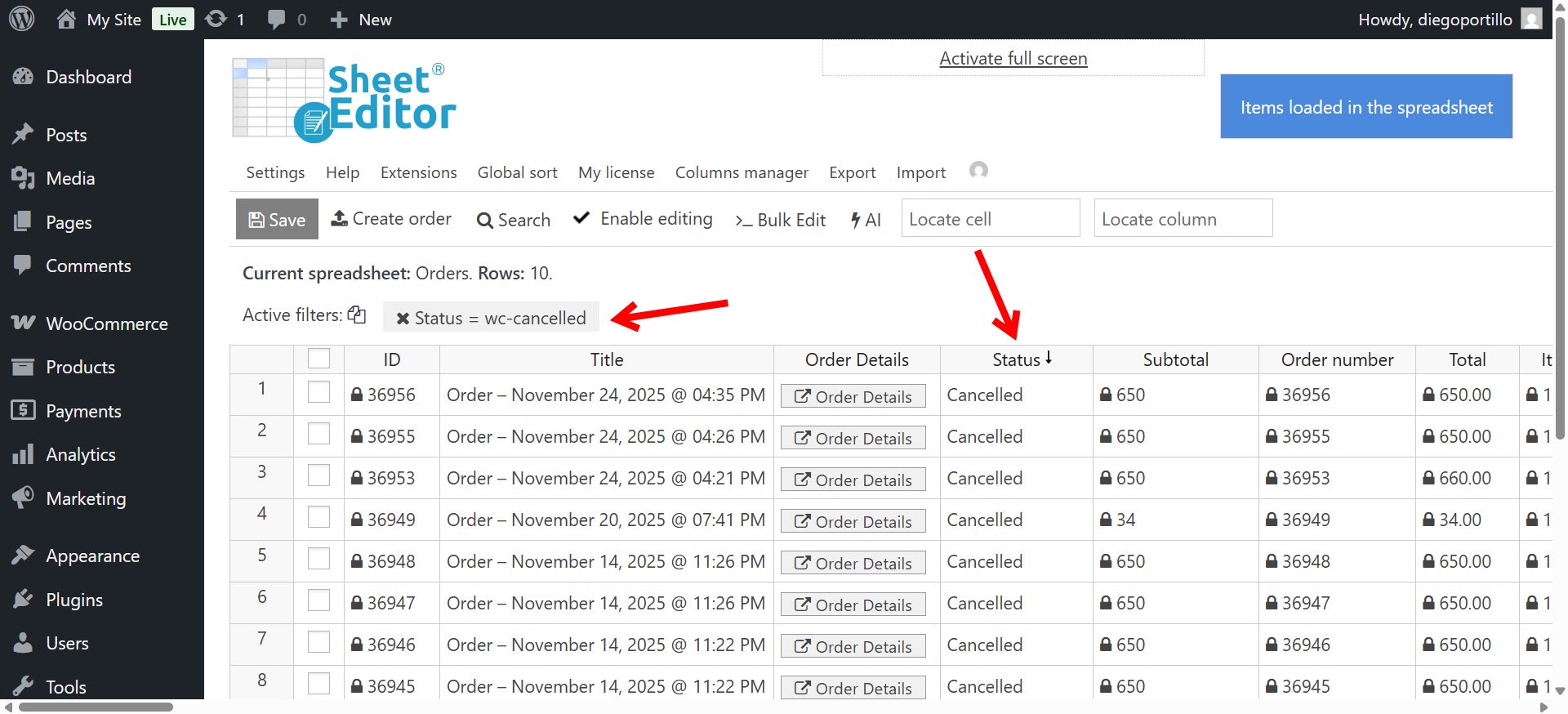
Optional: Narrow down your results
You can add more conditions to get a more specific report:
- Date range: Find cancellations that happened this month.
- Total amount: Look for high-value orders that were cancelled.
- Product: See which specific items get cancelled the most.
Step 4. Export the cancelled orders to CSV
Once you have the list of cancelled orders, click the Export button on the top toolbar.
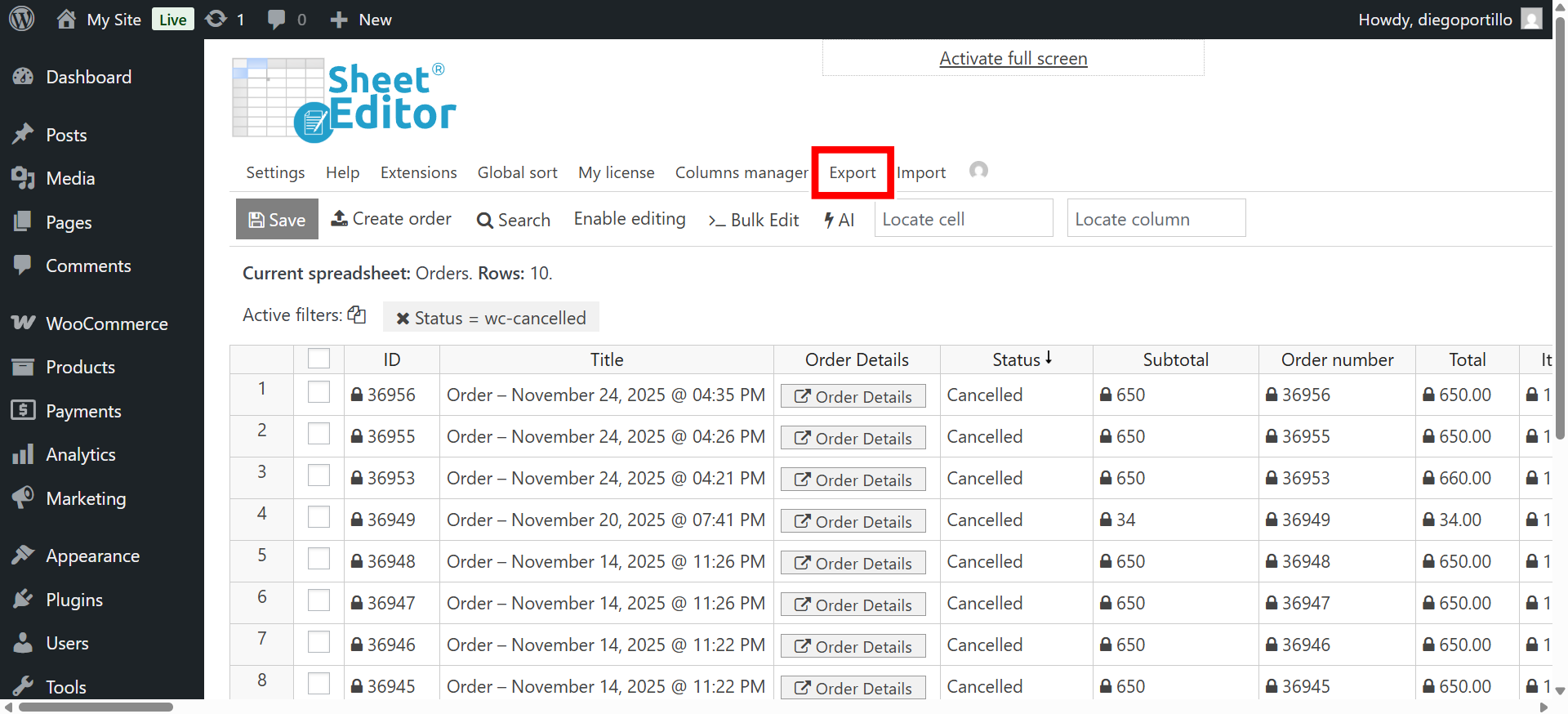
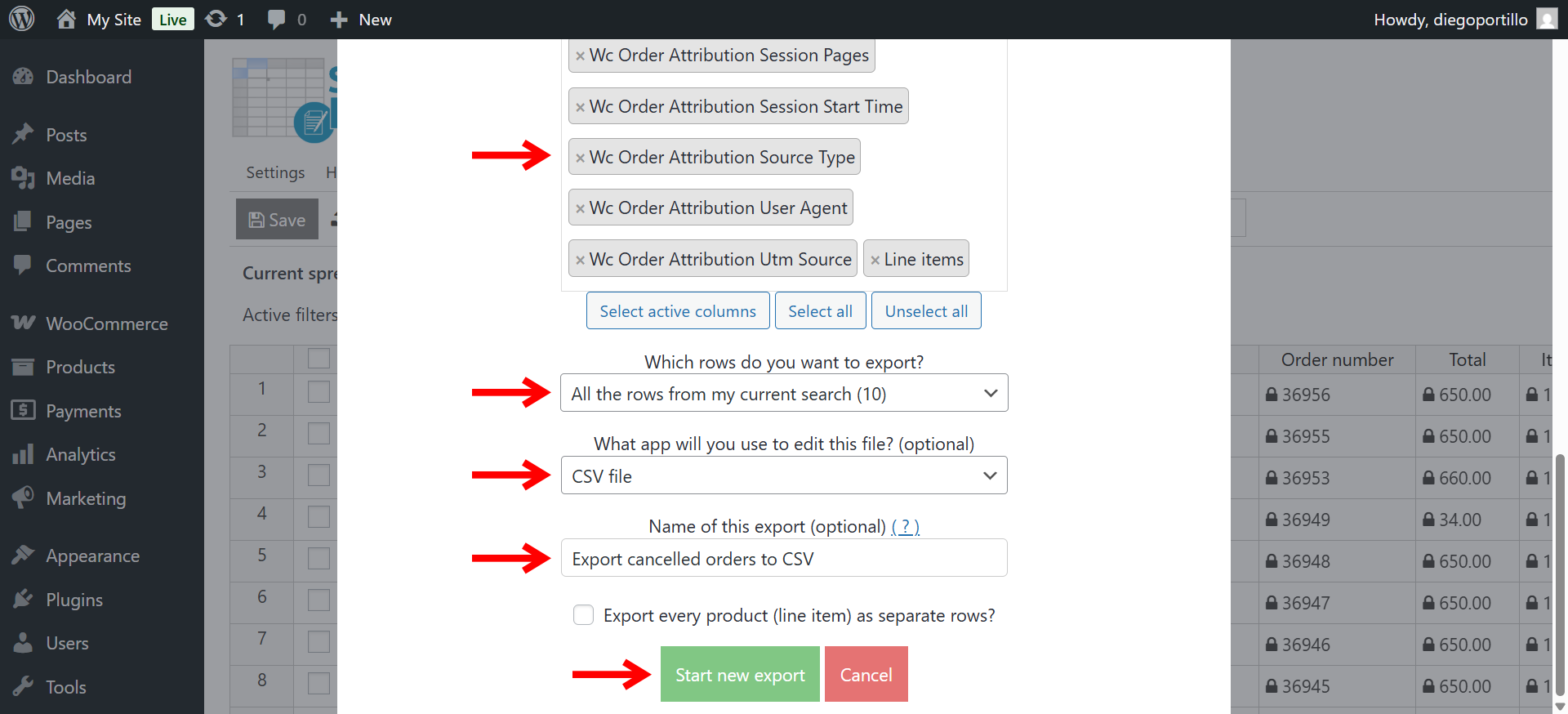
Configure the export settings as follows:
- What columns do you want to export: Choose the specific fields you need (e.g., Order Total, Billing Email, Date) or Select all active columns.
- Which rows do you want to export: All rows from my current search.
- What app will you use to edit this file: CSV file or Microsoft Excel file.
- Name of this export: For example, name the CSV something like “Export cancelled orders to CSV”.
- Click Start new export.
Your file containing all the cancelled order data will be downloaded to your computer.
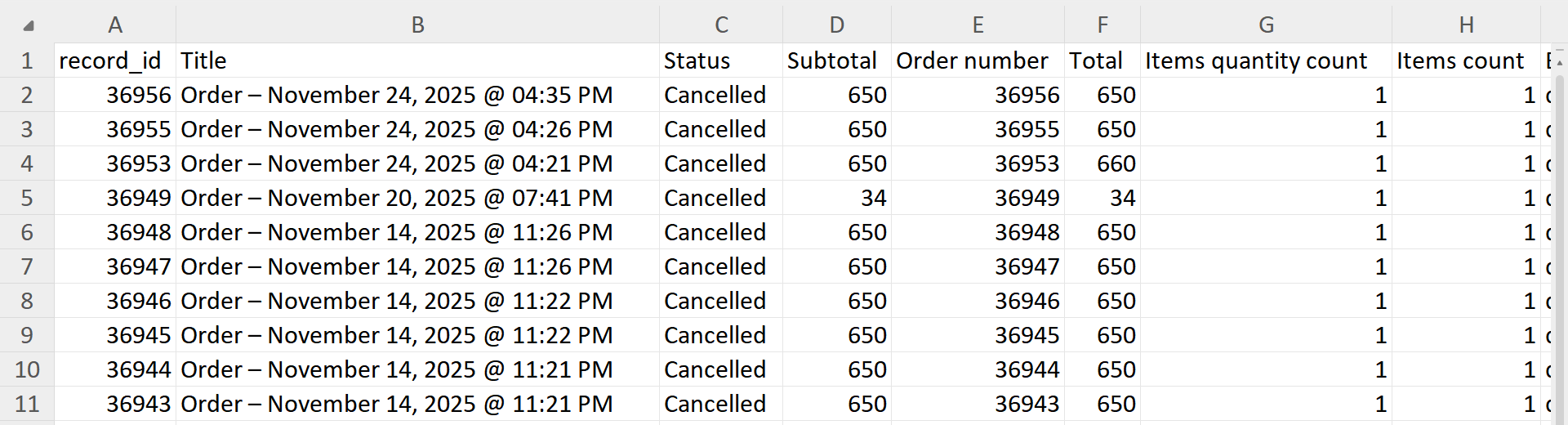
Regularly pulling reports of WooCommerce cancelled sales helps you:
- Keep your financial records clean.
- Spot trends in product returns or cancellations.
- Recover revenue with targeted marketing.
- Check if your payment gateway is working properly.
With WP Sheet Editor – WooCommerce Orders, managing and exporting cancelled orders can help you save hours of boring work.
You can download the plugin here:
Download WooCommerce Orders Spreadsheet Plugin - or - Check the features