
In this tutorial, you’ll learn how to export LearnDash courses to Google Sheets. Besides the LearnDash LMS plugin, we will use the WP Sheet Editor for Courses plugin and the Google Sheets Sync service.
What you need to export courses
WP Sheet Editor for Couses makes it easy to manage your courses, lessons, quizzes, questions and exams in an intuitive spreadsheet with advanced search, bulk edit tools, as well as import and export.
You can purchase the plugin here:
The Google Sheets Sync service allows you to connect WP Sheet Editor spreadsheets to Google Sheets to export and import data automatically. You can run manual exports and imports, as well as automatic synchronizations.
You can sign up to the service here:
Sign up to the Google Sheets Sync Service - or - Check the features
Step 1. Connect WordPress to Google Sheets
When you subscribe to the Google Sheets Sync service, you’ll receive a helper plugin that allows you to connect your WordPress site with your Google Sheets account, the Google API, and the WP Sheet Editor API.
Follow this installation guide to complete the setup.
Step 2. Open the LearnDash Courses Spreadsheet
Go to WP Sheet Editor > Edit Courses. The plugin will load a spreadsheet containing all your courses.
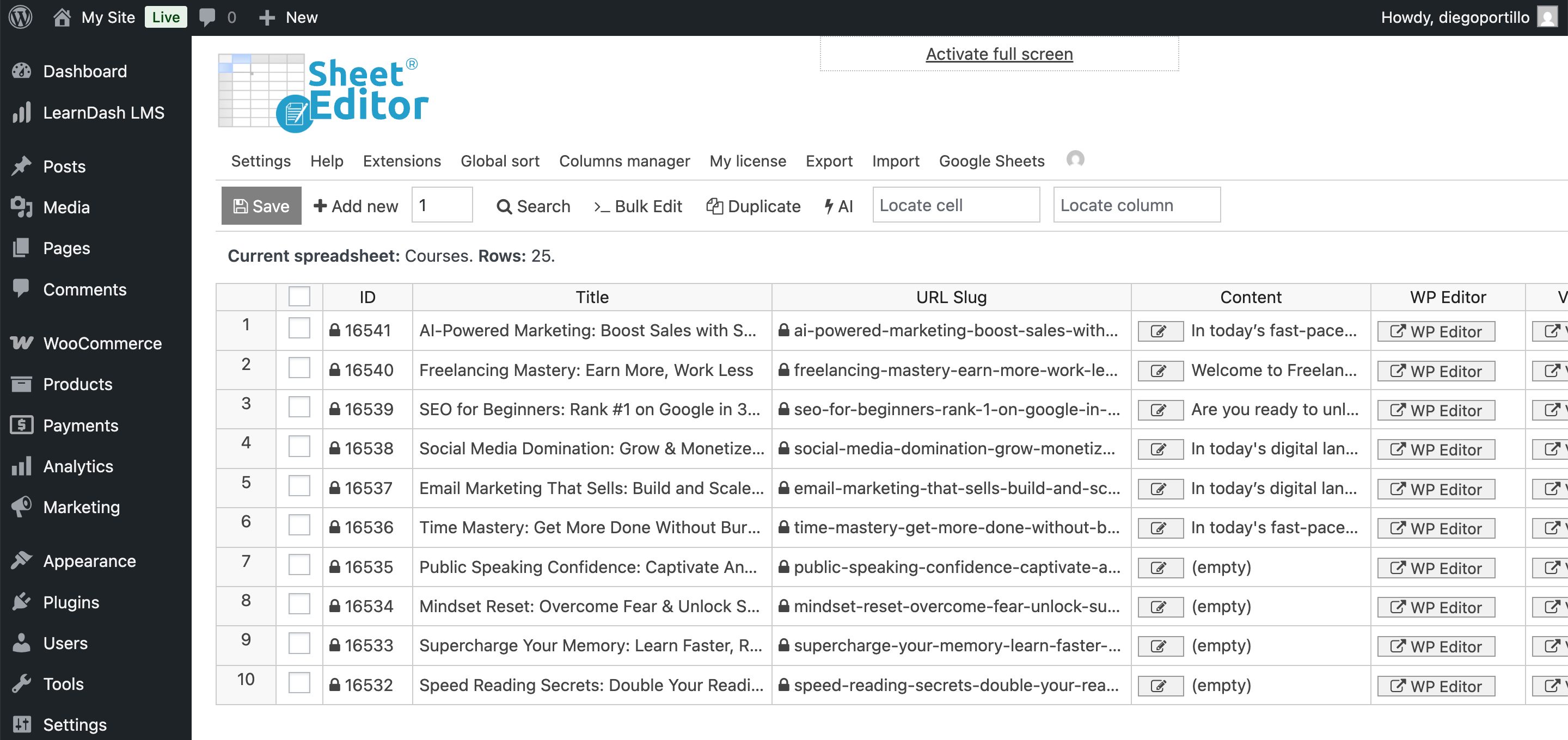
You can see columns for:
- Course Title and Content: The main course information.
- LearnDash Settings: Price Type (Open, Free, Buy Now, Recurring), Access Mode, Course Materials, and Certificates.
- Taxonomies: Course Categories and Tags.
- Status: Published, Draft, or Trash.
- Featured Image: The URL of the course cover image.
If you don’t see a specific column you need (like a custom field added by another plugin), use the Column Manager tool to enable it or go to Settings > Scan DB to find fields.
Step 3. Select the courses you want to export (optional)
You have total control over which data you want to export. You can export your entire catalog of courses or just a specific segment.
To filter your LearnDash LMS courses, start by opening the Search tool.
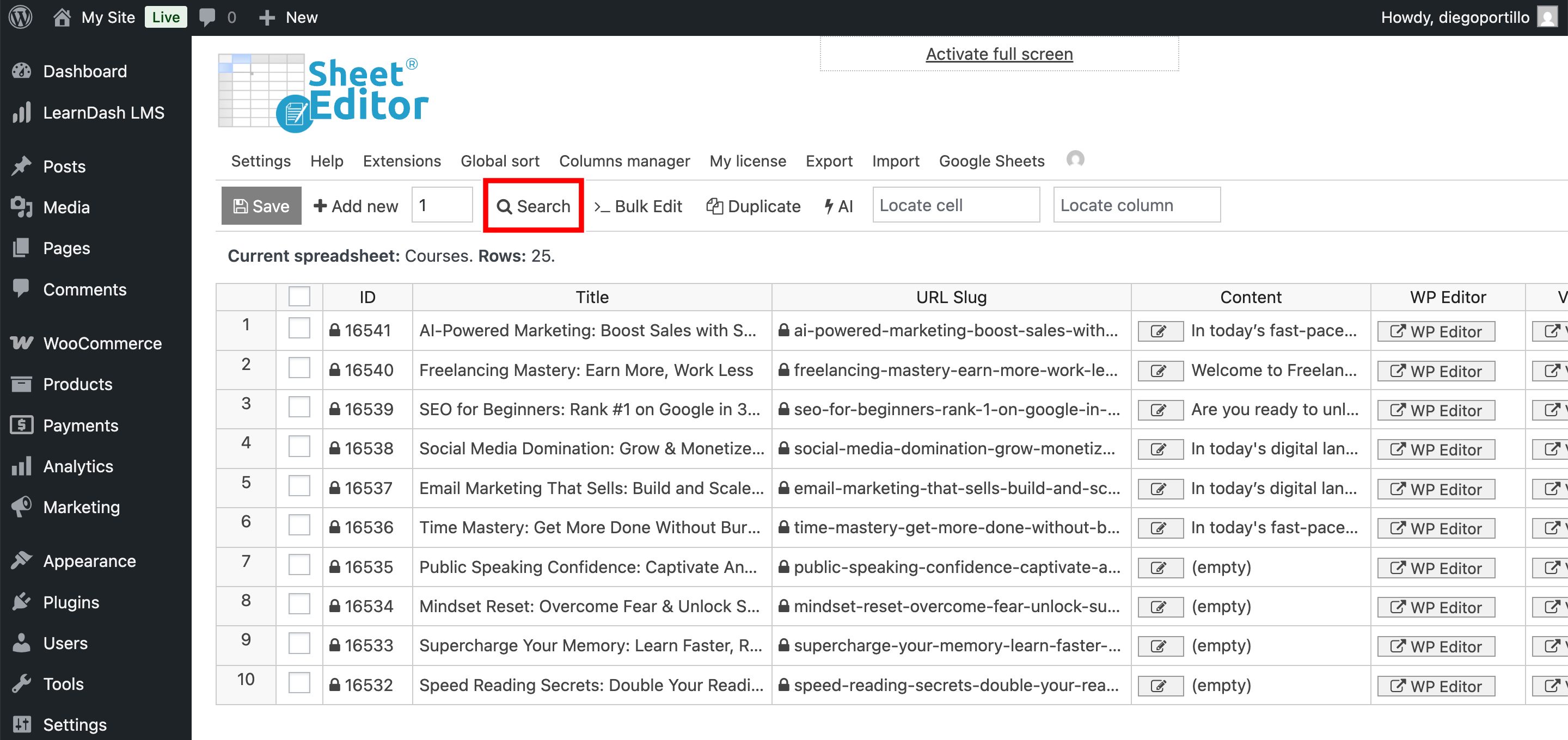
This will open a search form where you can filter by:
- Keyword: Find courses with specific words in the title.
- Taxonomy (category, tag, etc.): Export courses from a specific category (e.g., “Marketing” or “Development”).
- Status: Export only “Published” courses and ignore drafts.
- Use any column as a search filter.
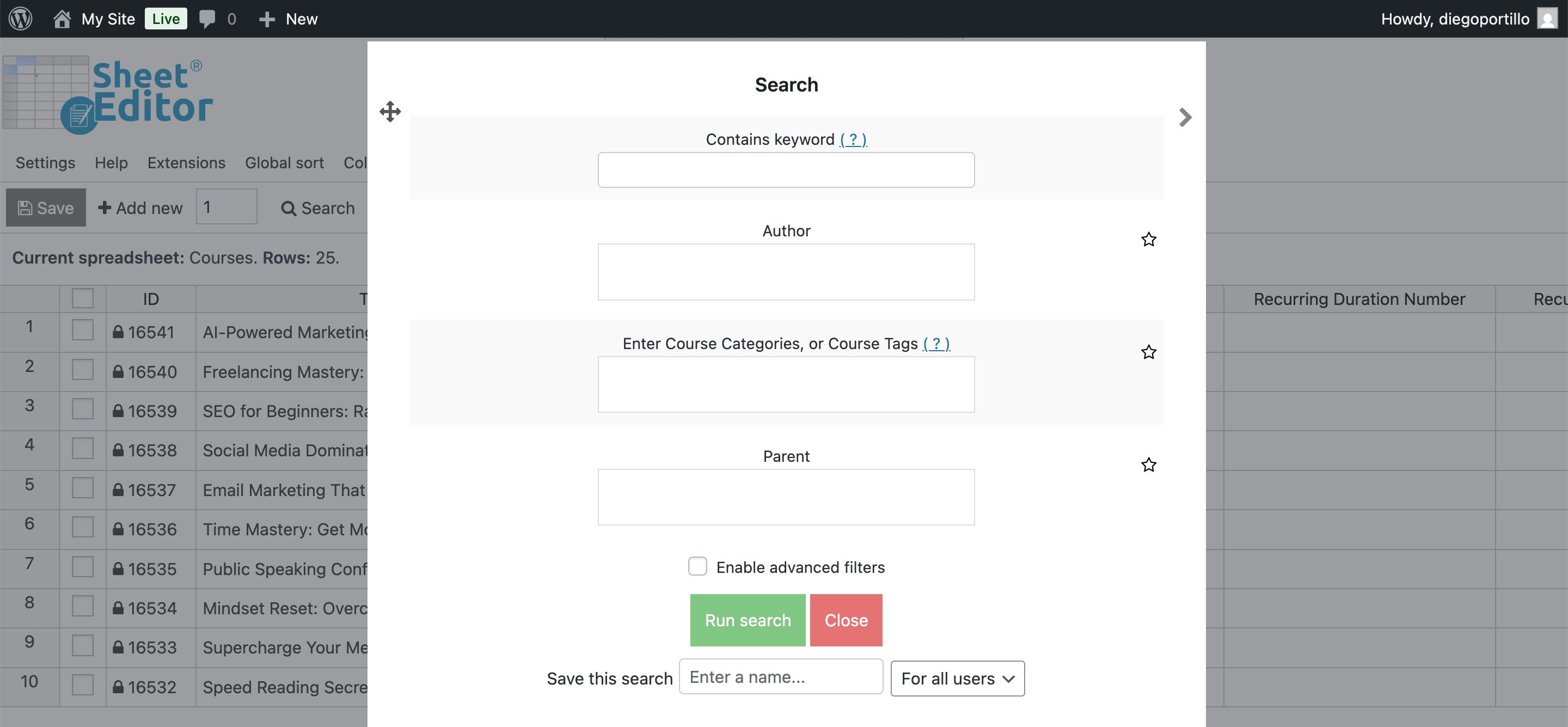
Click Run Search to apply the filters, and the spreadsheet will update to show only the matching courses.
Step 4. Export LearnDash Courses to Google Sheets
Now, let’s send the data to Google Sheets. To do this, click on the Export tool.
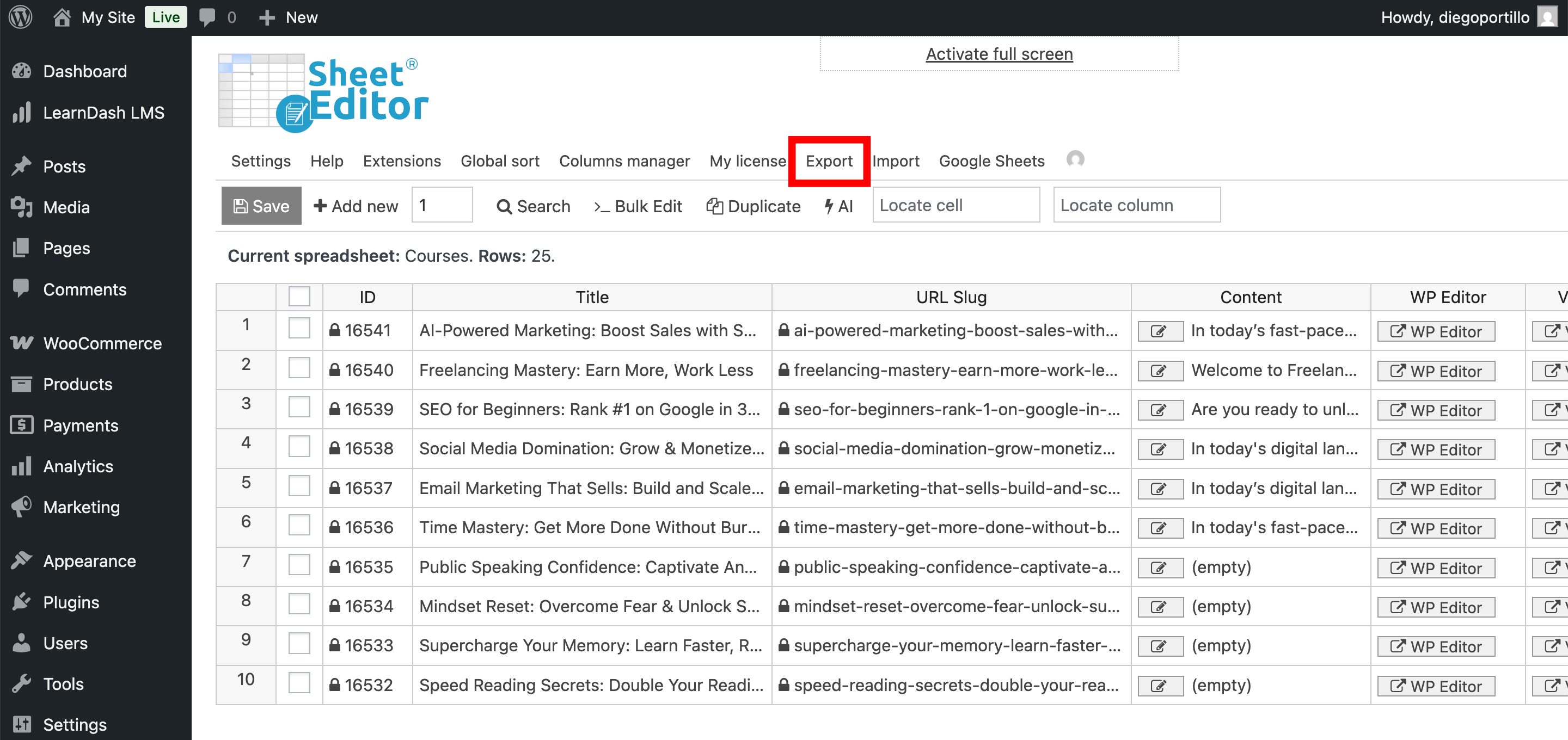
Now select these files to export your LearnDash courses to Google Sheets:
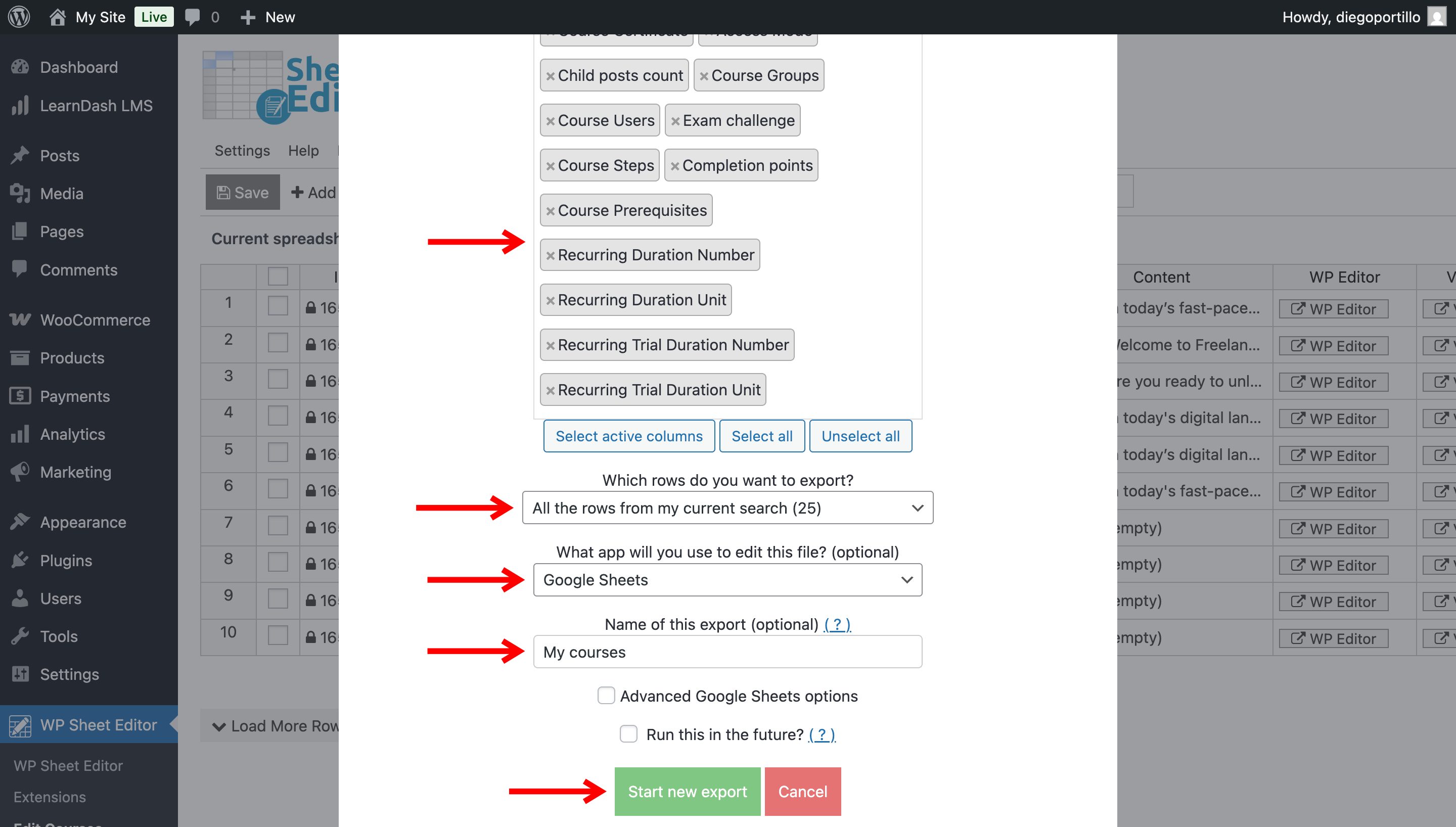
- : Choose “Select all” for a full backup, or manually select specific columns (e.g., Title, Content, Access Mode, Course Steps, etc.) for a focused report.
- :
- All the rows from my current search
- All the rows that I manually selected in the spreadsheet
- What app will you use to edit this file: Select Google Sheets.
- Name of this export: Enter a descriptive name if you want to run this export again later with one click by hovering over the Export tool and selecting it from a dropdown.
- Click Start new export.
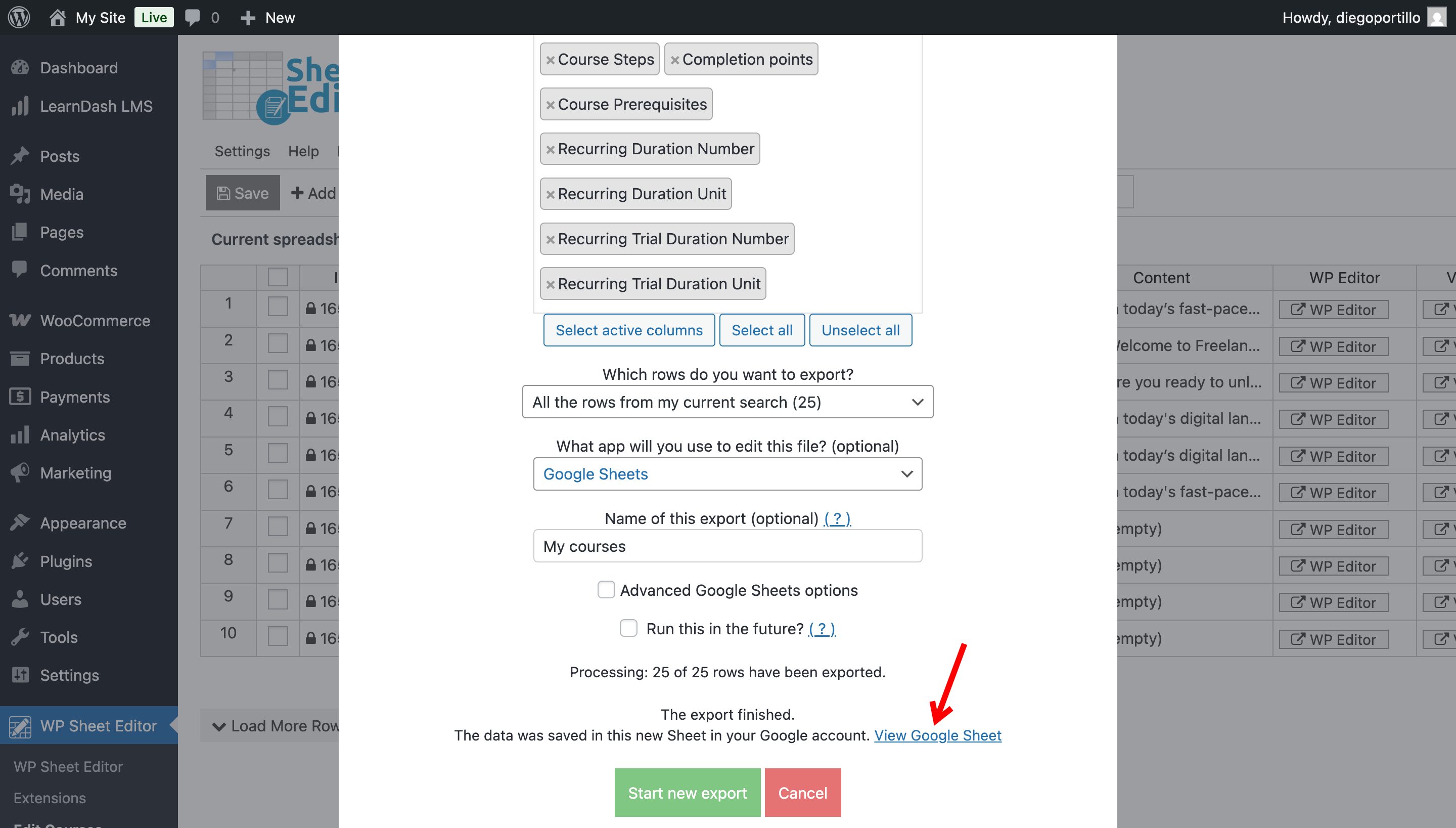
The plugin will process the request and create a new Google Sheet in your account. A link will appear: “View Google Sheet”. Click it to open your new file.
Step 5. Manage your Course Data in Google Sheets
Your data is now in Google Sheets, so you can use this file to:
- Collaborate with your team to rewrite course descriptions.
- Use formulas to calculate potential revenue based on course prices.
- Sort and filter data using Google Sheets’ native tools.
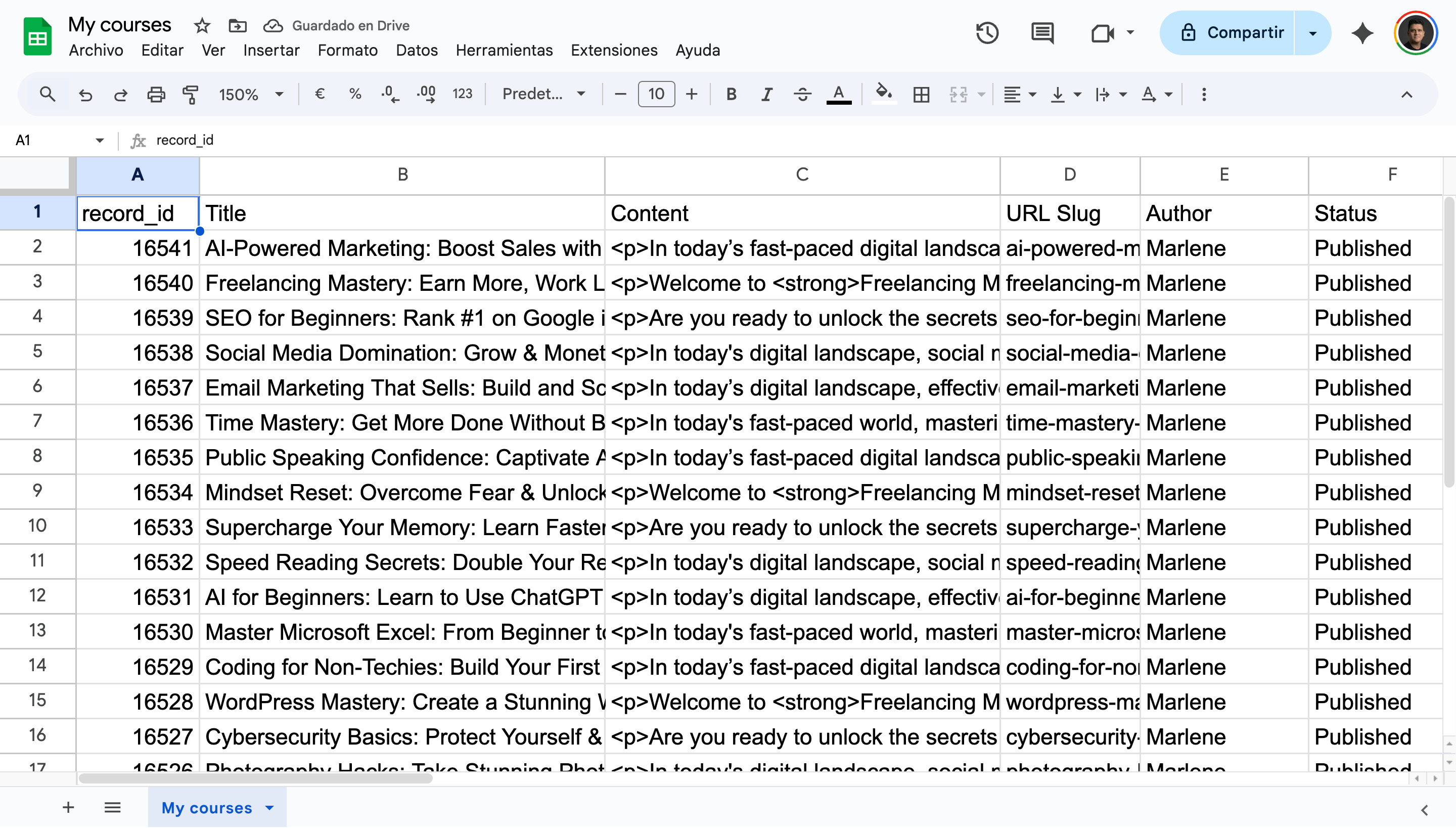
Important: Since the Google Sheets Sync service by WP Sheet Editor supports two-way synchronization, you can also edit this data in Google Sheets and import the changes back to WordPress later. This is perfect for bulk updating prices or fixing typos across hundreds of courses at once.
Manage LearnDash data in Google Sheets!
Exporting LearnDash courses to Google Sheets removes the friction from managing your LMS data. With WP Sheet Editor and the Google Sheets Sync service, you can generate reports, create backups, and prepare for bulk edits in a few minutes, freeing up your time to focus on creating great course content.