
Creating a new LearnDash curriculum often involves more than just writing content. You have to create the course pages, set up the permalinks, configure the access settings, and assign categories. If you are launching 50 new courses, clicking “Add New” fifty times is not a viable strategy.
Do you need to migrate course data from another LMS or a CSV file? Or perhaps your instructional design team prefers to draft course structures in a shared Google Sheet before they go live on the site?
In this tutorial, we will show you how to import LearnDash courses from Google Sheets directly. This allows you to bulk create or update courses in minutes, ensuring your titles, URLs, and settings are perfect from day one.
Why import LearnDash courses from Google Sheets?
Importing courses is the fastest way to populate a LearnDash site. Instead of navigating the slow WordPress interface, you can work in a fast, familiar spreadsheet environment. This workflow is perfect for:
- Bulk creation: Create hundreds of course shells (Titles, URLs, Status) in seconds so your team can start adding lessons immediately.
- Migrations: If you are moving from Teachable, Thinkific, or another LMS, you can format your data in Google Sheets and import it to LearnDash LMS.
- Bulk updates: If you have an external list of prices or access settings, you can import them to update your existing courses without opening them one by one.
What you need to import courses
We assume you already have LearnDash LMS.
To follow this guide, we will use these WP Sheet Editor tools:
WP Sheet Editor – Post Types: This plugin generates separate spreadsheets for your LearnDash post types: Courses, Lessons, Topics, Quizzes, Questions, and Exams.
You can purchase the plugin here:
Google Sheets Sync: This service connects your WordPress site to your Google Sheets account for direct exports and imports.
You can sign up to the service here:
Sign up to the Google Sheets Sync Service - or - Check the features
You will receive a helper plugin upon signing up for the service to handle the API connection.
The correct order to import / migrate LearnDash content
When importing LearnDash LMS data with WP Sheet Editor, whether you are migrating from another site, building from scratch, or updating existing content, you cannot simply import everything at once.
LearnDash LMS relies on a strict Parent > Child hierarchy.
To ensure all your associations work perfectly, you must follow this specific import sequence:
1. Import courses (the foundation). The Course is the top-level parent. Every other element needs to reference a Course ID to know where it belongs.
2. Import lessons. Lessons are children of Courses. During this import, you will map a column (e.g., “Associated Course”) to the Course IDs you created in Step 1.
3. Import topics. Topics are children of Lessons. They require both a valid Course ID and a valid Lesson ID to be placed correctly in the hierarchy.
4. Import quizzes. Quizzes are flexible; they can be attached to Courses, Lessons, or Topics. By importing them at this stage, you ensure that all potential “parents” already exist.
5. Import questions. Questions are strictly children of Quizzes. A question cannot exist without a Quiz to contain it.
Important: Connecting courses, lessons, topics, etc.
Make sure you have columns for the Parent course, lesson, etc.
For example, in your “Lessons” sheet, have a column named “Course” filled with the exact titles or IDs of the courses these lessons belong to.
WP Sheet Editor will automatically detect these titles and link the lessons to the correct courses.
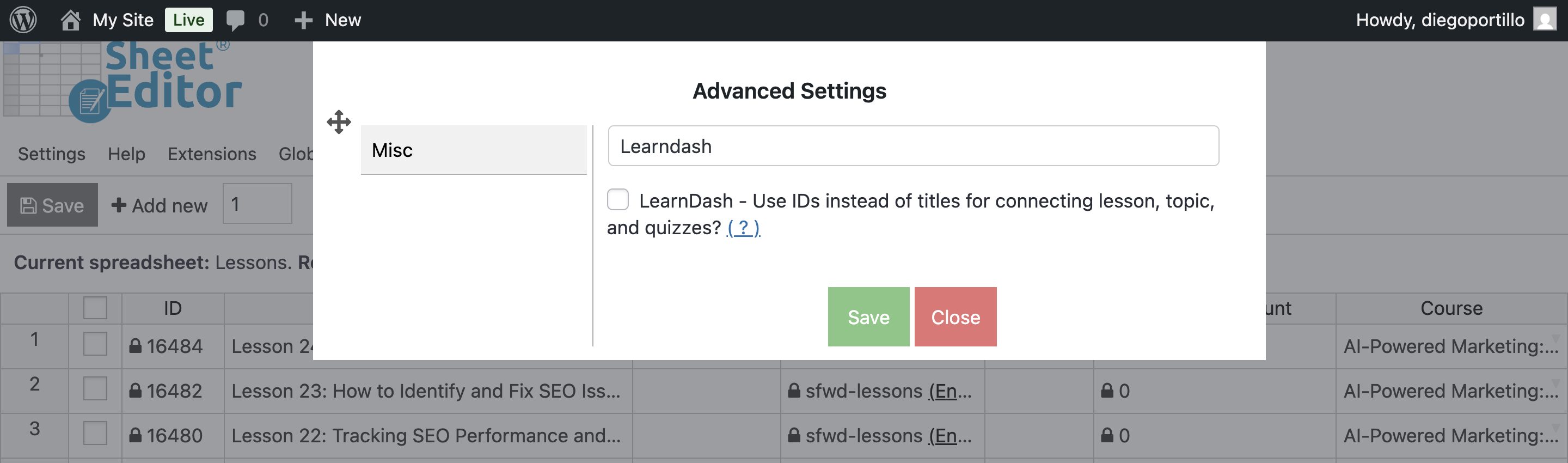
You just need to select if you want to use IDs or Titles for connecting lessons, topics and quizzes.
To do this, go to Settings > Advanced settings.
Once there, search for the LearnDash – Use IDs instead of titles for connecting lesson, topic and quizzes checkbox.
Step 1. Connect WordPress to Google Sheets
When you subscribe to the Google Sheets Sync service, you’ll receive a helper plugin that links your WordPress site with your Google Sheets account, the Google API, and the WP Sheet Editor API.
Follow this installation guide to complete the setup.
Step 2. Prepare your Google Sheet
Our Google Sheets Sync service only works with Google Sheets files that have been previously created or exported through our system.
Therefore, you must first create or export the Google Sheet using our service before enabling synchronization.
Export
Read this tutorial to learn how to export LearnPress courses to Google Sheets.
Note. You can apply the same steps to the other spreadsheets (lessons, topics, questions, quizzes).
Create
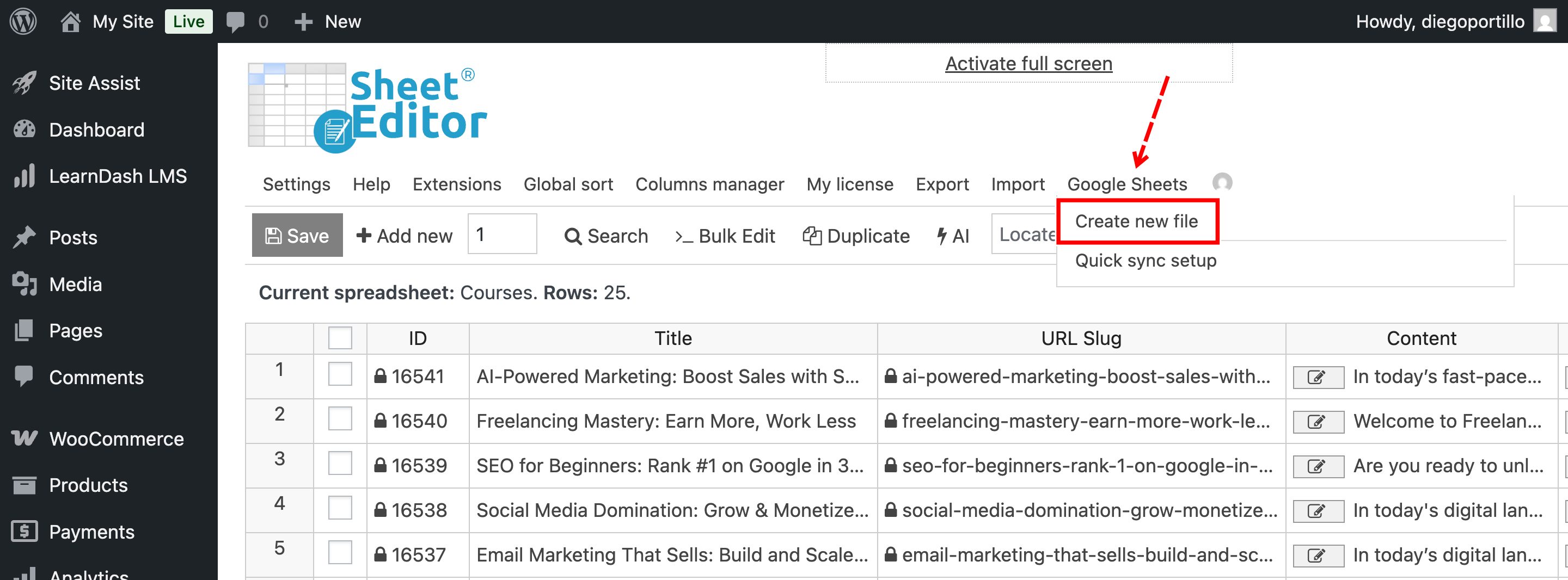
To create a new empty file that you’ll populate, you need to hover the mouse cursor over Google Sheets and click on Create new file.
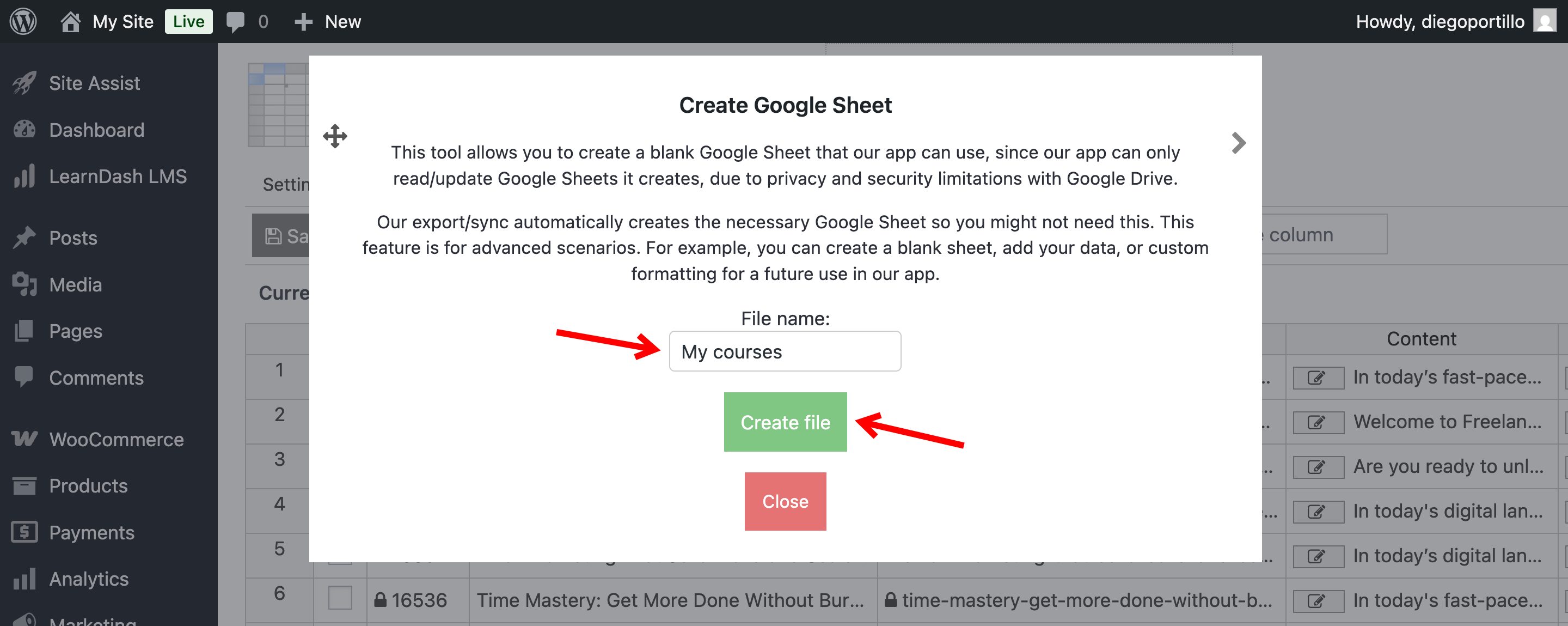
Then, enter the File name and click on Create file.
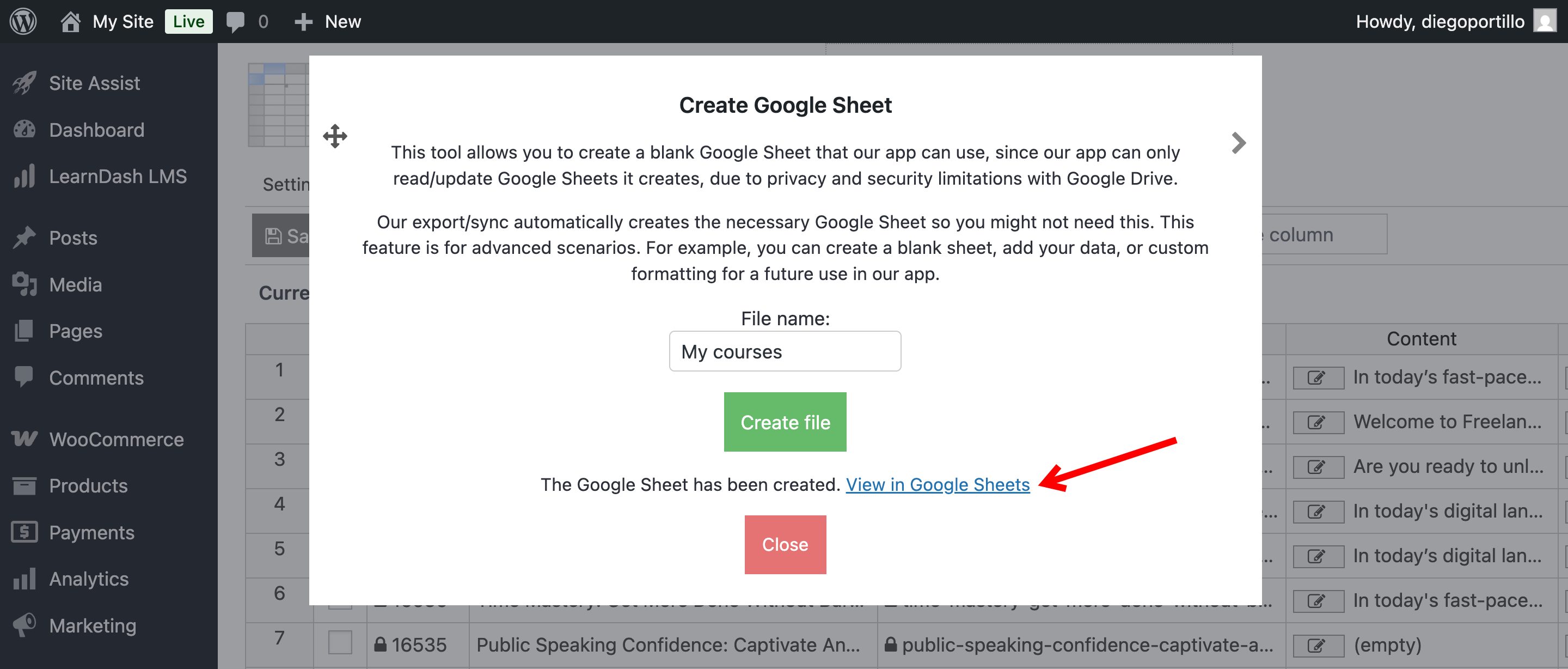
Once the file has been created, you’ll see the View in Google Sheets link, so you can click it to open the new Google Sheet.
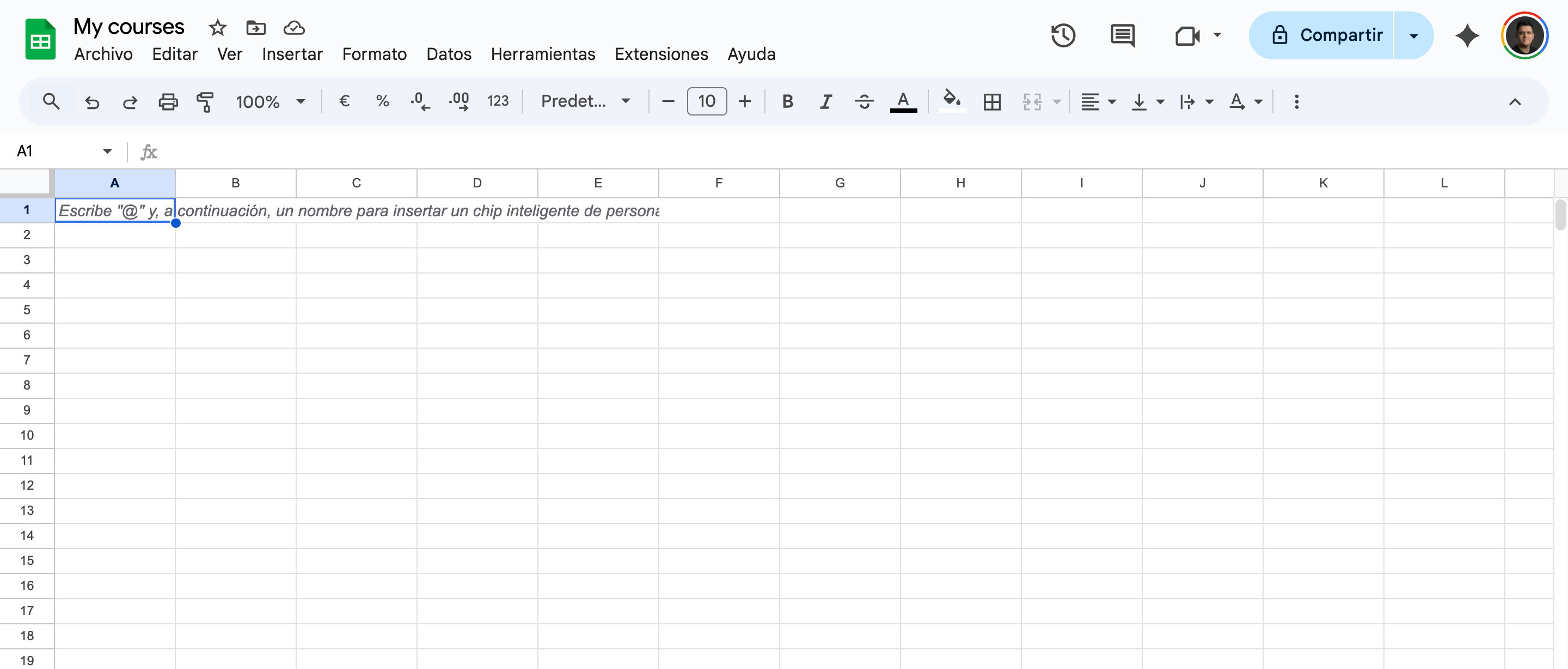
Here’s the Google Sheet you have created; now you can add courses’ data to it.
Step 3. Open the spreadsheet
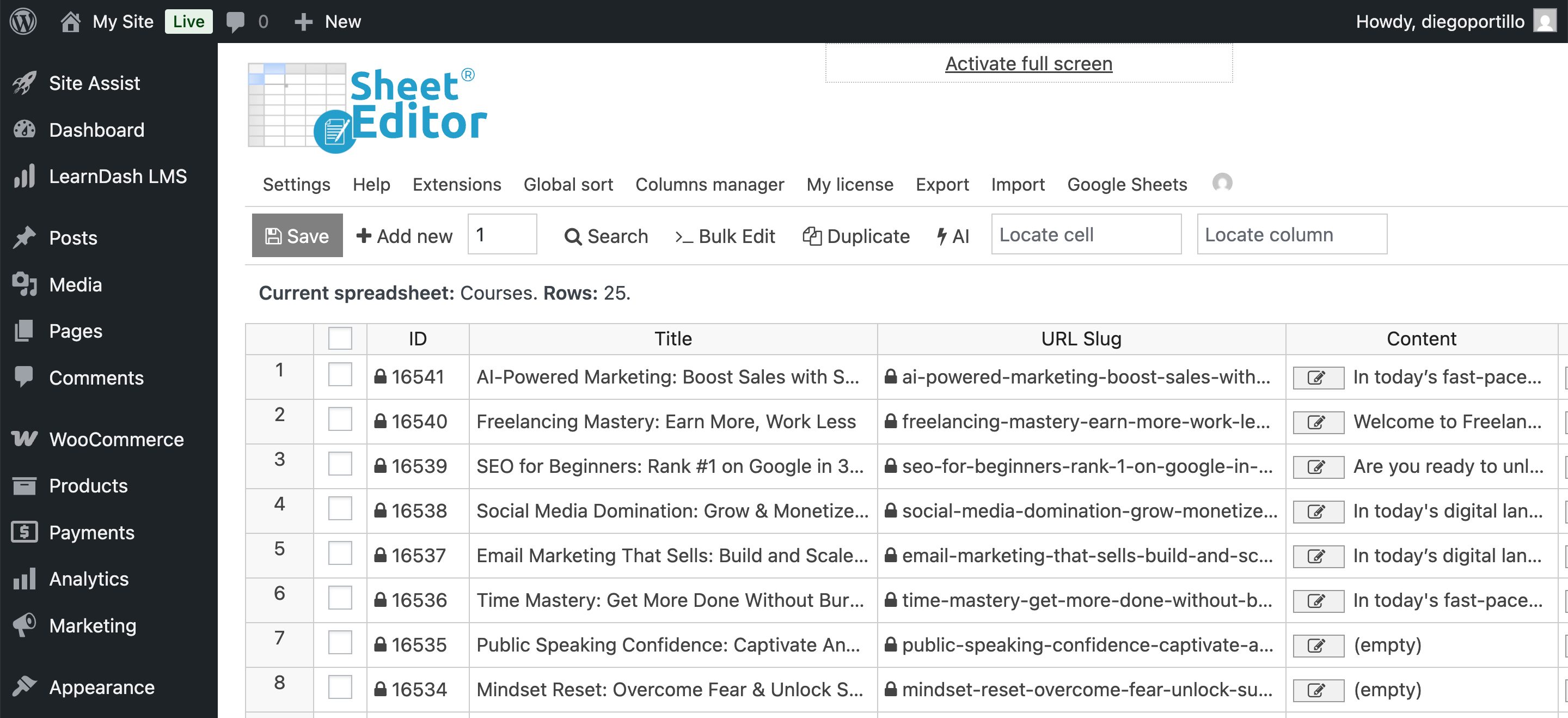
Go to WP Sheet Editor > Edit Courses.
If you have courses on your site already, you’ll see them displayed in the spreadsheet.
Step 4. Open the Import tool
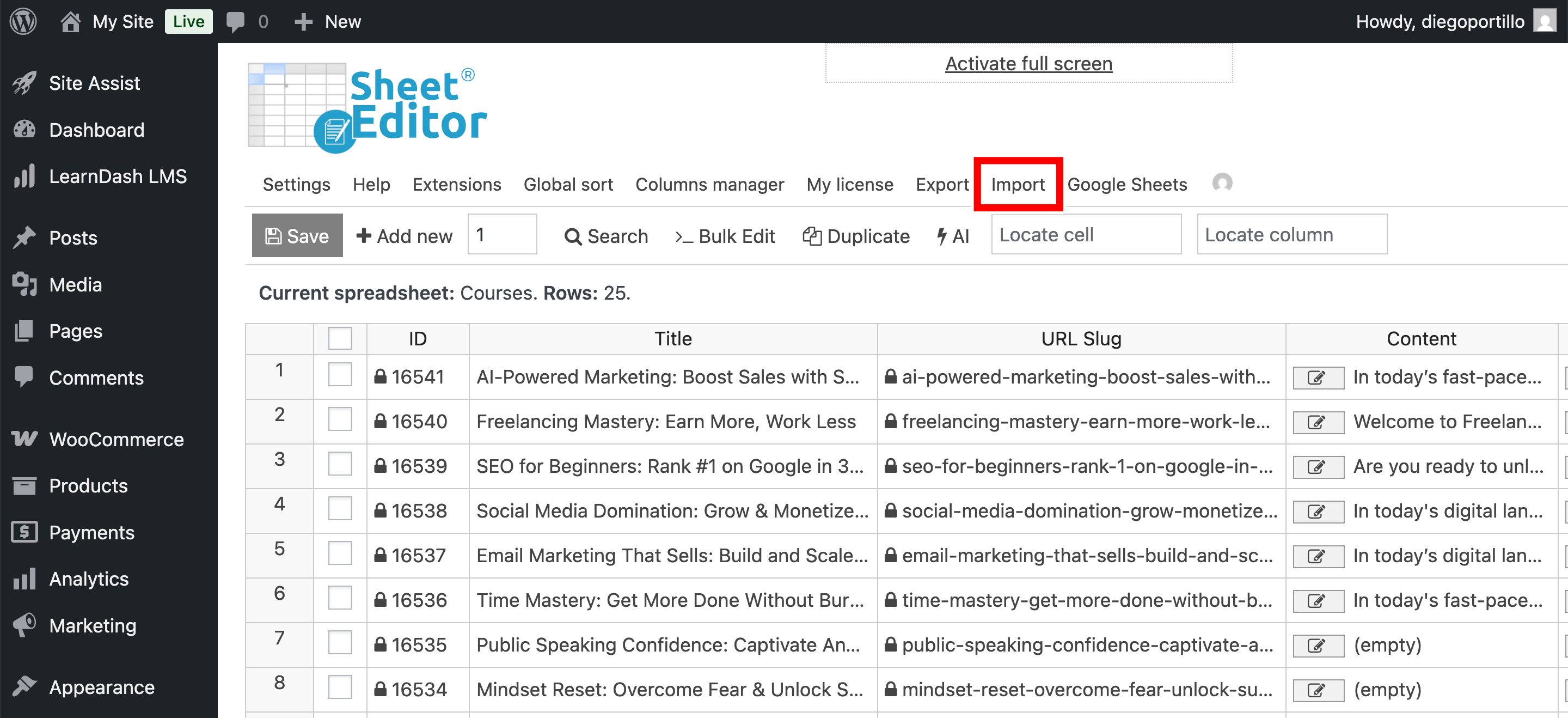
Click on the Import button on the top toolbar.
Step 5. Configure the Import from Google Sheets
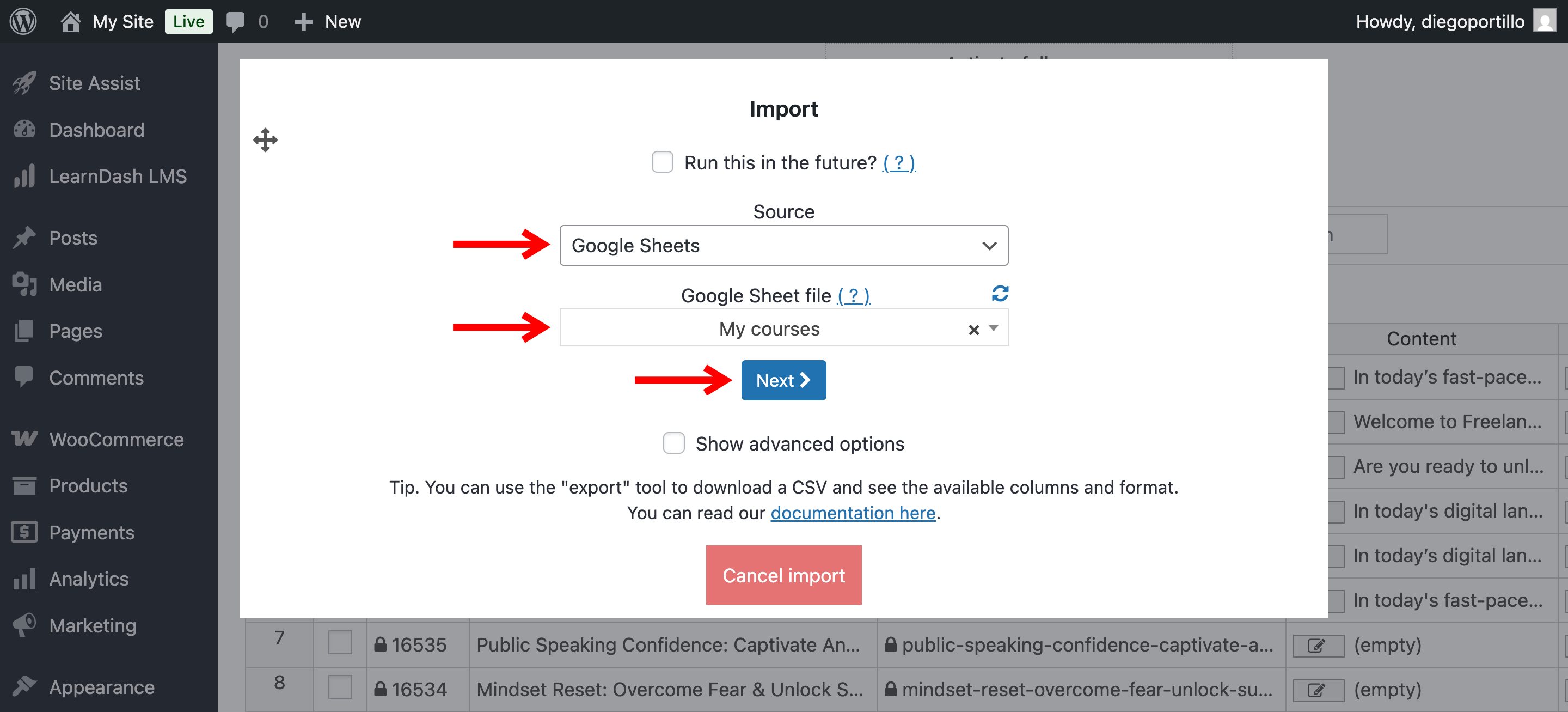
Select the source of your data:
- Source: Select Google Sheets.
- Google Sheet file: Select the file from which you want to import the data.
- Click Next.
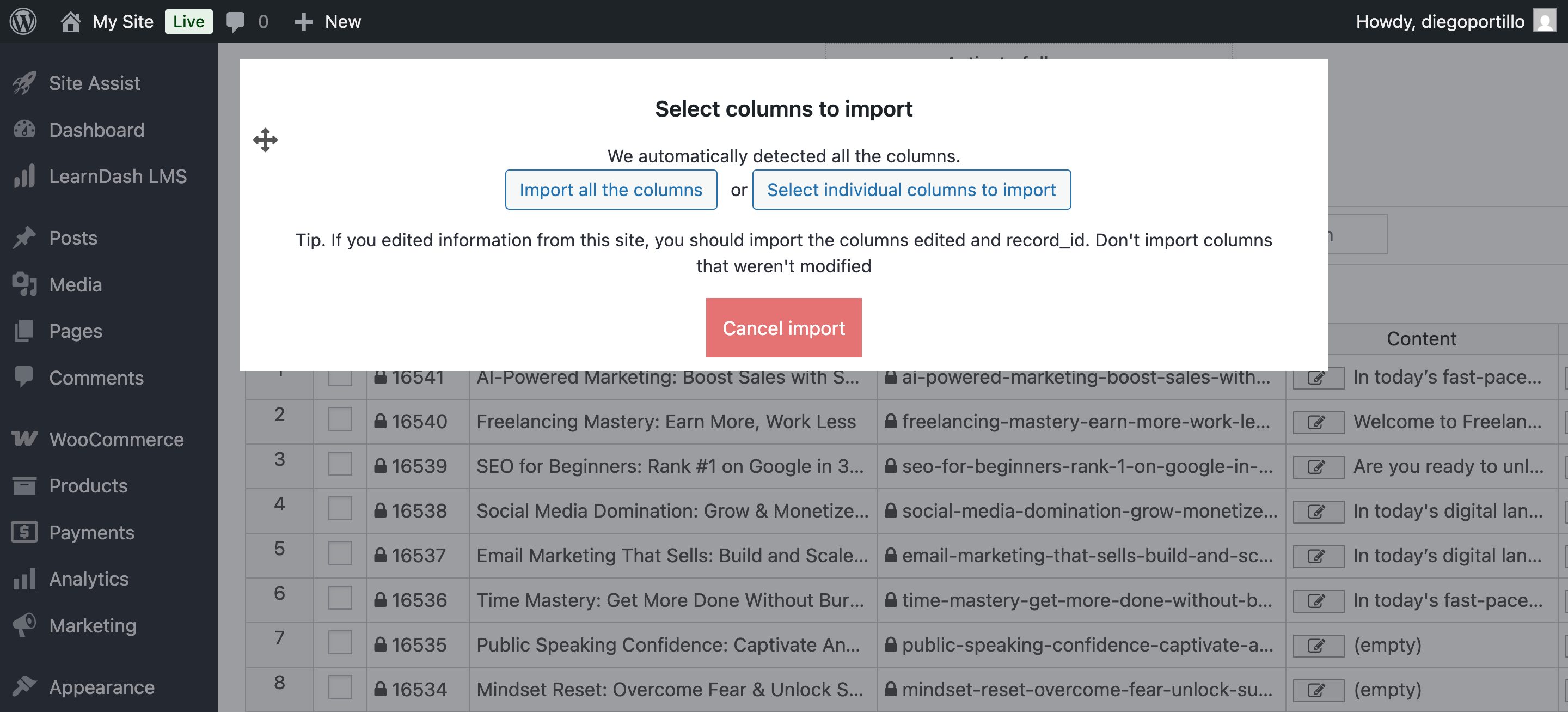
The plugin will now ask you to map the columns. This tells WordPress which column in your sheet corresponds to which field in LearnDash.
You can Improt all the columns (automatically mapped) or Select individual columns to import.
If you manually map the columns, you need to click Next once you’re done.
Step 6. Choose how to import
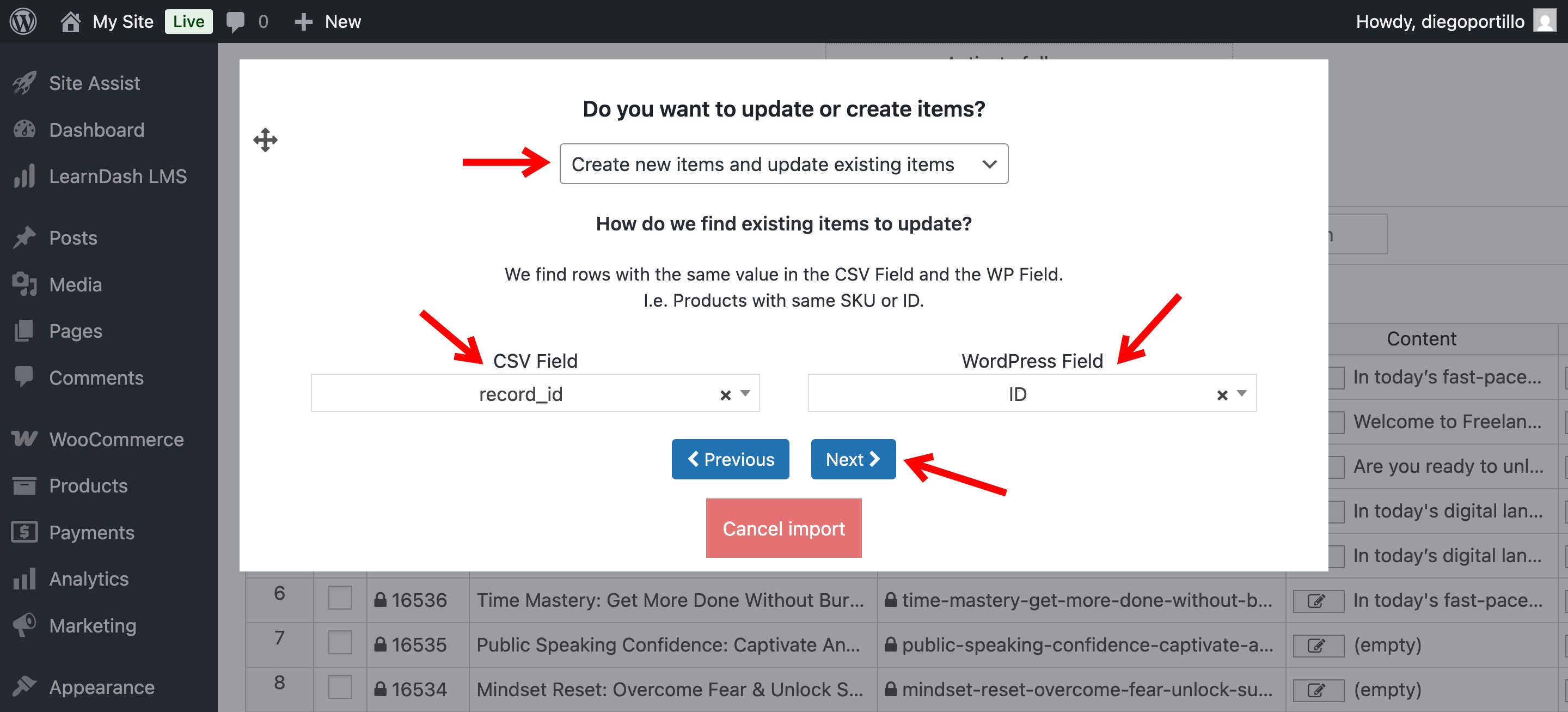
Finally, decide how the importer should handle the data; you have these options:
- Create new items and update existing items
- Import all rows as new
- Only create new items, ignore existing items
- Update existing items, ignore new items
In case your selection includes updating existing items, you need to match the data. We recommend using the record_id and ID column.
Once you’re done, click on Next.
Step 7. Run the import
Now you’ll see a preview. If everything is OK, you need to click on The preview is fine, start import.
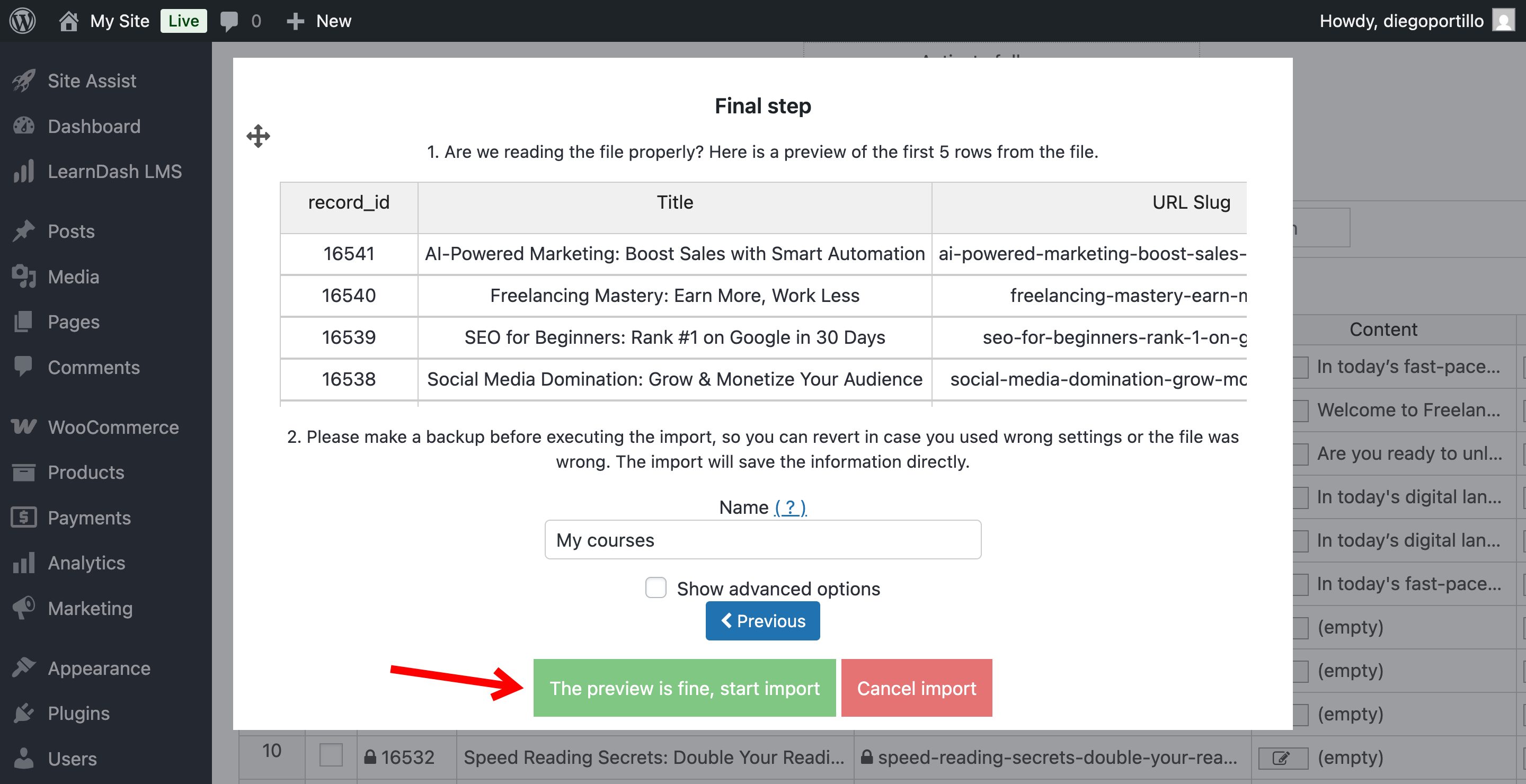
And that’s it! The plugin will process the file in the background. When it finishes, you will see your new LearnDash courses populated in the spreadsheet, ready for you to add lessons and quizzes.
Using WP Sheet Editor and the Google Sheets Sync service eliminates the need for manual data entry, making large-scale course creation simple.
Optional. Import LearnPress lessons, topics, questions, quizzes
If you’re not just editing the courses, you can now repear the steps in the other spreadsheets:
- Lessons
- Topics
- Questions
- Quizzes
Just make sure you follow the sequence we shared above in this tutorial.