
Creating LearnDash courses involves setting up titles, permalinks, access settings, categories, and other course data. If you need to create or update dozens of courses, managing them individually in WordPress can be time-consuming.
In this tutorial, we’ll show you how to import LearnDash courses from Google Sheets to bulk create or update courses.
Why import LearnDash courses from Google Sheets?
Importing courses from Google Sheets can help you:
- Bulk create courses: Create multiple course records with their titles, URLs, statuses, and other data.
- Migrate course data: Prepare course data from another LMS or a CSV file in Google Sheets and import it into LearnDash.
- Bulk update courses: Update prices, access settings, or other course fields without editing courses individually.
What you need to import courses
You’ll need LearnDash LMS and these WP Sheet Editor tools:
WP Sheet Editor – Post Types: This plugin provides separate spreadsheets for LearnDash post types, including Courses, Lessons, Topics, Quizzes, Questions, and Exams.
You can purchase the plugin here:
Google Sheets Sync: This service connects your WordPress site to Google Sheets for imports and exports.
You can sign up to the service here:
Sign up to the Google Sheets Sync Service - or - Check the features
You will receive a helper plugin when you sign up for the service to handle the API connection.
The correct order to import LearnDash content
LearnDash content uses a parent-child hierarchy, so you should import the content in the correct order.
Follow this sequence:
- Import courses. Courses are the top-level parent. Other LearnDash content needs to reference a course.
- Import lessons. Lessons belong to courses. During the import, map the “Associated Course” column to the course IDs created in Step 1.
- Import topics. Topics belong to lessons. They require valid course and lesson references.
- Import quizzes. Quizzes can be attached to courses, lessons, or topics, so import them after those parent items exist.
- Import questions. Questions belong to quizzes, so import them after the quizzes have been created.
Connect courses, lessons, topics, and quizzes
Your spreadsheets need columns that identify the parent items.
For example, your “Lessons” sheet can include a “Course” column containing the titles or IDs of the courses to which the lessons belong.
WP Sheet Editor can use these values to connect the lessons to the correct courses. You can choose whether to use IDs or titles for these connections.
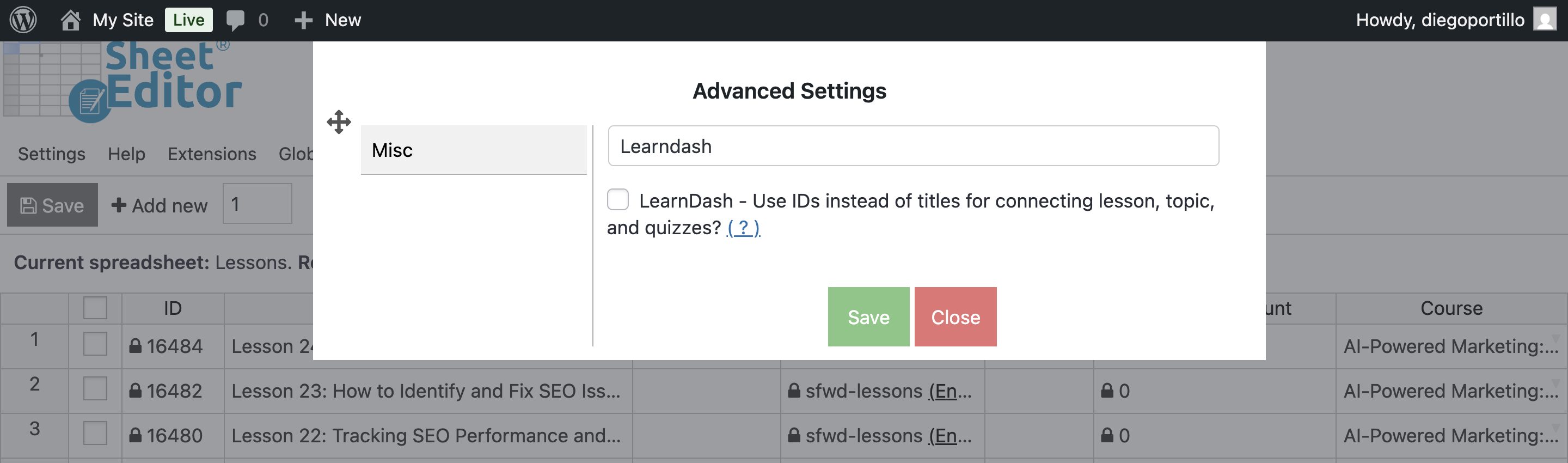
Go to Settings > Advanced settings and find the LearnDash – Use IDs instead of titles for connecting lesson, topic and quizzes checkbox.
Step 1. Connect WordPress to Google Sheets
The Google Sheets Sync service includes a helper plugin that connects your WordPress site with your Google Sheets account.
Follow this installation guide to complete the setup.
Step 2. Prepare your Google Sheet
Google Sheets Sync works with Google Sheets files created or exported through the service.
You can either export an existing WP Sheet Editor spreadsheet or create a new Google Sheet file.
Export
Read this tutorial to learn how to export LearnDash courses to Google Sheets.
You can use the same process for lessons, topics, questions, and quizzes.
Create
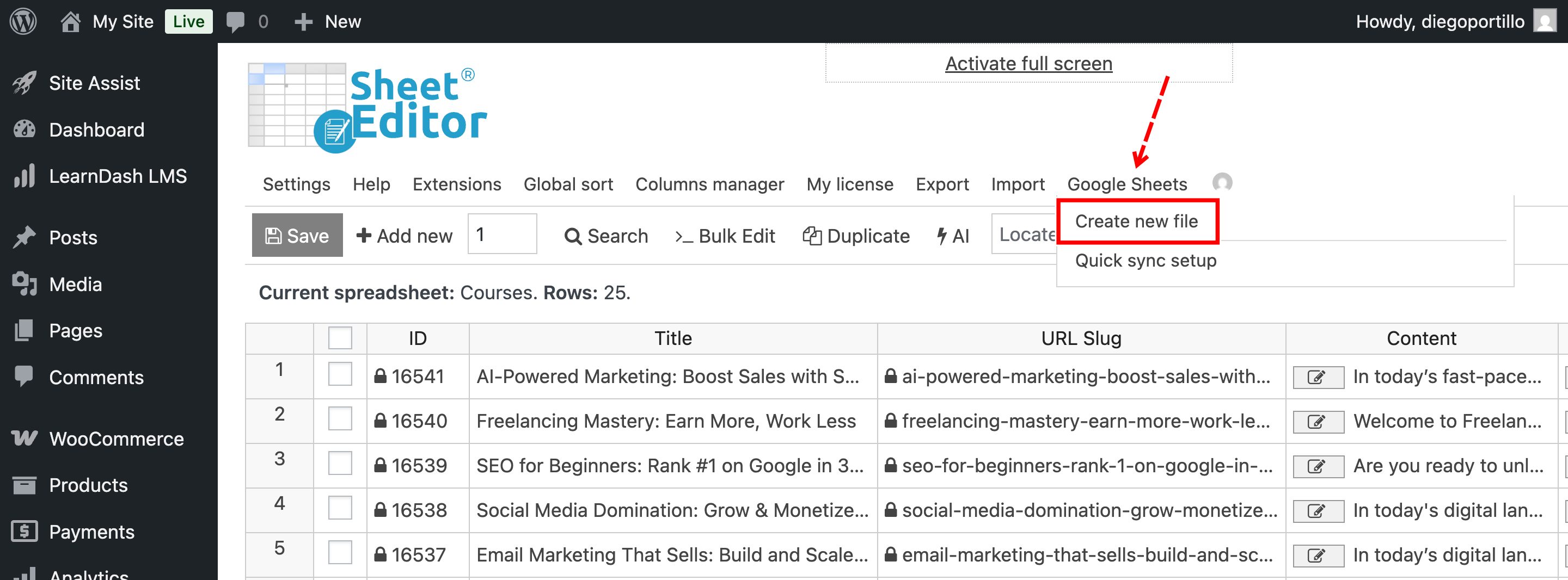
To create an empty file for your course data, hover over Google Sheets and click Create new file.
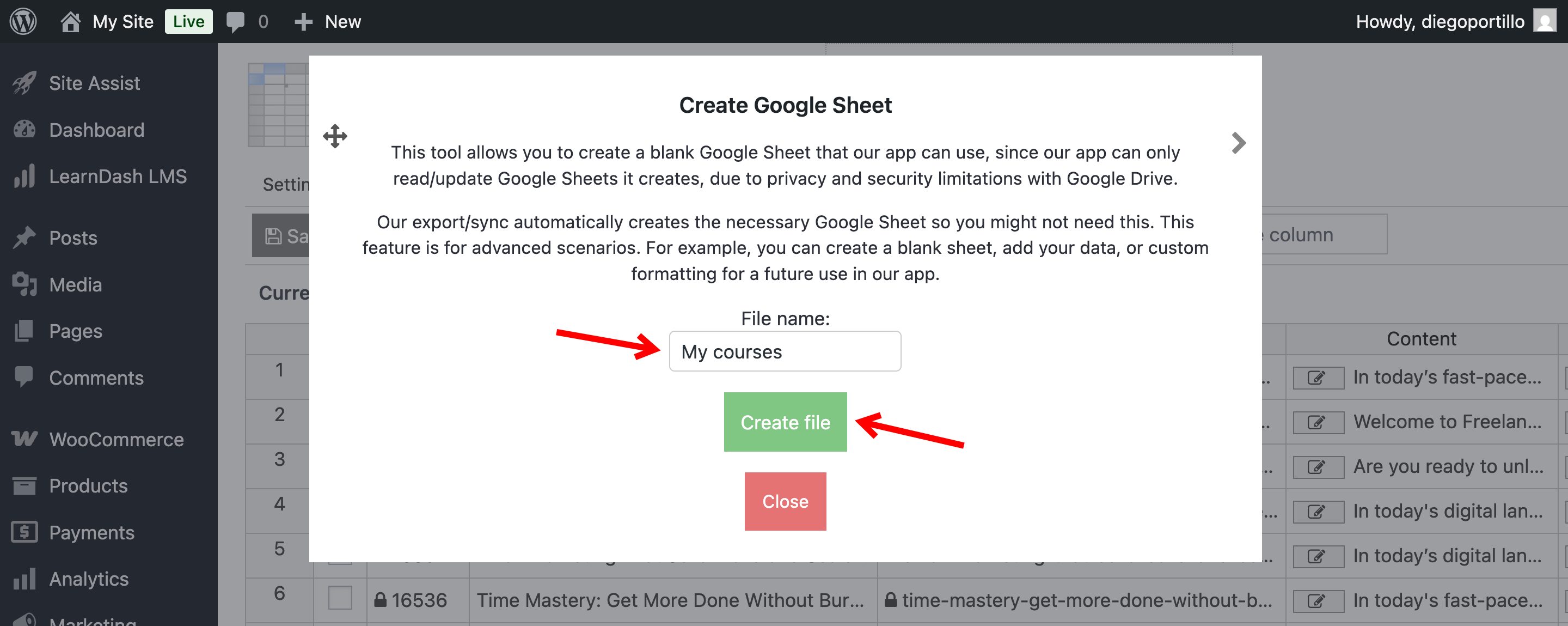
Enter the File name and click Create file.
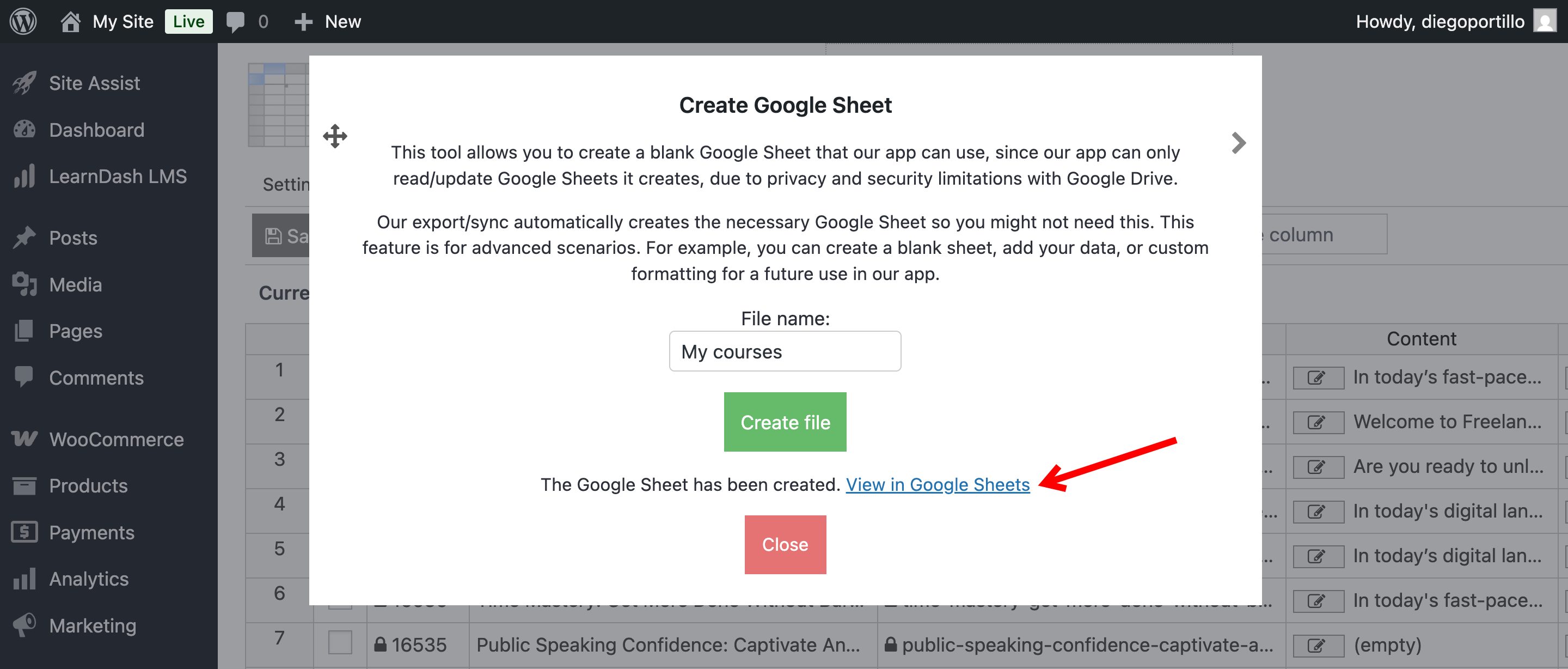
Click View in Google Sheets to open the new file.
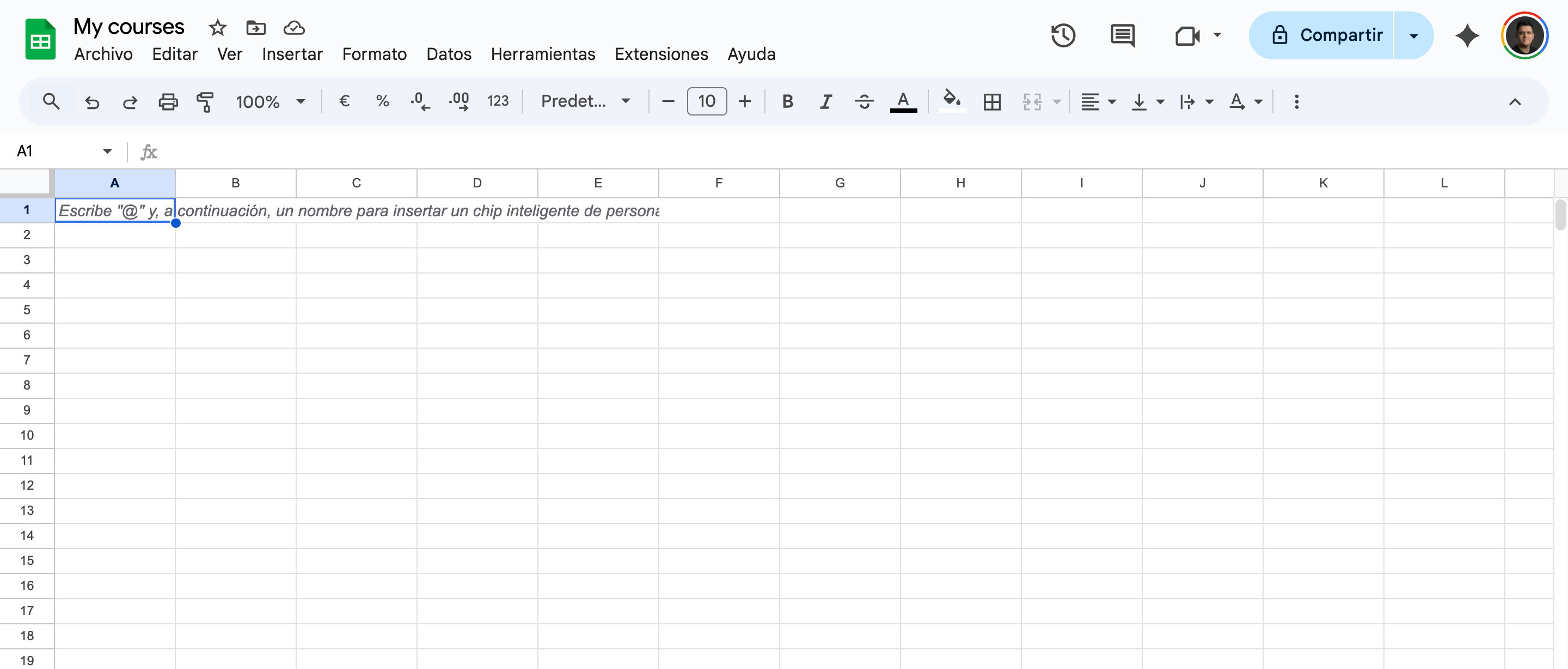
Add your course data to the Google Sheet.
Step 3. Open the spreadsheet
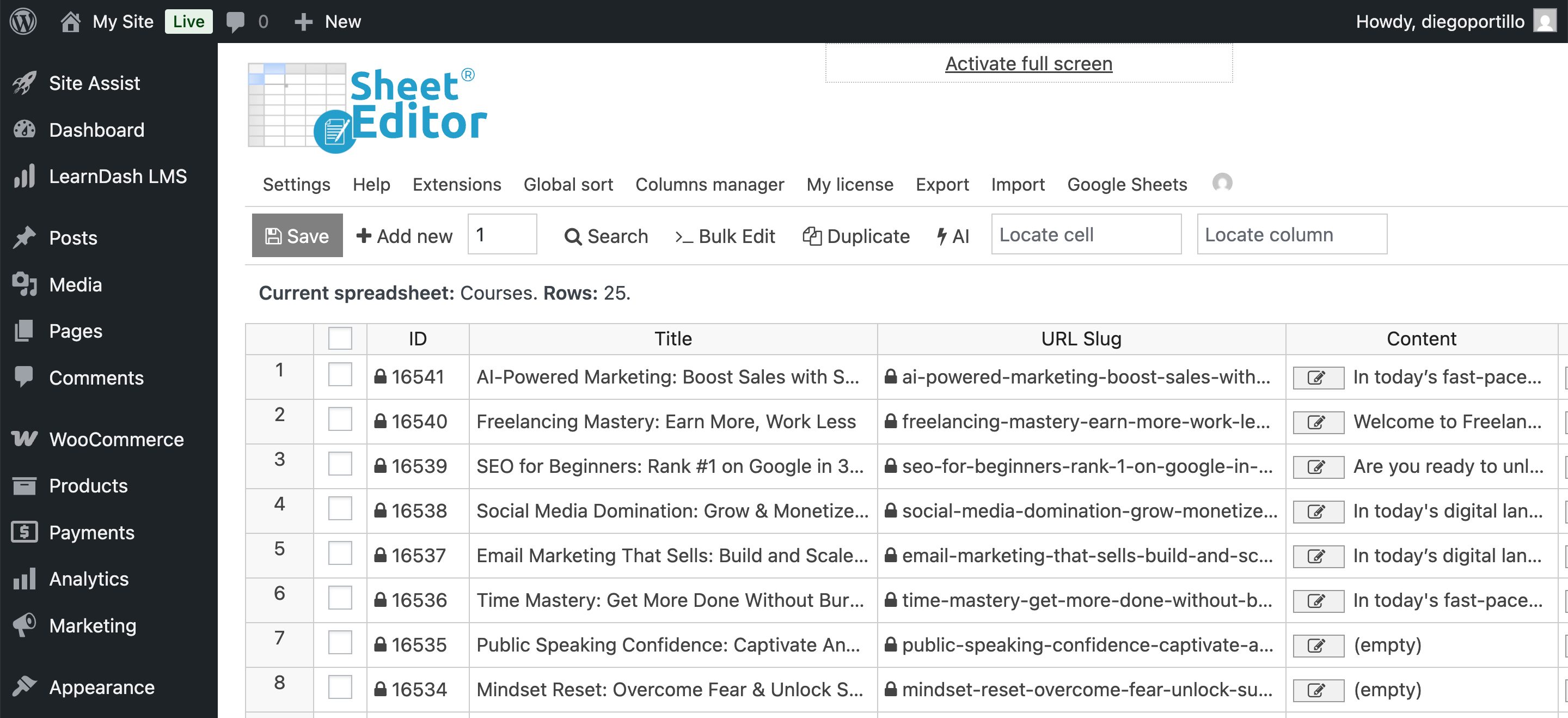
Go to WP Sheet Editor > Edit Courses.
If your site already has courses, they will appear in the spreadsheet.
Step 4. Open the Import tool
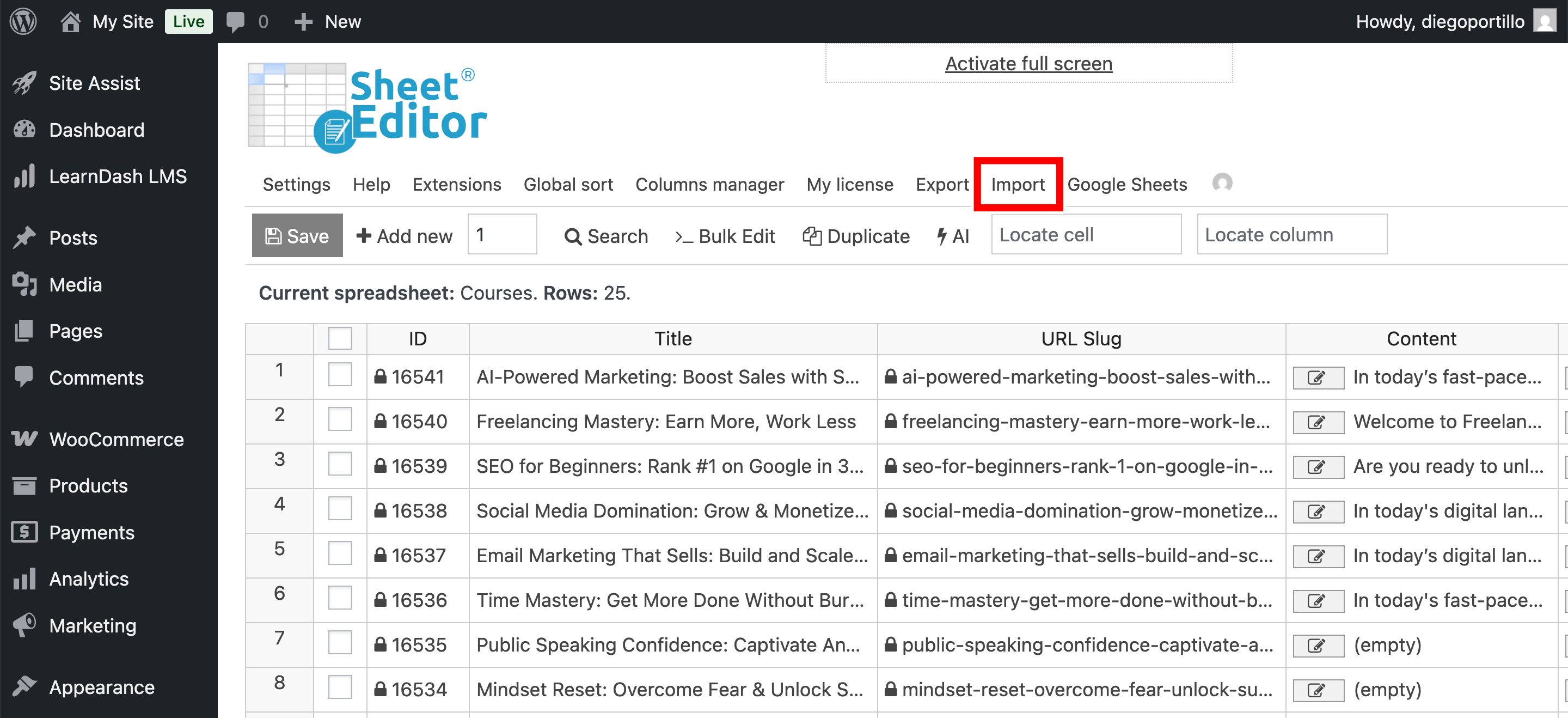
Click Import on the top toolbar.
Step 5. Configure the import from Google Sheets
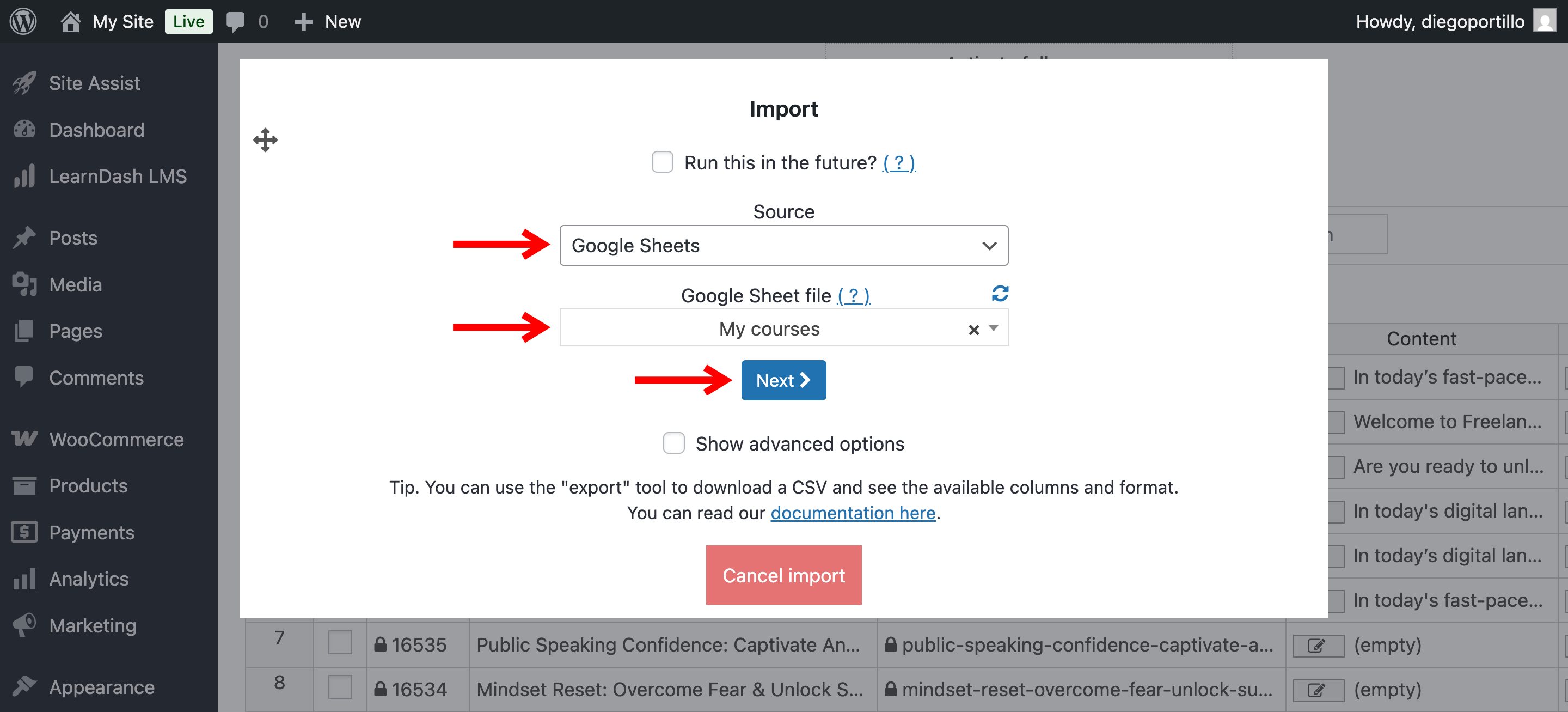
Select the source of your data:
- Source: Select Google Sheets.
- Google Sheet file: Select the file you want to import.
- Click Next.
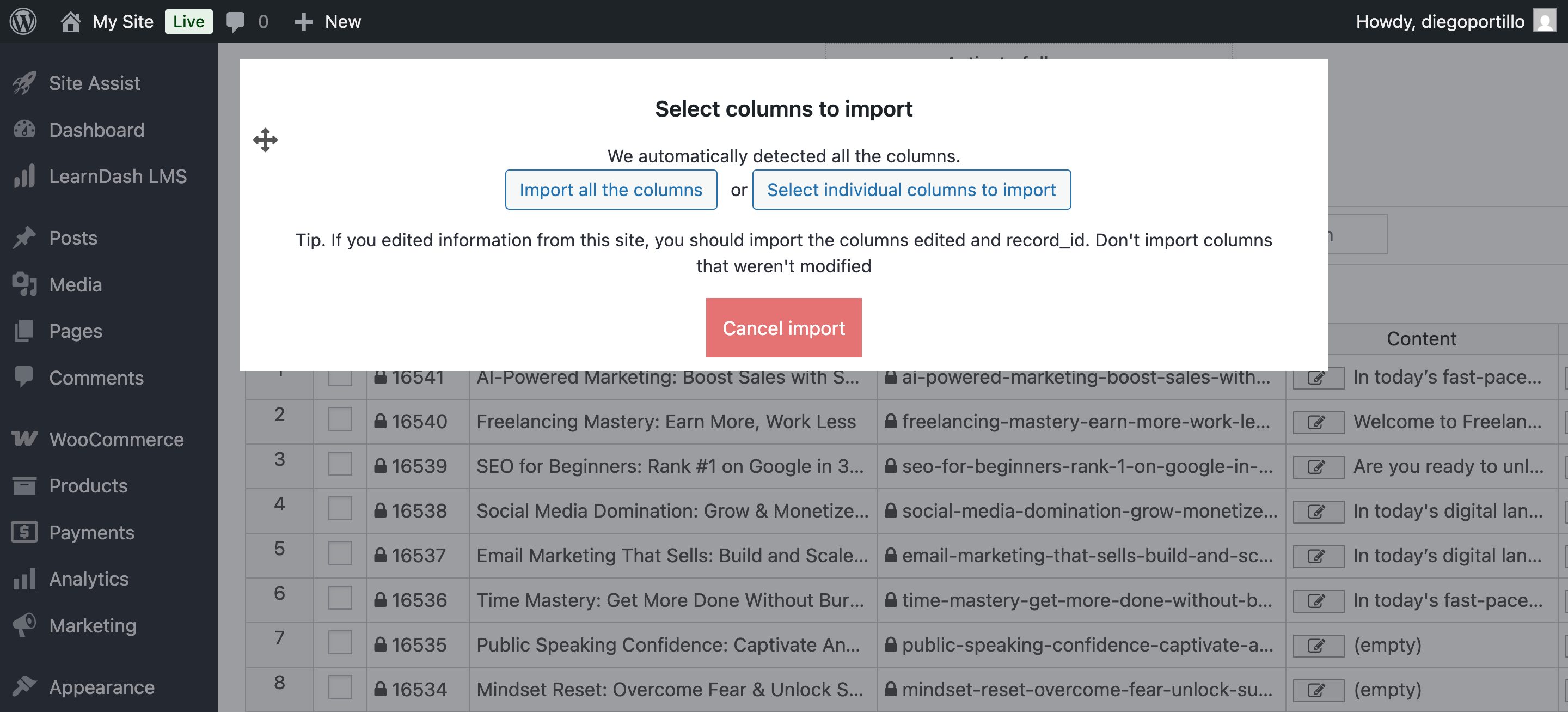
Next, map the spreadsheet columns to the corresponding LearnDash fields.
You can Import all the columns with automatic mapping or Select individual columns to import.
If you manually map the columns, click Next when finished.
Step 6. Choose how to import
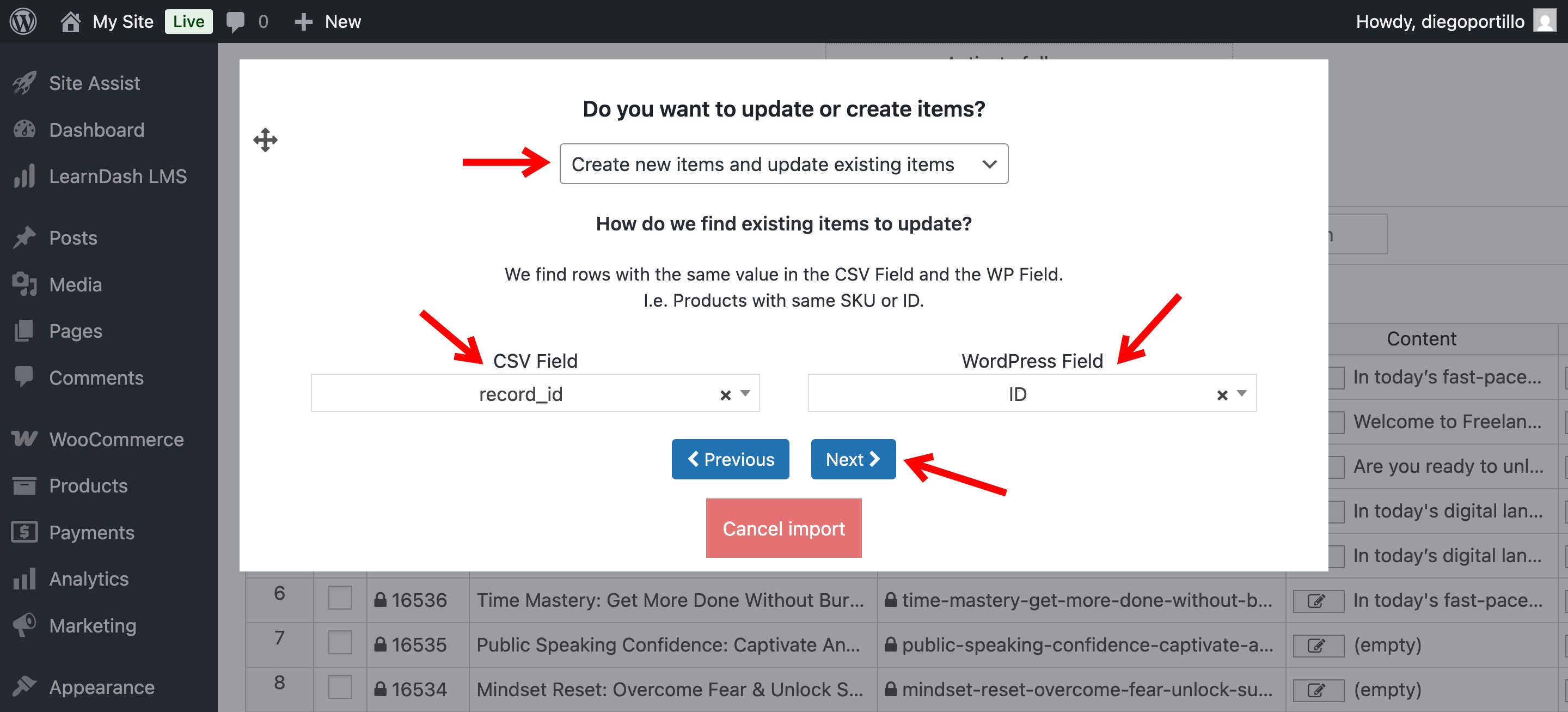
Choose how the importer should handle new and existing courses:
- Create new items and update existing items
- Import all rows as new
- Only create new items and ignore existing items
- Update existing items and ignore new items
If you’re updating existing courses, match the records using the record_id and ID columns.
Click Next.
Step 7. Run the import
Review the preview and click The preview is fine, start import.
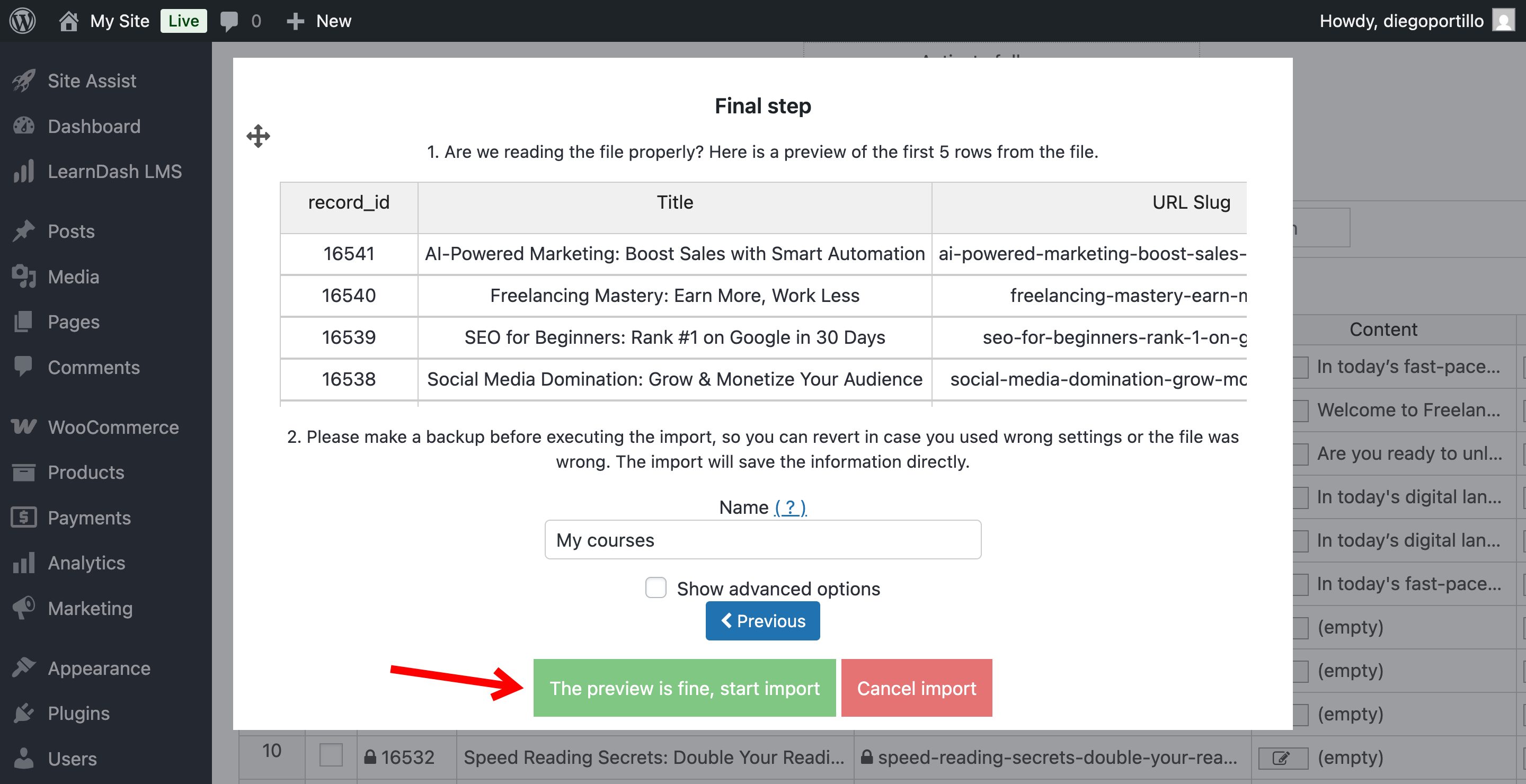
The plugin will process the file in the background. When the import finishes, the new or updated LearnDash courses will appear in the spreadsheet.
Optional: Import LearnDash lessons, topics, questions, and quizzes
You can repeat the same process for:
- Lessons
- Topics
- Questions
- Quizzes
Follow the import sequence described above so that each item can be connected to its parent.