
LearnDash lessons contain course content and settings such as video URLs, assignments, timers, and drip schedules. If you manage hundreds of lessons, checking or updating this information one lesson at a time can take a lot of time.
In this tutorial, we’ll show you how to export LearnDash lessons to Google Sheets so you can review and manage lesson data in bulk.
Why export LearnDash Lessons?
Exporting your lessons to Google Sheets makes it easier to review your lesson data and spot issues, such as:
- Audit video links: Review the “Lesson Video URL” column to find missing or outdated video sources.
- Check course assignments: Review the “Associated Course” column to find lessons assigned to the wrong course or not assigned to a course.
- Review sample lessons: Check which lessons are marked as “Sample Lessons” and update your free preview content.
- Audit materials: Check which lessons have downloadable materials attached.
What you need to export lessons
You’ll need LearnDash LMS and these WP Sheet Editor tools:
WP Sheet Editor – Courses: This plugin provides a spreadsheet for LearnDash Lessons (sfwd-lessons) and other LMS post types.
You can purchase the plugin here:
Google Sheets Sync: This service connects your WordPress site with Google Sheets for manual or automated exports.
You can sign up to the service here:
Sign up to the Google Sheets Sync Service - or - Check the features
When you sign up for the service, you’ll receive a helper plugin for API authentication.
Step 1. Connect WordPress to Google Sheets
The Google Sheets Sync service includes a helper plugin that connects your WordPress site to Google Sheets.
Follow this installation guide to complete the setup.
Step 2. Open the LearnDash lessons spreadsheet
Go to WP Sheet Editor > Edit Lessons. The spreadsheet will display your LearnDash lessons and their available fields.
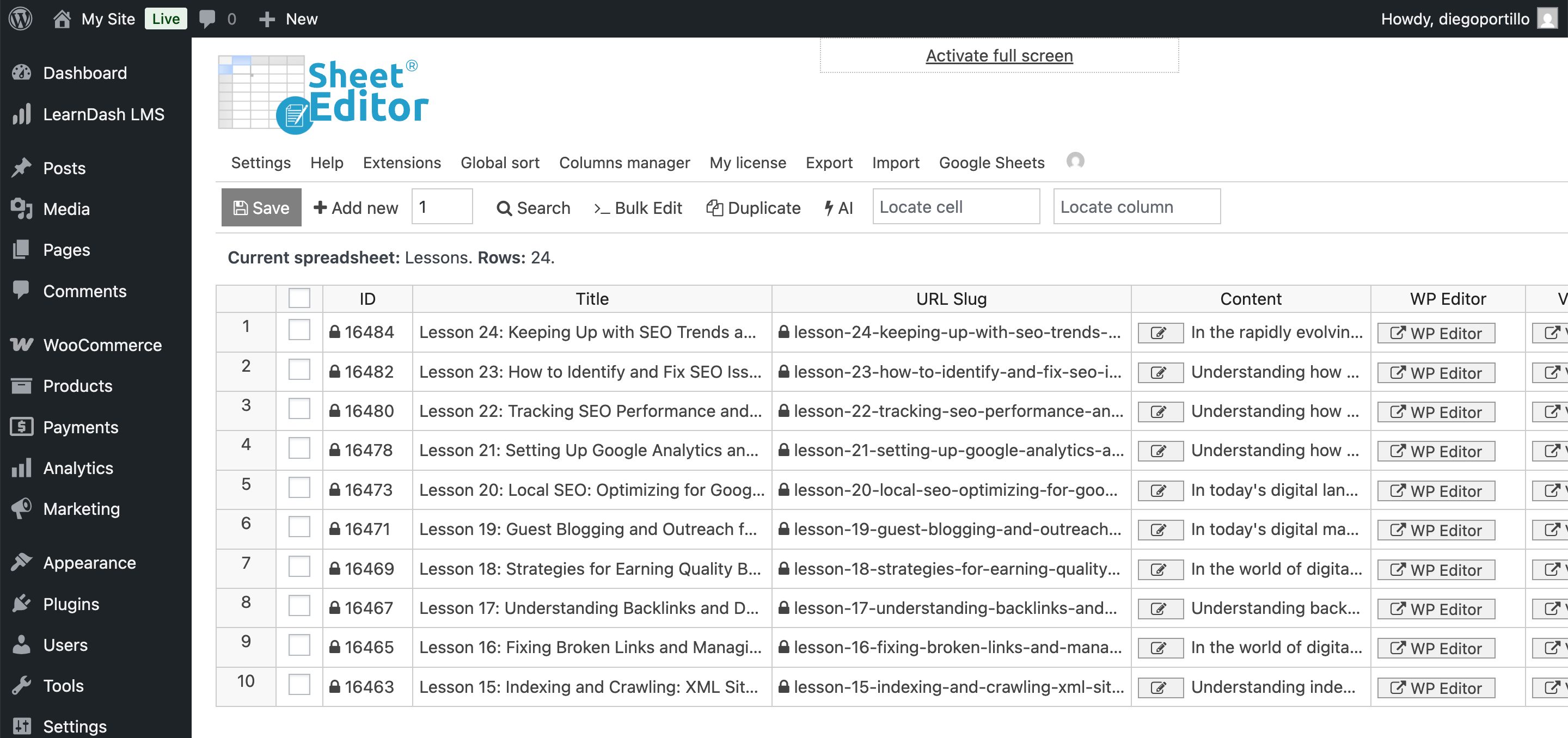
Step 3. Select the lessons you want to export
If you only want to export certain lessons, use the Search tool to filter the spreadsheet.
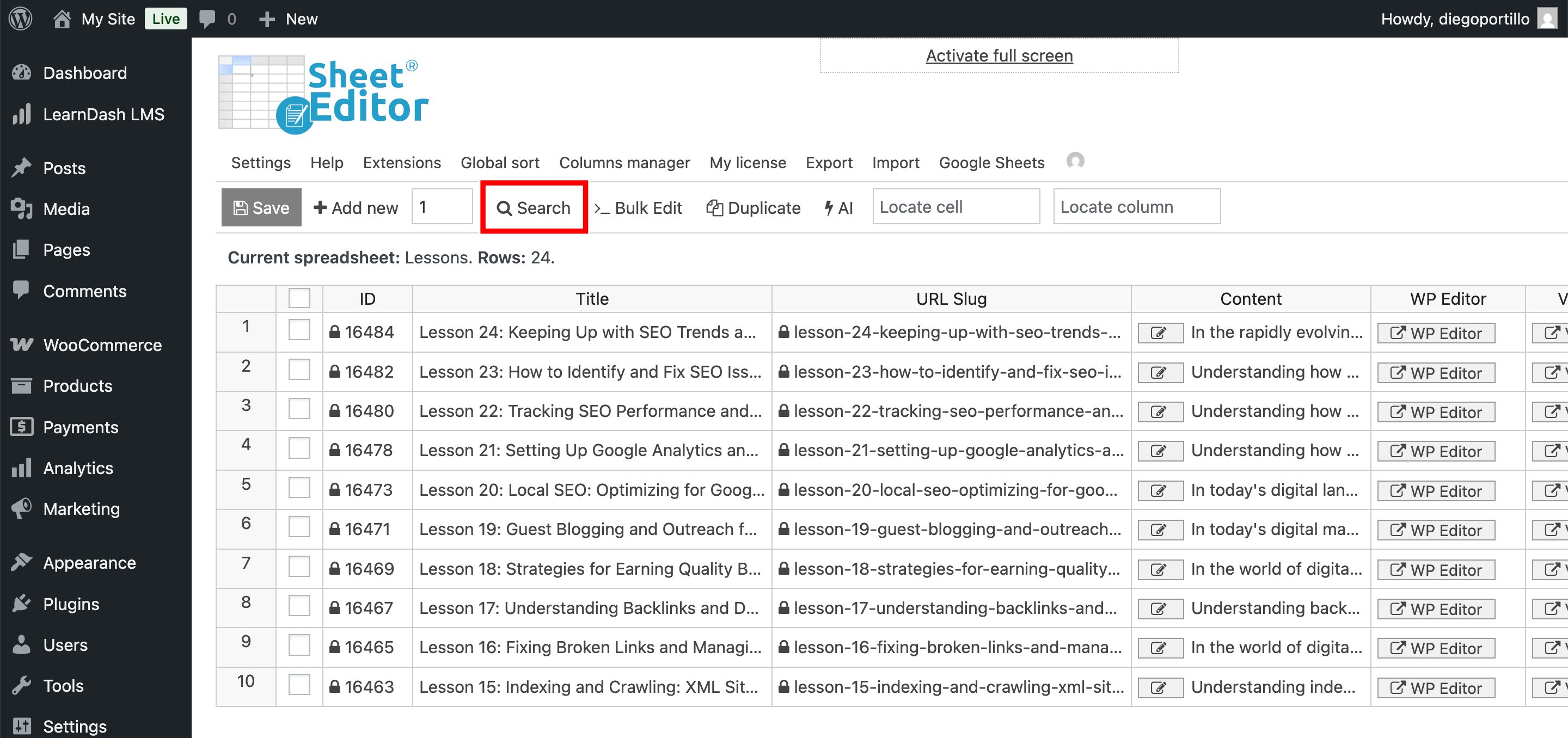
You can filter lessons by keyword, author, category, tag, course, and other available fields.
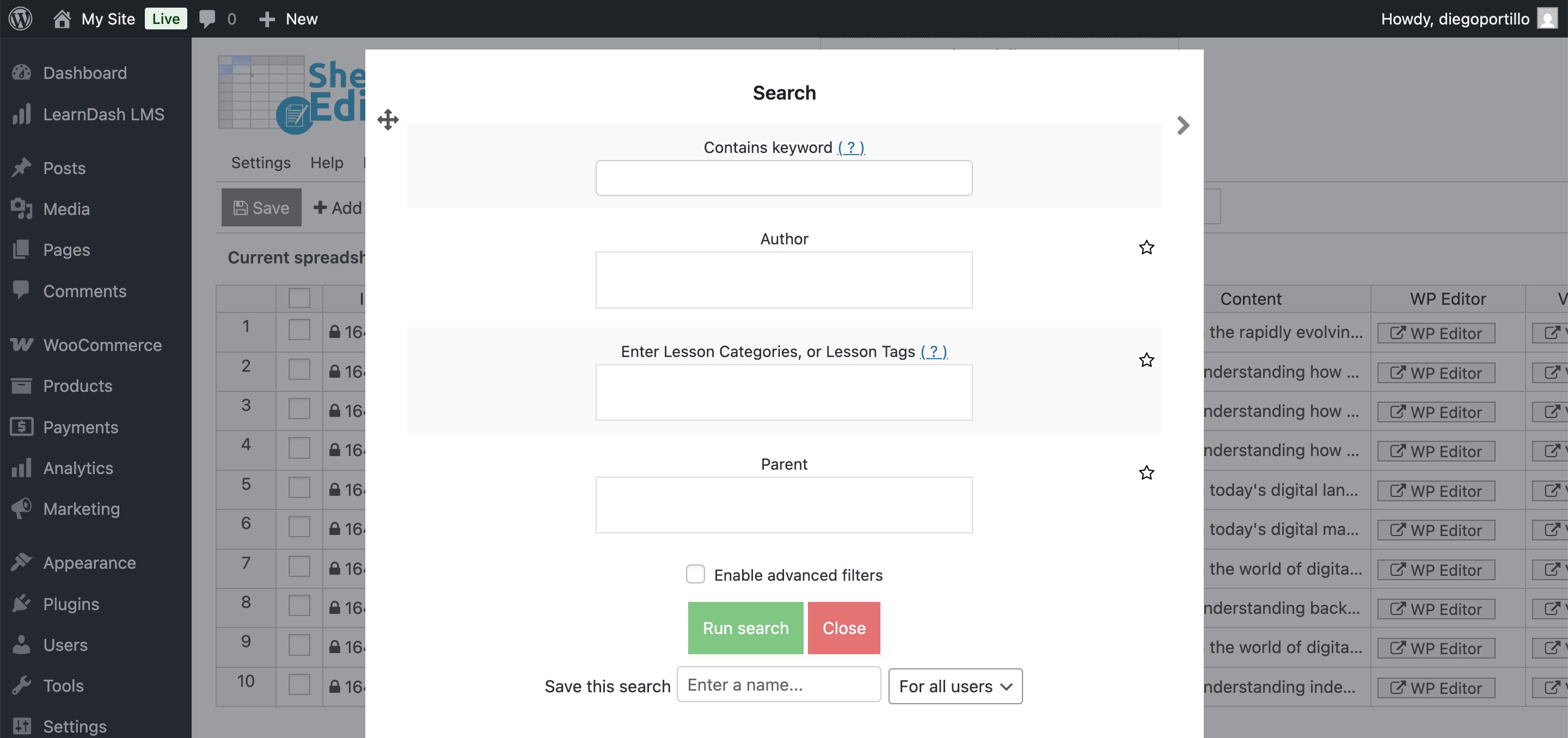
Select your criteria and click Run Search. The spreadsheet will then show only the lessons that match your filters.
Step 4. Export LearnDash Lessons to Google Sheets
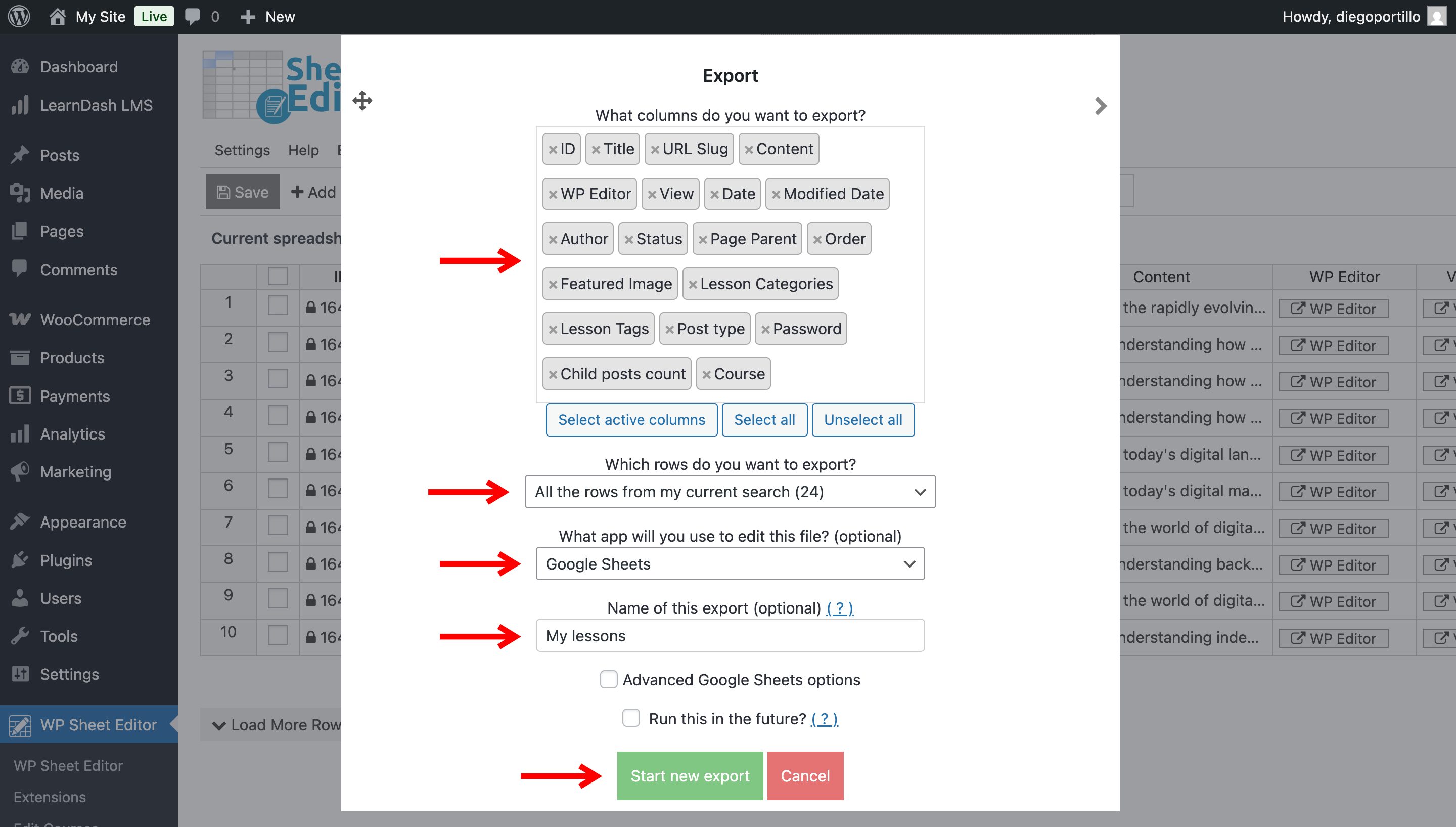
After filtering your lessons, click Export in the top toolbar.
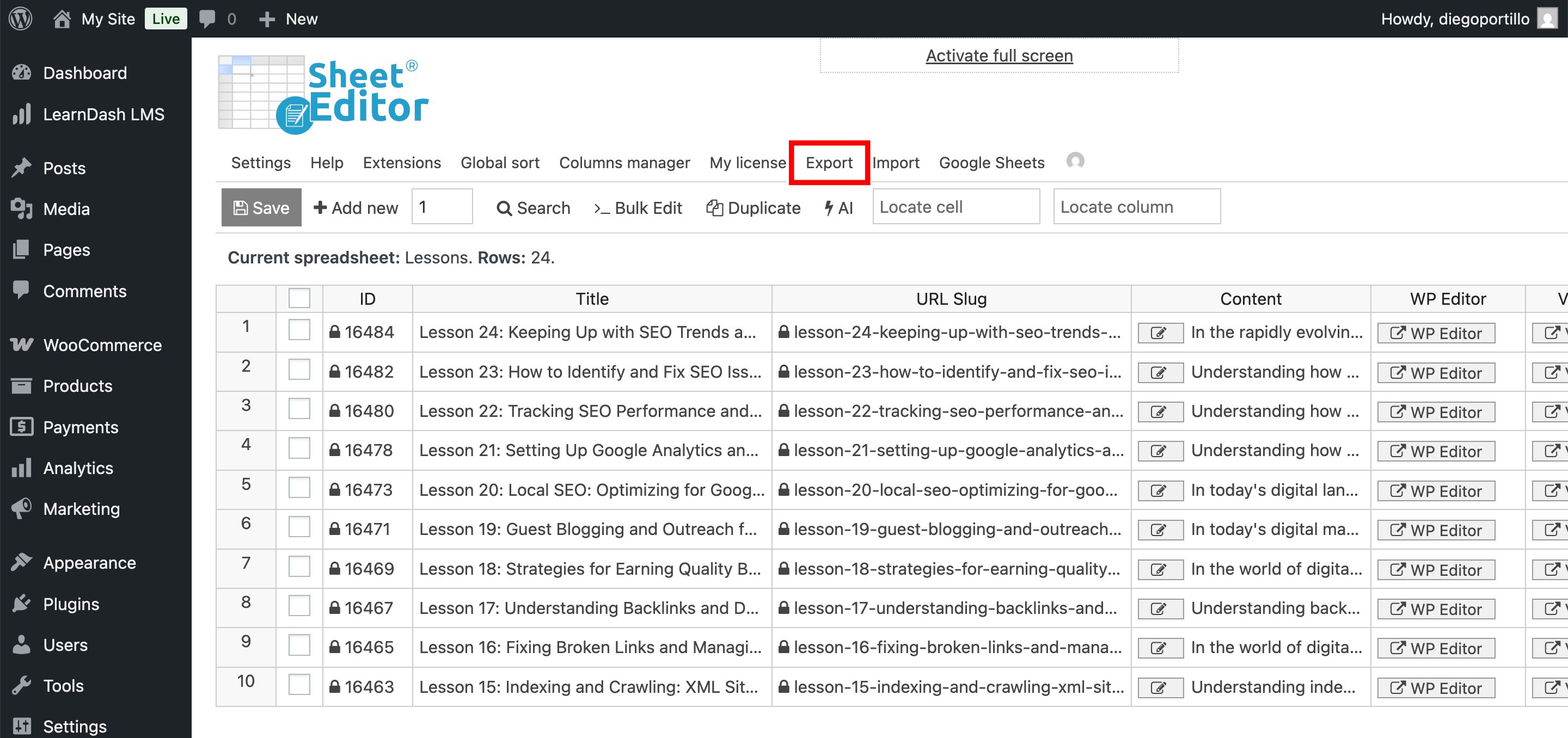
Configure the export:
- What columns do you want to export: Choose “Select all” to export every available column, or select only the columns you need.
- Which rows do you want to export: Export all lessons from the current search, all lessons, or manually selected lessons.
- What app will you use to edit this file: Select Google Sheets.
- Name of this export: Enter a descriptive name, such as “LearnDash Lessons – [Date]”.
Click Start new export.
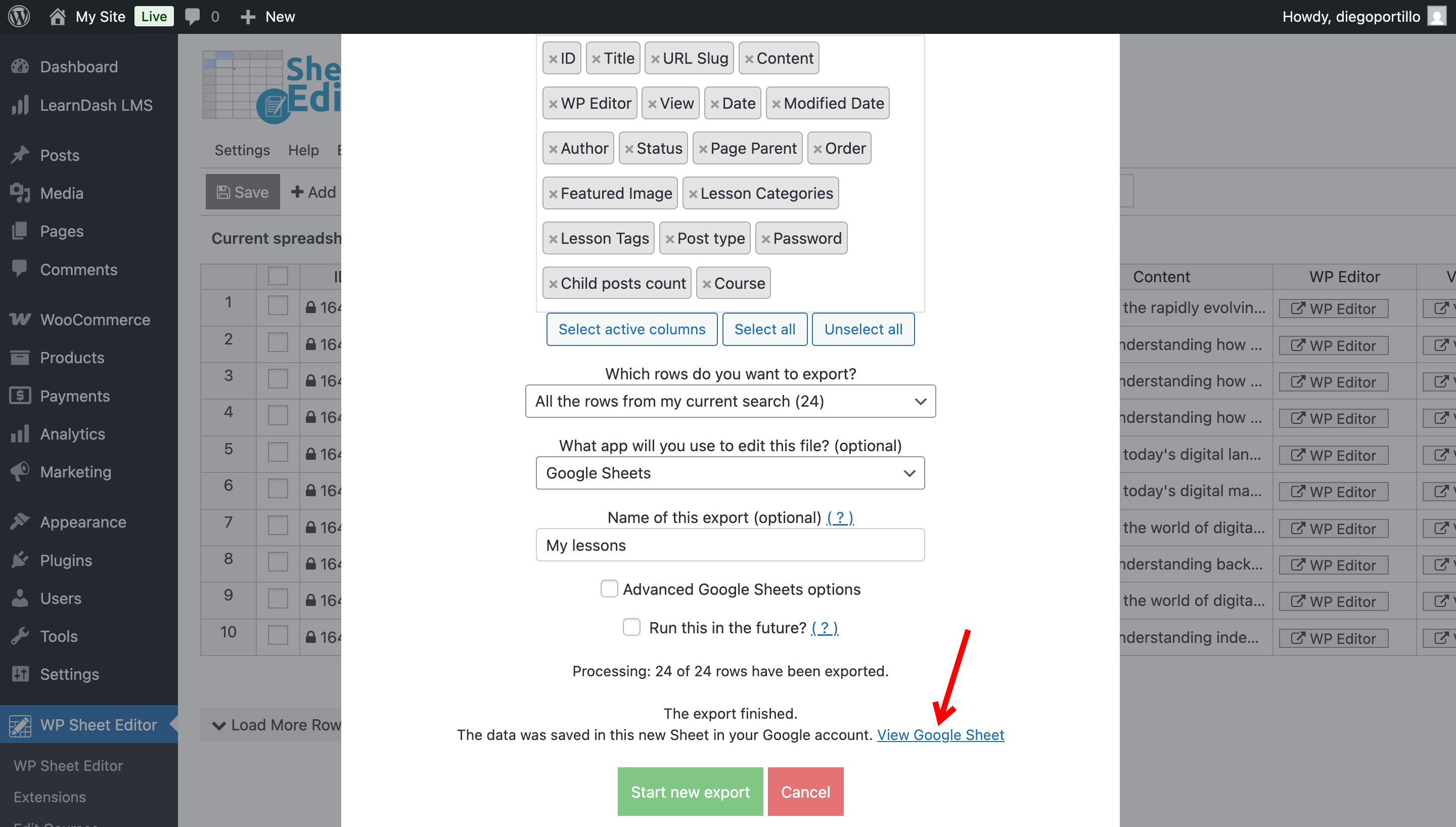
A View Google Sheet link will appear. Click it to open the exported data.
Step 5. Manage your lesson data in Google Sheets
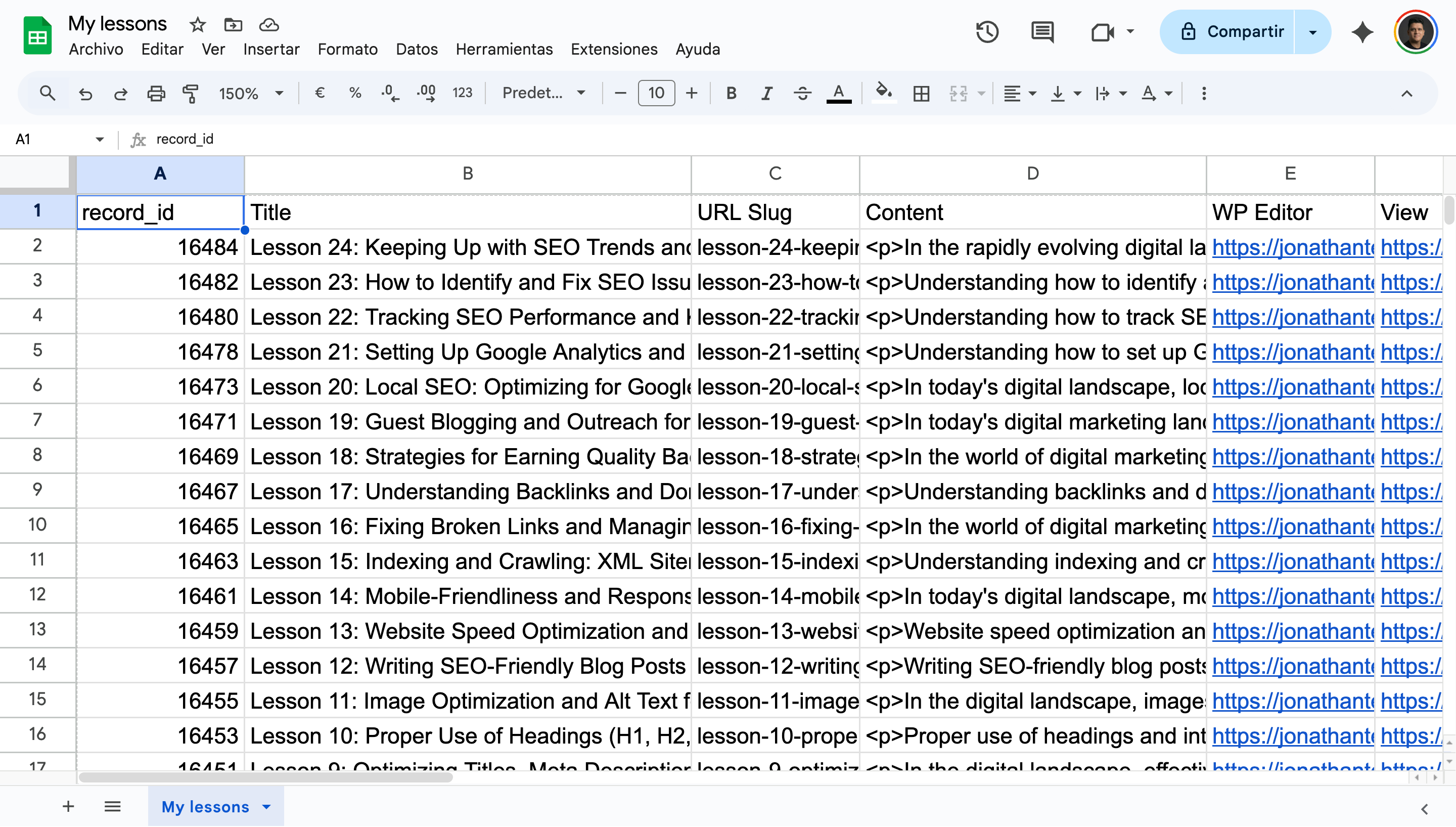
Once your lessons are in Google Sheets, you can review and update their data in bulk. For example:
- Update video links: Replace Vimeo or YouTube URLs in the “Video URL” column.
- Change lesson order: Edit the “Lesson Order” values to rearrange lessons.
- Review descriptions: Check lesson excerpts and update unclear or incomplete instructions.
If you make changes in Google Sheets, use the Import tool to send them back to WordPress. For example, you can correct a lesson assigned to the wrong course without opening and editing each lesson individually.
Conclusion
Exporting LearnDash lessons to Google Sheets makes it easier to review and update lesson data in bulk. You can filter the lessons you need, audit video links and course assignments, review lesson settings, and import your changes back into WordPress.