
LearnDash stores quizzes, questions, and exams separately. If you manage a large question bank, reviewing question text, point values, quiz settings, and exam settings individually can be time-consuming.
In this tutorial, we’ll show you how to export LearnDash Quizzes, Questions, and Challenge Exams to Google Sheets so you can review and update assessment data in bulk.
Why export LearnDash assessment data?
Exporting assessment data to Google Sheets lets you:
- Audit your question bank: Review “Question Text,” “Points,” and “Answer Hints” across multiple questions.
- Review quiz settings: Check “Passing Percentages” and “Certificate Associations” across your quizzes.
- Manage exams: Review exam settings and associated courses if you use the Challenge Exams add-on.
- Collaborate with your team: Let subject matter experts review questions and answers in Google Sheets without giving them access to WordPress.
What you need to export assessment data
You’ll need LearnDash LMS and these WP Sheet Editor tools:
WP Sheet Editor – Post Types: This plugin provides separate spreadsheets for Quizzes, Questions, and Exams.
You can purchase the plugin here:
Google Sheets Sync: This service connects your WordPress site with Google Sheets for exports and imports.
You can sign up to the service here:
Sign up to the Google Sheets Sync Service - or - Check the features
You will receive a helper plugin when you sign up for the service to handle the API connection.
Step 1. Connect WordPress to Google Sheets
The Google Sheets Sync service includes a helper plugin that connects your WordPress site with Google Sheets.
Follow this installation guide to complete the setup.
Step 2. Open the quizzes, questions, or exams spreadsheet
WP Sheet Editor creates a separate spreadsheet for each data type. Depending on what you want to export, go to:
- Quizzes: Go to WP Sheet Editor > Edit Quizzes.
- Questions: Go to WP Sheet Editor > Edit Question.
- Exams: Go to WP Sheet Editor > Edit Exams.
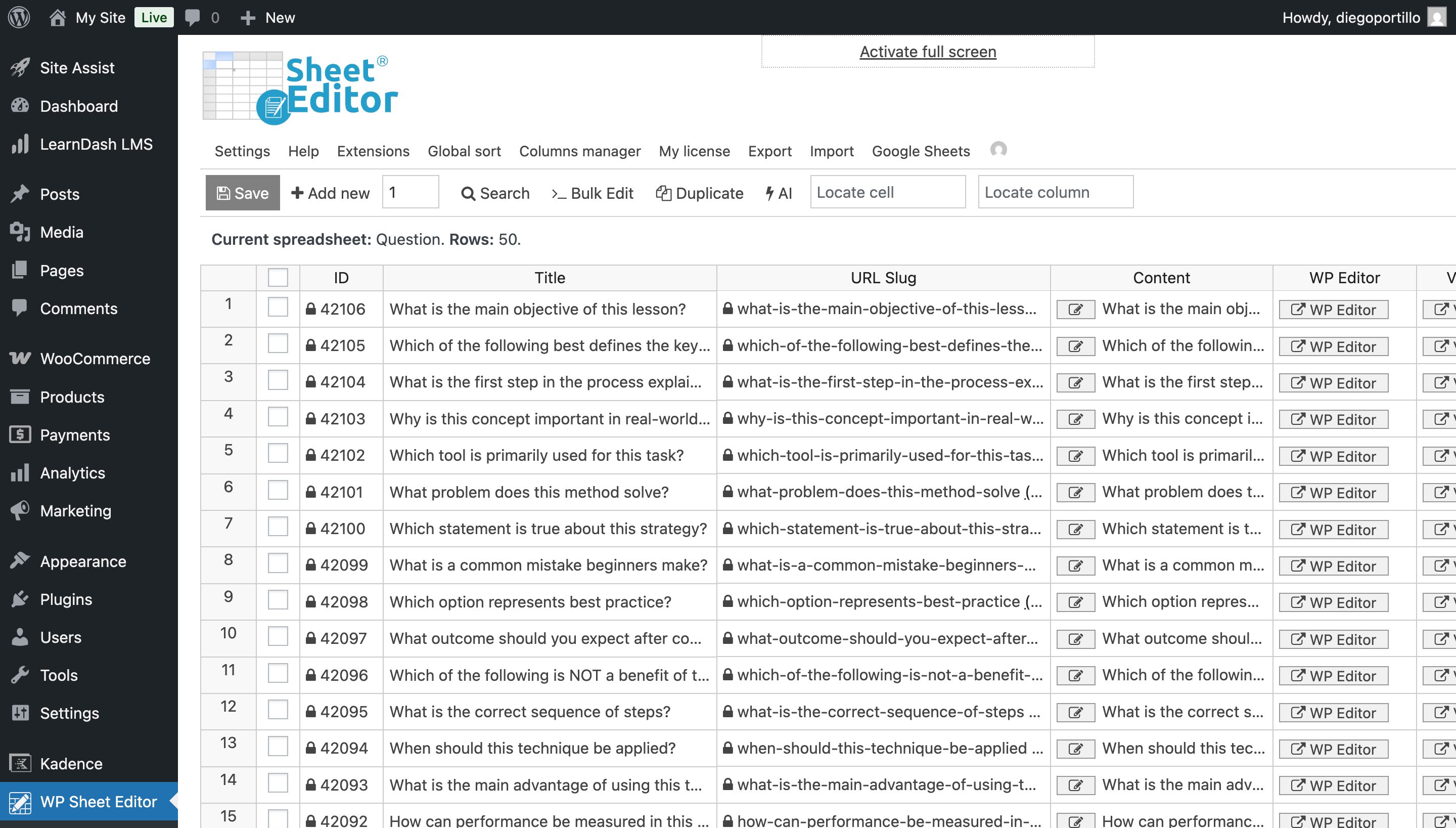
In this example, we’ll use the Questions spreadsheet. It includes fields such as “Question Type,” “Points,” “Correct Answer Message,” and “Associated Quiz.”
Step 3. Select the data you want to export
You can export the entire question bank or filter it to specific questions. Use the Search tool on the toolbar to filter your data.
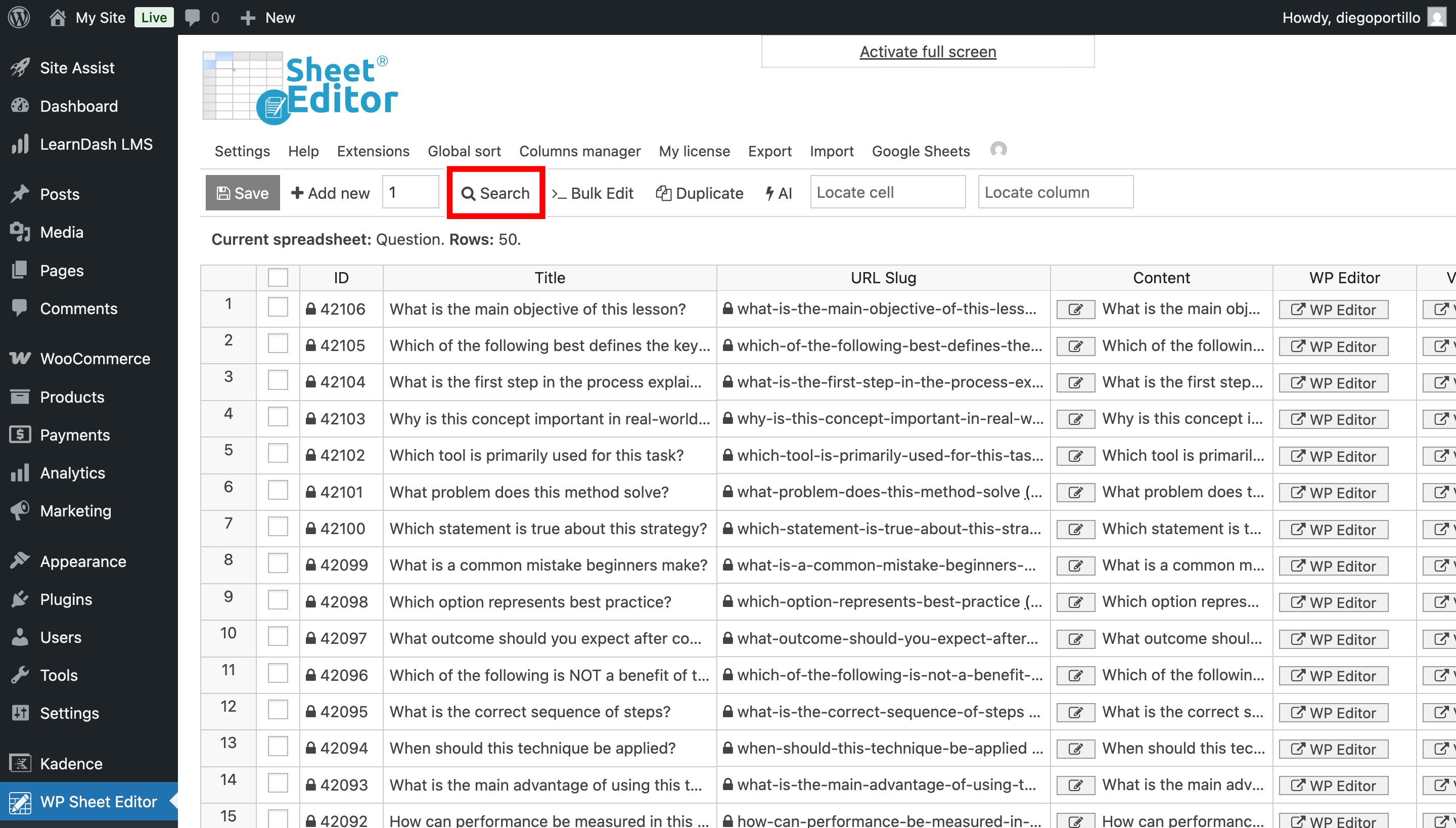
Set your filters and run the search. The spreadsheet will show only the items matching your criteria.
Step 4. Export to Google Sheets
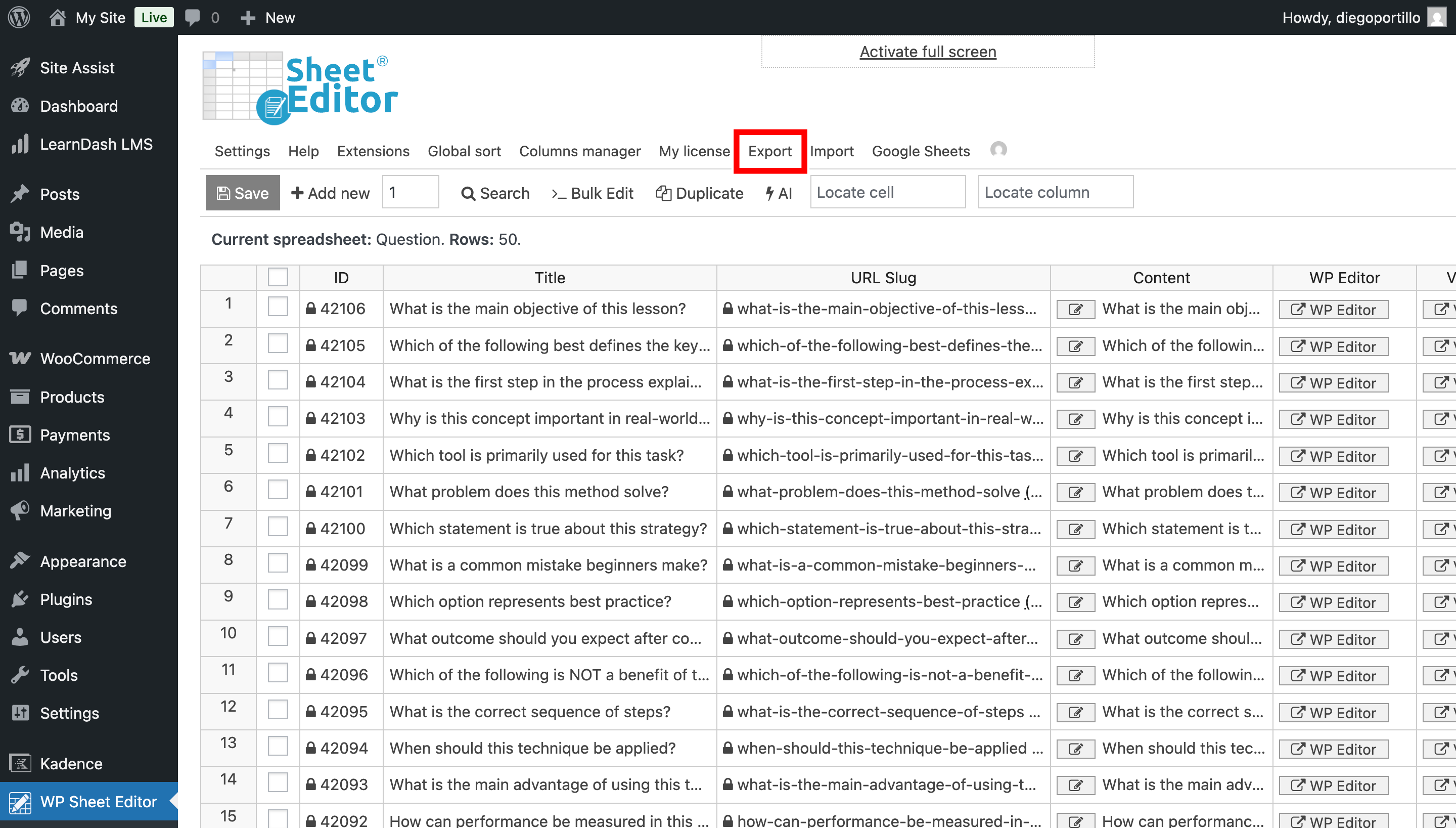
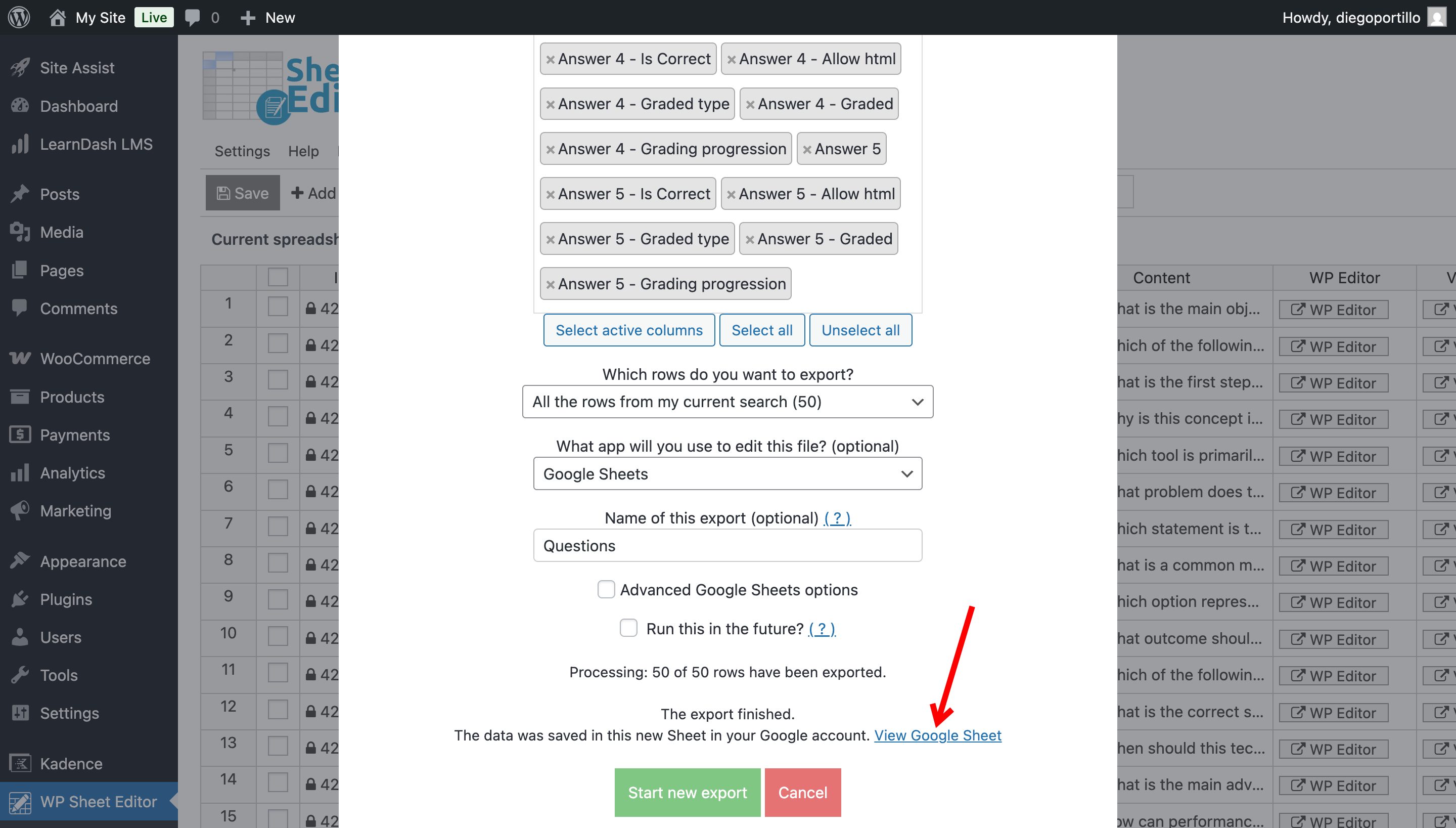
Click Export on the top toolbar.
Configure the export:
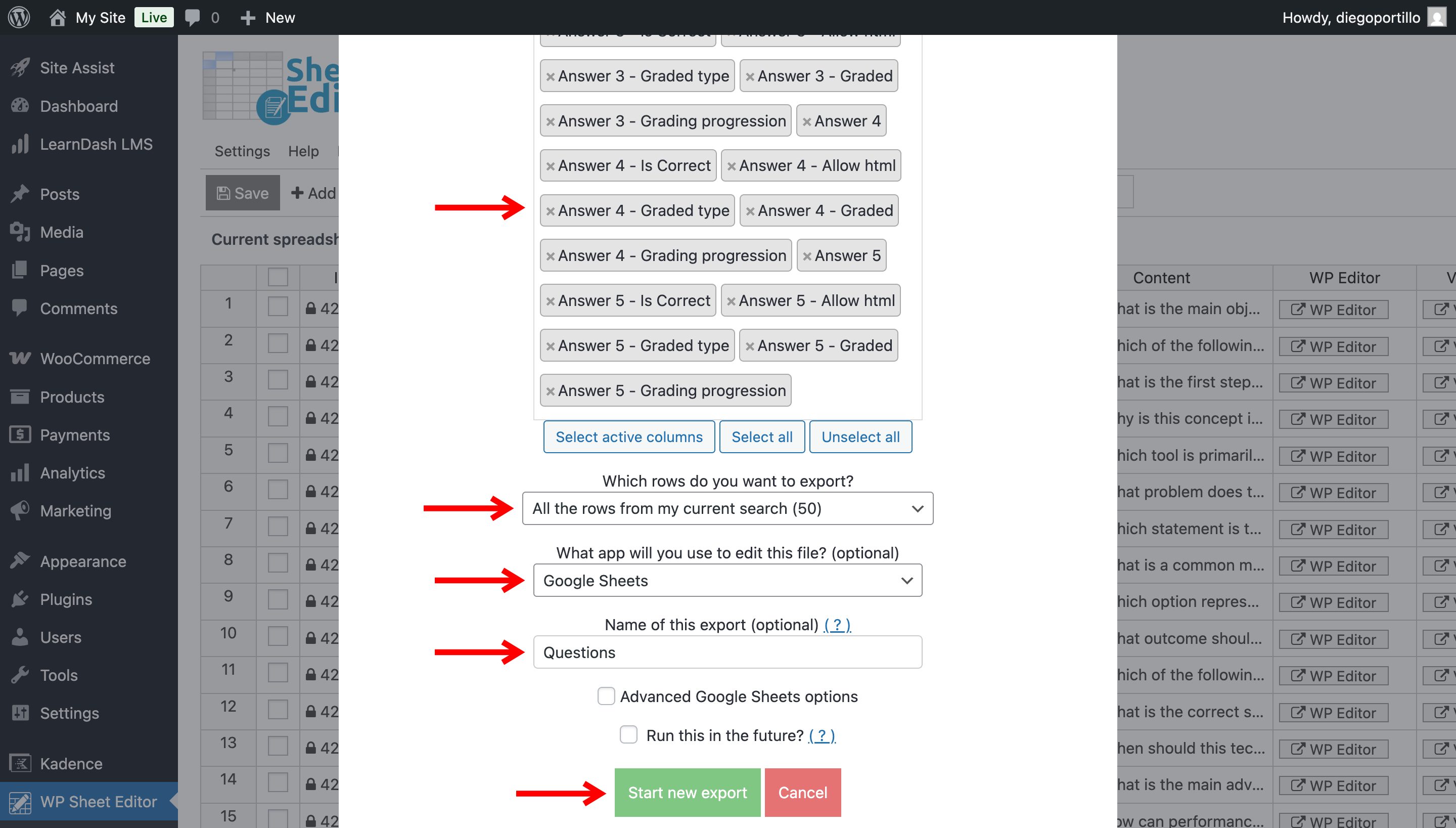
- What columns do you want to export: Choose “Select all” for a full export, or select specific columns for a focused report.
- Which rows do you want to export: Export all items from the current search, all items, or manually selected items.
- What app will you use to edit this file: Select Google Sheets.
- Name of this export: Enter a descriptive name, such as “LearnDash Questions – [Date]”.
Click Start new export.
A View Google Sheet link will appear. Click it to open the exported data.
Step 5. Manage your assessment data in Google Sheets
Once your assessment data is in Google Sheets, you can review and update it in bulk. For example:
- Proofread questions: Review question text and correct typos across your question bank.
- Standardize points: Update the “Points” values for groups of questions.
- Review feedback: Check the “Incorrect Answer Message” column to make sure students receive useful feedback.
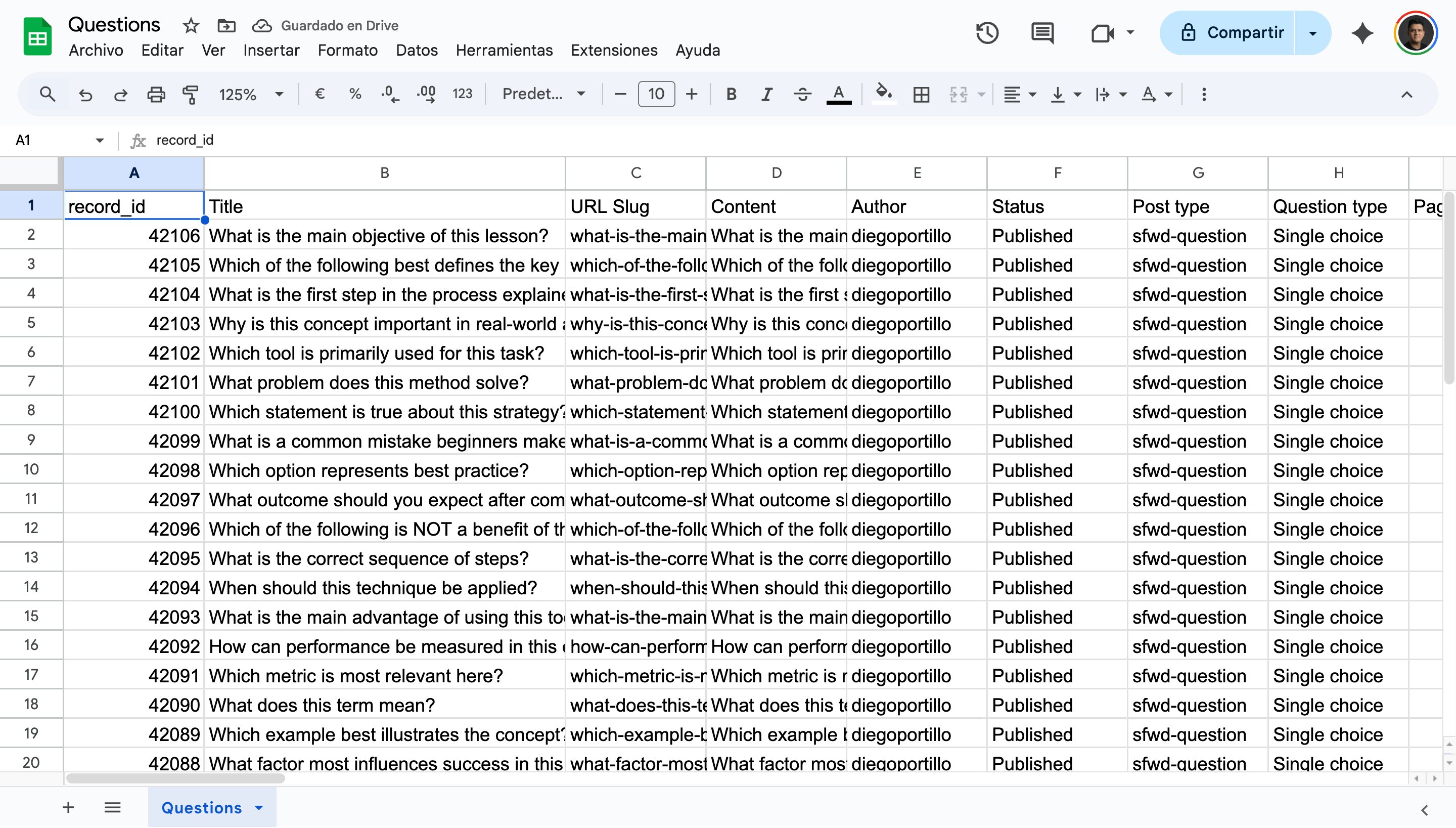
Because WP Sheet Editor supports two-way synchronization, you can import your changes back into WordPress to update your quizzes and questions.
Conclusion
Exporting LearnDash quizzes, questions, and exams to Google Sheets lets you review and update assessment data in bulk. You can audit questions, standardize point values, review feedback, and collaborate with team members without editing each item individually in WordPress.