
Running a Black Friday sale, launching an influencer marketing campaign, or offering personalized holiday discounts often requires generating and managing dozens or hundreds of promotional codes. Keeping track of which codes are active, how much they discount, and when they expire is crucial for your store’s profitability.
By default, WooCommerce allows you to manage coupons one by one. You have to navigate to Marketing > Coupons, open an individual code, select the discount type, type the coupon amount, pick an expiry date from the calendar, set usage limits, and click Update. If your marketing team just sent you a list of 500 unique affiliate codes that need to be updated or extended, doing this manually is simply not a viable strategy.
In this tutorial, we will show you how to manage WooCommerce coupons directly in Google Sheets. This workflow allows you to bulk create promotional codes, update discount amounts for hundreds of coupons at once, and collaborate with your marketing team in a familiar spreadsheet environment without giving them WordPress admin access.
Why manage WooCommerce coupons from Google Sheets?
Exporting your promotional codes to Google Sheets offers several strategic advantages over the default WordPress interface:
- Bulk generation and updates: Easily paste hundreds of new codes generated by your marketing team, or use drag-and-fill to extend the expiry dates of your existing coupons in minutes.
- Fast auditing: Filter your spreadsheet to instantly find all expired coupons and delete them, or sort by usage limits to see which influencer codes are performing best.
- Spreadsheet formulas: Apply a blanket 10% increase to all fixed-cart discount amounts using a simple math formula in Google Sheets instead of opening them one by one in WordPress.
What you need to manage promotional codes
To bypass the slow WooCommerce coupon editor and manage your discounts in Google Sheets, we will use these WP Sheet Editor tools:
WP Sheet Editor – WooCommerce Coupons
This plugin generates a spreadsheet inside your WordPress dashboard where you can view, create, and edit all your WooCommerce coupons on a single screen.
You can purchase the plugin here:
Get the WooCommerce Coupons spreadsheet - or - Check the features
Google Sheets Sync
This service connects your WP Sheet Editor spreadsheets directly to your Google Sheets account for seamless two-way exports and imports in real time.
You can sign up to the service here:
Sign up to the Google Sheets Sync Service - or - Check the features
Step 1. Open the coupons spreadsheet
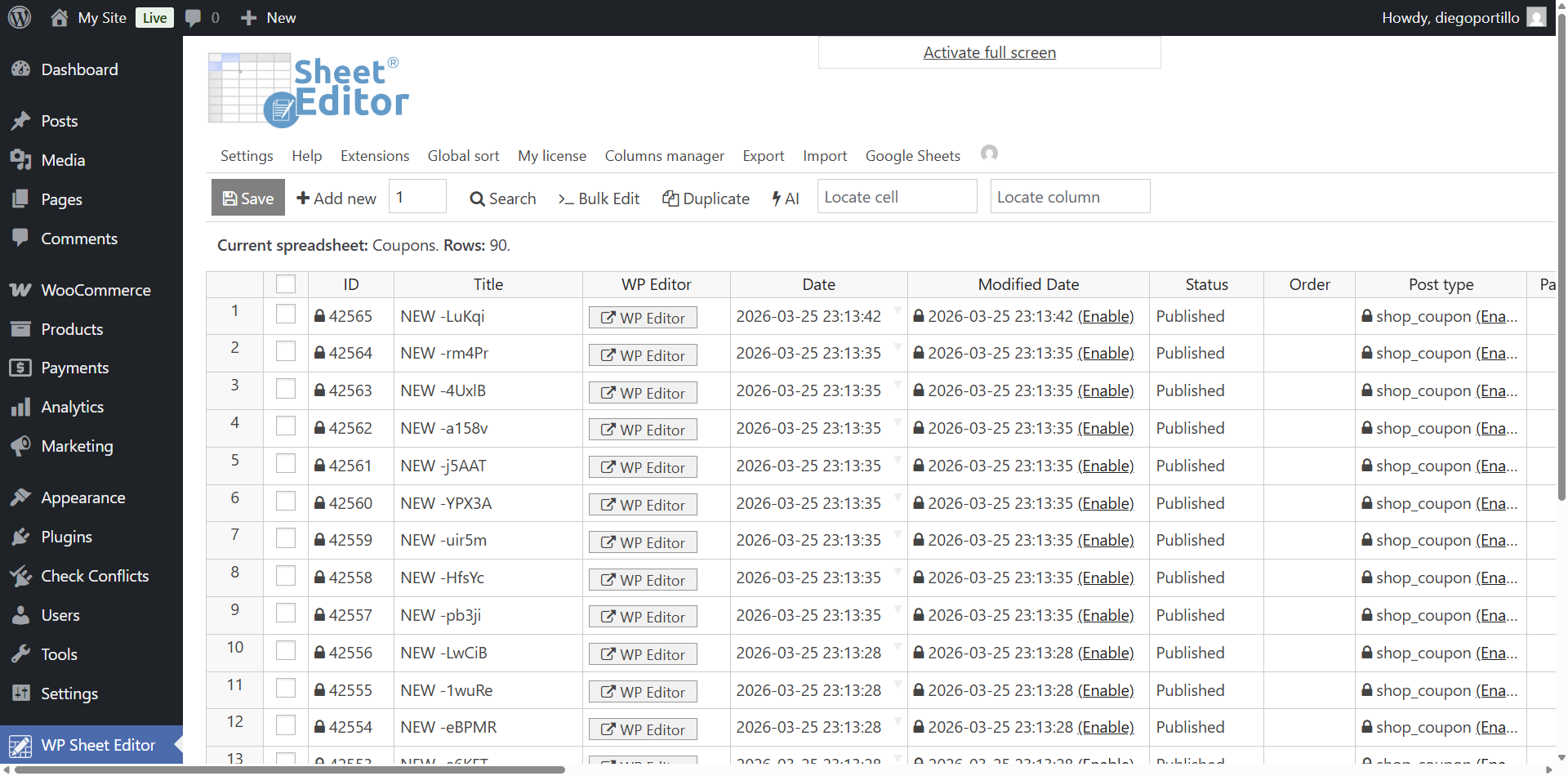
To view and manage your WooCommerce coupons in the spreadsheet, navigate to WP Sheet Editor > Edit Coupons.
Step 2. Connect WordPress to Google Sheets
When you subscribe to the Google Sheets Sync service, you will receive a helper plugin that connects your WordPress site securely with your Google account.
Follow our installation guide to complete the setup and authorize the Google API connection.
Step 3. Create a live sync with Google Sheets
WP Sheet Editor lets you set up real-time synchronization quickly. This way, any changes you make in WordPress will be exported to Google Sheets, and any changes you make in Google Sheets will be imported into WordPress automatically.
Hover the mouse cursor over the Google Sheets tool and select Quick sync setup.
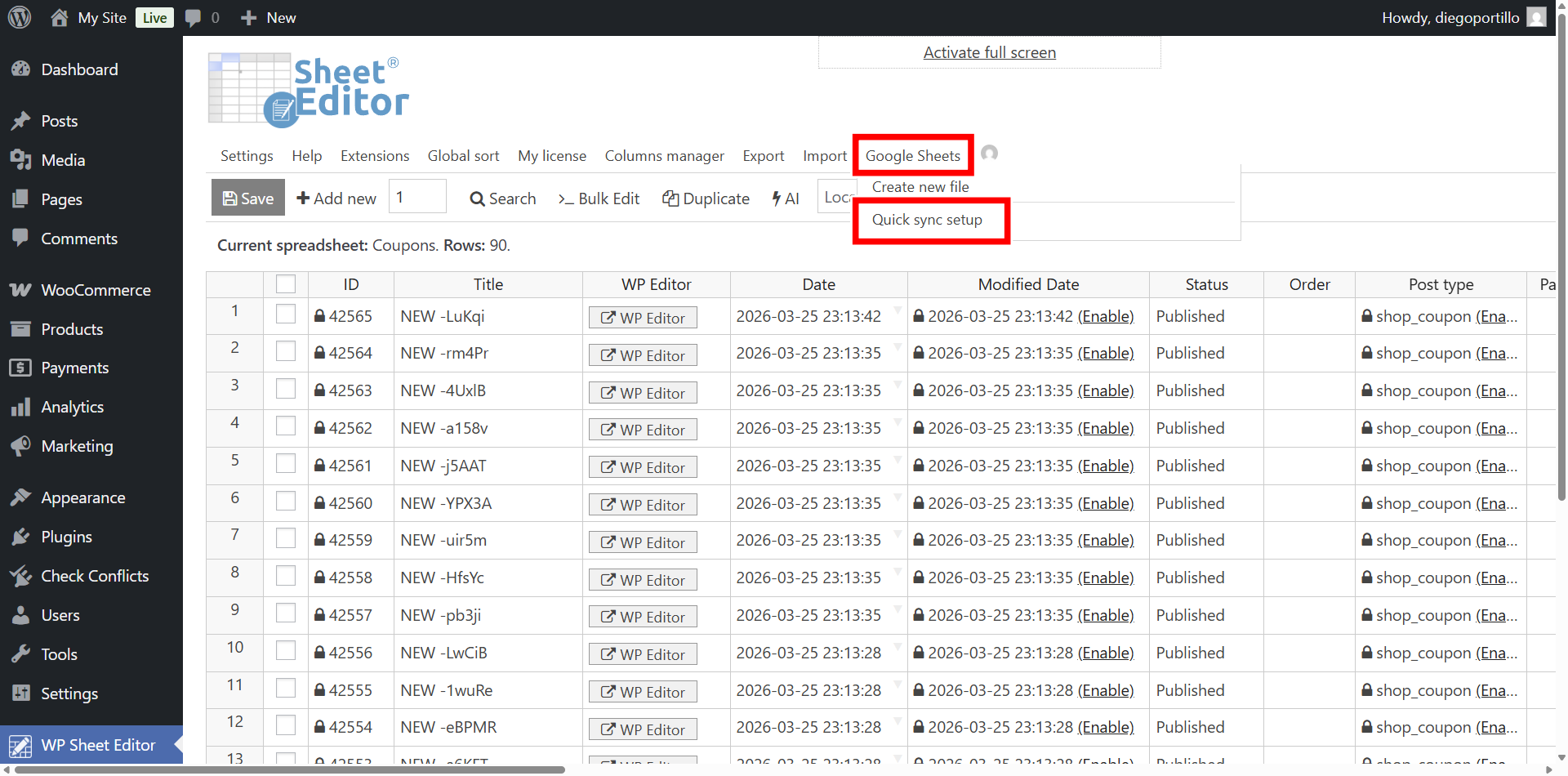
Click on Sync WordPress to Google Sheets (bidirectional).
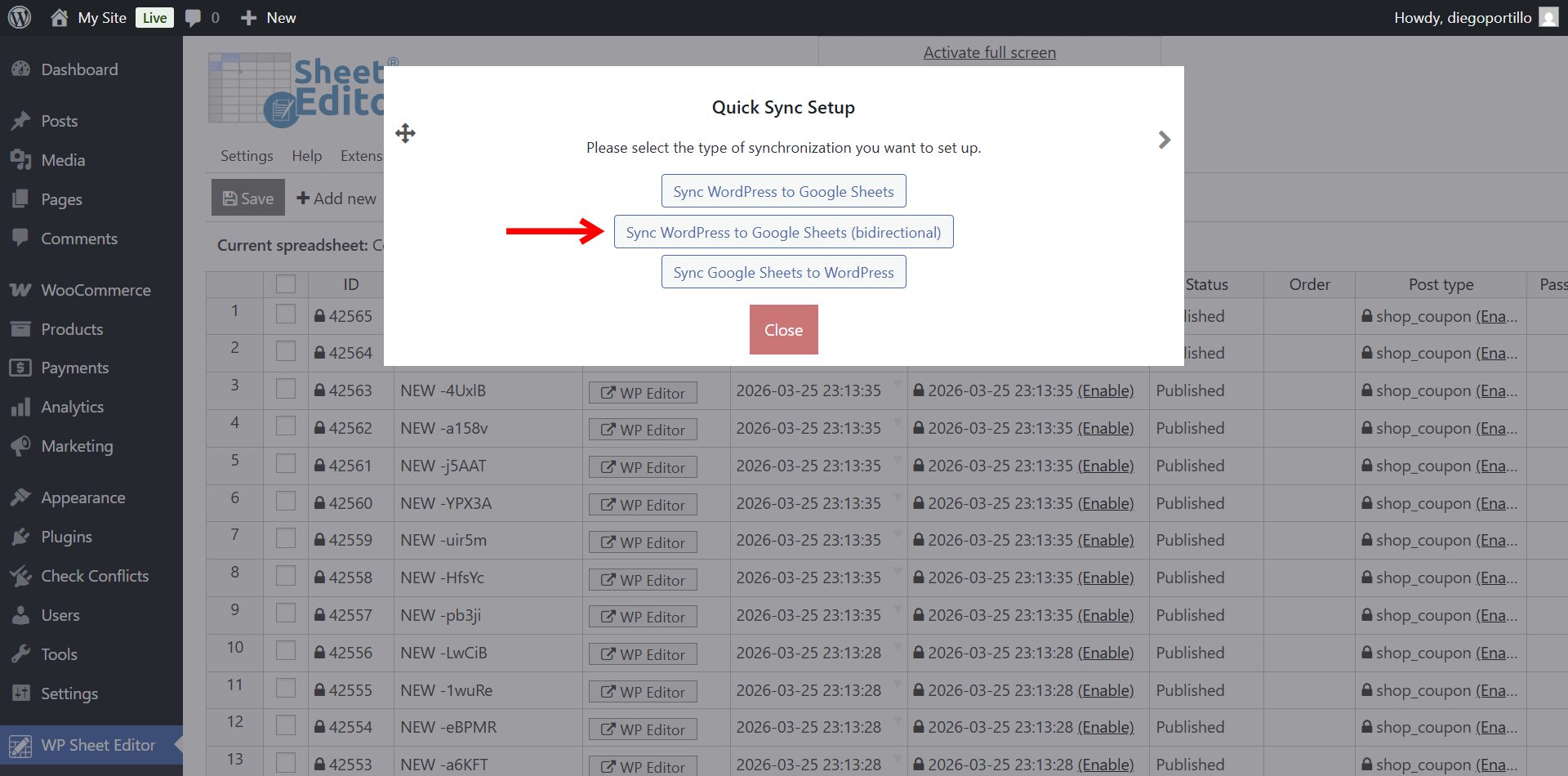
Select the following settings in the export popup:
- What columns do you want to sync: We will select all the columns; you can select specific columns if you want.
- What column should be used as an identifier: We will use the record_id (ID) field to match the coupons accurately.
- Sync name: Add a name for this real time sync.
- Click on Start sync, and in one or two minutes, the sync will start.
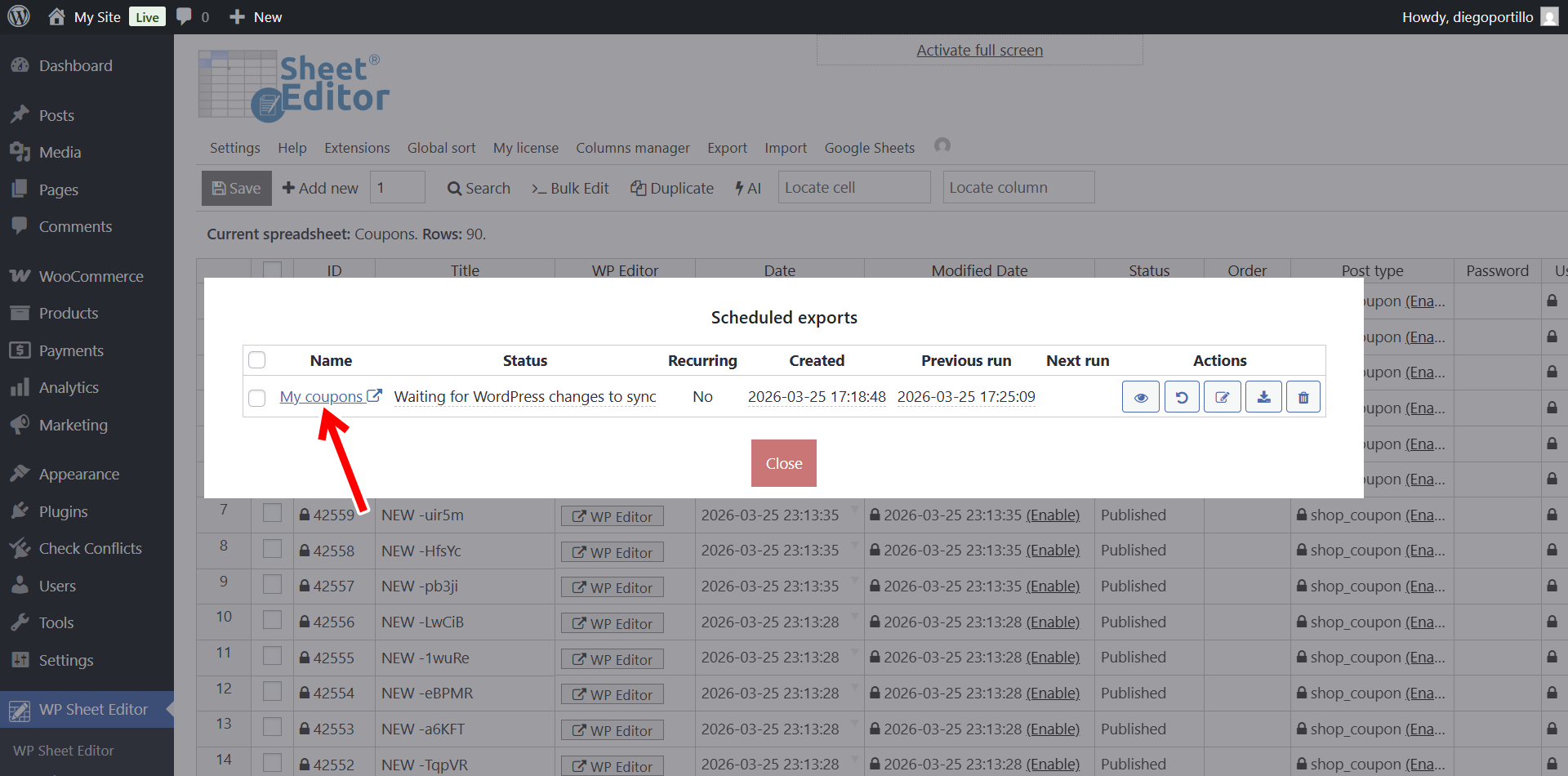
If you now go to Export > View scheduled exports, you’ll see the details of the new live sync we have created. You can open the new Google Sheet by clicking on the export’s name once it’s complete.
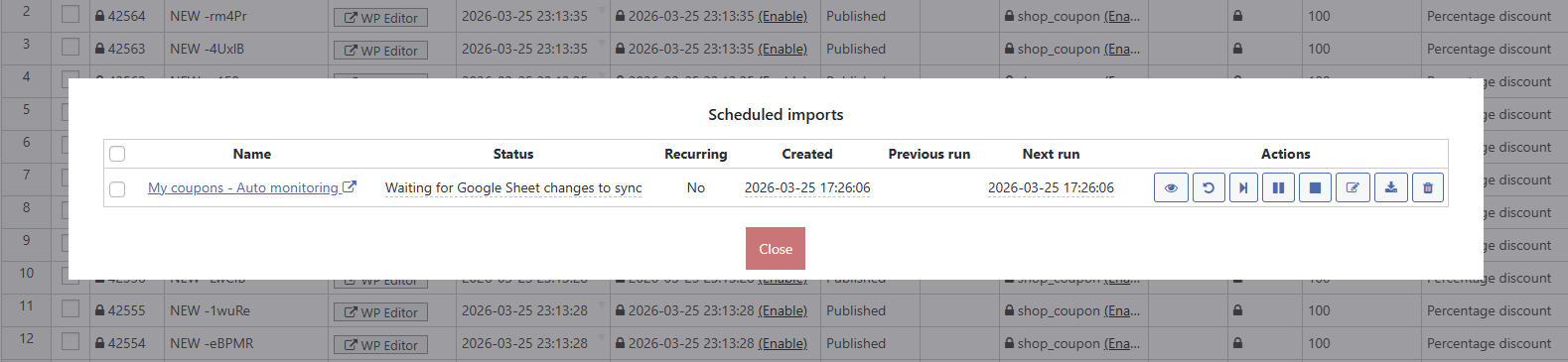
Also, if you go to Import > View scheduled imports, you’ll see that the plugin created an automatic import that will auto monitor the changes you make in Google Sheets to auto import them into WordPress. This is the feature that allows you to manage your WooCommerce coupons in Google Sheets.
Step 4. Edit coupon amounts, limits, and dates in Google Sheets
Once your Google Sheet is open, you will see all your promotional codes clearly laid out in rows.
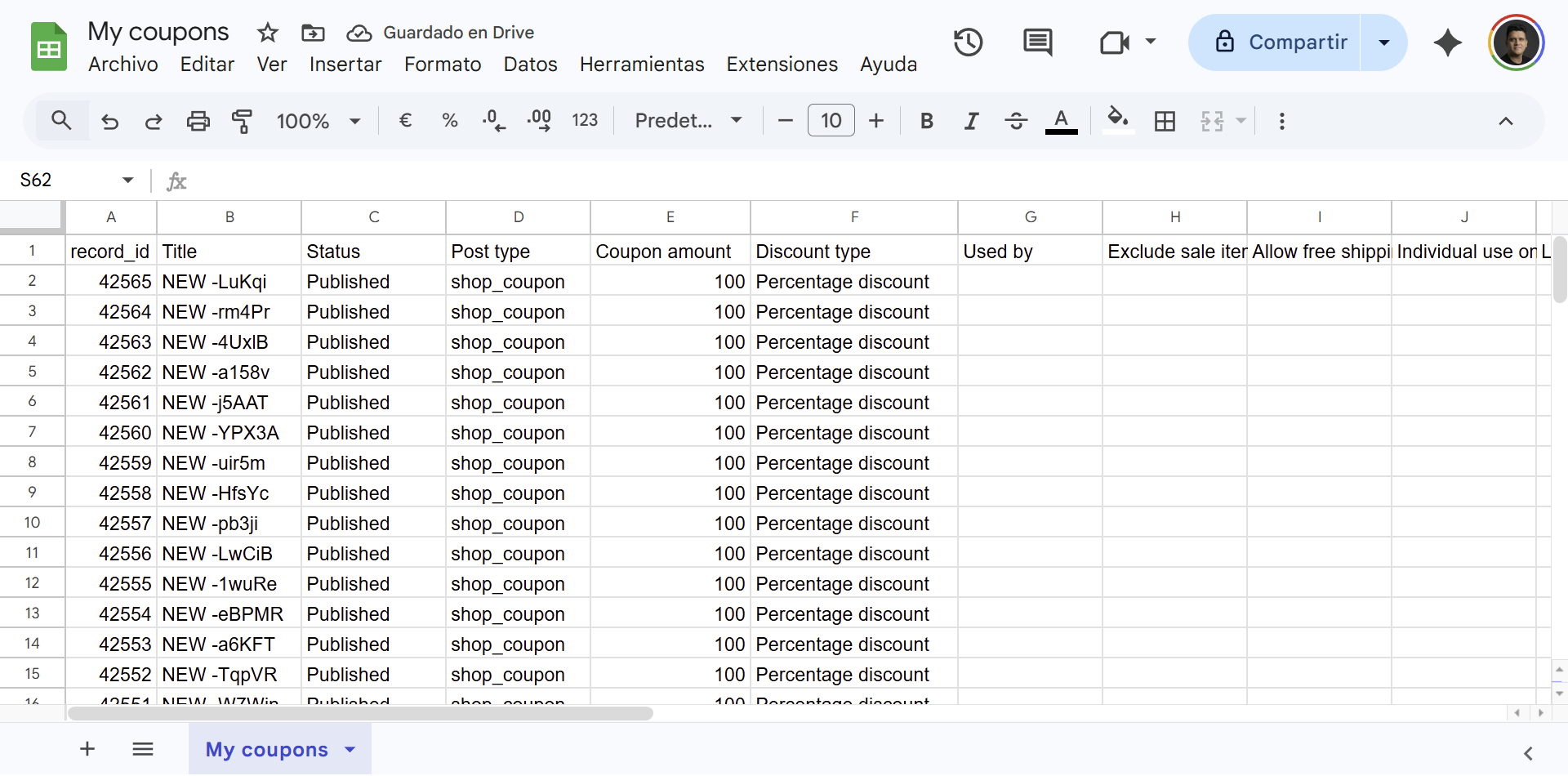
Here is how you can manage the specific fields in your spreadsheet:
- Discount type: WooCommerce uses specific text values. You can change this column to Percent discount, Fixed cart, or Fixed product discount.
- Coupon amount: Input the numeric value of the discount (e.g., enter 15 for a 15% off coupon or $15 off depending on the type).
- Coupon expiry date: Use the standard date format (YYYY-MM-DD) to extend or shorten the lifespan of hundreds of codes at once.
- Usage limit per coupon: Input a number to restrict how many times a code can be used in total across your entire store. Leave it blank for unlimited uses.
Step 5. Auto-Sync changes back to WooCommerce
Since this is a bidirectional real-time sync, you do not need to manually upload a CSV file to apply your new promotions. The integration constantly listens for your spreadsheet edits.
Every time you change a coupon’s amount, update an expiry date, or paste a new batch of influencer codes in Google Sheets, the service queues the update and pushes it directly into your live WooCommerce database.
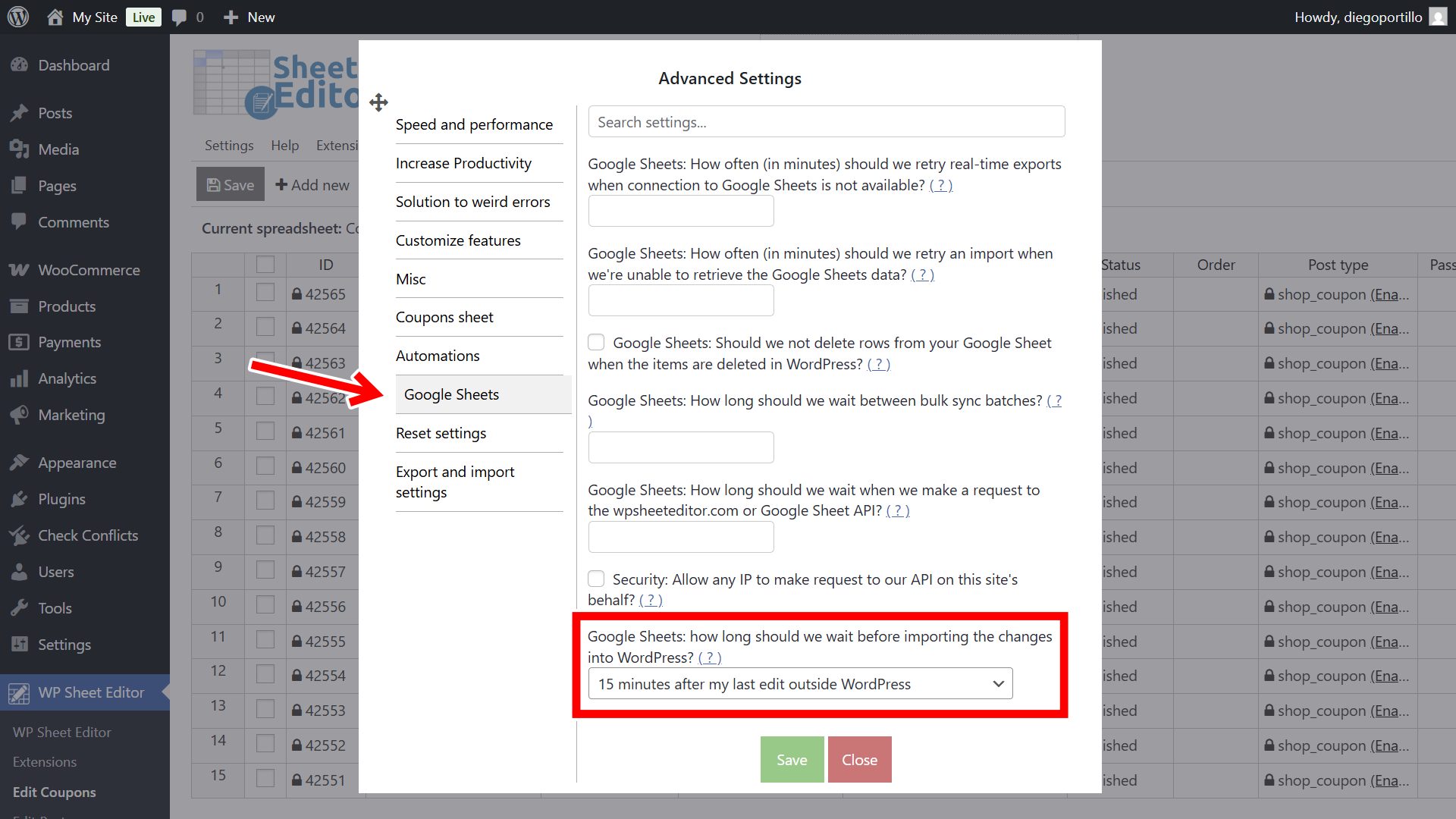
To prevent the system from importing half-typed numbers while you are actively working, the sync includes a customizable buffer time. Navigate to Settings > Advanced Settings > Google Sheets in your WordPress admin to define how long the plugin should wait (e.g., 15 minutes) after your last edit before running the import.
Manage your WooCommerce promotions effortlessly
Controlling holiday sales, affiliate discounts, and expiry dates doesn’t have to be a slow, manual process. By integrating your store with Google Sheets, you can audit your active promotions, update discount amounts with formulas, and extend campaigns with complete efficiency. Using WP Sheet Editor and the Google Sheets Sync service eliminates repetitive clicking, making large-scale coupon management simple.