
If you need to edit WooCommerce prices in Google Sheets or Excel, you can export your catalog to a spreadsheet, make your changes there, and import the file back into WooCommerce. This is useful when you want to work with spreadsheet formulas, compare your prices with another file, or let someone else prepare pricing updates without giving them access to your WordPress dashboard. (If you prefer to edit prices directly inside WordPress using an in-browser spreadsheet, see our general guide on how to bulk edit WooCommerce product prices).
You can download the plugin here:
Download WooCommerce Products Spreadsheet Plugin - or - Check the features
1. Export WooCommerce product prices to Excel or Google Sheets
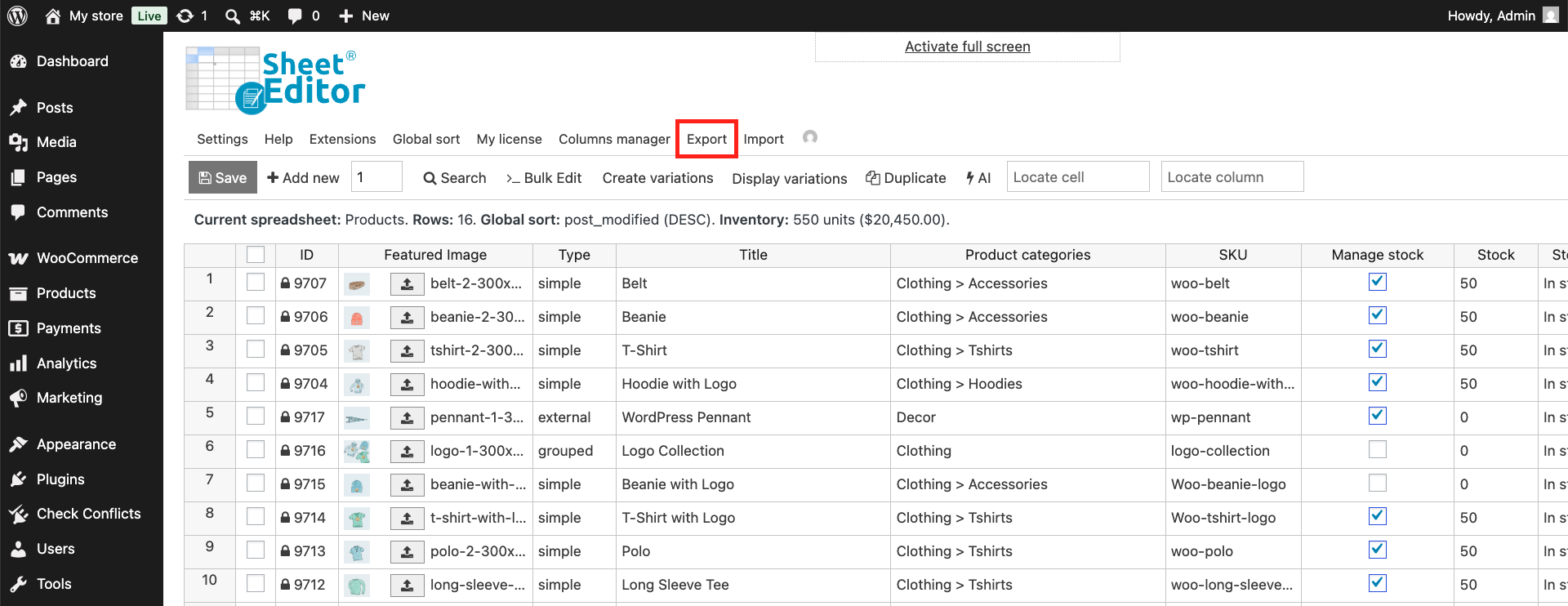
The Export tool in WP Sheet Editor lets you download your product catalog as a CSV or XLSX file that you can open in Google Sheets or Microsoft Excel.
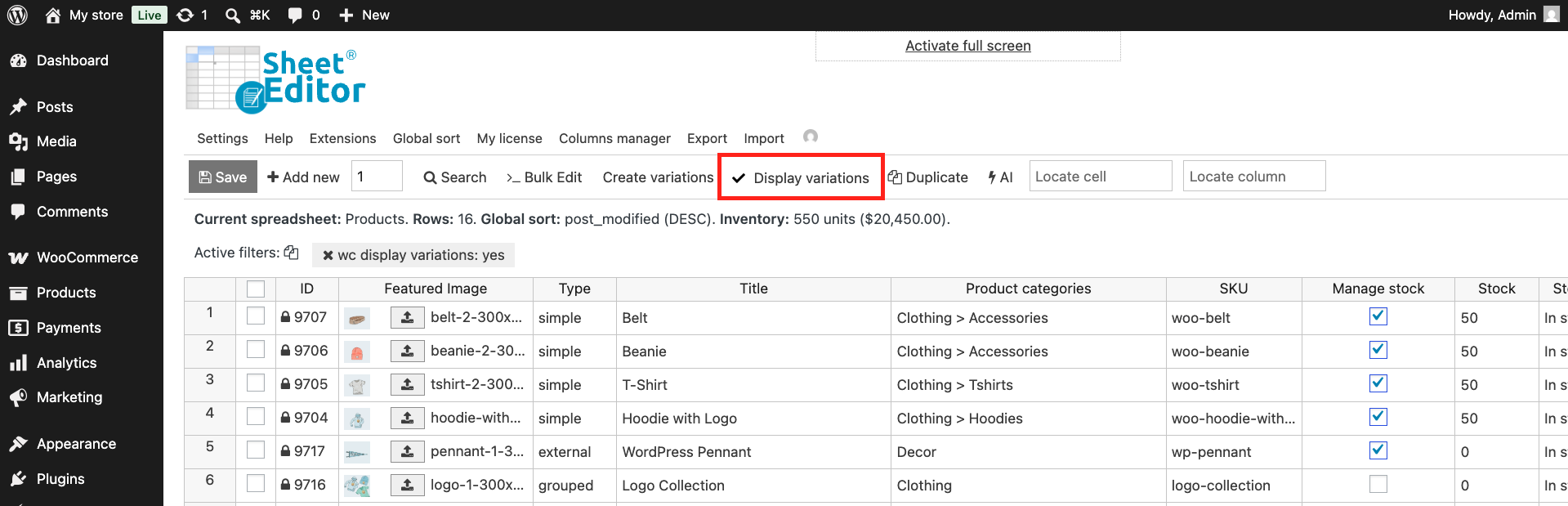
Optional: Click Display variations if you also need to export and edit prices for product variations.
Go to WP Sheet Editor > Edit products and click Export in the top toolbar.
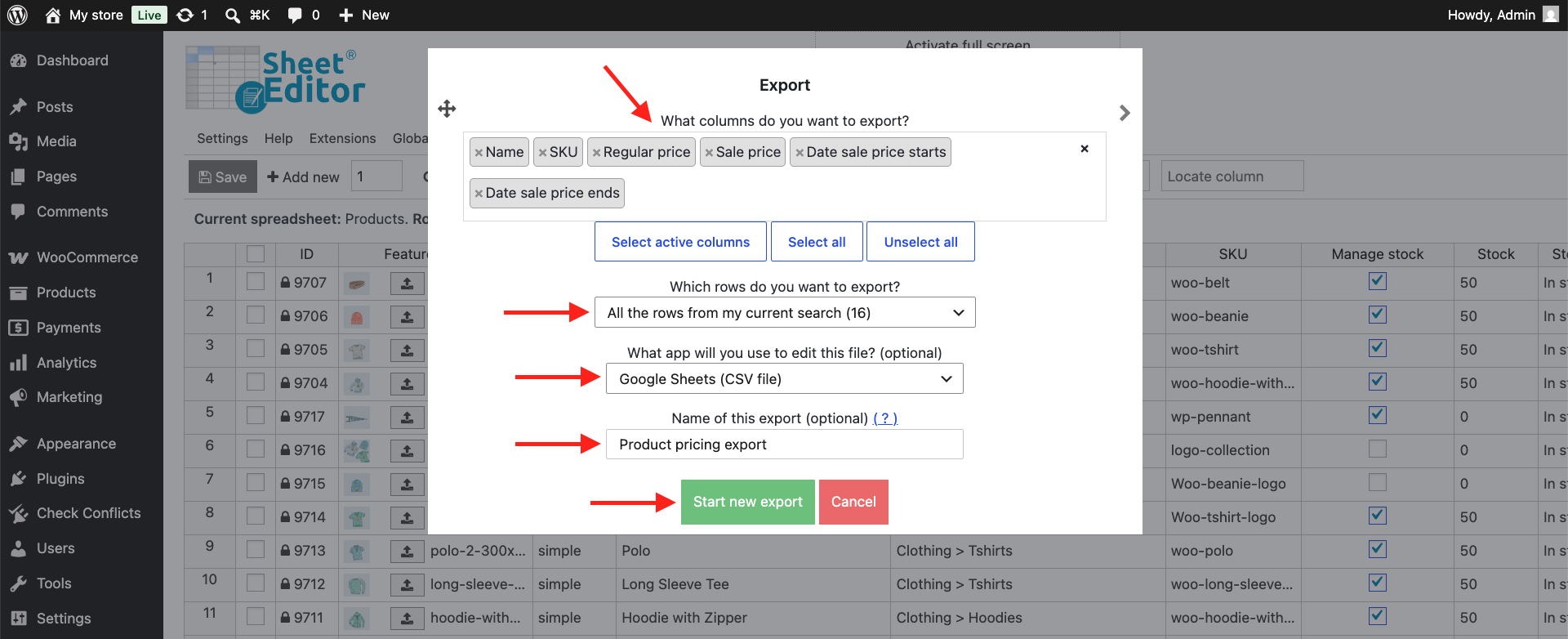
Configure your export settings:
- What columns do you want to export: Select the fields you need, such as
Name,SKU,Regular price,Sale price,Date sale price starts, andDate sale price ends. - Which rows do you want to export: Select All the products from my current search, or the products you have manually selected in the spreadsheet.
- What app will you use to edit this file: Choose Microsoft Excel (XLSX) or Google Sheets (CSV file), depending on where you want to edit the file.
- Name of this export: Optional. Give the export a name if you want to reuse these settings for future pricing updates.
- Click Start new export to download the file.
2. Edit prices in Google Sheets or Microsoft Excel
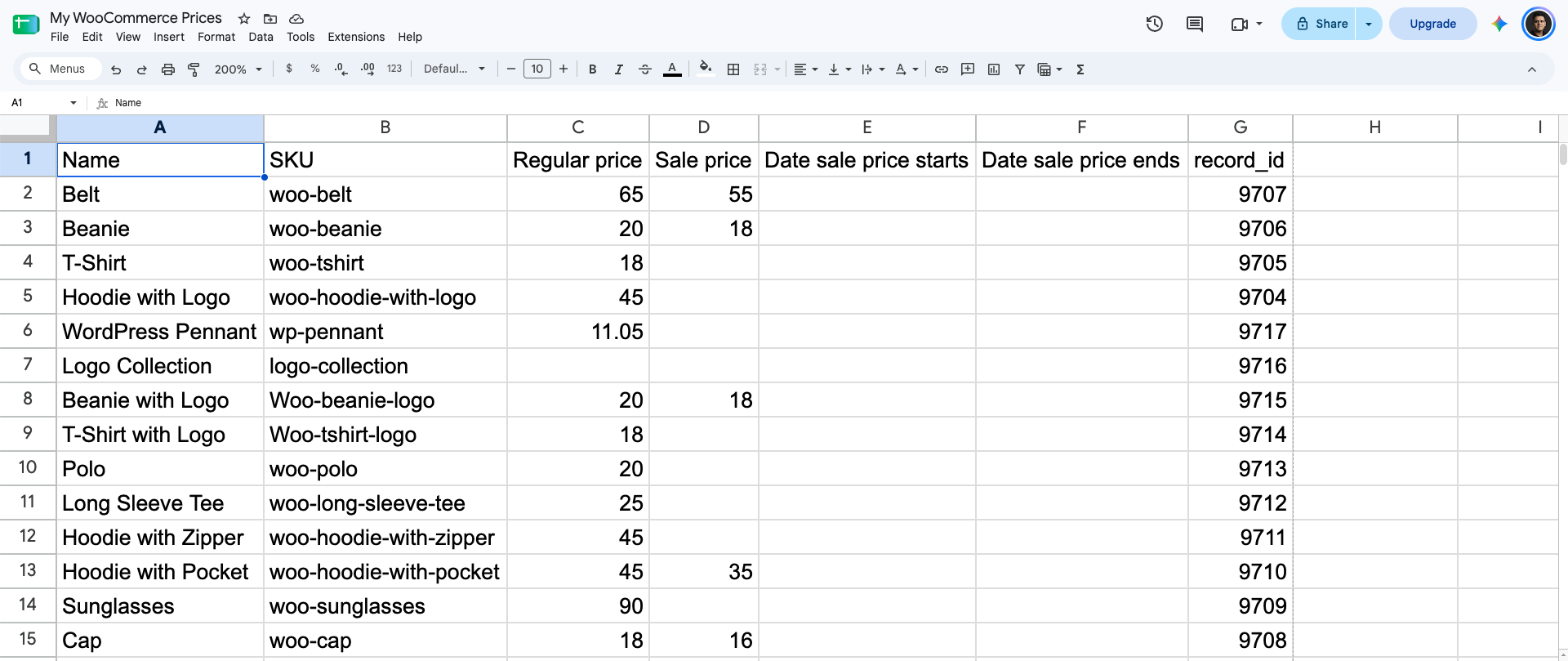
Open the exported file in Google Sheets or Microsoft Excel and make your pricing changes. You can edit prices manually, use formulas to update multiple products at once, change sale dates, or compare your prices with information from another spreadsheet.
For example, if you want to increase prices by 15%, you can use a formula such as =C2*1.15 and apply it to the products you want to update. You can also use formulas to add a fixed amount or calculate new prices based on values in other columns.
Using a spreadsheet also makes it easier to share pricing files with vendors, accountants, or assistants without giving them access to your WordPress dashboard.
3. Import edited prices back into WooCommerce
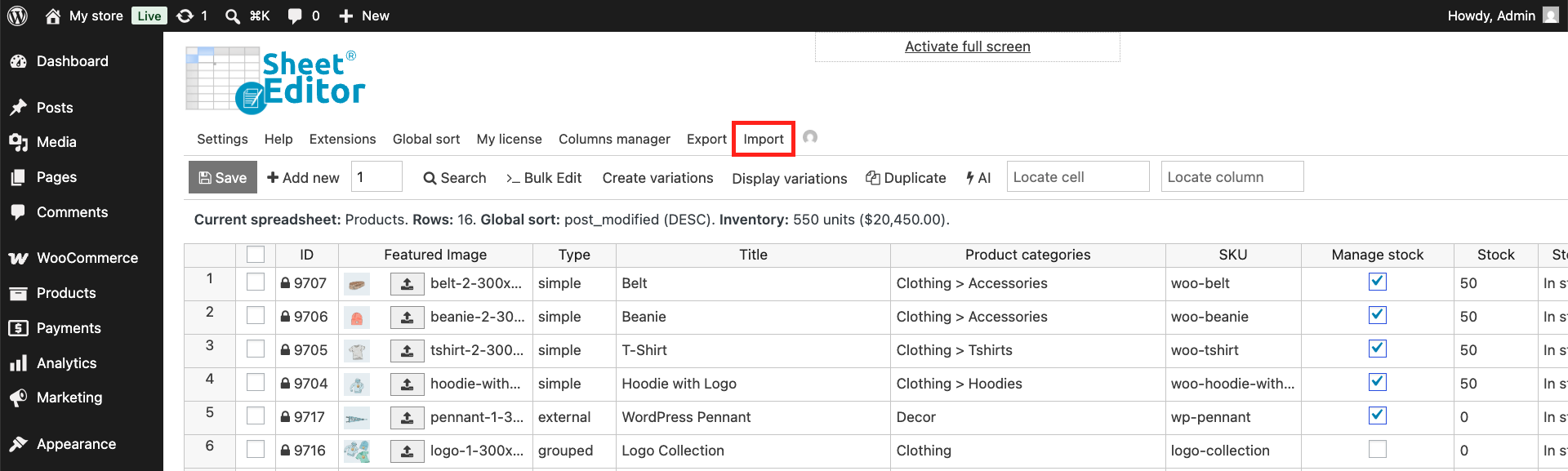
When you finish editing the spreadsheet, save the file and open the Import tool in WP Sheet Editor. From there, you can upload the file and use it to update your WooCommerce products.
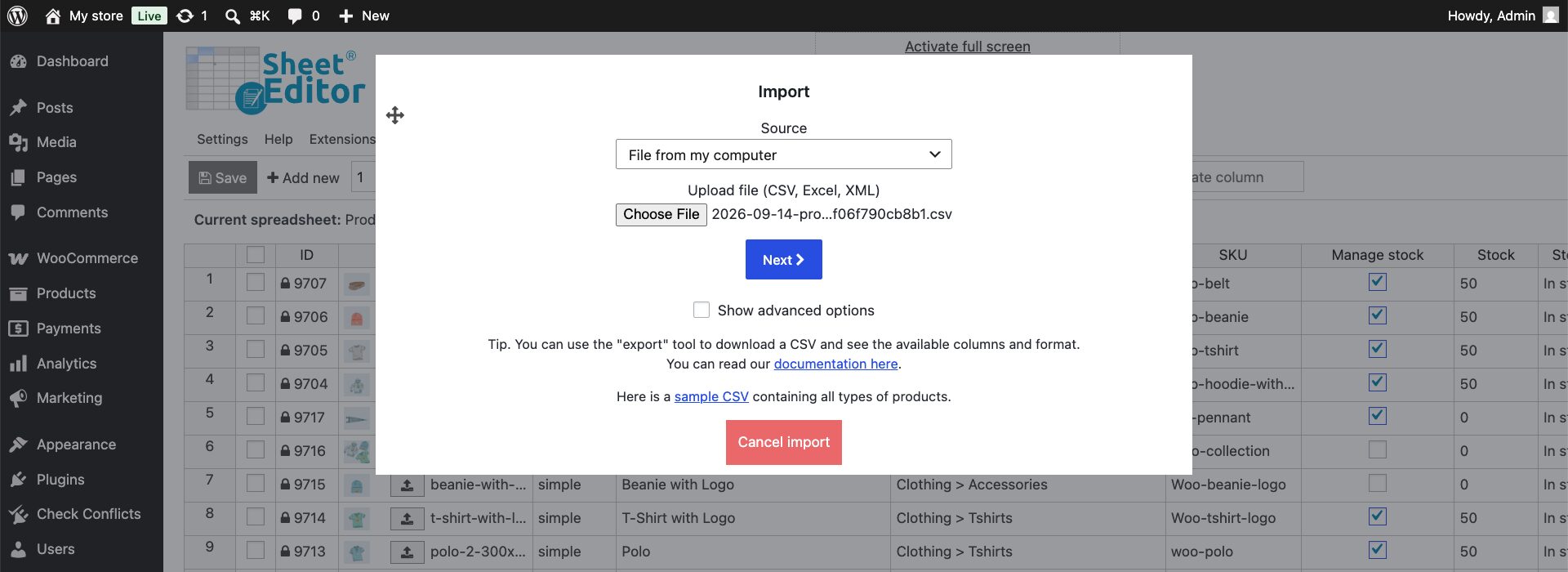
Upload your file:
- Source: Select File from my computer.
- Click Choose file and select your updated CSV or XLSX file.
- Click Next.
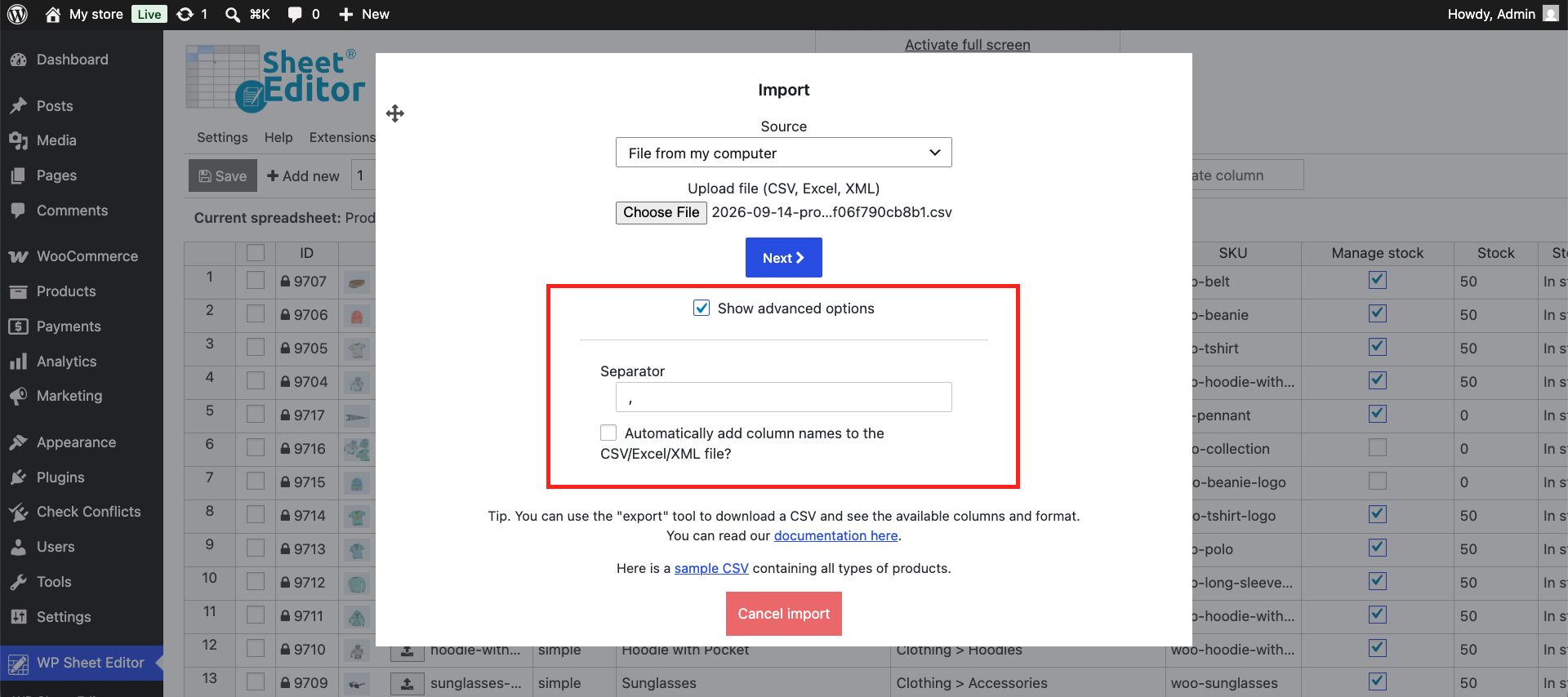
Optional: Tick Show advanced options if you need to change CSV field separator.
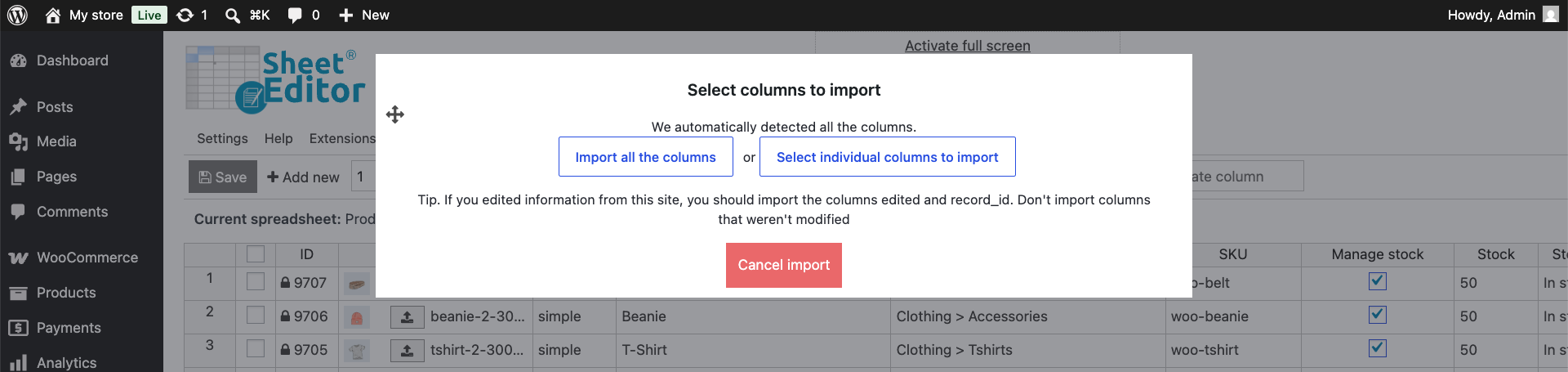
Map your spreadsheet columns:
- Select Import all the columns to automatically match the headers, or choose Select individual columns to import if you only want to update specific price fields.
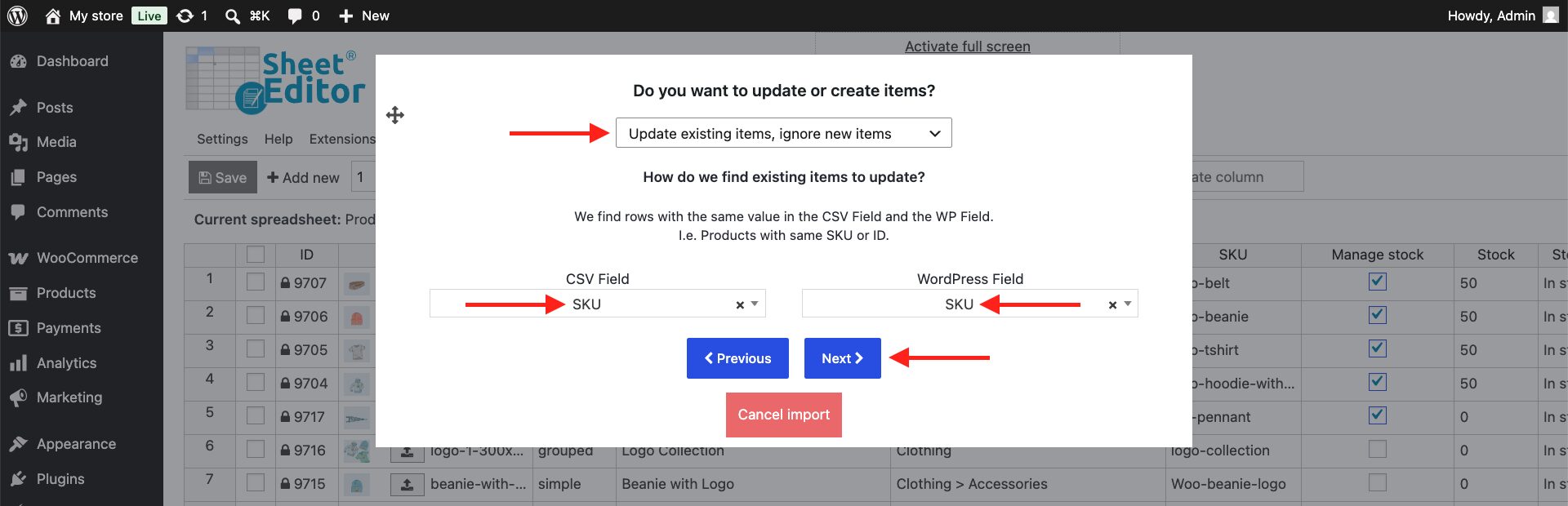
Next, choose how WP Sheet Editor should identify the products you want to update:
- Select Update existing products and ignore new products so the import only updates products that already exist in your store.
- Matching Field: Match the rows by SKU or ID so each update goes to the correct product.
- Click Next.
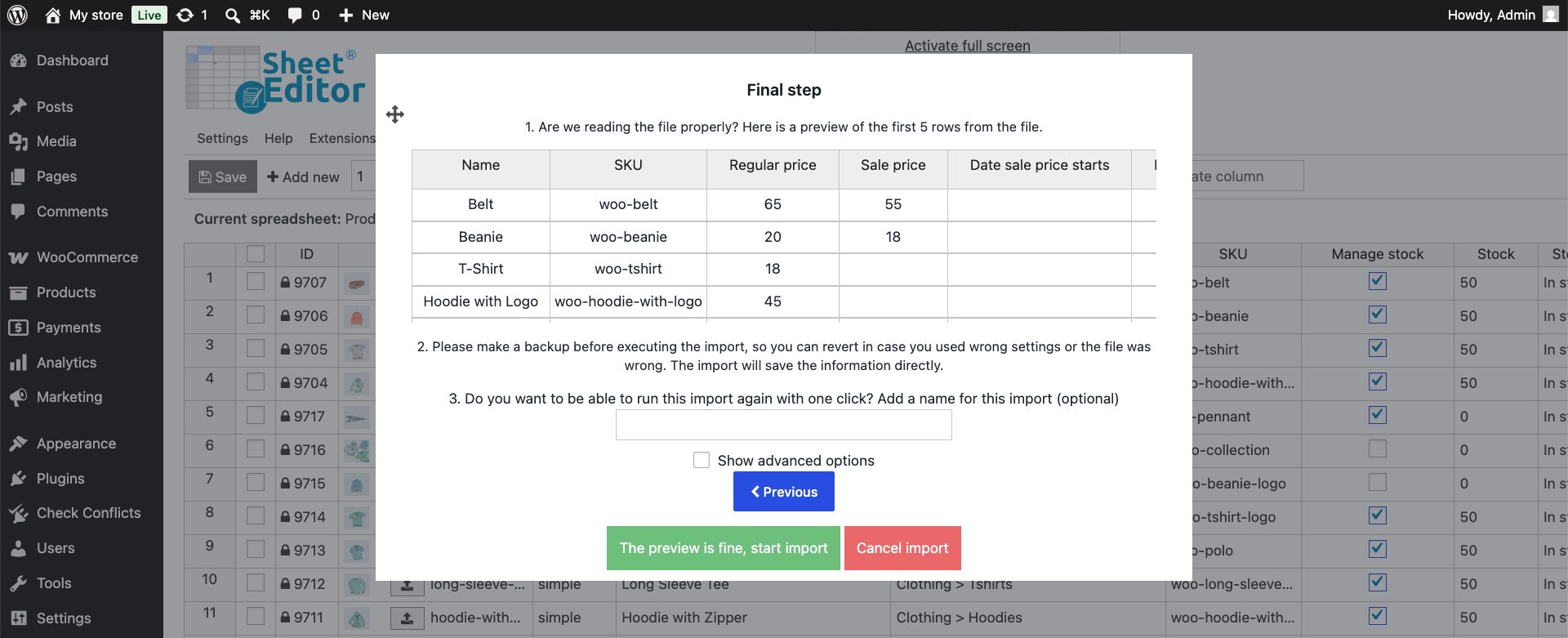
Review the preview to make sure the products and prices look correct. When everything is ready, click Start import to apply the changes.
Start editing WooCommerce prices in Google Sheets or Excel
Exporting your WooCommerce catalog to Microsoft Excel or Google Sheets files gives you complete flexibility to manage product prices offline, run complex pricing formulas, and collaborate with your team safely. With WP Sheet Editor, you can export pricing columns in seconds, apply changes in your favorite spreadsheet editor, and import updated prices back to WooCommerce without risking catalog errors or granting full administrative access to offsite staff.