
If your WooCommerce product titles are too long, you could be hurting your SEO rankings and reducing your click-through rate (CTR). Search engines like Google often truncate long titles, which means potential customers won’t see the full value of your product.
Long, cluttered product titles also make your store look less professional and harder to scan. Clear, concise titles improve user experience and help shoppers quickly understand what you’re selling.
If you have hundreds or thousands of products, manually reviewing each title isn’t practical. In this tutorial, you’ll learn how to find WooCommerce products with very long titles and shorten them in bulk using a spreadsheet—no coding required.
Why product title length matters for WooCommerce SEO
- Higher rankings: Optimized titles help search engines understand your product
- Better CTR: Short, clear titles attract more clicks
- Improved user experience: Customers can scan products faster
- Avoid truncation: Google typically shows 50–60 characters
Tip: Keep product titles between 50–60 characters or under ~600 pixels.
Examples of long vs optimized product titles
- Too long: Buy High-Quality Handmade Leather Shoes for Men with Free Shipping Worldwide and 2-Year Warranty Included
- Optimized: Handmade Leather Shoes for Men – Free Shipping
- Too long: Wireless Bluetooth Noise Cancelling Headphones with Extra Bass and 40 Hours Battery Life
- Optimized: Bluetooth Noise Cancelling Headphones – 40H Battery
Step 1: Install the WP Sheet Editor plugin
This plugin allows you to edit WooCommerce products in bulk using a spreadsheet interface, saving you hours of manual work.
You can download the plugin here:
Download WooCommerce Products Spreadsheet Plugin - or - Check the features
After installing and activating the plugin, go to Sheet Editor > Edit Products. You’ll see all your WooCommerce products displayed in a spreadsheet.

Step 2: Open the Search tool
The Search tool lets you filter WooCommerce products using advanced conditions like keywords, categories, price, or character length.
Click the Search button in the toolbar to open the filtering options.

Step 3: Filter WooCommerce products with long titles
To find products with titles that are too long, tick the Enable advanced filters checkbox and configure the following:

- Field key: Title
- Operator: CHARACTER LENGTH >
- Value: 60–70 (recommended) or 200 for extreme cases
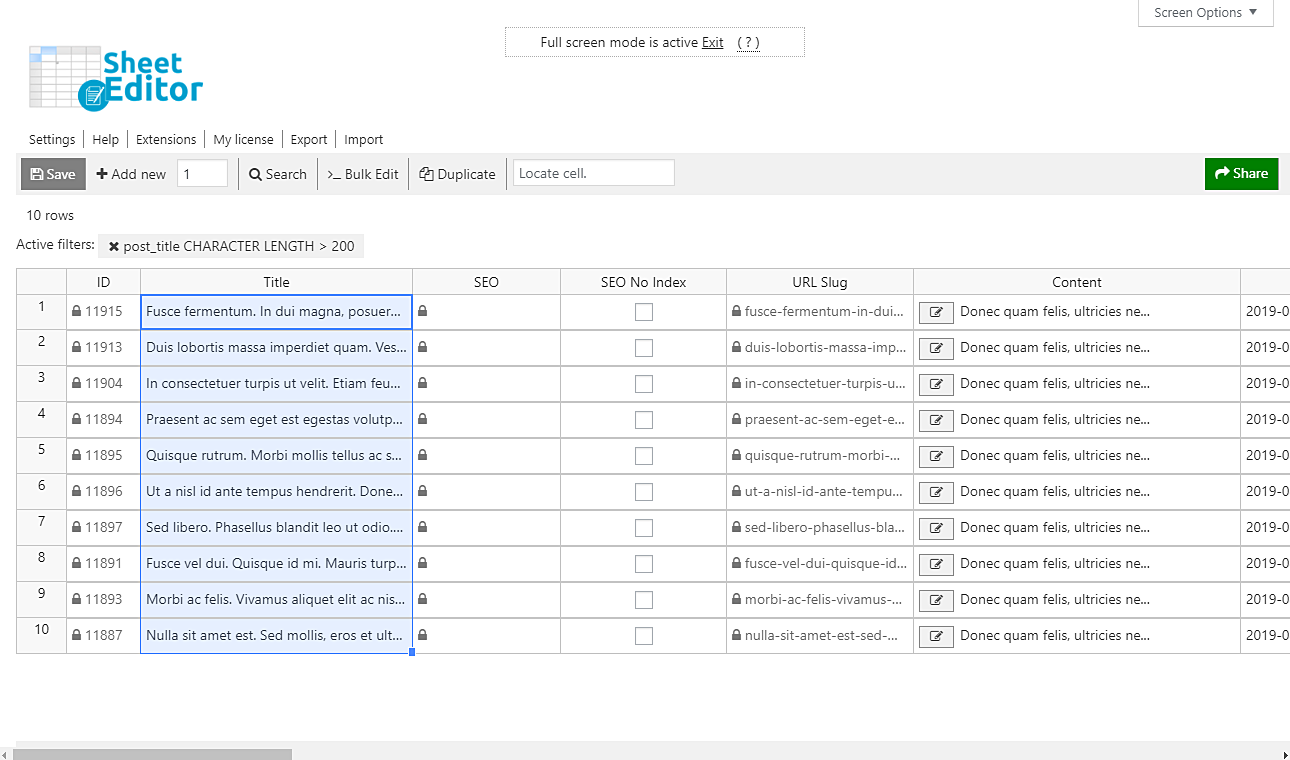
Click Run search to display all WooCommerce products with long titles.
Step 4: Bulk edit and shorten product titles
Once filtered, you can quickly optimize your product titles directly in the spreadsheet:
- Edit the Title column
- Place the main keyword at the beginning
- Remove unnecessary words and repetition
- Keep titles clear, descriptive, and easy to read
After editing, click Save to apply the changes to all products.
SEO best practices for WooCommerce product titles
- Front-load keywords: Put the main keyword first
- Include key attributes: Brand, size, or main feature
- Avoid keyword stuffing: Keep it natural and readable
- Make titles unique: Avoid duplicate product names
- Focus on intent: Match what customers are searching for
Optimizing WooCommerce product title length is a quick win for SEO and conversions. With the spreadsheet editor, you can find and fix long titles across your entire catalog in minutes.
No technical skills required—just filter, edit, and save your changes to improve your store’s visibility and performance.
You can download the plugin here:
Download Posts, Pages, and Custom Post Types Spreadsheet Plugin - or - Check the features