
If your WooCommerce product URLs are excessively long, cluttered with stop words, or auto-generated from massive product titles, you are actively hurting your store’s SEO. Long, complicated URLs dilute your keyword relevance, look spammy to potential customers, and can negatively impact your click-through rates (CTR) in Google search results.
For example, a URL like /product/buy-the-best-red-running-shoes-for-men-size-10/ is terrible for SEO. A much better, optimized permalink would simply be /product/red-running-shoes/.
If you’ve been making the mistake of leaving your auto-generated slugs untouched, that might be a major reason why your store struggles to gain organic traffic. To fix this in default WooCommerce, you would have to open every single product page, click “Edit” next to the permalink, type the new slug, and save the product. Doing this for hundreds or thousands of products is an absolute nightmare.
Fortunately, there is a very simple and powerful solution. In this tutorial, we will show you how to instantly filter your catalog to find products with long URLs and edit their slugs in bulk using a fast spreadsheet interface.
1. Install the WooCommerce Products Spreadsheet Plugin
Filtering and editing thousands of WooCommerce permalinks has never been easier. To bypass the slow default dashboard, we will use the WP Sheet Editor – WooCommerce Products plugin. This tool allows you to view and edit hundreds of products simultaneously using an intuitive grid, and it features an advanced Search tool to find exact character limits.
You can download the plugin here:
Download WooCommerce Products Spreadsheet Plugin - or - Check the features
Once the plugin is installed and activated on your WordPress site, go to WP Sheet Editor > Edit Products to open the spreadsheet.

2. Open the Advanced Search Tool
Instead of scrolling manually to spot long URLs, we will let the plugin’s database query do the heavy lifting. This tool will help you filter massive catalogs in just a few seconds.
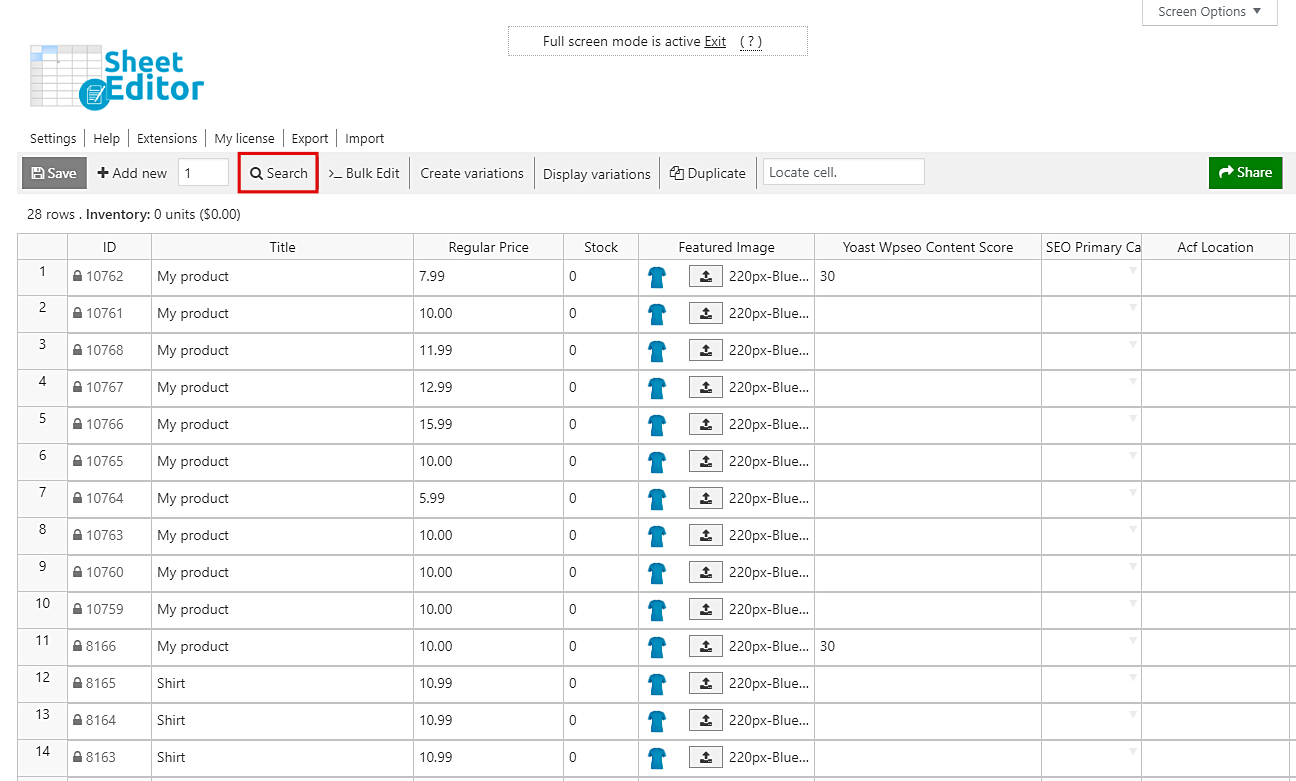
Open the filtering panel by clicking on the Search button located on the plugin’s top toolbar.
3. Filter Your Products by URL Character Length
URLs are the direct path to your products. SEO best practices dictate that your permalinks should be short, concise, and focused strictly on your primary target keywords. Generally, your URL slug should be well under 100 characters.
We are going to configure the search tool to find all products that violate this rule.
Tick the Enable advanced filters checkbox inside the Search popup, and then configure the following values:

- Field key: URL Slug
- Operator: CHARACTER LENGTH >
- Value: 100 (Note: You can adjust this number. For stricter SEO optimization, you might even set this to 70 or 80).
Now, simply click on Run search. The plugin will query your database and the spreadsheet will reload, displaying only the products that have unoptimized, excessively long URLs.
4. Optimize Your Slugs Directly in the Spreadsheet
Done! You have successfully isolated all your problematic links.
Now you can start rewriting and optimizing your URLs. You don’t need to go through the tedious process of opening each product page. Just scroll to the URL Slug column in the spreadsheet and type your new, keyword-rich permalinks directly into the cells.
Important SEO Reminder: If these products have been live for a while and are already indexed by Google or linked on social media, changing the URL will result in a 404 error for anyone using the old link. Make sure you have a redirection plugin active (like Redirection or Rank Math) to automatically create 301 redirects from the old slug to your newly optimized slug!
Fortunately, if you use the Redirection plugin together with our free redirection extension, the redirects will be automatically generated.
Here’s a tutorial where you will learn how to bulk generate SEO friendly URLs with generative AI.
Once you are happy with your new, clean URLs, click on Save on the top toolbar to apply the changes across your entire WooCommerce store instantly.
You can download the plugin here:
Download WooCommerce Products Spreadsheet Plugin - or - Check the features