
WP Sheet Editor’s Google Sheets Sync service lets external collaborators, suppliers, and copywriters edit WooCommerce products, update prices, and manage stock without giving them access to your WordPress dashboard.
Giving external contributors access to your WordPress dashboard can create unnecessary security and management issues. Standard WordPress roles often give users more access than they actually need. For example, a freelancer updating product descriptions or an employee managing inventory could accidentally change site settings, modify plugins, or access customer and order information they don’t need to see. Managing several WordPress user accounts also adds more work for your team.
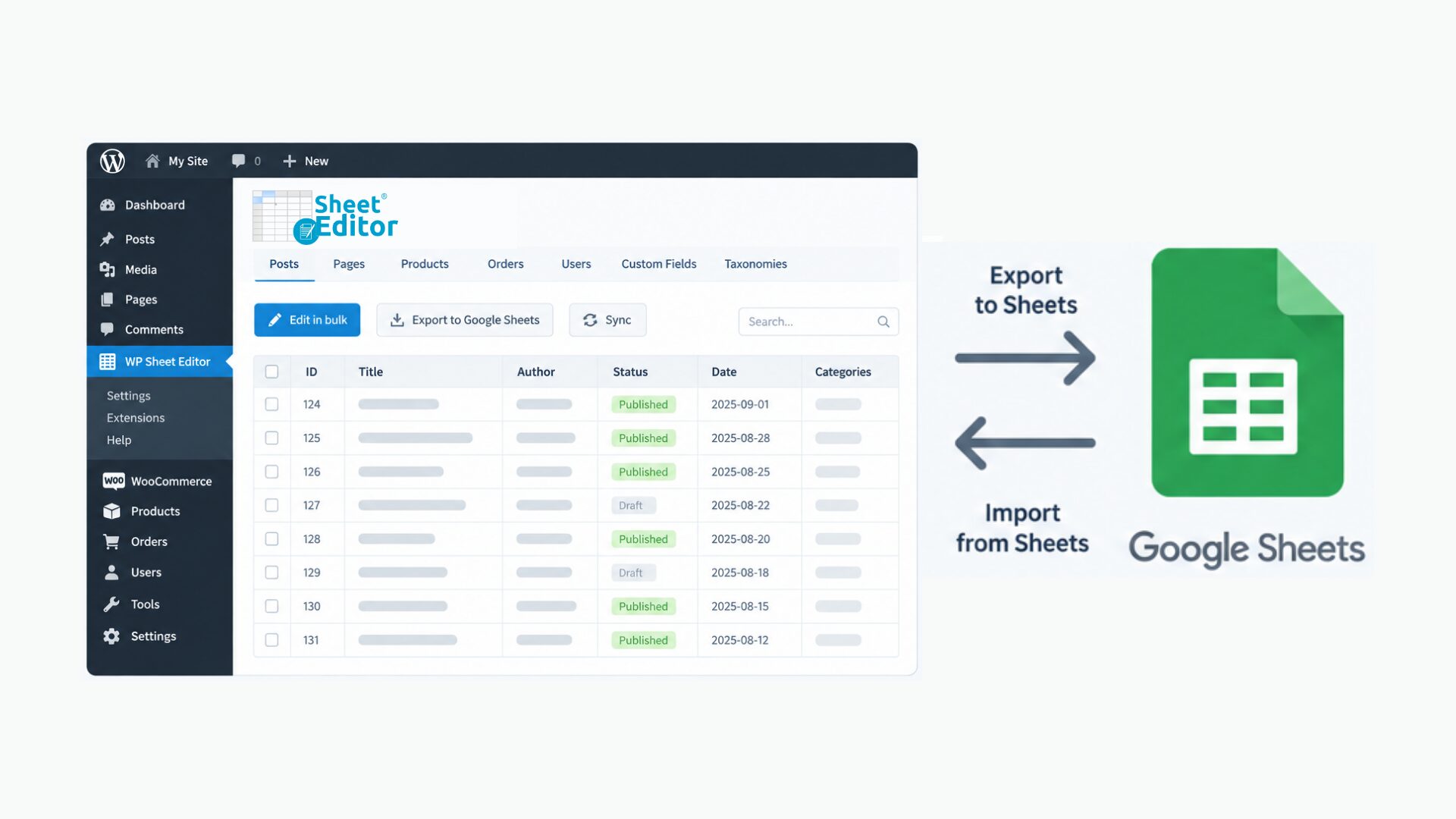
With WooCommerce and Google Sheets connected, you can keep product management separate from your WordPress dashboard. Team members work from a shared Google Sheet using the permissions available in Google Workspace, while WP Sheet Editor syncs their changes back to WooCommerce automatically.
Delegate WooCommerce Product Management Through Google Sheets
You can delegate product management to your team members without granting them wp-admin permissions. Just follow these simple steps:
- Install and activate the WP Sheet Editor for WooCommerce Products plugin and the Google Sheets Sync extension on your WordPress site.
- Connect your WordPress site to your Google account using the Google Sheets Sync connector.
- For complete configuration instructions, refer to our guide on how to sync WooCommerce with Google Sheets.
- Open WP Sheet Editor > Edit Products, hover over Google Sheets, and select Quick sync setup.
- Optional: Select Bidirectional sync, choose the columns your team needs to edit (you can omit specific columns to protect sensitive columns), set the SKU as the row identifier, and click Start sync.
- Open the generated Google Sheet in your Google account, configure the sharing permissions for your team members.
Once everything is set up, your team can manage product information from Google Sheets while WP Sheet Editor keeps your WooCommerce data updated according to your sync settings. This gives external contributors a simpler way to work with your catalog without requiring WordPress dashboard access.
Why Manage WooCommerce Team Workflows in Google Sheets?
- Keep WordPress access separate: External contributors don’t need WordPress credentials, so they can’t access your site settings, layout or customer data.
- Control which fields people can edit: Protect important fields such as SKUs and prices in Google Sheets while allowing team members to update descriptions, stock, or other fields they are responsible for.
- Keep a record of changes: Google Sheets version history shows who made changes and when, making it easier to review or undo an incorrect edit.
- Process large updates automatically: Scheduled imports can update your catalog in the background, so you don’t have to manually upload files every time your team makes changes.
1. Let External Contributors Work Without WordPress Dashboard Access
Normally, giving someone access to WooCommerce product data means creating a WordPress user account and assigning a role such as Shop Manager or Editor. These roles can provide access to much more than the product fields the person actually needs to work with.
With WP Sheet Editor’s Google Sheets Sync, you can export your product catalog to a private Google Sheet and share that sheet with the people who need to update it. For example, copywriters can edit titles and descriptions, while inventory staff can update stock quantities. The changes can then be synced back to WooCommerce automatically.
Your contributors can complete their work in Google Sheets without having to log in to WordPress at all.
2. Protect Sensitive WooCommerce Fields in Google Sheets
WordPress doesn’t provide a simple way to let someone edit product descriptions while preventing them from changing prices or SKUs. Google Sheets gives you another option through range protection.
- Identify the columns containing sensitive information, such as
regular_price,sale_price, orsku. - Avoid exporting those columns or use Google Sheets permissions to limit who can edit those columns.
- Leave fields such as
post_content,post_excerpt, ormanage_stockavailable to the team members responsible for them.
This makes it easier to give each person access to the product information they actually need without giving them control over the entire catalog.
3. Review Changes with Google Sheets Version History
If you want to keep track of individual changes made in WordPress, you may need an additional audit logging solution. Google Sheets already includes version history, which can be useful when several people are working on the same product catalog.
- Check when a change was made.
- See which contributor made the change.
- Restore an earlier value if someone enters an incorrect price, description, or other piece of information.
This gives your team a convenient way to review spreadsheet changes without adding another logging system to your WordPress site.
4. Let Suppliers Update Stock Without CSV Files or WordPress Access
Sharing inventory updates through CSV files can become inconvenient when suppliers or warehouse teams need to make changes regularly. You may have to deal with formatting issues, mismatched SKUs, or failed imports, especially when working with large catalogs.
With a scheduled bidirectional sync, you can give suppliers or warehouse staff access to a dedicated Google Sheet instead. They can enter updated stock quantities, lead times, or other product information directly in the spreadsheet, and WP Sheet Editor can sync those changes to WooCommerce according to your chosen schedule.
Depending on your setup, you can use scheduled syncs such as hourly or daily updates or use real-time syncing. This removes the need to manually download and upload CSV files whenever your inventory changes.
5. Manage Product Variations and Custom Fields
Delegating catalog management can become more complicated when your store uses variable products, custom fields, or multilingual content. WP Sheet Editor lets you manage these types of WooCommerce data from the spreadsheet as well.
- Product Variations: View variation rows alongside their parent products and update information such as size, color, individual prices, and variation stock.
- Custom Meta and ACF: Work with fields created with Advanced Custom Fields (ACF), Pods, and Meta Box without having to edit the data manually or change your site’s code.
- Multilingual Catalogs: Work with WooCommerce Multilingual (WPML) and Polylang fields so translators can update localized product content without needing access to your site’s translation settings.