
In this tutorial, you’ll learn how to search for WordPress posts by word count. This allows you to find posts that are too long or too short. Of course, manually checking the word count of each post is time-consuming, but with WP Sheet Editor you can easily find products based on the number of words in the post content.
You can download the plugin here:
Download Posts, Pages, and Custom Post Types Spreadsheet Plugin - or - Check the features
After setting up the plugin and its license, you need to follow the steps below to search for posts based on word count.
1- Open the posts spreadsheet
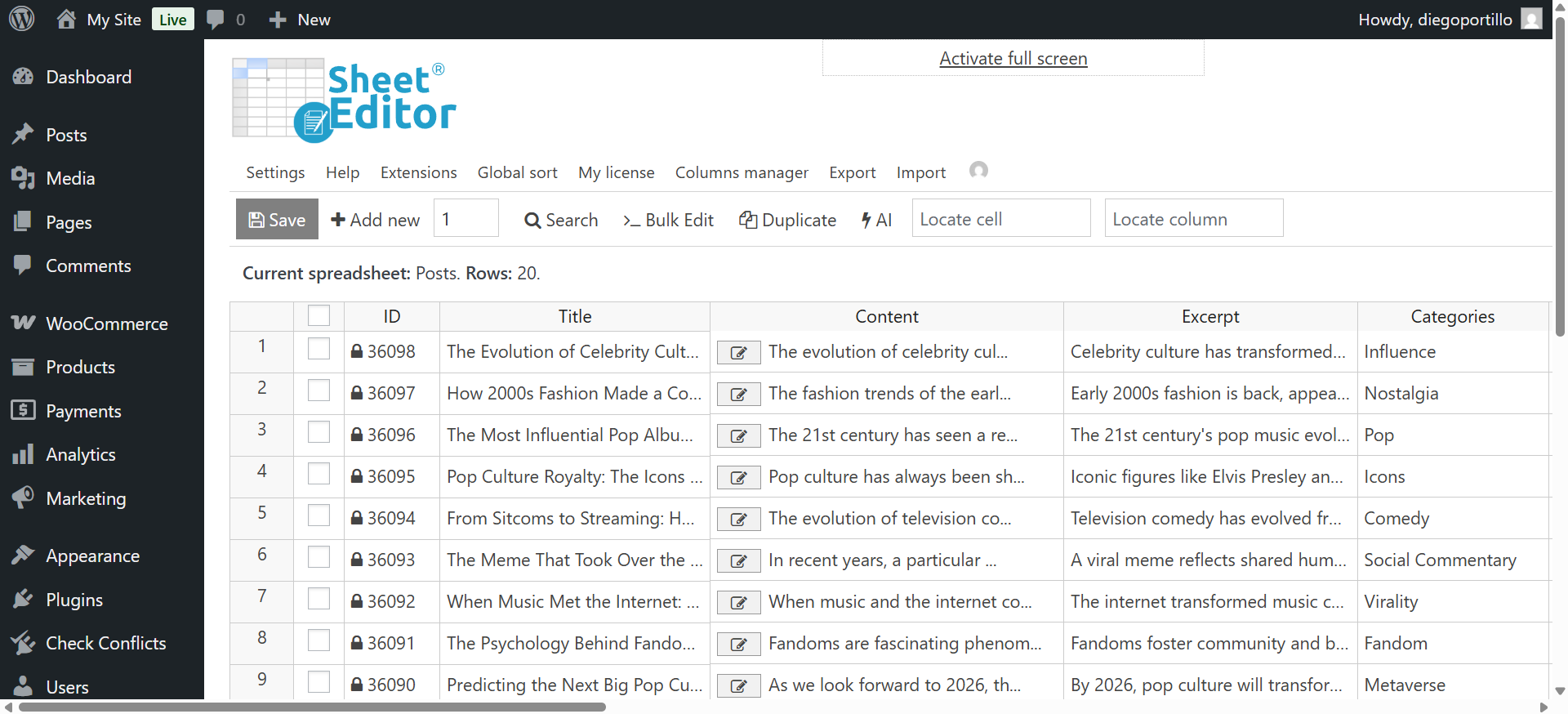
Go to WP Sheet Editor > Edit Posts to open the WordPress posts spreadsheet.
2- Open the “Search” tool
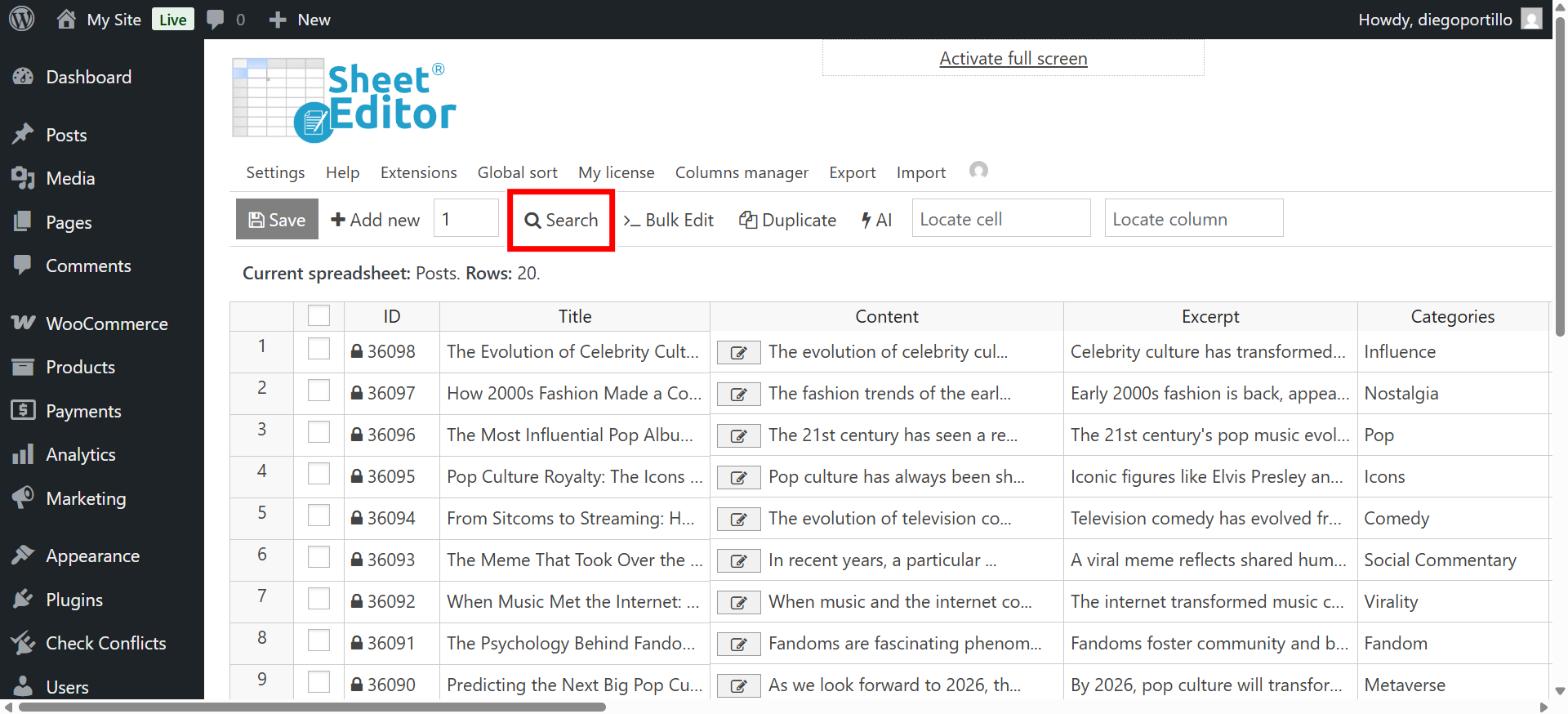
Click the Search button to open the advanced search panel, which you can use to filter posts using any field: title, category, author, date, content, and more.
3- Search for WordPress posts by word count in the content
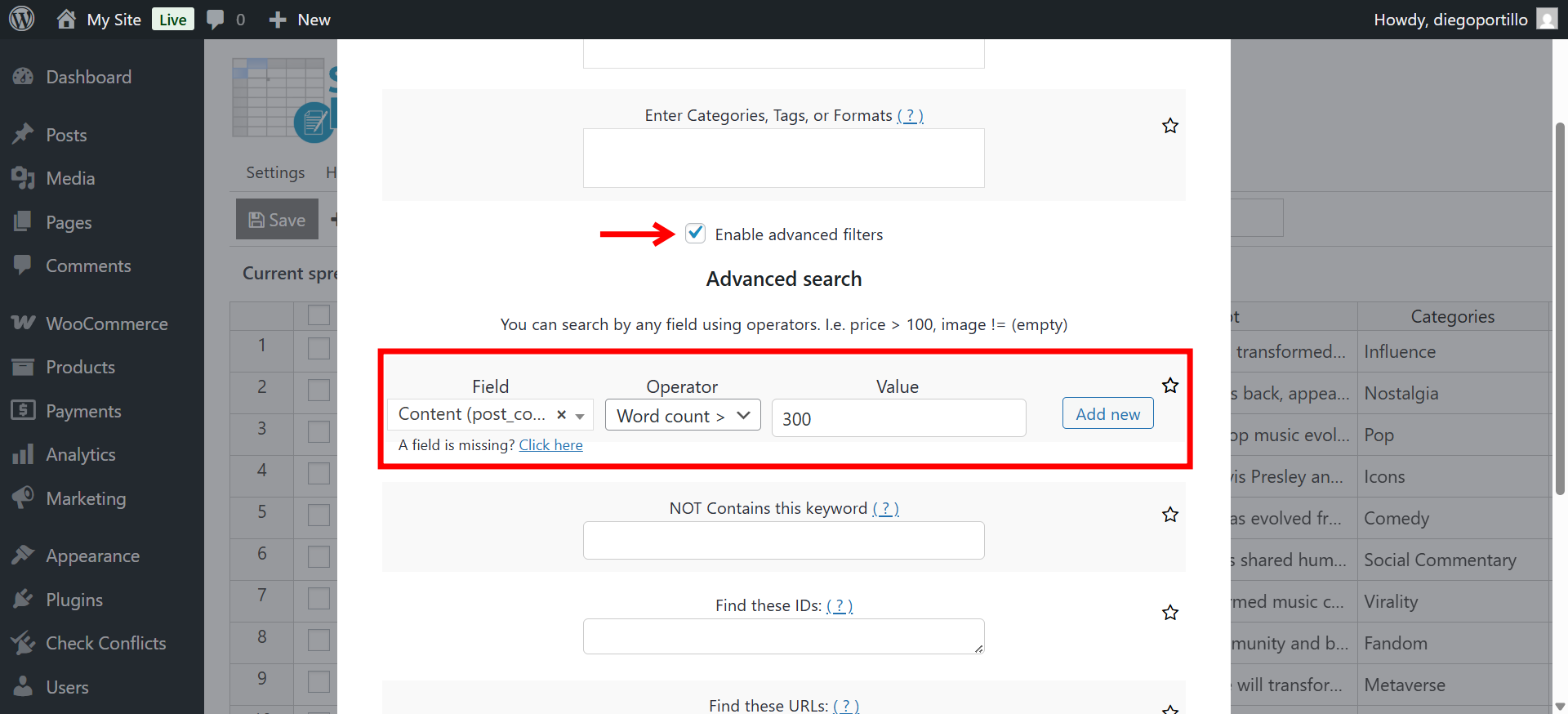
Once you’re in the Search tool, you need to select these values to filter posts based on number of words in content:
- Tick the Enable advanced filters checkbox.
- Field: Content
- Operator: Select the operator you want to use:
- To find long posts, use Word Count > and set a number; for example, enter 1500 to display posts with more than 1500 words.
- To find short posts, use Word Count < and set a number; enter 300, for example, to display posts with fewer than 300 words in the content.
- Value: Enter the number of words.
- Click Run search.
After running the search, the spreadsheet will display only the posts that match your selected word count criteria. You can review them directly in the spreadsheet, sort them by title or word count, and even edit their content inline if needed.
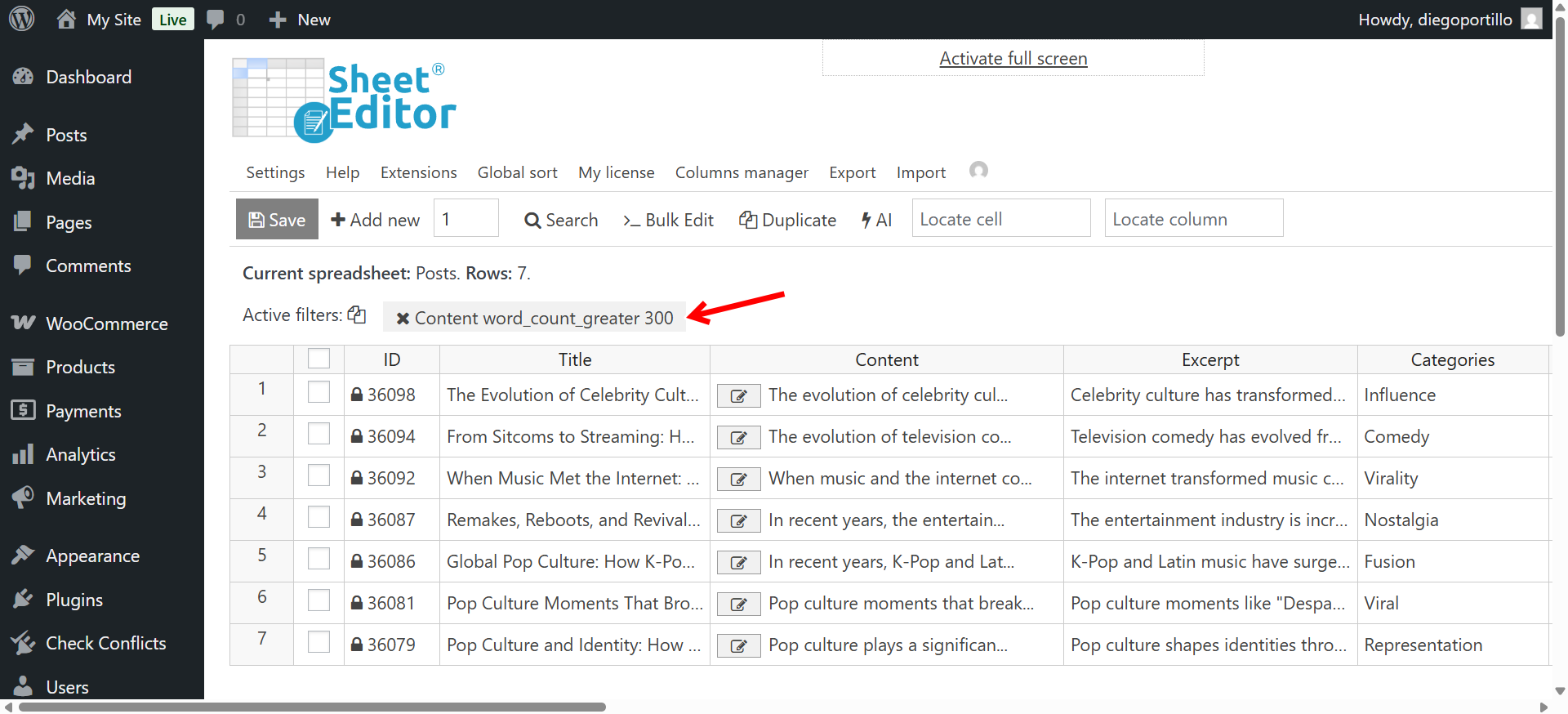
And that’s how you filter WordPress posts using a specific number of words. You can fin thin content and improve it, or you can find too long posts to manage their size.