
When managing a large WooCommerce store, it’s common to create hundreds of products quickly, sometimes without adding full descriptions right away. For example, if you’ve imported or created 600 products, many of them may not have any content yet.
However, product descriptions are essential. They help customers understand what they’re buying, improve SEO, and increase conversions.
The problem: WooCommerce doesn’t include a built-in way to assign a default description to multiple products at once. Editing products individually is not practical for large catalogs.
The solution: Use a bulk editing tool to automatically add a default product description to all products missing one.
Bulk Add Default Product Descriptions with WP Sheet Editor
WP Sheet Editor – WooCommerce Products Spreadsheet allows you to view and manage your entire product catalog in a spreadsheet interface.
With its Bulk Edit feature, you can quickly:
- Find products without descriptions
- Set a default product description in bulk
- Update hundreds or thousands of products at once
- Maintain consistent product content across your store
You can download the plugin here:
Download WooCommerce Products Spreadsheet Plugin - or - Check the features
Video Tutorial: Add Default Descriptions in WooCommerce
Step-by-Step Guide to Set Default Descriptions
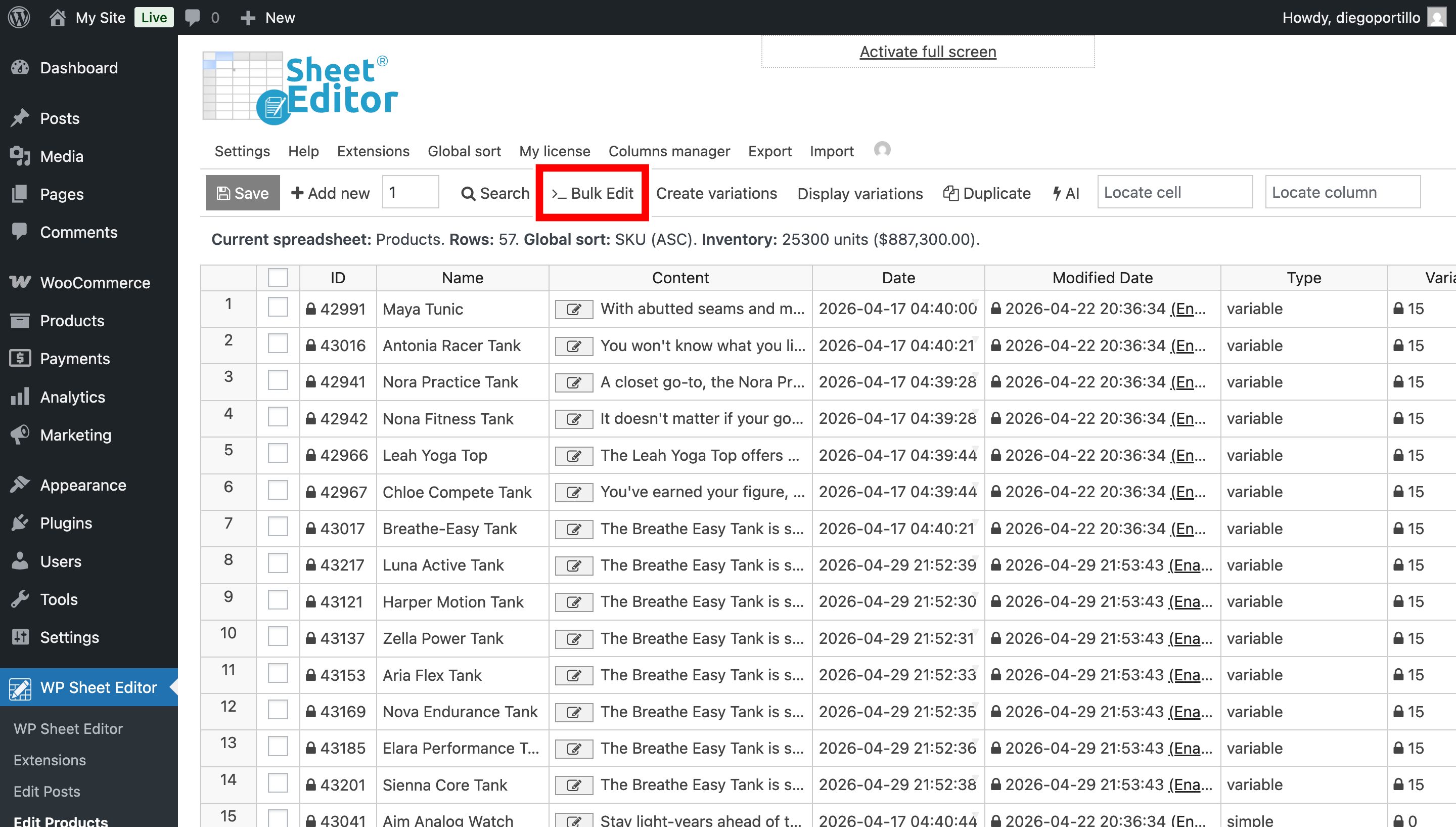
1. Open the Bulk Edit Tool
First, go to WP Sheet Editor > Edit products to open the spreadsheet.
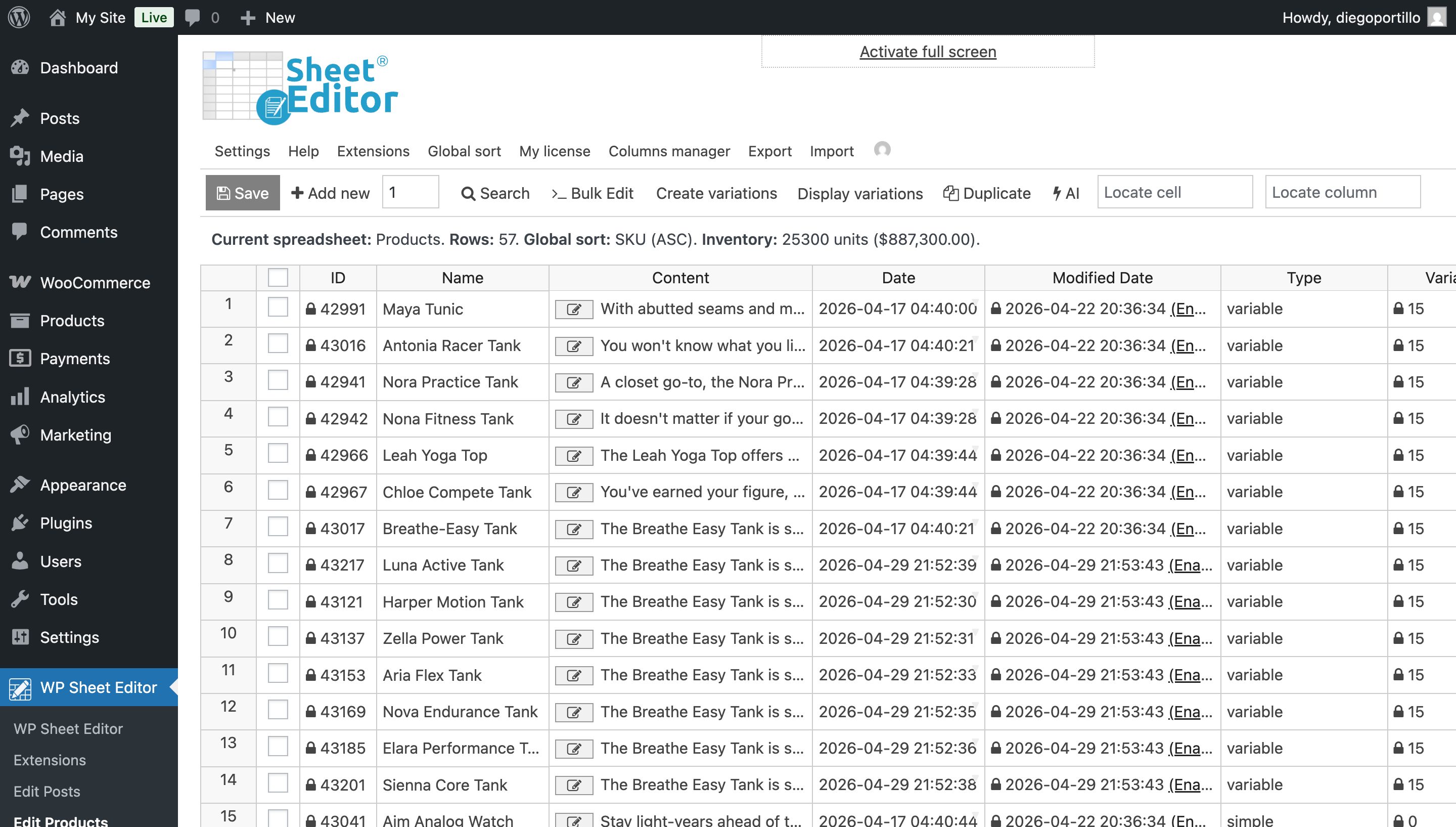
The Bulk Edit tool allows you to apply changes to multiple WooCommerce products simultaneously.
2. Filter Products Missing Descriptions
Before applying changes, you need to identify which products don’t have descriptions.
In the Bulk Edit tool:
- Select I want to search rows to update in the Select the rows that you want to update field
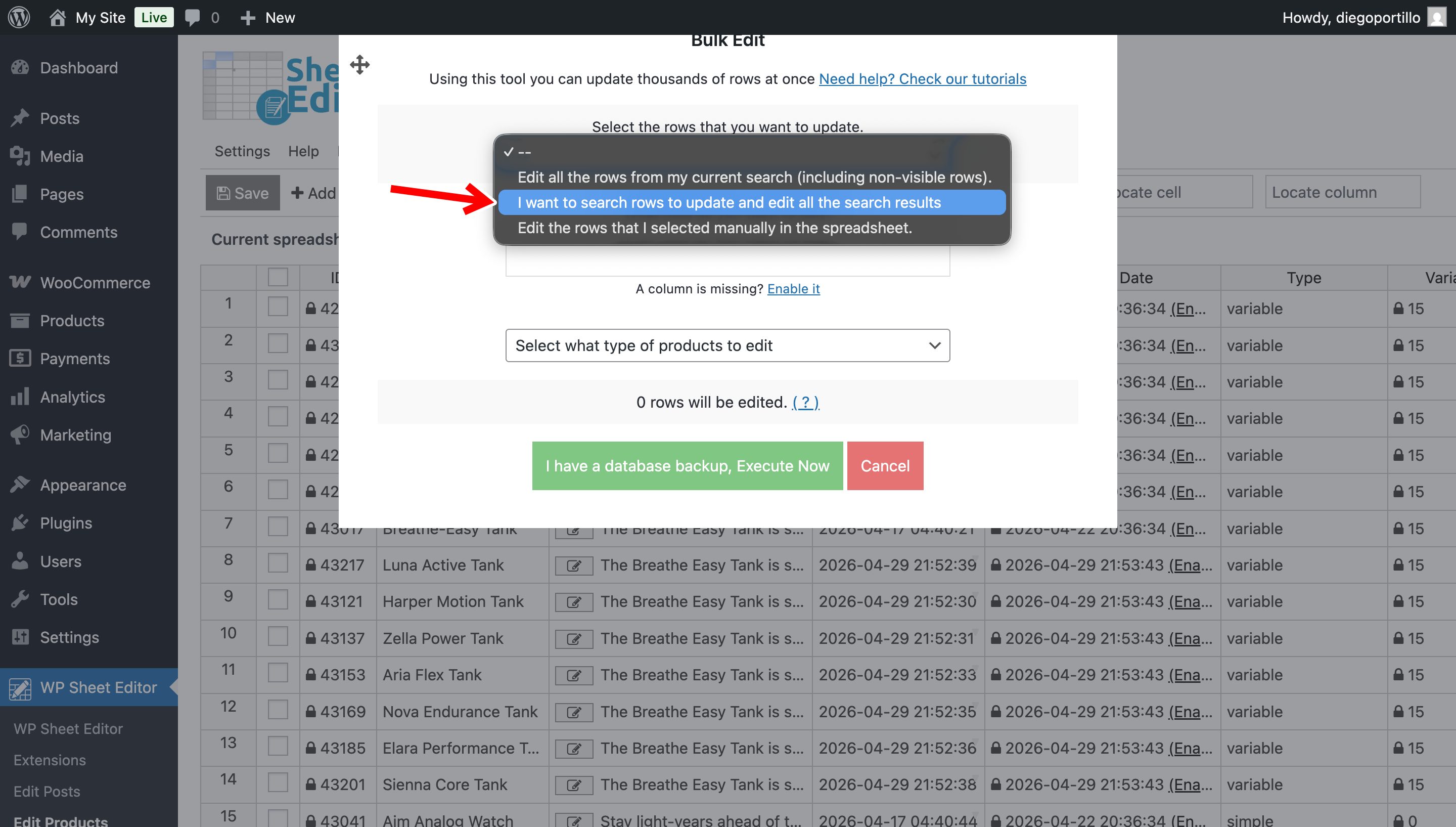
Then, enable advanced filtering options to find products with empty descriptions.
Use the following values:
- Field key: Content or Short description
- Operator: =
- Value: Leave empty
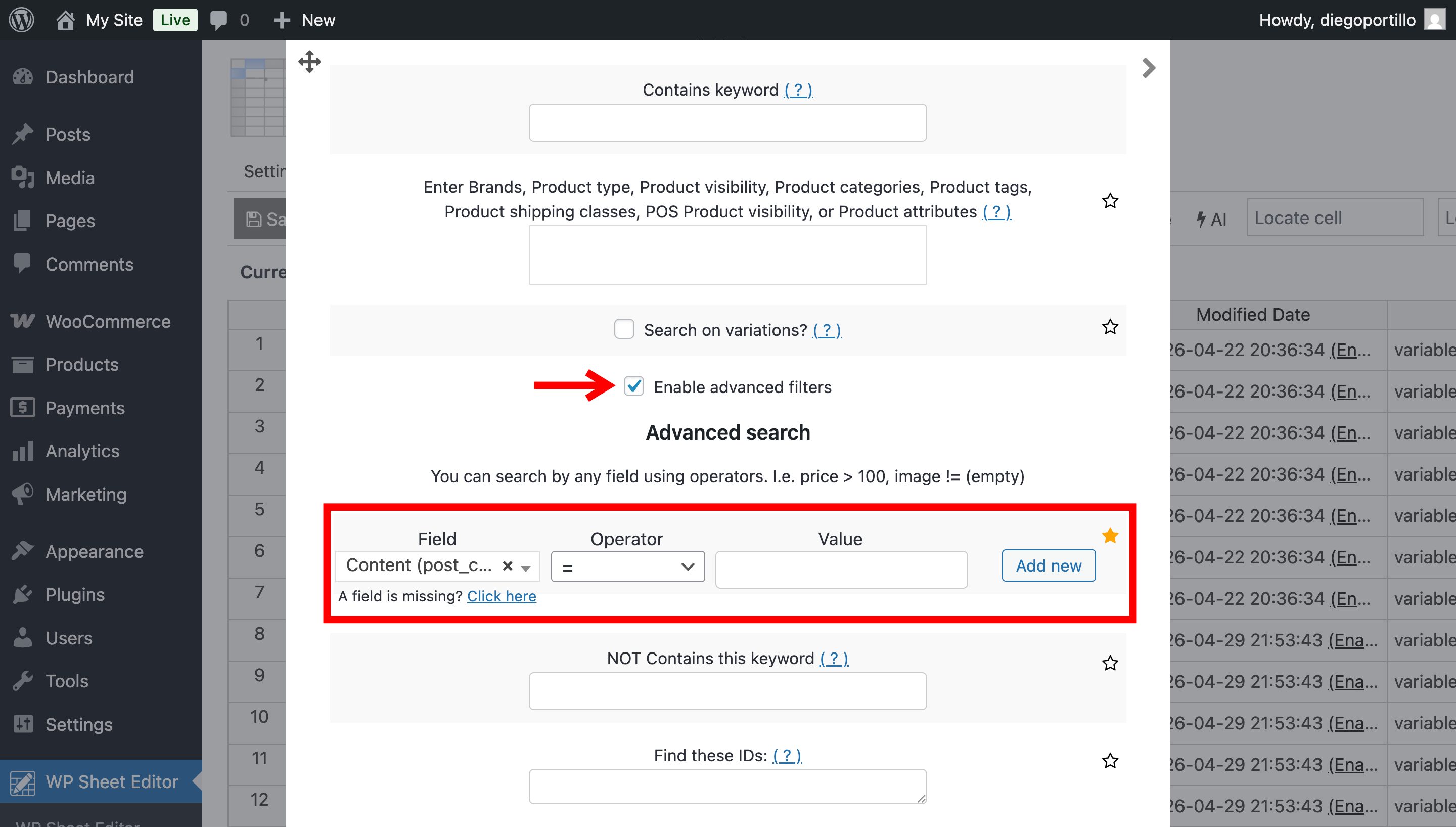
Click Run search to load all products missing descriptions.
3. Add a Default Description to All Filtered Products
Once your products are filtered, you can assign a default description in bulk.
- What field do you want to edit: Content
- Select type of edit: Set value
- Replace existing value with this value: Enter your default description (e.g., “This is a great product.” or a more detailed template)
- Click Execute now
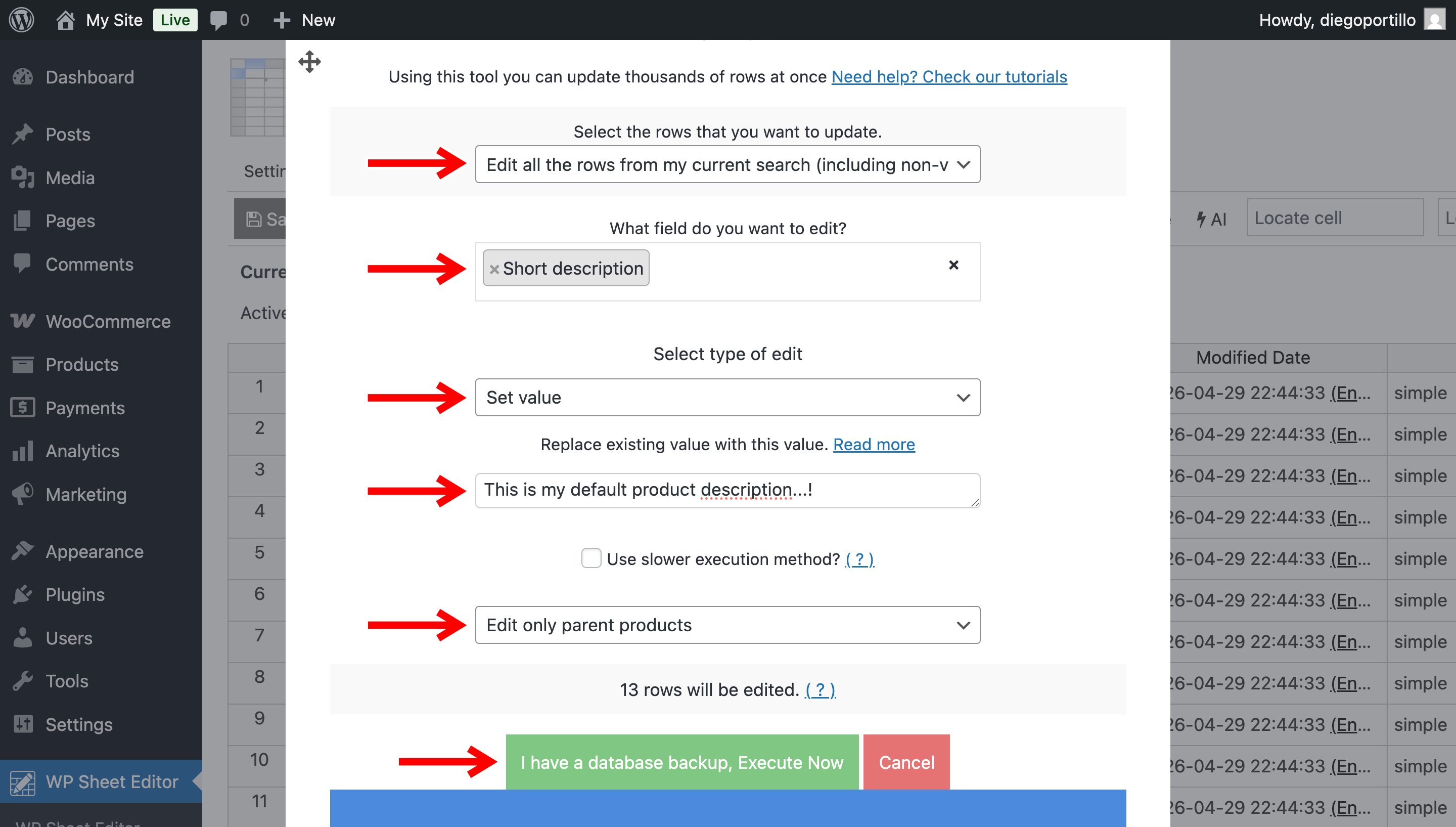
Done. All products that previously had no description will now display your default content.
Best Practices for Default Product Descriptions
When creating a default description, consider using a flexible template that can apply to multiple products while still providing value.
- Include general product benefits and features
- Use placeholders if you plan to customize later
- Keep it clear and informative for customers
- Incorporate basic SEO keywords naturally
Frequently Asked Questions
Can I add a default description without a plugin?
Not efficiently. WooCommerce doesn’t include a bulk option for this, so you would need to edit each product manually or use custom code.
Will this overwrite existing product descriptions?
No, if you filter only products with empty descriptions, existing content will remain unchanged.
Can I customize the default description later?
Yes. You can always update individual product descriptions or run another bulk edit with new content.
Does adding descriptions improve SEO?
Yes. Product descriptions help search engines understand your content and can improve visibility and rankings.
Conclusion
Adding default descriptions to WooCommerce products is a practical way to ensure your catalog remains informative, even when managing large inventories.
By using a bulk editing approach, you can quickly fill missing content, improve user experience, and maintain consistency across your store without manual work.
You can download the plugin here:
Download WooCommerce Products Spreadsheet Plugin - or - Check the features