
Let’s see how to find WordPress posts with duplicate featured image.
If you manage a large WordPress site with hundreds of posts, pages, or custom post types, you might occasionally end up with several posts sharing the same featured image.
This often happens after imports, content migrations, or when authors reuse images by mistake. While it’s not technically an error, duplicate featured images can make your website look repetitive, unorganized, and even harm your SEO.
Luckily, with WP Sheet Editor, you can easily find all WordPress posts that have the same featured image and fix them directly from a spreadsheet editor.
This tutorial will guide you step by step through finding duplicate featured images using the new “Contains duplicate values” operator in the WP Sheet Editor’s advanced search tool.
You can download the plugin here:
Download Posts, Pages, and Custom Post Types Spreadsheet Plugin - or - Check the features
Step 1: Open the posts spreadsheet
Go to your WordPress dashboard and navigate to WP Sheet Editor > Edit Posts. This will open the spreadsheet view, where you can see and manage all your posts just like you would in Excel or Google Sheets, directly inside WordPress.
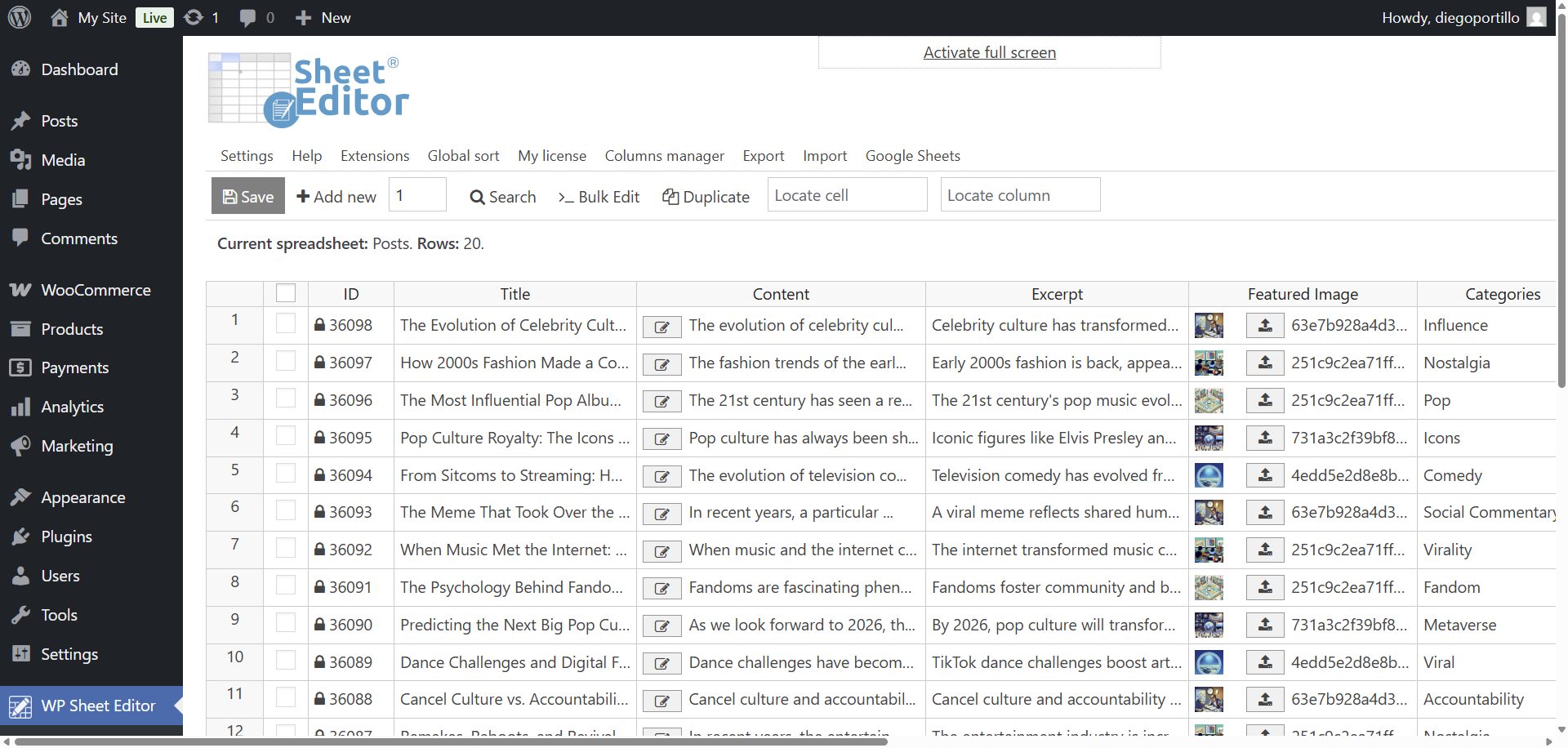
Each row in the spreadsheet represents a post, and each column corresponds to a field, such as Post Title, Content, Categories, Tags, Featured Image, and more. This layout allows you to quickly identify, compare, and edit your post data in bulk.
Step 2: Open the Search tool
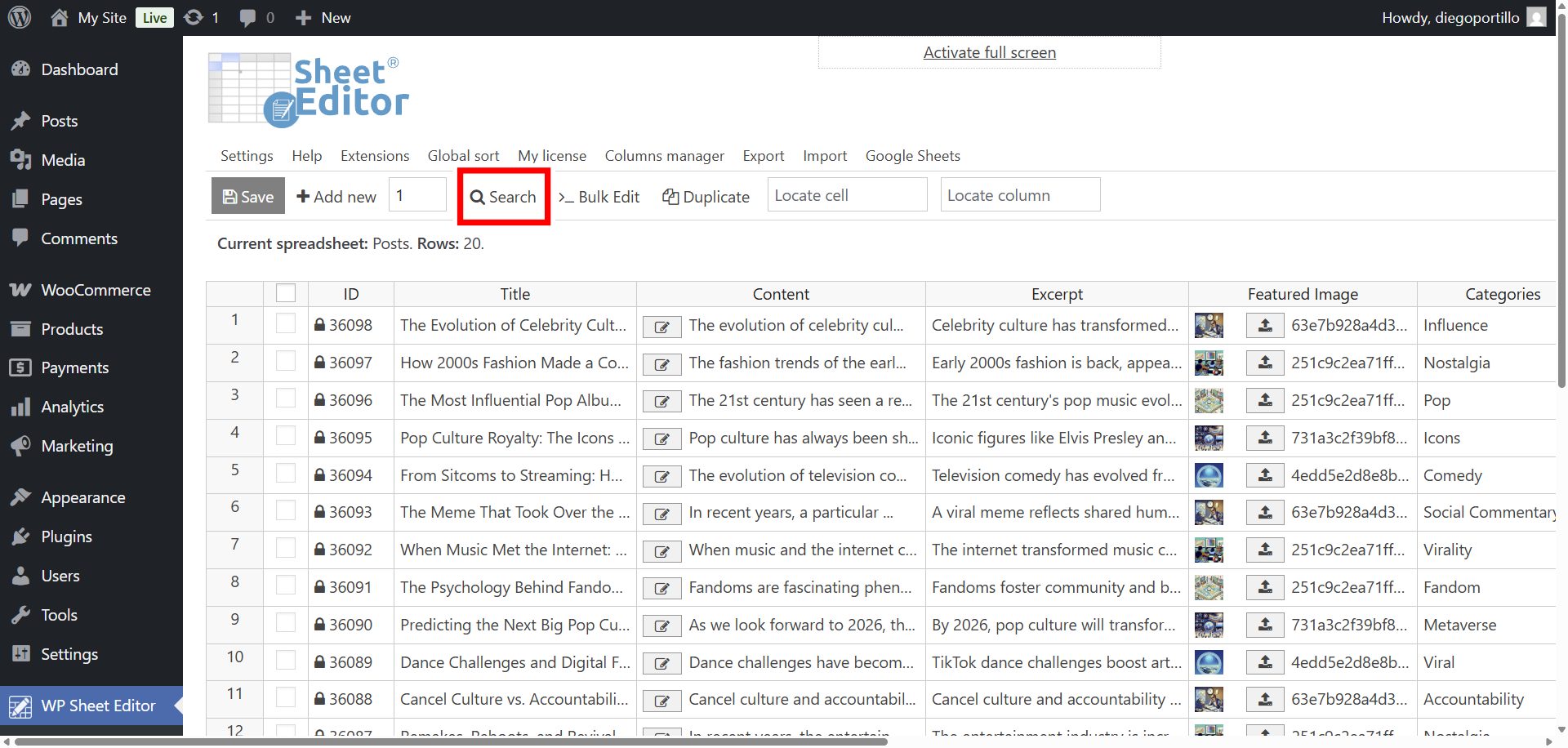
Click the Search button. This will open the advanced search panel, which lets you filter posts based on any field, including custom fields, taxonomy terms, metadata, and of course, the featured image.
This search feature allows you to combine multiple filters to pinpoint exactly what you’re looking for. In this case, you’ll use it to find posts that share the same featured image.
Step 3: Search for posts with duplicate images
We’ve added a new operator to the advanced search options called “Contains duplicate values”. This operator helps you find posts with repeated data in any field, such as duplicate titles, identical meta descriptions, repeated categories, or in this case, featured images.
- Check the Enable advanced filters box.
- In the Field dropdown, select Featured Image.
- In the Operator dropdown, select Contains duplicate values.
- Click Run search.
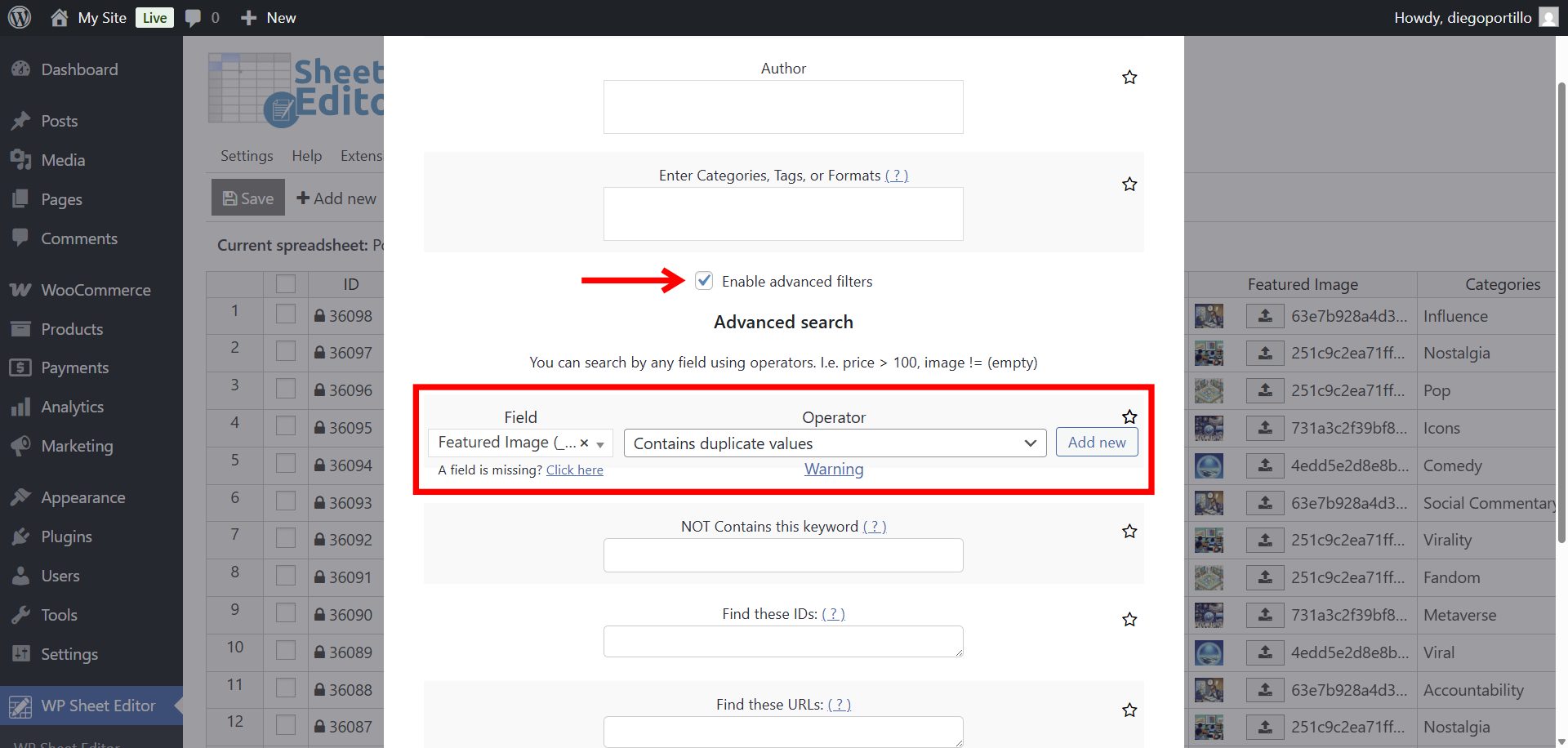
WP Sheet Editor will automatically search your posts and display only those that share the same featured image URL. You’ll instantly see which posts are using the same image. No need to check them one by one.
Step 4: Review and update your featured images
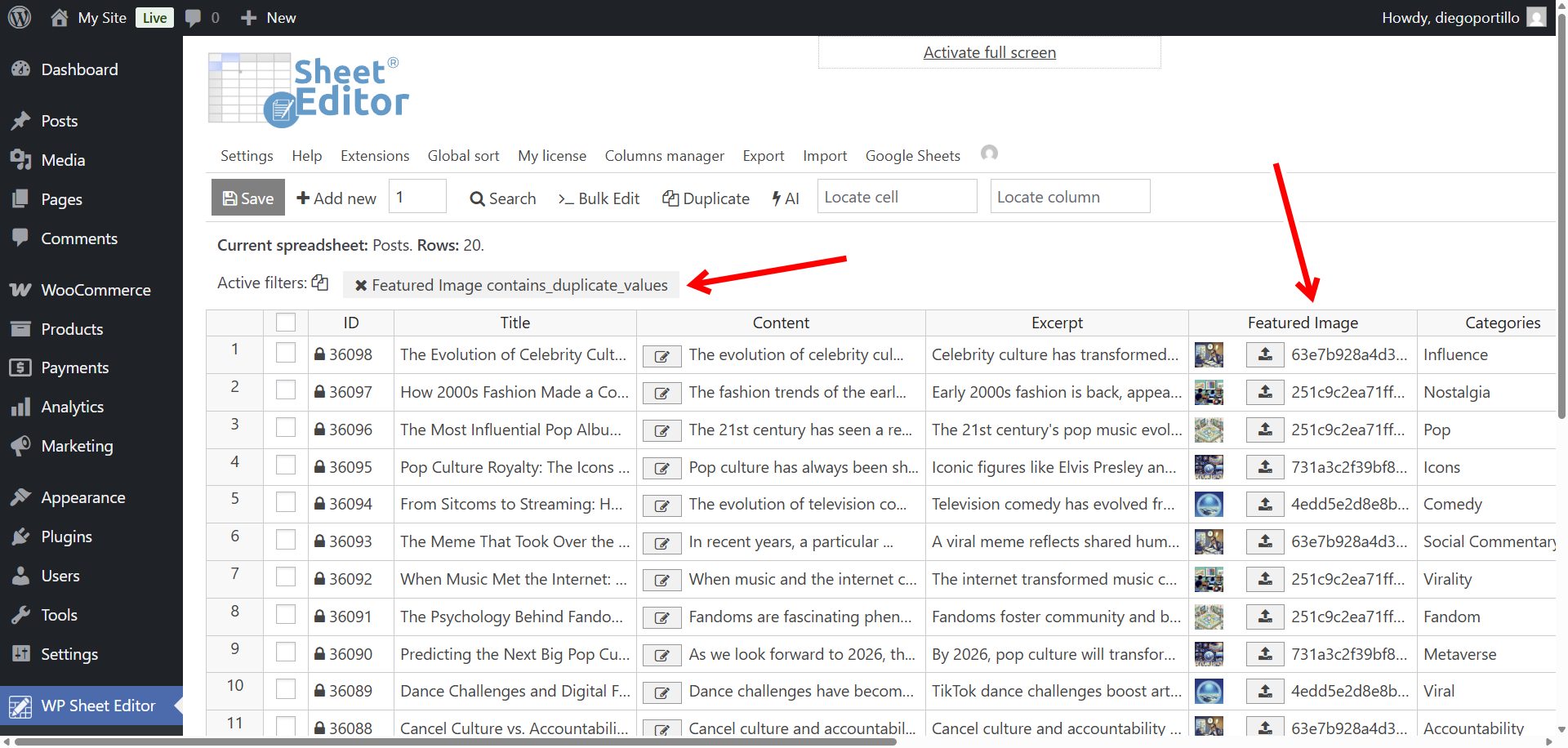
Now that you have a filtered list of posts with duplicate featured images, you can easily update them directly in the spreadsheet. Simply click the upload image buton in the Featured Image column, and the WordPress Media Library will open, allowing you to choose a new image or upload a replacement.
If you want to make changes in bulk, you can also use the Bulk Edit tool to modify or clear featured images for multiple posts at once. For example, you could remove duplicates or assign a specific image to all posts that meet your criteria.
Why it’s important to fix duplicate featured images
Having unique featured images for your posts improves your website’s overall quality and SEO performance. Here’s why:
- Visual clarity: Each post stands out on the homepage, category pages, and search results.
- Professional branding: Unique visuals make your site look more intentional and curated.
- SEO benefits: Unique images help avoid duplicate image metadata and improve click-through rates in Google Images.
Duplicate featured images can easily sneak into large WordPress sites, especially during imports or when multiple authors reuse the same visuals. But with WP Sheet Editor and its new “Contains duplicate values” search operator, you can find and fix them in seconds. No more guessing or manual checking. Just open the spreadsheet, run the search, and clean up your media across hundreds of posts effortlessly.
You can download the plugin here:
Download Posts, Pages, and Custom Post Types Spreadsheet Plugin - or - Check the features