
You can generate All In One SEO titles and meta descriptions automatically with AI right inside a WordPress spreadsheet, no matter how many posts, pages, products, or custom post types you manage. Instead of writing and pasting metadata one entry at a time, WP Sheet Editor – AI reads each item’s title, content, and focus keyphrase, then writes an optimized SEO title and description for it in seconds. Bulk generating this way for a few hundred items can turn what would normally take hours into a short session, while keeping the output consistent and keyword-aware.
Table of Contents
What this workflow solves
Writing a good SEO title and meta description for every page is repetitive. Each one needs to fit a character limit, include the focus keyphrase, summarize the page accurately, and still read naturally so a searcher wants to click. A single post is manageable, but hundreds of posts is where most sites fall behind and leave metadata blank or duplicated.
All In One SEO runs a TruSEO page analysis that flags problems like missing keywords and titles that are too long or short. It takes the guesswork out of knowing what is off, but it does not write the fix for you. That is the gap this tutorial closes: you use the spreadsheet to see which fields are empty or weak, then let AI fill and polish them in bulk.
It is worth remembering that search engines do not always display the title and description you set. They can assemble their own snippet based on the query. So the value of well-written metadata is not a guaranteed display, it is giving the search engine something good to show and giving your pages a strong, unique summary when it does. This makes quality and variety matter more than gaming a character count.
What you need to generate All In One SEO titles and descriptions with AI
This assumes All In One SEO is already installed and active on your WordPress site. From there you need three pieces, and two of them are WP Sheet Editor products.
1- WP Sheet Editor – Post Types
This plugin converts your WordPress posts, pages, WooCommerce products, and custom post types into a spreadsheet with advanced search, bulk edit, export, and import tools. It is the surface where you will manage All In One SEO fields. If you already own it, skip this item.
You can download the plugin here:
Download Posts, Pages, and Custom Post Types Spreadsheet Plugin - or - Check the features
2- WP Sheet Editor – AI
This is the AI assistant service for WP Sheet Editor. It connects to your chosen language model provider and makes generative AI commands available across every spreadsheet in the suite, including the global prompts and bulk commands used below.
You can sign up here:
Sign up to the WP Sheet Editor - AI Service - or - Check the features
3- An external API provider
The AI features run through an external API such as OpenAI or OpenRouter. You need an account with a provider and an API key to connect. WP Sheet Editor – AI works with these providers:
- OpenAI for text and images (more info here)
- OpenRouter (more info here)
- Any other provider that uses the same API format as OpenAI.
Follow this guide to learn how to connect AI providers inside WP Sheet Editor – AI.
AI prompts for All In One SEO titles and descriptions
The prompts below are the core of the whole workflow. They reference the post title, the content, and the focus keyphrase so the AI has real context to work with instead of guessing. They are meant as a starting point, so test them and adjust the wording to fit how your site’s content is written.
Because All In One SEO’s TruSEO analysis rewards a title that lands near 40 to 60 characters and includes the target keyword, the first prompt asks for exactly that range. The description prompt targets the 120 to 160 character range that keeps most snippets intact.
Prompt for generating AIOSEO titles:
Generate a concise, engaging SEO title (50-60 characters) based on the $Title$ and $Content$, ensuring it includes the $AIOSEO: Focus Keyphrase$. The title should be natural and compelling. Return plain text, free of quotation marks or unnecessary punctuation.
Prompt for generating AIOSEO descriptions:
Generate a compelling SEO description based on the $AIOSEO Title$ and $Content$, including the $AIOSEO Focus Keyphrase$. The description should be engaging, summarize the key points of the post, and encourage reader interest. Keep it under 155 characters for optimal search engine visibility. Return plain text only.
Avoid the trap of duplicate titles and descriptions. If the same wording gets reused across several posts, the TruSEO checks and search engines both see them as weak. The prompts above pull from each post’s own content, which keeps the output varied. If you ever spot repeats after a bulk run, the optimization prompts later in this guide can refresh the ones that look the same.
How to set up global prompts
You only write each prompt once. Saving them as global prompts means you can call them from any cell or any bulk edit with a short slug instead of retyping the full instruction. Learn more about global prompts here.
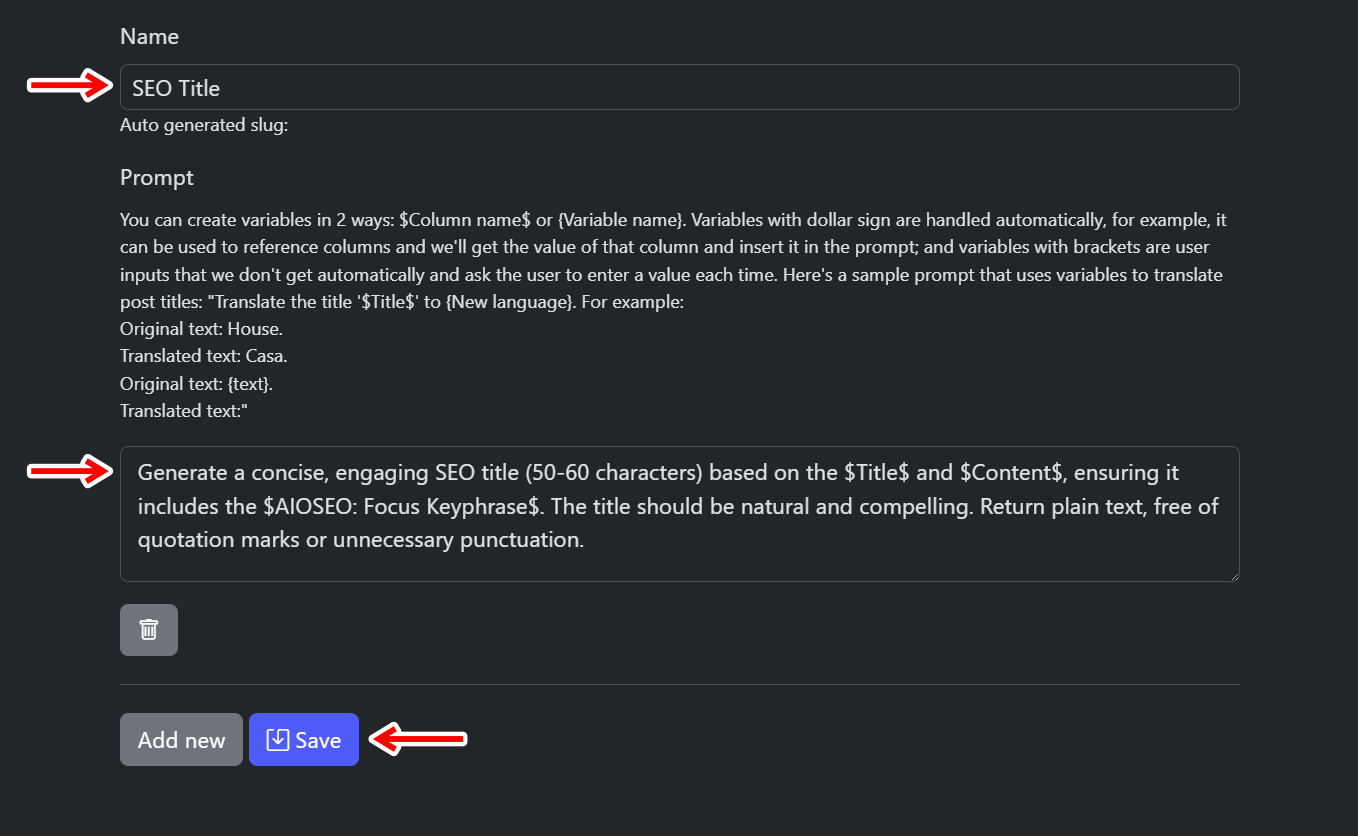
- Go to WP Sheet Editor > AI > Settings > Prompts.
- Click on Add new to create a new prompt.
- Enter the Name (for example, “SEO Title”) and the Prompt text.
- Click on Save.
The screenshot below shows where the prompt name and text are entered in the AI settings screen.
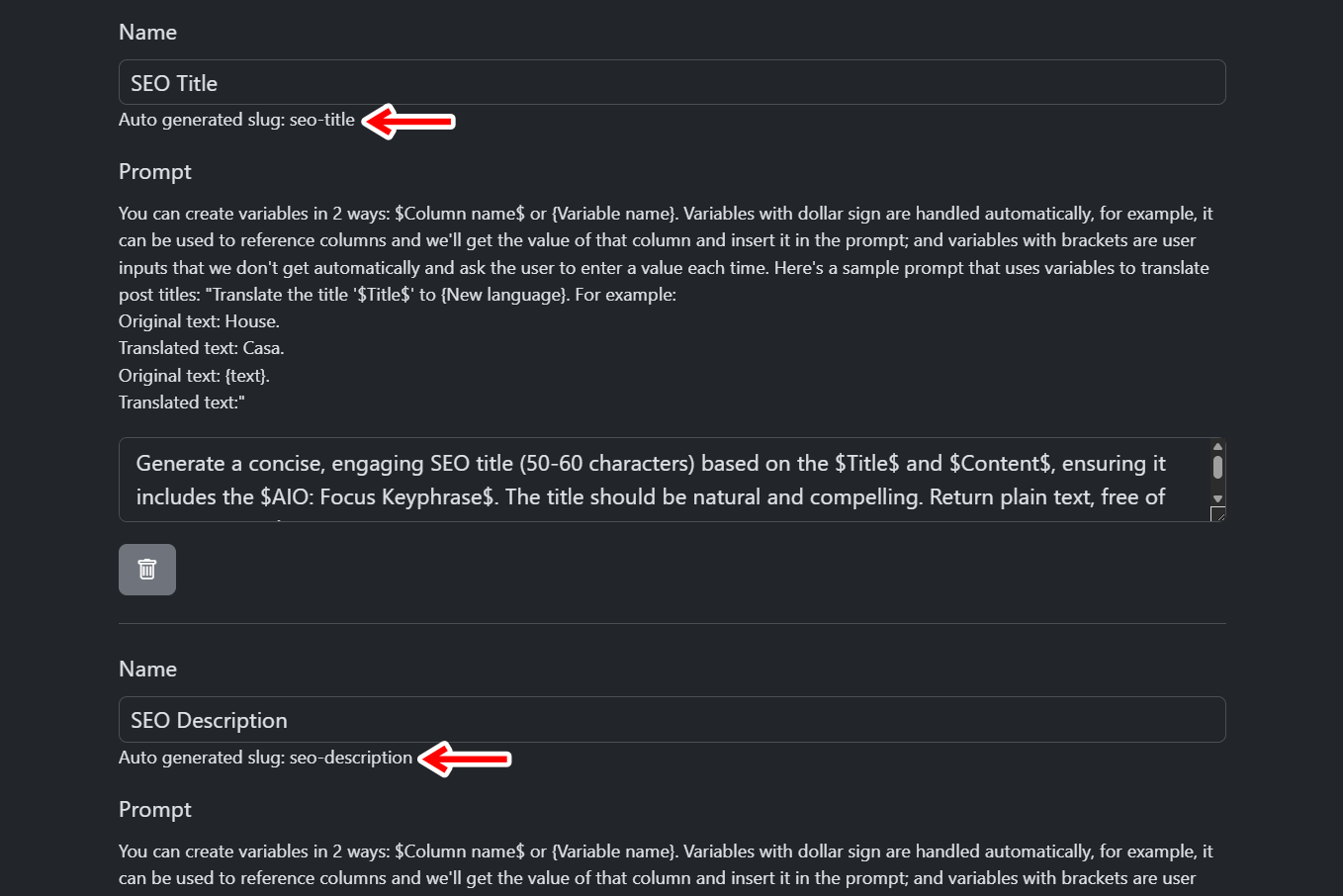
Once saved, WP Sheet Editor builds a slug for each prompt, such as “seo-title” or “seo-description.” You use that slug as a shortcut like ai:seo-title or ai:seo-description in a cell or in a bulk edit. The next image shows the saved prompt and its generated slug.
Open the posts spreadsheet
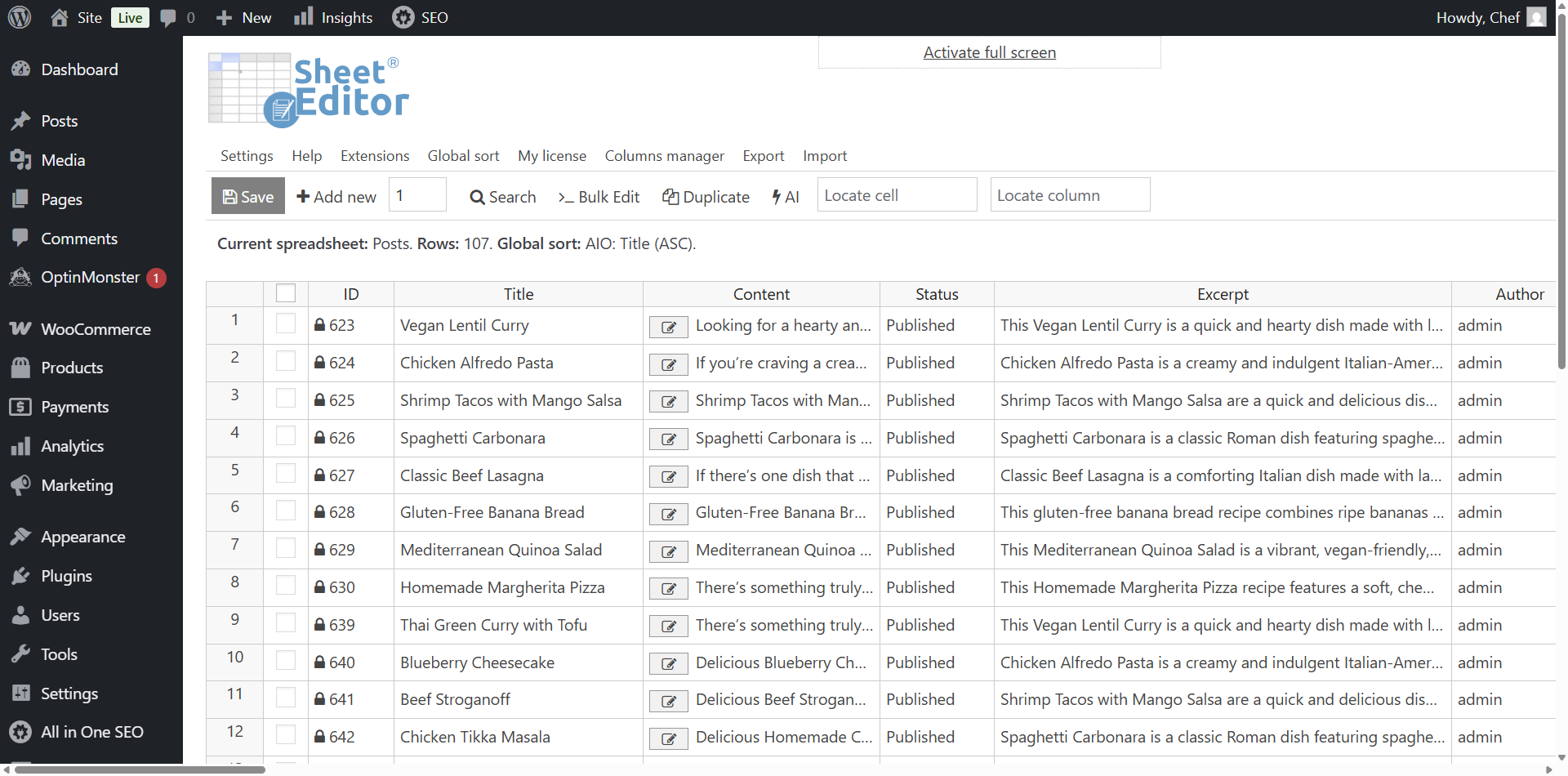
Go to WP Sheet Editor > Edit posts and every WordPress post appears as a row in the spreadsheet. All In One SEO fields show up as their own columns, which is how you will work with them side by side with the rest of your post data.
Generate SEO titles and descriptions in spreadsheet cells
The cell method is the fastest way to work on one post at a time. You click into the relevant column, call the prompt, and the AI writes the value directly into that cell.
WP Sheet Editor exposes every field All In One SEO creates, so you are not limited to the two we focus on here. The spreadsheet can edit all of these AIOSEO fields:
- Title
- Meta Description
- Focus Keyphrase
- Canonical URL
- SEO Score
- Pillar Content
- Additional Key phrases
- Keywords
- Primary Term
- Facebook Title
- Facebook Description
- Facebook Video
- Facebook Image Width
- Facebook Image Height
- Facebook Custom Image URL
- Facebook Image URL
- Facebook Object Type
- Twitter – Use Facebook Data
- Twitter Image URL
- Twitter Image URL 2
- Twitter Title
- Twitter Description
- Twitter Card Type
- Robots – Default
- Robots – No Index
- Robots – No Archive
- Robots – No Snippet
- Robots – No Follow
- Robots No Image Index
- Robots – Max Image Preview
- Limit Modified Date
- Frequency
In this tutorial we focus on the AIO: Title and AIO: Meta Description columns, since those are what search engines and the TruSEO checks care about most.
Generate SEO titles
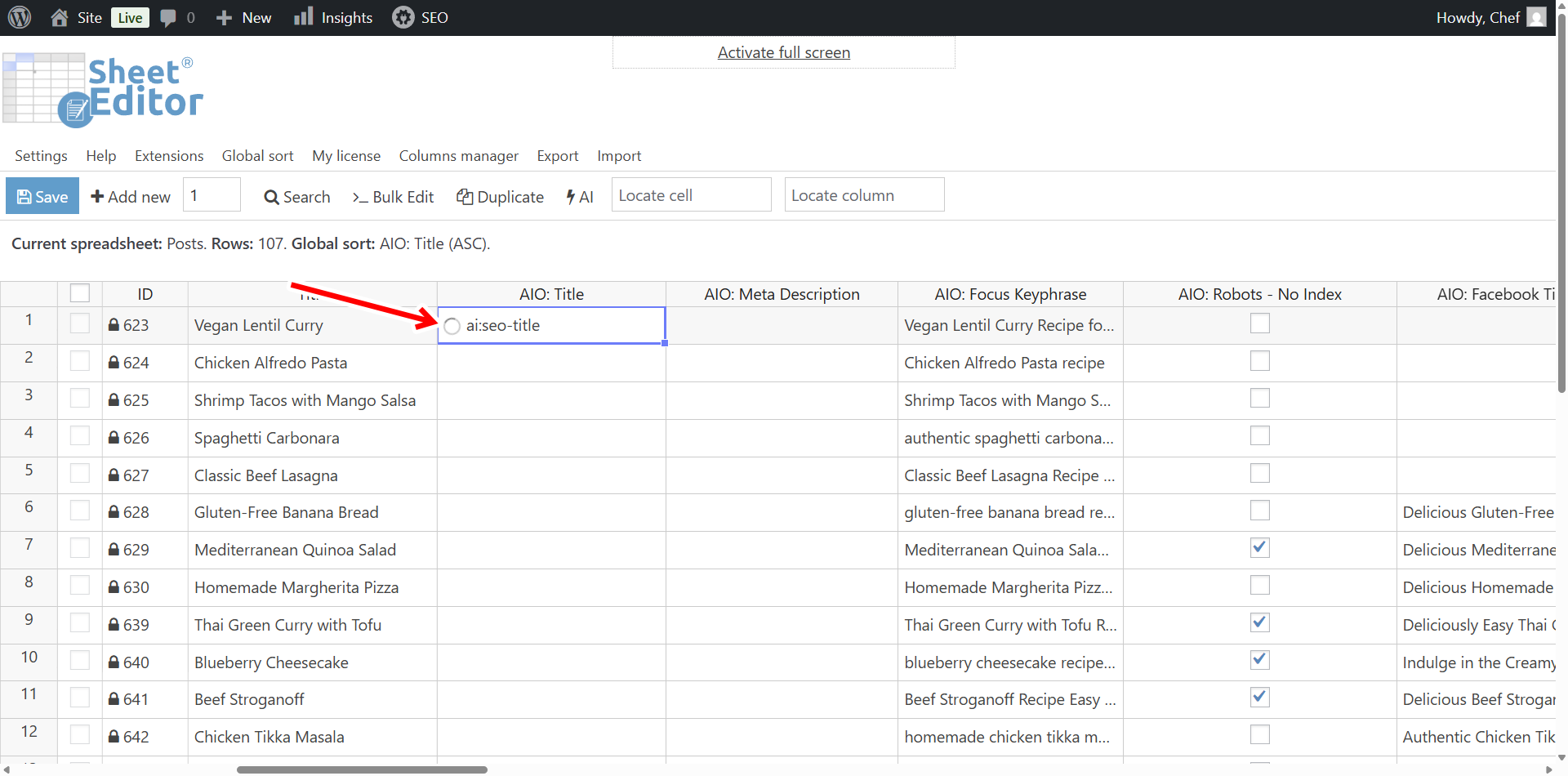
Open the AIO: Title column and click into the cell for the post you want to update. Type ai:seo-title (using your own prompt slug) or paste the full prompt prefixed with ai:.
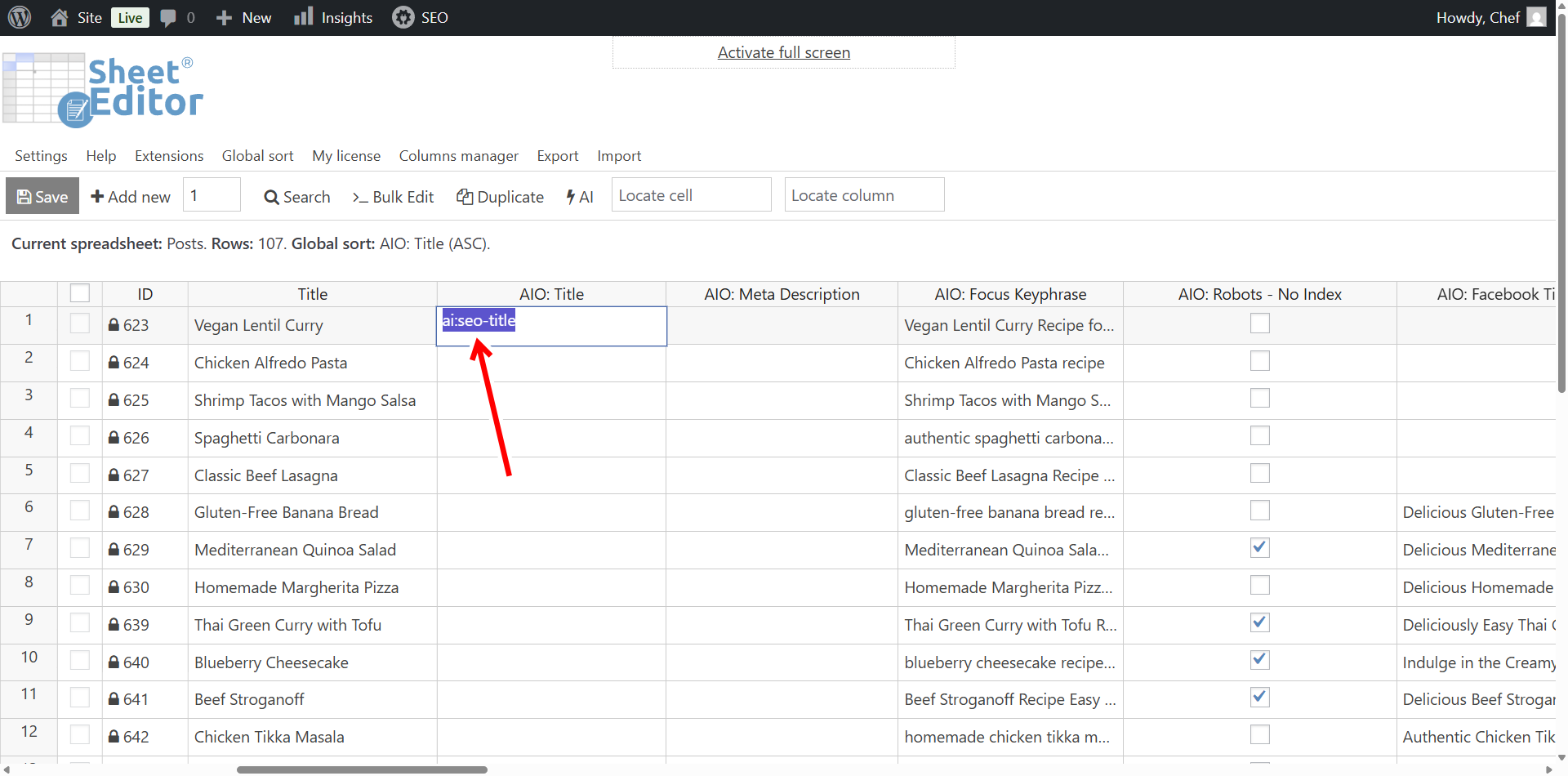
Press Enter to start the request. While the language model works, the cell shows a loading indicator so you know the process is still running.
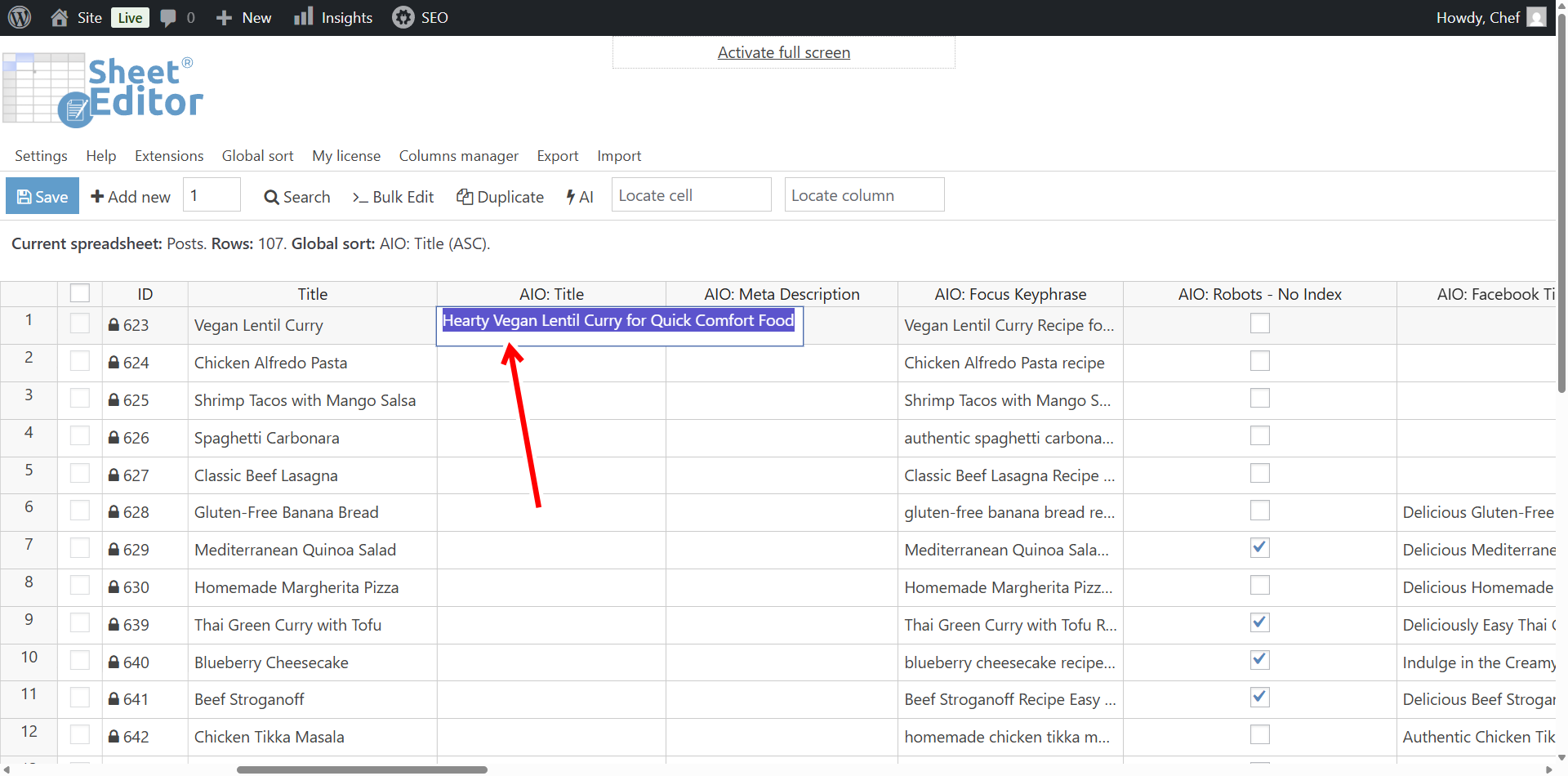
When the request finishes, the generated SEO title appears in the cell. Here is the first one the AI produced for this example post.
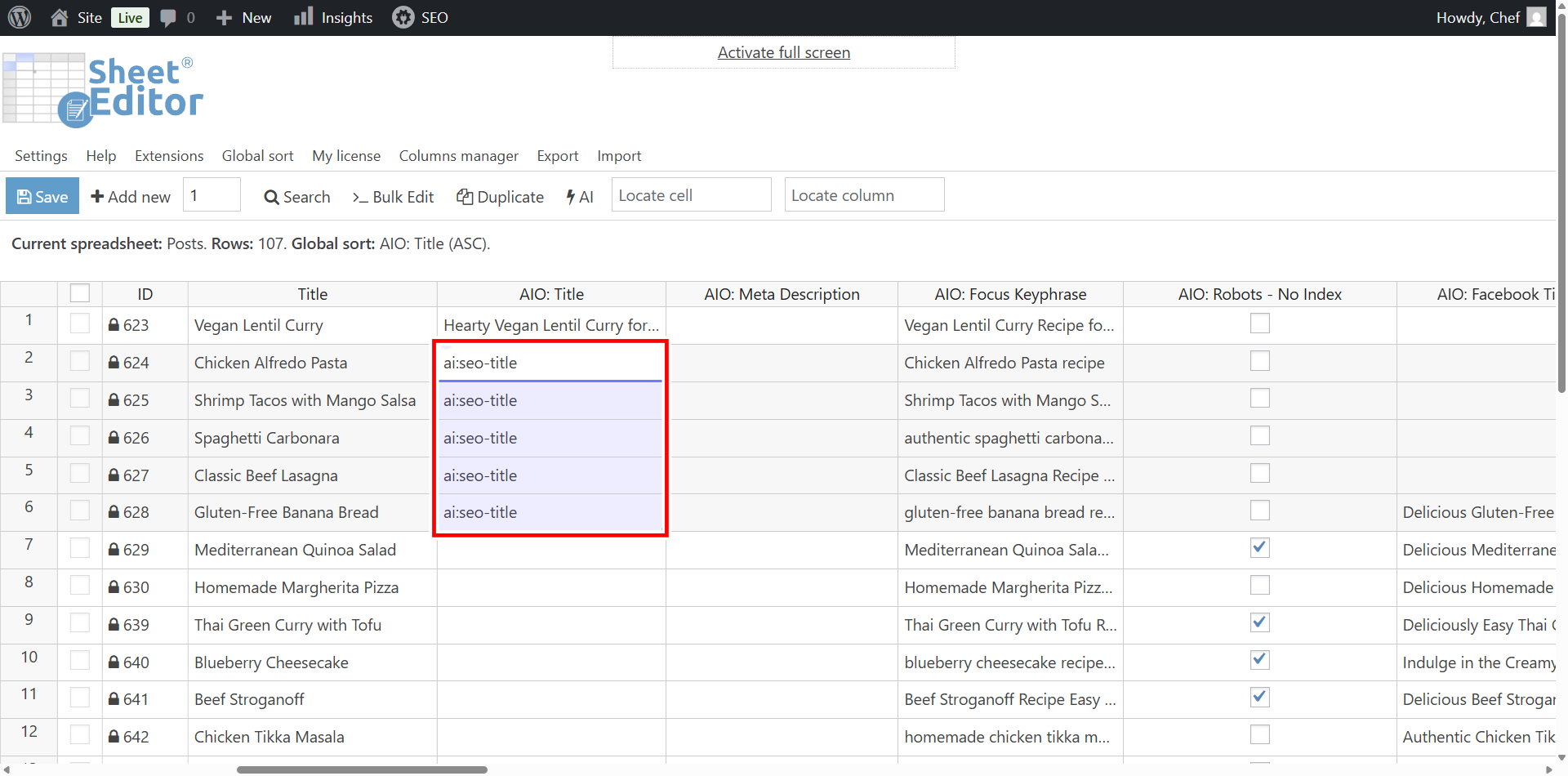
Pro tip: You do not have to work one cell at a time. Paste the shortcut into multiple cells in the same column and they will all resolve. Here the same shortcut is placed across several post rows so titles generate for all of them at once.
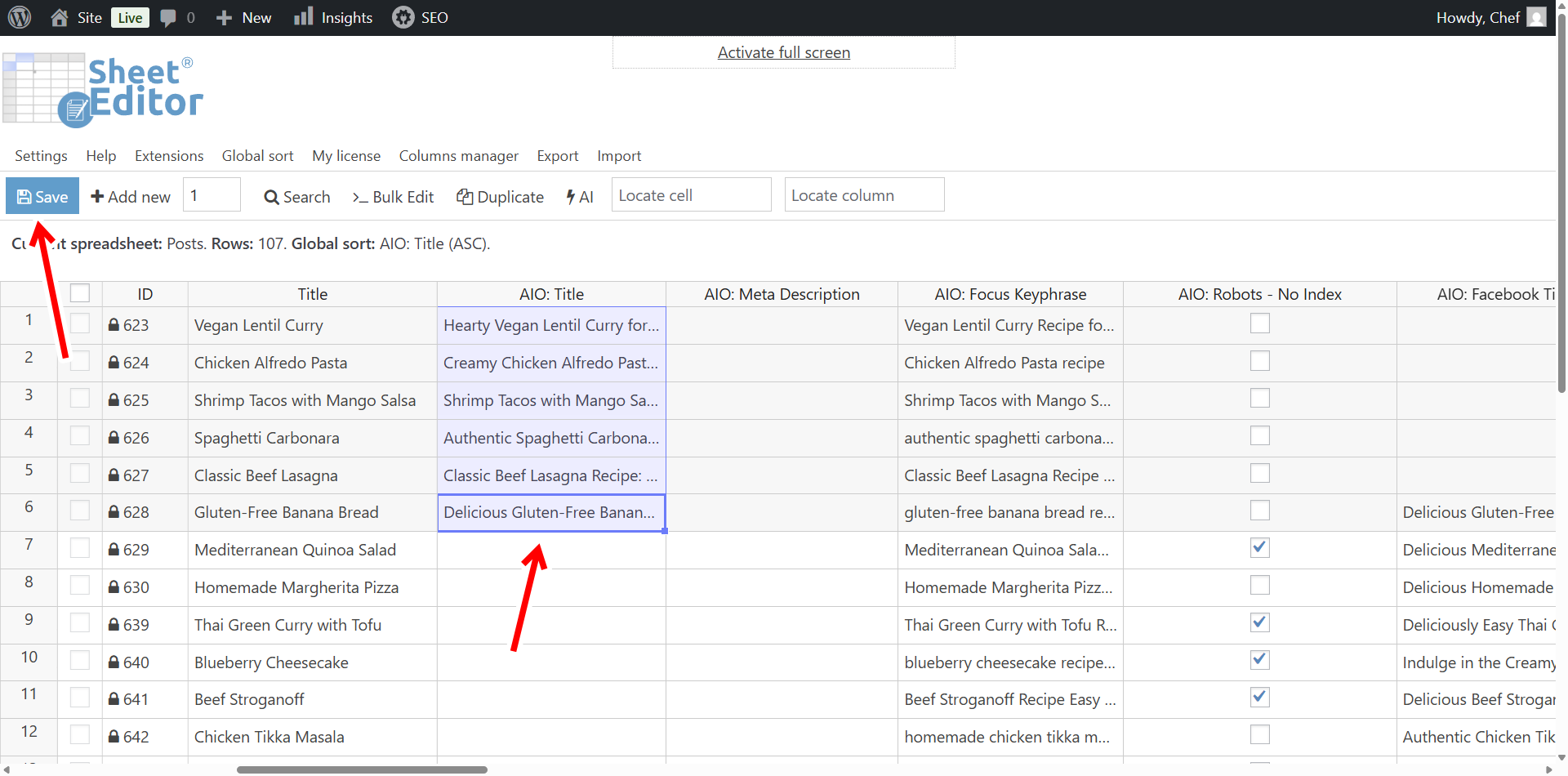
Generated values are not written to the database until you commit them. Once you are happy with the titles across the column, click Save to apply the changes to your posts.
Generate SEO descriptions
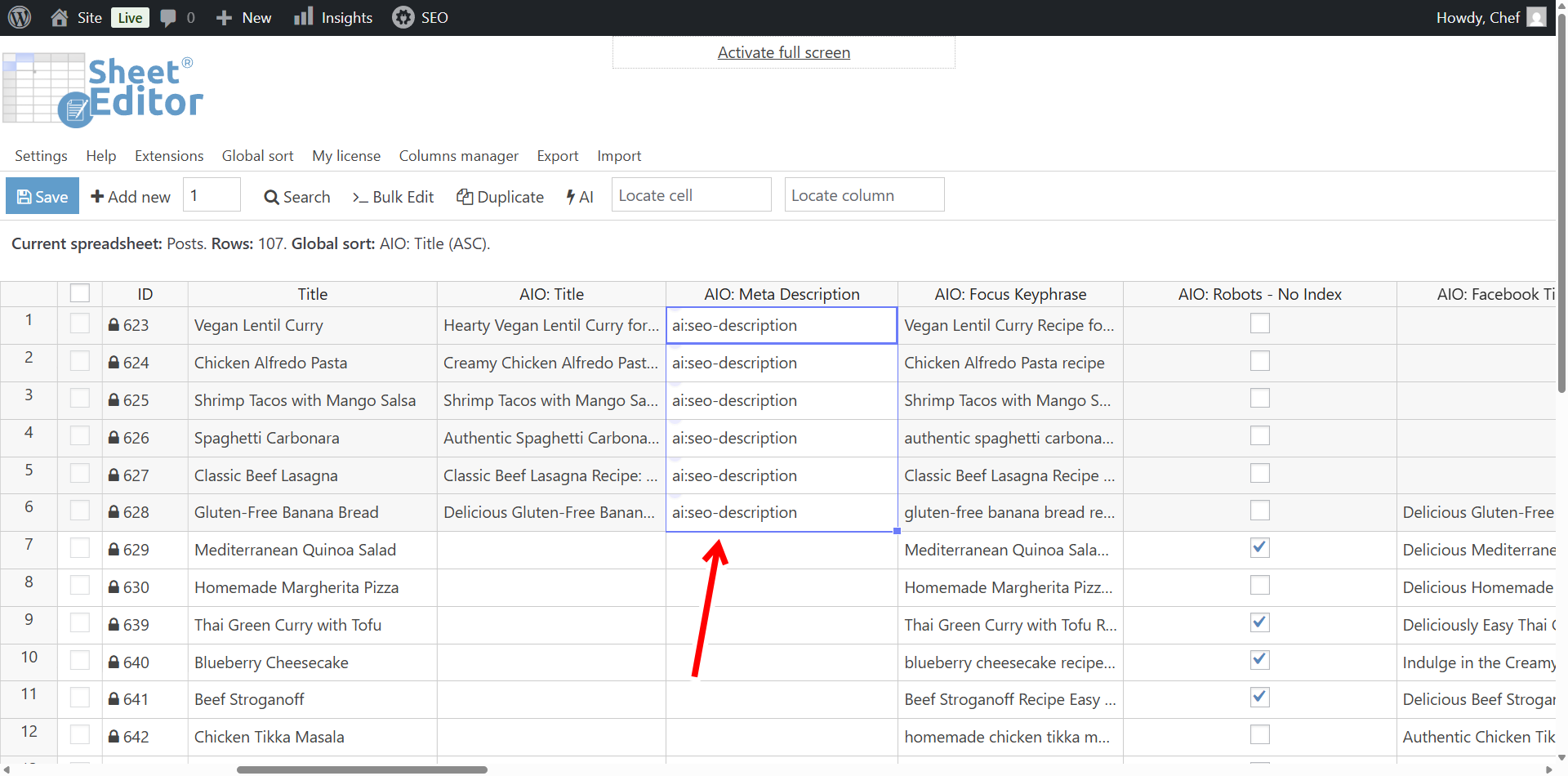
Finding the AIO: Meta Description column and calling the same kind of shortcut is all it takes for descriptions. Paste ai:seo-description into the cell and the AI writes a meta description for that post.
Just like with titles, you can place the shortcut into multiple cells to generate several meta descriptions in one pass.
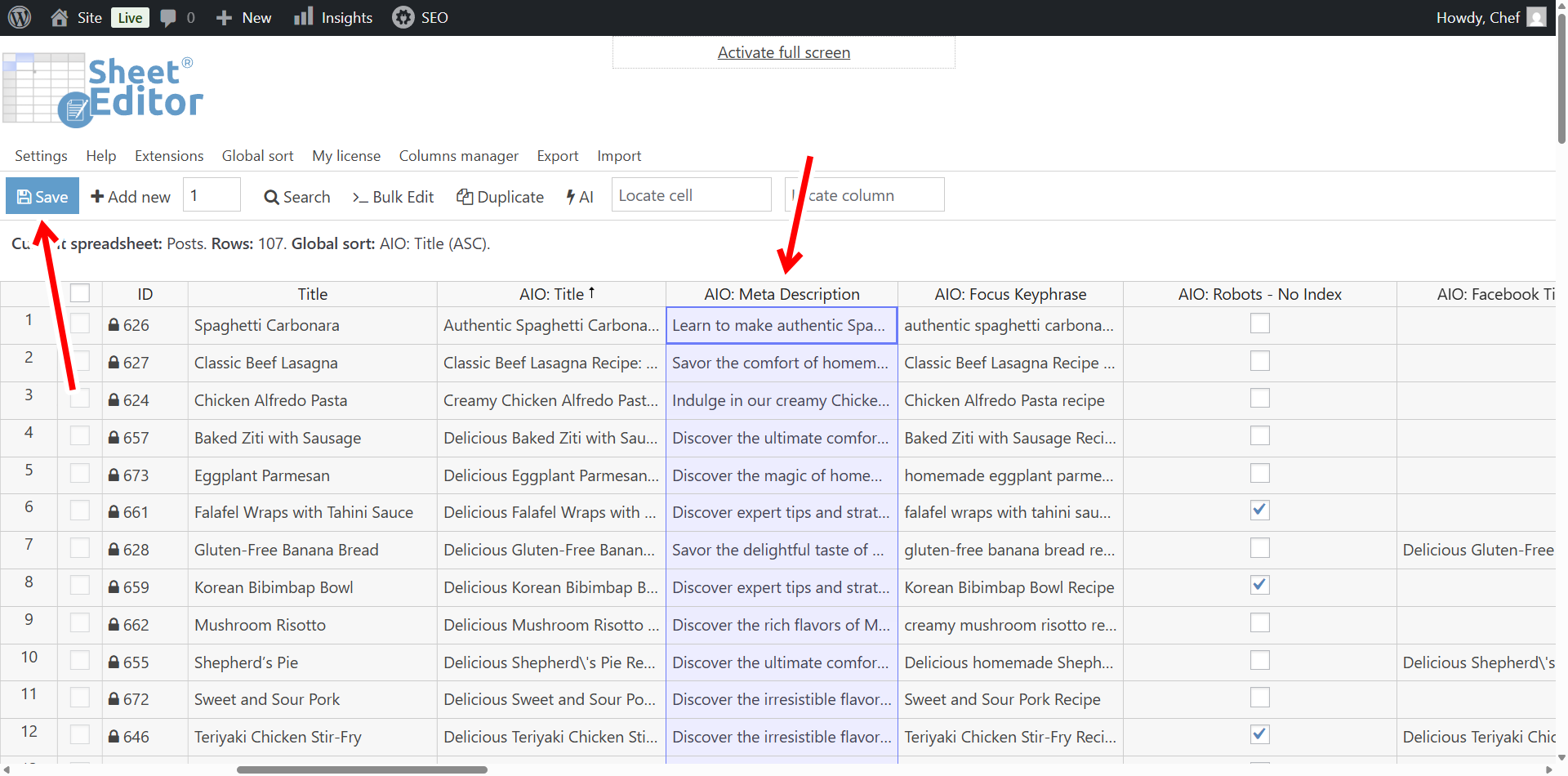
Review the resulting descriptions, then click Save so the new metadata is written back to your posts.
Bulk generate AIOSEO titles and descriptions with AI
The cell method handles one or a handful of posts. When you want to work through every post that is missing metadata, the Bulk Edit tool is the cleaner path. It lets you filter the spreadsheet down to the exact items you care about and then run one AI command across all of them.
This is powered by our Bulk AI API, which sends multiple requests to your AI provider so you can update hundreds or thousands of posts, pages, products, or custom post types without individual requests.
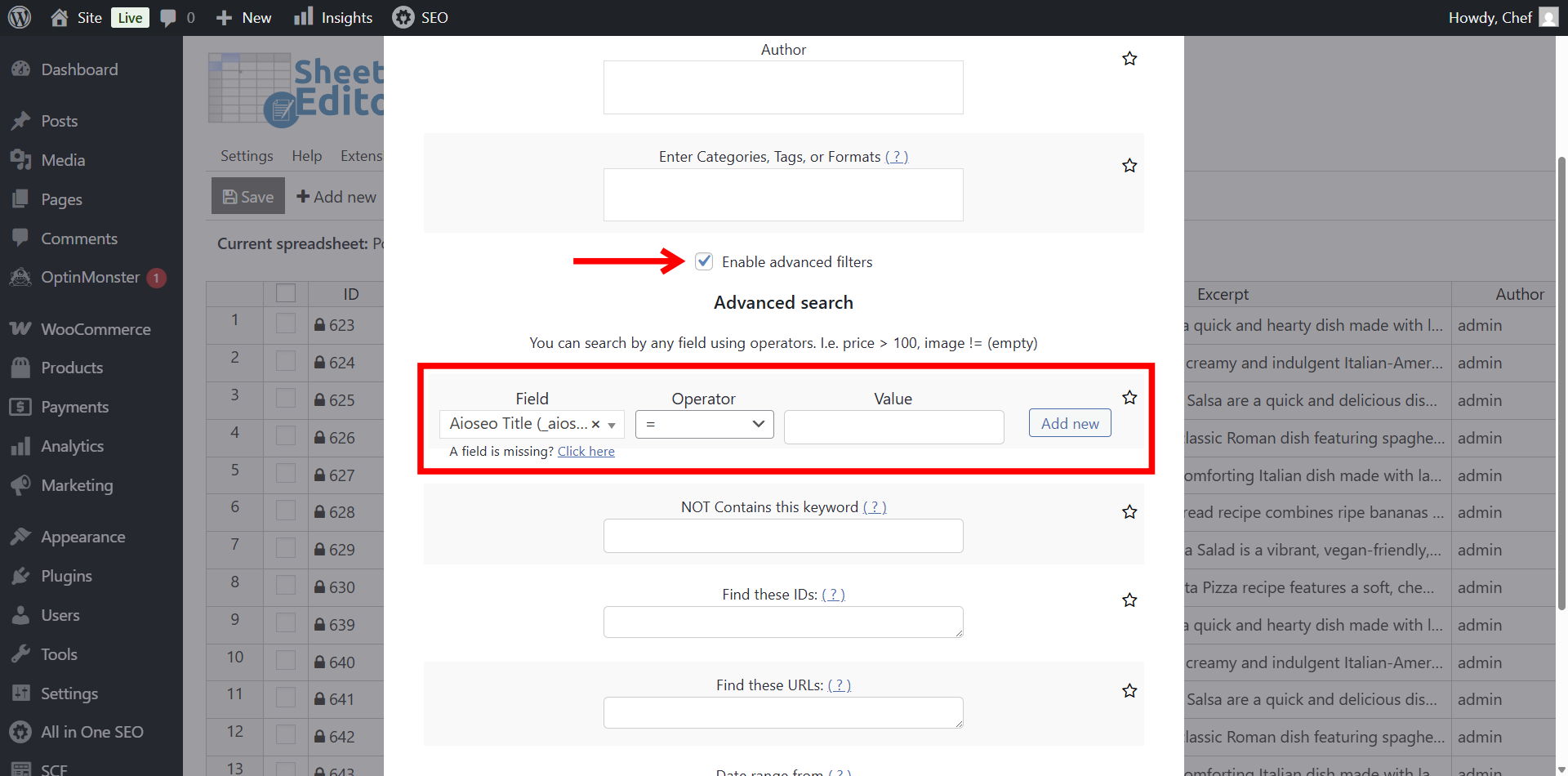
A practical first step is to find every post that has no SEO title at all. Use the Search tool to build that filtered view.
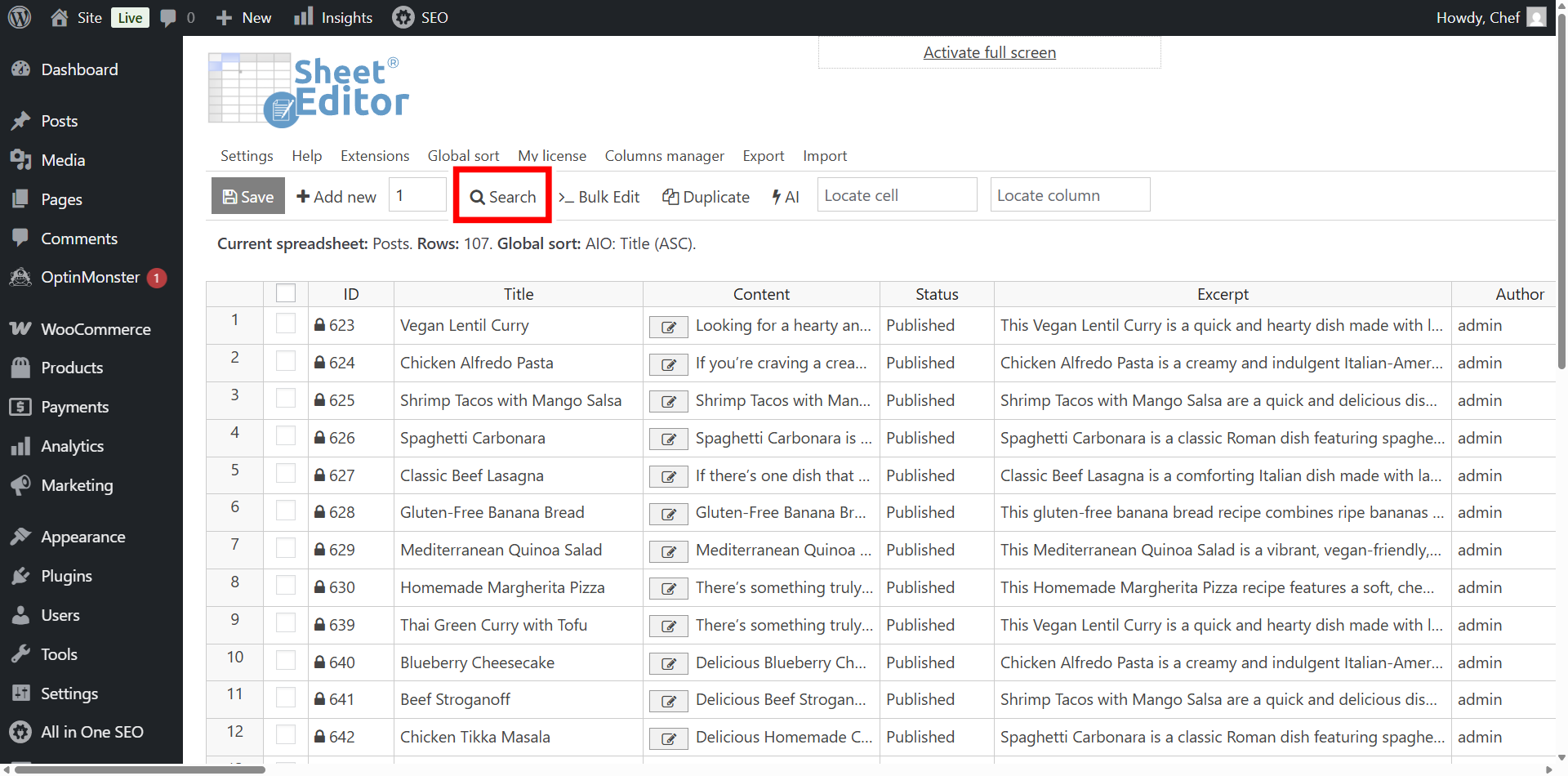
Inside the Search tool, set these values to isolate all posts without an SEO title:
- Enable advanced filters: Yes
- Field: AIO – Title
- Operator: =
- Value: Leave this field empty.
- Click on Run search.
The search returns only the rows where the All In One SEO title is blank, so the upcoming bulk edit touches nothing else.
With that filter in place, open the Bulk Edit tool to run the AI command across all the filtered posts.
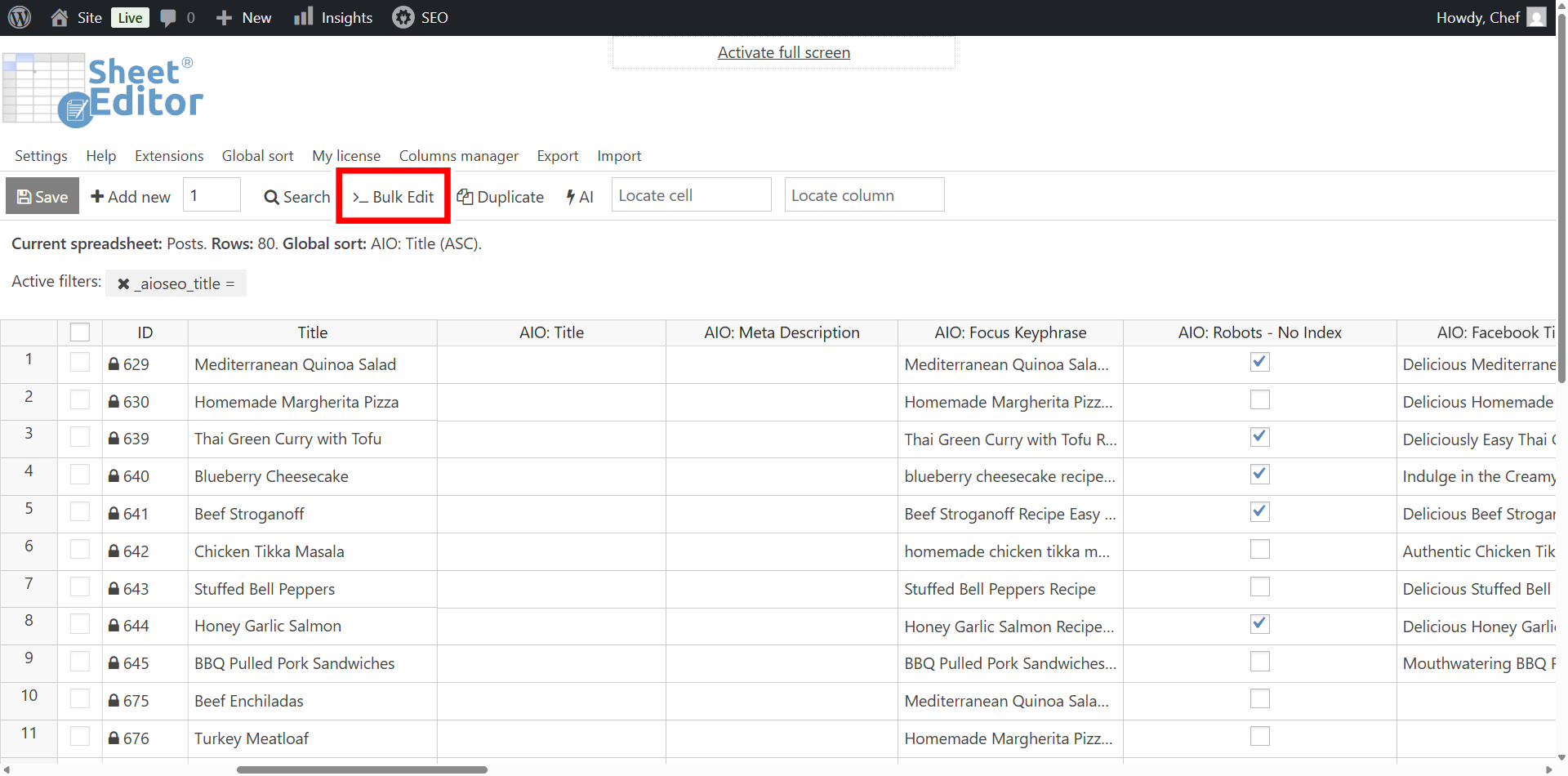
To bulk generate SEO titles for All In One SEO, select these values:
- Select the rows that you want to update: Edit all the rows from my current search
- What field do you want to edit: AIO: Title
- Select type of edit: Use the saved global prompt by picking AI command: SEO Title. If you prefer not to use the global command, choose AI Prompt and write out the full prompt.
- Select your AI Provider.
- Optionally click Preview to check a sample result before running the change.
- Click on Execute Now.
The bulk edit panel below is set up exactly that way, with the filter applied and the field, prompt, and provider chosen.
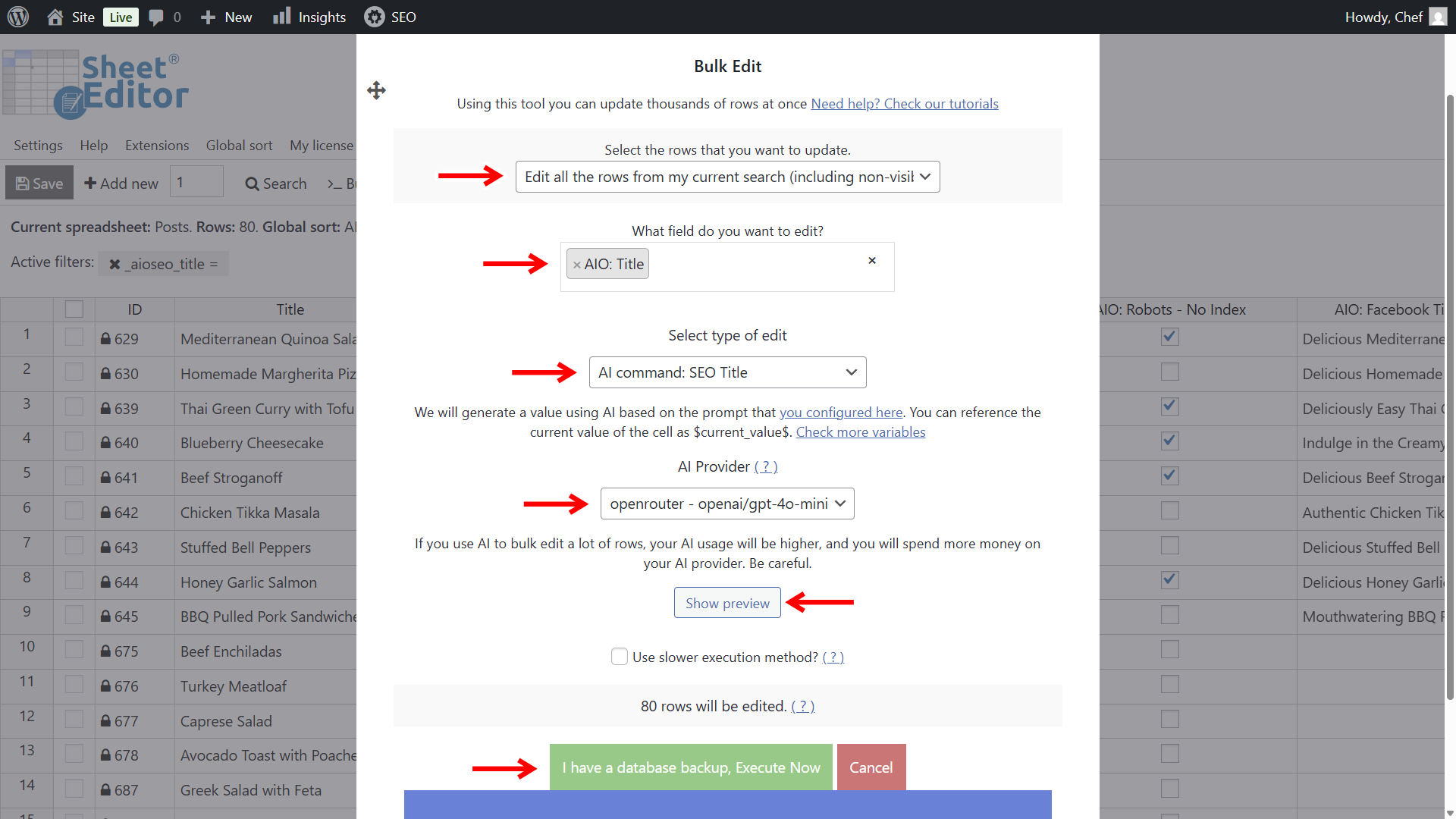
To generate SEO descriptions in bulk instead, use the same workflow but point the field at the meta description column:
- Select the rows that you want to update: Edit all the rows from my current search
- What field do you want to edit: AIO: Meta Description
- Select type of edit: Pick AI command: SEO Description, or choose AI Prompt and paste the full prompt yourself.
- Select your AI Provider.
- Optionally click Preview to review a sample before executing.
- Click on Execute Now.
Here is the same bulk panel configured for meta descriptions, running the SEO Description prompt across the filtered rows.
Run the same bulk method for focus keyphrases if they are also missing. Because the prompts read the AIOSEO Focus Keyphrase field, posts without one produce weaker results, so it is worth filling those first.
Optional: Optimize existing AIOSEO titles and descriptions with AI
Not every job starts from a blank field. Existing metadata can be too long, missing the keyword, or written years ago and now out of date. For those cases, use refinement prompts that ask the AI to improve rather than replace.
Optimize SEO title:
Refine the existing SEO title based on the $Title$ and $Content$, including the $AIOSEO Focus Keyphrase$. Keep it concise (50-60 characters) and engaging.
Optimize SEO description:
Enhance the existing SEO description based on the $AIOSEO Title$ and $Content$, including the $AIOSEO Focus Keyphrase$. Keep under 155 characters, focusing on clarity and appeal.
You can apply these the same way as the generation prompts, either in cells on non-empty fields or through the Bulk Edit tool after a search for posts whose metadata is weak. To find those posts, run a search on the title or description field with the values that correspond to the problem you want to fix, then bulk edit only that selection.
Combined with the Search and Bulk Edit tools, WP Sheet Editor – AI turns All In One SEO metadata management into a straightforward task. You locate the gaps, run the prompts, and the heavy writing happens automatically across your whole site.
Frequently asked questions
Can I generate AIOSEO titles and descriptions for more than just posts?
Yes. The spreadsheet works with WordPress pages, WooCommerce products, and other custom post types, and the AI fields are available for each of these content types. Open the corresponding spreadsheet, such as Edit products or Edit pages, and the same AIO columns and prompts apply.
What character lengths should I aim for in AIOSEO titles and descriptions?
All In One SEO’s TruSEO analysis recommends an SEO title between 40 and 60 characters and a meta description between 120 and 160 characters. Keep in mind that search engines may still write their own snippet depending on the query, so treat these ranges as a strong default rather than a guarantee.
Do I need to set a focus keyphrase before generating metadata?
It is strongly recommended. The prompts use the AIOSEO Focus Keyphrase field so the generated title and description include the keyword naturally. Posts without a keyphrase will still get a title and description, but they will not be keyword-aware. If keyphrases are missing, fill them first with the same bulk tools, then generate the metadata.
Can I regenerate or improve existing titles and descriptions instead of starting fresh?
Yes. Use the optimization prompts in this guide, which take the current title and content into account and return a refined version. They can be run in cells or through the Bulk Edit tool on posts that already have metadata.
Which AI providers work with WP Sheet Editor for this?
OpenAI, OpenRouter, and any provider that uses the same API format as OpenAI. You need an account with the provider and its API key, then connect it in the WP Sheet Editor – AI settings.
Will search engines always display the AIOSEO titles and descriptions I set?
No. Search engines can generate their own title and snippet for a page based on the query and the page content. Well-written metadata still matters because it gives the search engine something good to use and makes your page look appealing in results, but it is not a guaranteed display.