
WooCommerce product titles should clearly describe what each product is and include the terms shoppers are likely to search for. If your catalog contains inconsistent, generic, or supplier-provided titles, you can rewrite them with AI from the WP Sheet Editor spreadsheet.
This guide shows you how to rewrite WooCommerce product titles with AI individually or in bulk using WP Sheet Editor and WP Sheet Editor – AI.
Table of Contents
Requirements
You need the following tools:
1. WP Sheet Editor – WooCommerce Products
This extension lets you view and edit WooCommerce products in a spreadsheet. You can use it to review existing titles and update them in bulk.
You can download the plugin here:
Get the WooCommerce Spreadsheet Editor - or - Check the features
2. WP Sheet Editor – AI
This extension adds AI commands to WP Sheet Editor so you can generate and rewrite product content from the spreadsheet.
Ready to automate?
3. An AI provider
You need an API key from a supported provider, such as OpenAI, OpenRouter, or another OpenAI-compatible provider.
If you have not configured an AI provider yet, see our AI configuration guide.
Step 1: Create an AI prompt for product titles
Create a reusable prompt that tells the AI how to rewrite your WooCommerce product titles.
Go to WP Sheet Editor > AI > Settings > Prompts and click Add new.
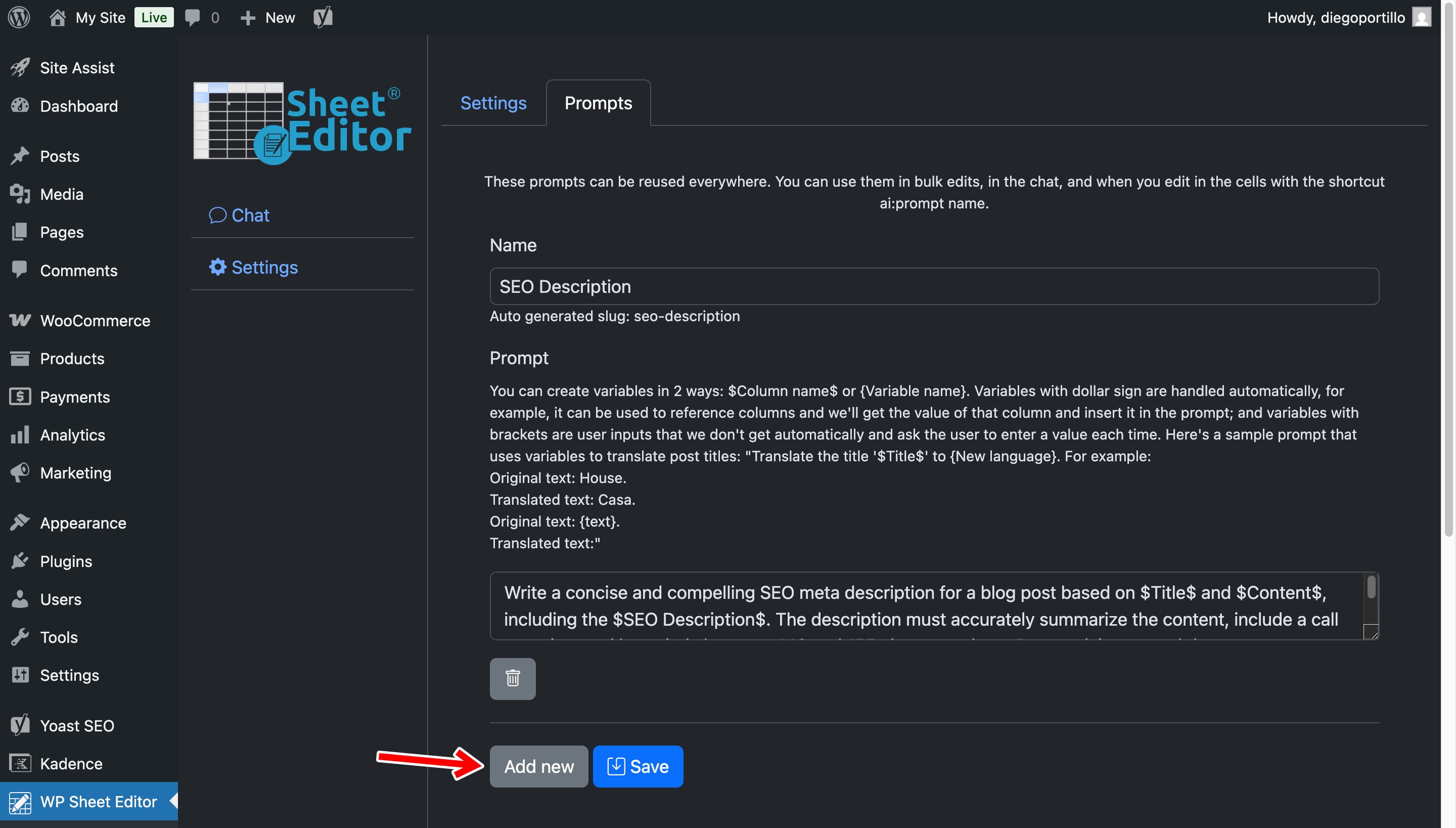
Use these settings:
- Prompt Name:
Rewrite Title - Prompt Template:
Rewrite the WooCommerce product title "$Title$" to make it clear, concise, and suitable for ecommerce search. Keep the main product type, brand, model, and other important details when present. Include a relevant benefit or descriptive term when appropriate. Keep the new title under 70 characters. Return only the new title. Do not use quotation marks or additional text.
Click Save.
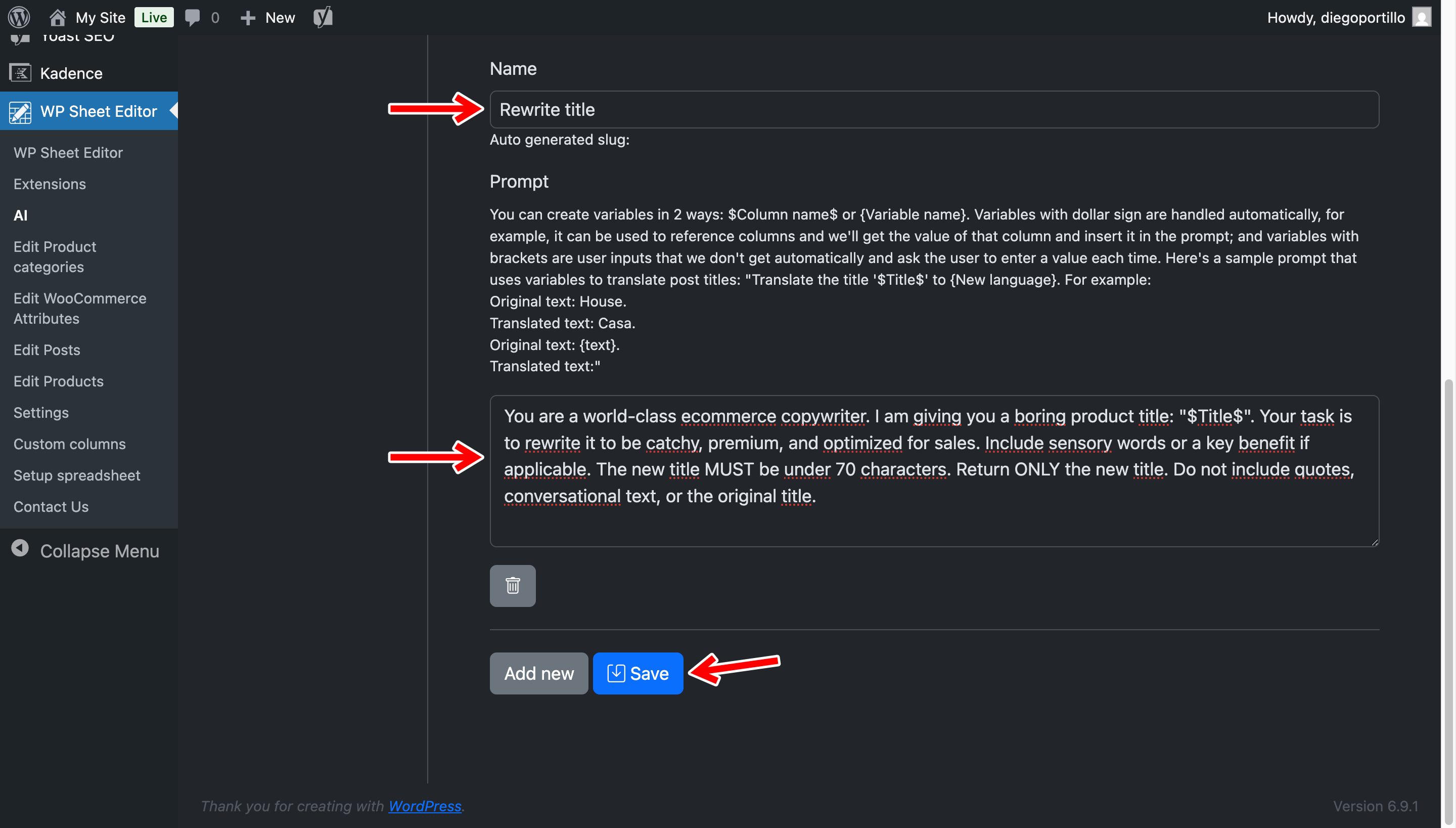
WP Sheet Editor will create a shortcut for the prompt. In this example, the prompt slug is:
rewrite-title
To run the prompt from a spreadsheet cell, add ai: before the slug:
ai:rewrite-title
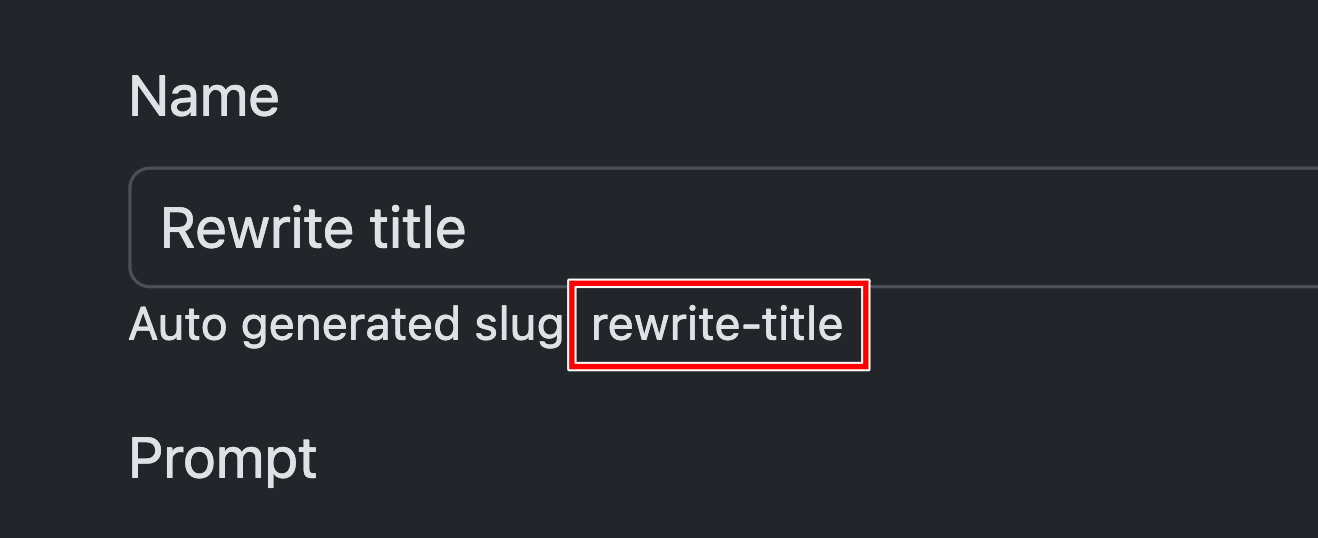
Step 2: Rewrite WooCommerce product titles in the spreadsheet
Go to WP Sheet Editor > Edit Products.
Find the Title column and select the title you want to rewrite.
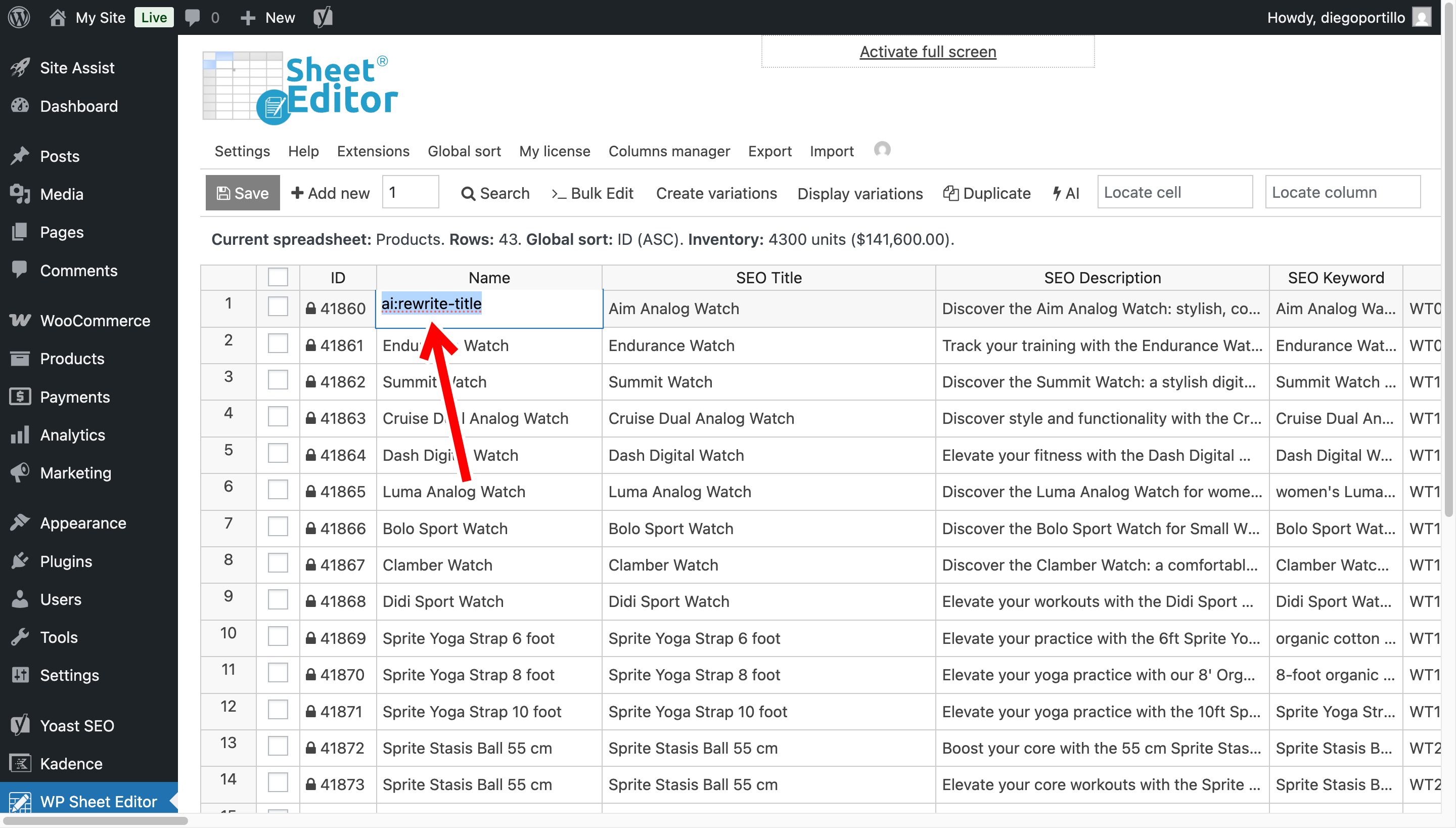
Enter the AI shortcut:
ai:rewrite-title
Press Enter. WP Sheet Editor will send the existing title to the AI provider and replace it with the generated title.
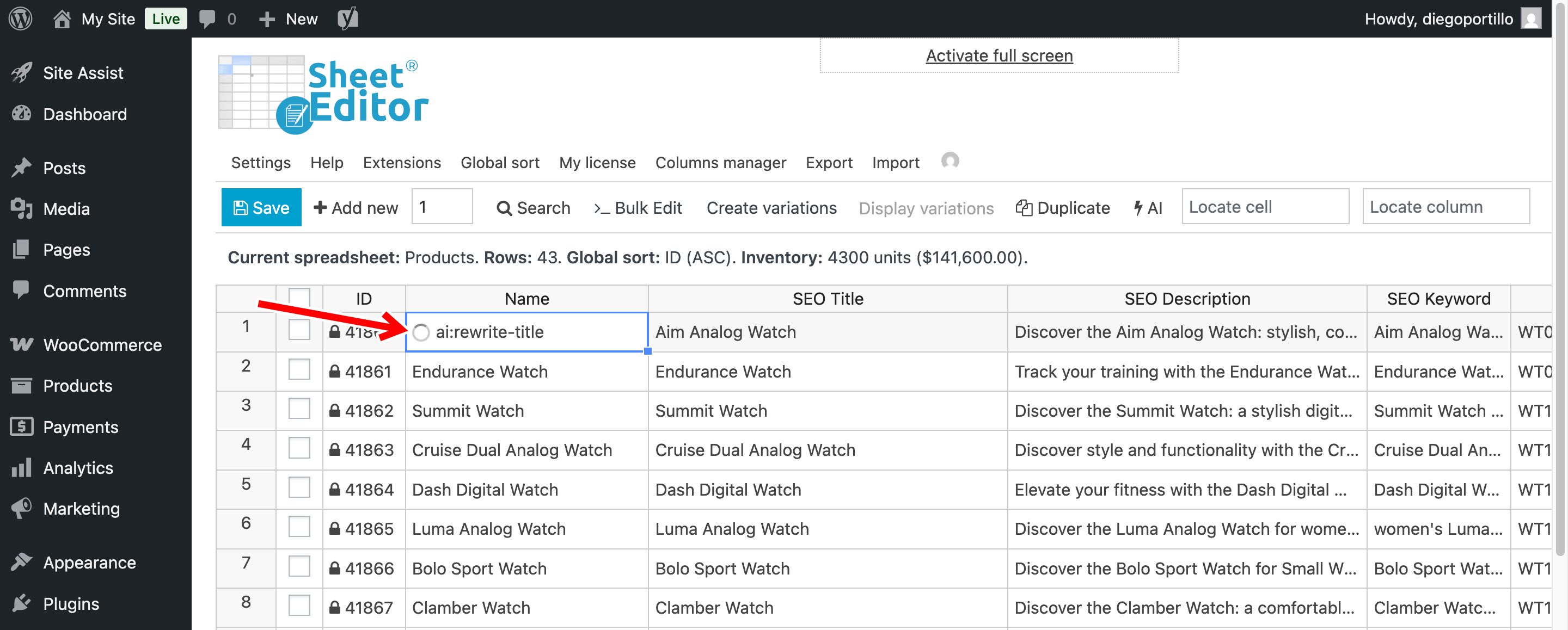
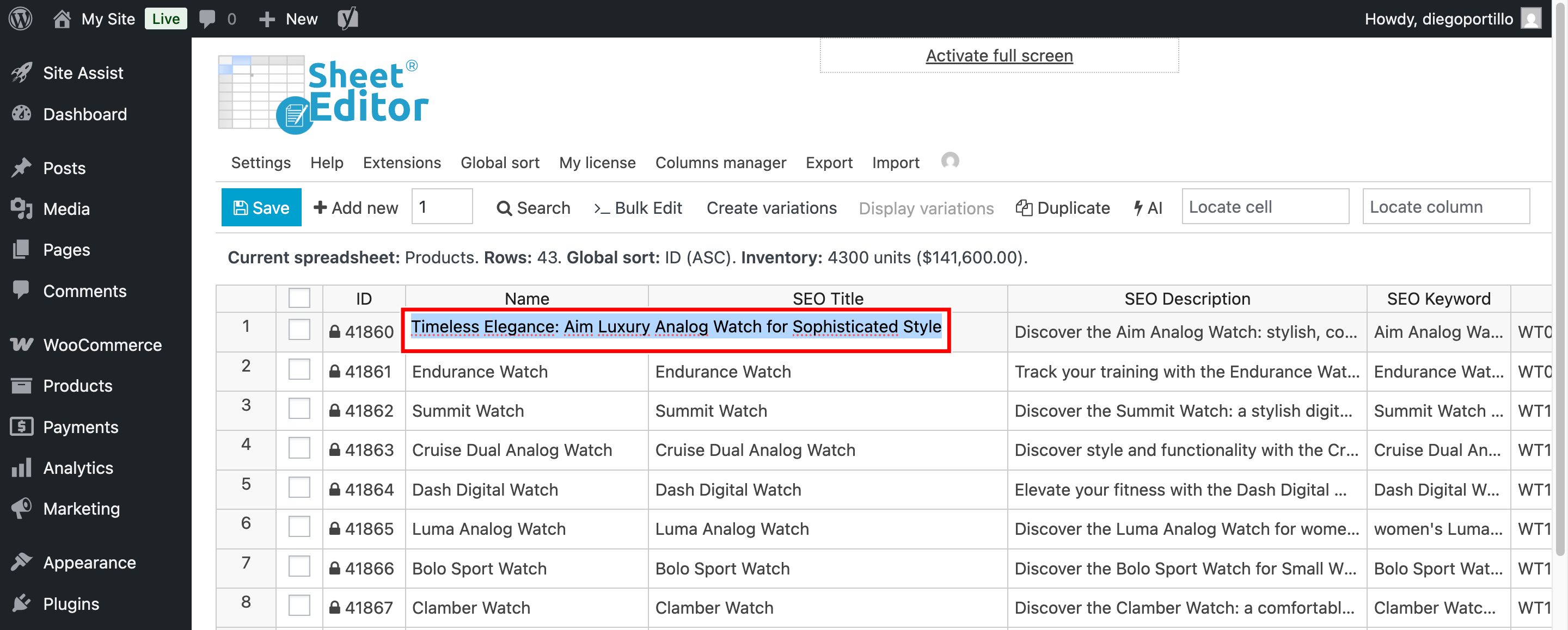
When the request finishes, the rewritten title will appear in the cell.
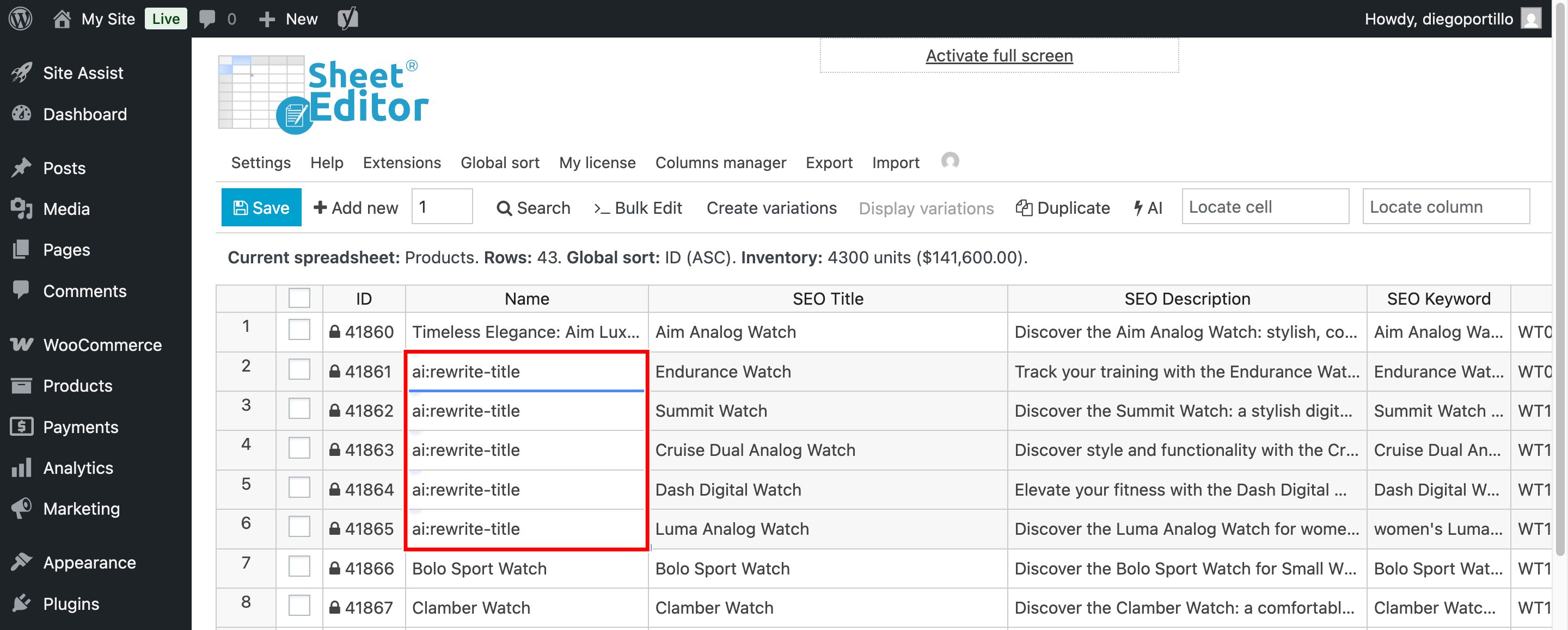
You can enter the shortcut in multiple cells to rewrite several product titles.
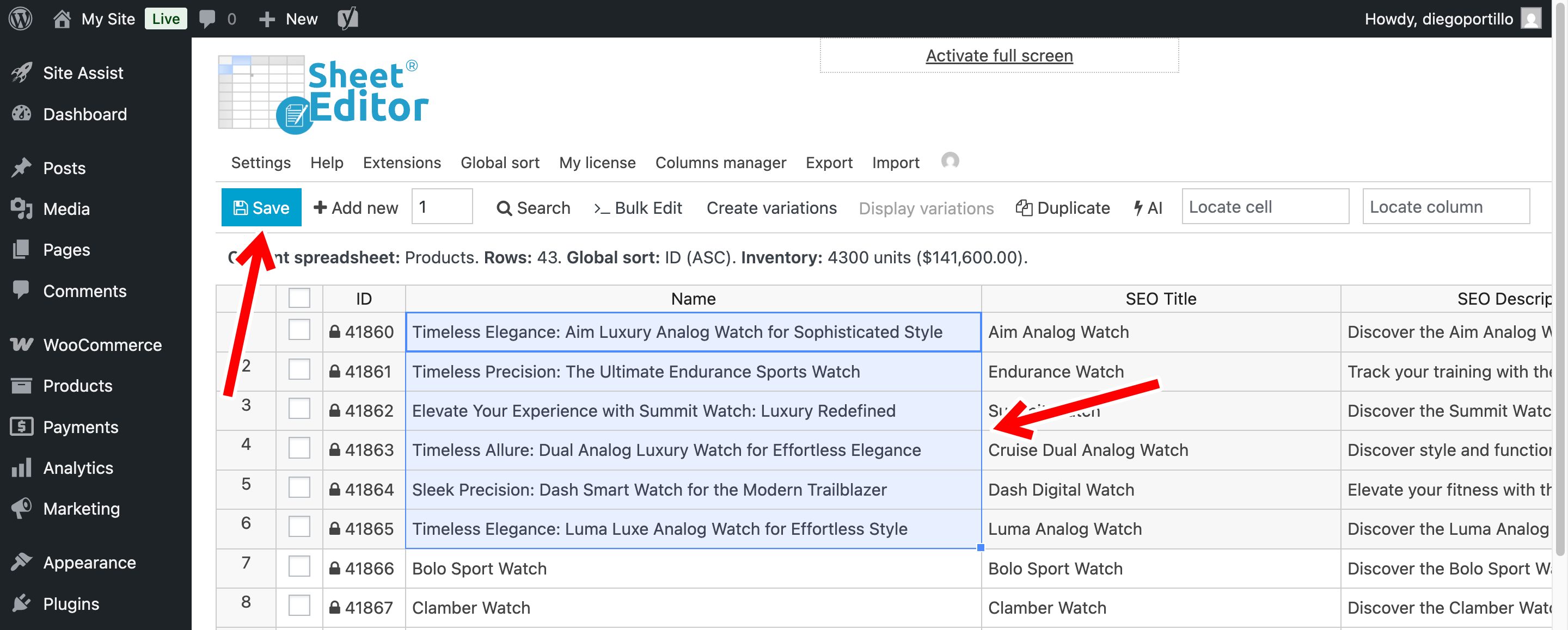
Click Save when you are ready to apply the changes to your products.
Step 3: Rewrite WooCommerce product titles in bulk
To rewrite titles across many products, use the Bulk Edit tool.
Open Bulk Edit from the spreadsheet toolbar.
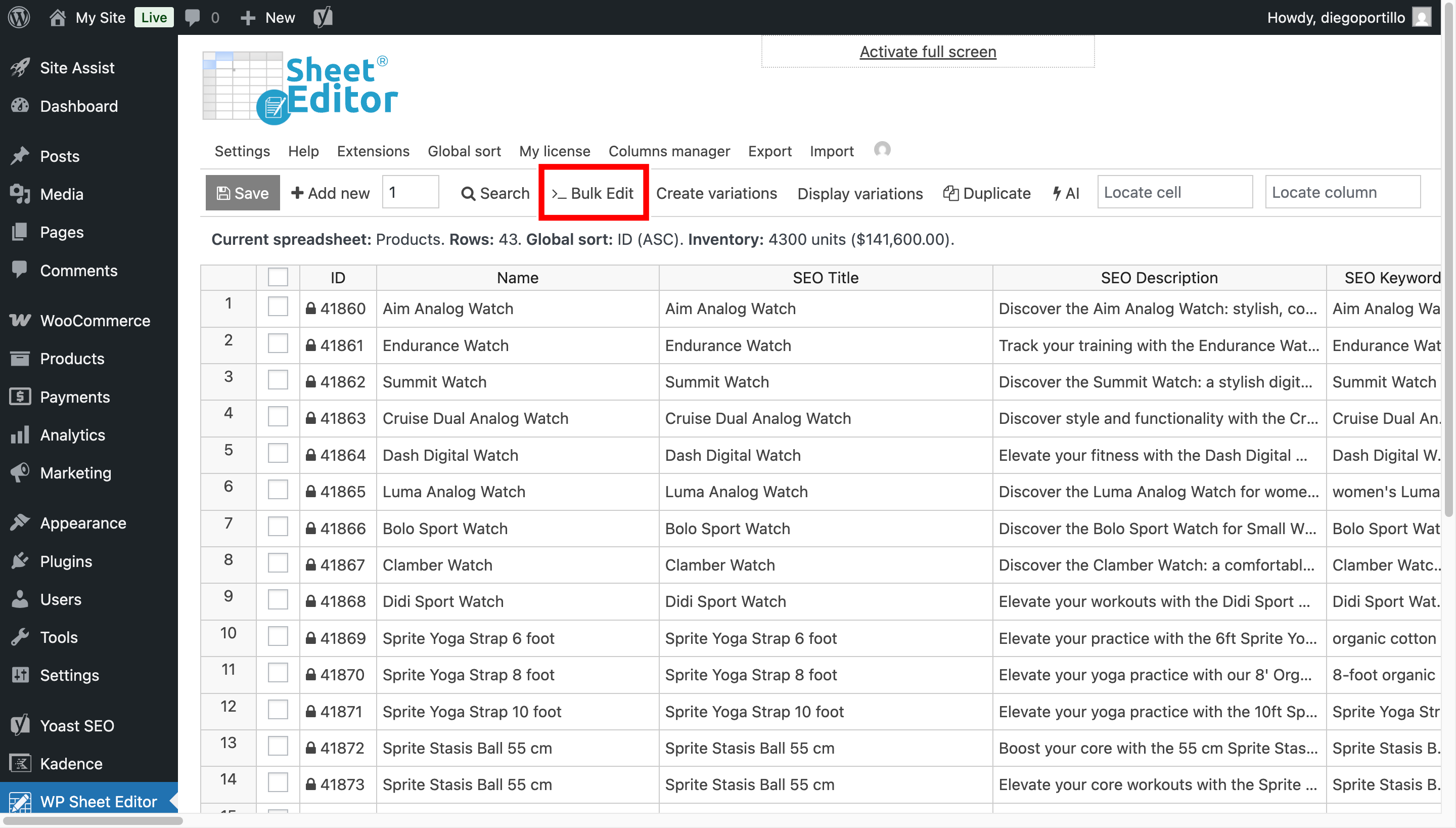
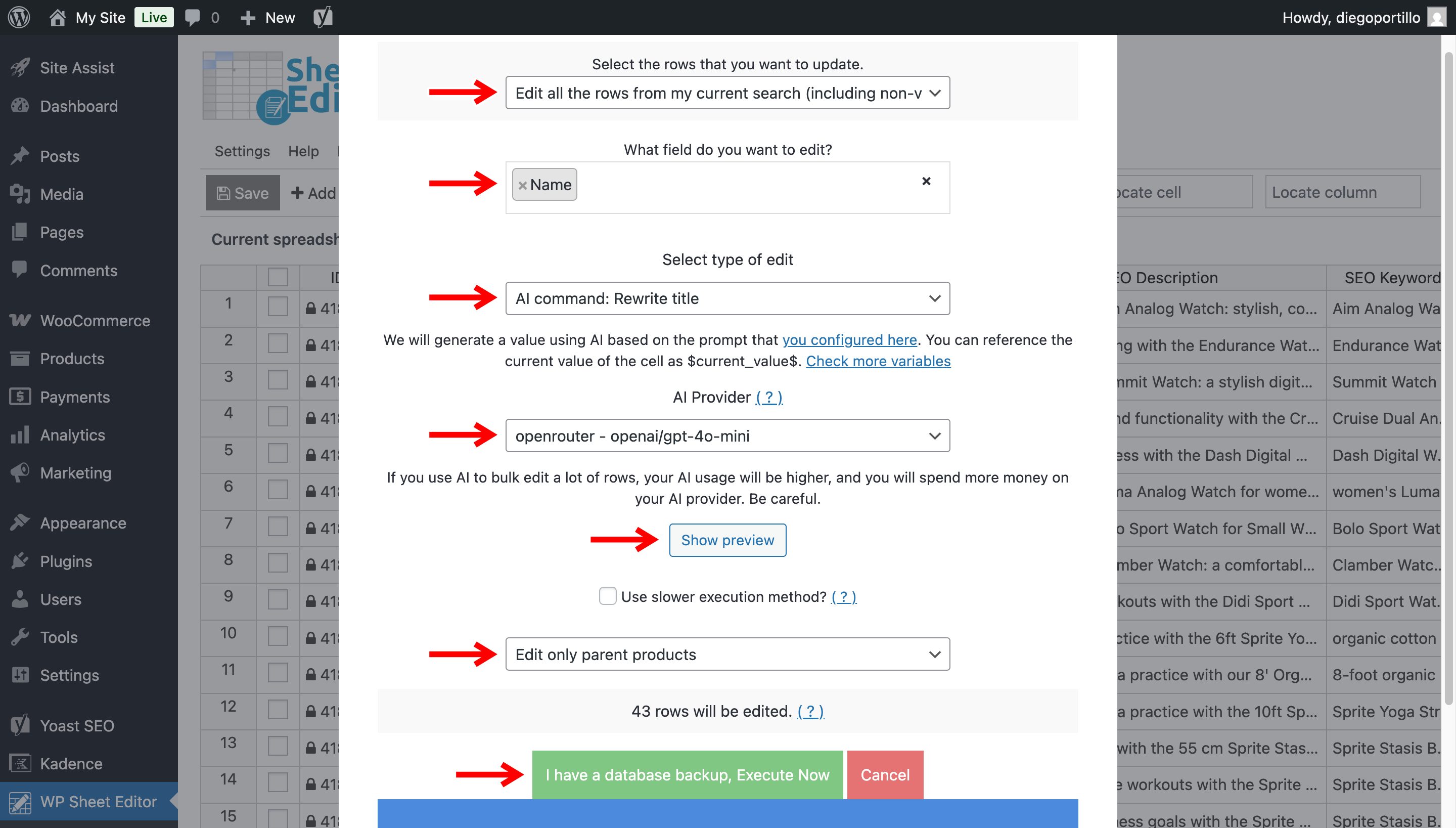
Configure the bulk edit operation as follows:
- Select the rows that you want to update: Edit all the rows from my current search
- What field do you want to edit: Name
- Select the type of edit: AI command: Rewrite title
- AI Provider: Select the AI provider you want to use
If you only want to rewrite certain products, use the Search tool before opening Bulk Edit. For example, you can filter products by category, such as T-Shirts.
Use Preview to test the generated title before applying the bulk operation. When the results look correct, click Execute Now.
WP Sheet Editor processes the AI requests in batches. You can review the generated titles in the spreadsheet as they are added.
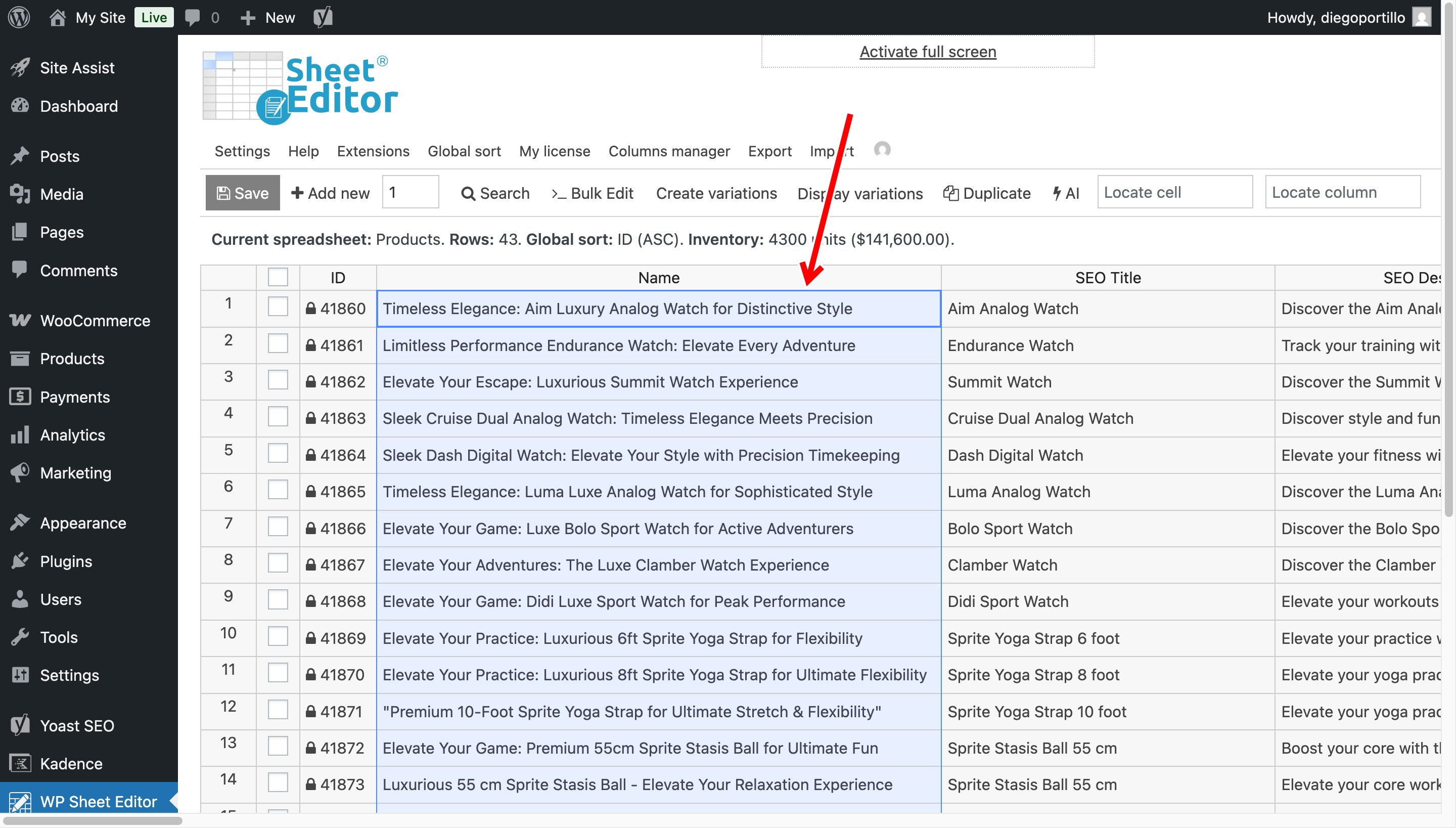
Review the generated titles and save the changes when you are satisfied with the results.