
If you manage a WooCommerce store with many products, updating and importing variable products and their variations can quickly become time-consuming. Manually editing each variation inside WordPress is not practical when working with large catalogs. Fortunately, using Google Sheets as a data source allows you to manage and import product variations in bulk in a fast and organized way.
In this tutorial, you will learn how to import and update WooCommerce variable products from Google Sheets. We will demonstrate how to update existing variations and create new ones in a single import process.
You will also see how to handle different scenarios, including:
- Updating variations that already exist
- Creating new variations for existing variable products
- Importing completely new variable products along with their variations
By the end of this guide, you will understand how to structure your Google Sheets data and efficiently import WooCommerce variations into WordPress, making it much easier to maintain and scale your product catalog.
What you need to import variable products
To follow this tutorial, you will need these elements:
WP Sheet Editor – WooCommerce Products
This plugin allows you to manage and edit your WooCommerce products using a spreadsheet interface inside WordPress, similar to Excel or Google Sheets.
With WP Sheet Editor, you can bulk edit products, variations, prices, attributes, stock, and many other fields without opening each product individually. It is especially useful when working with variable products, since you can easily view and modify both parent products and their variations in one place.
You can download the plugin here:
Download WooCommerce Products Spreadsheet Plugin - or - Check the features
WP Sheet Editor – Google Sheets Sync
This service allows you to connect your WP Sheet Editor spreadsheets with Google Sheets.
With this integration, you can export your products to Google Sheets, edit the products there, and then sync the changes back to WordPress. This makes it much easier to create, update, or import large numbers of variable products and variations using the familiar Google Sheets interface.
In this tutorial, we will use this service to prepare variation data in Google Sheets and synchronize it with WooCommerce, allowing us to update existing variations and create new ones in bulk.
You can sign up to the service here:
Sign up to the Google Sheets Sync Service - or - Check the features
Once you’ve installed and set up everything, you need to follow the steps in the sections below in order to import variable products from Google Sheets.
Step 1: Open the products spreadsheet
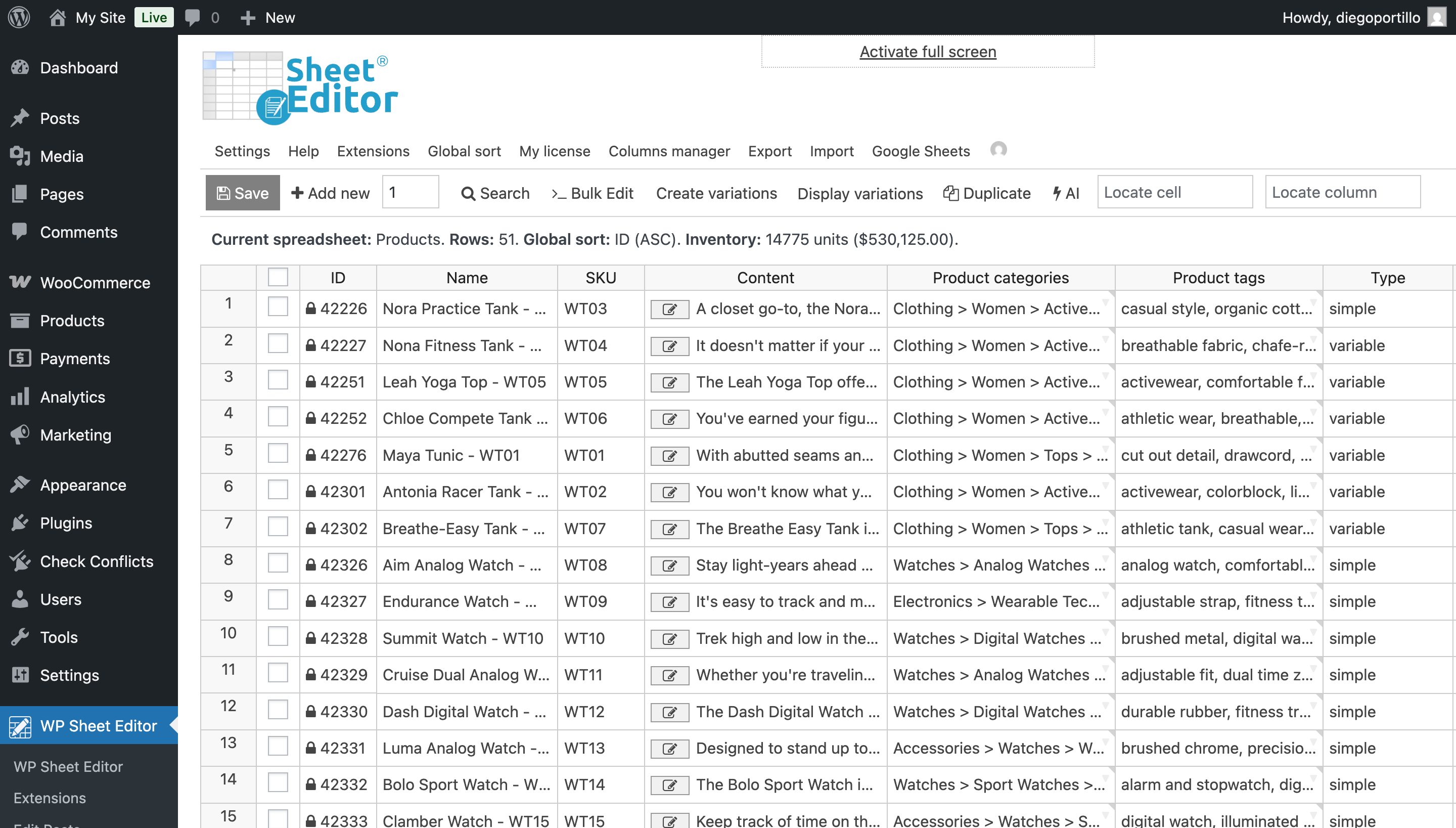
Go to WP Sheet Editor > Edit products and you’ll see all your WooCommerce products displayed in the spreadsheet.
Step 2: Connect to Google Sheets
After signing up for the Google Sheets Sync service, you’ll receive a helper plugin that connects your WordPress site to Google Sheets via APIs.
Follow this guide to complete the setup.
Step 3: Filter the variable products to export them
The first thing we need to do is filter the variable products from our WooCommerce store, since in this example we are working with variable products and their variations.
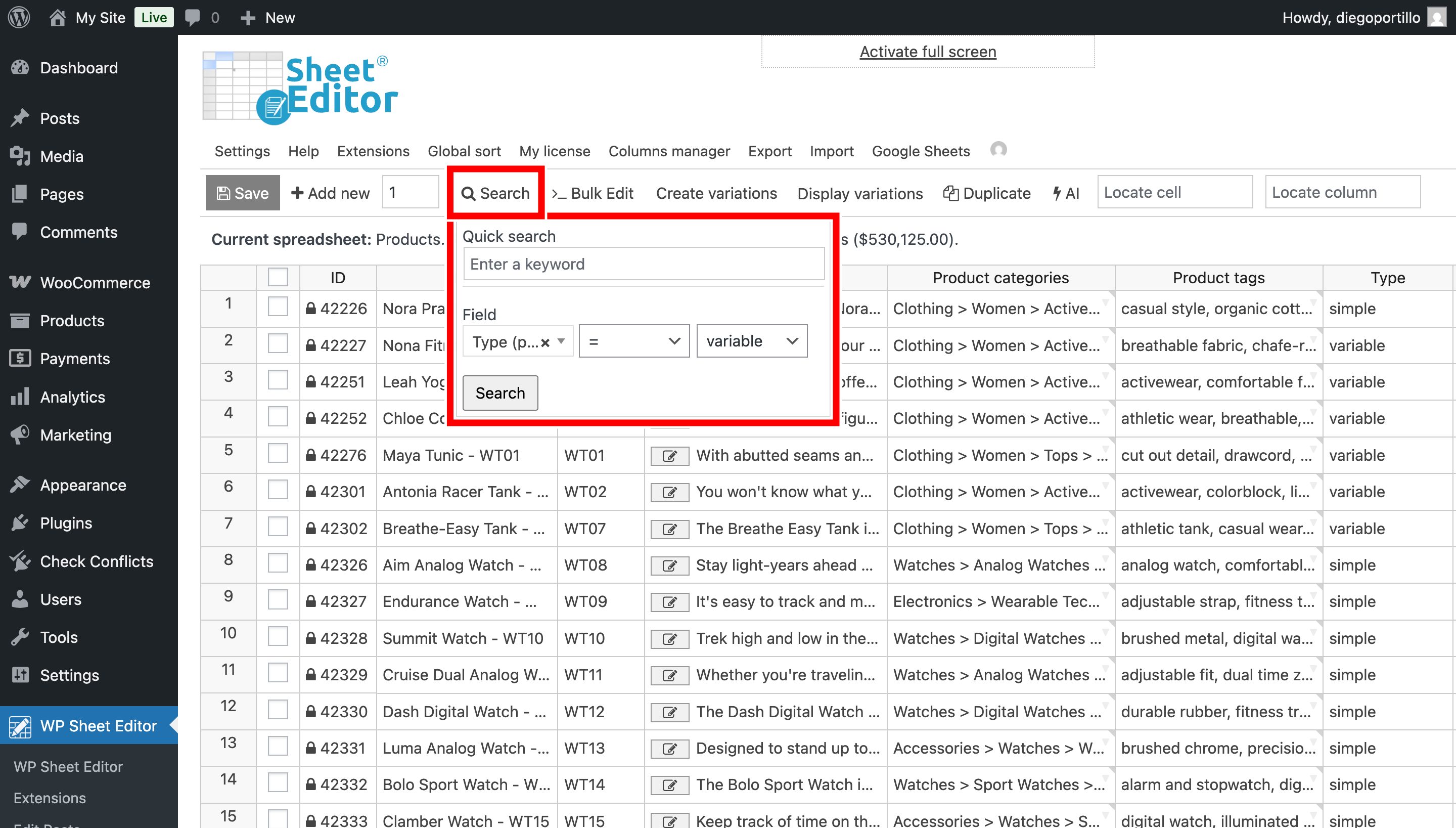
To do this, you can hover your mouse cursor over the Search tool and use the advanced filter:
- Type = Variable
Once you’ve entered the search terms, click on Search.
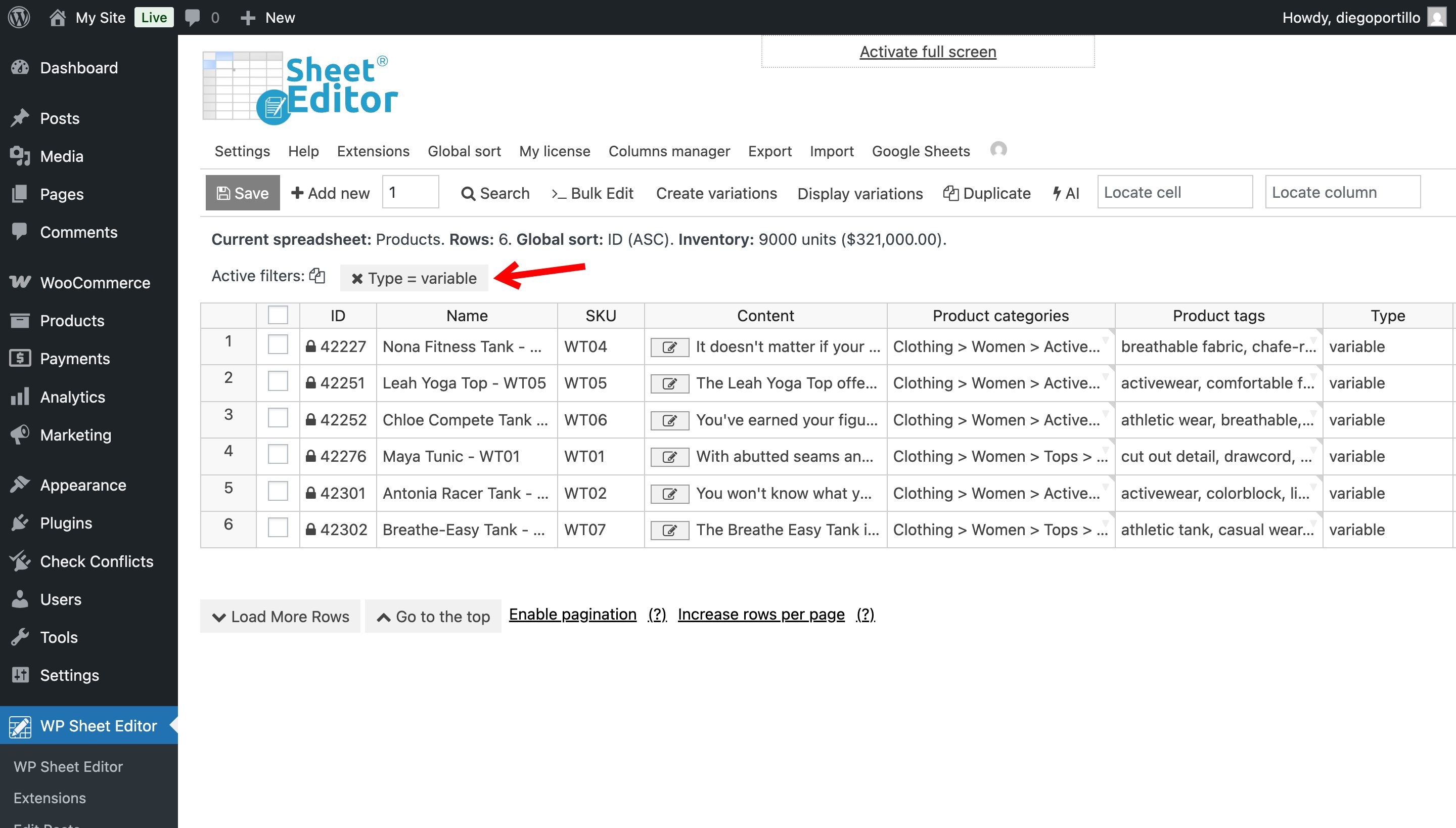
The spreadsheet will filter the WooCommerce products and display only variable products.
Since we need to export the variations along with their parent products, we need to click on “Display variations”.
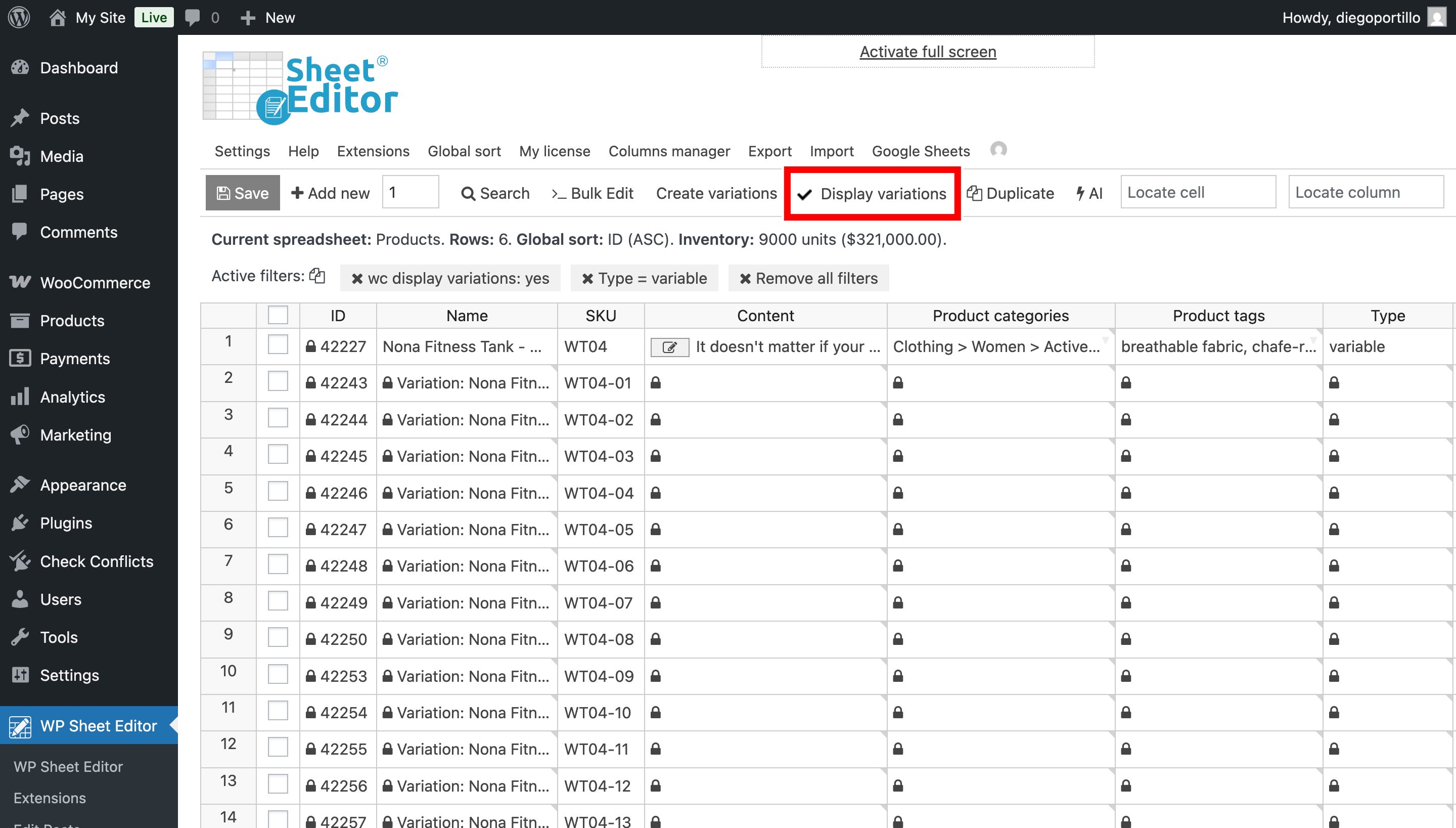
The variations will be displayed next to their parent products in the spreadsheet.
Step 4: Export your variable products to Google Sheets
The Google Sheets Sync service only allows you to import files that were previously exported or created using the same service. This is great because it protects your privacy by preventing access to other files in your Google account that aren’t related to the service.
Although you can create an empty Google Sheets file, the best approach in this case is to first export the data for your variable products along with their variations, so you can edit the variation data in Google Sheets. Note: You’ll still be able to add new variable products and/or new variations in Google Sheets.
Open the Export tool.
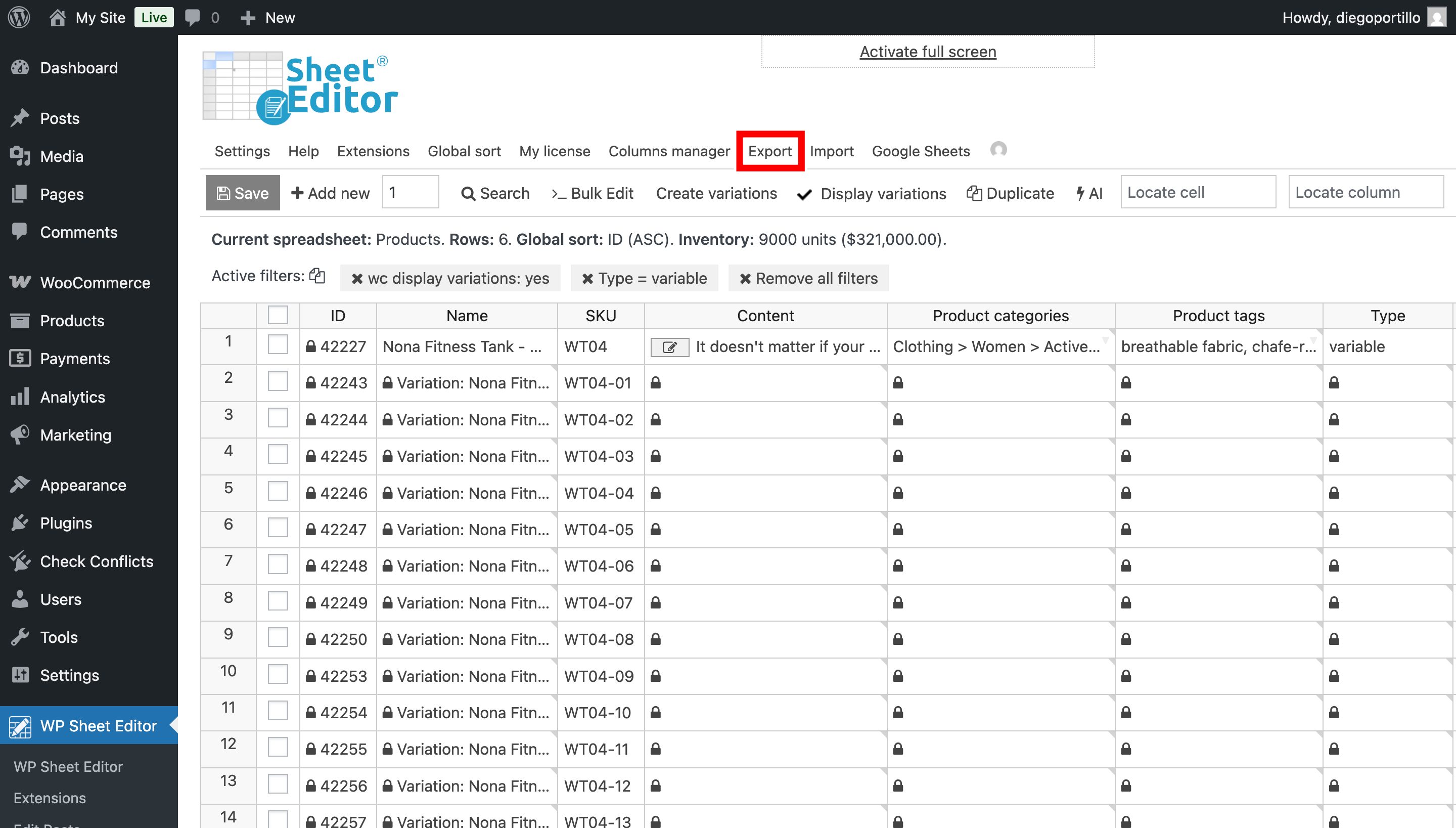
Now select these values to export your variable products with variations to Google Sheets:
- Which rows do you want to export: We will export all the rows from the current search.
- What app will you use to edit this file: Google Sheets
- Name of this export: Add a name for this export and the Google Sheet will inherit it.
- Click on Start new export.
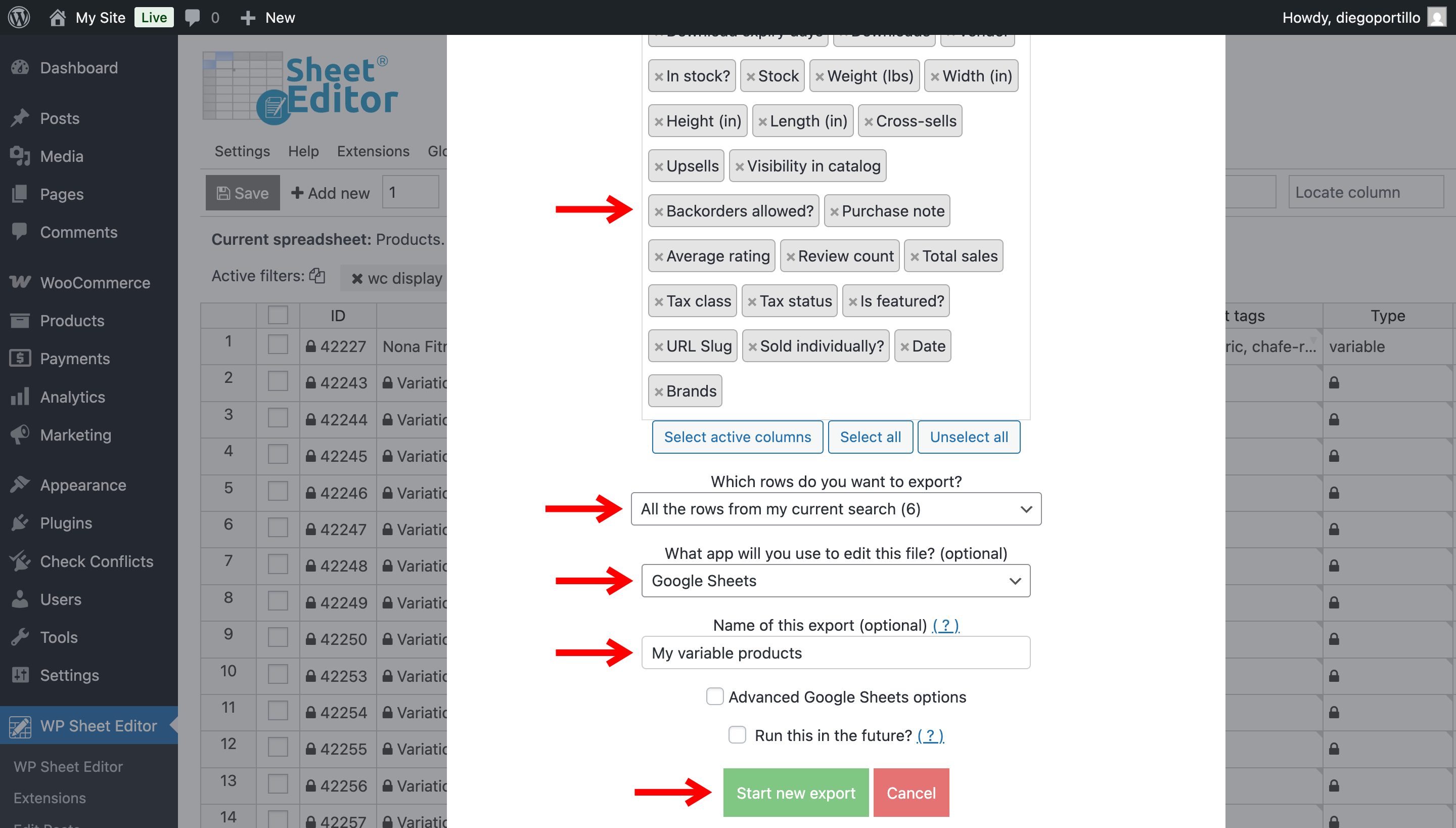
You’ll see a new link appear that lets you open the Google Sheet generated by this export; click “View Google Sheet”.
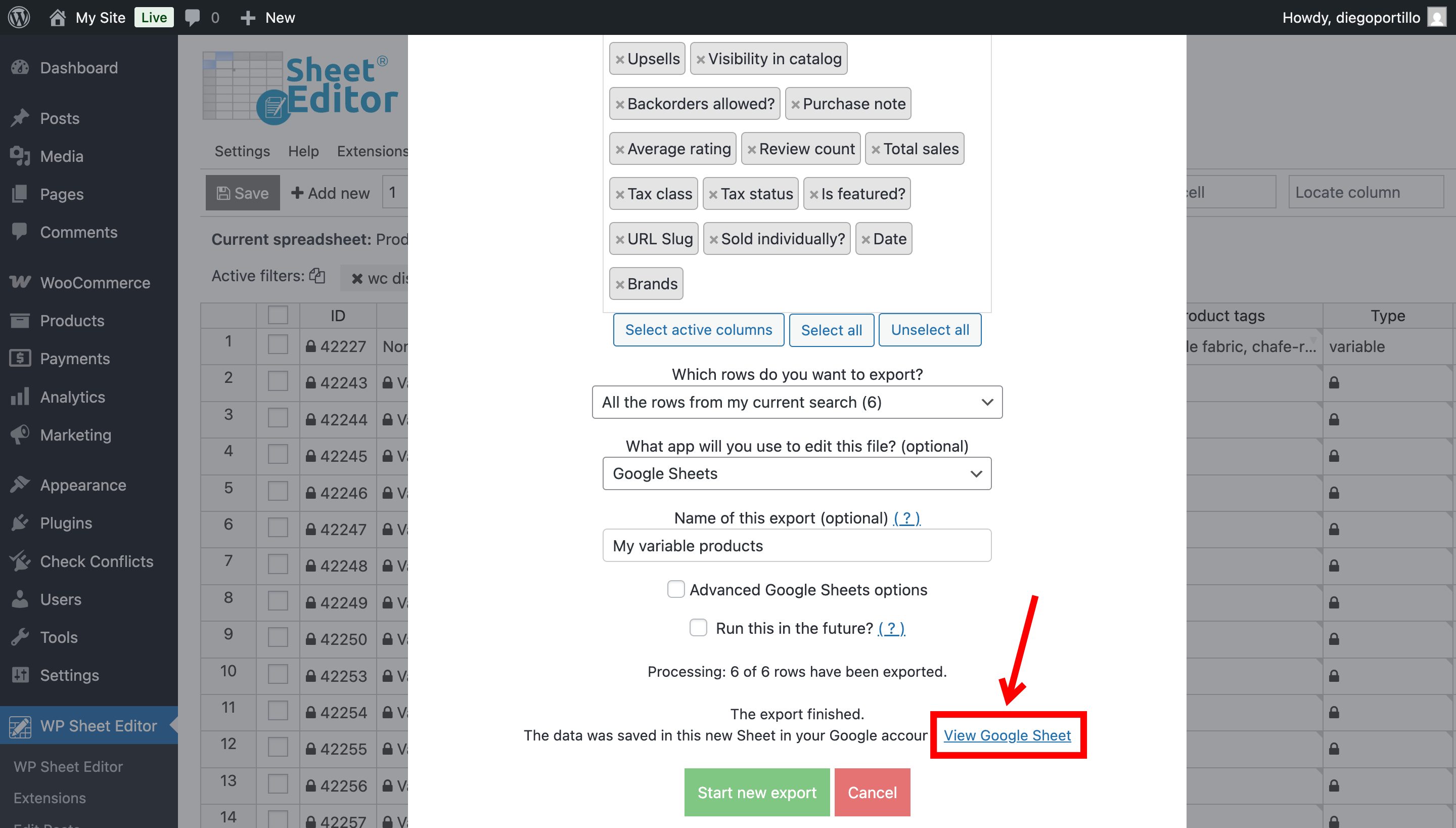
Step 5: Edit and create product variations in Google Sheets
Now that you have your variable product data and variations in Google Sheets, you can start editing the values of your existing variations, creating new variations, and so on.
Step 6: Import variable products from Google Sheets
Once you’ve edited your variable products and their variations—or even added new variations—you can import the data from Google Sheets into WooCommerce using WP Sheet Editor.
Start by opening the Import tool.
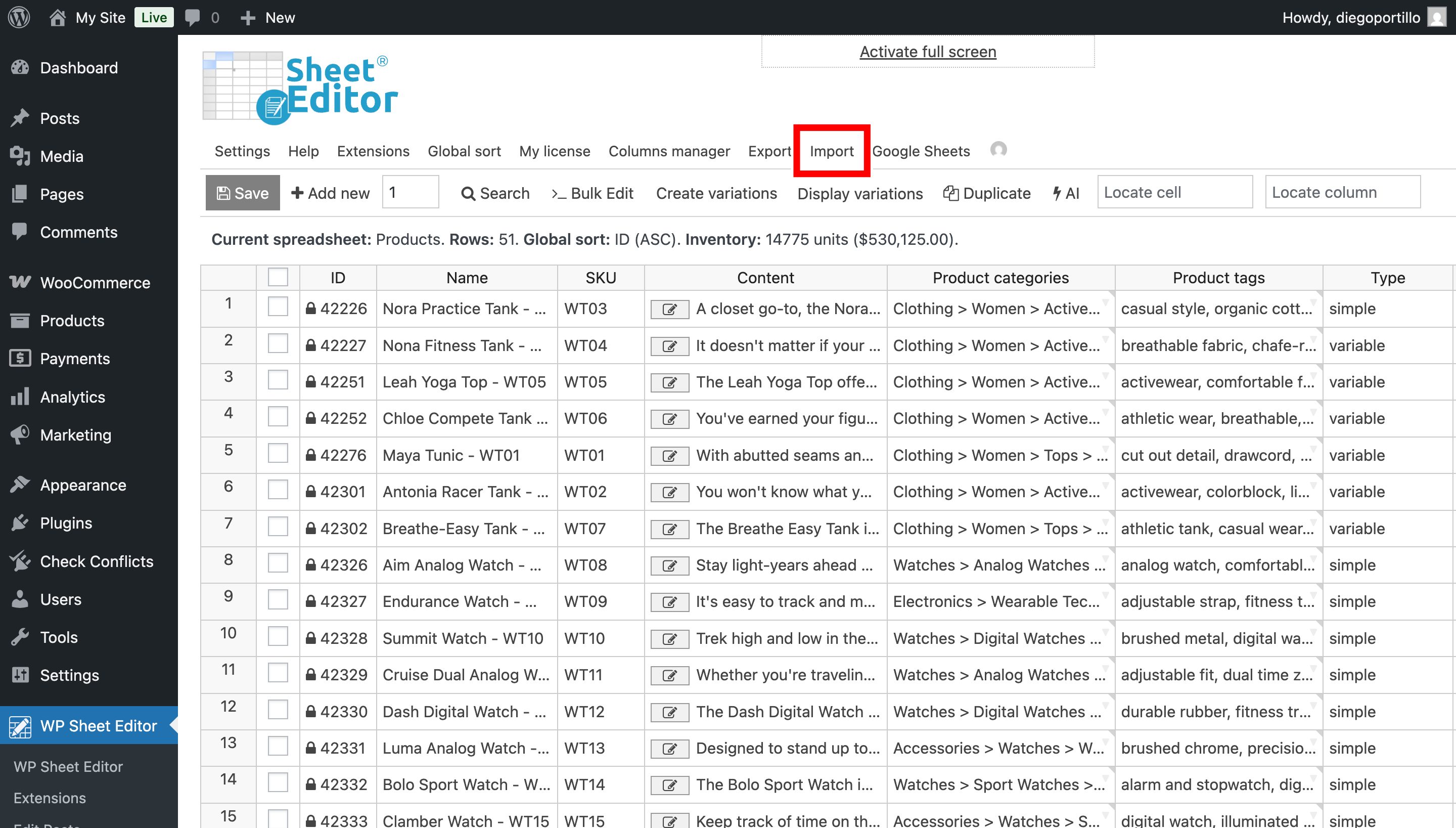
Now select these values to pull the variable products’ data from Google Sheets:
- Source: Google Sheets
- Google Sheet file: Select the Google Sheet in which you have the data.
- Click on Next.
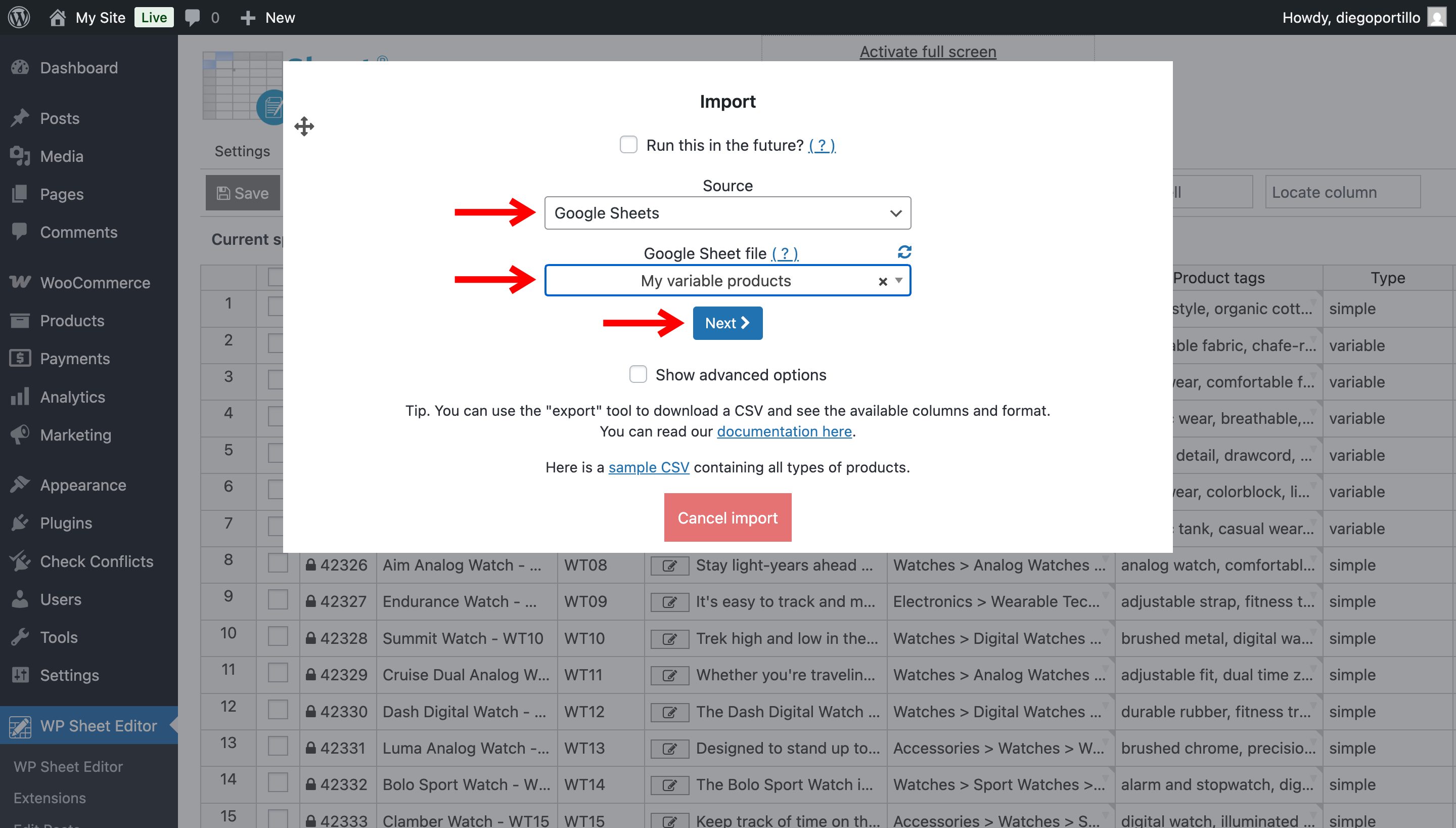
Next, you can Import all the columns or Select individual columns to import.
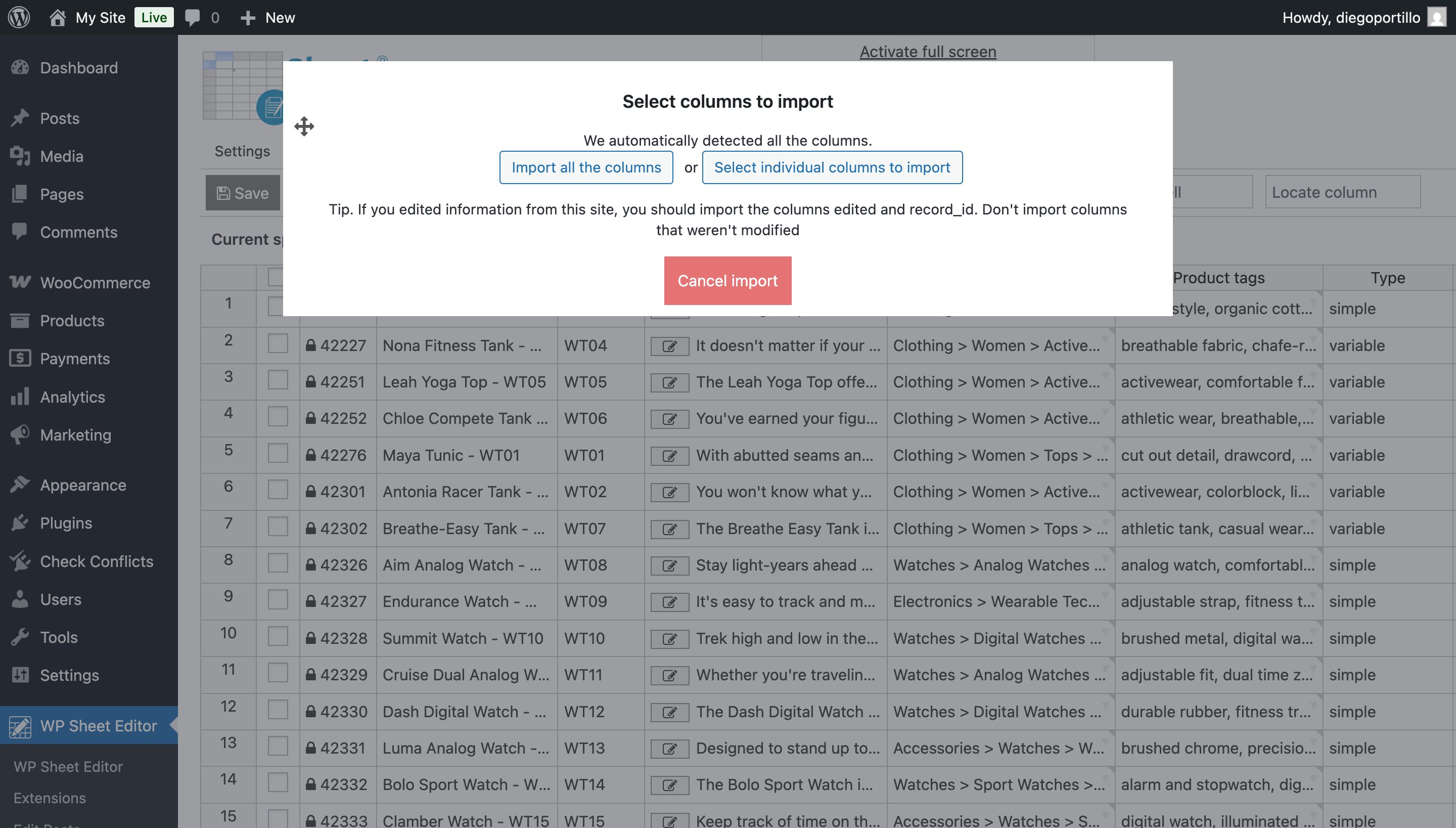
In this example, we will Create new items and update existing items, but you have these other options:
- Import all rows as new
- Only create new items, ignore existing items
- Update existing items, ignore new items
Any option that includes existing items will allow you to select a field as an identifier to match the data in the Google Sheet with the data on your WordPress site.
In this case, we’ll use the SKU field.
Click on Next.
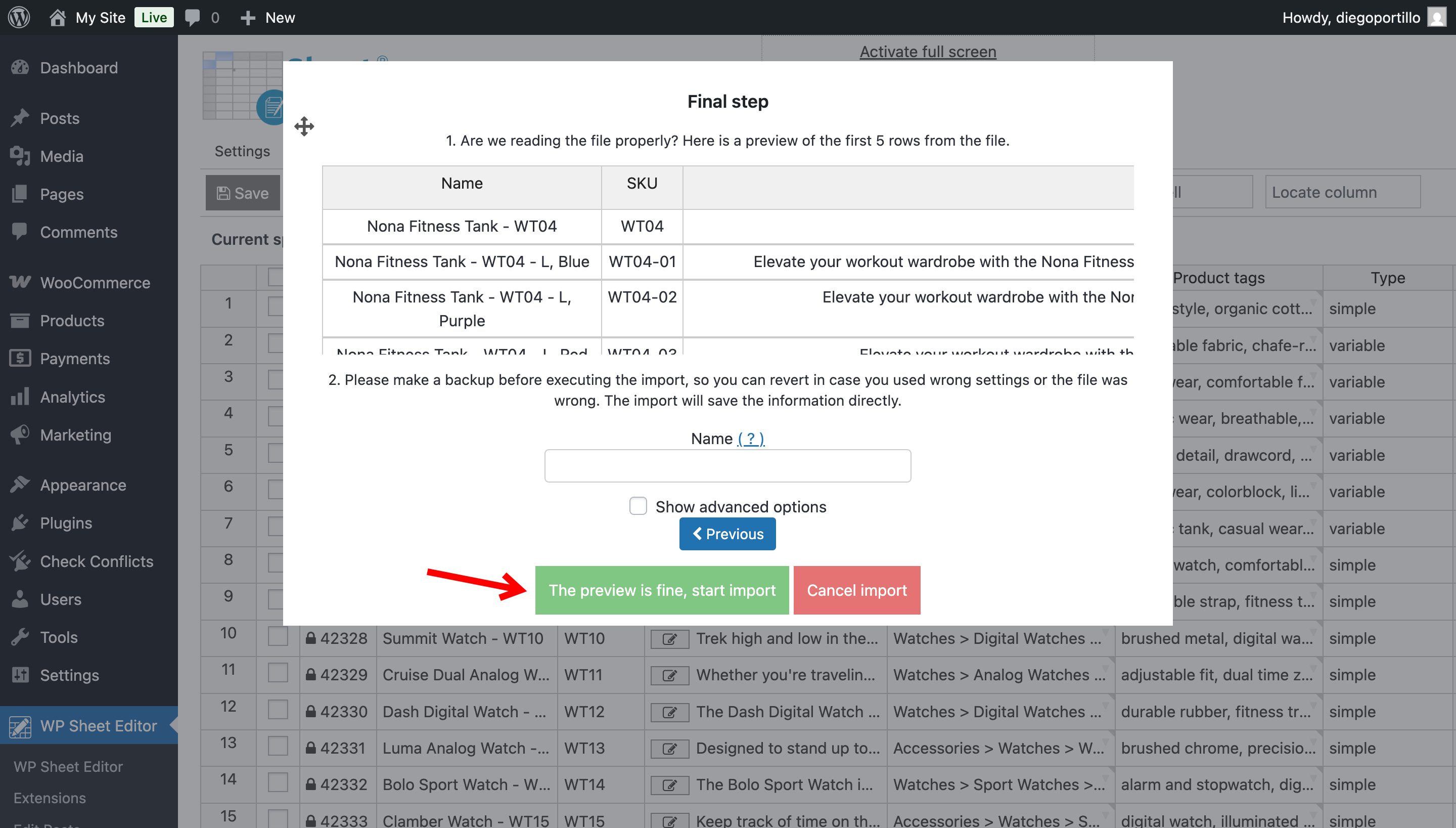
Finally, you’ll see a preview of how the data will look once it’s imported. If everything looks good, click “The preview is fine, start import.”
Simplify WooCommerce variable products with Google Sheets
Managing and updating WooCommerce variable products no longer has to be a time-consuming task. By using Google Sheets together with WP Sheet Editor and the Google Sheets Sync service, you can efficiently import, update, and create product variations in bulk without manually editing each product in WordPress.
You can save hours of manual work, reduce errors, and scale your product catalog faster. Whether you’re managing a few dozen products or thousands, Google Sheets integration with WooCommerce is the ultimate solution for streamlining variation management.
Start optimizing your WooCommerce store today and make product variation management faster, easier, and more efficient.