
Building a successful online academy with Tutor LMS involves constantly updating a massive amount of content. You are not just dealing with high-level course pages; you have to manage dozens of topics, hundreds of lessons, video URLs, quiz questions, and access settings.
By default, editing this content means navigating a complex web of WordPress menus. To fix a typo in a lesson or update a video link, you must open the course, find the topic builder, open the specific lesson modal, make your change, and save. If you need to update video links for 100 lessons because you migrated your hosting from Vimeo to YouTube, doing this manually is a nightmare.
In this tutorial, we will show you how to manage your entire Tutor LMS content ecosystem directly in Google Sheets. By setting up a real-time, bidirectional sync, you can bulk edit courses, lessons, topics, and quizzes in a single spreadsheet environment, completely bypassing the slow WordPress interface.
Why manage Tutor LMS content from Google Sheets?
Moving your e-learning content management to a synchronized spreadsheet offers massive workflow improvements for your team:
- Unified content auditing: View all your lessons, topics, or quizzes at once. You can easily spot missing descriptions, broken video URLs, or inconsistent naming conventions.
- Quick bulk edits: Use Google Sheets’ drag-and-fill features to update difficulty levels across 50 courses, or use ‘Find and Replace’ to update hundreds of video hosting URLs quickly.
- Team collaboration: Let your copywriters, subject matter experts, and video editors update lesson text and media links in a shared Google Sheet without ever needing access to your WordPress admin dashboard.
What you need to manage your Tutor LMS content
To bypass the default WordPress post editor and manage your Tutor LMS data cleanly, we will use these WP Sheet Editor tools:
WP Sheet Editor – Courses
This plugin generates intuitive spreadsheets where you can view and manage your Tutor LMS content inside your WordPress dashboard (it creates dedicated spreadsheets for your Courses, Lessons, Topics, and Quizzes). You can view and edit all your educational data effortlessly.
You can purchase the plugin here:
Get the WP Sheet Editor Courses plugin - or - Check the features
Google Sheets Sync: This service connects your WordPress site securely to your Google account, enabling automatic, bidirectional background syncing so your edits go live automatically.
You can sign up to the service here:
Sign up to the Google Sheets Sync Service - or - Check the features
Important: In this example, we will manage our Lessons, but you can apply these exact same steps to Courses, Topics, or Quizzes in their respective spreadsheets.
Step 1. Open the lessons spreadsheet
Once the plugins are installed and configured, you need to open the spreadsheet that controls the specific content you want to sync.
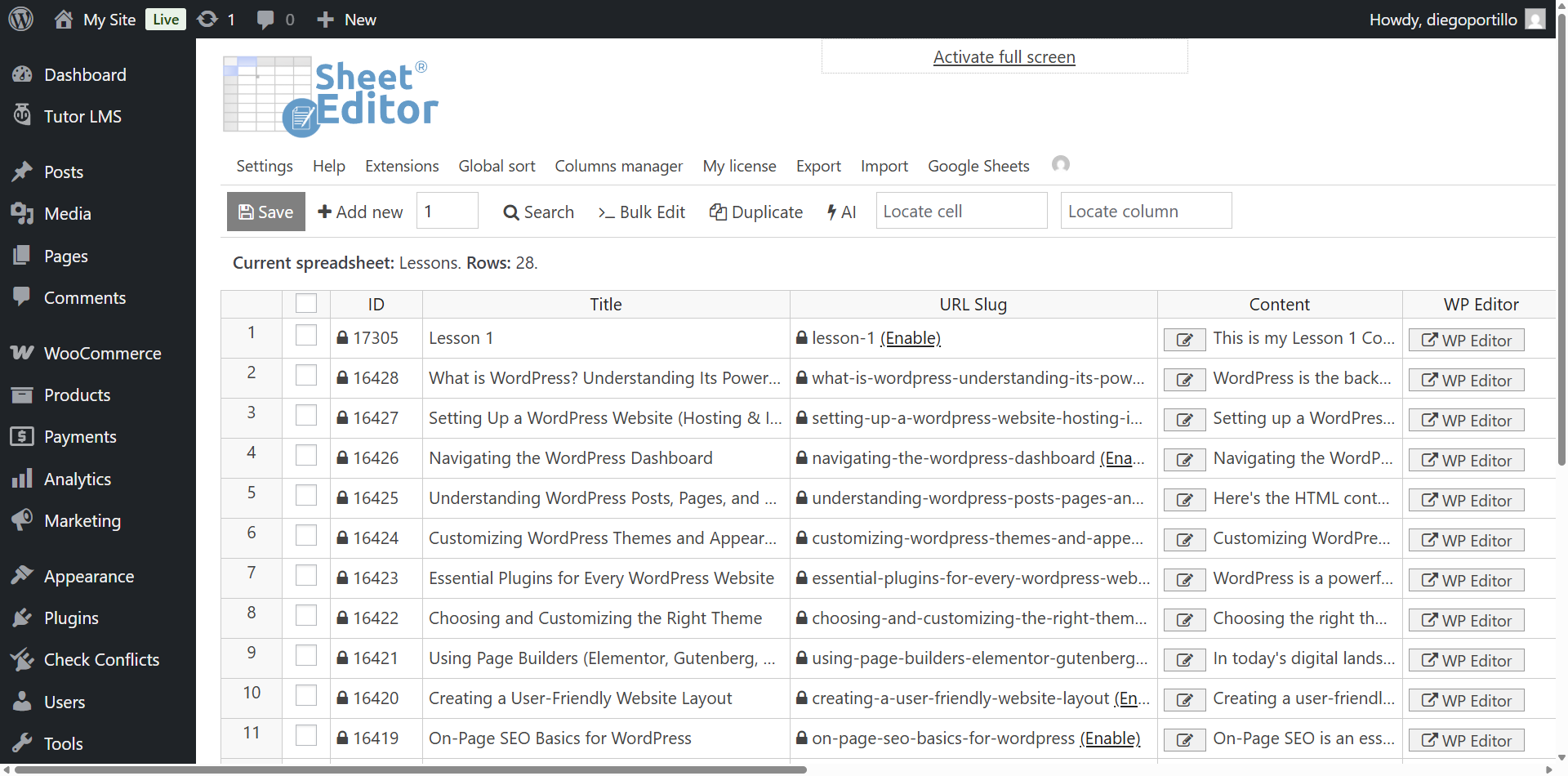
In this example, we’ll go to WP Sheet Editor > Edit lessons (or Edit courses, Edit topics, etc.). You’ll see all your existing Tutor LMS lessons displayed in the spreadsheet grid.
Step 2. Connect WordPress to Google Sheets
When you subscribe to the Google Sheets Sync service, you will receive a helper plugin that handles the secure API connection between your e-learning site and your Google account.
Follow our installation guide to authorize your account and get the synchronization engine running.
Step 3. Create a live sync with Google Sheets
WP Sheet Editor lets you set up real-time synchronization quickly. This way, any changes you make in WordPress will be exported to Google Sheets, and any changes you make in Google Sheets will be imported into WordPress automatically.
Hover the mouse cursor over the Google Sheets tool and select Quick sync setup.
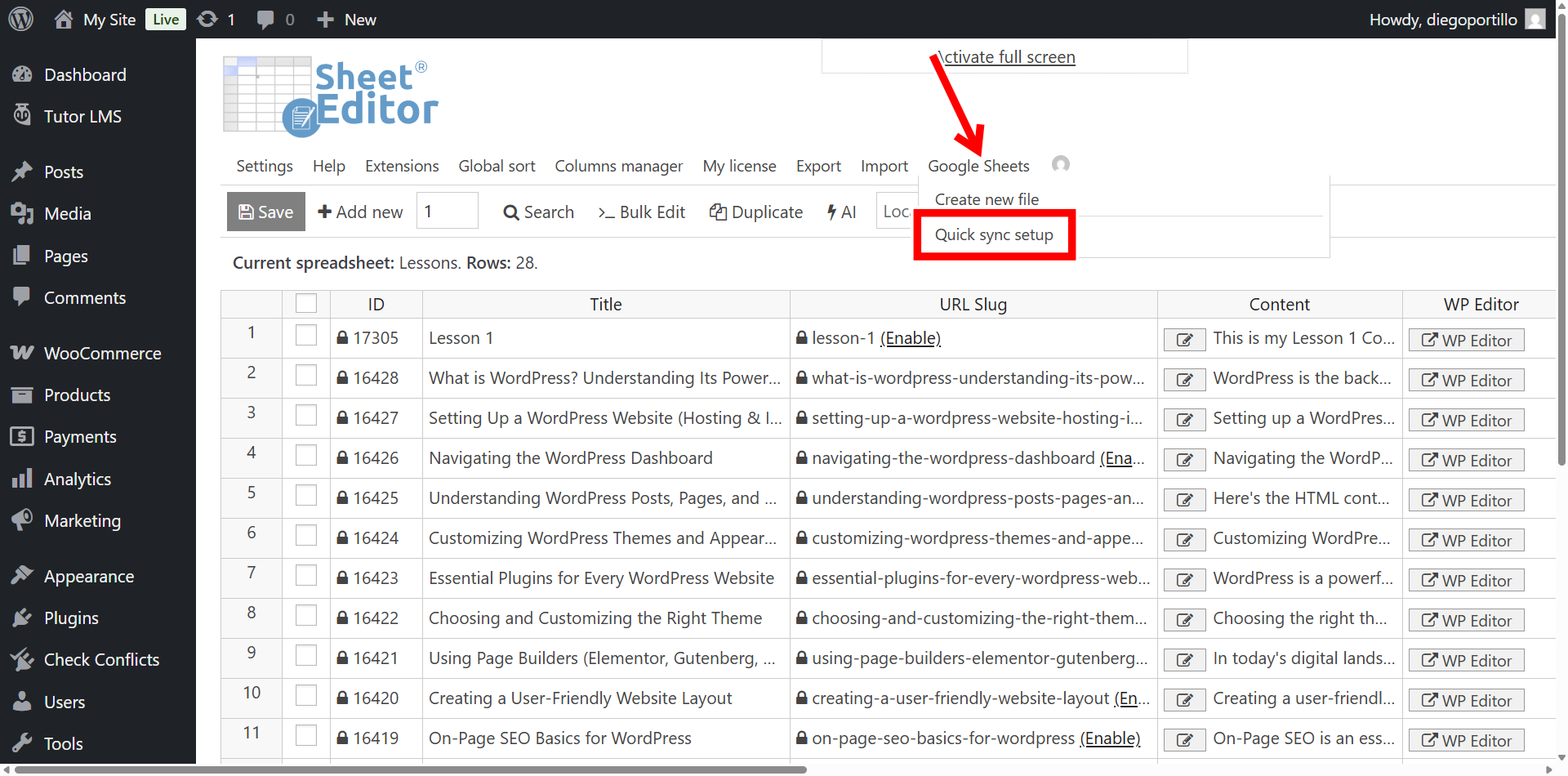
Click on Sync WordPress to Google Sheets (bidirectional).
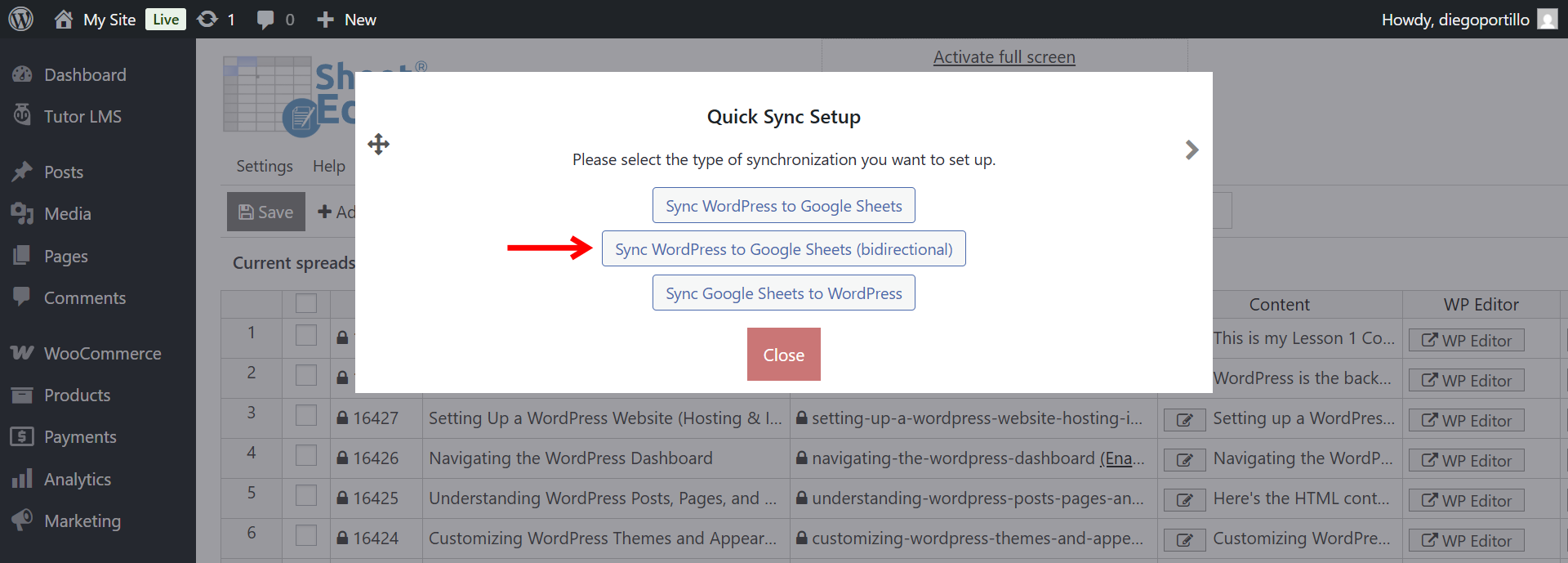
Select the following settings in the export popup:
- What columns do you want to sync: We will select all the columns; you can select specific columns if you want.
- What column should be used as an identifier: We will use the record_id (ID) field to match the lessons accurately.
- Sync name: Add a name for this real time sync (e.g., “Live Tutor LMS Lessons”).
- Click on Start sync, and in one or two minutes, the sync will start.
If you now go to Export > View scheduled exports, you’ll see the details of the new live sync we have created. You can open the new Google Sheet by clicking on the export’s name once it’s complete.
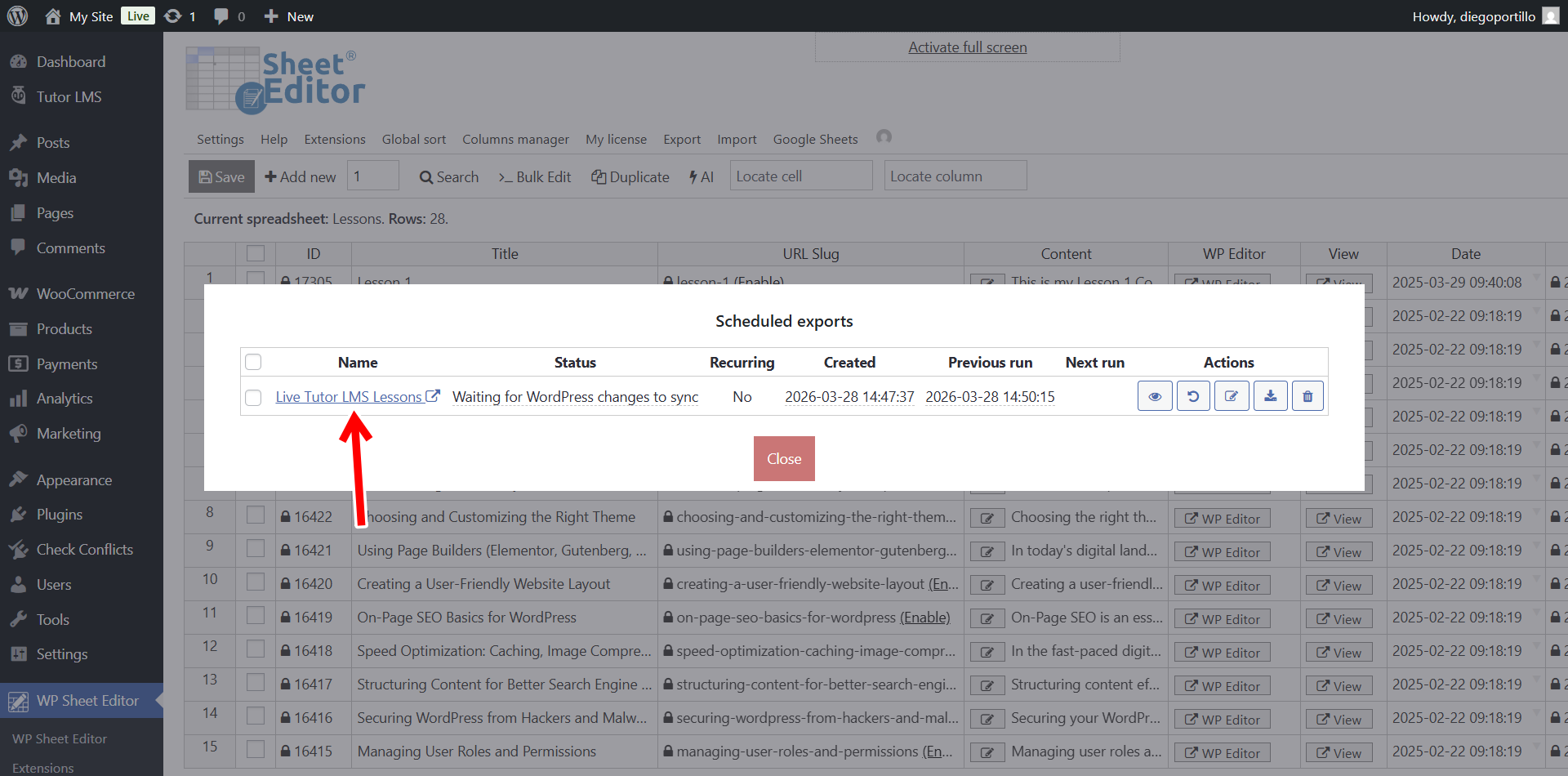
Also, if you go to Import > View scheduled imports, you’ll see that the plugin created an automatic import that will auto monitor the changes you make in Google Sheets to auto import them into WordPress. This is the feature that allows you to manage your Tutor LMS content in Google Sheets.
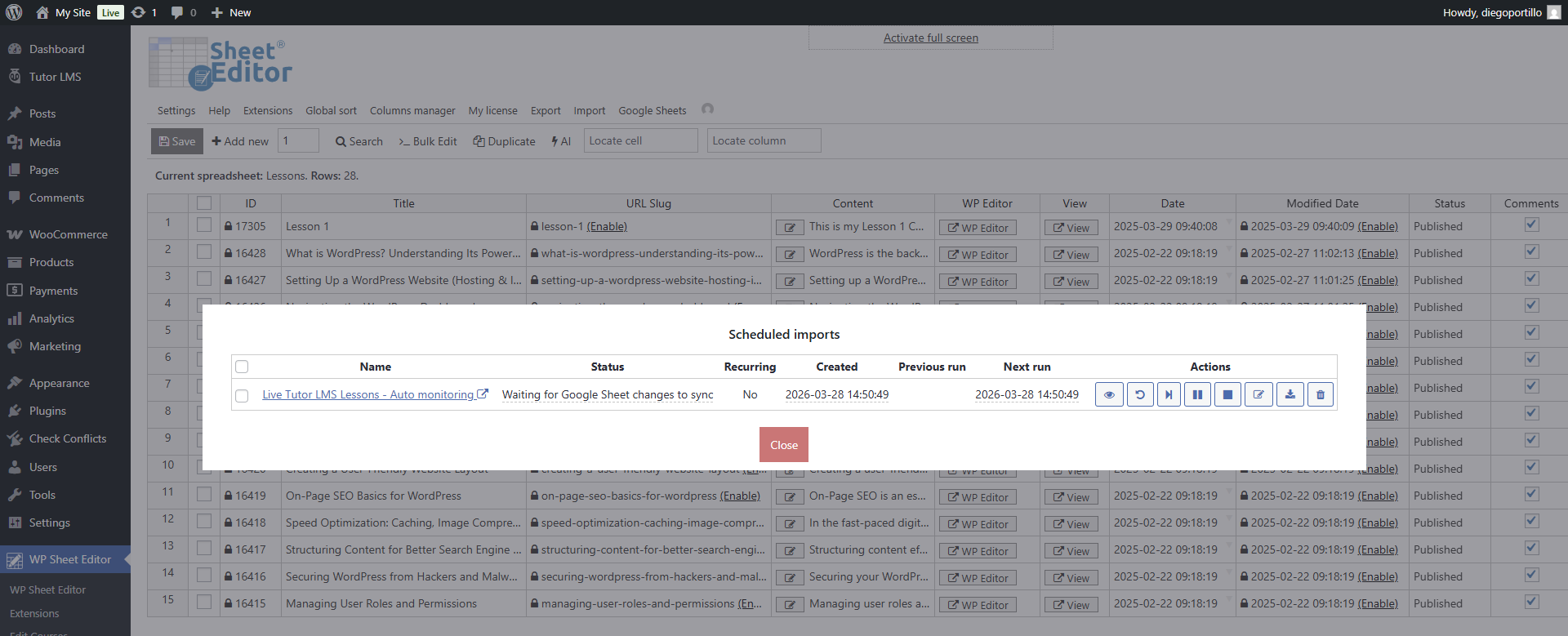
Open the generated Google Sheet by clicking on the scheduled export/import name.
Step 4. Edit content and media in Google Sheets
You will notice how much easier it is to digest your data. Every single course/lesson/topic is listed clearly row by row.
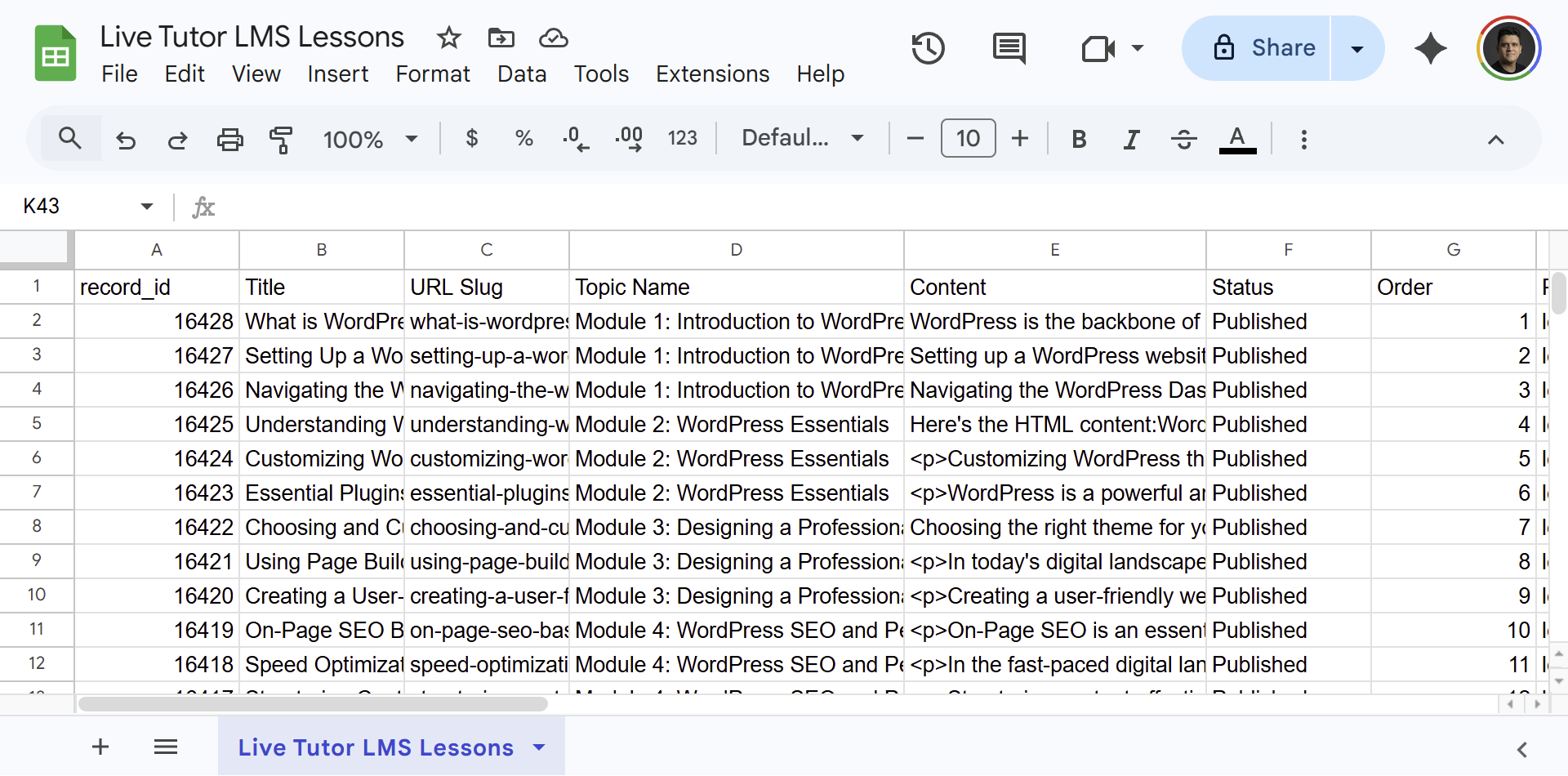
Since the content is exposed in a spreadsheet grid, you can perform powerful bulk actions:
- Bulk media updates: If you moved your videos to a new hosting platform, simply paste the new video URLs into the Video URL column for dozens of lessons at once.
- Content proofreading: Review the Content column to quickly spot spelling errors or formatting issues across your entire curriculum using Google Sheets’ spell check.
- Reorganize structure: Quickly change which Course or Topic a lesson belongs to by typing the new parent name in the respective column.
Step 5. Auto-sync changes back to Tutor LMS
Since the real-time sync automatically configures a bidirectional connection, you do not need to manually upload a CSV file when you are done making changes. The integration listens for your edits.
Every time you modify a lesson title, paste a new video link, or rewrite a description in Google Sheets, the service queues the update and pushes it directly into your live Tutor LMS database.
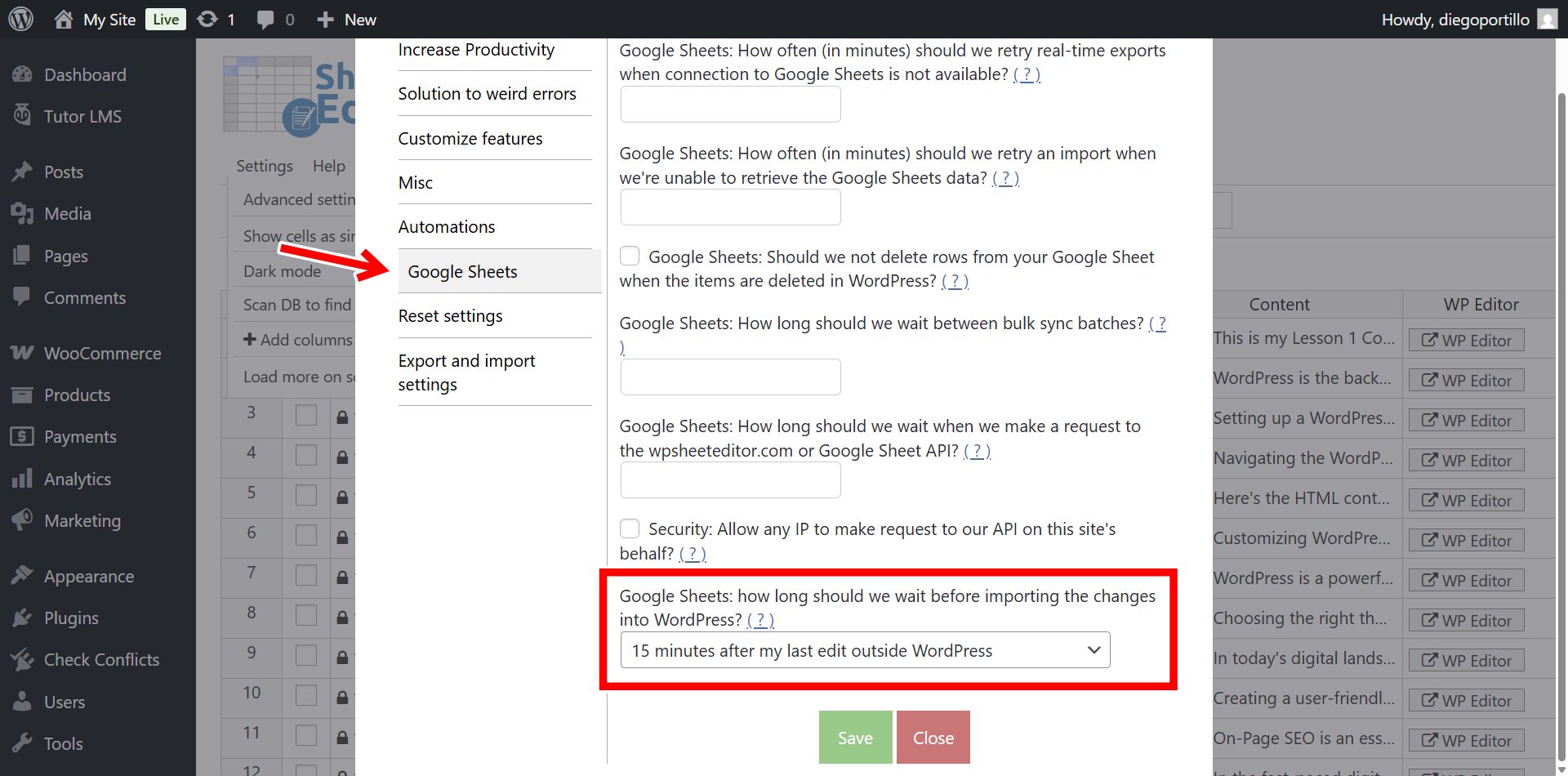
To prevent the system from importing half-finished sentences or typos while you are actively typing, the sync includes a customizable buffer time.
Navigate to Settings > Advanced Settings > Google Sheets in your WordPress admin to define how long the plugin should wait (e.g., 15 minutes) after your last spreadsheet keystroke before running the import.
Take control of your e-learning content
Managing complex curriculum structures does not have to be a bottleneck for your educational business. By syncing your Tutor LMS content to Google Sheets, you transform a tedious, click-heavy WordPress task into a streamlined, collaborative operation. With WP Sheet Editor and the Google Sheets Sync service, you can update lessons, reorganize topics, and audit your entire academy faster than ever before.