
With WooCommerce Subscriptions, you can create recurring billing plans for your customers. Managing recurring orders across hundreds of active subscribers presents distinct administrative challenges.
Note: This tutorial focuses on WooCommerce subscriptions, so if you want to work on products, read this guide.
The native WooCommerce order search and editing options are limited. For example, if you want to find all active subscriptions billed at exactly $9.00, or you need to raise recurring rates across specific customer plans, you must open and update each subscription order individually. This manual process takes significant time and increases the risk of input errors.
In this tutorial, you will learn how to manage recurring orders directly. Using the WP Sheet Editor – WooCommerce Orders plugin, you can filter active subscription orders by total amount and adjust those recurring rates across multiple accounts simultaneously.
You can download the plugin here:
Download WooCommerce Orders Spreadsheet Plugin - or - Check the features
Step 1: Set Up WooCommerce Subscriptions Spreadsheet
Once you have installed and activated the plugin, configure your workspace:
Navigate to WP Sheet Editor > Setup Spreadsheet in your WordPress dashboard.

Select the columns you want to display in your spreadsheet. If there are data points you do not need (such as shipping dimensions or billing company), move them to the Disabled side. Click Save to load your spreadsheet view.

The spreadsheet will display your WooCommerce subscriptions, with each active subscription order represented as a row and its metadata organized into columns.
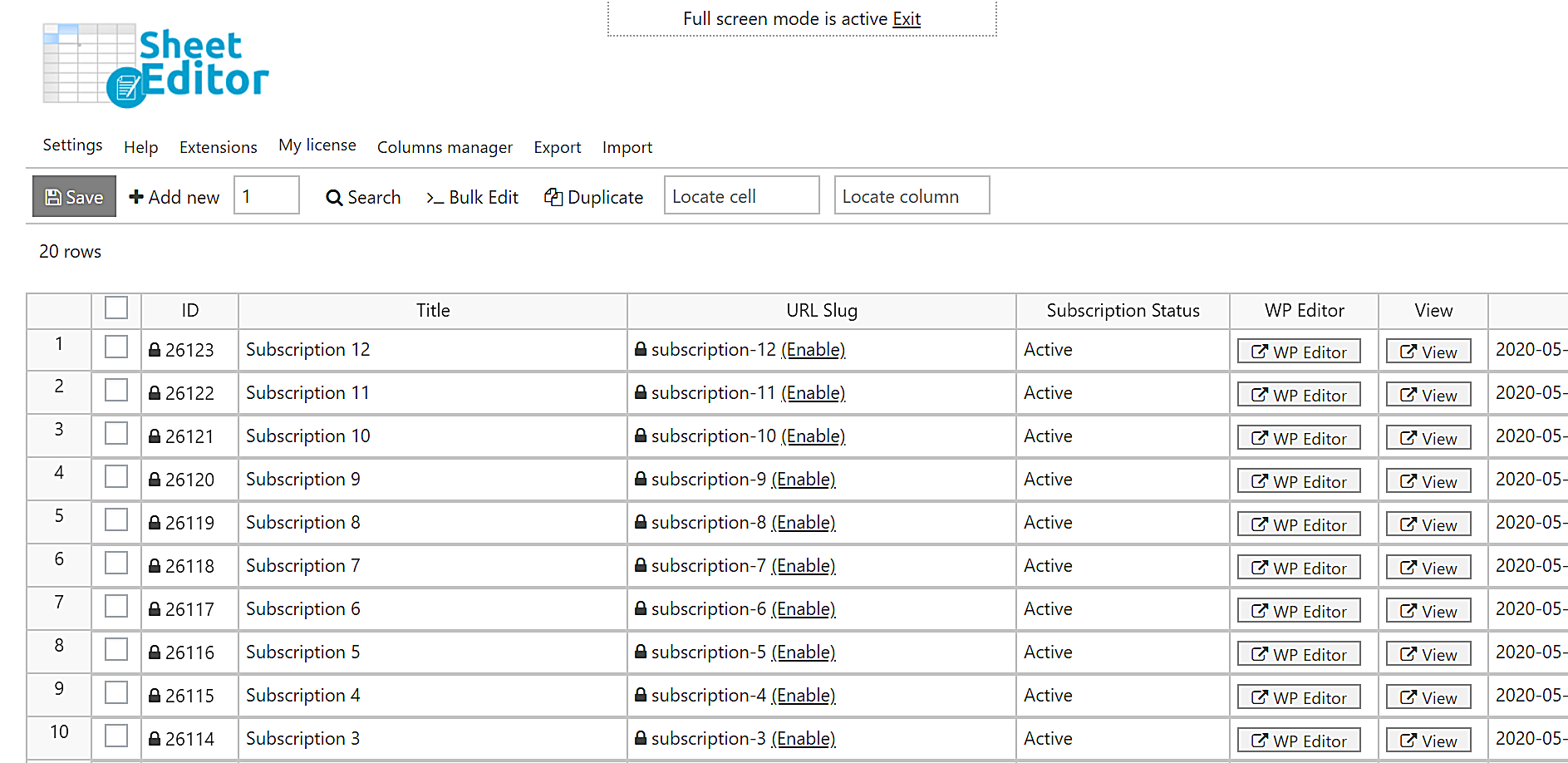
Step 2: Search and Filter Active Subscriptions by Recurring Rate
Before running a bulk update, isolate the specific subscription orders you need to adjust. Click the Search tool on the top toolbar to open the filtering settings.
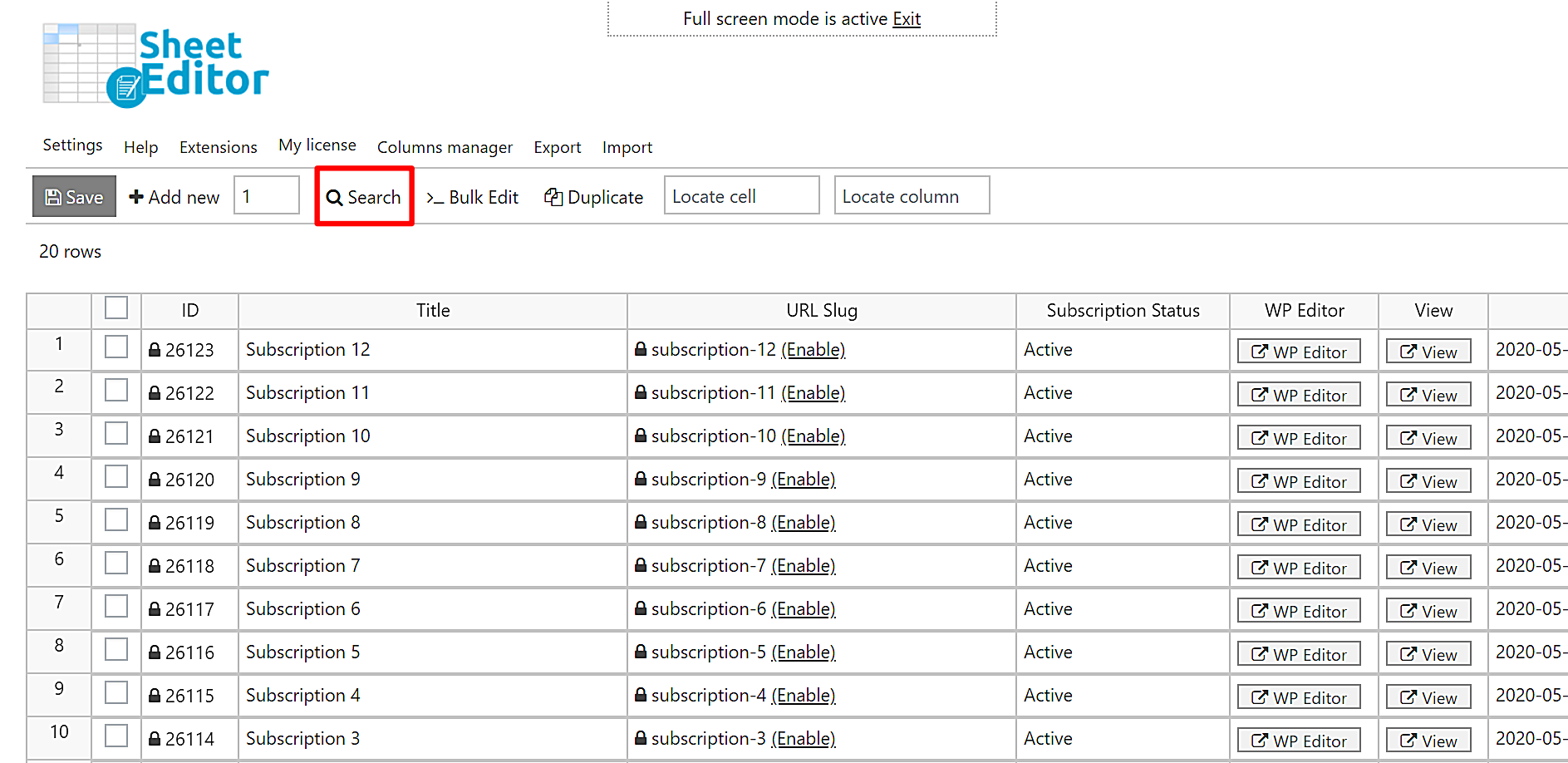
You can filter by exact billing amounts, search a range of values, or target orders above or below a specific threshold:
Option A: Search for an Exact Subscription Amount
To isolate all active subscription orders billed at $9.00, check the Enable advanced filters box and set these parameters:
- Field: Subscription Status | Operator: = | Value: Active
Click Add New to add the second condition:
- Field: Order Total | Operator: = | Value: 9.00
Click Run Search. The spreadsheet will update to show only active subscriptions totaling $9.00.

Option B: Search for Recurring Rates Equal To or Greater Than
To target plans billed at $5.00 or higher:
- Field: Subscription Status | Operator: = | Value: Active
Click Add New:
- Field: Order Total | Operator: >= | Value: 5.00

Option C: Search for Recurring Rates Equal To or Less Than
To find lower-tier subscription orders billed at $10.00 or less:
- Field: Subscription Status | Operator: = | Value: Active
Click Add New:
- Field: Order Total | Operator: <= | Value: 10.00

Step 3: Bulk Update Subscription Order Rates
After filtering your target subscription orders, you can update their values using the bulk editor.
Click the Bulk Edit tool in the top toolbar to access the modification settings:
- Increase subscription rates by percentage (e.g., +10%)
- Increase recurring totals by flat amount (e.g., +$5.00)
- Decrease subscription rates by percentage (e.g., -15%)
- Decrease recurring totals by flat amount (e.g., -$10.00)

Configure the fields in the Bulk Edit window:
- Select the rows that you want to update: Choose Edit all the rows from my current search.
- Select type of edit: Select your update rule (e.g., Increase subscriptions by percentage).
- Increase/Decrease by: Enter the percentage or numerical amount.
- Click Execute Now.

When the process completes, the spreadsheet will refresh with the updated values. You can review the changes in the Line items column.
Bonus: Exporting Your Subscription Data
To review these changes externally or share updated totals with your accounting team, click Export in the top toolbar to download a CSV file of your filtered subscription orders.
The WP Sheet Editor – WooCommerce Orders spreadsheet lets you manage subscription billing updates in bulk directly from WordPress.
You can download the plugin here:
Download WooCommerce Orders Spreadsheet Plugin - or - Check the features