
Increasing prices for WooCommerce products isn’t as easy as it seems. The native WooCommerce editor lets you do this, but there are some issues that large catalogs face. For example, you can only edit selected products, which is limited by the pagination size. Another issue is that WooCommerce isn’t a specialized bulk editor, so you can easily run into timeouts and server errors if you try to raise the prices of hundreds or thousands of products or variations.
That’s why, in this tutorial, we’ll show you how to increase prices by a fixed amount for hundreds or thousands of products. You can edit 1,000 products at a time without any problems, because WP Sheet Editor saves bulk changes in batches, which allows your browser to rest between batches and apply the changes correctly without timeouts.
Important: You can also increase prices by proportionaly (by %).
What you need to raise prices in bulk
To raise the prices of your WooCommerce products in bulk, you need the WP Sheet Editor for WooCommerce Products plugin. And not only that, but this plugin also lets you perform advanced searches, make bulk changes with just a few clicks, and export and import products. You can edit any field across thousands of items with just a few clicks.
You can download the plugin here:
Download WooCommerce Products Spreadsheet Plugin - or - Check the features
After installing the plugin and activating your license, go to WP Sheet Editor > Edit products in wp-admin to open the spreadsheet.
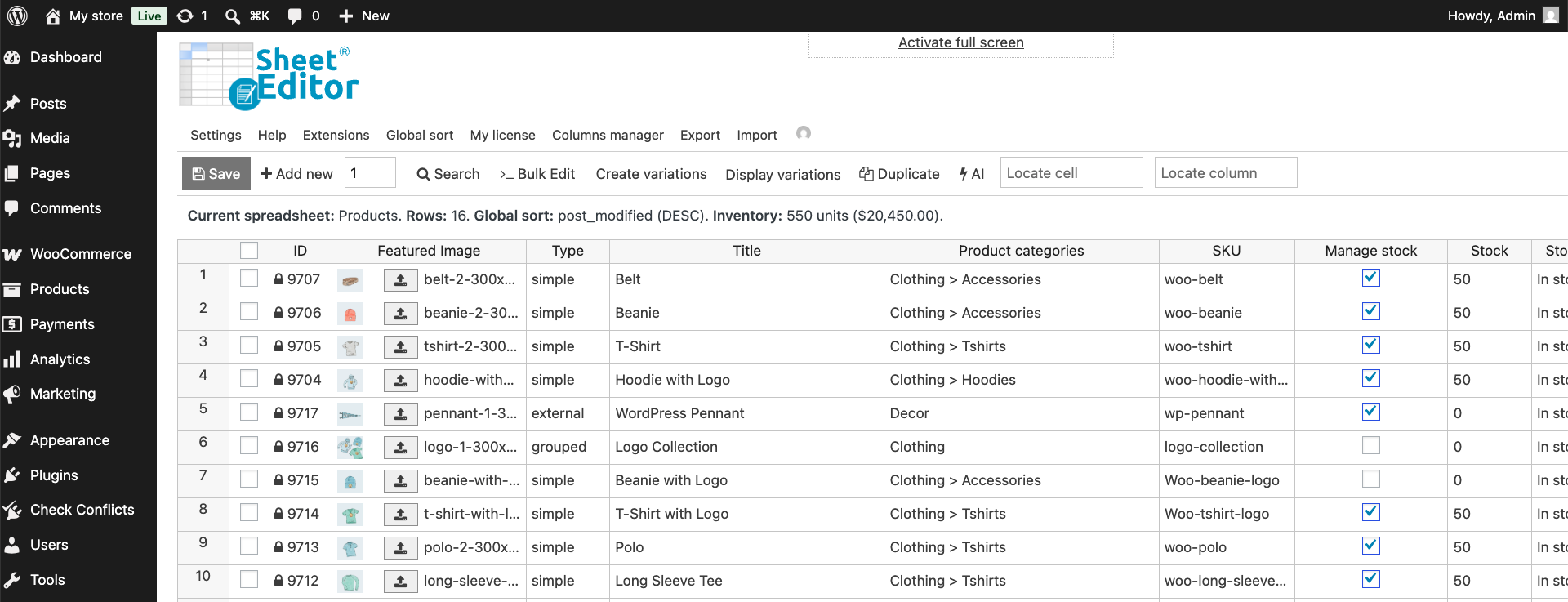
Step 1 – Product selection
Here are three ways you can select which products you want to lower the prices for:
1) Edit all the products in your WooCommerce catalog.
If you want to lower the price of all the products in your WooCommerce store, open the Bulk Edit tool and proceed to the next step.
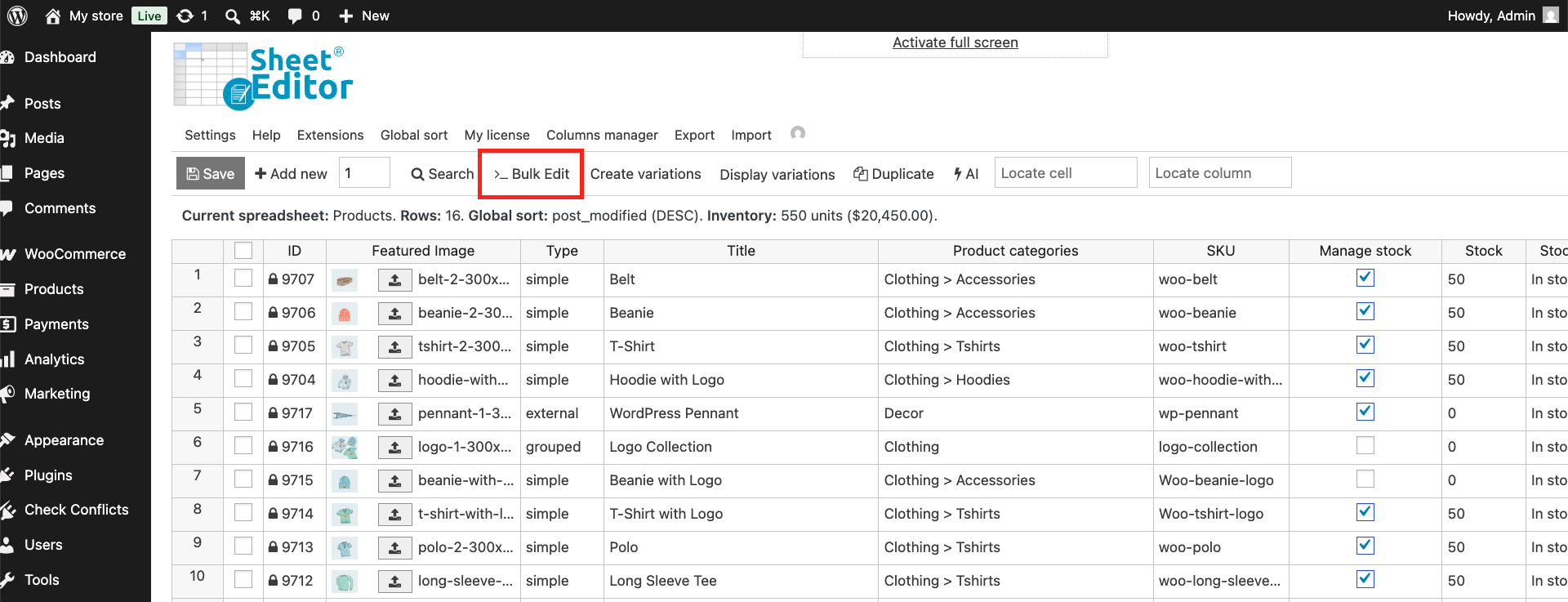
2) Manually select the products you want to edit.
The spreadsheet includes a checkbox that allows you to select each product/variation you want to edit. Note: To view the variations and select them, you need to click “Display variations” on the toolbar. After selecting the products, open the Bulk Edit tool and go to the next step.
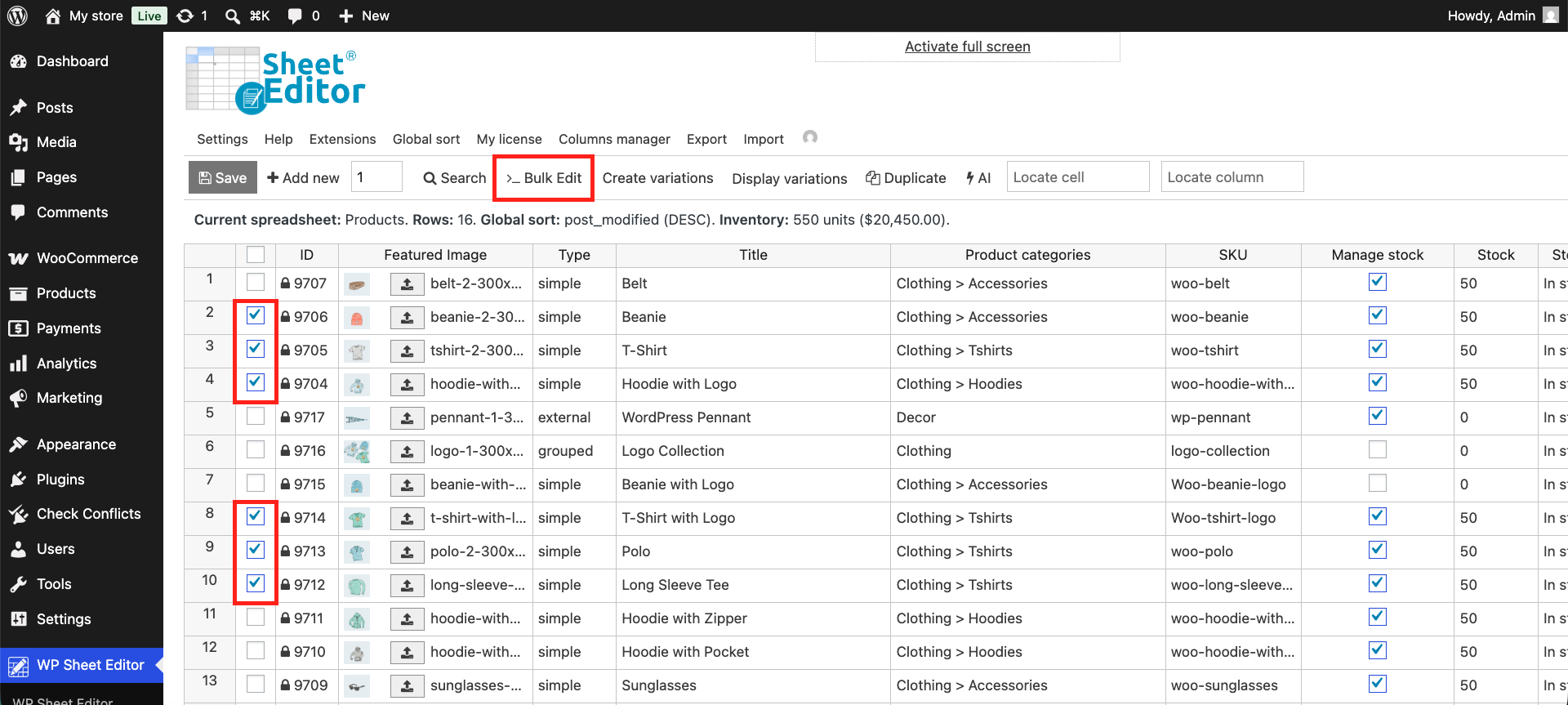
3) Search for products to lower their prices by a fixed amount.
The Search tool allows you to search for products by category, list price, shipping class, attribute (color, size, material, etc.), creation date, price range, SKU, and any other field.
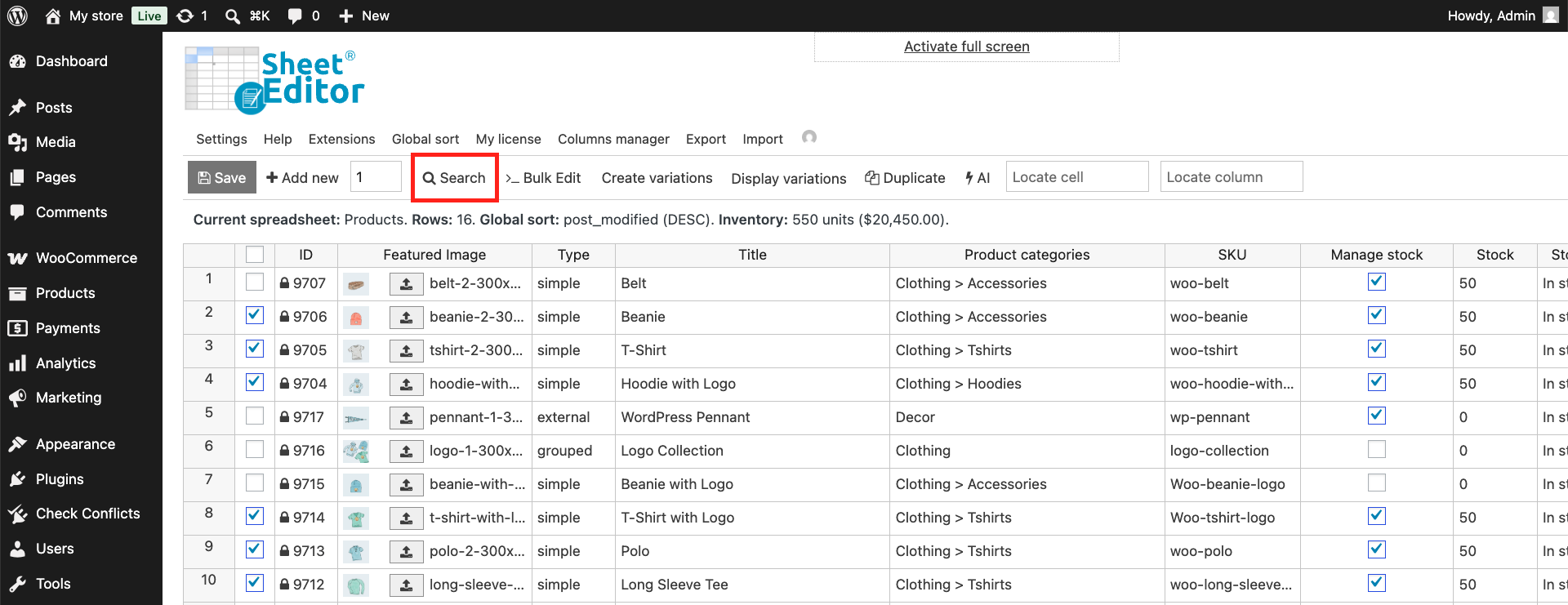
Here you’ll find a guide to the advanced product search tool. Once you’ve filtered your products, you need to click on Bulk Edit and go to the next step.
Step 2 – Bulk increase prices by fixed amount
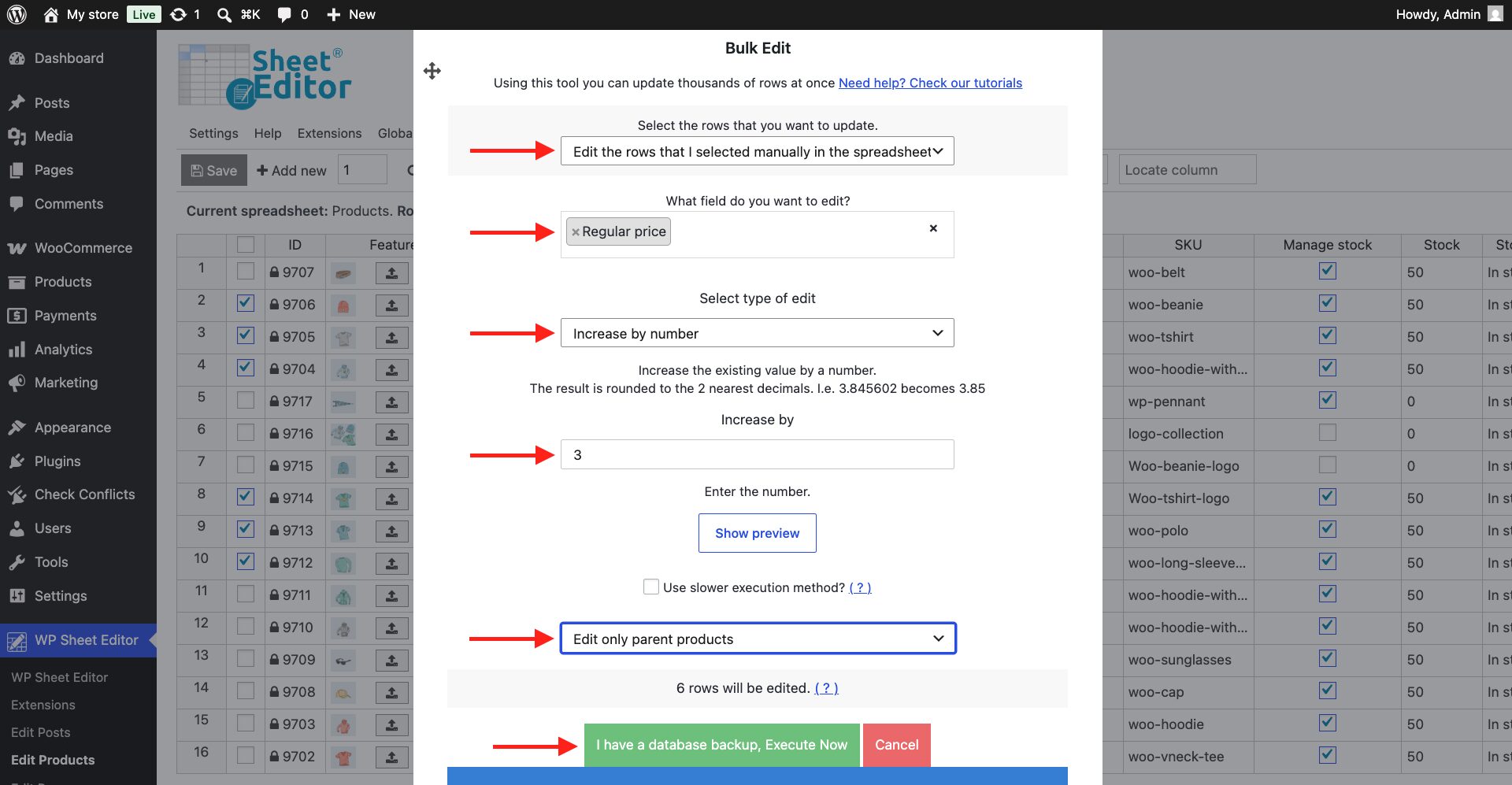
In the Bulk Edit tool, you need to select these values to increase prices in bulk:
- Select the rows that you want to update: It depends on how you have done the product selection. You can edit all the products currently loaded in the spreadsheet (current search) or edit the products that you have manually selected in the spreadsheet.
- What field do you want to edit: Select Regular price.
- Select type of edit: Increase by number.
- Increase by: Enter the fixed amount you want to add to your current prices. For example, to add 5 dollars to the current prices, enter 5.
- Select what you will edit: In this option you need to decide if you want to Edit only parent products or Edit only variations.
- Click Execute Now.
When you may need to increase prices by fixed number
- Supplier price increase: A supplier raises the cost of several products by $3. Instead of updating each product manually, you can add $3 to all of the affected WooCommerce prices at once.
- Shipping cost increase: If shipping costs go up, you may need to raise some product prices by $5 to cover the difference. With a spreadsheet, you can make that adjustment across hundreds of products in one go.
- New handling fee: If you introduce a $2 handling fee for certain products, you can add that amount to all matching products at once rather than editing them individually.
- Premium category markup: You decide to raise the prices of products in a premium category by $10. Filter the products by category and update them all at once.
- Low-priced products: You notice that some products under $20 have margins that are too low. You can add $3 to those products without affecting the rest of your catalog.
- High-value products: Products over $200 may require extra packaging or insurance. Adding a fixed $25 to their prices can help cover those additional costs.
- Seasonal adjustment: Fulfillment costs may increase during the holiday season. You can temporarily add $5 to selected products and update their prices in bulk.
- Brand-specific increase: If a particular brand raises its wholesale prices, filter your catalog by that brand and add $8 to all of its products at once.
- Market adjustment: Products sold in a specific market may have additional costs that you need to account for. You can filter those products and add a fixed number without changing prices elsewhere.
- Minimum-margin correction: After reviewing your catalog, you find that some products have margins that are too low. You can identify those products and add a fixed $4 to each price in bulk.
You can download the plugin here:
Download WooCommerce Products Spreadsheet Plugin - or - Check the features