
You can add alt tags to images in WordPress by editing the Alternative Text field in the Media Library or the WordPress block editor. That’s one image at a time. But if you need to add alt tags to multiple images, WP Sheet Editor – Media Library lets you find images with empty alt tags fields, write alt tags in a spreadsheet, apply bulk changes, or import alt tags from CSV files.
In this tutorial, we’ll cover both methods.
How to add alt tags to images in WordPress manually
To add alt tags without installing a plugin:
- Go to Media > Library in your WordPress dashboard.
- Open the image you want to edit.
- Find the Alternative Text field.
- Enter a description of the image.
- Save your changes if necessary or go to the next image to edit it manually.
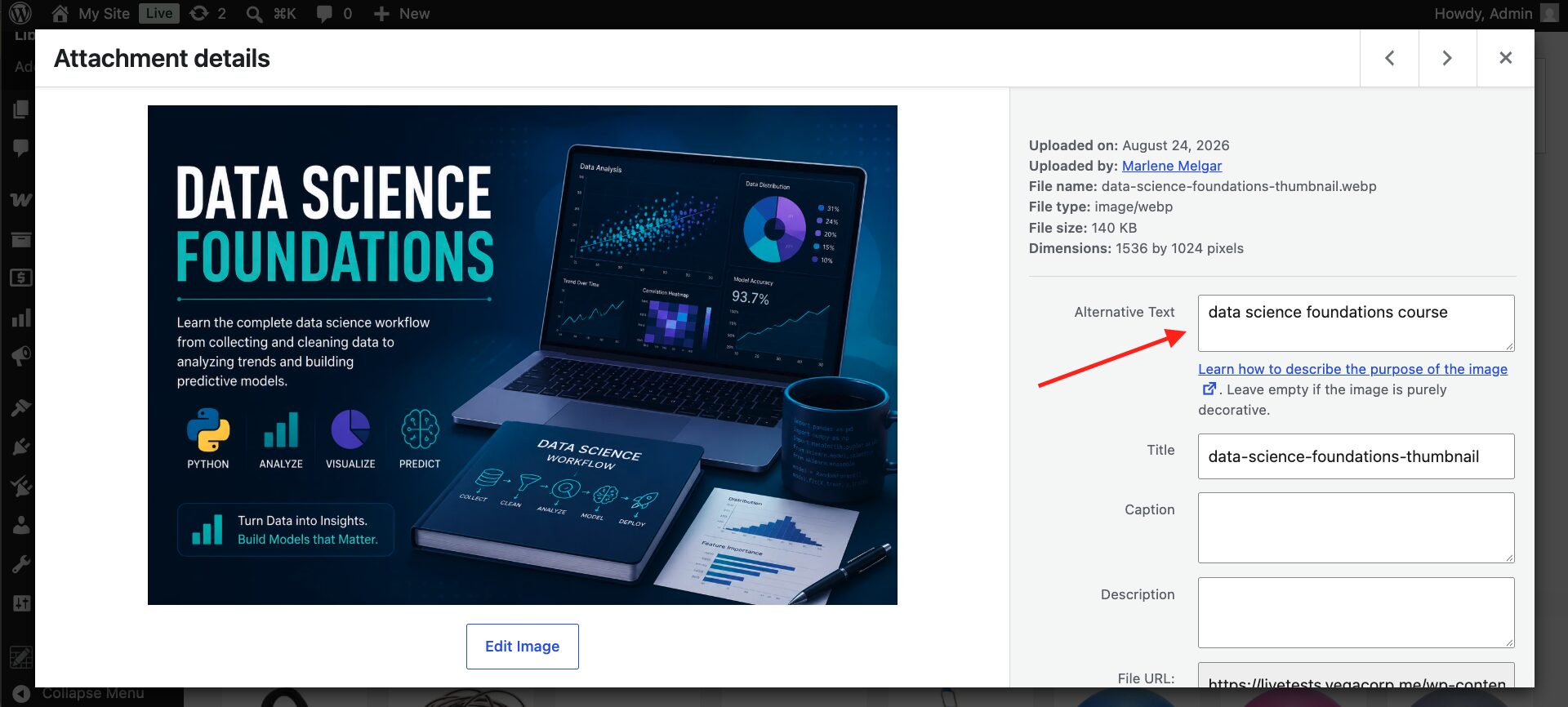
You can also select an image in the WordPress block editor and edit its alternative text in the block settings.
Note: Changing an image’s alt tag in the Media Library does not necessarily update the alt attribute of images already inserted into posts or pages. Those images may have their own alt tag values.
Editing images individually works for small libraries, but if you have hundreds of images to update, the following method lets you manage their alt tags in a spreadsheet.
Install WP Sheet Editor – Media Library
WP Sheet Editor – Media Library displays WordPress media files in a spreadsheet where you can edit:
- Image titles
- Alt text
- Captions
- Descriptions
- File URLs
- Metadata and custom fields
You can search for images missing alt tag, edit individual cells, bulk update media fields, and import or export data using CSV files.
You can download the plugin here:
Download Media Library Spreadsheet Plugin - or - Check the features
Find WordPress images without alt tag
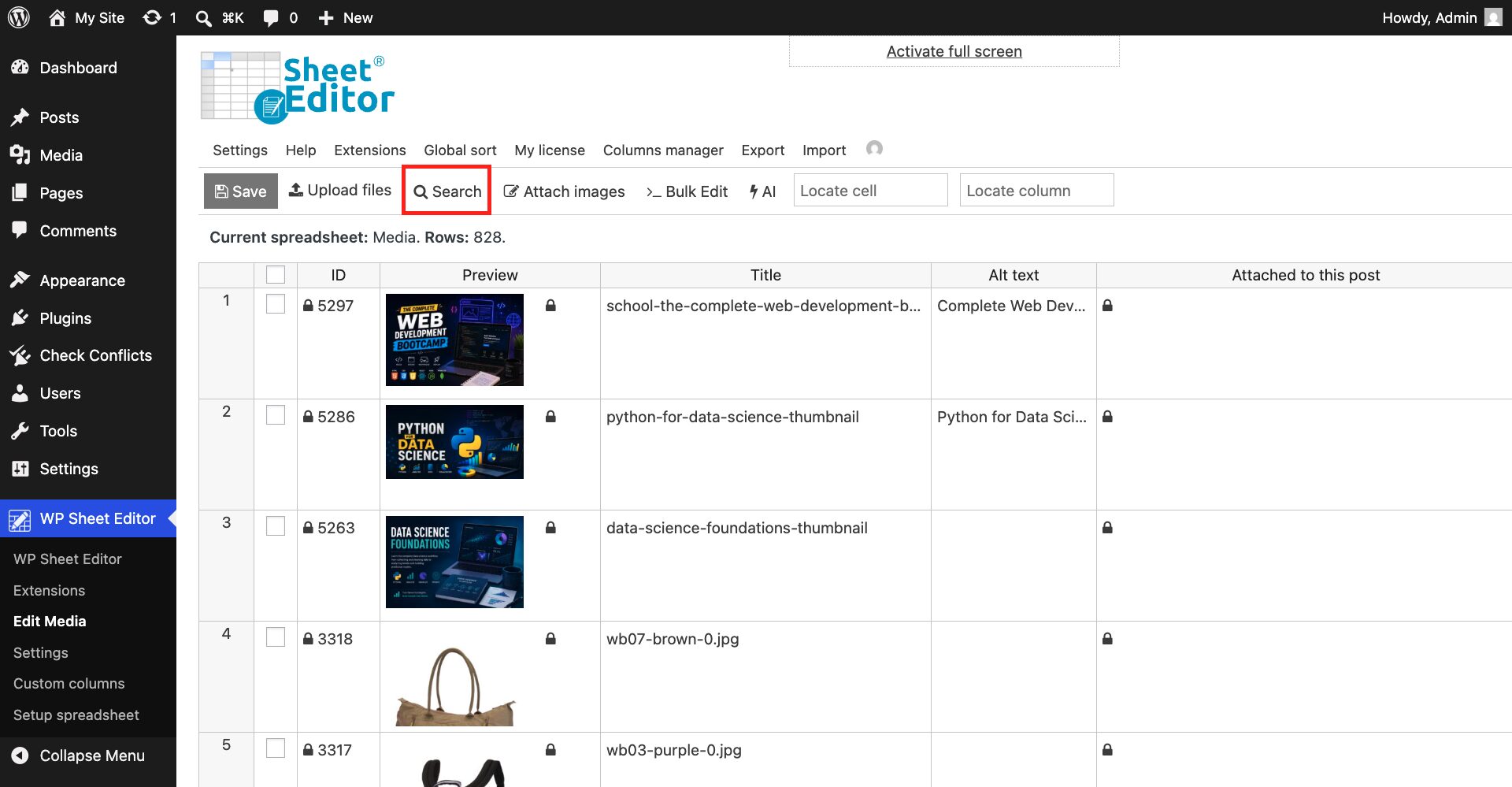
Open the media spreadsheet by going to WP Sheet Editor > Edit Images.
Once you’re there, click Search.
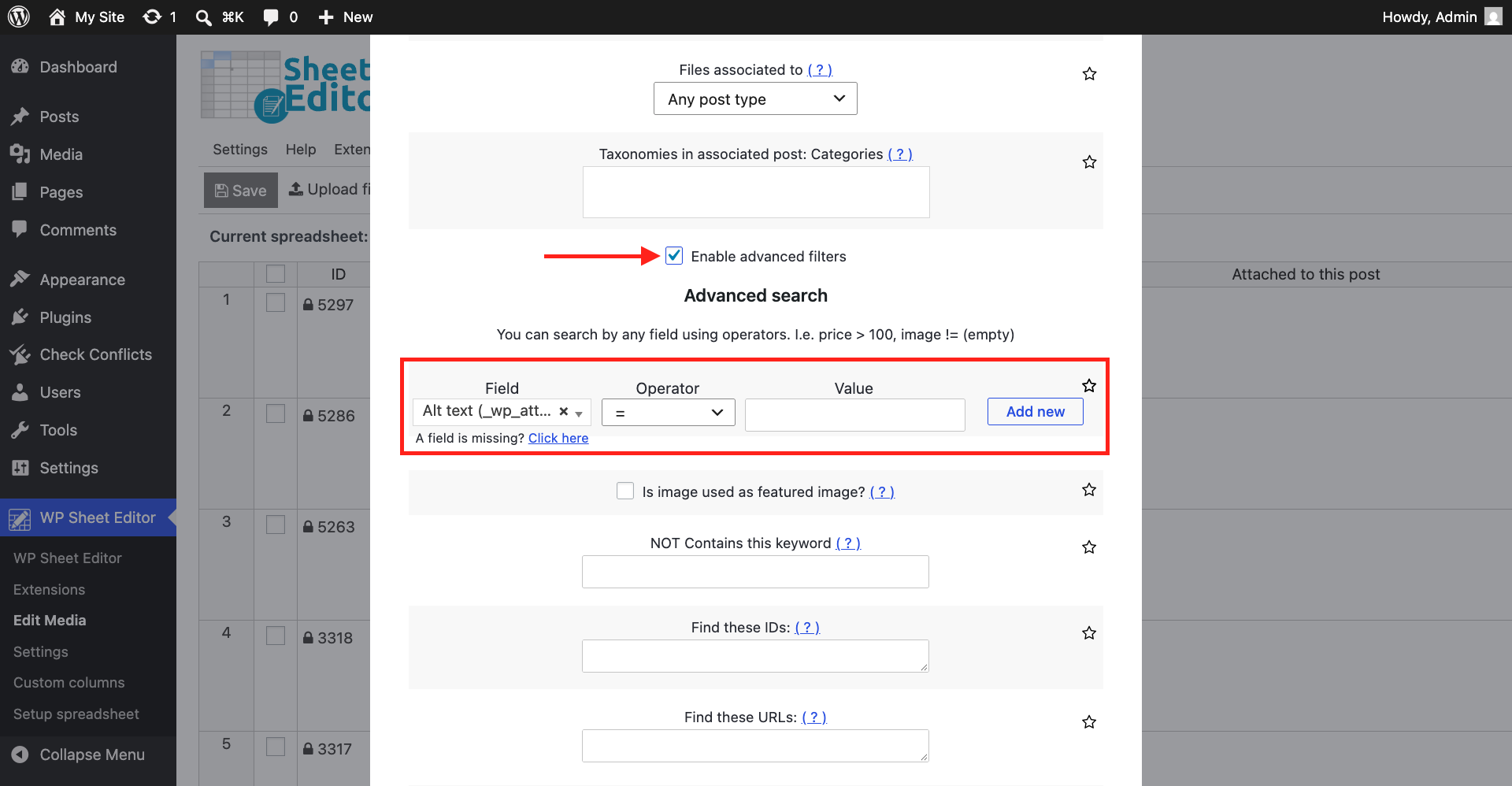
Use these search settings to find images with empty alt tags:
- Enable Advanced filters.
- Field: Alt text
- Operator: =
- Value: Leave empty
- Click Run search.
The spreadsheet will display media files with empty alt tag fields.
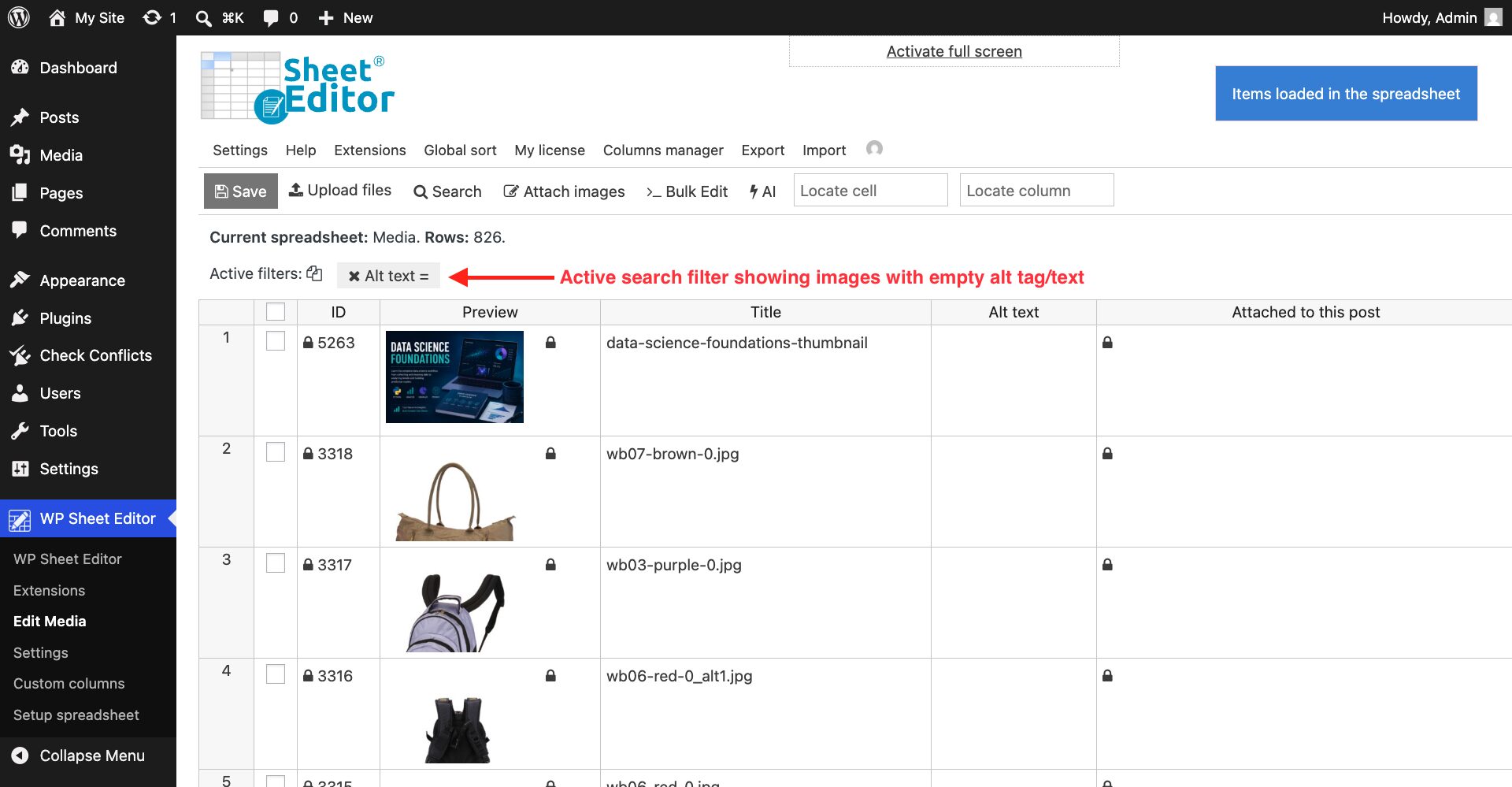
You can now edit the filtered images using any of the following methods.
Method 1. Add alt attribute in WordPress spreadsheet
Find the Alt text column and enter an appropriate description for each image.
For example, an image showing a black leather office chair could use the alt tag “Black leather office chair with adjustable armrests.”
Once you’ve edited your images, click Save.
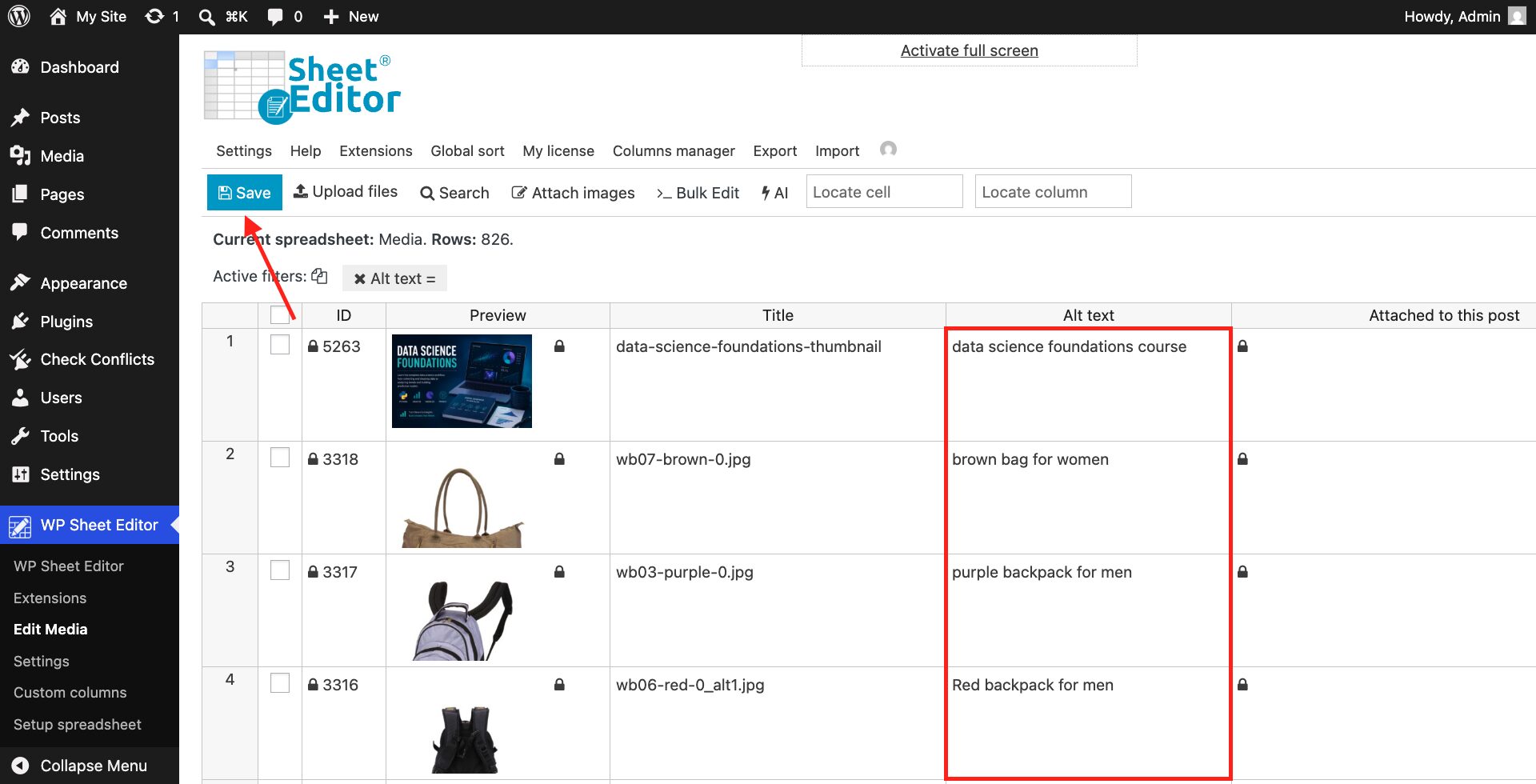
This method is useful when images need individual descriptions based on their content and purpose.
Method 2. Bulk Edit WordPress Image Alt Tags
WP Sheet Editor’s Bulk Edit tool allows you to update the alt tags of multiple images at once.
You can set the same alt tag for selected images or copy existing data from other fields, including image titles, captions, filenames, and associated posts.
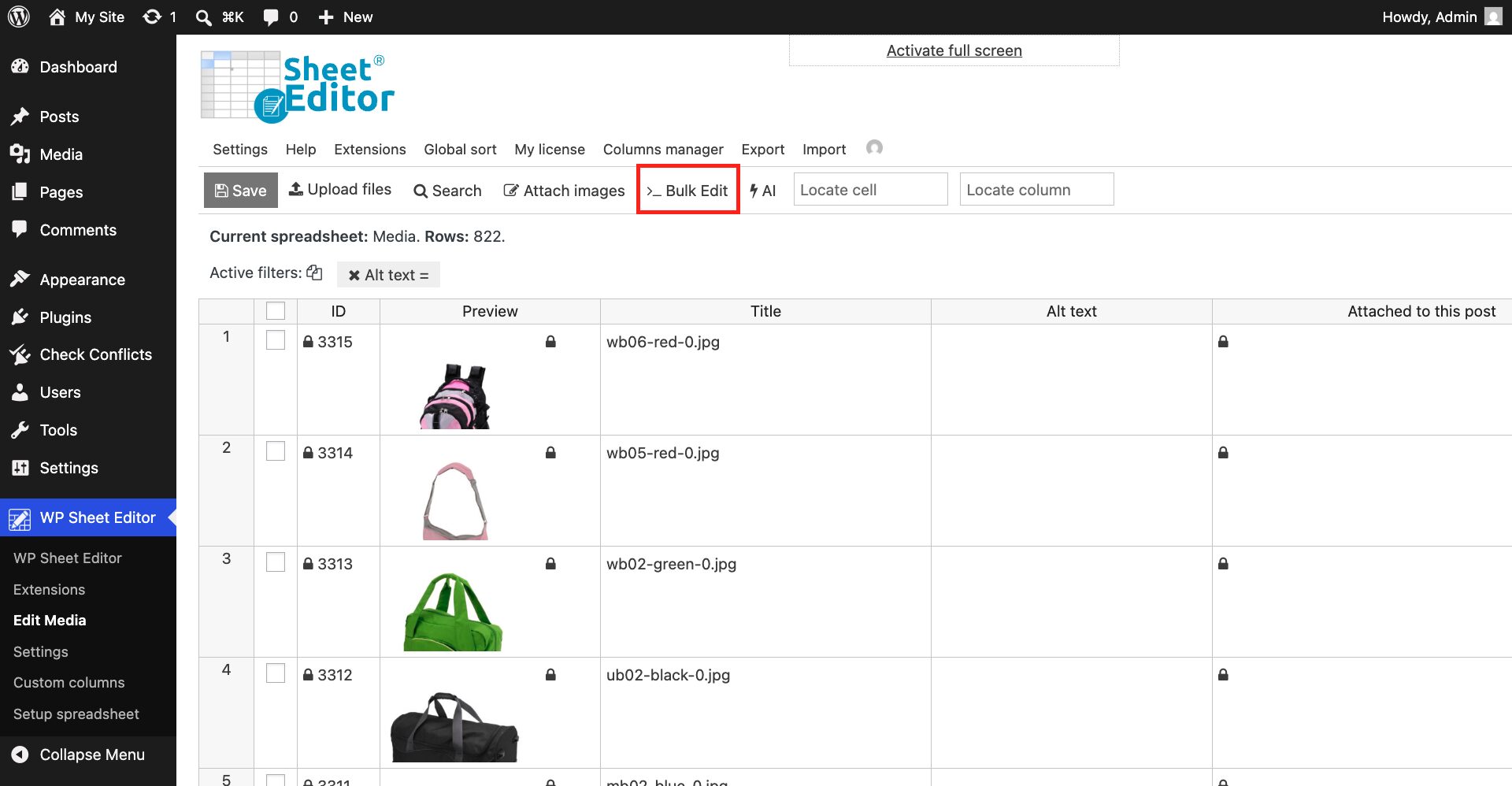
Click Bulk Edit to open the tool.
Add the same alt tag to multiple images
To assign the same alt tag to the images in your current search, select:
- Select the rows that you want to update: Edit all the rows from my current search
- What field do you want to edit: Alt text
- Select type of edit: Set value
- Replace existing value with this value: Enter your alt text
- Click Execute Now.
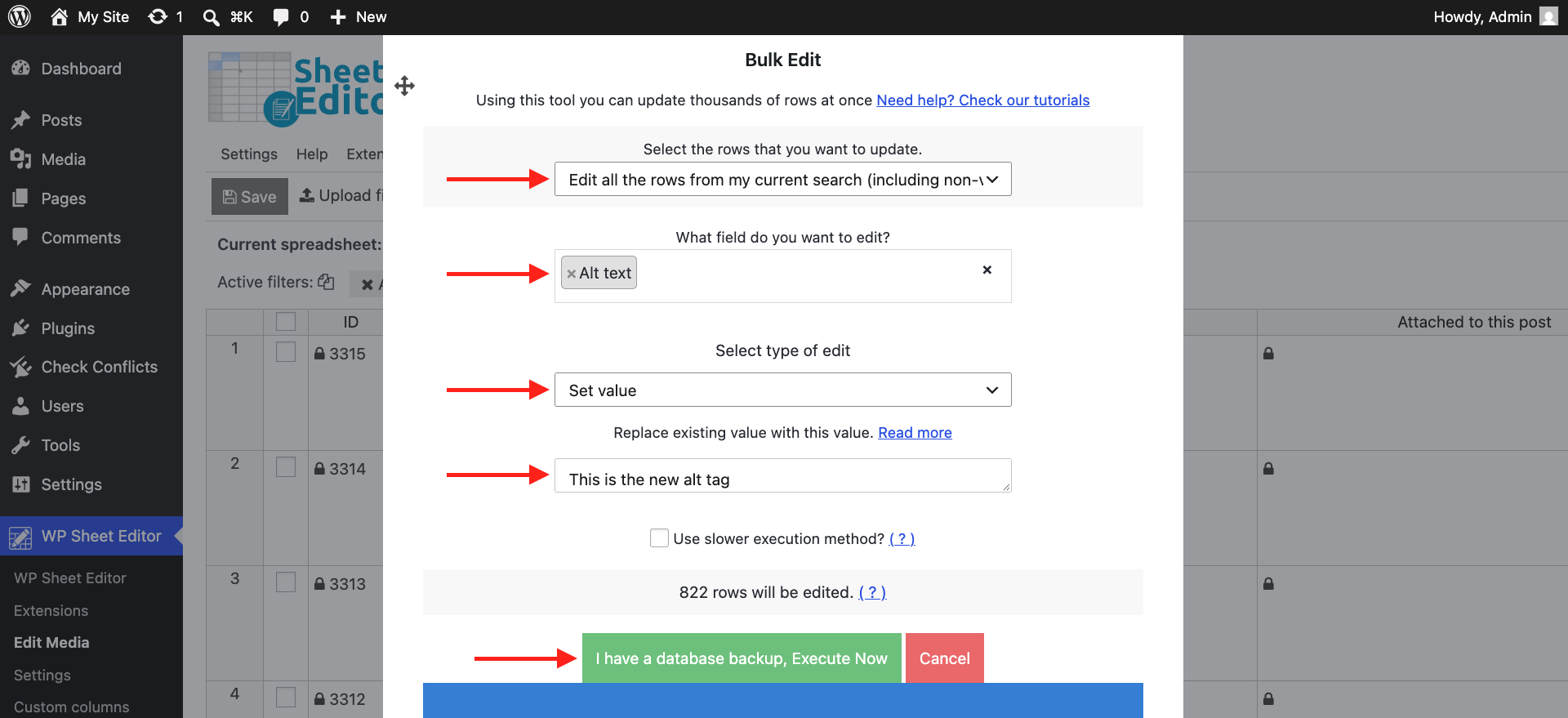
Use this method only when the same description is appropriate for every selected image. Different images generally need descriptions that reflect what they communicate.
Copy alt tag from titles, captions, or filenames
You can also populate the alt tag field using information already stored in your Media Library.
In the Bulk Edit tool, select:
- Select the rows that you want to update: Edit all the rows from my current search
- What field do you want to edit: Alt text
- Select type of edit: Copy from other columns
- Copy from this column: Title, Attached to this post, Caption, or Filename
- Click Execute Now.
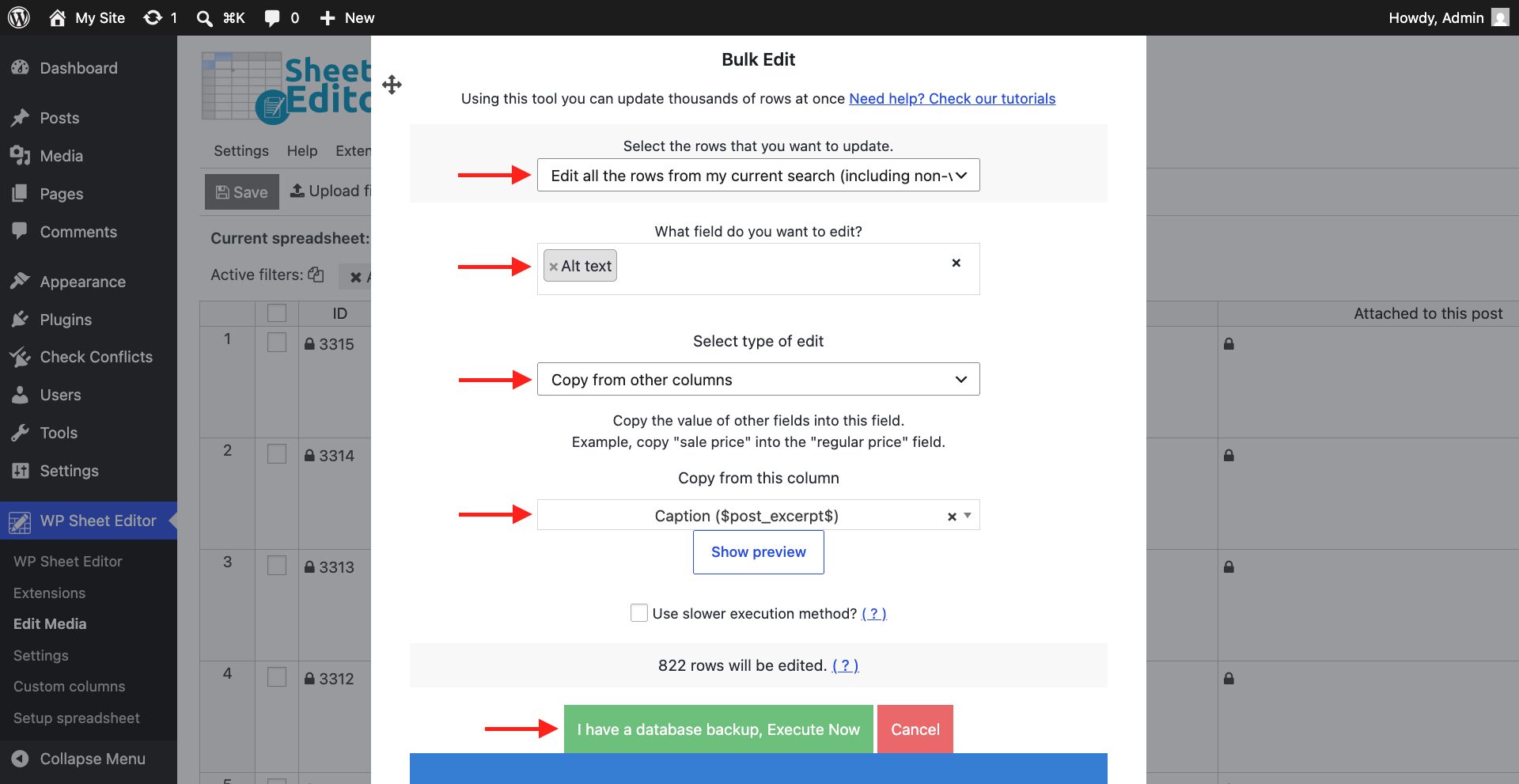
Important: Image titles, filenames, and captions are not always suitable alt tag. Review the copied values to ensure they describe the images accurately. For example, a filename such as IMG_2048.jpg provides no useful description.
Method 3. Add Alt Tags by Importing from CSV File
If you already have image descriptions in a CSV file, you can import them into WP Sheet Editor to update existing WordPress media files.
You can also use WP Sheet Editor’s Export tool to download the images from your current search, add alt tags in Excel or another CSV editor, and import the updated file.
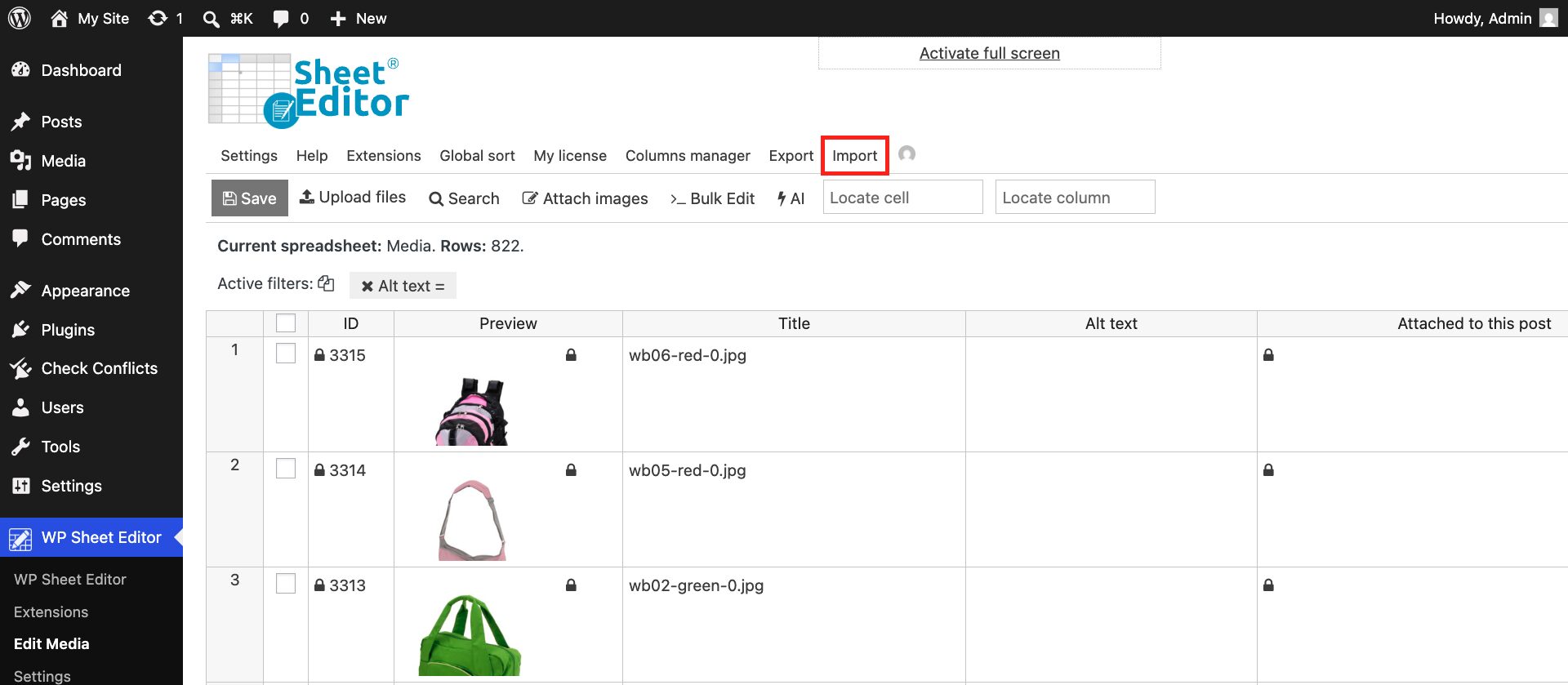
Step 1. Open the Import tool
Click Import in the spreadsheet toolbar.
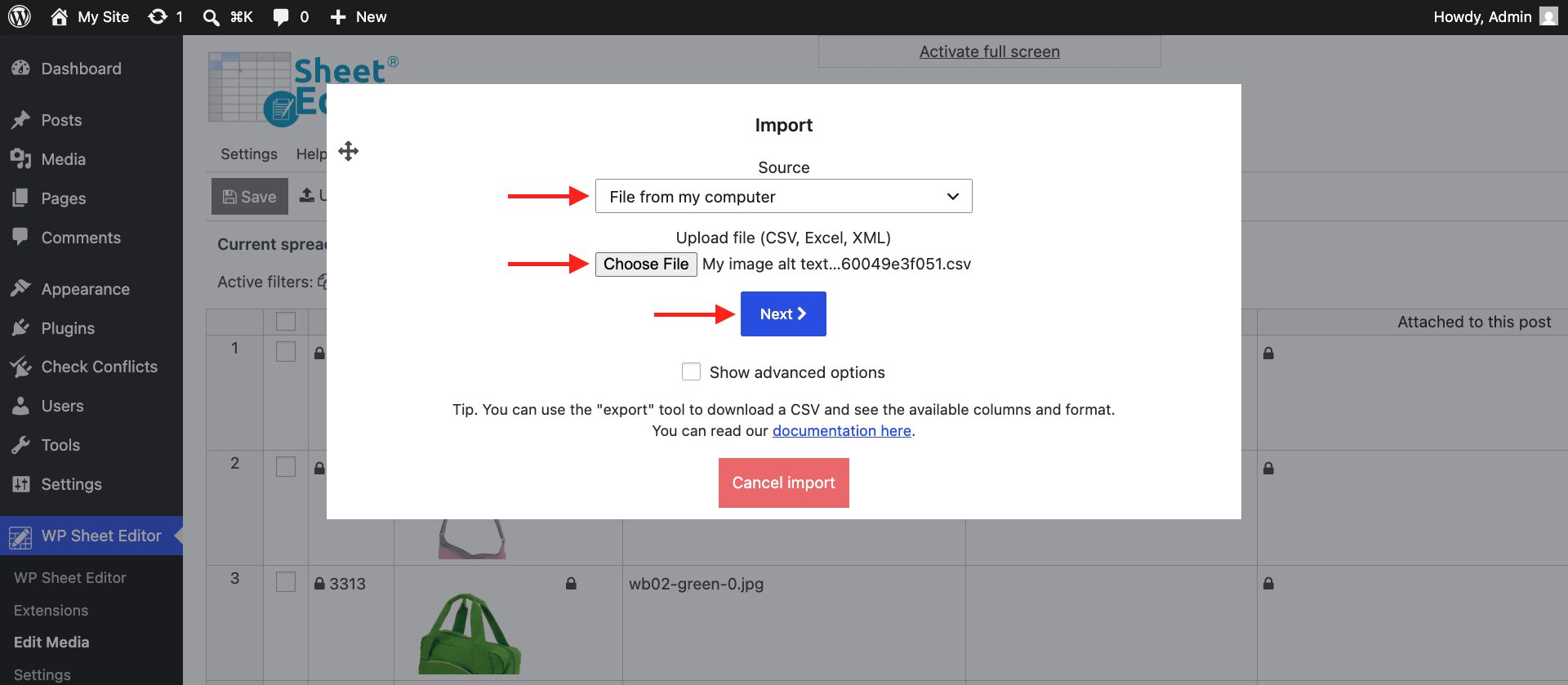
Step 2. Upload your CSV file
Select these options:
- Source: File from my computer
- Click Choose File and select your CSV file.
- Click Next.
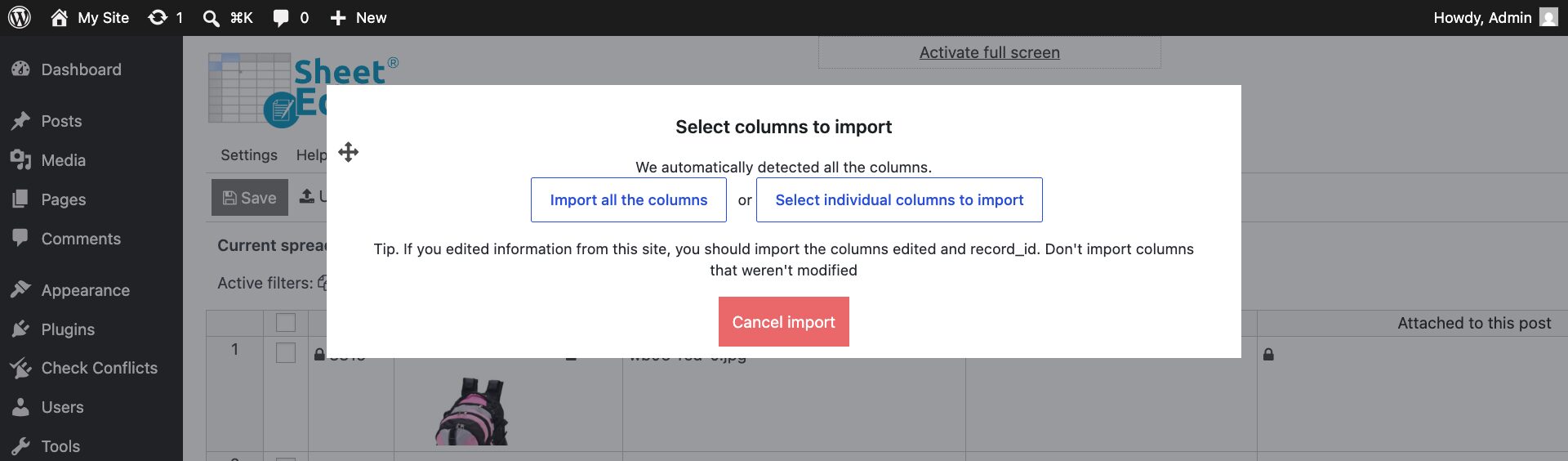
Step 3. Select the columns to import
Click Import all the columns if your CSV contains only the fields you want to update. Otherwise, select the relevant columns to avoid changing unrelated image data.
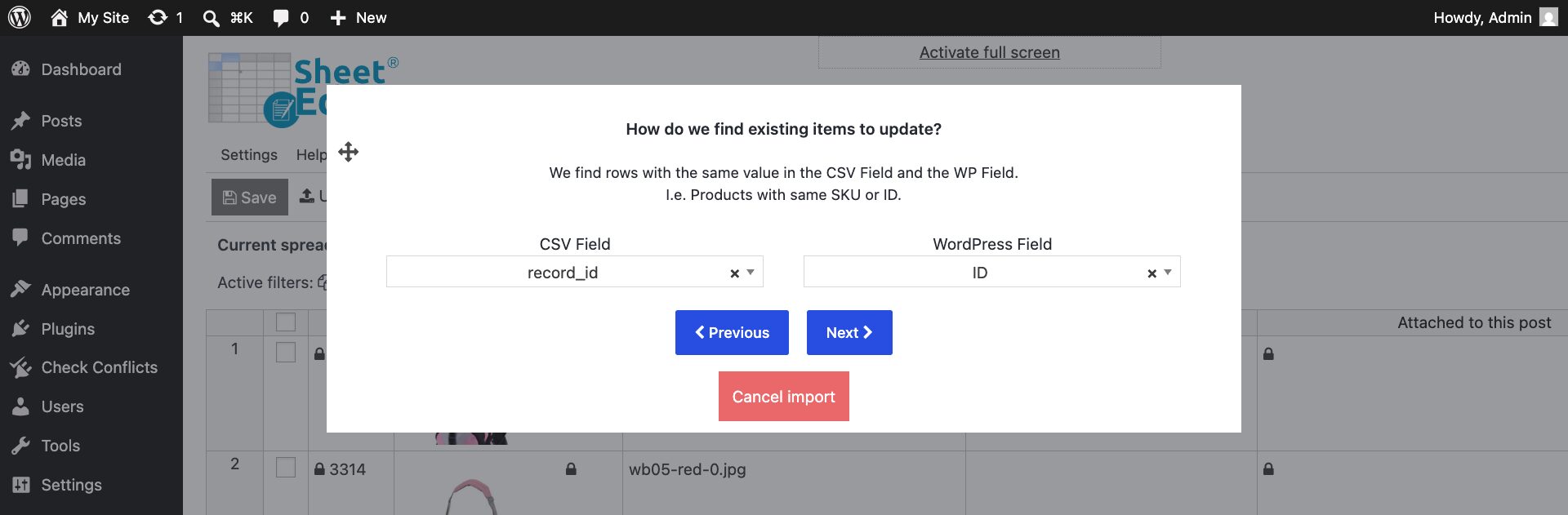
Step 4. Match the CSV records with WordPress images
To update existing images, match the records in your CSV file with their WordPress IDs:
- CSV Field: record_id
- WordPress Field: ID
- Click Next.
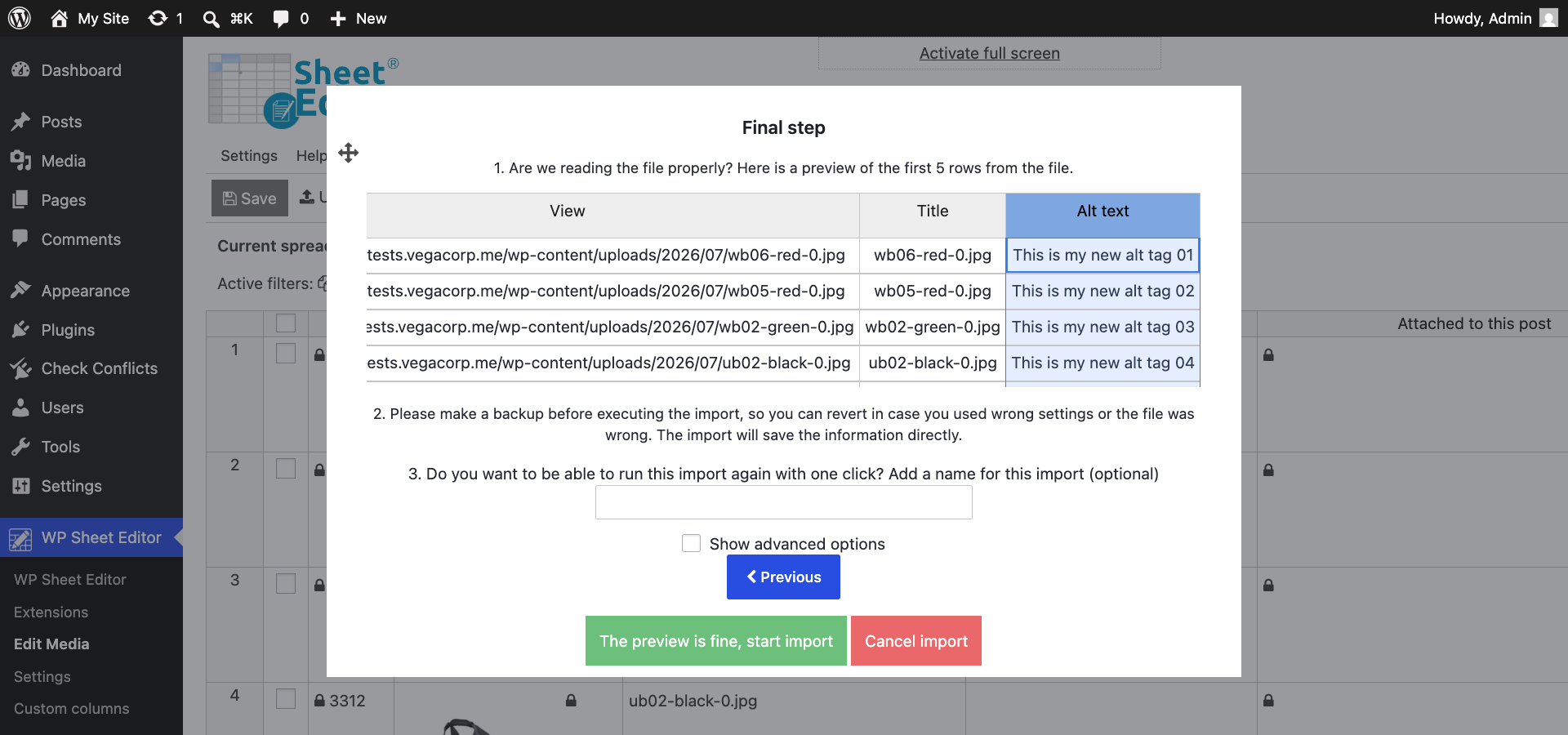
Step 5. Preview and import the changes
Review the preview to confirm that the correct images and alt tag values will be updated.
Click The preview is fine, start import to apply the changes.
Optional: Add Alt Tags Using Generative AI
A great way to add alt tags to your images in WordPress is with artificial intelligence. You can save a lot of time because you don’t have to type the alt tags manually. Your multimodal model will analyze your images and generate detailed descriptions of them.
You can follow our guide to generating alt tags with AI.
Manage WordPress image alt tags in bulk
For individual images, you can add alt atributes using the default WordPress Media Library or block editor.
If you need to update a larger collection, WP Sheet Editor – Media Library lets you find images with empty alt text fields, edit descriptions in a spreadsheet, bulk copy values from existing media fields, and import alt tags from CSV files.
This allows you to manage your Media Library alt tag without opening each media item separately.
You can download the plugin here:
Download Media Library Spreadsheet Plugin - or - Check the features