
You can generate WordPress image alt text with AI in bulk instead of writing alt text manually for every image in your Media Library. With WP Sheet Editor – Media Library and WP Sheet Editor – AI, you can use a multimodal AI model to analyze your images and automatically generate descriptive alt text for hundreds or thousands of WordPress images.
This is especially useful if your WordPress Media Library contains images with missing or deficient alt text. Instead of opening each image individually and writing a description, you can filter images without alt text, send the images to an AI model, and generate unique alt text for all matching images in bulk.
In this guide, you’ll learn how to:
- Generate alt text for WordPress images using AI.
- Use an AI model to analyze images and write descriptive alt text.
- Find WordPress images with missing or empty alt text.
- Generate alt text for hundreds of images at once.
- Customize the AI prompt used to generate image alt text.
- Use different AI providers and multimodal models with WP Sheet Editor AI.
Tools to Generate WordPress Image Alt Text with AI
The process uses two WP Sheet Editor plugins:
WP Sheet Editor – Media Library lets you manage WordPress Media Library files in a spreadsheet, making it easy to search, filter, and edit image metadata in bulk.
You can download the plugin here:
Download Media Library Spreadsheet Plugin - or - Check the features
WP Sheet Editor – AI is a service that adds AI-powered content generation to WP Sheet Editor spreadsheets. You can use it to generate or rewrite WordPress content and custom fields, including image alt text.
You can sign up here:
Sign up to the WP Sheet Editor - AI Service - or - Check the features
The AI generation is handled through your external AI provider’s API key and the Bulk AI API. This allows you to process many images without manually sending individual requests. WP Sheet Editor processes the requests in batches, helping you handle large numbers of images without the timeouts or PHP memory problems that can occur with a traditional many-requests-at-a-time process.
Set Up an AI Provider and Multimodal Model
Before generating alt text, configure an AI provider and a model that can understand images.
For this example, we’ll use OpenAI with the GPT-4o model. You can use a different provider and model as long as it supports image input and is compatible with the supported OpenAI API format.
A multimodal model is important because the AI needs to see and analyze the image before it can generate useful alt tag. A text-only AI model cannot inspect the contents of an image.
WP Sheet Editor – AI allows you to configure multiple providers and models. This means you can use different AI models for different tasks depending on your requirements and budget.
To set up your provider and model:
- Go to WP Sheet Editor > AI > Settings.
- Select a provider that accepts Multimodal like OpenRouter, LM Studio, or your custom OpenAI-compatible provider.
- Select your preferred model.
- Add your external provider API Key.
- Save the changes.
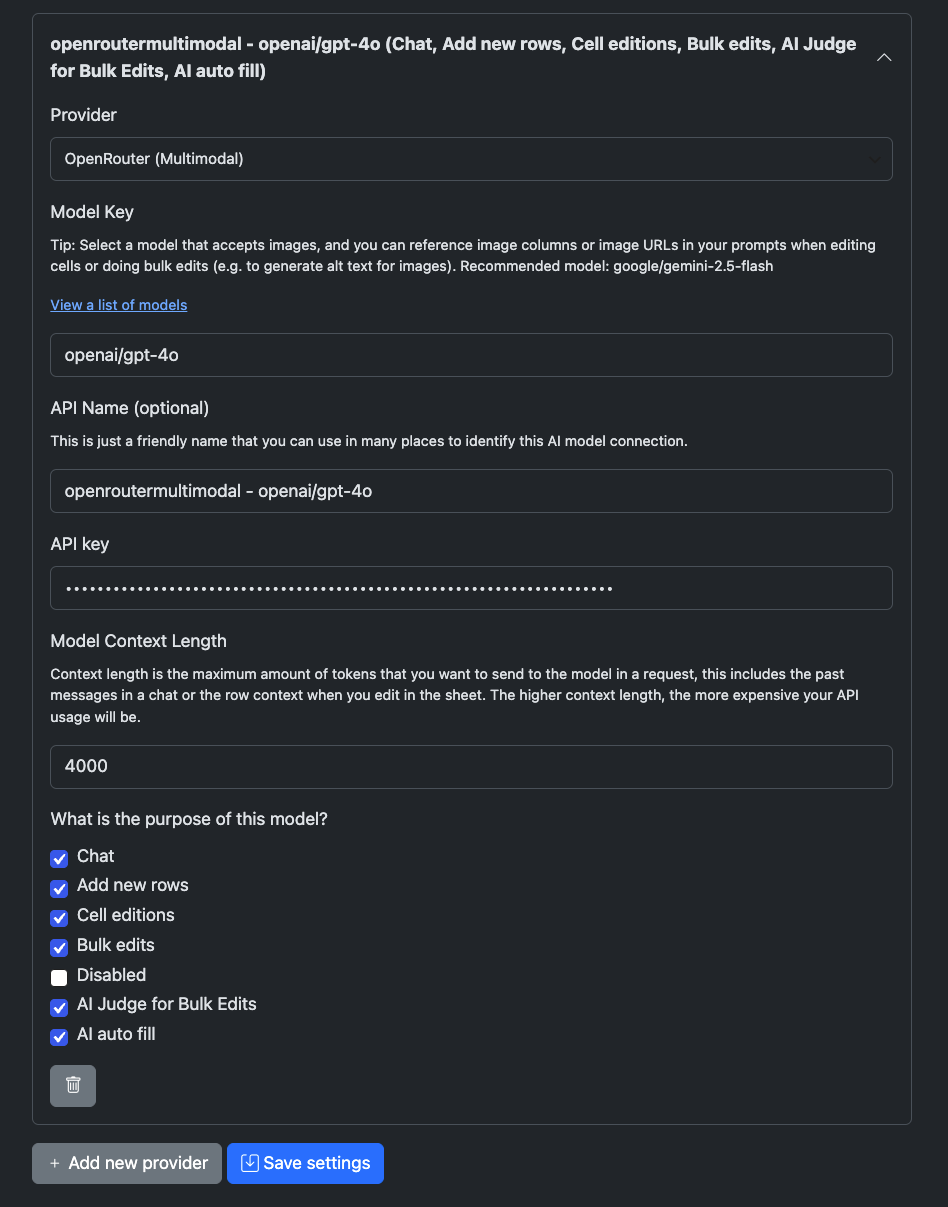
Compatible AI Providers:
- OpenAI
- OpenRouter
- LM Studio
- Google Gemini Nano Banana
- Custom (OpenAI-Compatible)
Open the WordPress Media Library Spreadsheet
Once your AI provider and model are configured, open your WordPress Media Library spreadsheet by going to WP Sheet Editor > Edit Media.
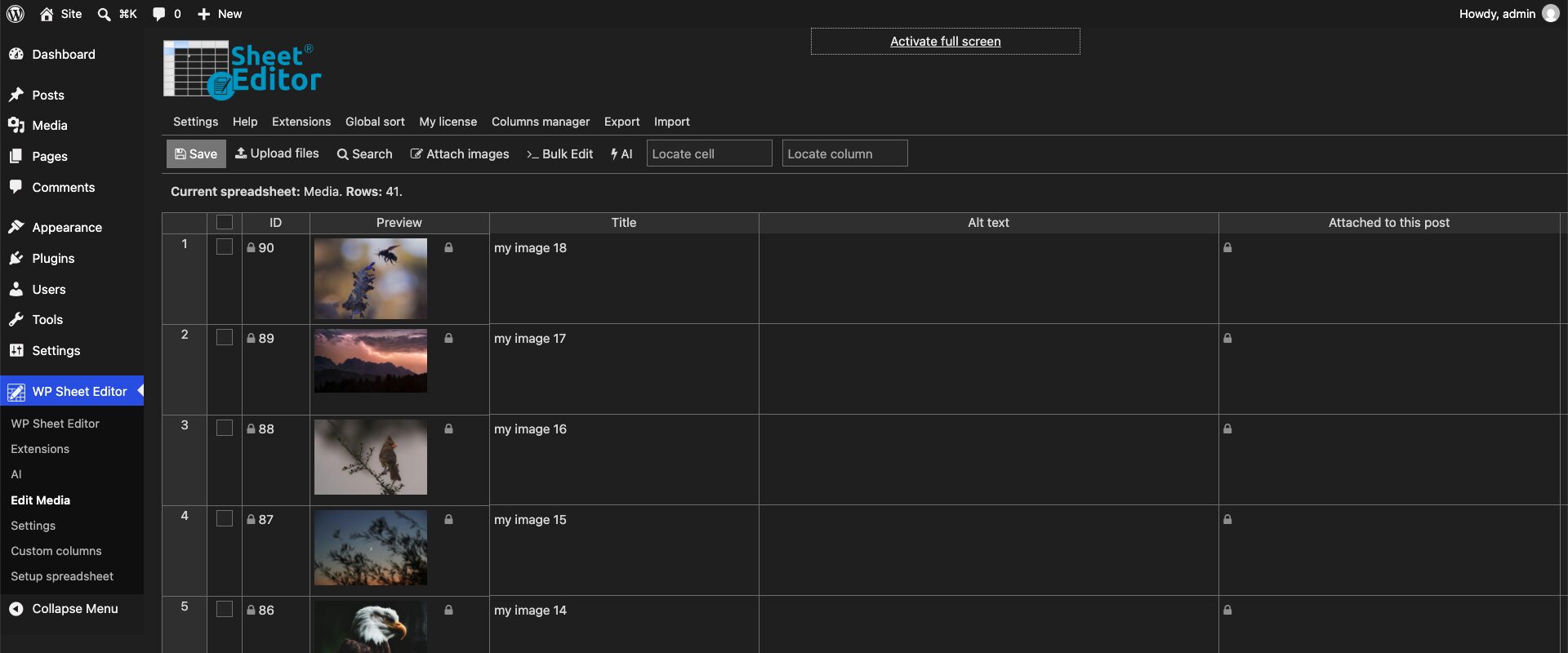
Instead of managing each image through the standard WordPress Media Library interface, you’ll see your media files as rows in a spreadsheet. Image information, including the Alt Text field, can be searched, filtered, and edited from the spreadsheet.
This makes the spreadsheet especially useful when you need to bulk edit image alt text in WordPress.
Option 1: Generate Alt Texts in the Spreadsheet
You can generate alt text directly from the spreadsheet by using an AI prompt. Go to the Alt text column to start generating alt tag.
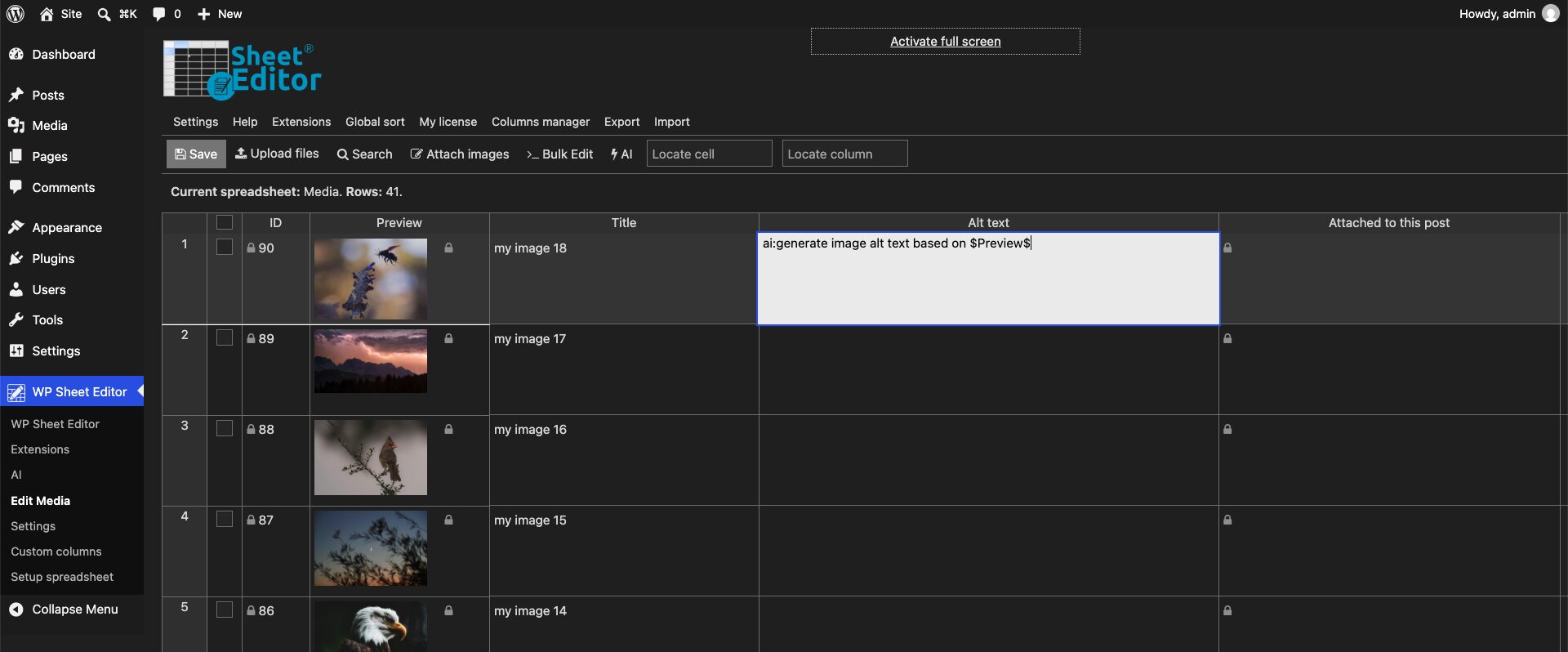
To use AI in a cell, start the value with AI: followed by your prompt. Your prompt can reference the image in the Preview column so the AI knows which image it needs to analyze.
AI: Describe the image in the $Preview$ column and generate concise, descriptive alt text.
The column name is enclosed between dollar signs so WP Sheet Editor AI knows which field to use as part of the prompt.
You can use the same approach to reference other columns or fields. This gives you control over the information provided to the AI when generating your alt text.
When you press Enter, the AI model receives the image and analyzes its contents before generating the requested alt text.
Customize the AI Prompt for Better Alt Text
You don’t have to use a generic prompt. You can tell the AI exactly how you want your WordPress image alt text to be written.
For example, you can instruct the model to:
- Keep the alt text concise.
- Describe the main subject of the image.
- Include important visible details.
- Avoid unnecessary information.
- Write naturally for WordPress accessibility.
- Avoid beginning every description with phrases such as “image of” or “picture of.”
The more specific your prompt is, the more consistently the AI can follow your preferred format.
Option 2: Bulk Generate WordPress Alt Text Using AI
If you have hundreds or thousands of images, generating alt text one image at a time isn’t practical. Instead, you can first find the images that need alt text and the generate the alt tags for all of them.
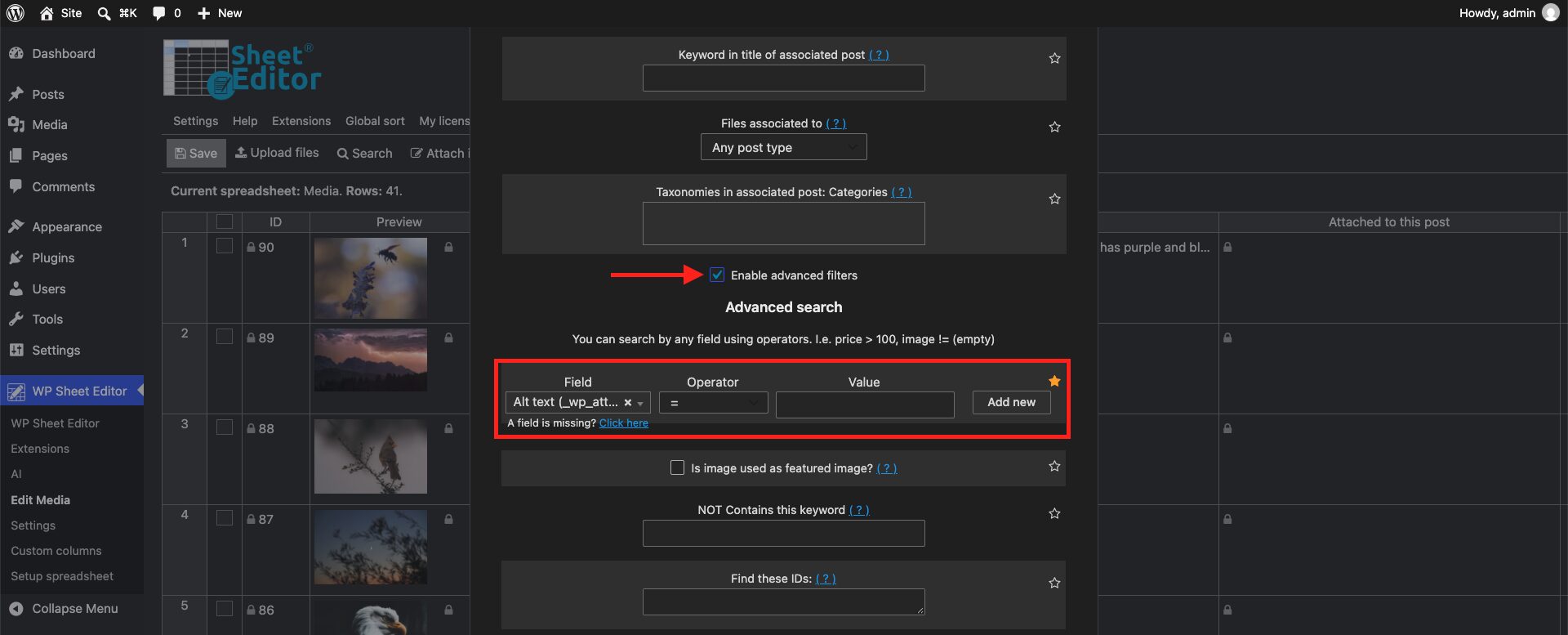
In the Media Library spreadsheet, open the Search tool, which will allows you to filter the Alt Text field to find images where the field is empty.
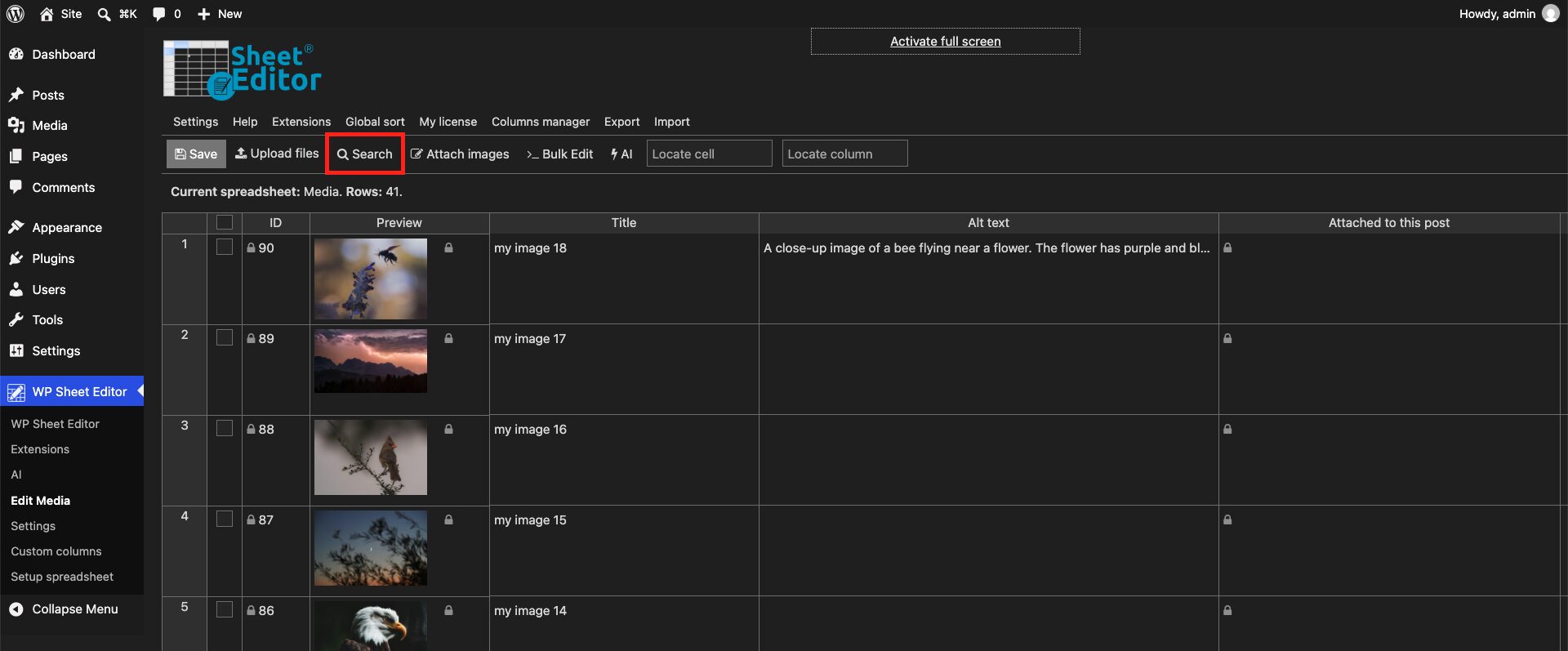
In this example, our site hast images only, so there’s no need to add an additional file-format filter. If your Media Library contains other types of files, you can add additional filters to narrow the results to images.
In this case, just tick the Enable advanced filters checkbox and select these values:
- Field: Alt text
- Operator: =
- Value: Leave this field empty.
Once you select the search criteria, click on Run search.
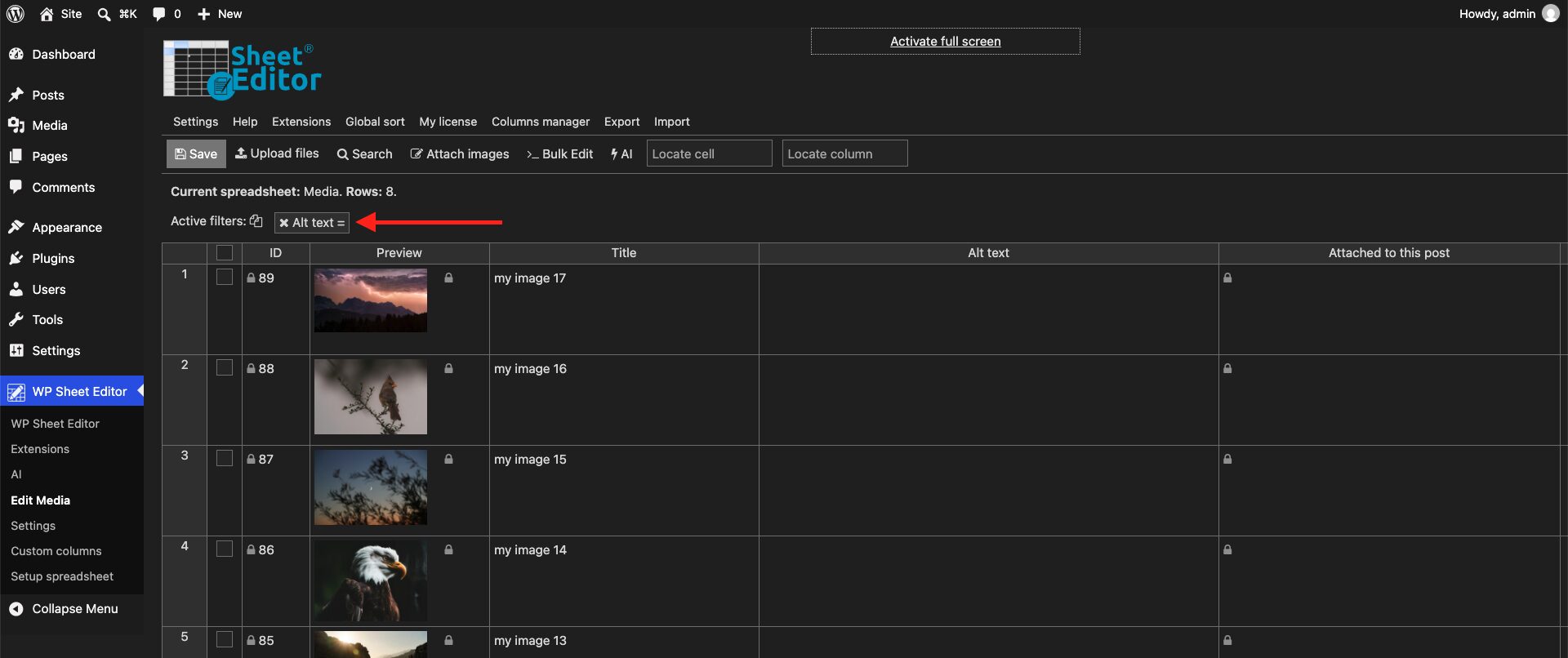
After applying the filter, the spreadsheet will show the images that currently have no alt text.
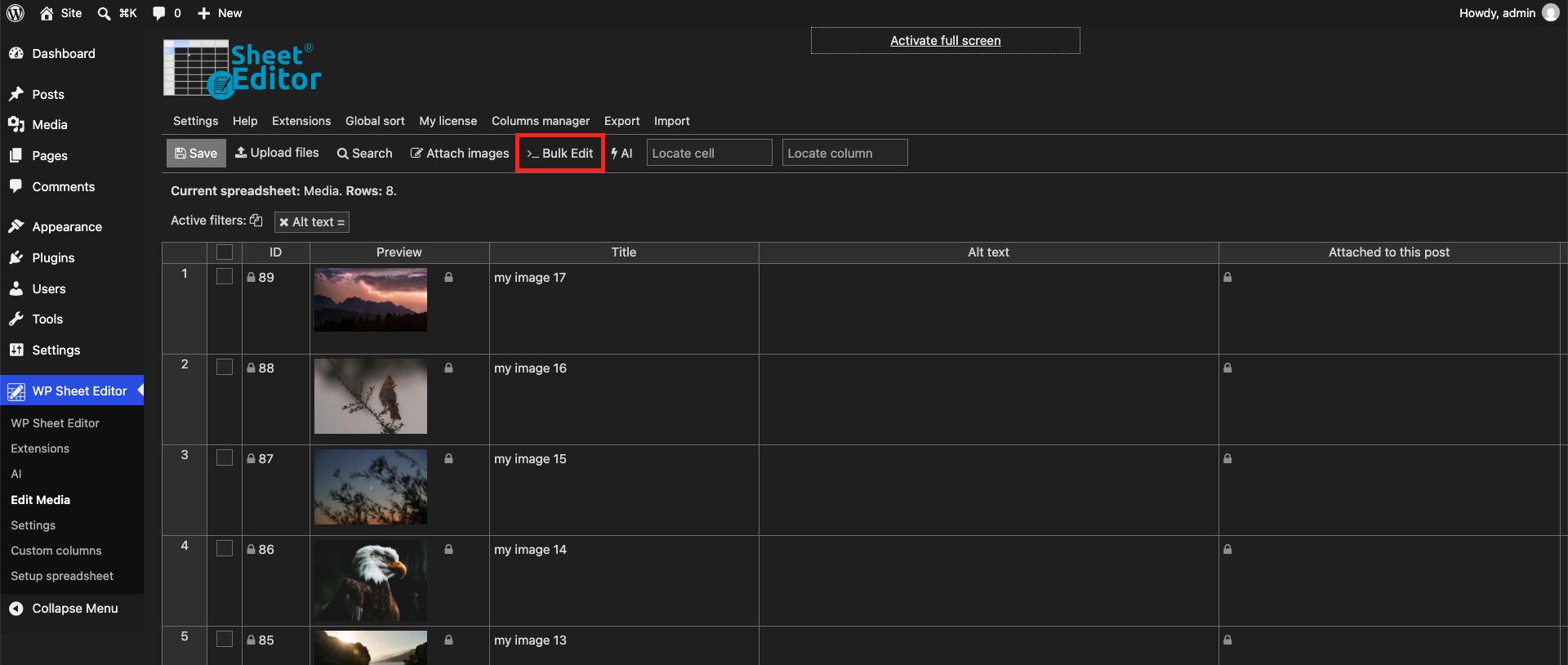
Now open the Bulk Edit tool.
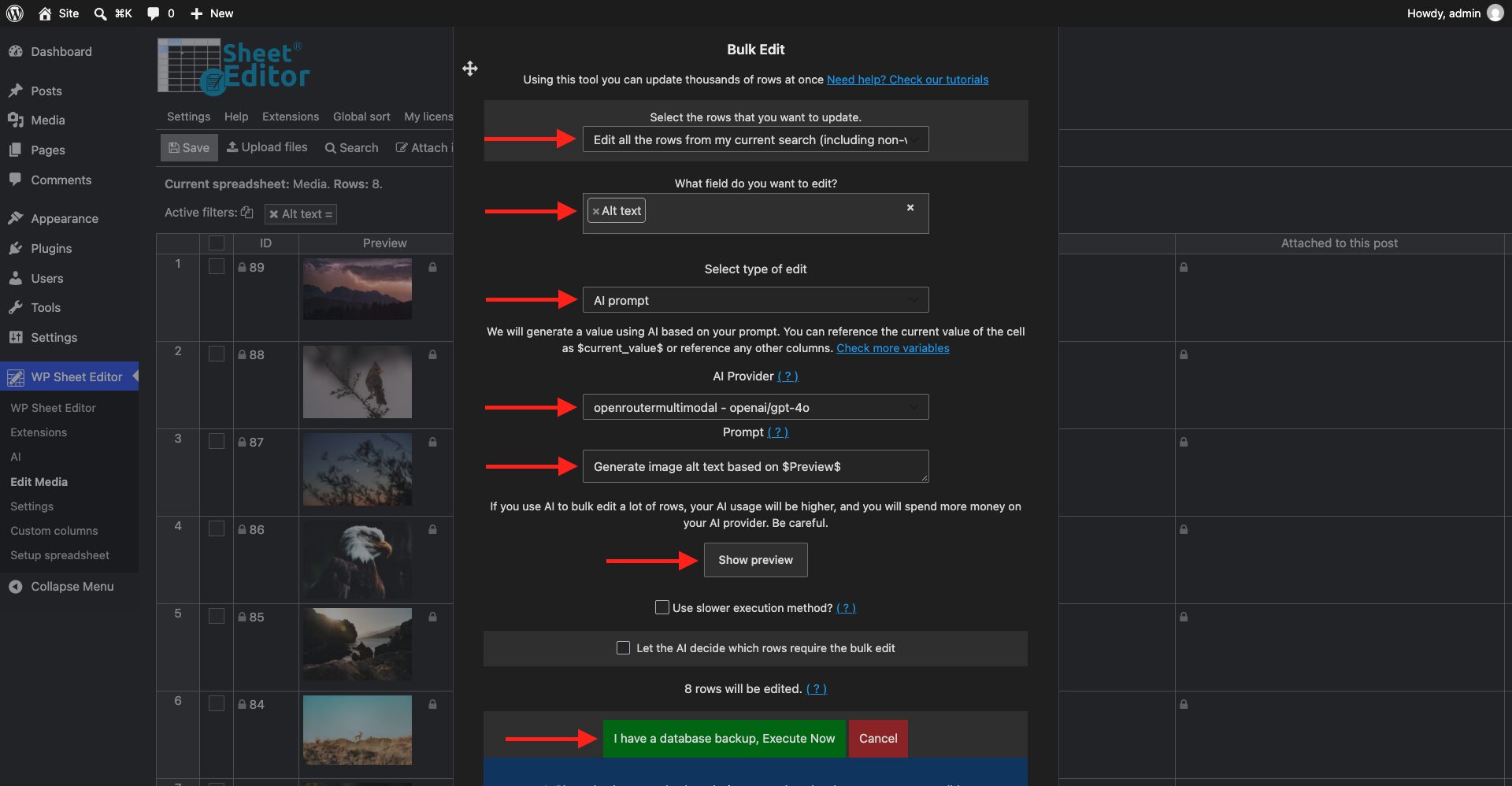
Once there, select these values to bulk write image alt texts with AI:
- Select the rows that you want to update: Edit all the rows from my current search
- What field do you want to edit: Alt text
- Select type of edit: AI Prompt
- AI Provider: Select the AI provider and model you want to execute this task.
- Prompt: Enter the prompt you want. Note. If you want to save a global prompt to reuse it as many times as you want without writing the prompt each time, you can follow this guide.
- Use the Show preview button if you want to see the result before running the bulk generation of alt tags.
- If everything looks OK, click on Execute Now.
Once the process is complete, you will see see that all your images have proper alt texts.
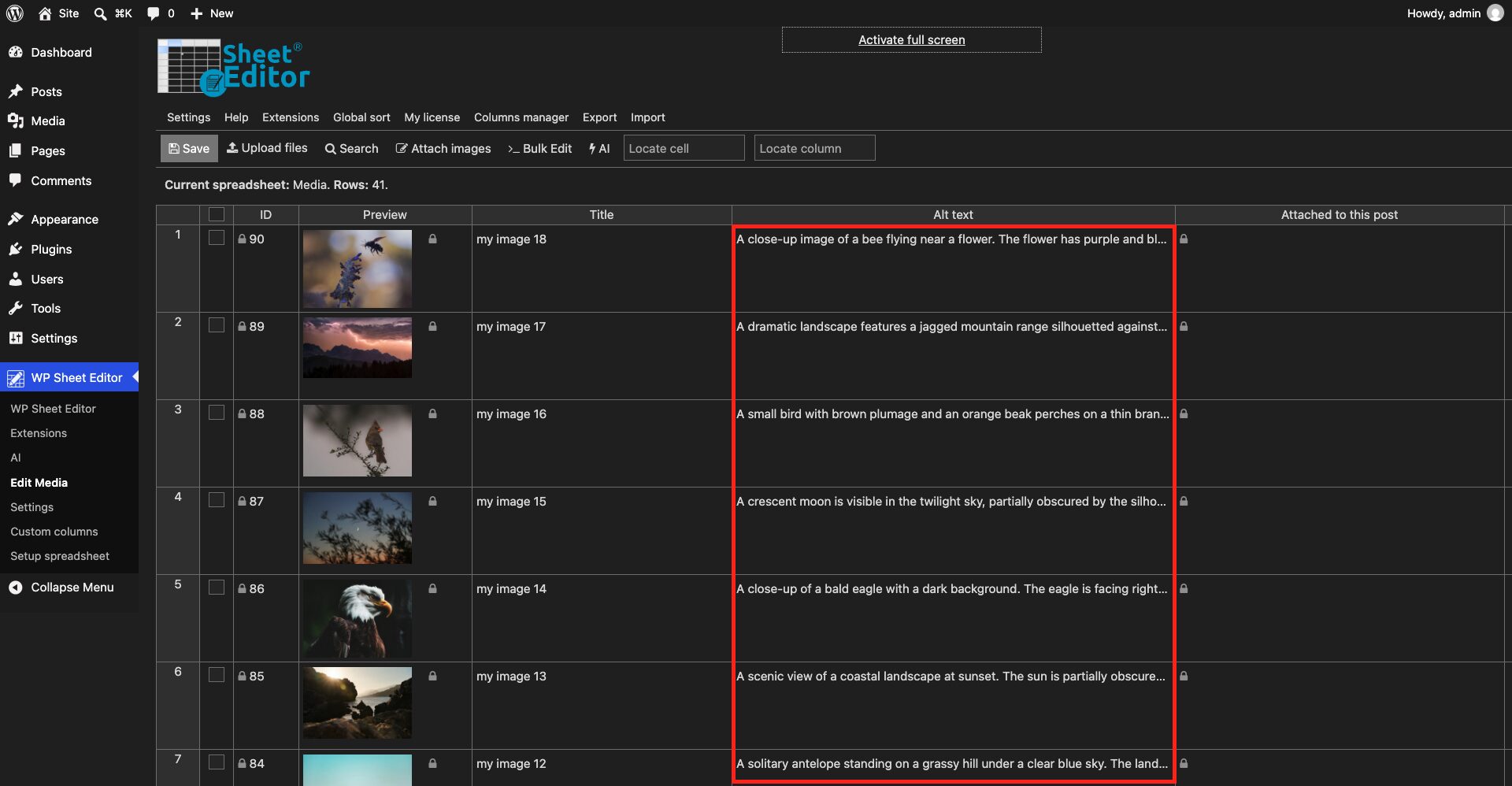
Writing alt texts manually can become a repetitive task when a website has a large Media Library. AI can help automate this work by analyzing each image and generating a description based on its visual content.
Bulk AI generation is particularly useful when:
- Your WordPress website has hundreds or thousands of images.
- Many existing images have missing alt text.
- You recently migrated a website and need to update image metadata.
- You want to review and improve existing image descriptions.
- You need a faster way to add descriptive alt text to a large Media Library.
Instead of opening each media attachment individually, you can find the images that need attention, apply an AI prompt, and process them together.
Ready to generate image alt text with AI? Use WP Sheet Editor – AI to automate alt text generation across your WordPress Media Library.
You can sign up here:
Sign up to the WP Sheet Editor - AI Service - or - Check the features